iOS 26’s Liquid Glass user interface brings dramatic change to the iPhone, so it’s no surprise that some people hate it. If the new translucent look is just not for you, you can tweak or turn off Liquid Glass in iOS 26.2. And it’s easy.
Plus, you will find the same settings in macOS Tahoe 26.2 and iPadOS 26.2, so you can turn off Liquid Glass on all your Apple devices if you like. Here’s how.
Liquid Glass: beautiful but controversial
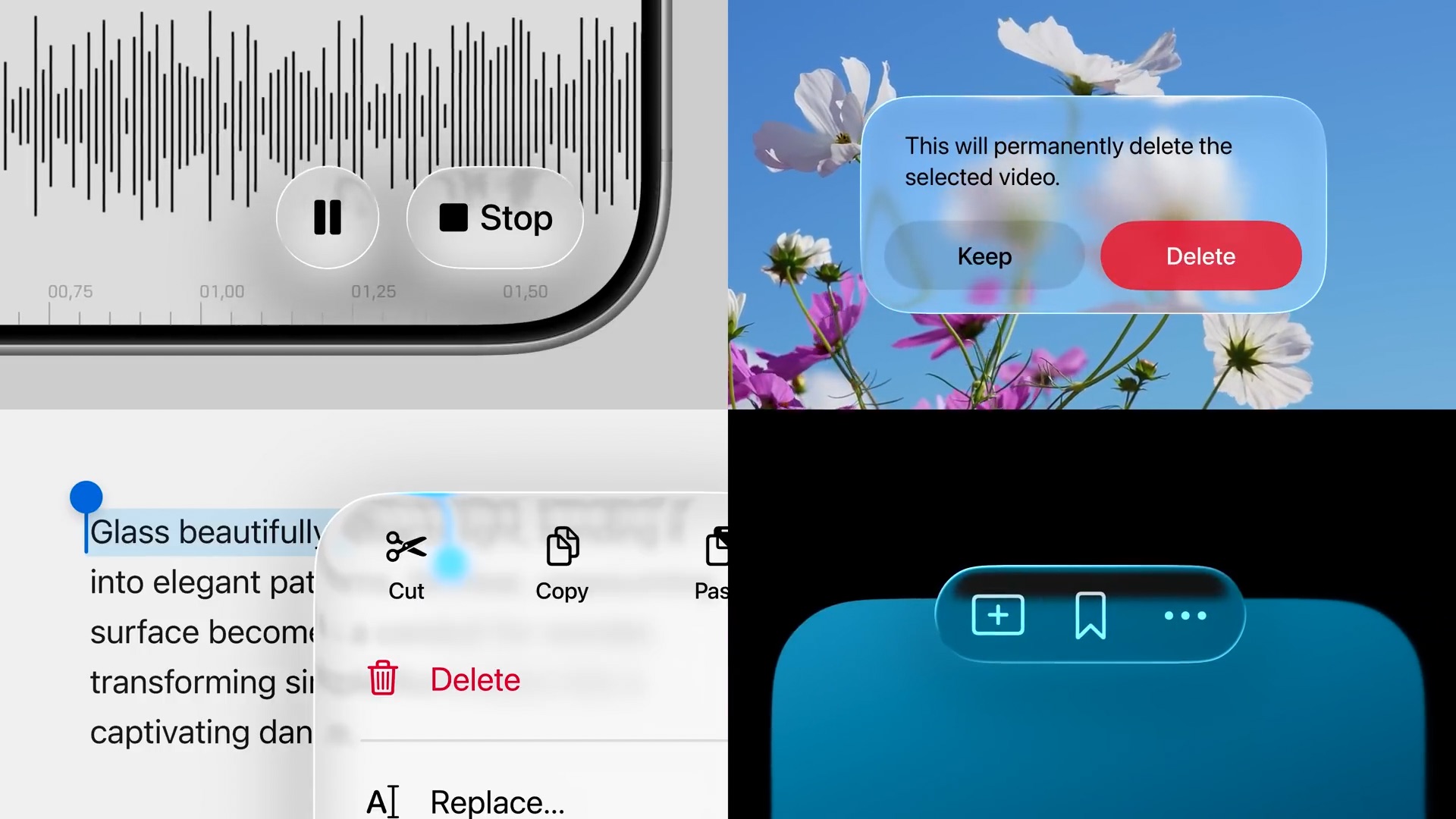
Image: Apple
Liquid Glass is a translucent and fluid new interface. Many elements of the UI go semi-transparent, while text remains readable. Clever effects make it seem like users are looking through glass at objects shown on the screen behind the Dock, Control Center and pop-up windows.
While Liquid Glass has plenty of fans, it’s a dramatic change. And while it enhances the appearance of iOS 26 and macOS Tahoe, it does nothing to improve the operating systems’ functionality. People without perfect vision, or with special accessibility needs, might struggle with Liquid Glass because there’s less contrast between text in pop-up windows and the background.
For those who don’t like the look, or find the new system hard to use, it’s easy to turn off Liquid Glass. Here I explain how to do so in iOS 26.2, iPadOS 26.2 and macOS Tahoe 26.2.
Table of contents: Turn off Liquid Glass
- Try the darker Tinted appearance
- Reduce Transparency to turn off Liquid Glass entirely
- Other ways you can undo iOS 26
Try the darker Tinted appearance
Screenshot: Ed Hardy/Cult of Mac
Apple offers a simple switch to turn off Liquid Glass.
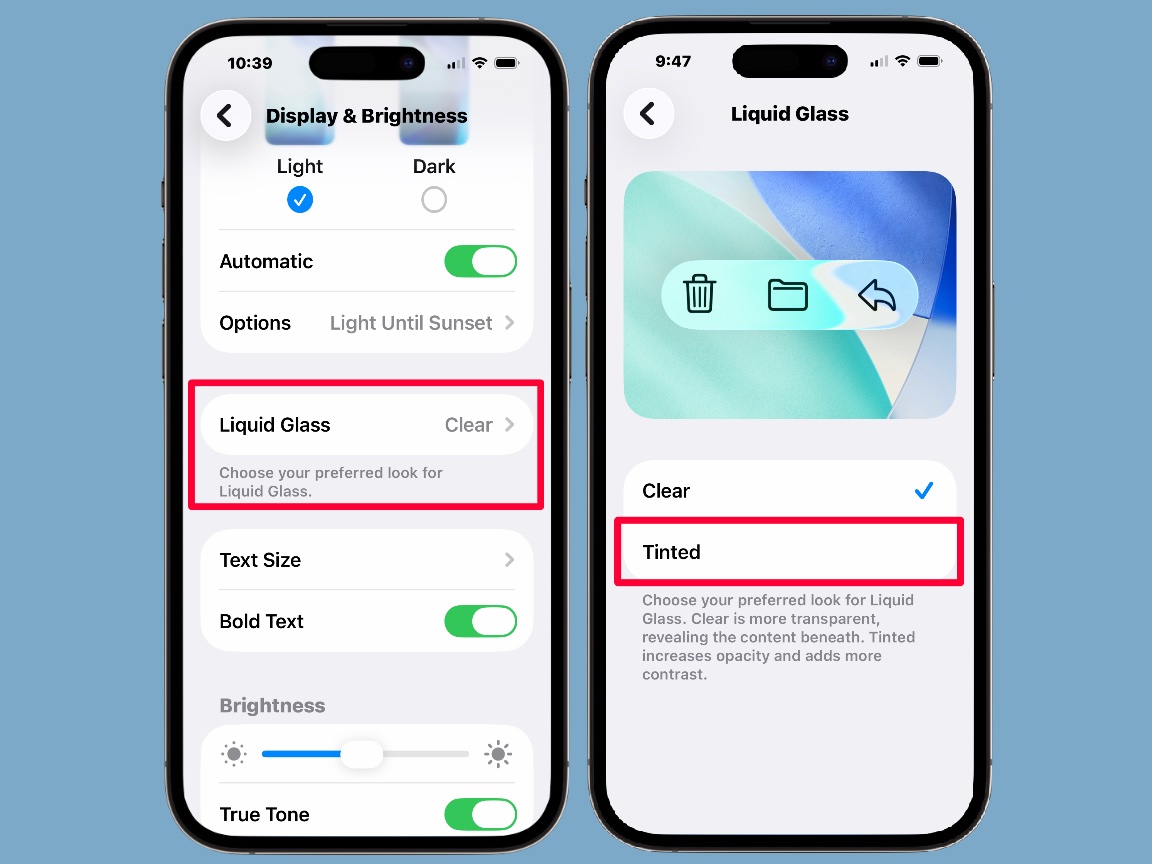
On your iPhone or iPad, open the Settings app, then scroll down so you can tap on Display & Brightness. Then tap on Liquid Glass.
That opens a screen that lets you choose from Clear or Tinted. Choose the second option to nerf Liquid Glass. As Apple says, “Clear is more transparent, revealing the content beneath. Tinted increases opacity and adds more contrast.”
Full disclosure: Making this change won’t walk your iPhone back to the look of iOS 18. Backgrounds in pop-up windows will look much less clear, but they won’t be completely opaque.
Screenshot: D. Griffin Jones/Cult of Mac
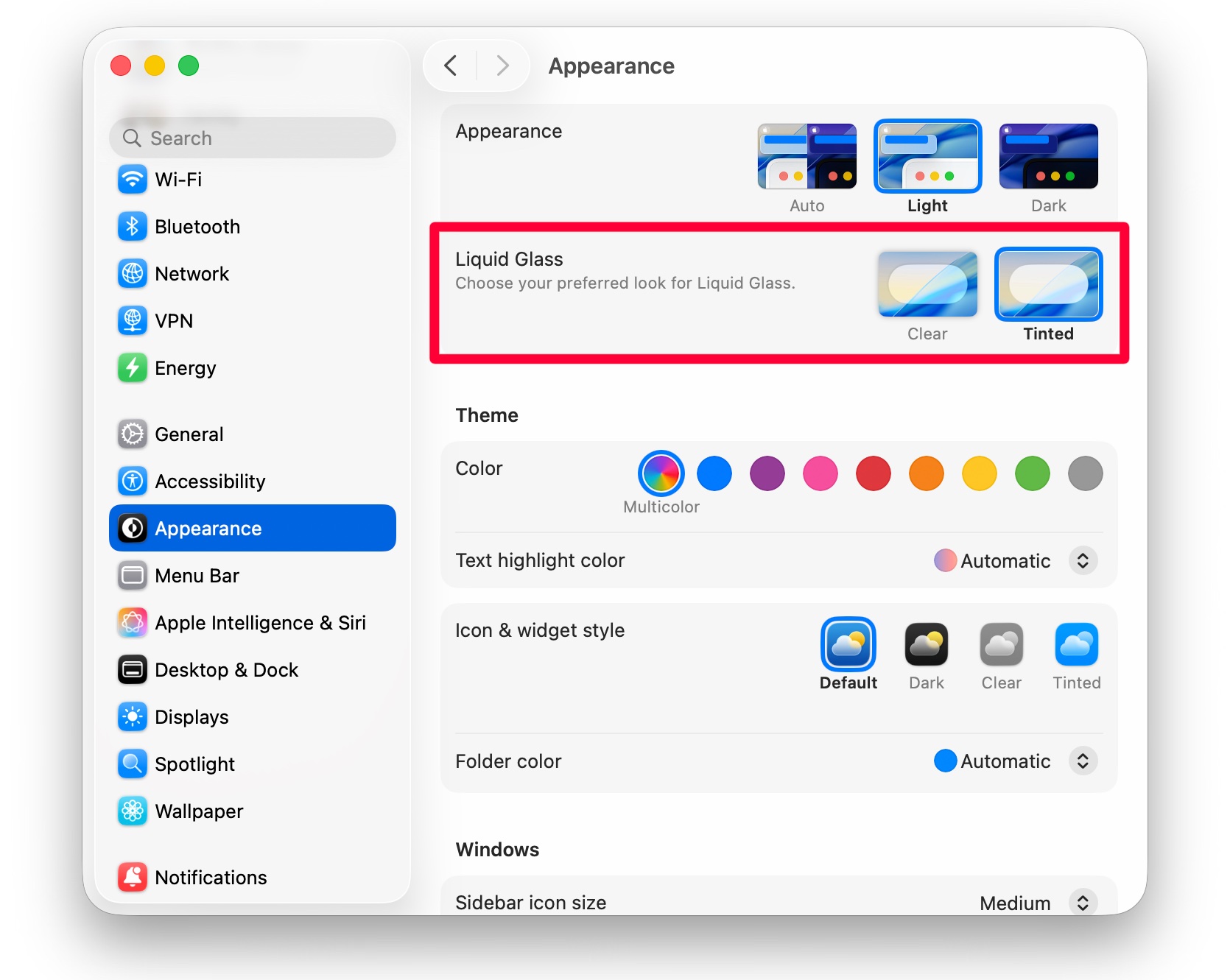
On your Mac, the process is nearly identical. Open System Settings, then click on Appearance. You’ll see the option to choose between Clear and Tinted.
If you change these settings just because you don’t like the look of Liquid Glass, consider revisiting this decision in a few months. It really is beautiful. It only takes a few seconds to toggle Liquid Glass back on — try it again later and see if you change your mind.
Reduce Transparency to turn off Liquid Glass entirely
If you want to take a more extreme measure, you can completely disable all transparency effects. There’ll be absolutely no glassiness. Top and bottom toolbars will have a fully opaque background, with no more floating buttons.
On an iPhone or iPad, find this in Settings > Accessibility > Display & Text Size > Reduce Transparency. On your Mac, it’s in System Settings > Accessibility > Display > Reduce transparency.
Other ways you can undo iOS 26’s changes
Liquid Glass isn’t the only controversial change in iOS 26 that you can walk back. Apple redesigned the Phone app for making calls. If you’re not a fan, read our guide on how to bring back the old version of the Phone app.
And the toolbar in the Safari web browser shrank in iOS 26. You can get a larger version by going to Settings > Apps > Safari. Then, in the Tabs section, switch from Compact to Bottom or Top.
We originally published this article on November 6, 2025. We updated it with the latest information on January 19, 2026.

Ed Hardy has been writing full-time about tech for 26 years, and using it for much longer than that. His intro to Apple was a Macintosh SE/30 (which he still has), but now he uses a 13-inch iPad Pro as his primary computer.
That’s because he’s a “tablet first” type of guy. Rather than use a Macbook, he connects a keyboard case to the iPad. And instead of a desktop Mac, he connects his tablet to a 27-inch display and full-size keyboard. (So don’t try to tell him that everyone has to use a Mac to be productive.)
Before coming to Cult of Mac, Ed wrote for NotebookReview, TabletPCReview and Brighthand, as well as other sites.


5 responses to “How to turn off Liquid Glass in iOS 26 if you hate it”
This absolutely does not turn off the effect. I need it removed entirely.
No it isnt pretty, Liquid glass is ugly. That is why there are so many people who hate it. And it unnecessarily eats up CPU cycles and battery
looks crap. cannot read the clock on my lock screen at all. why can MS and Apple stop f$&@ing with our working sysyems all the time
As of iOS 26.2, if you edit your Lock Screen and tap on the clock, you can set a “Solid” style that looks like it did in iOS 18 and earlier.
When you try and reduce the Liquid Glass effects. You are not turning off that layering of the glassy look. You’re just adding another layer to mask that effect. Such as tinting or reduced transparency. Adding to the interface problems because those don’t always affect all aspects of the interface. Not saying it’s not worth a try, and it does help some. But Liquid Glass was a trade off between legibility and the desire to add visually appealing changes to the UI. I think Apple went way too far.