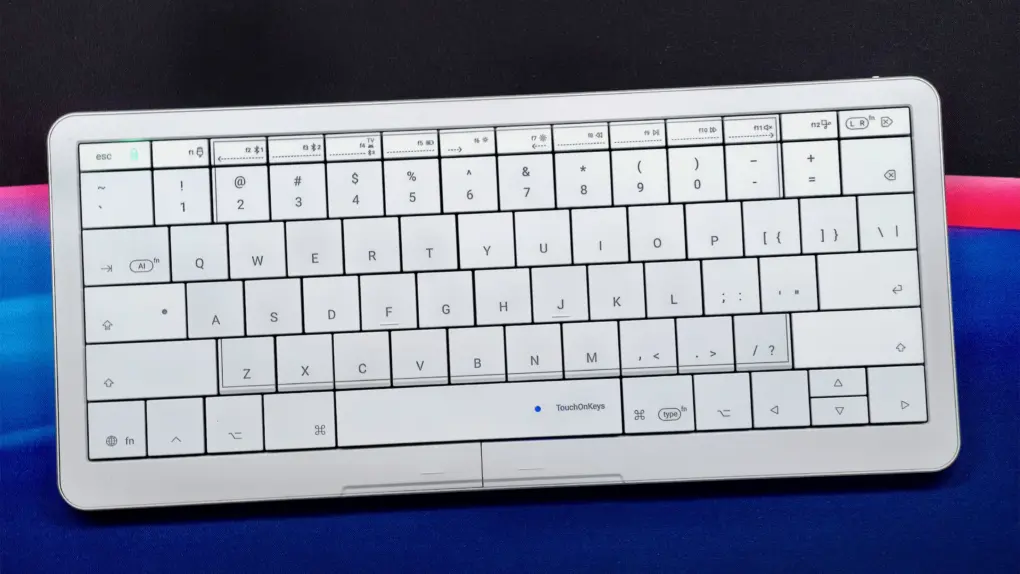
The Clevetura S keyboard stands out due to its dual functionality, which combines a Mac keyboard with a built-in trackpad. The twist is that instead of adding a dedicated trackpad to the keyboard, it turns the keys themselves into a touch surface.
This clever idea works well in daily use, although it comes with a learning curve.
Clevetura S keyboard review
Keyboards for Macs come in all shapes and sizes, from compact models to split designs built for better ergonomics. Some that I’ve tested over the years excelled due to specific features or connectivity options, but almost none of them aim to replace the mouse or trackpad.
That’s what the Clevetura S does. It lets you type, swipe and even use various Mac gestures from the keyboard’s surface.
So, does the keyboard deliver?
The Clevetura S turns its keys into a touchpad, letting you trigger macOS gestures without moving your hands away from the keyboard. Customizable touch sliders, backlighting and multiple device connections add versatility, though the design takes getting used to and battery life is modest.
- Brings macOS gestures directly to the keyboard
- Flexible backlighting
- Three Bluetooth connections and USB-C
- Resting fingers on the keys can trigger accidental inputs
- Below-par battery life
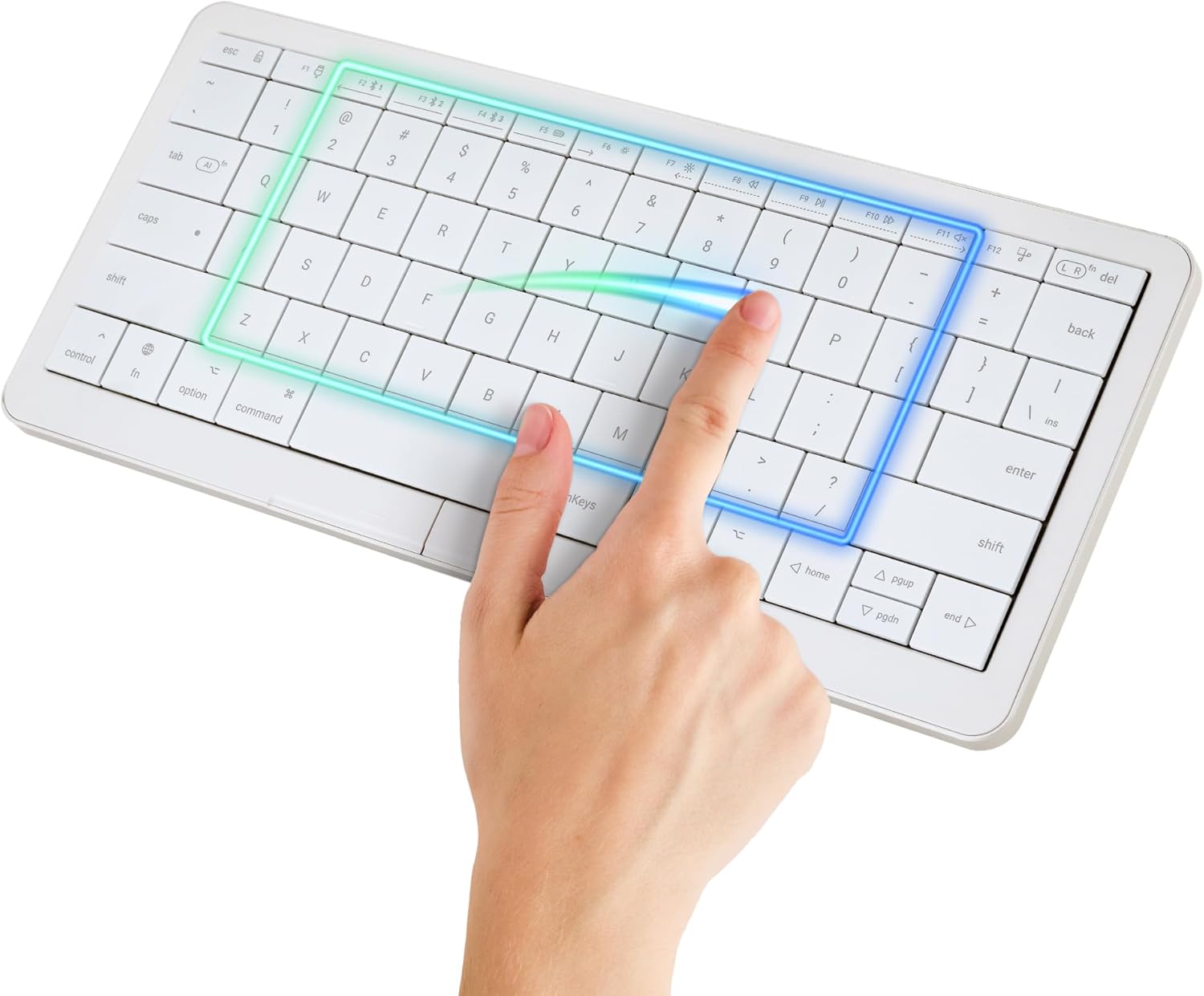
Table of contents: Clevetura S keyboard review
- A familiar design with a different feel
- A trackpad built into the keys
- My fingers had to learn a new habit
- Battery life improved, but it’s still not great
- Should you buy the Clevetura S?
- Pricing
A familiar design with a different feel
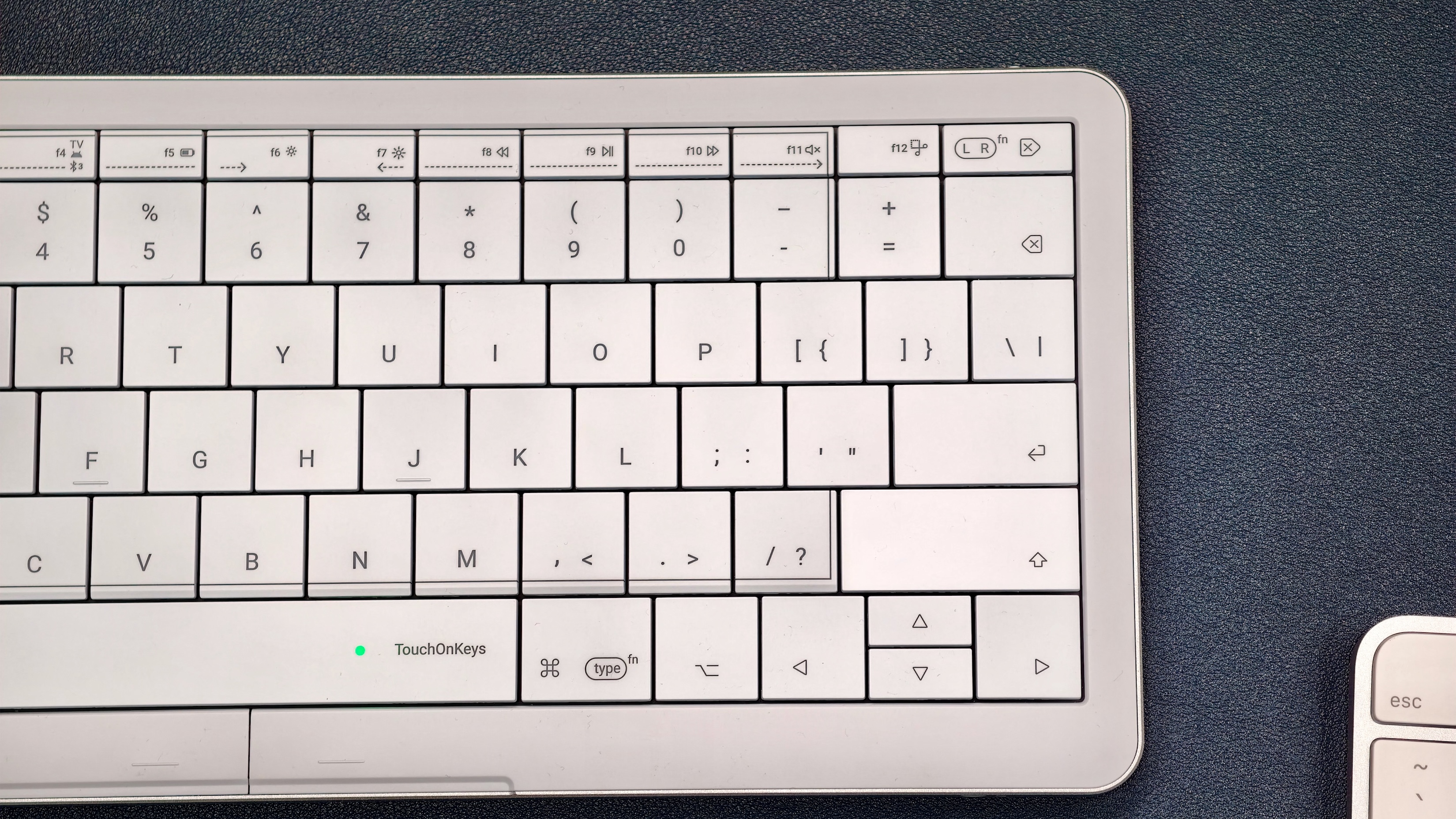
Photo: Rajesh Pandey/Cult of Mac
The Clevetura S takes its design cues from Apple’s Magic Keyboard, with white keys and a silver frame. The biggest difference is how closely the keys sit together. There’s a negligible gap between the keycaps on the Clevetura keyboard, creating a more continuous surface for touch controls.
While the front frame and keycaps are made of plastic, the base and edges are metal. That combination gives the keyboard a familiar look for a Mac desk. As for the keyboard itself, it features a compact 78-key layout with scissor switches. You also get a fully functional row of function keys.
The Clevetura S is thicker than Apple’s Magic Keyboard, but it felt flatter under my hands when I first switched. I used the keyboard’s rear support to raise the incline, hoping to get closer to the typing angle I was used to. That tilted the keyboard a little too much for my liking. I wish there was a setting somewhere in between.
I also missed the convenience of Touch ID. After getting used to fingerprint authentication through the Magic Keyboard, losing it was a bummer. But then, this applies to all non-Apple keyboards.
A trackpad built into the keys
The keys on the Clevetura S combine to act as a large trackpad. You can move your fingers across the keys to move the pointer. And you don’t always have to place your fingers in the middle of the keyboard.
This is the reason to consider the Clevetura S, and it delivers on its promise. Moving the pointer and using touch controls directly on the keyboard felt useful rather than like a gimmick I would try once and forget.
However, the trackpad-cum-keys did not make my mouse obsolete. Compared with the Logitech MX Master 3S I normally use at my desk, moving the cursor around felt a bit slower.
The Clevetura S proved handy when I wanted to make a quick pointer movement without shifting my hand away from the keyboard. But for longer stretches of mouse work, I still prefer the Logitech.
Clevetura also puts left- and right-click buttons below the keyboard’s spacebar. While handy, I hardly used either button. The touch controls were what made this keyboard useful to me. Plus, you can double-tap the keys to perform a left-click, which is what I preferred. A two-finger tap replicates the right-click.
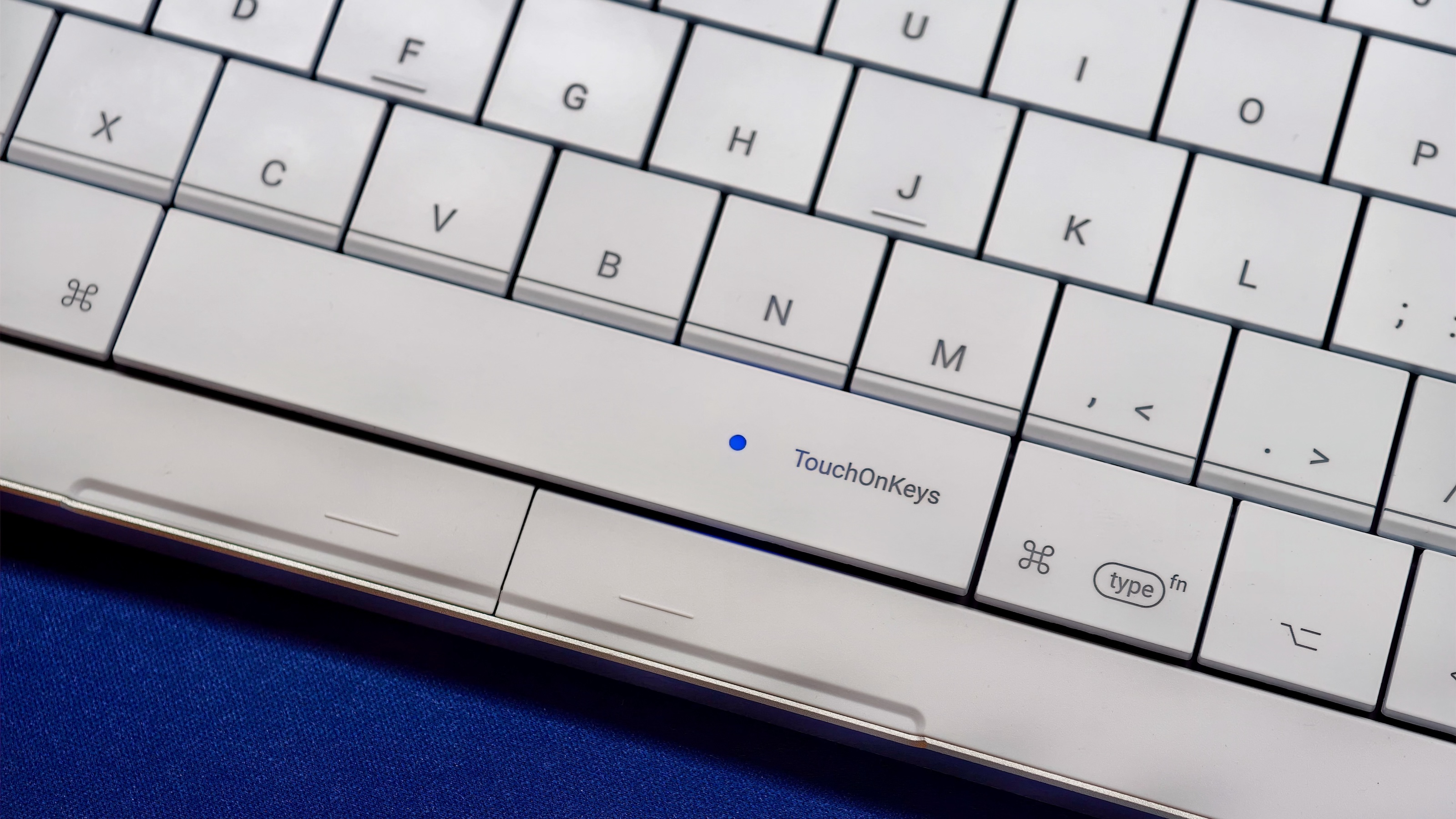
Photo: Rajesh Pandey/Cult of Mac
The trackpad on the Clevetura S also acts as a gesture touchpad. So, you can trigger all the regular macOS gestures, like a four-finger swipe left/right to switch between Spaces, a three-finger swipe up to bring up App Expose or a swipe down to bring up Mission Control.
The gestures are customizable through the TouchOnKeys app, though you must select from one of the preset actions.
I found the ability to trigger macOS gestures directly from the keyboard quite useful. These gestures feel less intuitive on my MX Master 3S, so with the Clevetura S, I could swipe between Spaces or bring up Mission Control without moving my hands away from the keys.
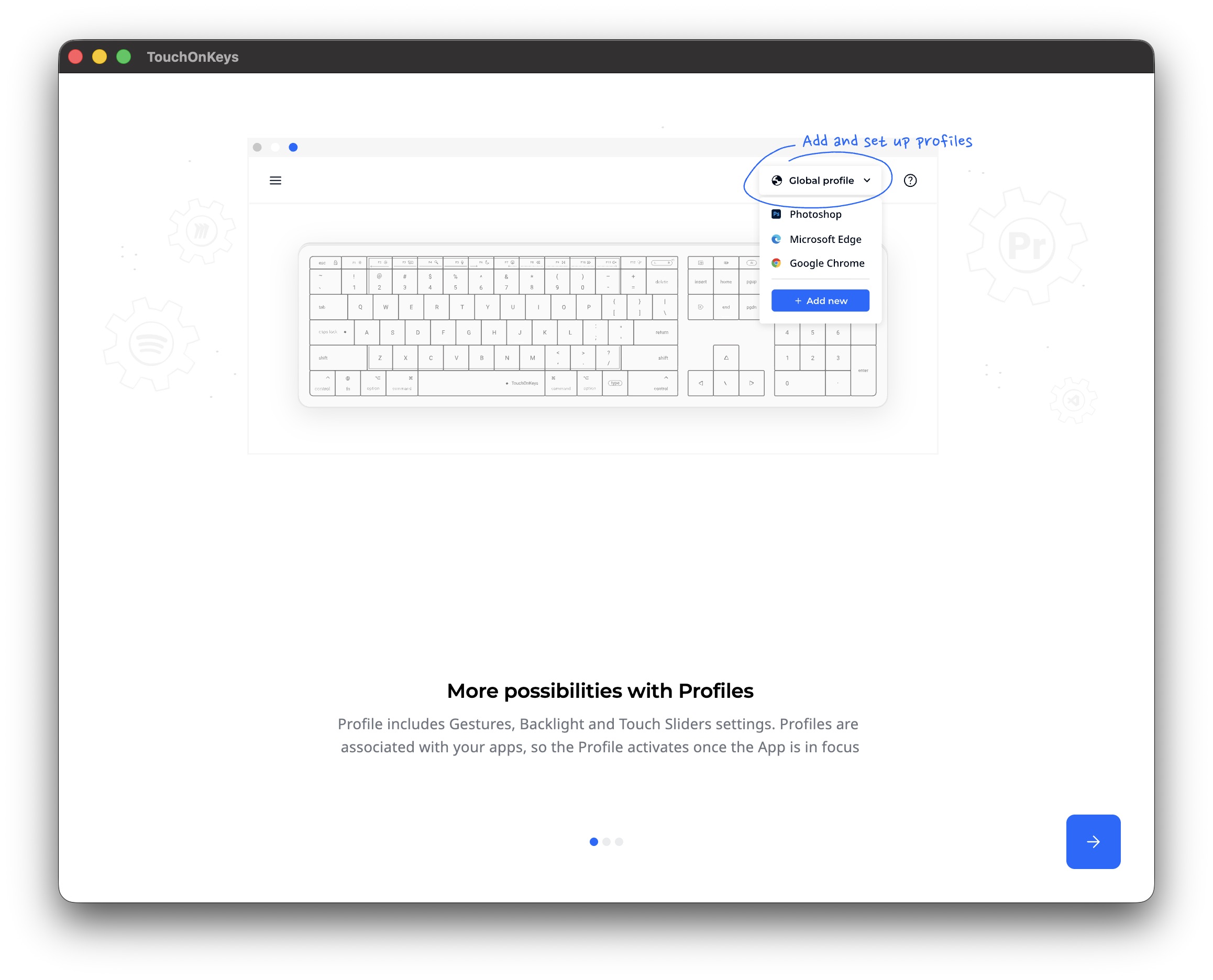
Note that you must install the TouchOnKeys app from Clevetura to use the keyboard. It controls a lot of the keyboard’s features, including the trackpad, backlighting and gestures.
My fingers had to learn a new habit
There’s one big catch with the Clevetura S keyboard for Mac. Putting a touch-sensitive area under the keys fundamentally changes the way you type. When I first started using the keyboard in late August, I kept accidentally triggering the touchpad by resting my fingers on the keys.
It was annoying and made me feel like going back to my Magic Keyboard.
Over time, I realized I needed to reprogram my muscle memory to use the keyboard. After a few weeks, once I was fully settled in, the trackpad stopped being annoying.
Screenshot: Rajesh Pandey/Cult of Mac
If you tend to leave your fingers resting on the keys between sentences, expect a similar change in habit.
Clevetura’s TouchOnKeys app offers sensitivity adjustments and a keyboard-only mode. So, if you keep accidentally triggering the touchpad, you can adjust the sensitivity to make things better.
None of this changes the point that there is a learning curve involved with the Clevetura S keyboard when you first switch to it
Small Mac details make a difference
The Mac version of the Clevetura S gets one layout detail right that many third-party keyboards miss. The Fn key sits in the bottom-left corner, which is exactly where Apple places it on MacBooks and its Magic Keyboard. With many apps now using Fn as a quick-access key or for voice typing, its usage is increasing. That makes its placement on the keyboard even more important.
I also liked the customizable backlight. Having separate lighting zones gave me more control over how the keyboard looked than a simple on-or-off backlight. You can even use a different lighting effect when using the keyboard as a trackpad.
It’s not something that you would fiddle with daily, but it’s nice to have such extensive backlight customization options.
The touch sliders on the function row are an even better addition. I used the one on the right for volume and the one on the left for brightness. (I use a macro pad with physical knobs to control media playback volume.)
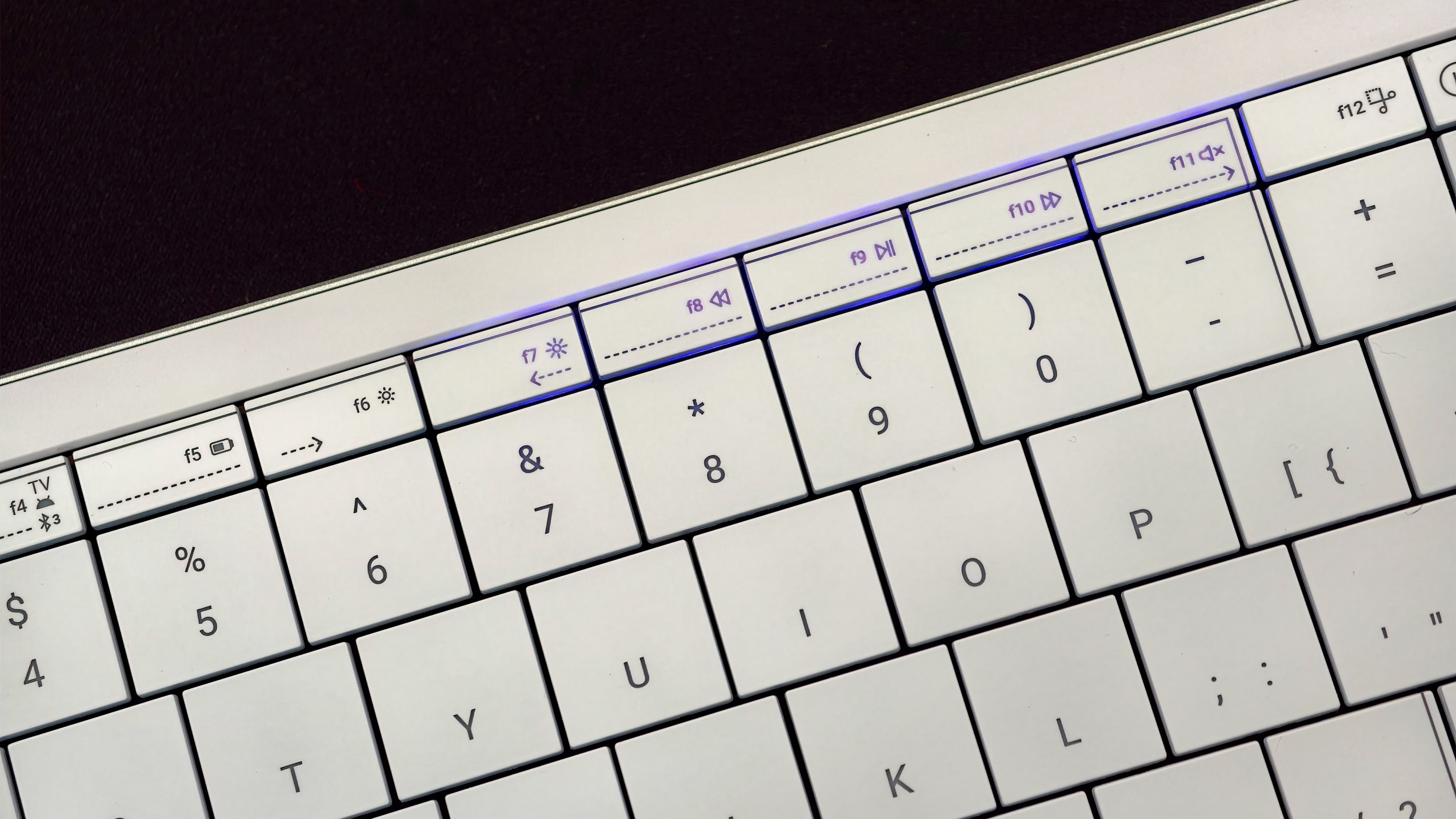
Photo: Rajesh Pandey/Cult of Mac
With the Clevetura S, I got used to its touch sliders, especially for adjusting the display brightness. It’s one of those little things that will make me miss this novel keyboard if I switch back to a Magic Keyboard.
The Clevetura S can connect and remember up to three Bluetooth devices. Since I frequently switch between my Mac mini and MacBook Pro, this feature proved convenient for my workflow. The keyboard also supports a wired USB-C connection. I like having both options, though I almost exclusively used the keyboard wirelessly.
Battery life improved, but it’s still not great
Battery life was my biggest frustration at first with the Clevetura S. I was charging the keyboard almost every second or third day, which felt far too frequent for a keyboard.
The company says the keyboard can provide up to 44 hours of uninterrupted work or around 1.5 weeks of normal usage without backlight enabled.
A firmware update introduced a Backlight Eco Mode, which made a real difference in battery life. After the update, the keyboard’s runtime increased to four or five days between charges.
This is nowhere near as good as other popular Mac keyboards. I imagine turning off the backlight or lowering its brightness would have helped even more. But with easy access to a charging setup, a five-day battery life worked for me. If you need more runtime, just turn off the backlight or lower its brightness.
Should you buy the Clevetura S?
The Clevetura S succeeds at its most unusual idea. I used the touch controls regularly and enjoyed the gesture control for volume and brightness. It combines keyboard and pointer controls in a compact device without making the touch surface feel like a throwaway gimmick.
However, it’s a keyboard that you must adapt to. I missed being able to rest my fingers on the keys, and it took weeks to get comfortable. And even then, I found myself reaching for my MX Master 3S mouse for extended pointer work.
If you want to keep your hands near the keyboard and are willing to learn a different way to type and navigate, the Clevetura S is a genuinely interesting Mac accessory.
★★★★☆
Pricing and availability
The white Clevetura S for Mac is available now for $199. The black variant costs $189 and is currently available for preorder, with shipping expected in mid- to late October.
Clevetura is offering Cult of Mac readers $20 off either keyboard with the discount code CULTOFMAC20. That brings the price down to $179 for the white Mac version and $169 for the black variant.
The Clevetura S turns its keys into a touchpad, letting you trigger macOS gestures without moving your hands away from the keyboard. Customizable touch sliders, backlighting and multiple device connections add versatility, though the design takes getting used to and battery life is modest.
- Brings macOS gestures directly to the keyboard
- Flexible backlighting
- Three Bluetooth connections and USB-C
- Resting fingers on the keys can trigger accidental inputs
- Below-par battery life
Clevetura provided Cult of Mac with a review unit for this article. See our reviews policy, and check out more in-depth reviews of Apple-related items.

Rajesh has been writing about consumer technology for over a decade, with a strong focus on iPhones, Macs and Apple’s ecosystem. He enjoys digging into Apple software updates, hardware changes, and discovering new Mac apps that make work faster and more enjoyable.
You can reach out to him at mail[at]rajeshpandey.me.

