
After upgrading your Mac to macOS 27 Golden Gate, you might easily overlook some of the new software’s useful additions, like recording your screen with audio, Liquid Glass customization and more.
While the new Mac software looks mostly the same as macOS 26 Tahoe, it adds plenty of new features and improvements that make it a worthy upgrade. Here are eight things you should do immediately after installing macOS Golden Gate.
8 things to do first after installing macOS 27
Released earlier this month, macOS 27 Golden Gate brought refinements and improvements that macOS 26 Tahoe should have shipped with. However, Apple buried some of the best new features and most useful changes in app settings or behind keyboard shortcuts.
If you want to get the most out of your freshly upgraded Mac, you need to start digging.
Table of contents: 8 things to do first after installing macOS 27
- Make Liquid Glass your own
- Let Safari handle tab organization
- Get useful filename suggestions
- Build a Safari extension yourself
- Ask about what’s on your screen
- Create shortcuts by describing them
- Stop apps from running in the background
- Record your screen with system audio
1. Make Liquid Glass your own
Screenshot: Rajesh Pandey/Cult of Mac
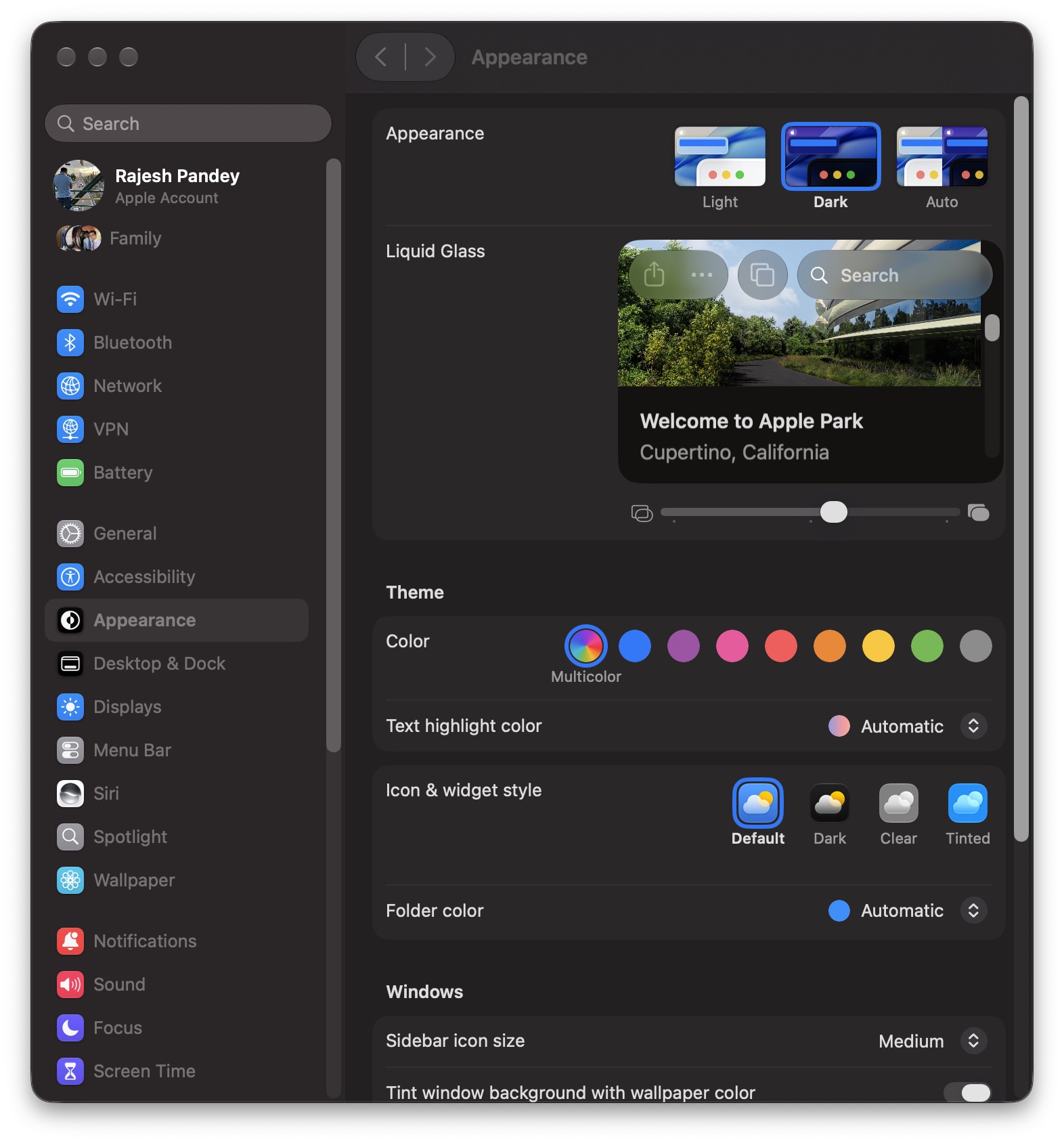
macOS Golden Gate undoes a lot of what was wrong with the shiny new Liquid Glass user interface introduced in macOS 26. On the first boot, macOS 27 will show you a Liquid Glass slider that lets you adjust the glass effect.
You can either go for a more tinted look for improved readability and contrast or a more transparent look for a more glasslike effect.
If you skipped over that during initial setup, or don’t like the results you got, you can navigate to System Settings > Appearance and adjust the Liquid Glass slider to your liking. I recommend keeping a few frequently used apps open when adjusting the slider to get a better idea of how the glass effect will look.
2. Let Safari handle tab organization
Screenshot: Rajesh Pandey/Cult of Mac
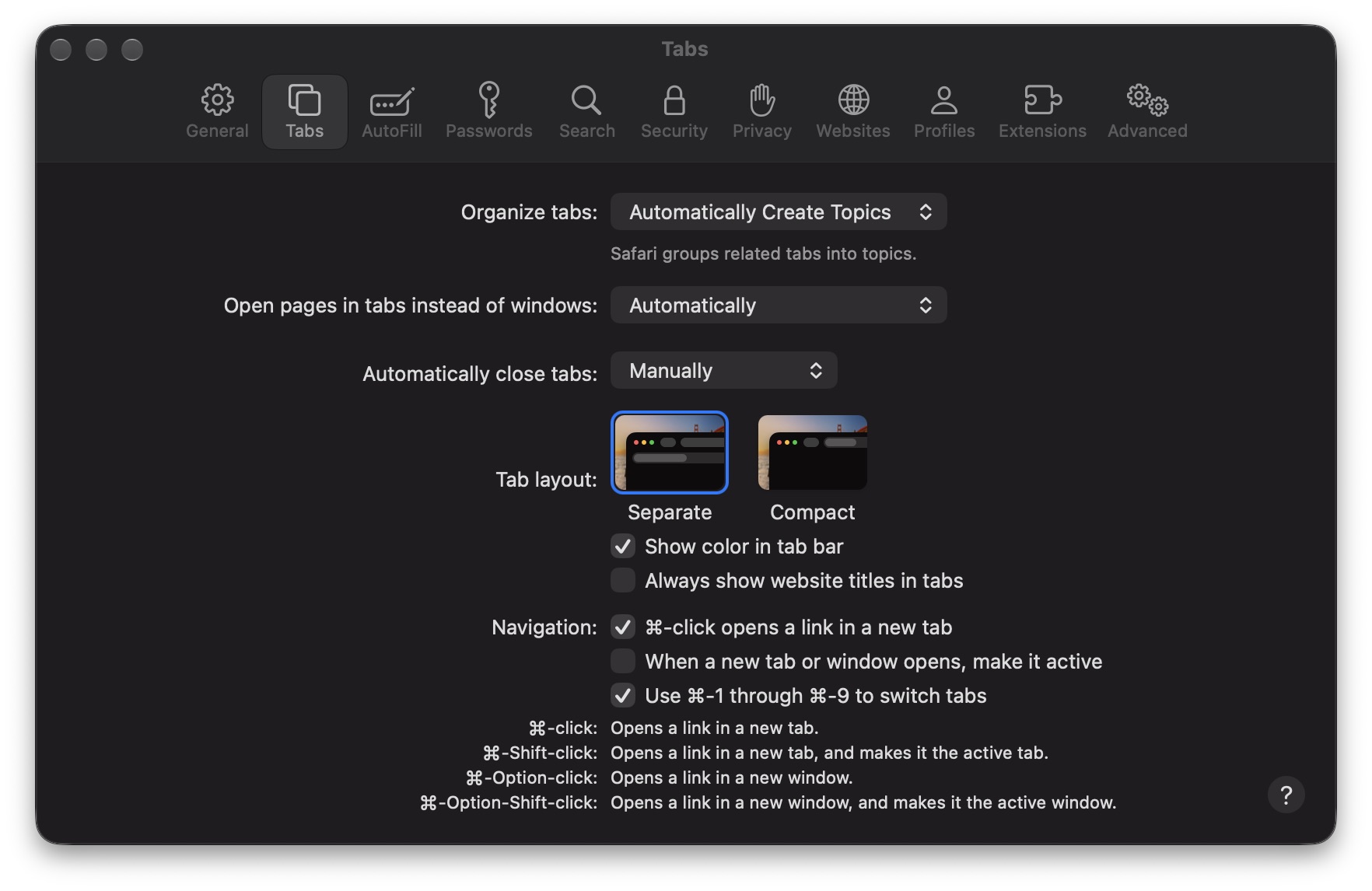
macOS Golden Gate gives Safari the power of Apple Intelligence to organize your messy tabs. Instead of manually grouping them, you can let Safari do it for you.
Open Safari. Then, from your Mac’s menu bar, go to Safari > Settings > Tabs and look for Organize tabs. Choose Automatically Create Topics to let Safari manage your tabs. It will use AI to group related tabs. So, for example, if you are planning a trip, Apple’s browser will automatically group related tabs containing things like hotel listings, rental car agencies, etc.
If you prefer approving the grouping yourself, select the Show Related Tabs option. Safari will then recommend related tabs that can be grouped. If you are unsure how well automatic grouping will work, this is a great starting point.
3. Get useful filename suggestions
Screenshot: Rajesh Pandey/Cult of Mac
My Screenshots and Downloads folders are littered with randomly named images and files. That makes it almost impossible to find the right file quickly. And naming every file with a meaningful name is a chore.
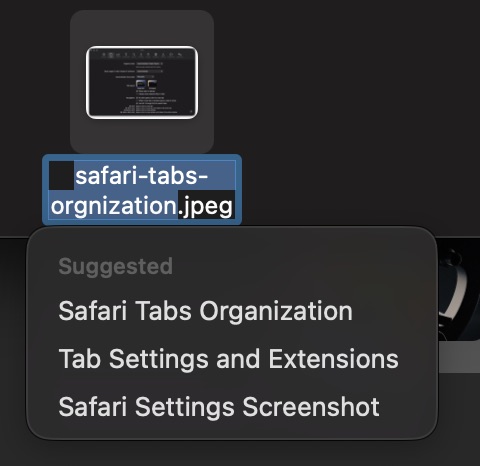
macOS 27 Golden Gate offers a nice solution to this problem. When naming a file, it will automatically suggest a name based on its content and file type. So, when renaming screenshots, a suggestion box appears with a list of potential names I can use.
The feature works for most files that I have tried so far in Golden Gate. If the feature does not seem to work for you, make sure that you have the Suggest file names option enabled in Finder > Settings > General.
4. Build a Safari extension yourself
Screenshot: Rajesh Pandey/Cult of Mac
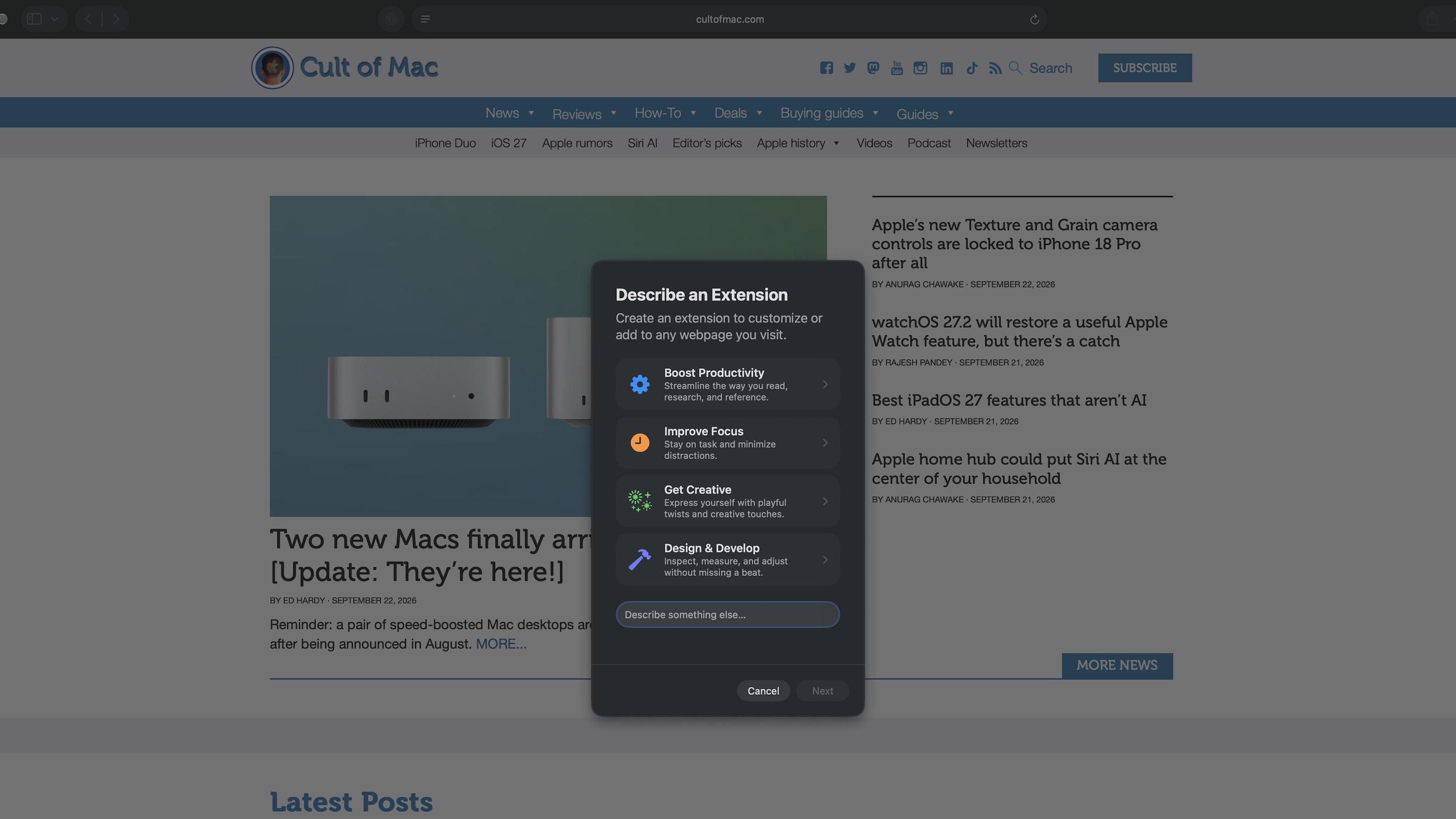
macOS 27 Golden Gate brings another useful Apple Intelligence-powered Safari upgrade. You can create new extensions by simply describing them; there’s no need to write the code yourself.
To try it, click the three-line icon in Safari’s URL bar, then select the Describe Extension… option. You can then describe the extension you want to create in natural language. Apple gives you four possible starting points — Boost Productivity, Improve Focus, Get Creative and Design & Develop — or you can try something else. Safari will do the rest.
Ideally, start with a simple extension, then follow the on-screen instructions to create it. Remember that these extensions cannot access data from your Mac or load remote content.
5. Ask about what’s on your screen
macOS 27 and iOS 27 make Siri AI a lot more useful. Likewise, Visual Intelligence gets a big upgrade in Apple’s latest operating systems. The latter can now work with the content already on your screen.
With Siri AI enabled, press the Command – Shift – Space shortcut and then select a window. Or, if you want to select a part of the screen, press Command – Shift – 6. You can then ask Siri about the content, search for a similar image or pick from one of the suggested actions.
I have been using this shortcut to quickly add dates or other relevant information to my calendar or notes.
Whenever I need to add event details to my calendar, I just press the shortcut, and Siri is smart enough to automatically display an “Add to calendar” option.
6. Create shortcuts by describing them
Screenshot: Rajesh Pandey/Cult of Mac
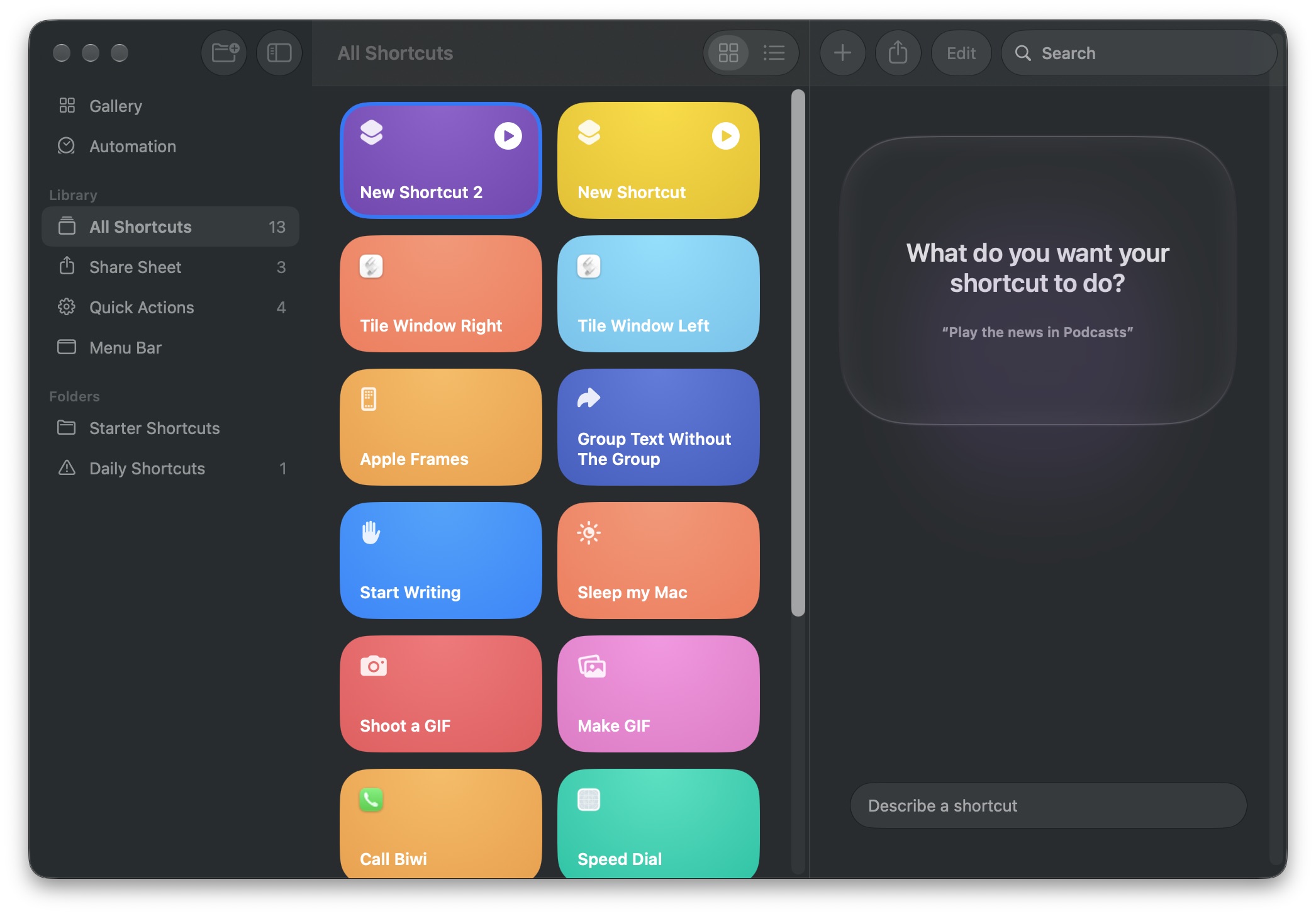
Thanks to deep Apple Intelligence integration across the board, you can use AI to create Mac automation shortcuts in the Shortcuts app.
Apple added the Shortcuts app to macOS with the release of macOS Monterey in 2021. While powerful, it remains one of the most underutilized apps on the Mac because of its steep learning curve and the complexity involved in creating shortcuts.
Apple Intelligence solves that problem in macOS 27 Golden Gate. Instead of manually figuring out the steps and triggers, you can simply describe a shortcut and Apple Intelligence will create it for you.
To give it a try, open the Shortcuts app and click the + button. The app will ask you to describe the shortcut or automation you want to create.
Start with a simple task first, such as a shortcut to quickly send a text to your spouse. Once you get the hang of it, you can create more complex shortcuts.
7. Stop apps from running in the background
Screenshot: Rajesh Pandey/Cult of Mac
Many Mac apps tend to silently run in the background even after you quit them. Usually, they do this for syncing data with the cloud, checking for updates, etc.
However, if you are not a fan, macOS 27 Golden Gate serves up a nice solution to this problematic behavior.
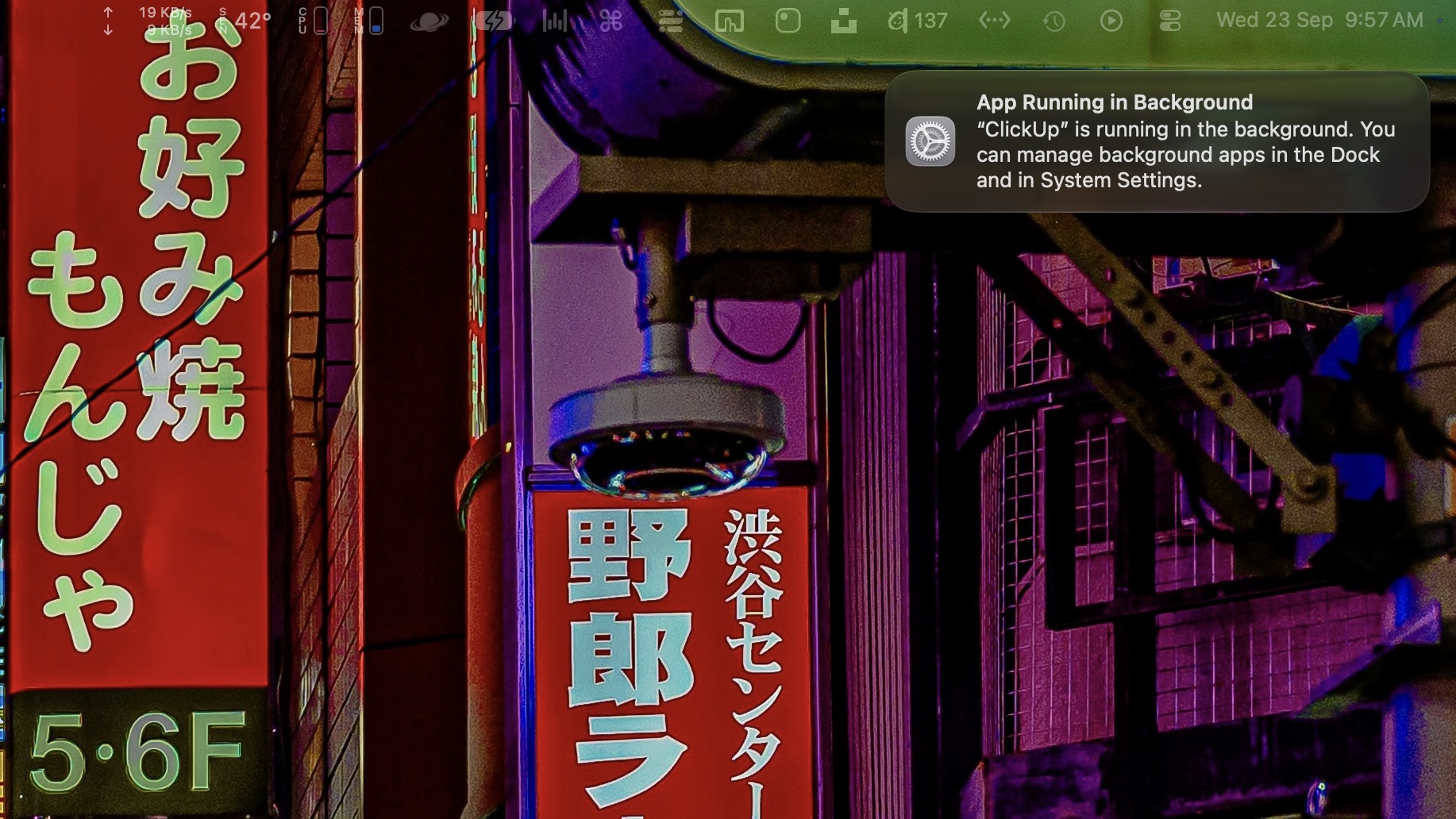
The first time a Mac app continues running in the background after you quit it, macOS Golden Gate will show a notification. You can Control-click the Dock icon and select Stop running in background to kill the app.
Alternatively, navigate to System Settings > General > Login Items and Extensions and check the Background App Activity option. You can turn off background app activity for apps you don’t need.
Make sure not to turn off the option for apps that rely on background activity to work properly, like Google Drive, Dropbox, etc.
8. Record your screen with system audio
macOS already comes with an excellent built-in screenshot and recording tool. Its only real drawback was that the screen-recording feature could not record system audio — and macOS 27 Golden Gate fixes this.
Using the built-in Screenshot tool to record videos with system audio is a handy option if you frequently record tutorials or send screen recordings to your colleagues.
To use it, press Command – Shift – 5, then choose a screen recording option, followed by Options. From there, select Include System Audio. You can also use an external microphone plugged into your Mac for capturing audio.
Note: The Apple TV app and some others might not allow screen recording with system audio.
Other new macOS 27 Golden Gate features
Found any other useful new features in macOS 27 Golden Gate that are worth sharing? Drop a comment below.

Rajesh has been writing about consumer technology for over a decade, with a strong focus on iPhones, Macs and Apple’s ecosystem. He enjoys digging into Apple software updates, hardware changes, and discovering new Mac apps that make work faster and more enjoyable.
You can reach out to him at mail[at]rajeshpandey.me.

