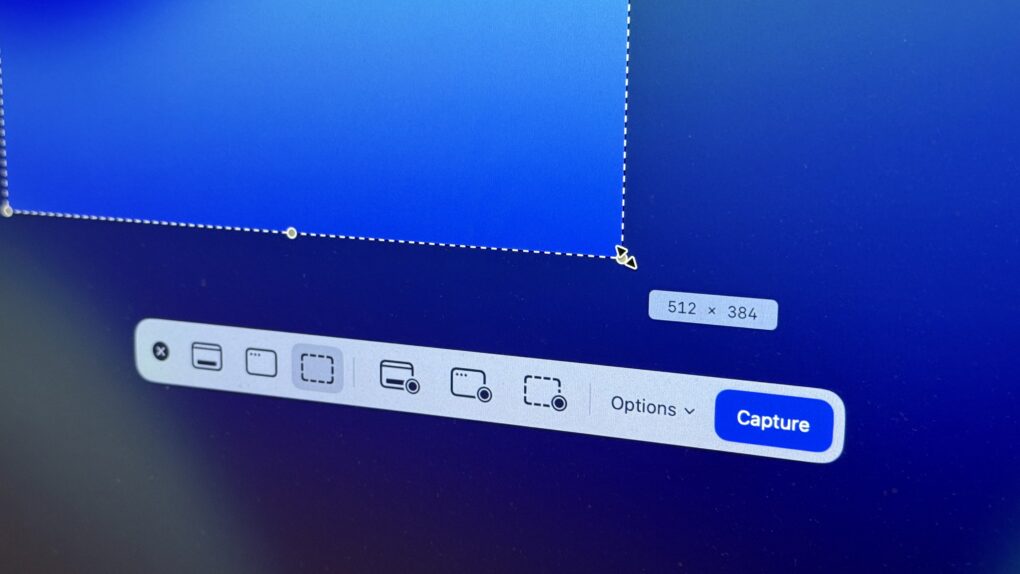
The Mac offers many options for taking screenshots without installing third-party apps. You can take a Mac screenshot that shows the entire screen, get a clean image of a specific window, or select specific areas to capture. There’s also a built-in way to take a video of your Mac screen (and even record a voiceover for your screen recording using your microphone, headset or AirPods.)
We’ll show you how to take a Mac screenshot and screen recording so you can familiarize yourself with all the options.
How to take a Mac screenshot (all the options)
Apple gives you a lot of options — and a lot of control — over how you take screenshots on your Mac. If you have the free Screenshot app that comes with recent versions of macOS, that’s probably the best way. It offers the most capabilities for getting the exact image or video you want.
But in this Mac screenshot how-to, we’ll also show you how to quickly use Mac keyboard shortcuts for screenshots and screen recordings and how to use the built-in QuickTime Player to capture your Mac’s screen.
Table of contents: How to take Mac screenshot (all the options)
- Open the Screenshot app
- Take a screenshot
- Make a screen recording
- Edit your screenshot using the Mac’s Markup tool
- Use keyboard shortcuts to take a Mac screenshot
- Capture a Mac screen recording with QuickTime Player
Open the Mac’s Screenshot app for screenshots and screen recordings
Screenshot: D. Griffin Jones/Cult of Mac
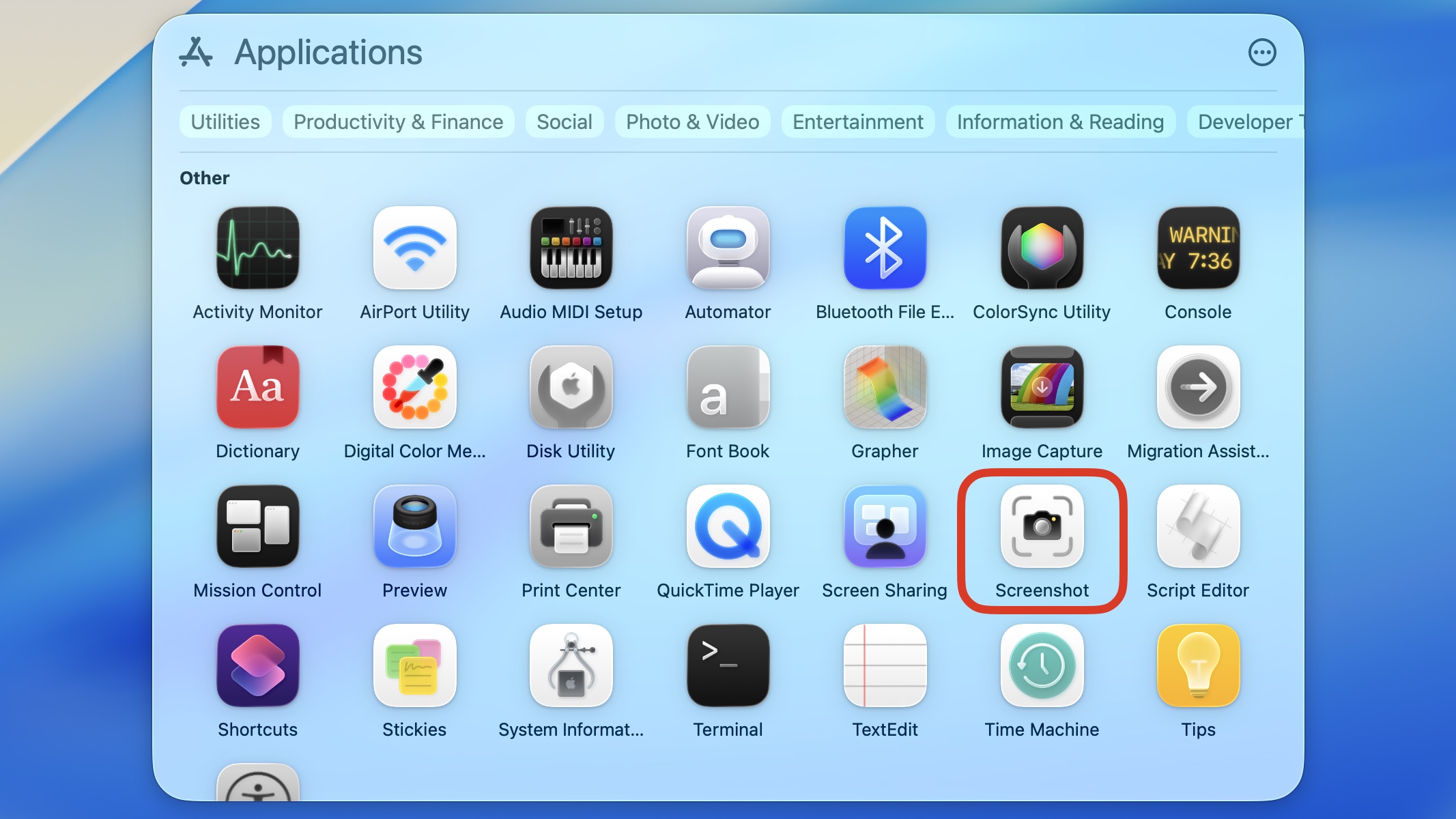
To open the Screenshot app, open Spotlight by pressing Command-Space (⌘␣). You can type in “screenshot” to launch it. Or, you can find it in the list of applications by hitting Command-1 (⌘1) and scrolling to the bottom section.
Alternatively, there’s a universal keyboard shortcut to launch the Screenshot app. Just hit Shift-Command-5 (⇧⌘5)
The Screenshot app comes installed with macOS Mojave 10.14 or newer. (Go to the Menu > About This Mac to see what version you’re running. If you do not have the Screenshot app, skip to the section below to take a screenshot using Mac keyboard shortcuts.)

ScreenFloat: Power up your Screenshots
If your workflow involves screenshots and screen recordings, you should check out ScreenFloat. This app supercharges screenshots, making it super-easy to capture, edit, share and store them. Plus, you can easily extract, view, copy and redact information like text, faces and barcodes.
Capture your entire Mac screen, a specific window or just a portion
After you launch the Screenshot app, a toolbar will appear on your screen. Various buttons on the toolbar let you pick the type of screenshot you want to take. The three buttons to the left will capture an image of the entire screen, a specific window or a selected portion of the screen. The next two buttons will record a video of the entire screen or a video of a selected portion.
Screenshot: D. Griffin Jones/Cult of Mac
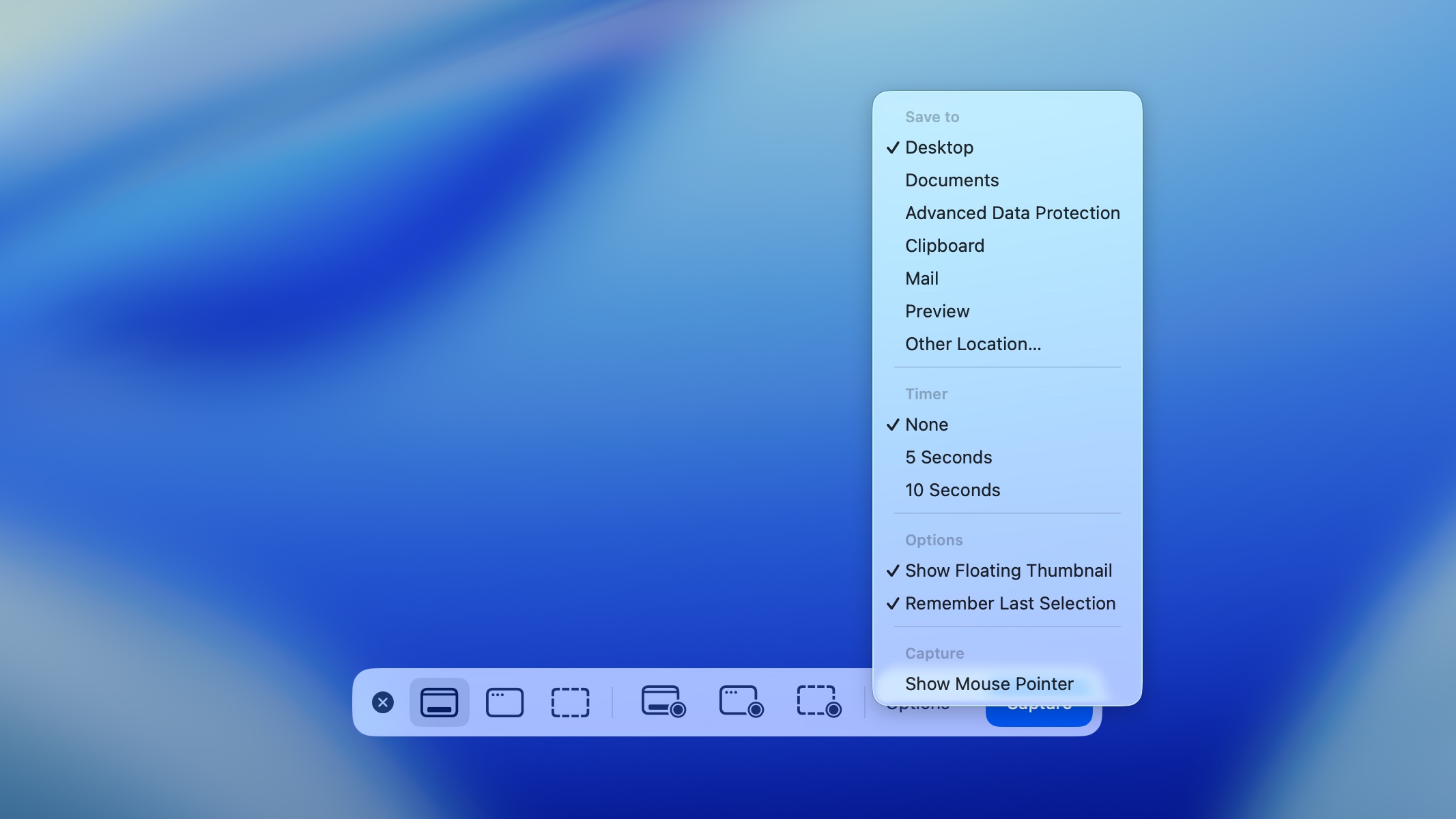
Next comes the Options button. Clicking it opens a context menu that lets you change these settings:
- Save to: This option lets you choose whether you want to save the screenshot to a folder like Desktop or Documents, send it to somebody using the Mail or Messages apps, open it in Preview (for still images) or QuickTime Player (for videos), or copy it to the Clipboard to paste somewhere else.
- Timer: This option lets you choose whether to capture the screenshot immediately or after a short timer of five or 10 seconds.
- Microphone: This lets you choose whether to include audio (for video screen captures). If you want to add audio, it lets you pick which microphone to use.
- Options: This section lets you choose whether you want to see a preview of the screenshot after you take it. If you do, choose Show Floating Thumbnail. It also gives you the choice of remembering your previous settings (Remember Last Selection) and whether to include the mouse cursor in the screenshot or screen capture (Show Mouse Pointer or Show Mouse Clicks, respectively).
Take a screenshot on Mac

Screenshot: D. Griffin Jones/Cult of Mac
Screenshot your whole Mac screen: To capture the entire screen, select the mode on the left and click Capture.
Screenshot only a specific Mac window: To screenshot a specific window, select the second mode from the left, then click on the window you want to capture. Hold Option (⌥) as you click if you do not want the window shadow to appear in your screenshot. This screen capture mode doesn’t just work on windows. You also can capture your Mac’s Dock, menu bar, desktop (with or without desktop icons) and other things.
Screenshot: D. Griffin Jones/Cult of Mac
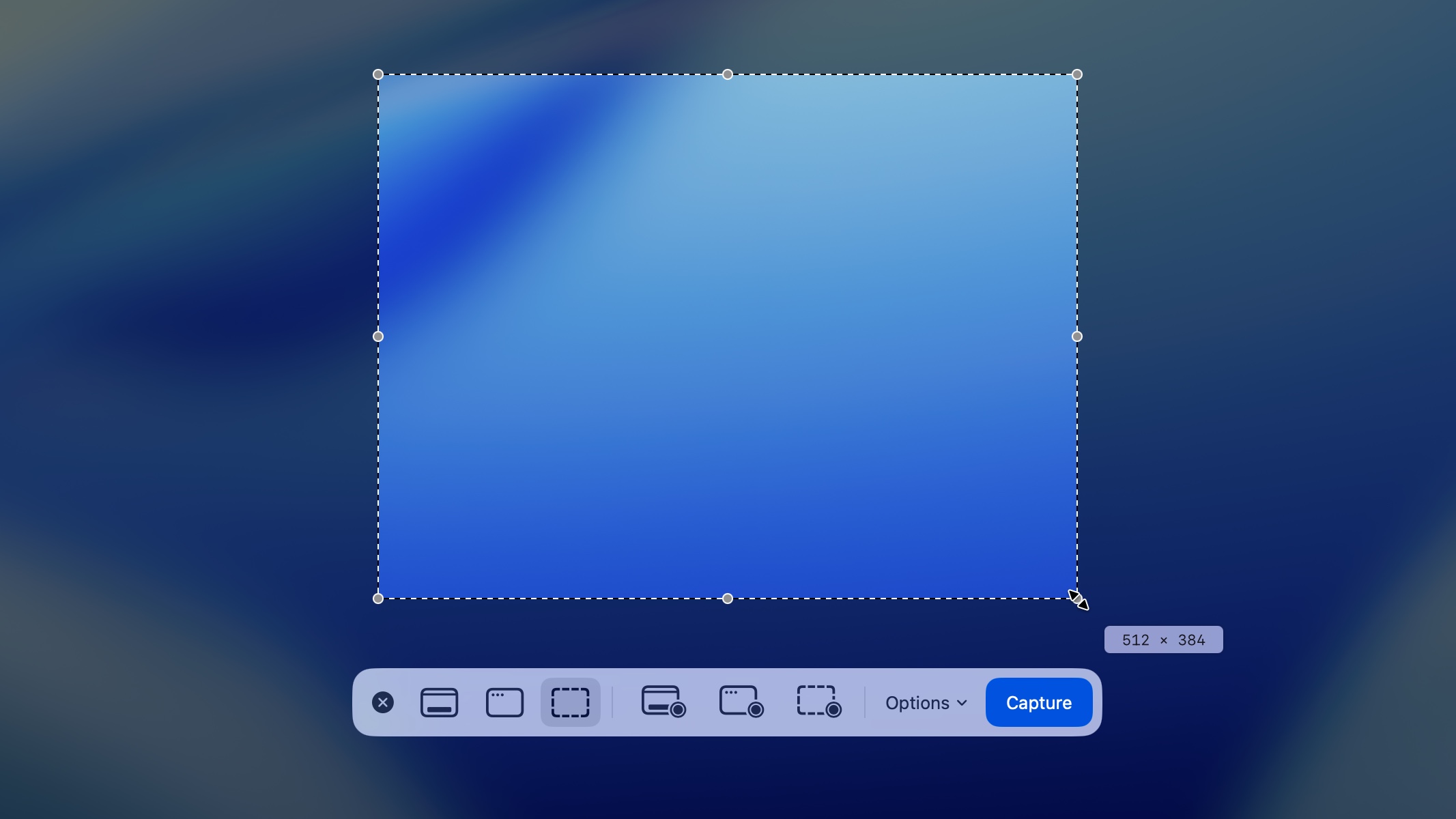
Capture a segment of your Mac screen: To capture a specific portion of the screen, select the third mode from the left. Then move and/or resize the box that appears to highlight the area of the screen you want to take a screenshot of. Finally, press Capture.
Make a Mac screen recording

Screenshot: D. Griffin Jones/Cult of Mac
Mac screen recording: To record a video of the entire Mac screen, select the fourth mode from the left, then click Record. (If you have multiple screens, you will need to pick one.) To capture audio from your Mac’s microphone or from connected AirPods to accompany your screen recording, click Options and select the device. When you finish recording, click the Stop icon in the menu bar.
Make a screen recording of a specific window: To record only one window, select the fifth mode from the left, then click the window to begin recording. Once you begin recording, the size and position is locked. If you move the window on screen or resize the window, the recording will be cut off. It also records the window on top of an opaque solid black background. For these reasons, I instead recommend recording an app over a blank desktop, using the next option.
Make a screen recording of a particular segment of your Mac’s screen: To record a specific portion of the screen, select the sixth mode from the left. Then, move and resize the box that appears on-screen to highlight the area you want before pressing Record. While your Mac is recording, the part of your screen that isn’t being recorded will be dimmed. To finish your recording, click the Stop icon in the menu bar.
How to edit a Mac screenshot using Markup
Screenshot: D. Griffin Jones/Cult of Mac
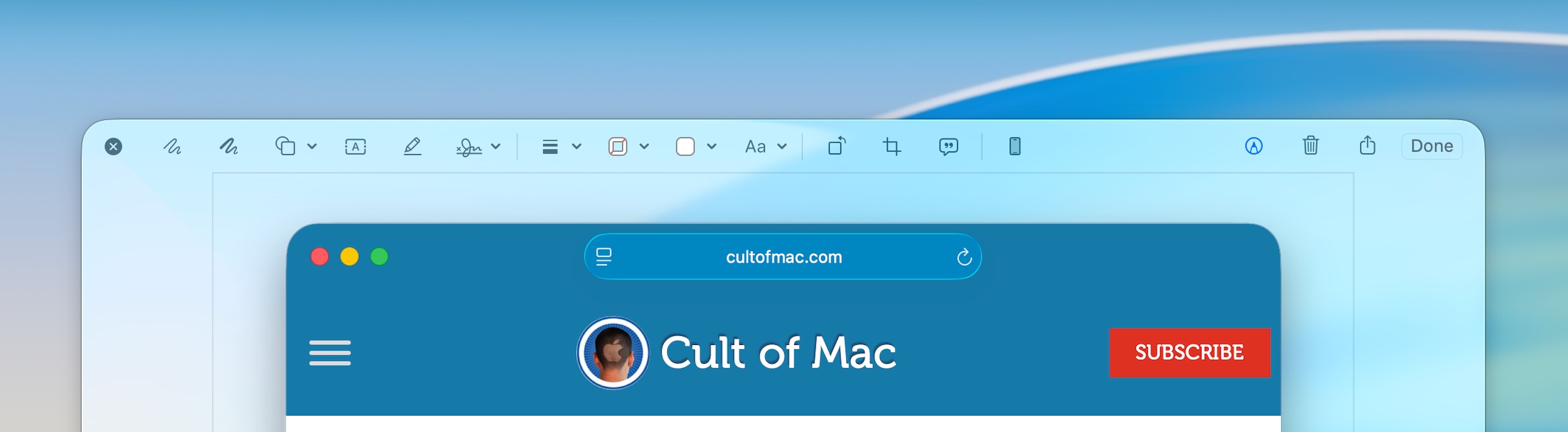
If you have the Show Floating Thumbnail option checked and are saving your screenshots to the Desktop or Documents, Apple’s mark up tool gives you a chance to edit the image. After you take a screenshot, you will see a floating thumbnail on the bottom right of your screen. To immediately save it without making changes, hover your cursor over the thumbnail and swipe it to the right.
To preview the screenshot and make quick edits, click on the thumbnail. From here, click the Markup button (the icon of a pen) to draw on the image, add shapes, add text, add a signature, rotate it, crop it or add a description. Click Done to save your edited screenshot, the Trash button to delete it, or the Share button to send it via iMessage, Mail, AirDrop and more.
Use keyboard shortcuts to take a Mac screenshot
If you’re running an older version of macOS, or if you need to capture a screenshot instantly, you can use these Mac keyboard shortcuts instead of the Screenshot app:
- Shift-Command-3 (⇧⌘3) will instantly capture the entire screen.
- Shift-Command-4 (⇧⌘4) will capture a selected portion. Click and drag the cursor to select a region. The screenshot will be taken when you release the mouse button. Alternatively, instead of clicking and dragging, you can press Space. Your cursor will turn into a camera icon. Click to capture a specific window, the Mac’s menu bar, etc. Just as before, you can hold down Option (⌥) as you click if you don’t want the window shadow to appear in the screenshot.
- Shift-Command-6 (⇧⌘6) will capture a screenshot of the Touch Bar if your Mac has one.
Note: If you have the Screenshot app on your Mac, these keyboard shortcuts will use the options you selected in the Screenshot app. If you want to save your screenshot to the Desktop or to the Clipboard, open the Screenshot app with Shift-Command-5 (⇧⌘5) to change the options.
Record your Mac screen with QuickTime Player
Screenshot: D. Griffin Jones/Cult of Mac
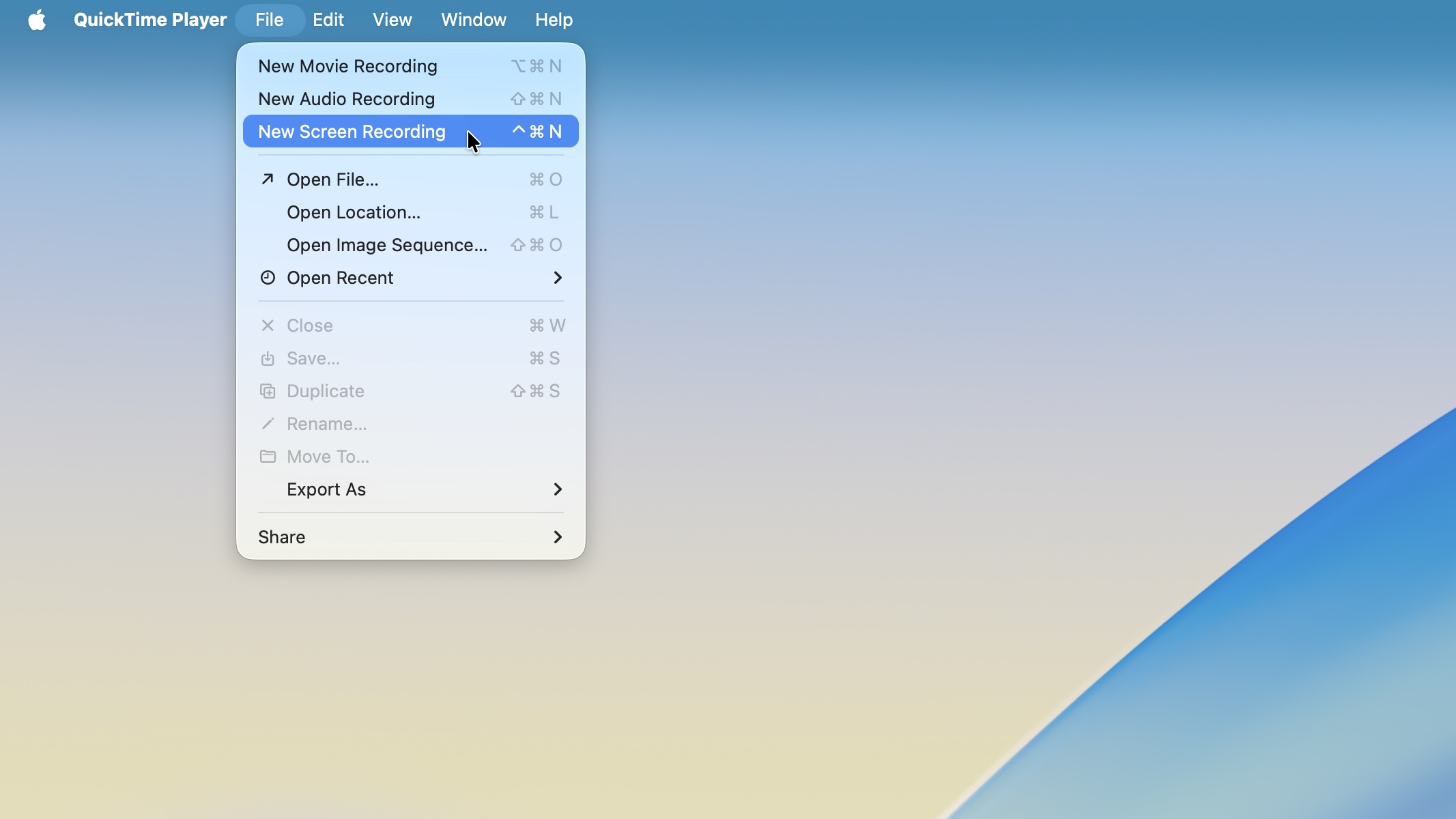
You can also make a screen recording using the Mac’s built-in QuickTime Player. To do so, open QuickTime Player by pressing Command-Space (⌘␣) and searching for it. Select File > New Screen Recording.
Then you will see the Screenshot app’s toolbar, as described above. Select your desired options, then click the Record button. To stop the recording, click the round Stop icon in your Mac’s menu bar.
We originally published this article on how to take a Mac screenshot on April 5, 2022. We updated it with the latest information on July 24, 2024, and December 16, 2025.

D. Griffin Jones was a writer, podcaster and video producer for Cult of Mac. Griffin has been a passionate computer enthusiast since 2002, when he got his first PC — but since getting a Mac in 2008, he hasn’t turned back. His skills in graphic and web design, along with video and podcast editing, are self-taught over 20+ years. Griffin has a bachelor’s degree in computer science and has written several (unpublished) apps for Mac and iOS. His collection of old computers is made up of 40+ desktops, laptops, PDAs and devices, dating back to the early ’80s.
Griffin writes for his personal blog, Extra Ordinary, and is currently looking for work.

