The App Store also recommends Paramount+ for watching the 2024 Super Bowl. Image: Apple/Paramount
The 2024 Super Bowl is Sunday, and football fans can watch via their favorite Apple device. Maybe it’s on an Apple TV connected to the big screen in your living room, or you might need to watch on your iPhone because you have to be at work tonight.
Whatever your setup is, here are the best ways to stream the big game.
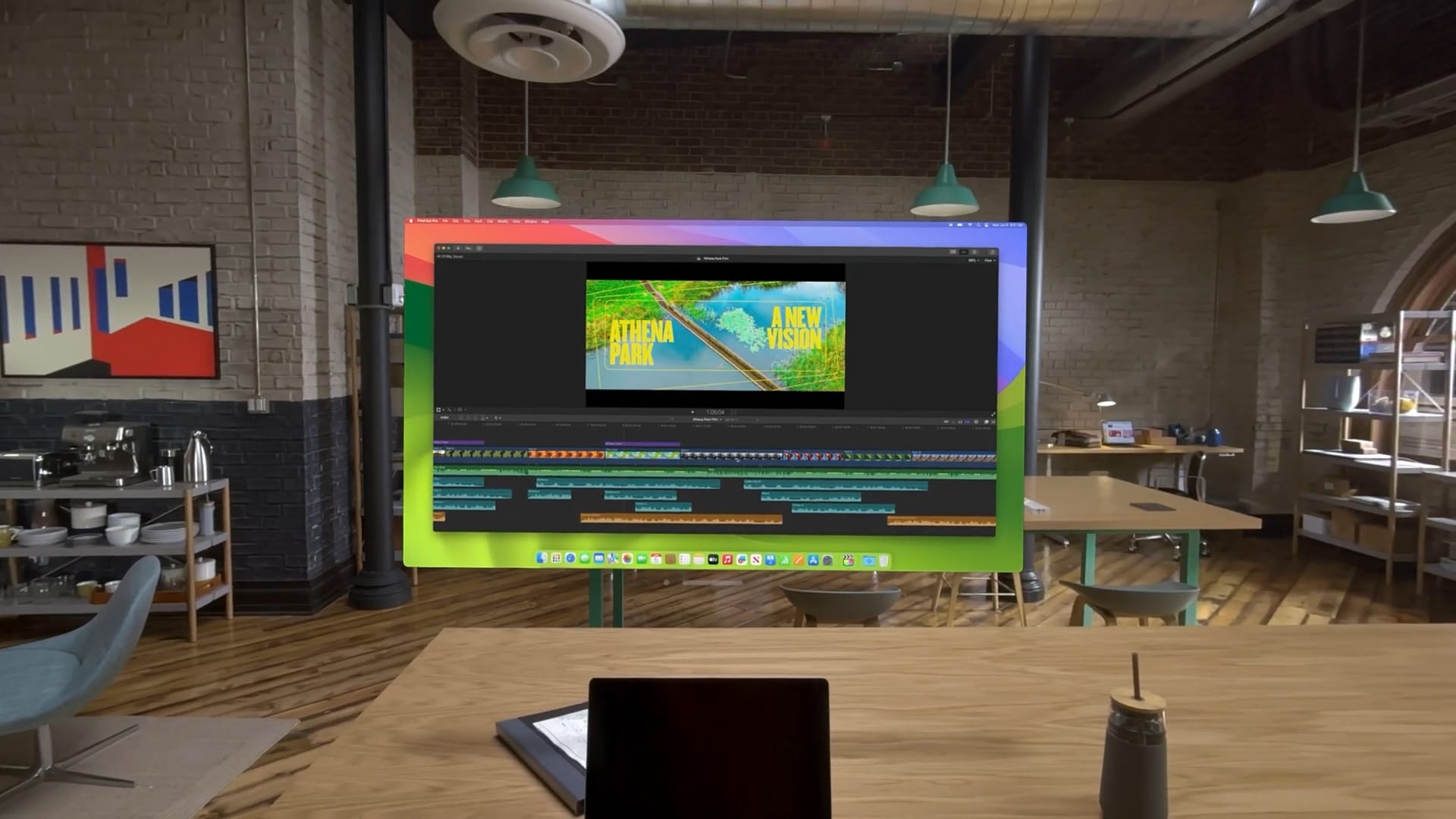
See a floating, virtual Mac display alongside your other visionOS apps. Photo: Apple
Screen sharing from your Mac to Vision Pro is a great way to work inside the headset while using your Mac’s keyboard and trackpad. You can enlarge your Mac’s screen to enormous size, and surround it with apps that work inside Vision Pro.
It’s called Mac Virtual Display. Unfortunately, it’s limited to only one Mac screen. But set up right, it can be the ultimate big screen setup — without the actual big screens.
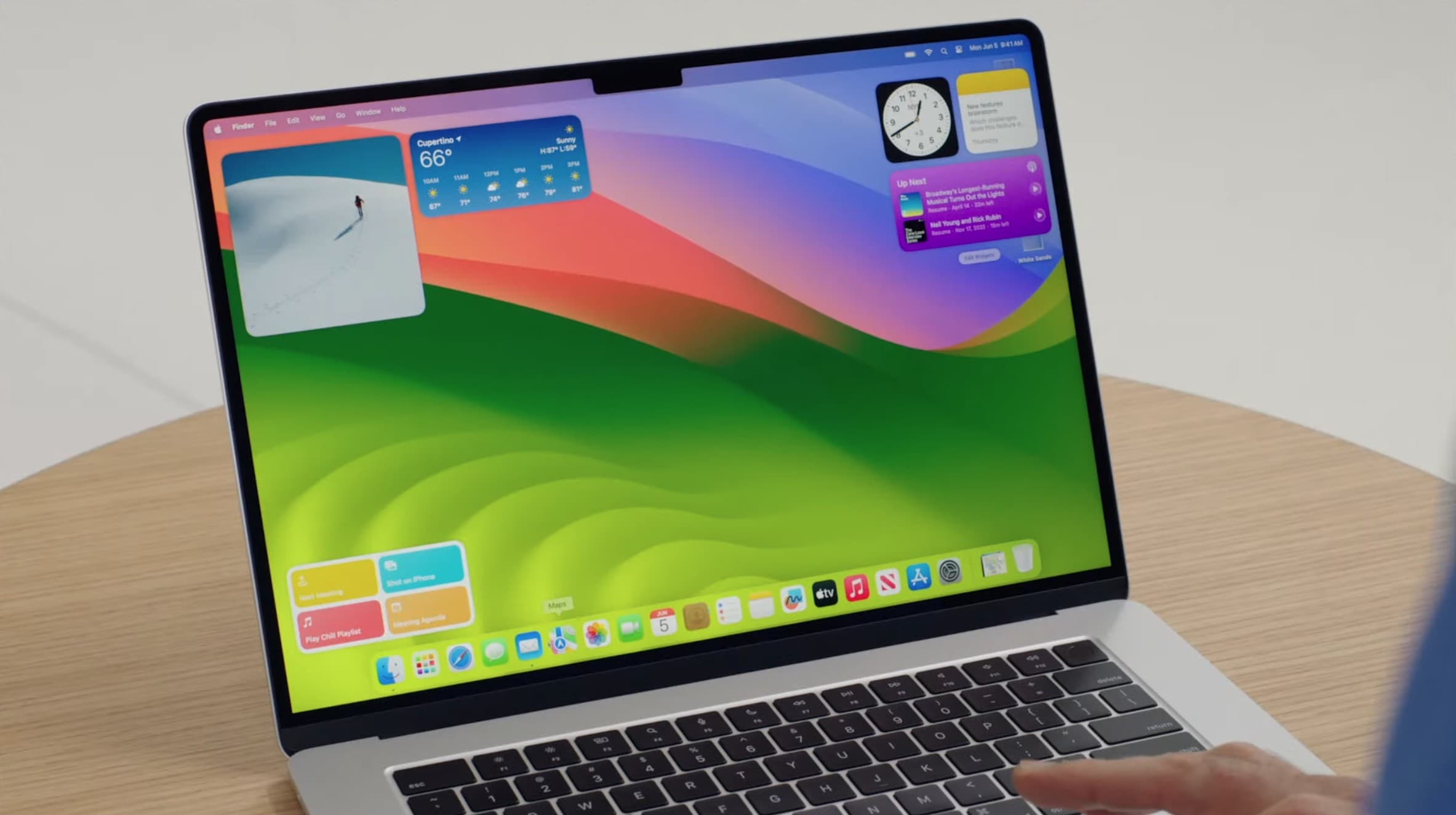
macOS Sonoma brings widgets to the Mac desktop, but maybe you don't want to see them every time you click. Photo: Apple
Upgraded to macOS Sonoma? You probably noticed by now that clicking on your Mac’s desktop automatically hides all open windows, with the focus moving to your widgets and desktop shortcuts.
This is the new “Click wallpaper to reveal desktop” feature in the new Mac operating system. If you find this functionality annoying, here’s how to turn it off. That way, you can safely click your Mac’s desktop again.
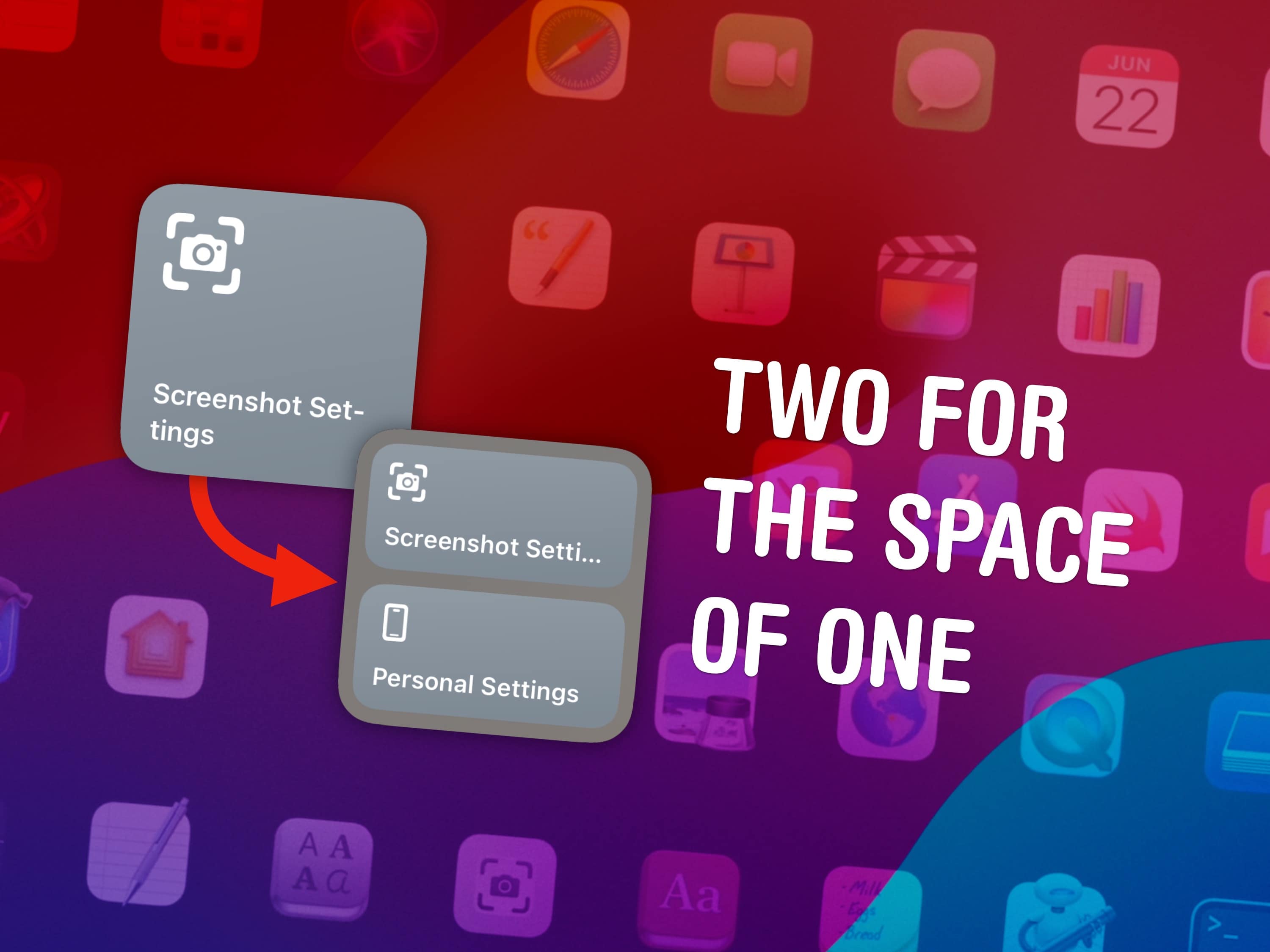
Double the shortcuts in the small widget. Image: D. Griffin Jones/Cult of Mac
You can fit two shortcuts into one small widget in iOS 17, a significant change for power users of Apple’s time-saving Shortcuts app. A lot of shortcuts I make are in pairs — and now, you can put two shortcuts of a kind in one small space on your Home Screen.
Home Screen widgets are a great way to launch the shortcuts you use every day. On the iPhone, where space is limited, fitting twice as many shortcuts without losing any icons could be a game changer for your Home Screen. Let me show you how to set it up.
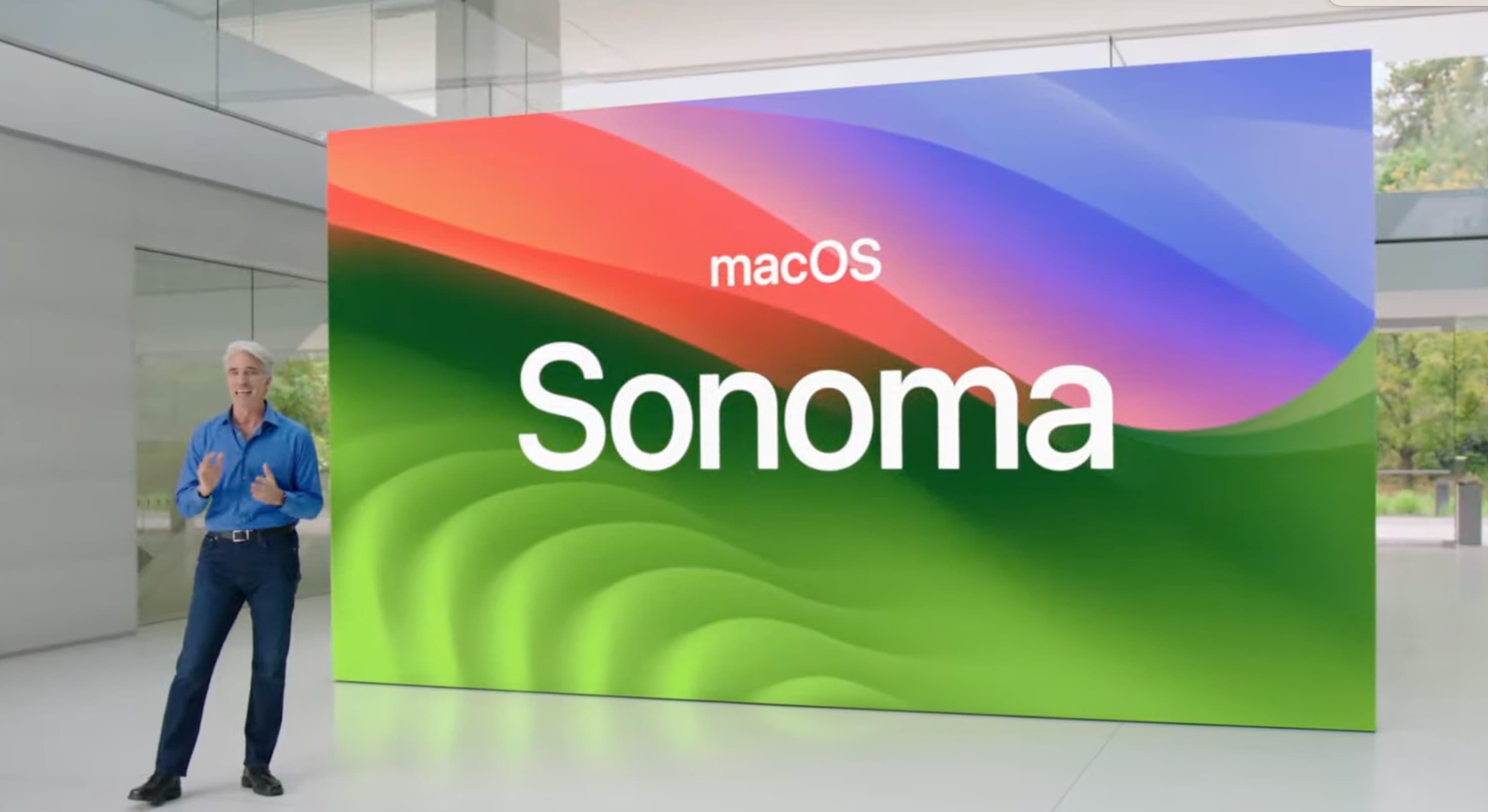
The next major macOS release is here. Dubbed macOS Sonoma, the update packs several usability changes that will help further boost your productivity.
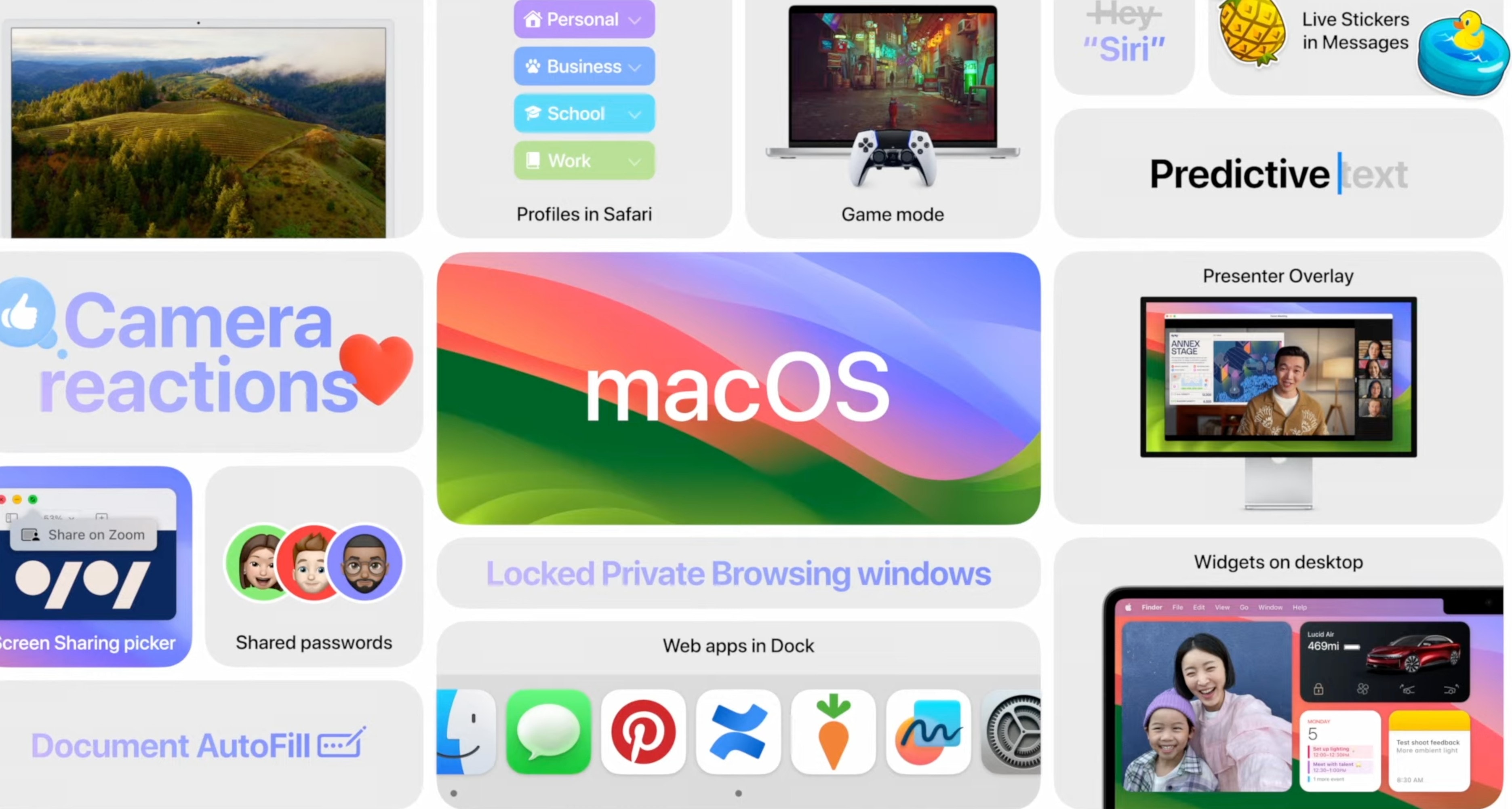
“macOS Sonoma is now available as a free software update, bringing a rich set of new features to the Mac that make work and play even more powerful,” Apple said in a press release Tuesday. “With macOS Sonoma, desktop widgets unlock a new way to personalize the Mac and get more done, while stunning new screen savers, big updates to video conferencing and Safari, along with optimized gaming make the Mac experience better than ever.”
Apple typically drops major new macOS builds in October. But this time, it is releasing macOS Sonoma in September, possibly because it is a relatively minor update.
macOS Sonoma may not have the same buzz as iOS, but there are loads of new features this year to try out on your Mac. You can get beautiful Apple TV-style aerial screensavers, widgets on your desktop, powerful enhancements to Safari and more.
macOS Sonoma will be released at about 10 AM Pacific on Tuesday, September 26. Here are the 36 best features you can look for after you update.
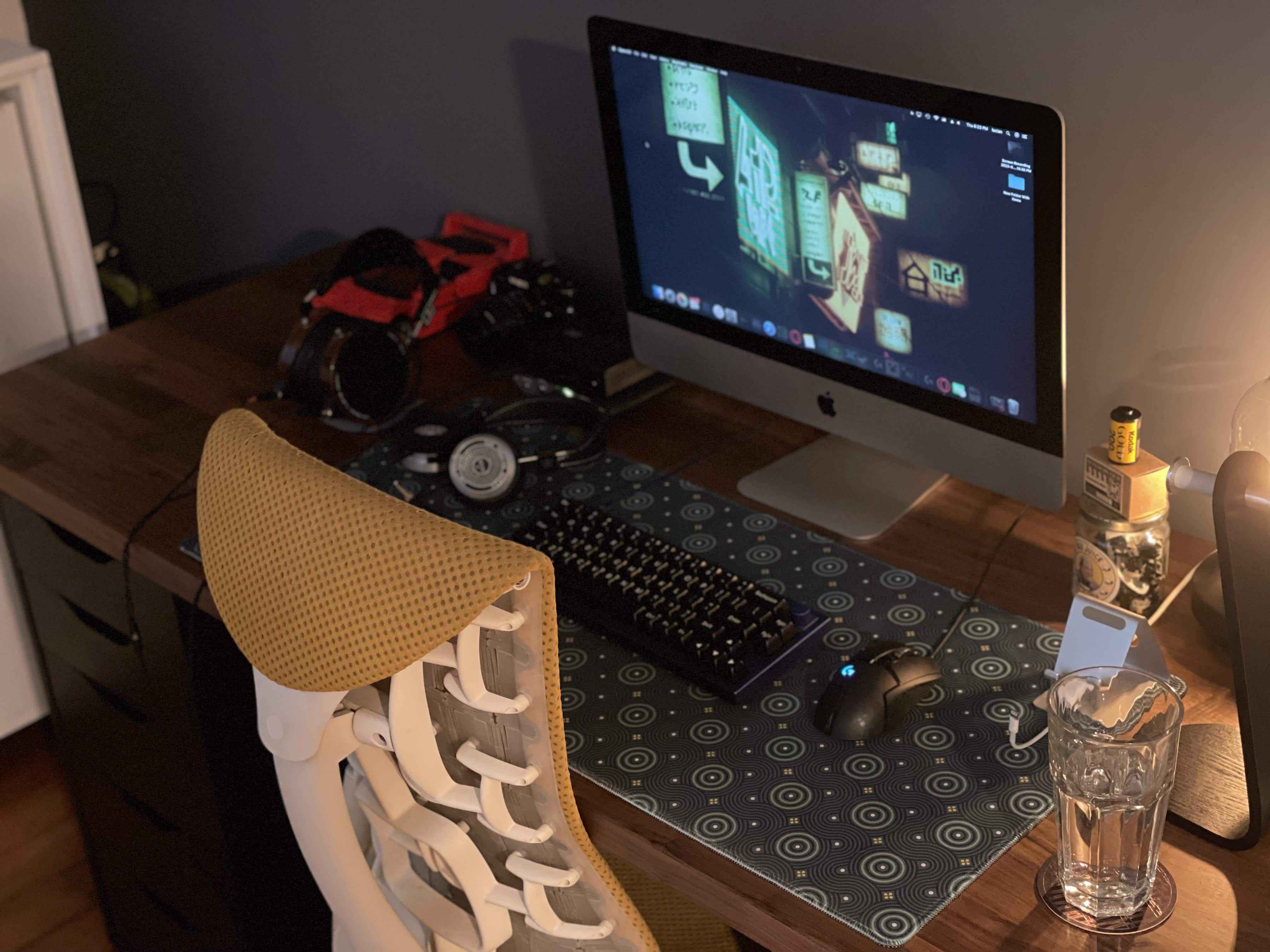
Commenters offered good advice on speeding up this Intel-based iMac setup. Photo: [email protected]
If you have an aging Intel-based iMac or Mac mini that’s slowing down like an old codger, today’s featured iMac setup shows a relatively simple way to revitalize your machine and keep using it.
All you need is an external solid state drive (SSD) and the knowledge, below, to make it your computer’s replacement startup disk.
Students have better options for textbooks than this. Photo: cottonbro studio/Pexels
Adobe wants to help students accustomed to old-fashioned paper textbooks get over the transition to PDF textbooks. The company points out that its free reader for the digital format does a lot more than display text and images, and many of these features are ideal for students.
The software developer highlighted five of the benefits of the free Mac application for those going to class with a PDF textbook.
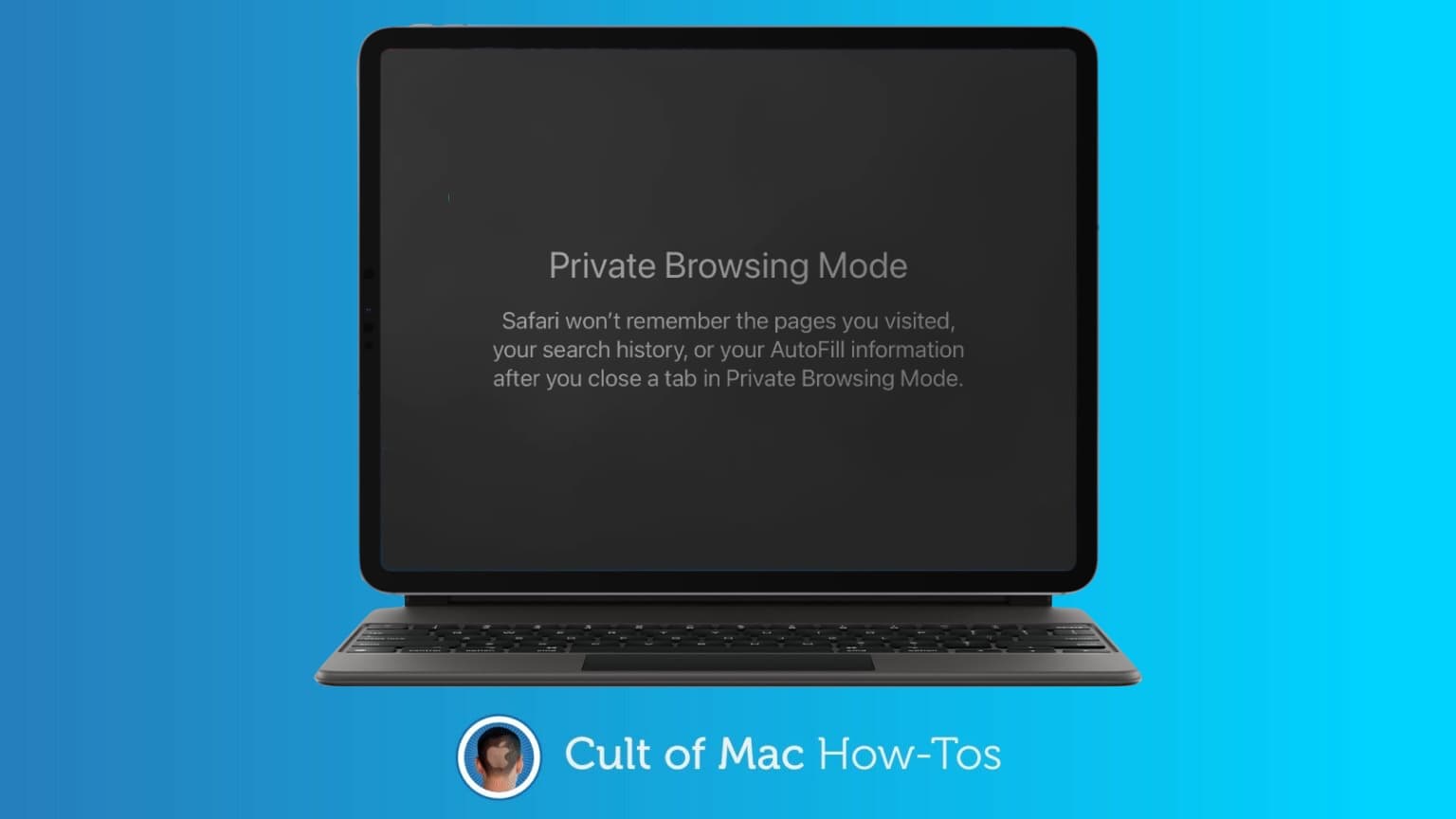
Safari Private Browsing mode will soon get multiple new features to prevent online tracking. Photo: Killian Bell/Ed Hardy
Private Browsing mode in Apple Safari will soon get even more secure. It’ll be locked against someone else accessing it, and incorporate new tools to prevent websites from tracking users.
The additional privacy features are coming in iOS 17, macOS Sonoma and iPadOS 17, all of which were unveiled at WWDC23 this week.
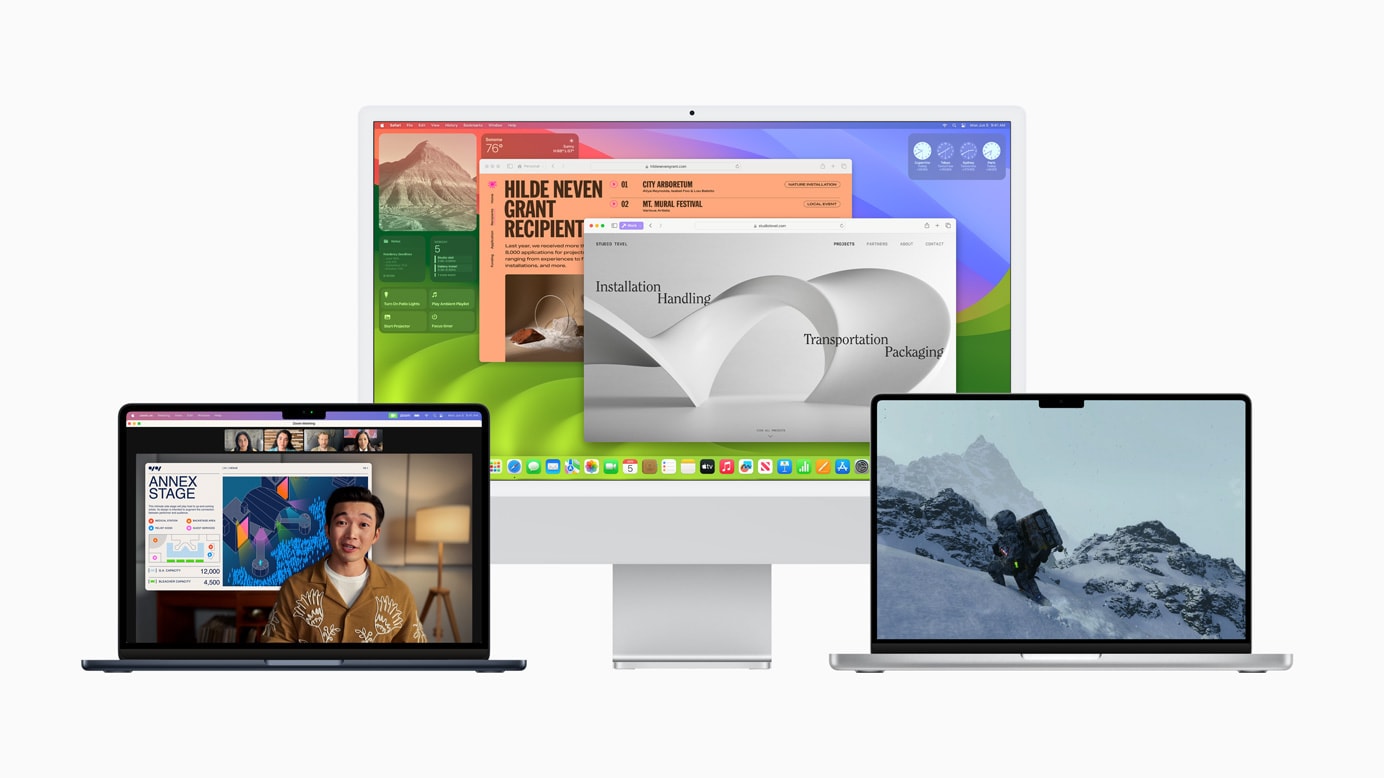
macOS Sonoma brings many long-requested features to the Mac. Photo: Apple
How can you install the macOS 14 Sonoma Developer Beta? While the release is months away, you might want to take it for a test drive or see how your apps work in the new release. Right now, you need to make sure you’re signed into your developer Apple ID and that you have developer betas turned on in the Settings app.
These days, the process is far easier. You no longer need to install a beta profile and reboot your Mac a bunch of times to get it working.
This free, open-source app makes it easy to fake your GPS location. Image: D. Griffin Jones/Cult of Mac
You can use a free Mac app called LocationSimulator to hide your real location on your iPhone. It works great as a Pokémon Go spoofer. Just set it up, then plug your phone into a Mac and tell it where you want to “be.” You don’t need to jailbreak your phone or install anything on it.
When using LocationSimulator, every app on your iPhone will use this new GPS location. It’s useful for maintaining privacy — for instance, if you’re posting screenshots online, it’ll mask your real home address. Developers can use it, too, for testing location features in their apps.
Best of all, you just need a Mac. LocationSimulator is free and open-source.
These apps (and system features) will help you work faster. Image: D. Griffin Jones/Cult of Mac
I’m going to show you five ways you can instantly boost your productivity on your Mac. You might not have thought your Mac was capable of these advanced features. But in my opinion, the Mac’s reputation for being un-customizable is misunderstood. Four of these tips depend on third-party productivity apps that will add radical new system features to your Mac.
I’ll show you how to get instant window snapping on the Mac, powerful screenshot and recording tools, a clever clipboard manager that should be built into macOS, a simple tip for opening apps faster, and a smart time-tracking tool that’ll keep you productive.
If starting up your Mac launches a plethora of windows you don't need or want, you may want to try our tips. Photo: David Snow/Cult of Mac
Years ago I was a regular Mac user who switched to PC for a long time. When I fully re-immersed myself in the Apple ecosystem, an old annoyance came right back — all those unwanted apps launching for no apparent reason on startup, slowing things down.
Like many folks, I don’t restart my Mac very often these days because Sleep mode has its benefits. So having to close a bunch of apps is not a massive annoyance. But for anyone who wants a fix, there are easy ways to disable startup items.
And if those don’t work, you can try a couple of tricks to get rid of hidden launch agents.