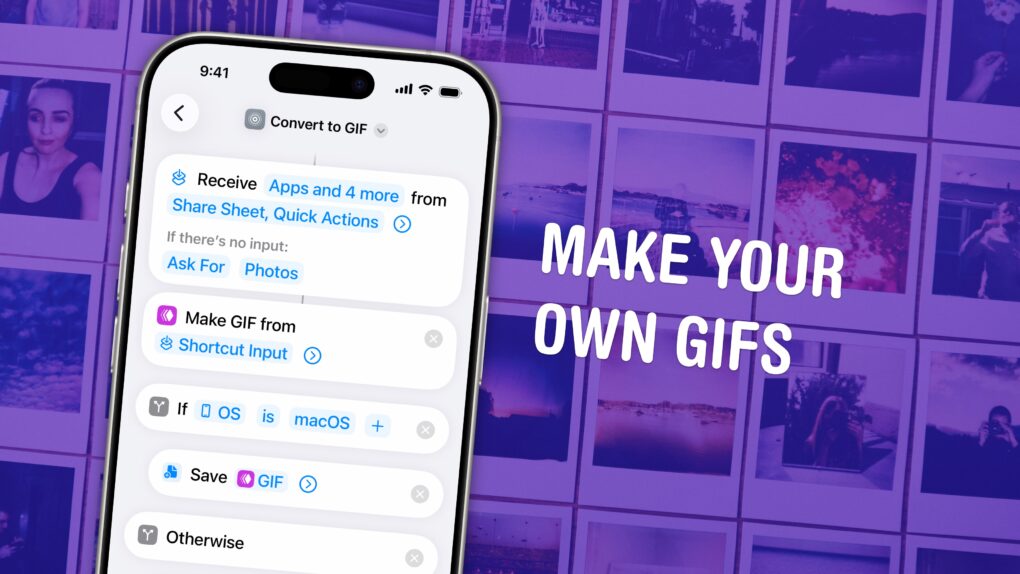
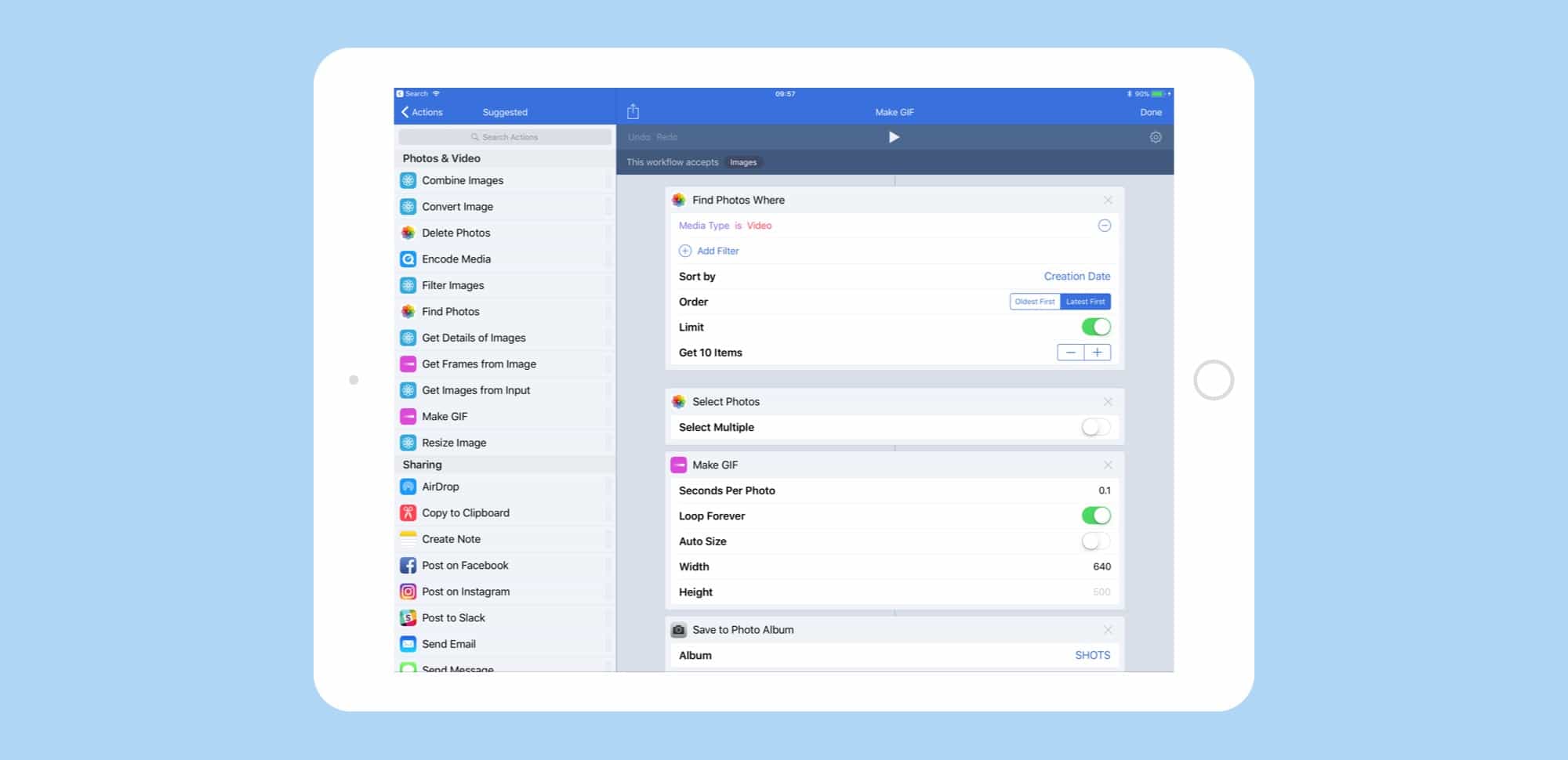
Turn any Live Photo or video on your phone into a short GIF. Image: D. Griffin Jones/Cult of Mac
You can make an animated GIF on your iPhone or Mac out of any Live Photo or video in your photo library or saved on your computer. You don’t need to download any apps — simply add a shortcut, and you can make a GIF directly from the share sheet.
If you need an actual GIF file, there’s still a pretty easy way to make them on your phone or Mac. I’ll show you how.
Making a Gif with Twitter’s iPhone app is a snap. Photo: Cult of Mac
Twitter made creating a GIF as easy as posting an image. Using the iPhone camera, users can capture a short video in the social-networking service’s app that is automatically converted into a GIF.
Here’s how to make your own GIFs with the Twitter app. It’s easy and fun.
Wouldn’t it be great if you could take that awesome (and hilarious!) GIF, and use it as an animated wallpaper for your iPhone? You could wake your iPhone, press on the screen, and watch the action unfold. Over and over. And over.
Sadly, GIF wallpapers are impossible. Or are they? Well, you can’t set an actual GIF to run as your lock-screen wallpaper, but you can convert any GIF into a Live Photo, and use that to animate your iPhone’s lock screen.
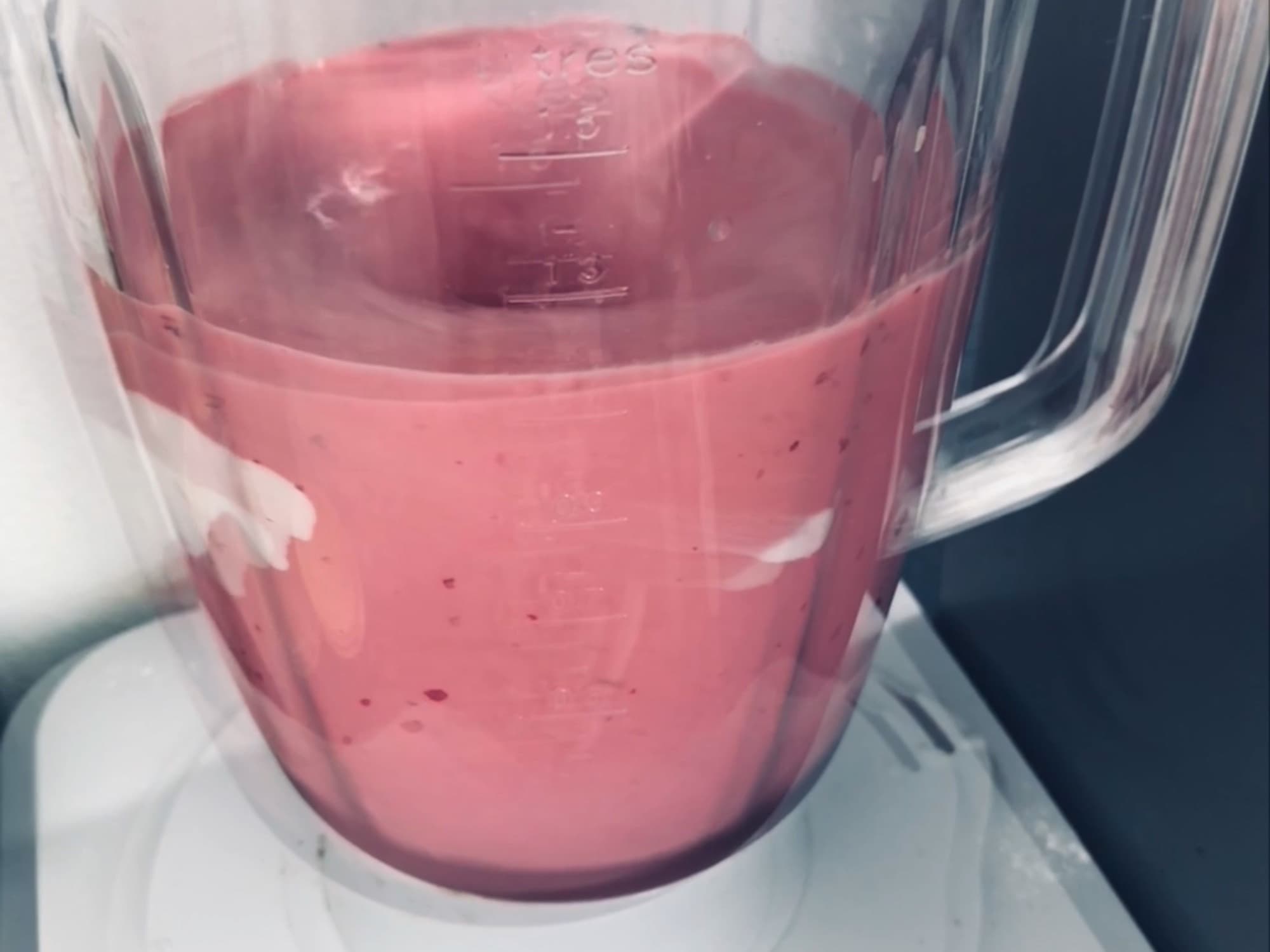
It’s hard to convey a moving photo with a still image, but doesn’t this smoothie look delicious? Photo: Charlie Sorrel/Cult of Mac
Quick question: How do you send a GIF selfie from your iPhone? One answer is just don’t bother. It’s too much hassle. Another way is to use this handy shortcut to make one. But there’s a third way, which is also the best way: Don’t send a GIF at all.
If you and your intended GIF recipient both use iOS devices, there’s a much better option.
You'll be amazed at how easy GIFwrapped makes finding the perfect animated GIF. Photo: Ian Fuchs/Cult of Mac
In the ’90s and early 2000, animated GIFs were a staple of web design. Today, they’re still imperative to the web, but for entirely different reasons. With GIFwrapped, you can search a massive database of GIFs, create a personal library of your favorites, and save the ones you find on social media for later.
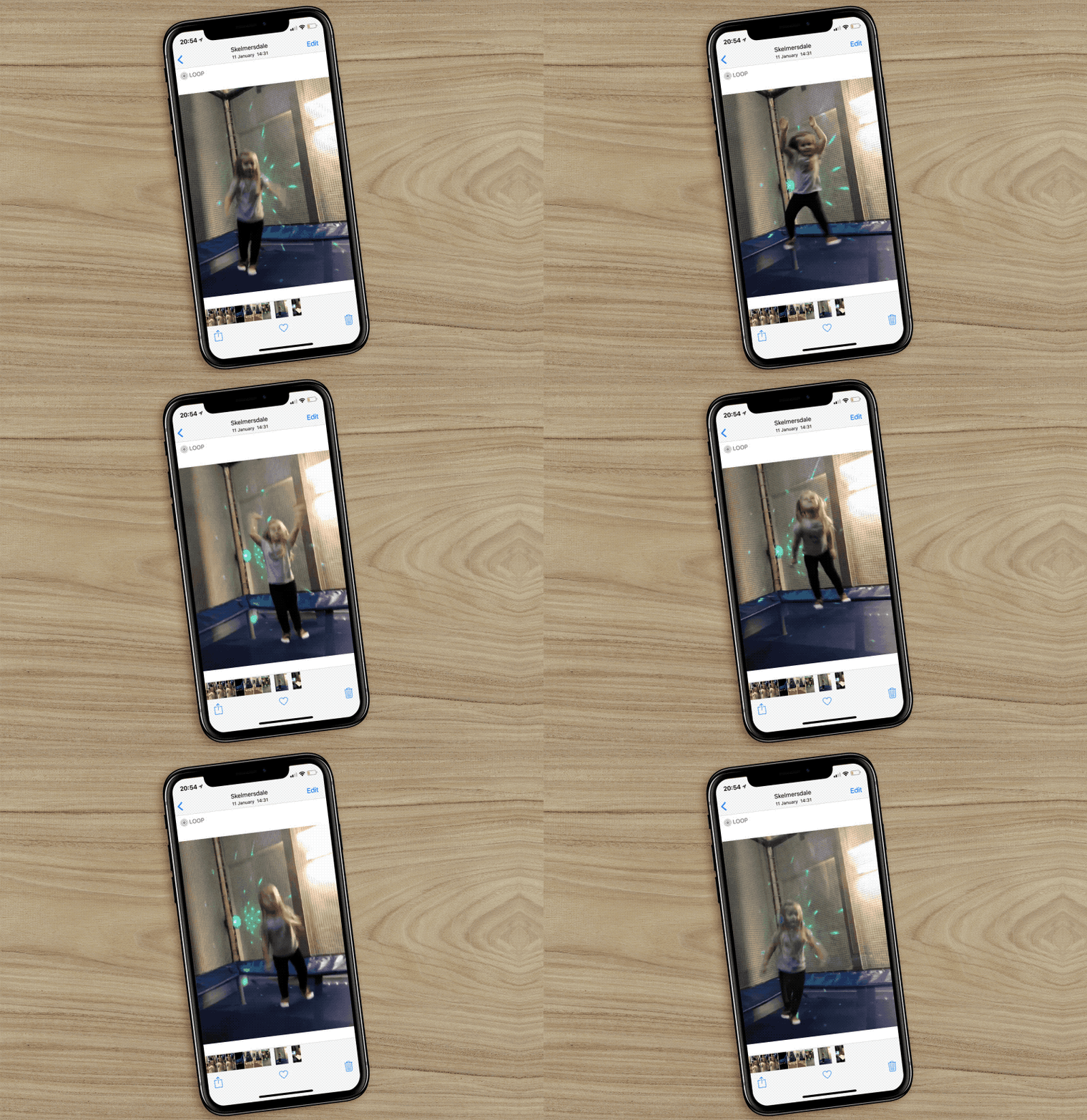
Live Photos are great. They can capture special moments in a way that some pictures just can’t. The little movie clips that play when you force-touch a Live Photo can show the joy or wonder of the image. But therein lies the problem. They’re basically video clips embedded into photos, which makes sharing them to non-iOS users a nightmare.
A plethora of apps can convert Live Photos into GIFs or a standard video clip, but iOS 11 makes it even easier. Check out our video below to see how to quickly convert a Live Photo into a GIF.
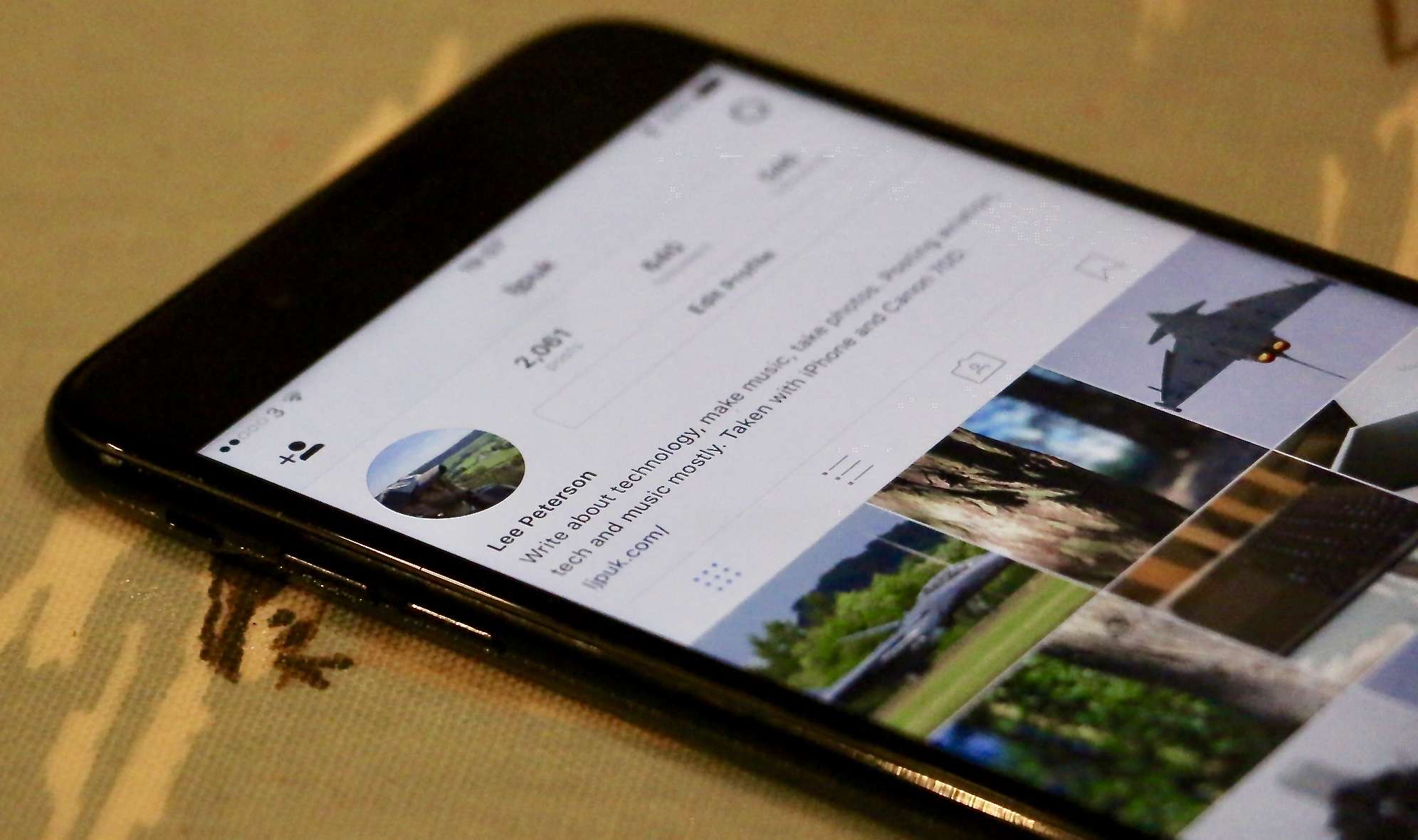
Currating your feed is about to get even easier. Photo: Lee Peterson/Cult of Mac
Reposting your favorite photos on Instagram is about to get a lot easier if a new feature that’s currently in testing makes it out to the public.
Instagram appears to be testing a button that allows users to “regram” button that allows users to share posts to their timeline. There’s no guarantee when the feature will make it out to the public, but it if it does, it could finally mean the end of horrible third-party reposting apps.
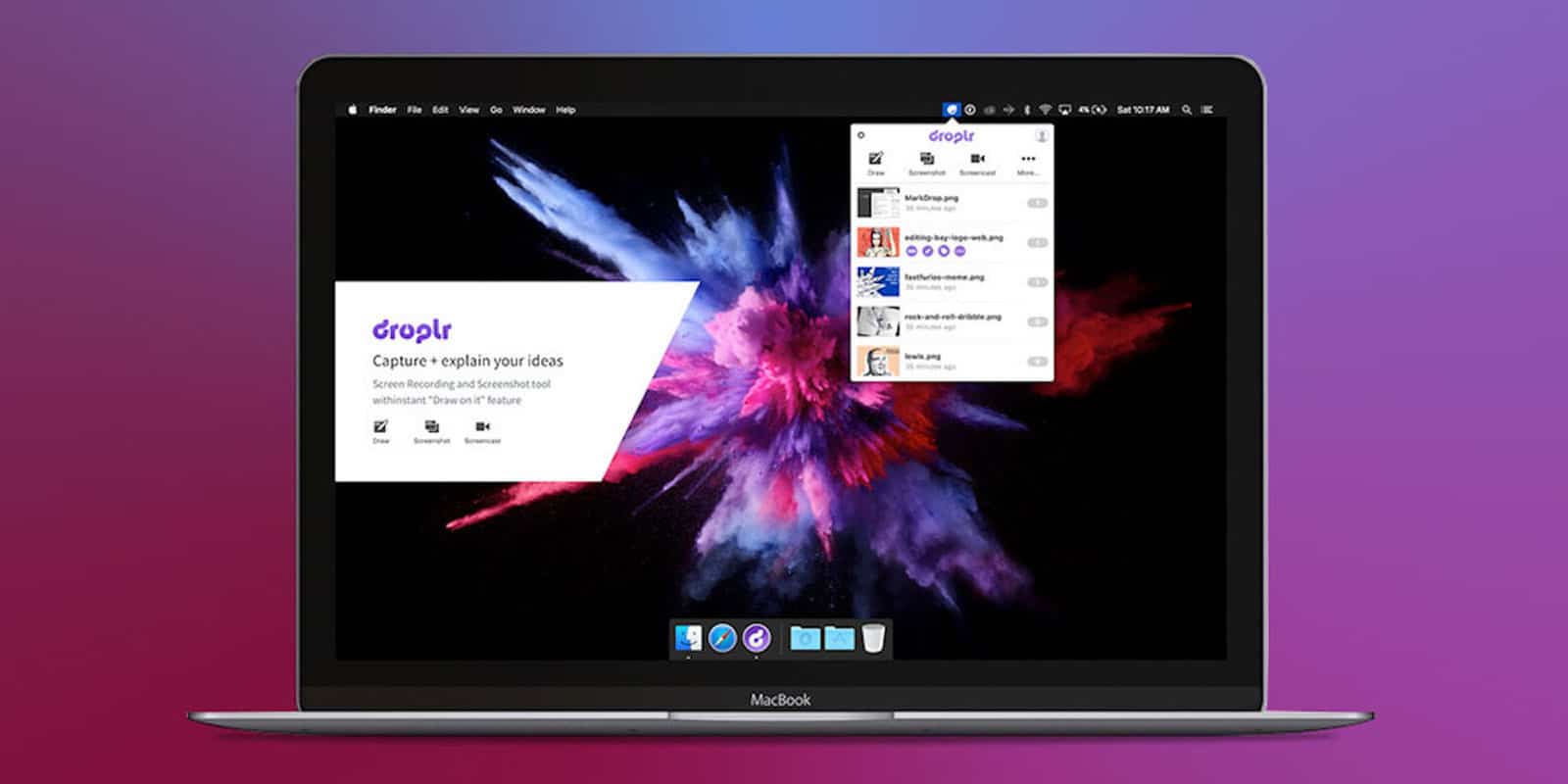
Droplr's simple sharing features might be just what your team needs. Photo: Cult of Mac Deals
Remote collaboration has basically become a norm. For passing files of a all sorts back and forth, Google Drive or Dropbox quickly come to mind. But Droplr presents a unique set of collaborative tools.
Making screen-capture videos in iOS 11 is easy, and turning them into GIFs is even easier. Photo: Cult of Mac
Thanks to the new screen-recording feature in iOS 11, you can now make a video of whatever you’re doing on your iDevice, and share it. I use this for how-tos (although ironically, not this one), developers can use it to make videos of their apps for the App Atore (the new iOS 11 App Store features videos quite prominently), and regular folks can use it to record a snippet of a YouTube video or suchlike. But what if you prefer to share your optimized video as a huge, bandwidth-hogging GIF instead?
GIF support means that iOS is now feature-complete. Photo: Cult of Mac
One of the many new iOS 11 features that went unannounced in Monday’s WWDC keynote may be one of the biggest: Animated GIFs are now supported in the Photos app. Not only that, but they get their own dedicated album, called Animated.
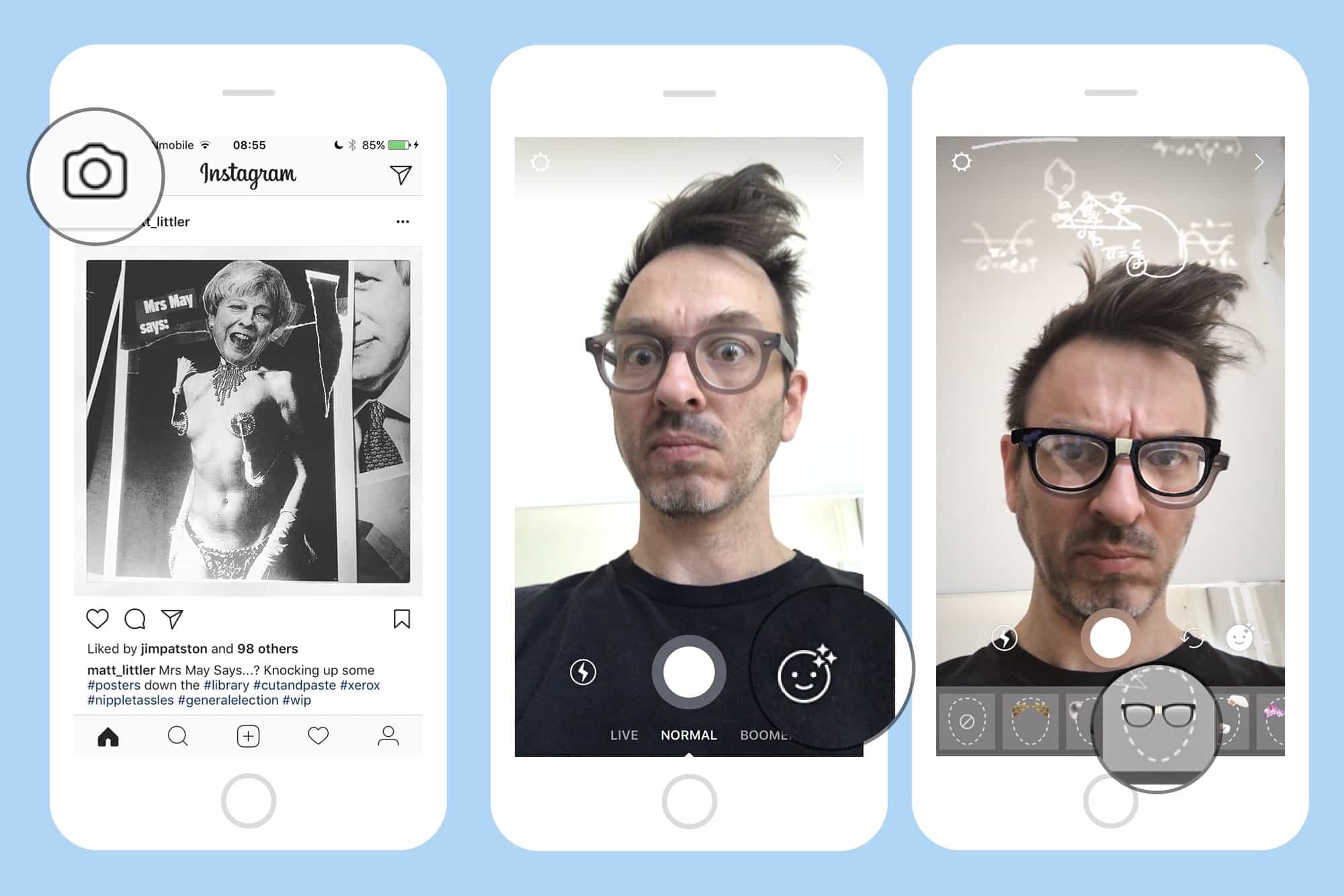
The new Instagram Face Filters are pretty rad. Here's how to use them. Photo: Charlie Sorrel/Cult of Mac
Instagram just added Face Filters, letting you add things like spectacles, bunny ears, and princess’ tiaras to your video selfies. Right now, you can only share these clips to your Instagram Stories, or send them directly to other users. But there’s a workaround that lets you post them like regular Instagram videos, putting them in your feed for all your followers to “enjoy.” Let’s find out how.
Apple made a lot of improvements to iOS 10. Photo: Apple
Apple’s jam-packed iOS 10 update has gotten even better in its third beta, which brings a bunch of tiny new features that start to make iOS 10 feel like a polished product.
The list of changes in iOS 10 beta 3, which was seeded to developers this week, isn’t as long as the last update. But Apple has added some really nice tweaks to the lock screen, Apple Music, iCloud Drive and Messages, in addition to a ton of bug fixes and stability improvements.
Check out the most important new additions to Apple’s upcoming mobile OS, which is slated to launch on iPhones and iPads this fall:
You can get your hands on Gboard today if you live in the U.S. Photo: Google
Google just launched its very first keyboard for iPhone and iPad — and it’s awesome.
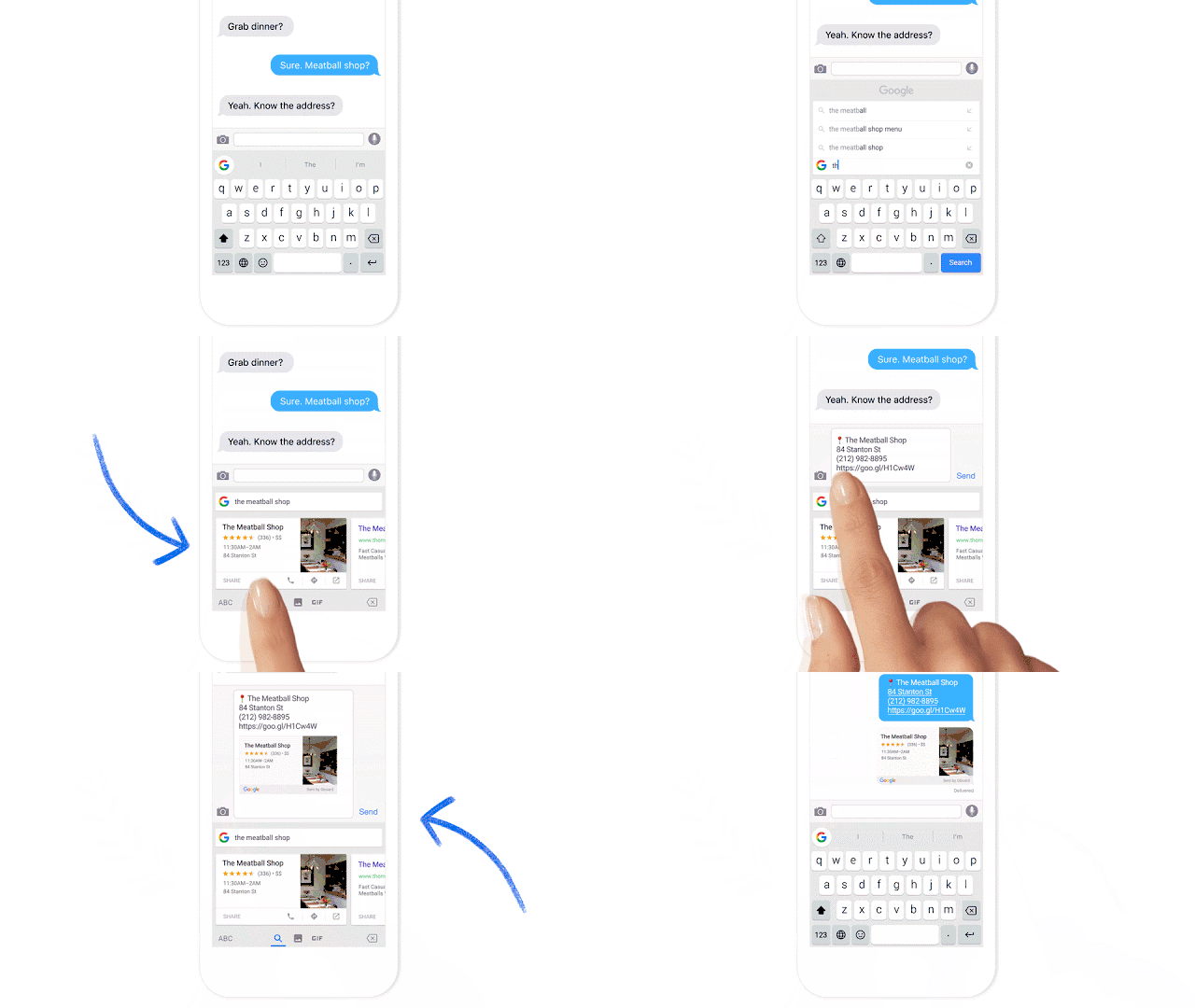
Called Gboard, and designed to look a lot like the default iOS keyboard at first glance, it’s jam-packed with useful features, including the ability to type with glide gestures, send GIFs, and search Google from almost anywhere.
Twitter and animated GIFs are a popular combination – the social media company’s users shared 100 million of them last year – but finding just the right one has been more art than science.
Today, however, Twitter rolls out a new way to search for your animated funnies from within the 140-character service itself.
Finn getting his reps in before facing Kylo Ren. Photo: Disney Pictures
JJ Abrams has been doing a bad job at keeping his promise not to release anymore trailers until Star Wars: The Force Awakens hit theaters next month.
A new trailer debuted online last night for the highly-anticipated movie and while it doesn’t have as many new scenes as the international trailer that dropped a few weeks ago, there are a couple interesting new bits, like Finn fighting a stormtrooper with some type of electric anti-lightsaber baton.
We’ve created GIFs of all of the new scenes so you can obsess over all the details:
The face that first introduced us to Live Photo. Photo: Apple
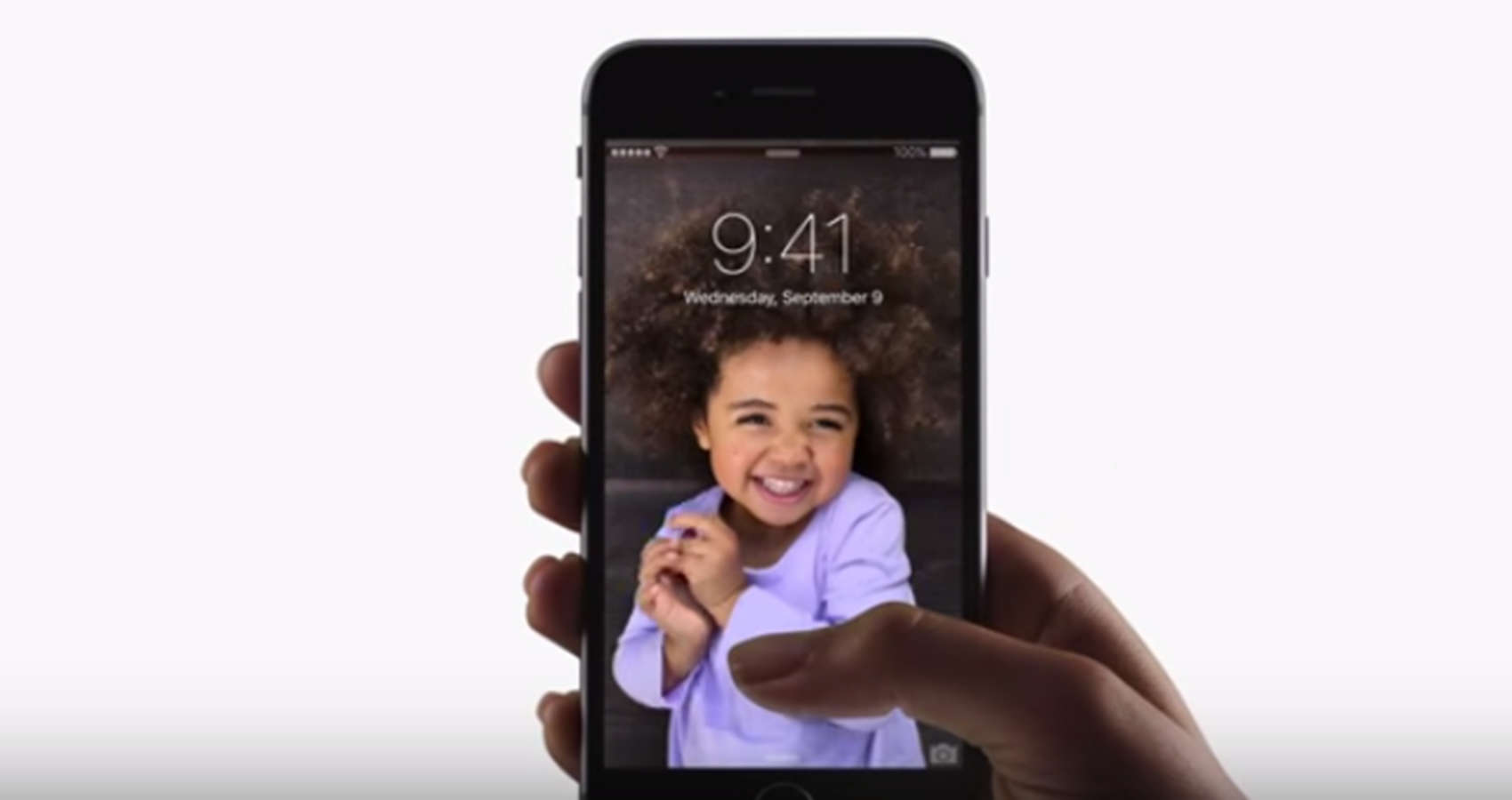
The iPhone 6s’ new Live Photos feature created a new media format, but there’s one major problem with the new moving pictures: You have to own an iPhone 6s to see them.
Most of your friends probably haven’t upgraded yet, which means those cool Live Photos you’ve snapped are only viewable by you. However, there is a way to transform your favorite Live Photo into a shareable GIF or video file, allowing everyone to see the movement in your picture, no matter what device they’re on.
The GIFs have landed on Facebook. Photo: Buster Hein/Cult of Mac
Facebook and GIFs seem like they’ve both been fixtures of the Internet forever, but it has taken until 2015 for the two to finally hookup.
Starting today, Facebook users can annoy friends with the most amazing GIFs the web has to offer. Unfortunately, you can’t upload your favorite GIFs directly to Facebook but you can embed them from other websites.
J.J. Abrams whetted our appetite for more lightsaber dueling action with the first Episode VII teaser last year, but today’s release of a new trailer has got us counting down the days until Christmas.
We’re still eight months away from Star Wars: The Force Awakens‘ public release, and while plot details for the highly anticipated movie are being kept under wraps, there’s a ton of fresh info to glean from the new trailer. We’ve diced the entire trailer up into GIFs so you can rewatch each scene to look for new clues.
Here are 18 things we learned from the new trailer:
High five for the best GIFs of 2014. Photo: Deathdragon1987/Imgur
We’re nearly a week away from ringing in the new year and all the craziness that 2015 is going to bring with it, but before we go into holiday hibernation mode, we wanted to take a look back at the most GIF-worthy events of 2014.
From Ellen’s hilarious Oscar selfie, to ‘the greatest catch ever’, 2014 was filled with incredible moments that captured the Internet’s fascination thanks to the glory of the GIFs.
Without further adieu, these were our favorite GIFs of 2014:
I love animated GIFs. As far as I’m concerned, they’re the greatest gift God ever bestowed upon the Internet.
While most Mac users probably think making them requires Photoshop and some superior skills, creating GIFs can be dead-easy for your Mom to do, as long as you know which tools to use.
In fact, iOS 8 has made communicating solely through GIFs easier than ever thanks to third-party keyboards. With just a couple apps and some browser extensions, you can become a GIFmaster in no time and blow your friends away with your arsenal of GIFs.
Here’s how to create your own GIFs in minutes on your Mac.
I’ll be the first to admit I don’t really like it when people buy new iPhones just to destroy them on camera. It’s extraordinarily wasteful, not just of money but of the craftsmanship Apple puts into every device.
That said, even I have to admit this iPhone 6 torture test is awesome. Dude took an iPhone 6, froze it with liquid nitrogen, and then disintegrated it with a sledgehammer, like some cryogenic Thor.
iOS 8 is finally here. Photo: Jim Merithew/Cult of Mac Photo: Photo: Jim Merithew/Cult of Mac
iOS 8 is about to be unleash on the world today after debuting earlier this summer at WWDC. Tim Cook is calling it the biggest iOS update ever and for good reason, as the new OS has been packed with hundreds of new tools for developers, as well as new features that make iOS devices, quicker, more productive, and more seamlessly integrated with Mac than ever before.
You won’t see huge visual changes like Apple made with iOS 7 last year, but there’s plenty of features for everyone to be excited about in iOS 8, whether its the new messaging tools, improved camera features, family sharing, Hand-off, or the sleek new Spotlight.
Before you jump headfirst into the biggest iOS release ever, get acquainted with the most important new features in this Cult of Mac guide to iOS 8:
CloudApp touts itself as your “clipboard in the cloud,” and today it received a major update.
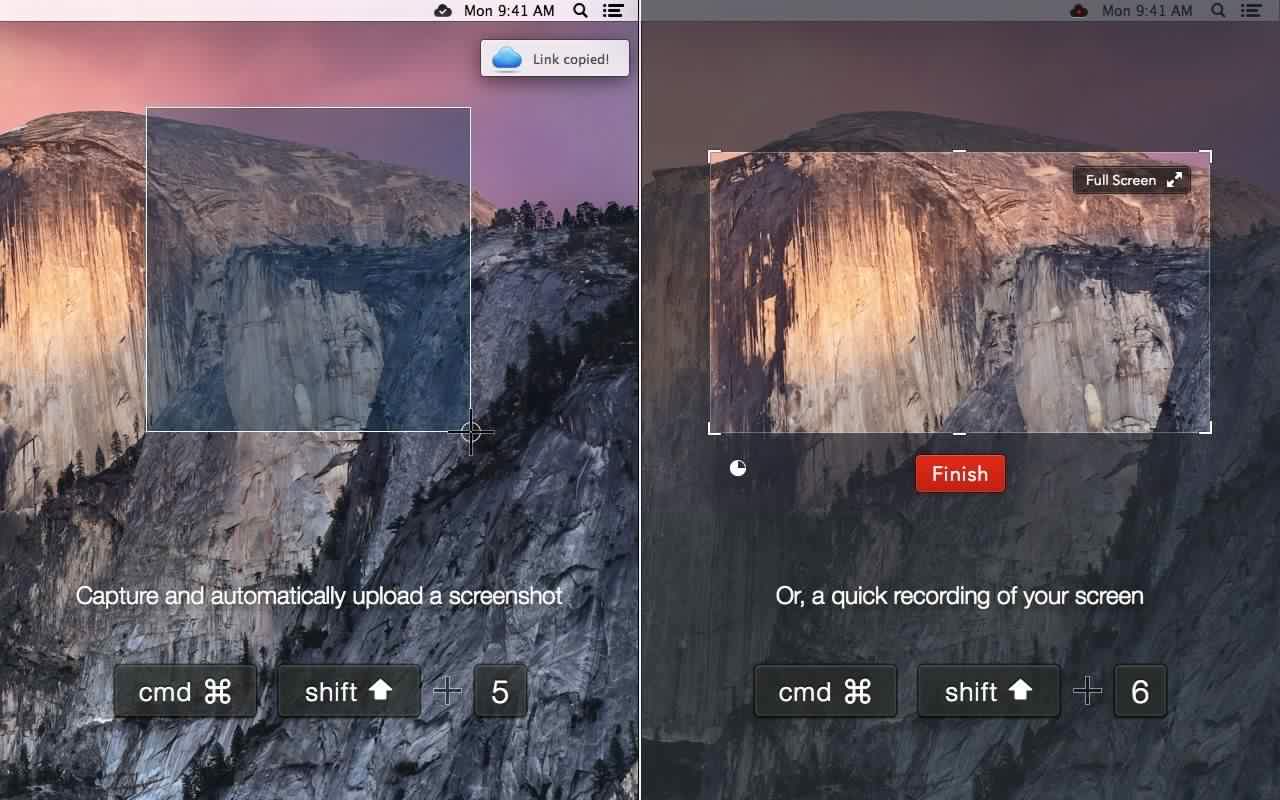
In case you’re unfamiliar, CloudApp is a menubar app for the Mac that can upload just about anything copied to your clipboard with a keyboard shortcut. It then creates a shortened URL for sharing and lets you track how many hits the link has received.
CloudApp 3.0 is now the easiest way to make animated GIFs on the Mac, thanks to a new feature called Cloud Motion. The CloudApp team has also revamped its pricing for paid plans along with a brand new way for teams to collaborate using the app.
Just the other day I asked my Twitter followers to recommend me a good app for making animated GIFs out of my photos. The response was stunning in its silence – not a single reply. But I don’t care. I now have PicGIF, a Mac app that does one thing: Turn Pics into GIFs.
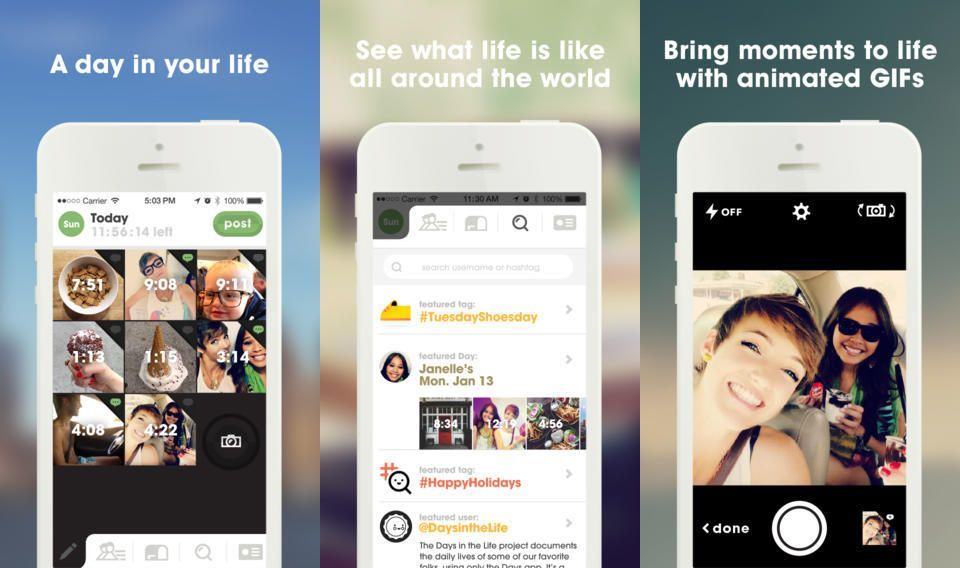
Days is a free iPhone app that uses your photos to create a journal of your adventures. The twist is that it takes your pictures and turns them into animated GIFs.