Mobile menu toggle

Search results for: shortcuts

How and why to redirect email instead of forwarding it

By

redirect email
This photo is not email, nor is it even regular mail, but it has to do with directions.
Photo: Charlie Sorrel/Cult of Mac

We all know about forwarding email. It’s the electronic equivalent of putting a received letter in a new envelope and sending it on to someone else. But did you know that you can also redirect emails so that it seems like they arrived from the original sender? You could, for instance:

  • Redirect instructions from your boss to a co-worker.
  • Pass an email to someone else without getting caught in an inevitable and endless Reply All mess.
  • Send a customer enquiry to the correct person, with their reply going direct to the customer.

Unless the final recipient is really brain-dead, then this will never work as a scam to trick them into doing all the work your boss assigned to you, but it’s a very practical alternative to just forwarding emails.


How to fix your AirPods after iOS 11.2.6 broke them

By

airpods
Fixing your AirPods is easy.
Photo: Ste Smith/ Cult of Mac

The latest iOS version 11.2.6 is making some users’ AirPods stream in mono, instead of stereo. That is, the same audio channel is coming out of both AirPods. If you only ever listen to podcasts, you may not have noticed this as most podcasts are recorded in mono, but if you listen to music it might be driving you nuts.

The update may also be screwing with the AirPods’ tap controls.

Either way, the fix is easy.

How to use Type to Siri in iOS 11 (and why you’ll love it)

By

type to siri prompt
Type to Siri really shines on the iPad.
Photo: Cult of Mac

iOS 11 is Apple’s most keyboard-friendly version of its mobile software yet, but that doesn’t mean you have to hook up an external keyboard to use its best new keyboard-centric features. Today we’ll look at Type to Siri, which can be used whenever you’d usually talk to your favorite digital assistant just by tapping on the usual on-screen keyboard.

Best iPad cases for every type of user

By

pad and quill
The right case is not only protective, but functional, and even classy.
Photo: Pad&Quill

You have in your hands a brand new iPad. Now what? Sure, you can just go ahead and use it au natural. But consider: While iPads may look like hulking slabs of aluminum and glass, they are deceptively delicate. They cry out for protection.

Gauging which is the best case to safely secure your tablet is not for the faint of heart, given the myriad options out there. That’s where our iPad case roundup comes in. We’ve scoured the best reviews, including our own, and looked at buyers’ favorite cases on shopping sites like Amazon.

Then we gathered our picks into several categories, depending on how much you want to pay, what type of protection you need, and any extra functionality offered (like keyboard cases). And we’ve also put together a list of runners-up — cases that are pretty good, or even great, but just didn’t make our cut.

How to make the Mac’s Launchpad useful again

By

mac Launchpad
Launchpad is totally worth a second look.
Photo: Charlie Sorrel/Cult of Mac

Try this: If you’re reading on a Mac, go ahead and pinch in on your trackpad with all five fingers. If it’s enabled, then you’ll see a grid of apps. lots of apps. That’s Launchpad, which is kind of like an iOS home screen for your Mac.

The problem is, it shows all your apps, in seemingly random order. There’s a search bar to narrow things down, but by the time you’ve got that far, you may as well have used Spotlight to launch your app. Happily, the Launchpad is quite customizable. You can make iOS-style folders, and organize the apps into any order you like. Here’s how.

How to type Slack-style keyboard emojis on Mac

By

rocket icon
Rocket will change the way you use emoji on your Mac.
Photo: Cult of Mac

Users of chatroom (and time-wasting tool) Slack will be familiar with typing out emoji reactions. To insert a smiley face, for example, you just type :smile:, and your text will be replaced by a smiley-face emoji when you hit enter.

If you ever find yourself missing this handy feature anywhere else on your Mac, you should take Rocket for a spin. It’s a macOS app that exists to make emojis easier.

Best iOS games of 2017

By

Best iOS games of 2017
2017 didn't disappoint when it came to great iOS games.
Image: Ste Smith/Cult of Mac

Cult of Mac's 2017 Year in Review 2017 has been one heck of a year for iOS gaming fans. From action-oriented arcade blasters to strategy games so deep they should come with a warning, just about every genre has been well represented.

Distilling hundreds of great titles down to a single shortlist isn’t easy, but we’ve done our best. These are our picks for the 15 greatest mobile games of 2017.

Civilization VI, Rainbrow, and other awesome apps of the week

By

App holiday1
'Appy holidays!
Photo: Ste Smith/Cult of Mac

A brilliant iPad port of one of the greatest turn-based strategy games of 2016, Civilization VI, is just of one of our picks for this week’s “Awesome Apps of the Week” roundup. In addition, we’ve got neat updates for the official Reddit and Shazam apps, plus a game that you control… using your eyebrows?

Check out our picks below — and have a very happy holidays!

Cult of Mac Magazine: 10 things we love about iPhone X, and more!

By

cover
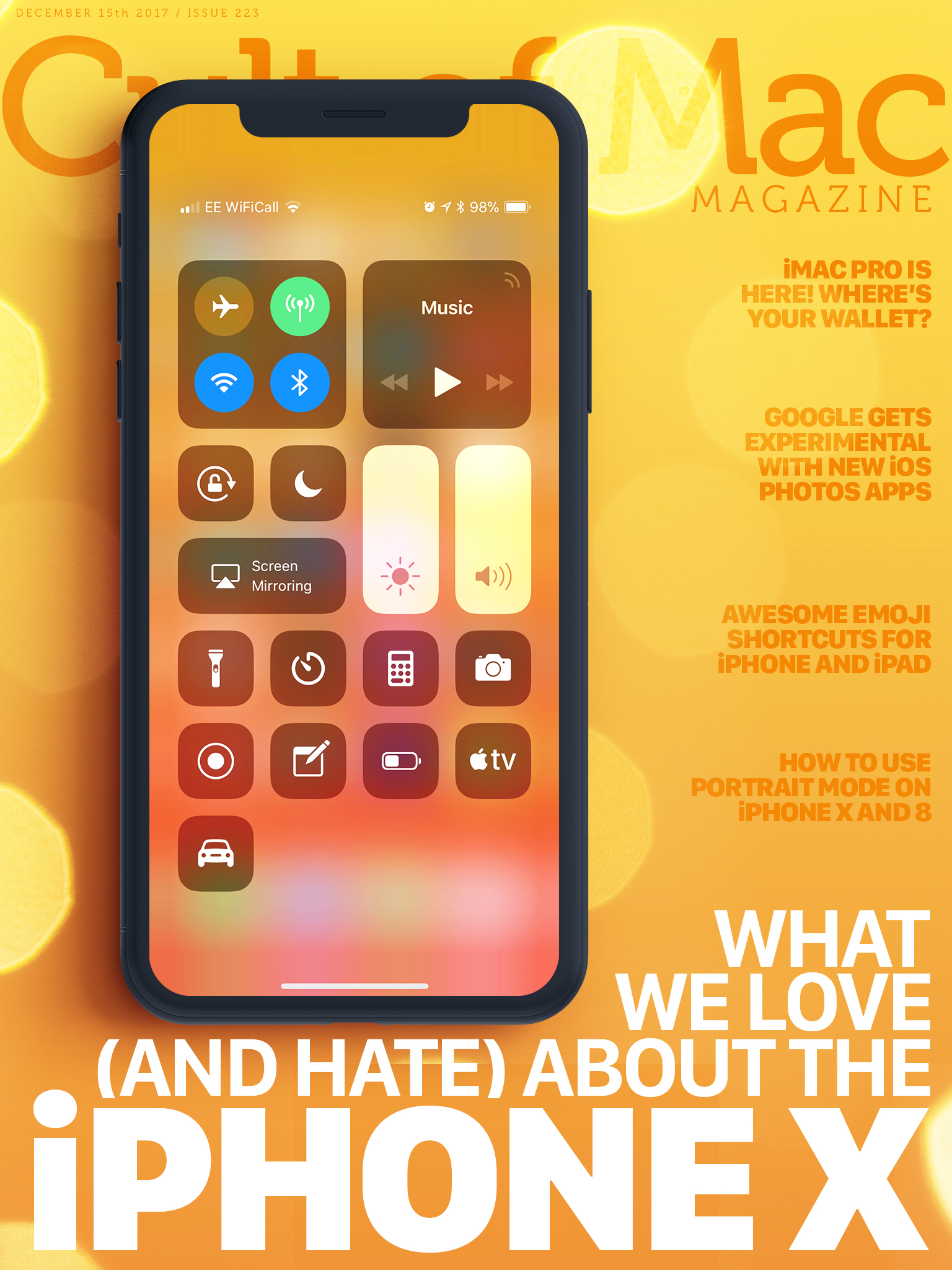
Cult of Mac breaks down all the things we love (and hate) about the new iPhone X.
Photo: Ste Smith/Cult of Mac

Cult of Mac publisher, Leander Kahney, can’t think of anything to hate about the iPhone X. On the contrary, there are lots of things to love. Kahney breaks down the 10 things he just loves about the iPhone X.

In this week’s issue, you’ll find that story and more. The first iMac Pro reviews are in — see if the new Pro is worth the $5,000 price tag. Check out our Gift Giving Guides and get your holiday shopping out of the way now! Get your free subscription to Cult of Mac Magazine from iTunes. Or read on for this week’s top stories.

1 70 71 72 73 74 121