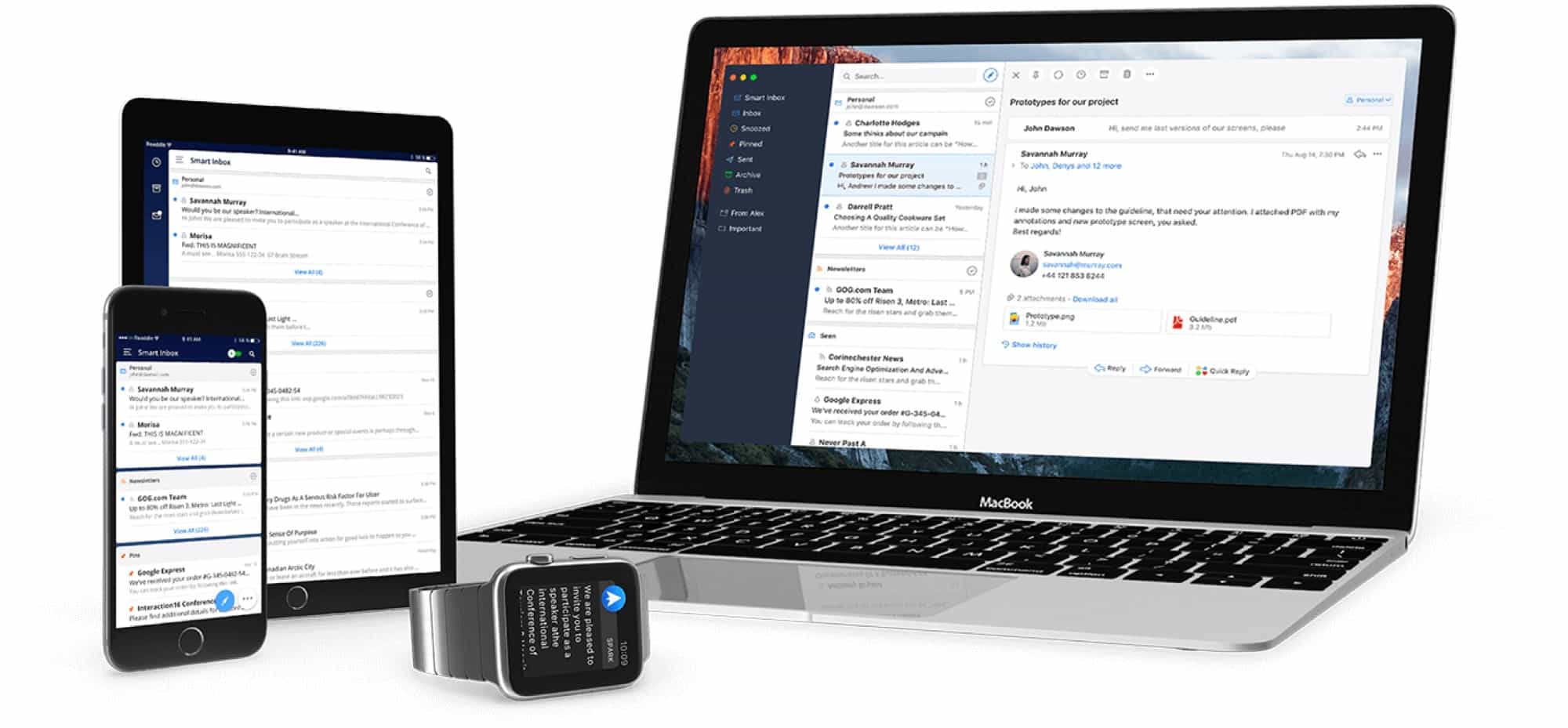
Apple’s own Mail app is pretty amazing in iOS 11 and macOS High Sierra, and is more than good enough for most people. But Cult of Mac readers aren’t “most people,” and that’s where Readdle’s Spark comes in. If you’re looking for more features, like scheduled sending, automatic follow-ups, and integrations with third-party apps and services, then Spark is the place to look. Today we’ll look at how to use these great new features.
The iPad is insanely flexible in iOS 11. Photo: Ste Smith/Cult of Mac
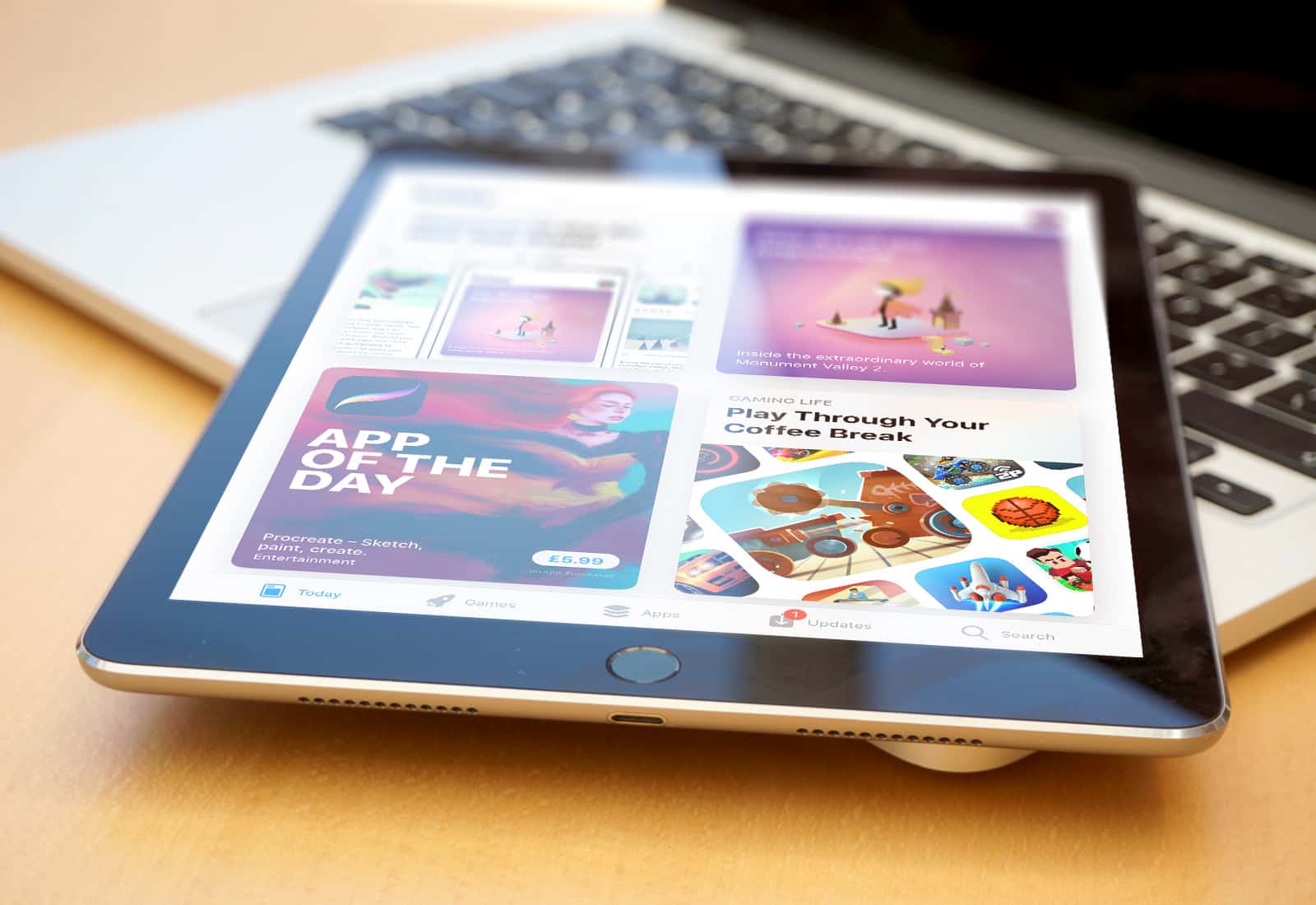
In iOS 11, there are four ways to switch apps on the iPad. Five, if you count the old-school way: hitting the home button to return to the home screen, and tapping an icon to launch a different app. Some of these methods have been around a while, and have changed drastically in iOS 11. Others are brand new, and exclusive to the iPad. Today, we’re going to look at them all.
Printing is so easy now that you don't even need paper any more. Photo: Cult of Mac
One of the neatest tricks built into the Mac, and now into iOS, is to print to PDF. In short, anything that can be printed can also be saved as a PDF. But doing so on the Mac means using the mouse to click a little drop-down picker in the print dialog. Wouldn’t it be nice if you could just tap Command-P — the keyboard shortcut for printing — twice instead?
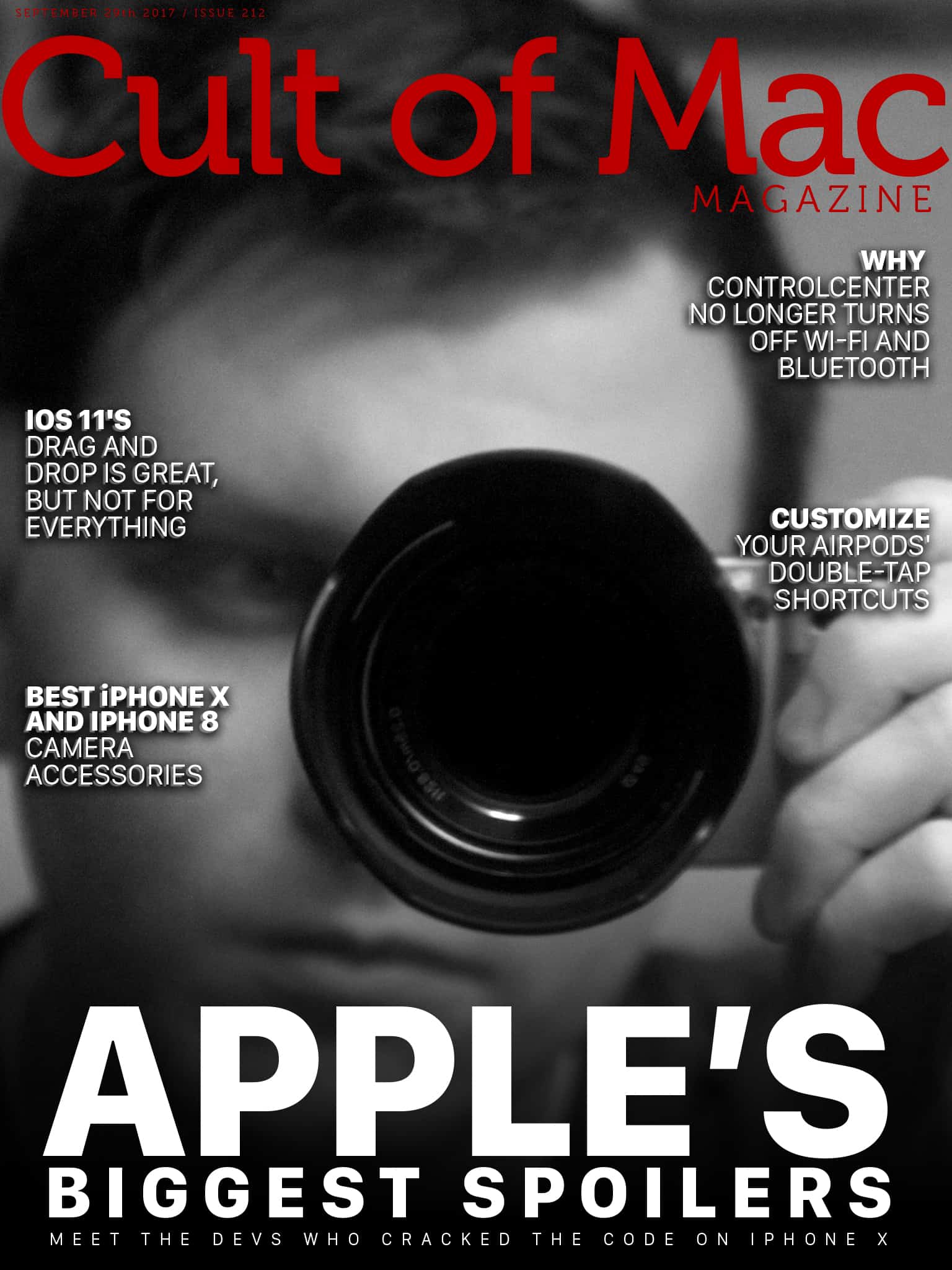
Cult of Mac talked with Troughton-Smith and Rambo to find out how they uncovered some of Apple’s most closely kept secrets. Photo: Ste Smith/Cult of Mac
When Apple execs stepped onstage for September’s big iPhone X unveiling, they had precious few surprises up their sleeves. This year’s iPhone keynote became one of the most spoiled in history, thanks to major software leaks — and a pair of industrious young developers who dug into Apple’s code to pierce the veil of Apple’s vaunted secrecy apparatus.
In this week’s issue, you’ll find that stories and more. Find out why Control Center no longer turns off Wi-Fi and Bluetooth. Check out our roundups of the best new cases for your iPhone 8 and iPhone 8 Plus as well as the best straps to outfit your new Apple Watch Series 3. Get your free subscription to Cult of Mac Magazine from iTunes. Or read on for this week’s top stories.
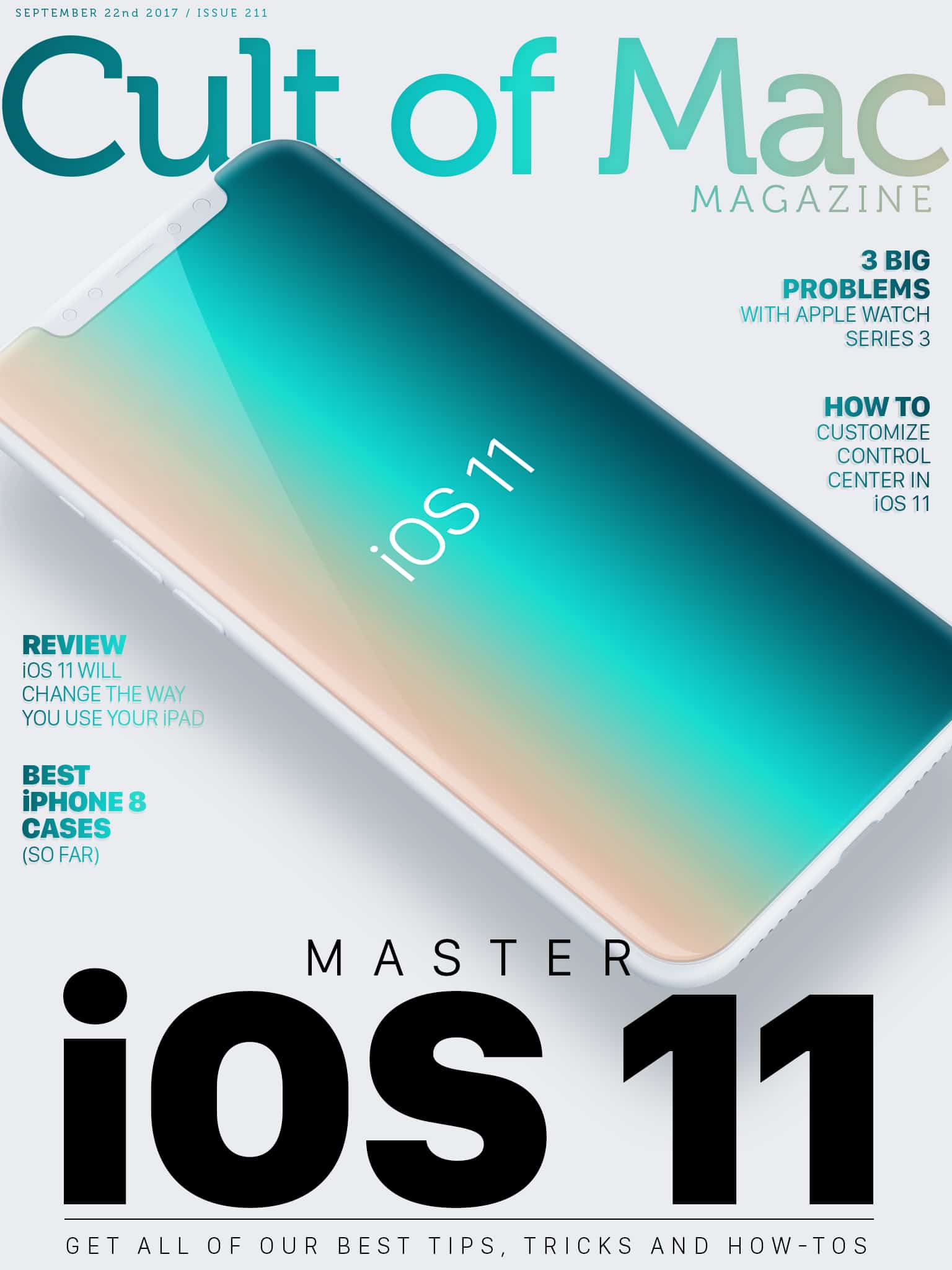
Apple’s latest mobile operating system brings tons of great new features. From multitasking to drag-and-drop functionality, iOS 11 will turbocharge your device. Find out how to make the most of your iPhone or iPad in this week’s Cult of Mac Magazine with our roundup of the best iOS 11 tips and how-tos.
In this week’s issue, you’ll find those stories and more. Get the latest on on how iOS 11 will change the way you use your iPad. Check out our roundups of the best new cases for your iPhone 8 and iPhone 8 Plus as well as the best straps to outfit your new Apple Watch Series 3. Get your free subscription to Cult of Mac Magazine from iTunes. Or read on for this week’s top stories.
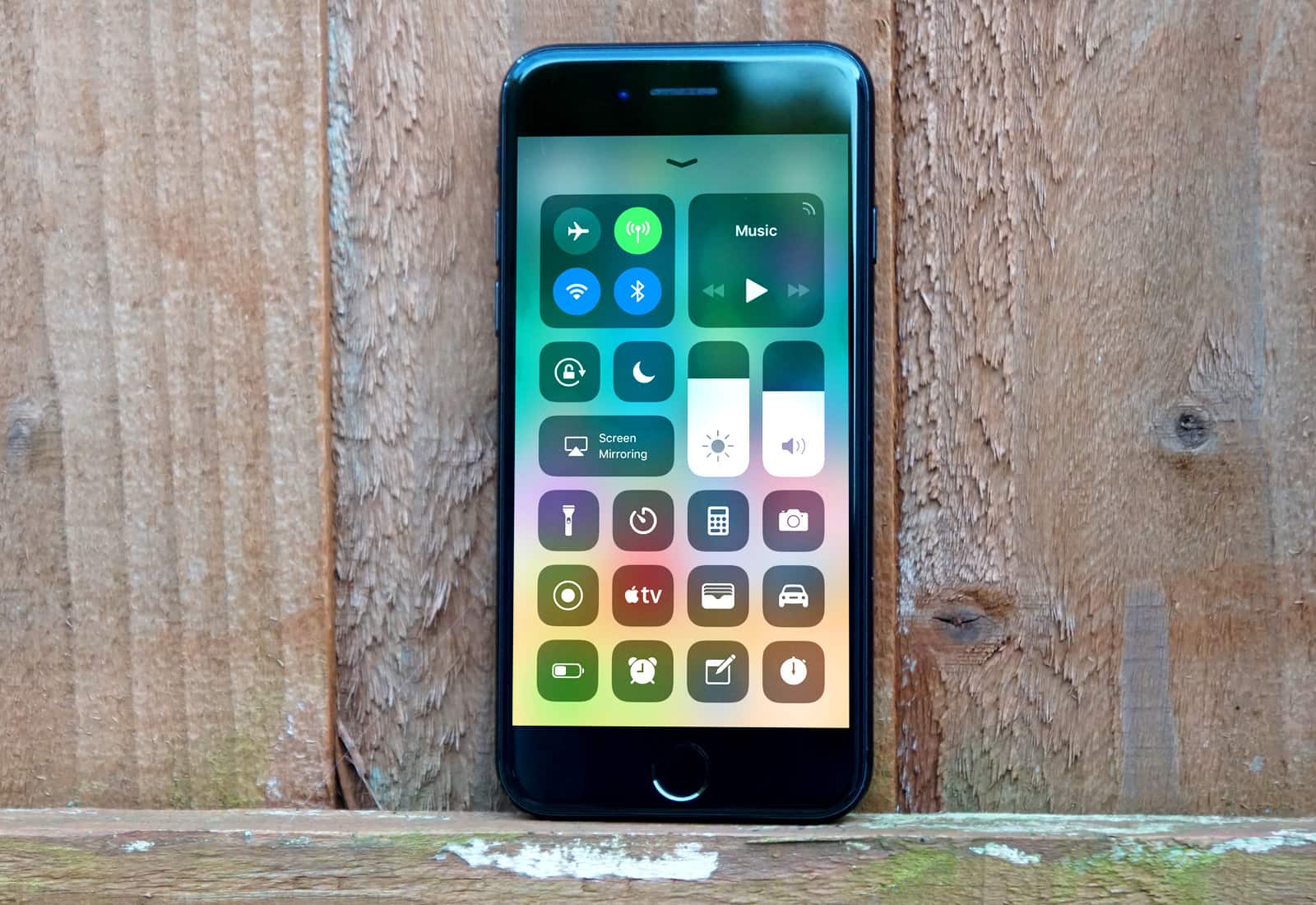
The new Control Center is just one of many great new iOS 11 features. Photo: Ste Smith/Cult of Mac
Over the past two months, Cult of Mac scoured the iOS 11 betas to collect tips and tricks for Apple’s latest mobile operating system. We’ve covered everything, from the iPad’s amazing new Dock and Drag-and-Drop to the iPhone’s new lifesaving Do Not Disturb While Driving.
We’ve created this iOS 11 guide, which we will update going forward, so you can easily find links to our best iOS 11 tips and how-tos. Read on for more on the radically improved Notes app, iOS 11’s powerful new camera features and more.
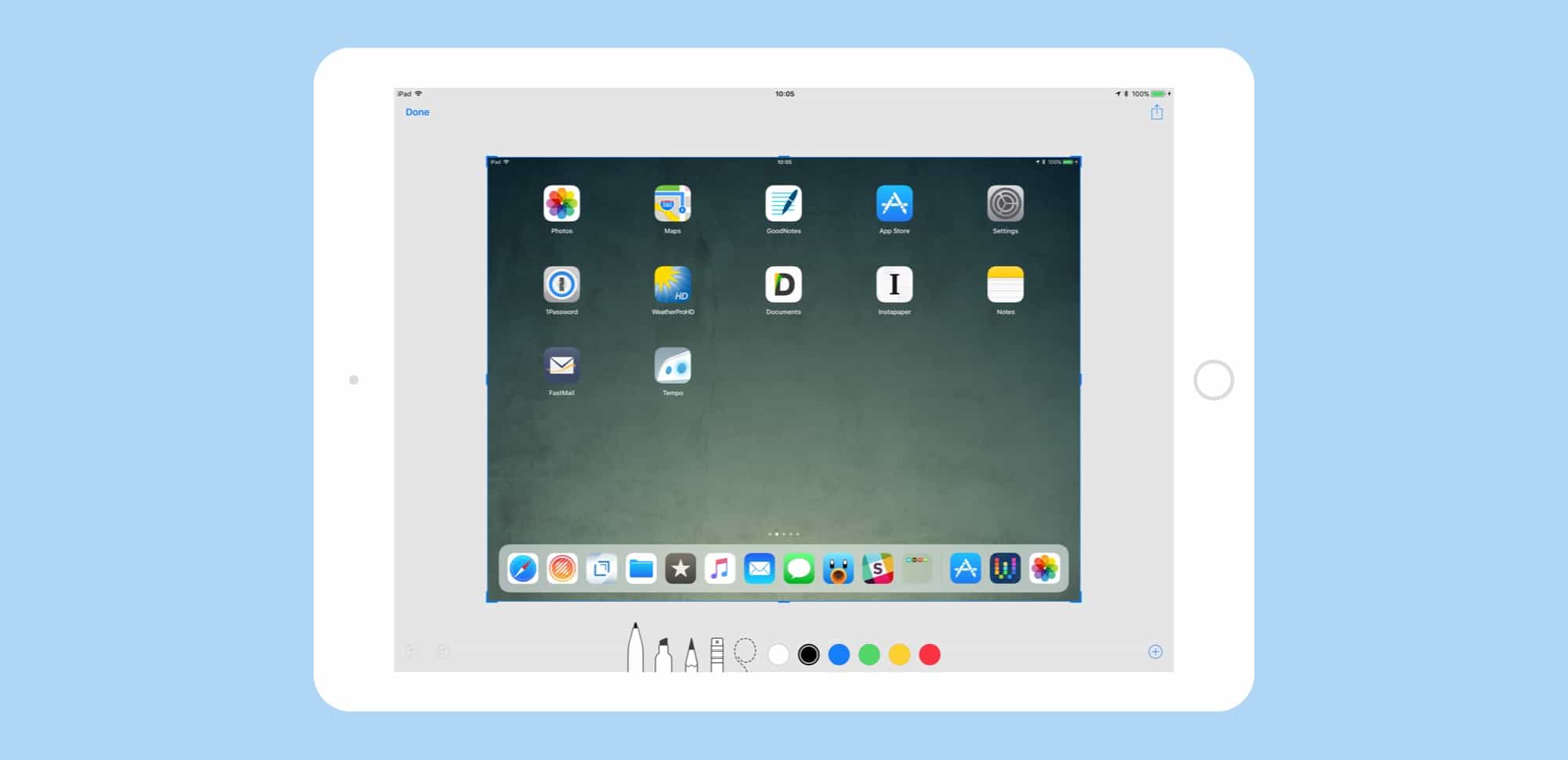
Screenshots have moved from a semi-secret, mostly-hidden feature to a proper tool. Photo: Cult of Mac
iOS 11 has added some great new features to the humble screenshot tool. You can quickly view a new screenshot without a trip to the Photos app first, and you can edit and mark it up before saving it. By adding some powerful pro-level features to screenshot markup, Apple has –somewhat ironically — made them way more useful and accessible for everyone.
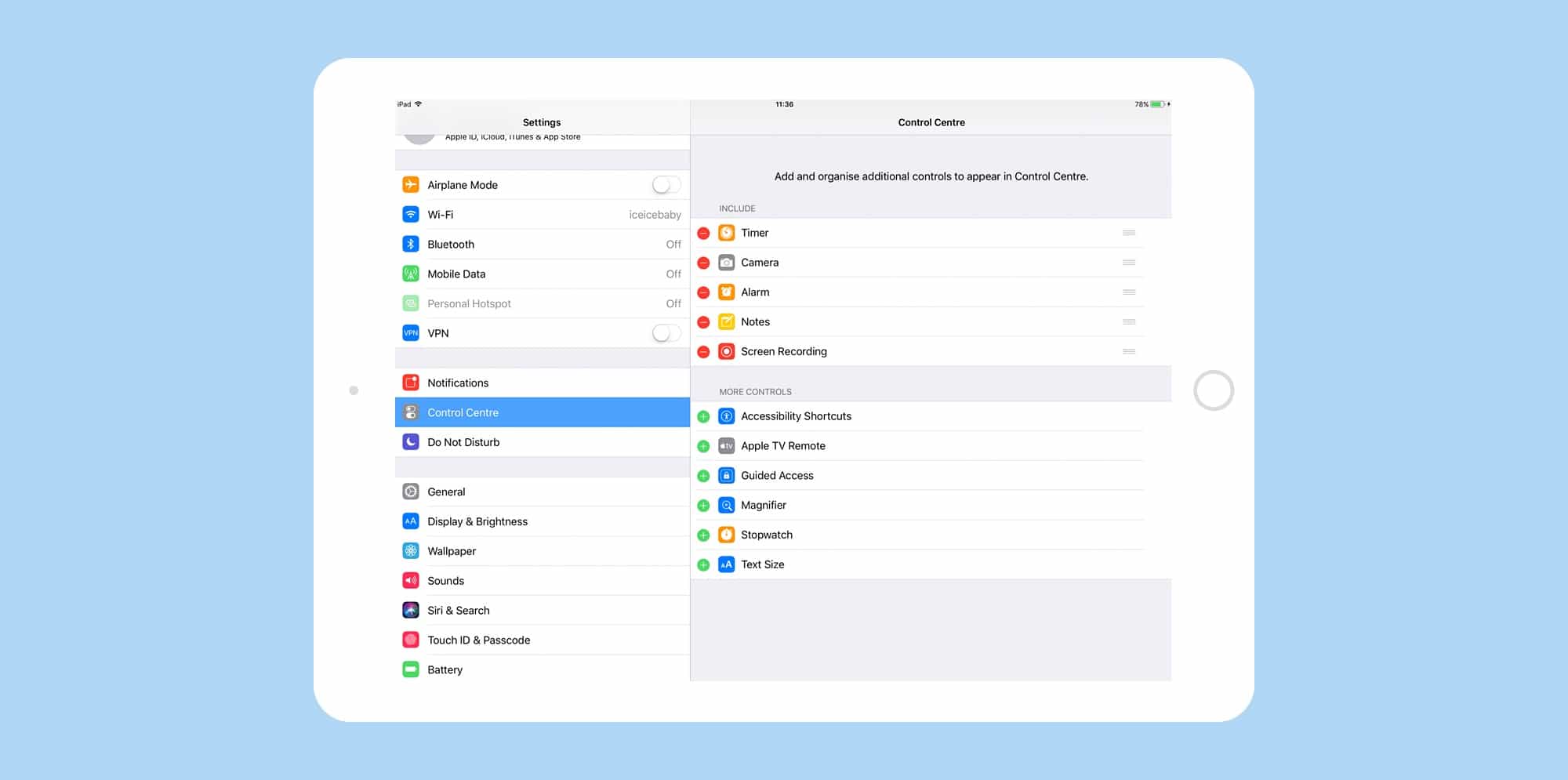
At last, you can customize the Control Center in iOS 11. Photo: Cult of Mac
In iOS 11, you can customize the Control Center, removing some of the shortcuts you don’t use, and adding in some new ones. This, combined with Control Center’s new in-depth, 3D Touch controls, makes it a lot easier to quickly access functions you don’t necessarily want to open an app to use.
For instance, you can get quickly access an Apple TV remote, add widgets for alarms and timers, change text size, and even start screen recordings.
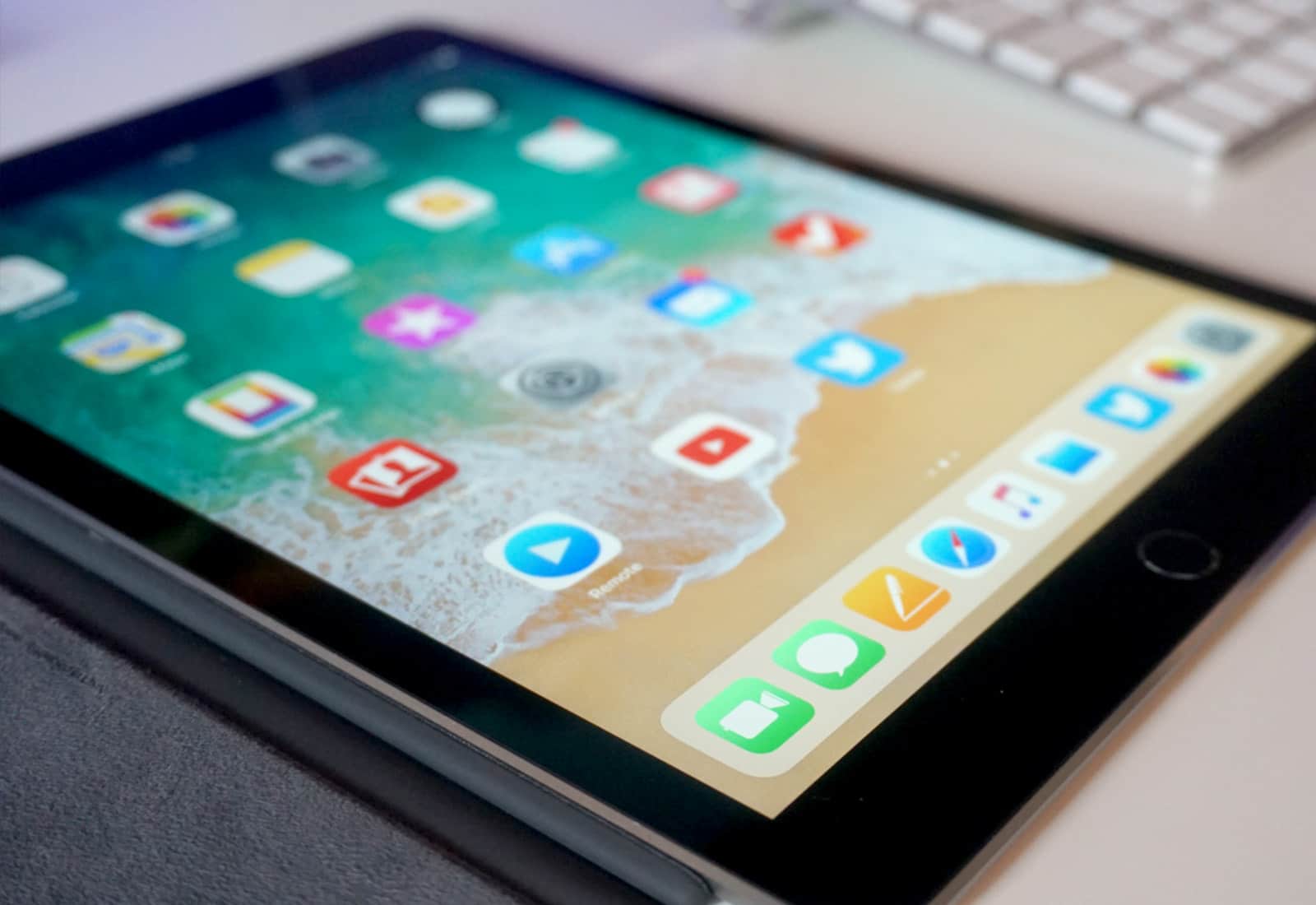
New features in iOS 11 make the iPad a multitasking beast. Photo: Ste Smith/Cult of Mac
IOS 11 is a huge update to Apple’s mobile operating system, but only if you’re using an iPad. While the iPhone gets its fair share of tweaks and polish, the iPad is transformed into a different machine. When you install iOS 11, your iPad will be transformed from a big iPhone, into a slick mobile computer. It has completely changed how I use my iPad, to the extent that I probably never need to buy another Mac again.
The headline features are drag-and-drop between apps, a new Mac-like Dock, a Finder-like app named Files, and a radically re-thought Control Center that echoes the one found in — you guessed it — the Mac. IOS 11, then, brings many of the Mac’s best features to the iPad, but redesigned to suit the touch screen.
What does this mean for daily use? It means that Mac and PC users can switch to the iPad without having to relearn how to do everything, and existing users will no longer feel like they have their hands tied while trying to do the simplest tasks.
The iPhone's keyboard is smart enough to learn the words you type. Photo: Cult of Mac
Since iOS 8, the QuickType predictive text has been a tentpole feature of the iPhone’s keyboard. It analyzes the text you’ve typed so far and remembers new words that you type so it can suggest them later. However, if you tend to misspell a word, it automatically learns that word and offers it in the suggestions. If this happens a lot, it might even attempt to autocorrect the correctly spelled word to the misspelled “learned” word.
The iOS keyboard might also offer suggestions for embarrassing words it has learned. Having such words pop up in the suggestions can be really annoying. If you’re experiencing this, you may want toreset keyboard dictionary to remove unwanted words and start fresh.