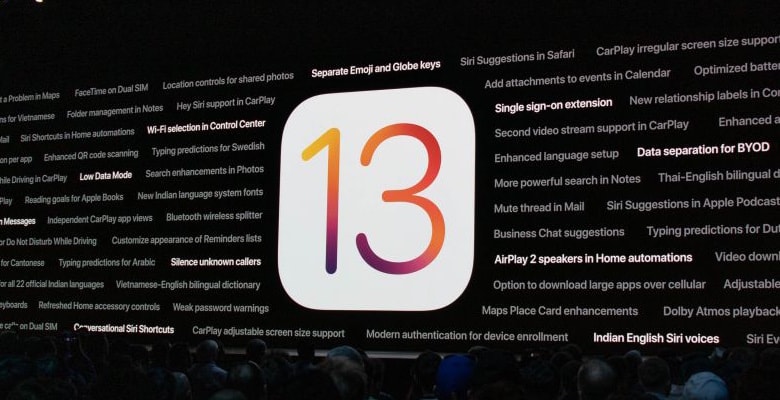
iOS 13 is loaded with new features. Screen capture: Apple
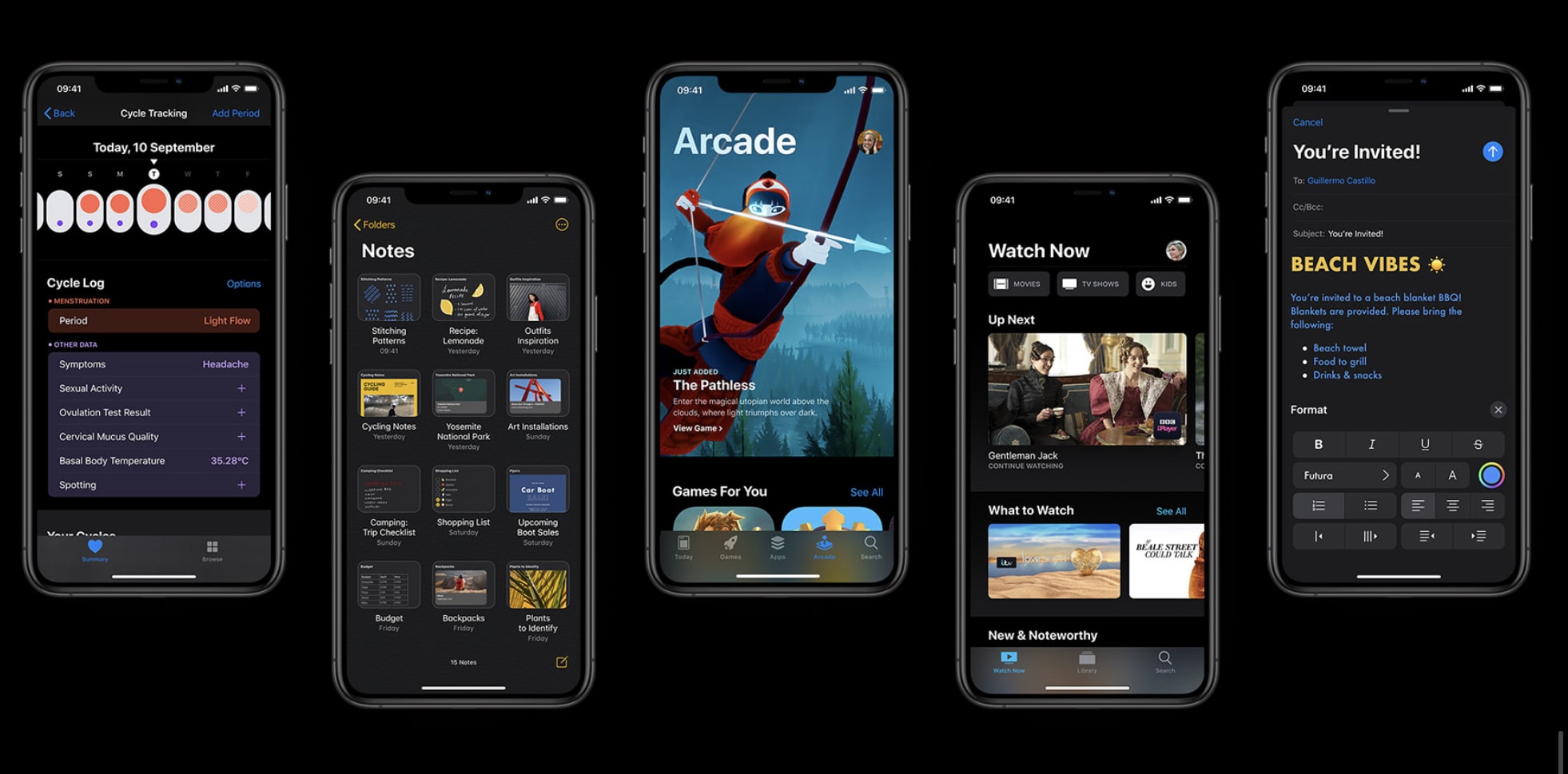
The long wait for the next version of iOS is finally over. Apple just released the upgrade to iOS 13 to iPhone users, bringing Dark Mode, a better version of Safari, and lots more improvements.
iPad users won’t get their version until next week. And even iPhone owners might consider holding off until that same time.
It wasn’t until I installed iPadOS on my regular iPad that I realized how great iOS 13 is. It’s one thing to run it on an old, battered test unit, but a whole other thing to use it day to day. And, surprisingly, it’s the small features that make the biggest difference. The per-page view setting in Safari, for example. Or the new multi-app Slide Over panel. And, more than anything else, the new text-editing gestures, which are finally good enough to replace a mouse and a Mac.
Let’s take a look at how to use iPadOS 13’s new copy, paste, undo and redo gestures, plus text selection in general.
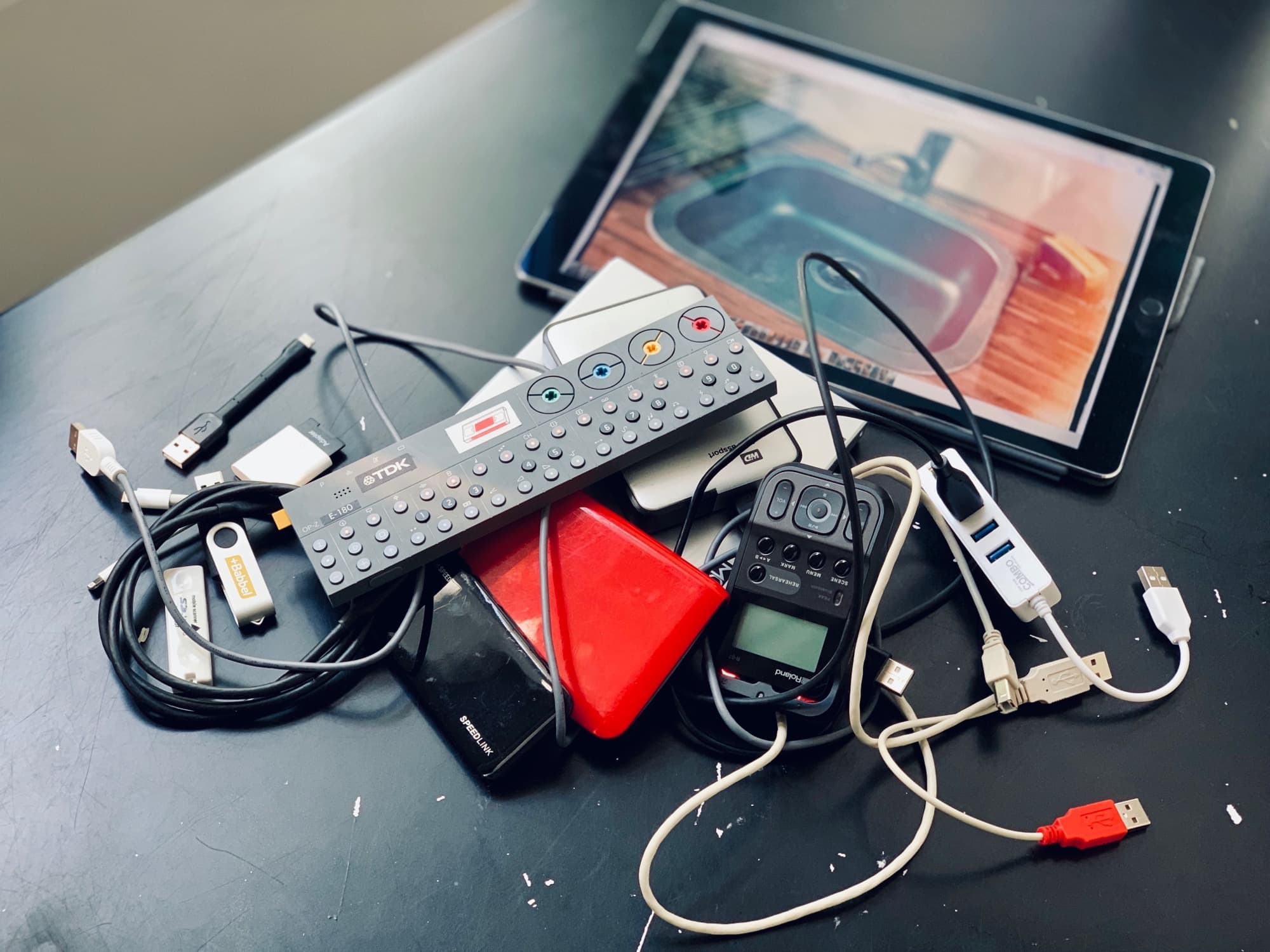
iOS 13 lets you plug almost any USB device into your iPhone or iPad. Photo: Charlie Sorrel/Cult of Mac
iOS 13, which launches today, focuses more on adding a range of incredibly useful features and tweaks rather than pursuing a bold, overarching new direction. For instance, Safari on iPad now functions as a full desktop browser, just like on your Mac. Another great addition is the redesigned share sheet, which includes a top row of one-tap buttons for easily sharing with friends via iMessage. If you’re curious about when someone shares their location how do you see it, iOS also introduces enhancements to location-sharing features, which you can learn more abouthere.
Or, in iPadOS 13, which ships at the end of the month, you can plug in pretty much any USB device and it will work. Hard drives, SD cards full of movies, anything.
So, while you’re waiting for the new version of iOS to install on your device(s), check out all the new iOS 13 features right here.
Apple today rolled out iOS 13.1 beta four ahead of the update’s public release on September 30.
The latest release is available to both public and developer testers. It doesn’t appear to make any obvious changes, so likely focuses on performance and stability improvements.
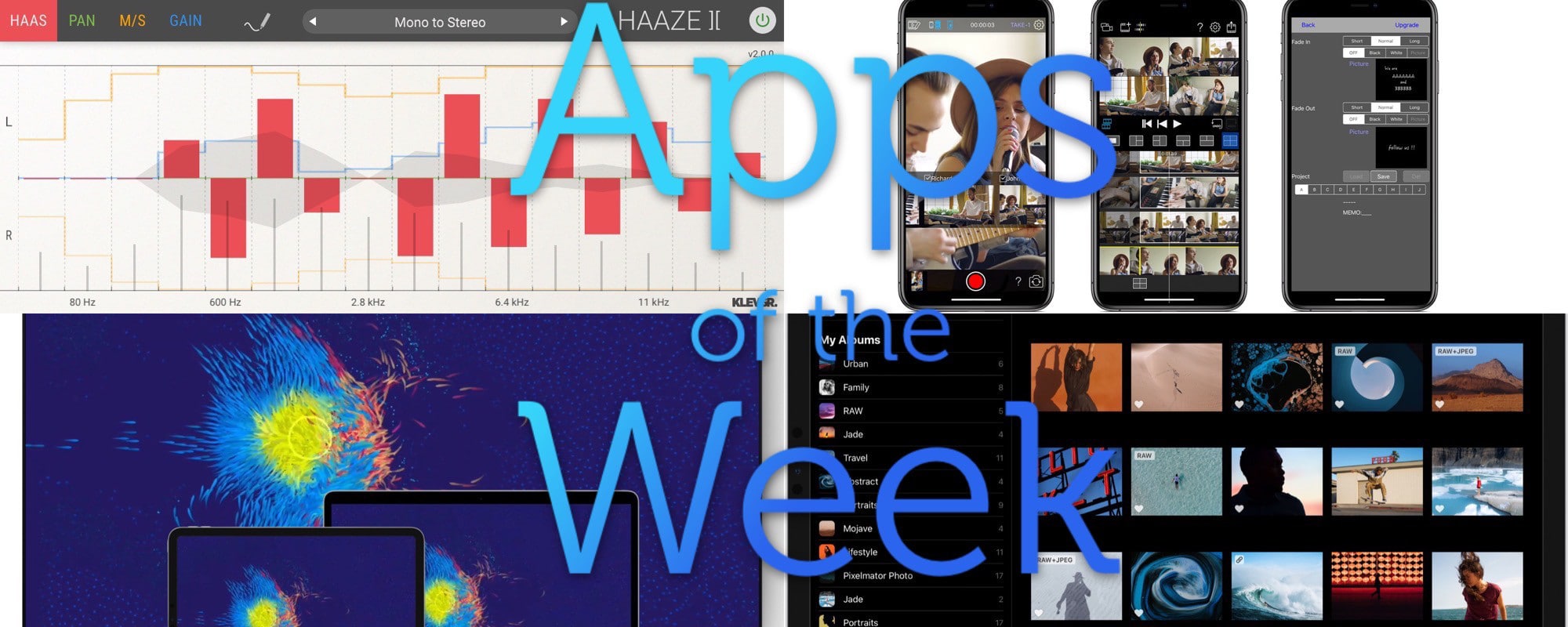
This week we check out Roland’s answer to the iPhone 11’s multiple cameras, turn mono to stereo with Haaze 2, see the new 1.1 beta of Pixelmator Photo, plus one more thing.
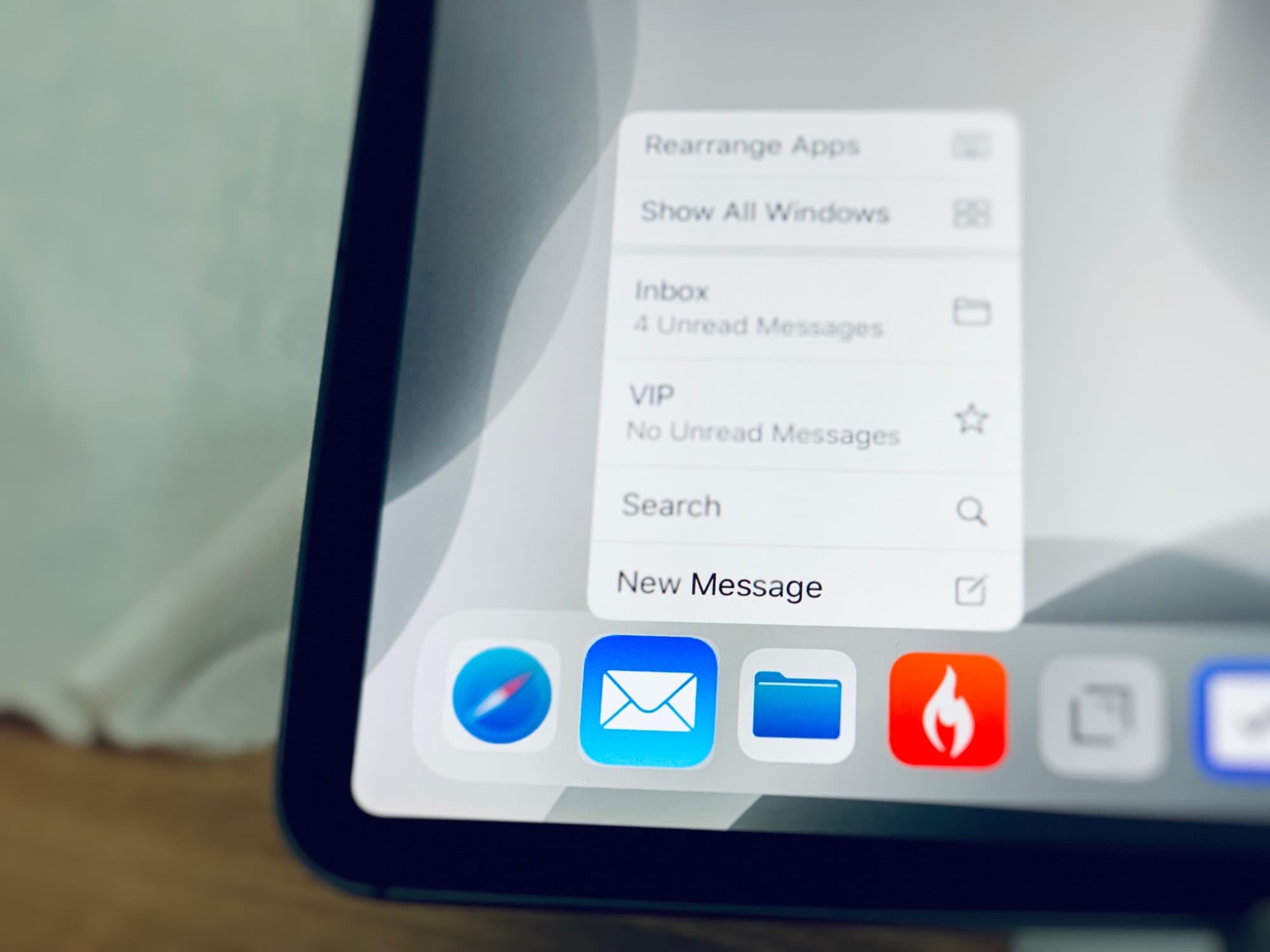
Without the sacrifice of 3D Touch, this wouldn't be possible on iPad. Photo: Charlie Sorrel/Cult of Mac
I love 3D Touch. I use it all the time. It’s one of the handiest shortcuts on the iPhone. And now, with the iPhone 11, it’s gone. But I don’t care. Why? Because Haptic Touch is almost as good. Even better, thanks to Apple’s switch to Haptic Touch, you can use all those 3D Touch features on the iPad.
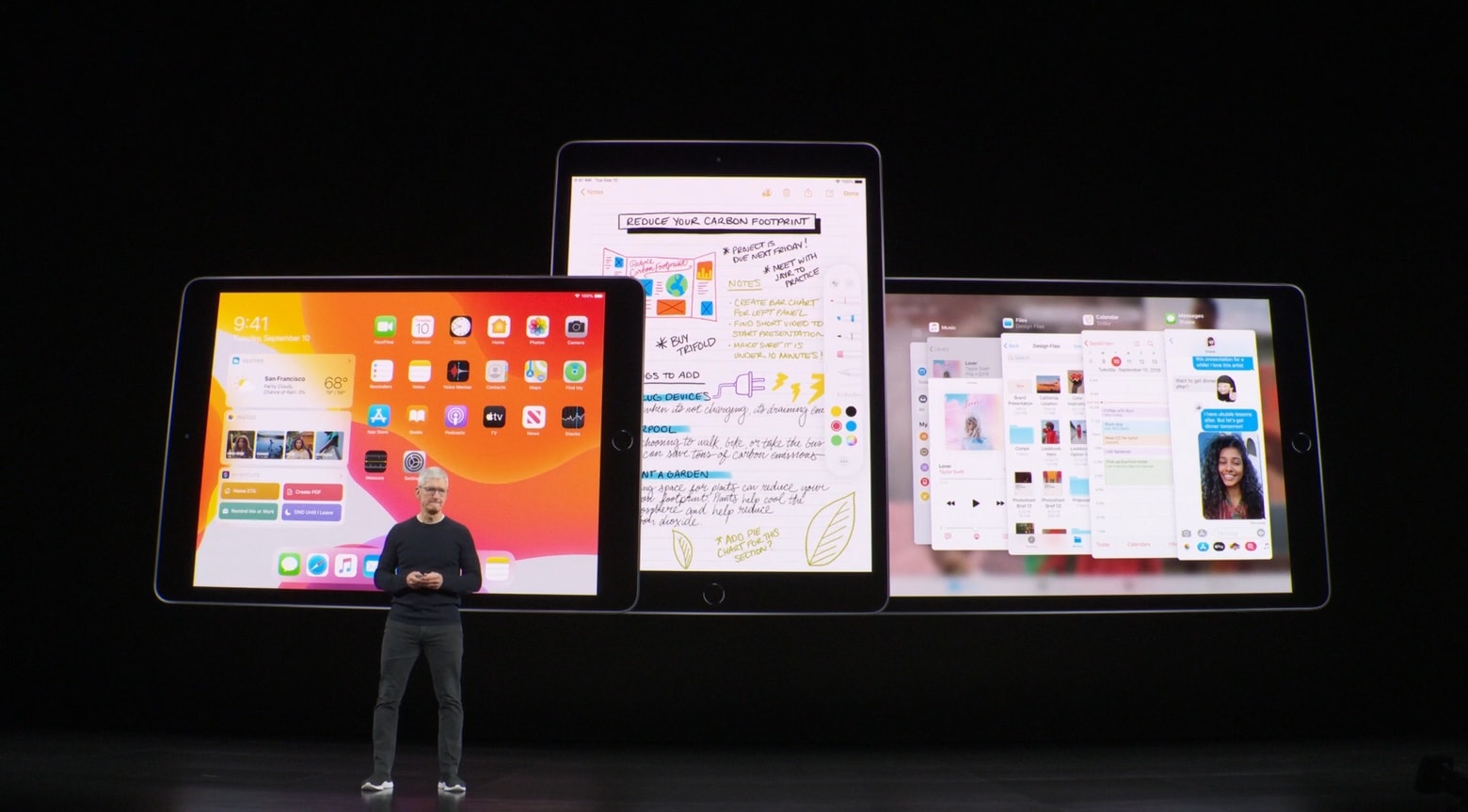
Apple CEO Tim Cook talked up new features in iPadOS 13 at yesterday’s press event.. Screenshot: Apple
iOS 13 will debut next week, but tablet users will have to wait a bit longer for the iPad equivalent. Apple says iPadOS 13 won’t debut until the end of this month.
That launch date suggests that the company will go straight to iOS 13.1.
iOS 13.1 beta 1 brings back almost every cool feature dropped from previous betas. Photo: Charlie Sorrel/Cult of Mac
After the release of iOS 13.1 beta 2, iOS 13 is probably good enough for you to install and use. I’ve been running the new iPadOS on an old test iPad since the very first version, and it has been glitchy all the way. But as of the latest developer beta, almost all of the problems have been ironed out.
So, is the iOS 13 beta really stable enough to install?
Apple has clearly shifted its focus from iOS 13 to version 13.1. Screen capture: Apple
The beta process for iOS 13.1 continues, with the second developer-only beta just going out now.
But there hasn’t been a new iOS 13 beta in two weeks. Apple really seems to have finished work on it, even though it hasn’t been released and isn’t even expected until later this month.
Tweak your Mac's display with macOS' amazing accessibility options. Photo: Wesson Wang/Unsplash
Just like iOS, the Mac has some great features hidden inside the accessibility section of the System Preferences (aka. Settings) app. Today we’re going to see how to tweak the Mac’s display to make it easier to use, for anyone. You can adjust the colours, make page elements easier to see, and even turn everything B&W. Let’s see what’s what.