Anyone who wants to get a jump on iOS 13.1 can do so: the first public beta of this version was just released.
This includes features that apparently won‘t be in iOS 13 when it debuted in a few weeks.
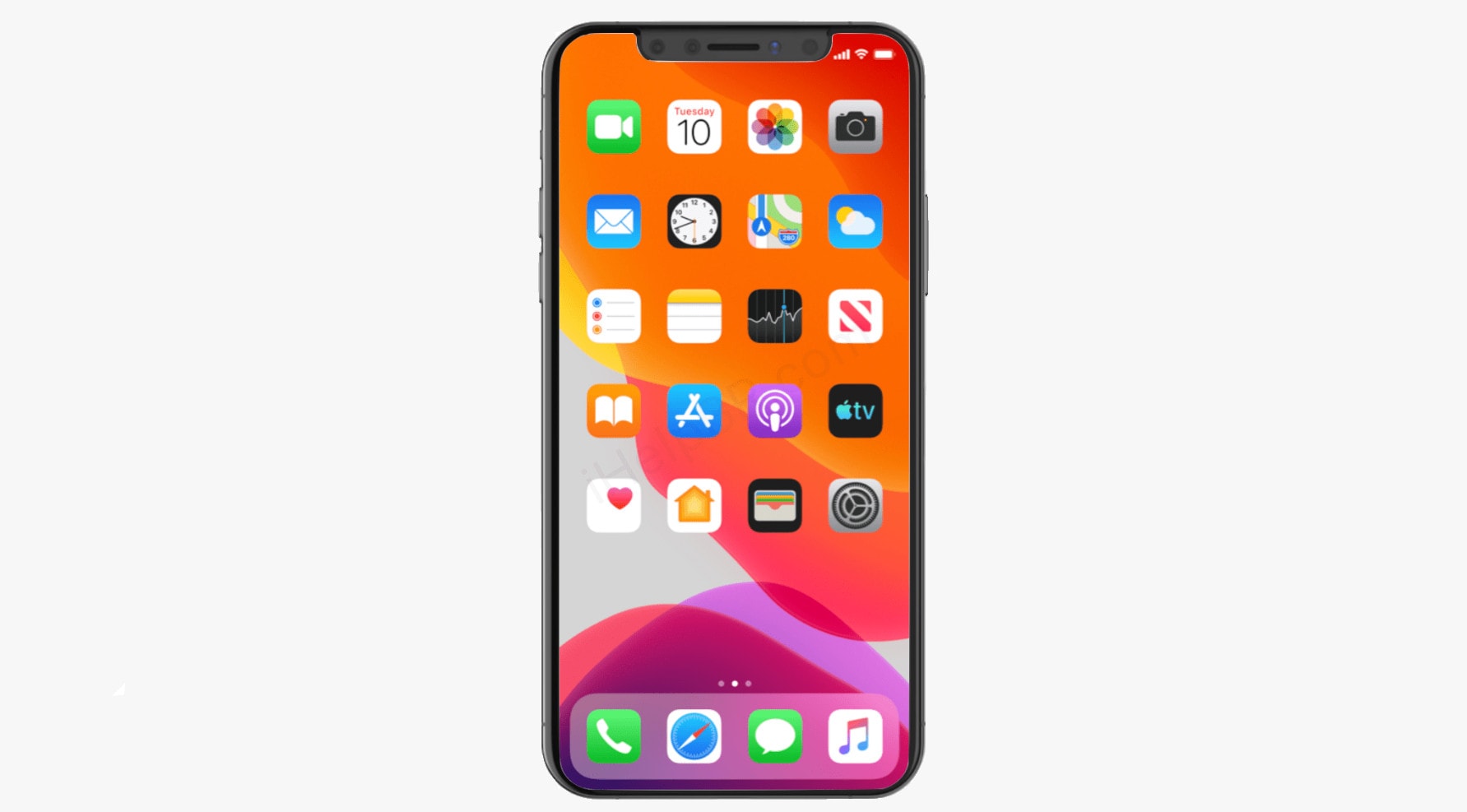
Anyone who wants to get a jump on iOS 13.1 can do so: the first public beta of this version was just released.
This includes features that apparently won‘t be in iOS 13 when it debuted in a few weeks.

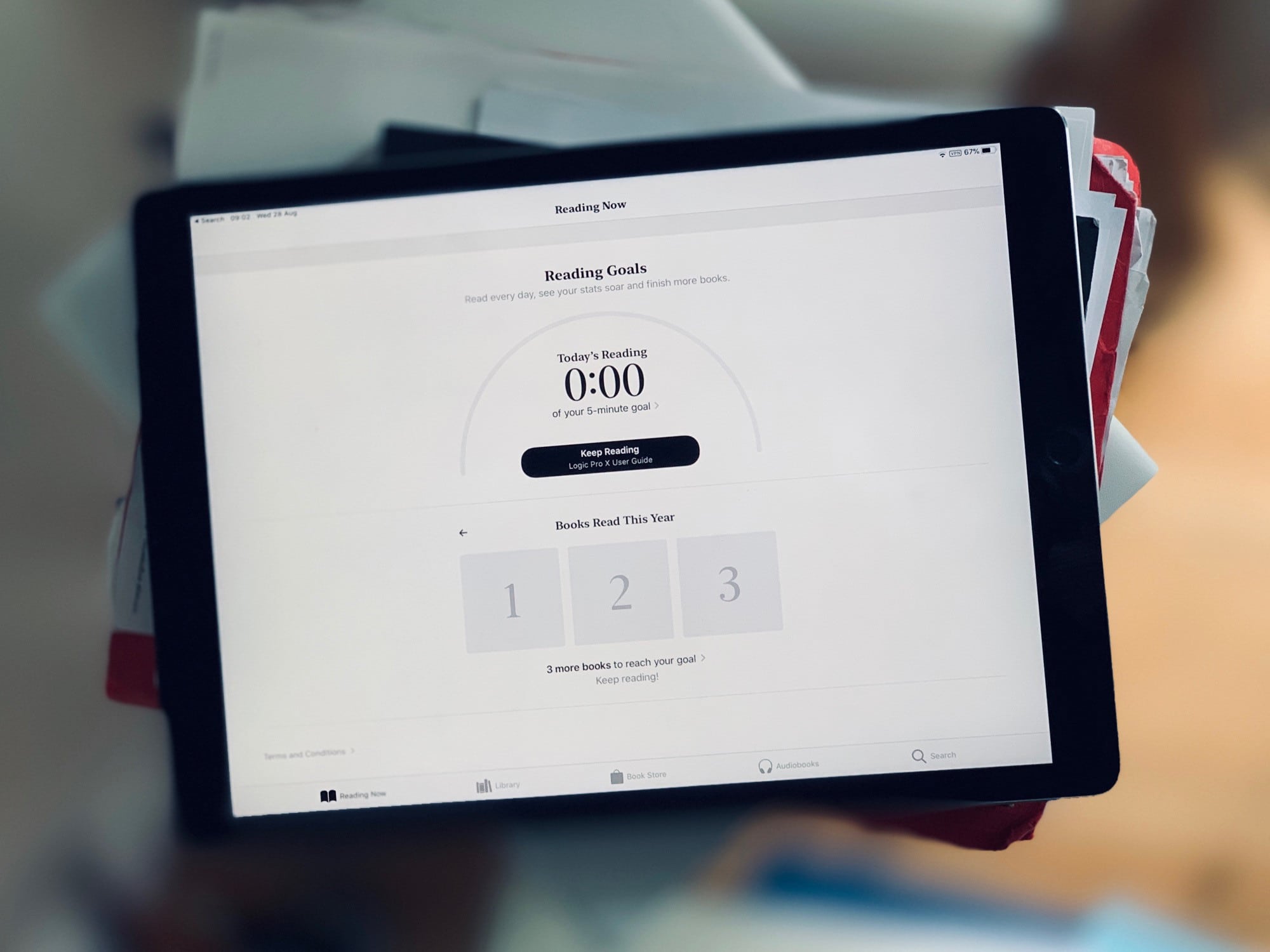
Surprisingly, iOS 13.1 is already in beta. It looks like Apple’s release strategy this year is to freeze the current beta version of iOS 13.0 in order to get it ready for the new iPhones expected on September 10. Meanwhile, Apple continues to test the next version, adding back some features removed during the beta period — Shortcuts automations, for example.
So, what other new (or revived) features will you find in iOS 13.1 beta 1?
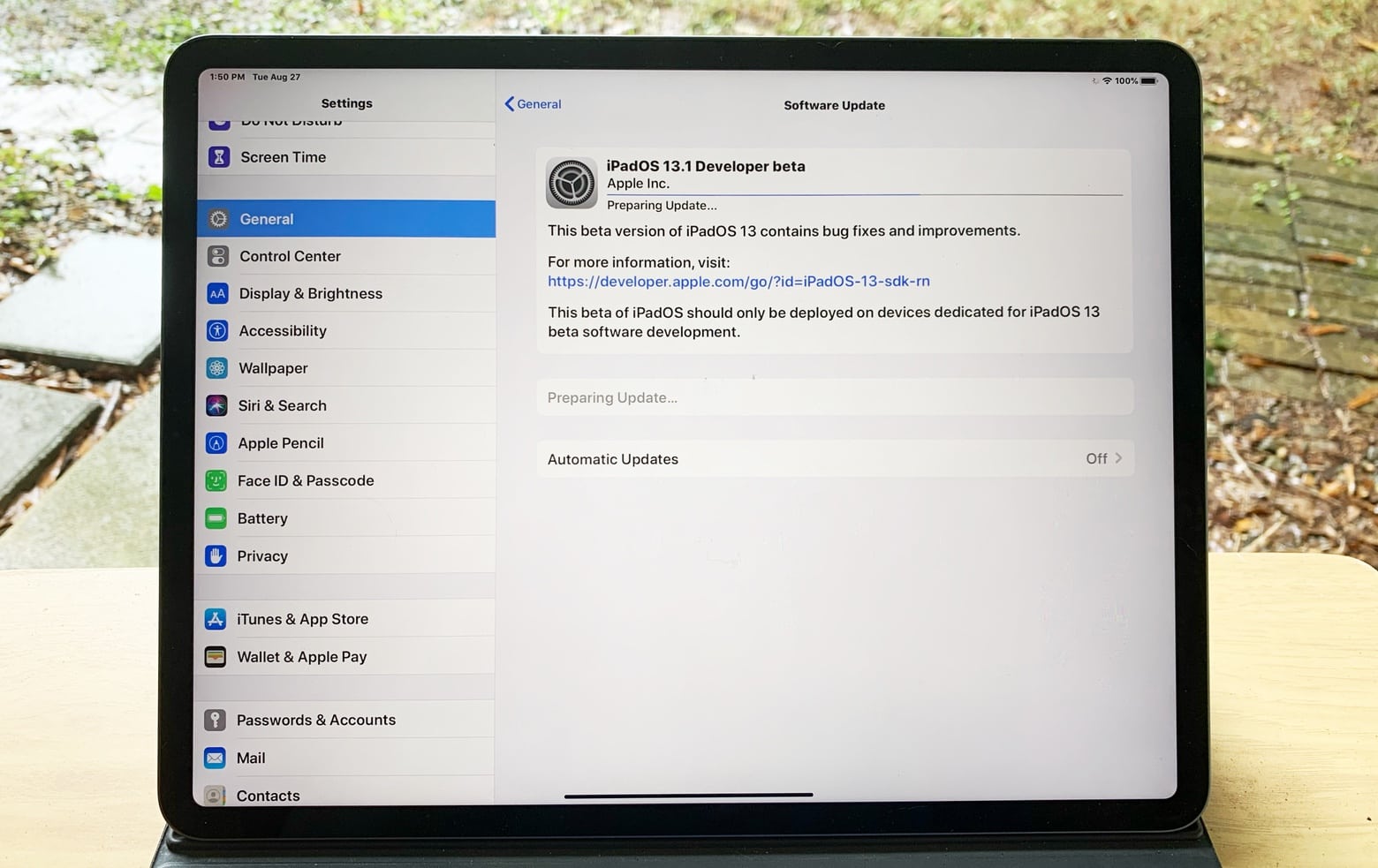
The slow slog toward the release of iOS 13 and iPadOS 13 took an unexpected twist today: Apple just introduced the first betas of the followup versions.
The debut of prerelease versions of iOS 13.1 and iPadOS 13.1 would seem to indicate that Apple has already finished development of the versions that’ll debut next month.

This week we rock out with Queens’ Brian May, unsend email with Fastmail, read the news later with Feedbin, and way more.
Three days of Microsoft Office lessons might not sound exciting, but MS Office is fundamental in almost any professional environment. So the more you learn, the more useful and marketable your skills.

HomePod is now on sale in Japan and Taiwan for the first time.
The smart speaker can be purchased from Apple Stores, the Apple Online Store, and from select cellphone retailers.
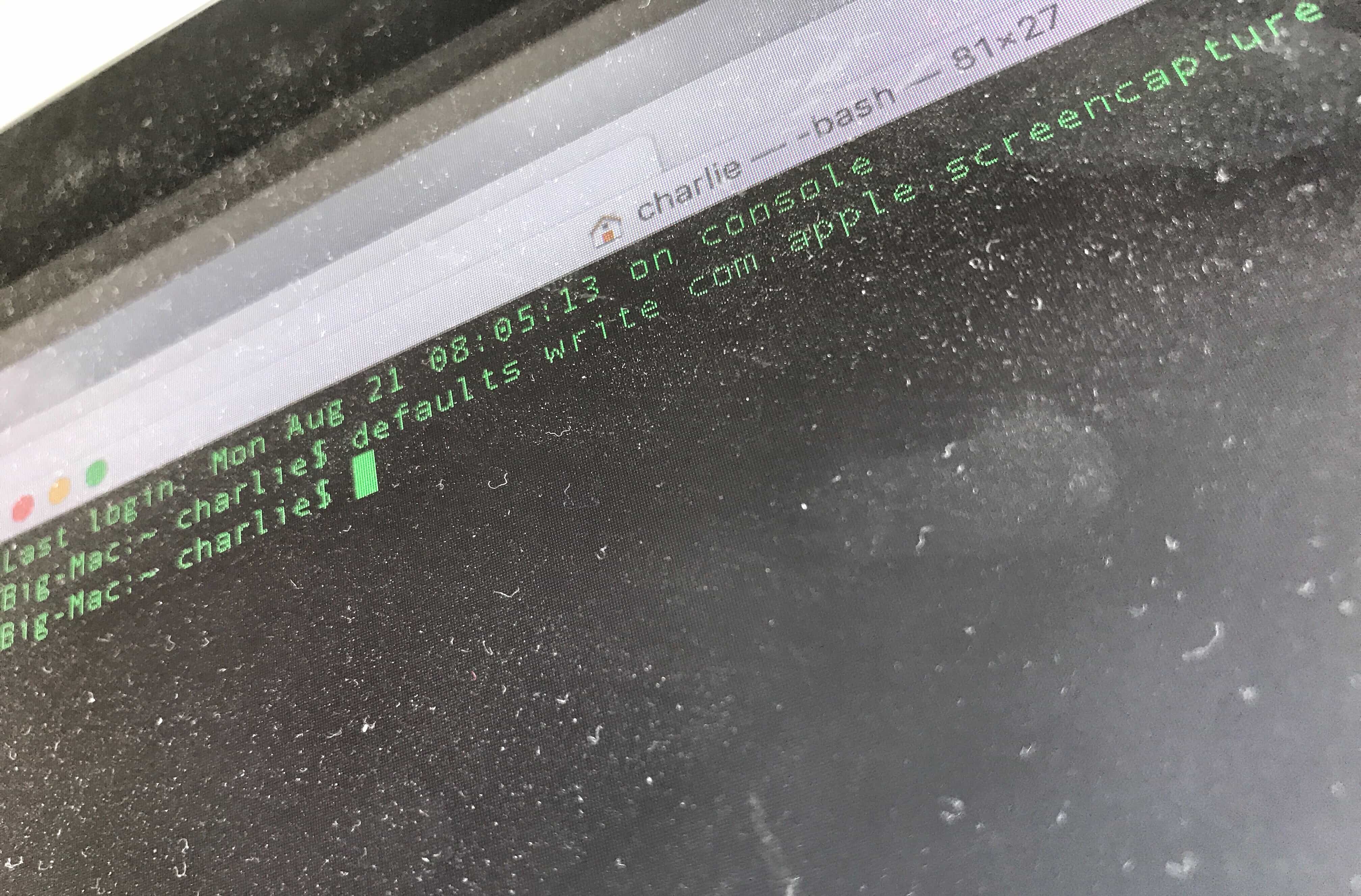
By using commands in your Mac’s built-in Terminal app, you can quickly change settings you probably didn’t even know existed.
Some of these Mac settings are just shortcuts — you can enable them in the usual way, using the mouse. But Terminal makes things simple. Instead of opening the System Preferences app, then finding (or remembering) a setting you want to change, and then searching further until you actually find the right checkbox, you can just type (or paste) a command, then hit return.
Most of these are secret settings, though. They are impossible to change without Terminal. Let’s check them out.
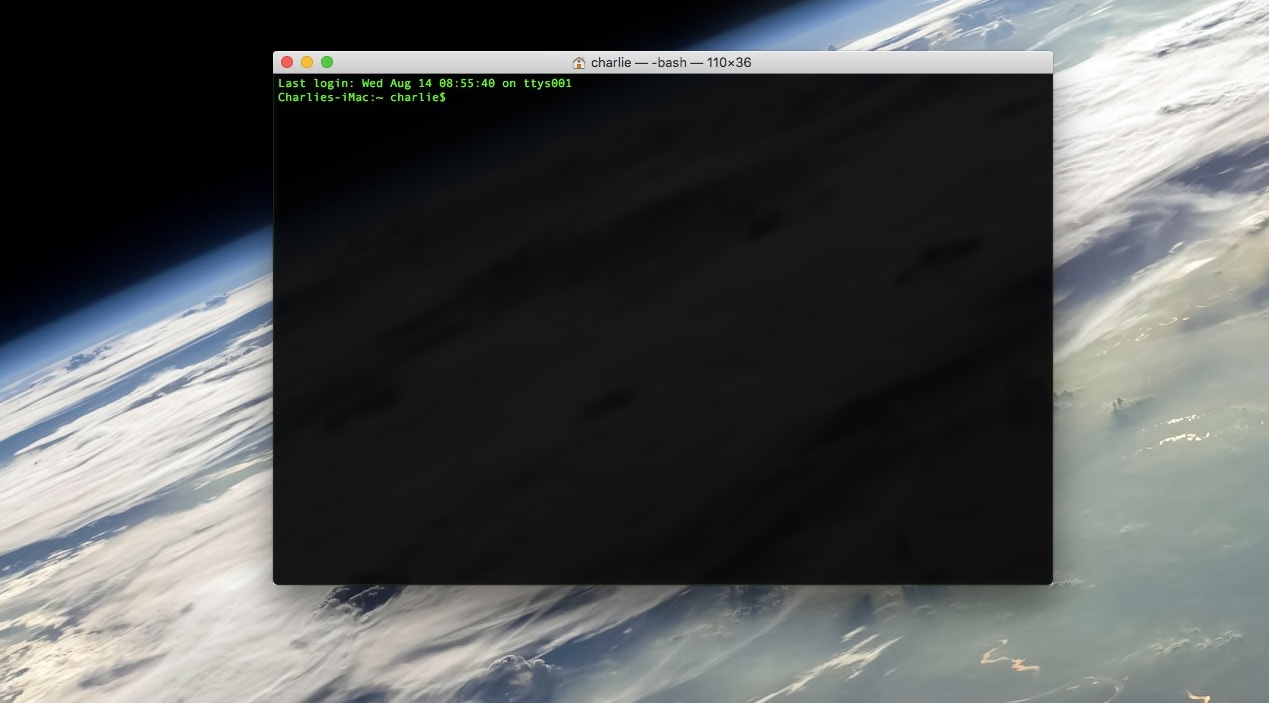
The Mac’s Terminal is at once scary and powerful. It’s like a whole other computer living underneath the pretty interface of macOS. Sometimes, it’s convoluted. Other times, it seems laser-focused, offering a much quicker way to get things done. Instead of clicking and dragging your way through multiple screens, you just type a line of text.
However, the Mac Terminal is pretty intimidating if you’re not used to it. Today we will learn five super-useful Terminal tricks that make getting around much easier.

The Control Center on your iPhone or iPad comes with a bunch of preset icons so you can quickly open the Camera app, toggle Do Not Disturb and do plenty of other tricks. But you also can customize it, adding your choice of one-swipe shortcuts. You can even set the order of the icons.
Today we’ll see how to add Low Power Mode, and take a look at the other options available.
As a Mac user, you already know how to take a quick screenshot with the ⌘⇧3 and ⌘⇧4 shortcuts. But did you know that you can also capture a video recording of your screen? If you’re running macOS Mojave, making a Mac screen recording proves as easy as hitting a shortcut, just like grabbing a screenshot. Older Macs can do it, too, albeit with a little more futzing.