Back in December I wrote about Cinch, a tiny little app that lets you drag application windows around to the edges of your screen, and have them instantly resize to something useful.
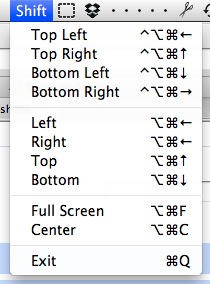
Cinch is mouse-oriented, but has a keyboard-oriented cousin called Sizeup. Today, a comment on that old post alerted me to a free, open source rival to Sizeup called ShiftIt.
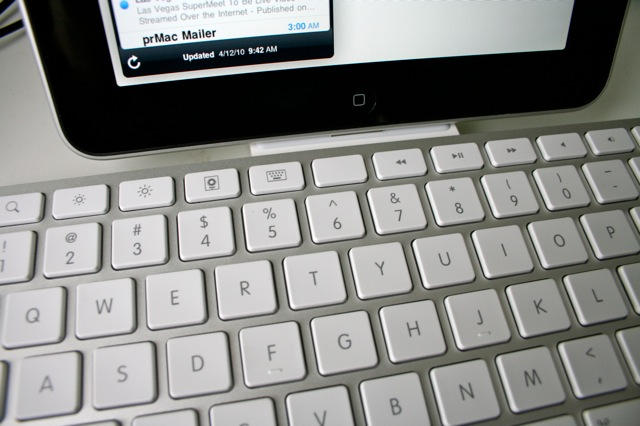
The weirdest thing about using Apple’s iPad Keyboard Dock is that you are constantly reaching for a mouse — a mouse that isn’t there, of course. The iPad doesn’t support mice. Instead, you should be tapping and swiping the screen.
Using the keyboard to work with the iPad takes you out of the multitouch mode and puts you back in mouse/keyboard mode. And while you can use the keyboard in a limited way to navigate the iPad, you can’t use many of the desktop shortcuts you’ve learned over the years, like Command-Tab to switch apps.
So using an iPad with a keyboard takes a little getting used to, but the $69 iPad Keyboard Dock is a very handy accessory, with a couple of caveats.
We’ve looked at the Dock, and we’ve looked at the Menu Bar. Today we’re taking our first look at Finder.
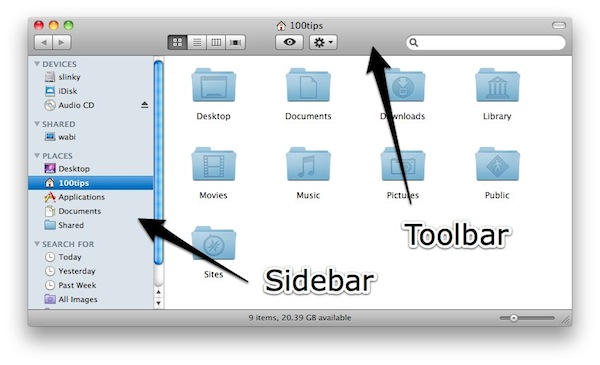
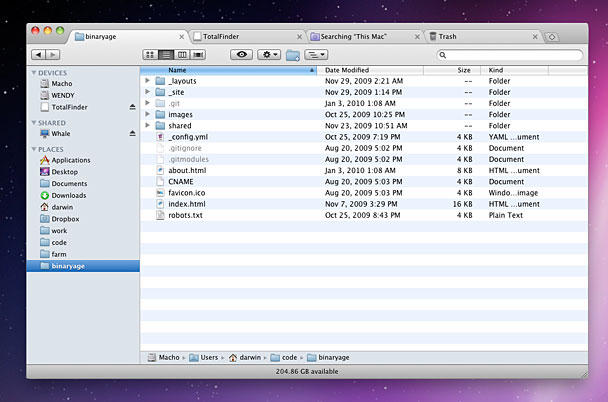
This is what you’ll see when you first start to use Finder in Mac OS X. Broadly speaking, it does the same job as Windows Explorer, but it does many of those things in different ways.
Before we go into any more detail (which we will, in forthcoming tips), it helps to understand the layout of a Finder window.
The Dock is a weird beast. Even long-term Mac users will tell you that. Quite a lot of them don’t even like it, because it’s a bit of a mish-mash. It’s a launcher, but it’s also a switcher. It can be used for storing shortcuts to files and folders, and it can be used to store minimised windows. Sometimes it flashes up status messages from applications, too.
It can get a little busy.
So then. The Dock you get when you first start up your Mac will look broadly similar to this:
Each icon represents an application. If you want to use a particular application, you click on its icon.
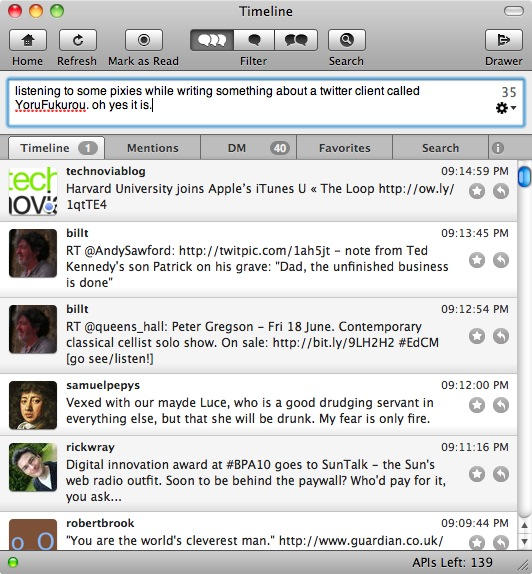
It’s a native app for 10.5.8 or 10.6, and packs a lot of features into a nicely self-contained and fairly minimal little package.
One of those features is tabs: you can add Twitter-wide searches or personal filters to the line of filters that appears just below the text entry box.
YoruFukurou (it means “Night Owl”) supports link shortening, TwitPic pictures, current iTunes song, and loads more. It counts your tweet’s characters, it has a variety of appearance modes and adjustable colors, and a decent set of keyboard shortcuts. In short: it’s neat. It really does cater to pretty much all your Twittering needs – well, certainly all of mine, but then I’m not a terribly demanding Twitter user. (Sorry, can’t bring myself to say “Tweeter”. Euw.)
You know the situation: you quit an app or close a document, and out slides a dialog (known as a “sheet” in OS X) asking you to Save / Don’t Save / Cancel.
On Windows, you can move through these buttons with the Tab key or the Arrow keys. But by default on OS X, that doesn’t work. Even some Mac users find this annoying, myself included.
There are two workarounds. The first is to learn some simple shortcuts.
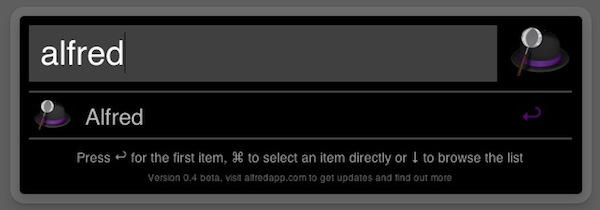
Alfred is a new keyboard launcher in the spirit of Quicksilver, Butler and LaunchBar.
A (free) beta was released last weekend by the UK-based team who’ve developed it.
If you’ve ever used any of those other keyboard launchers, Alfred will be instantly familiar. You invoke it using a global shortcut, then type whatever you want to find. Type an app name to launch it, or type “google” then your search term to search Google.
It has built-in shortcuts for searching Google, Amazon, eBay, Wikipedia, Bing, Twitter and plenty of others. It can also hunt down specific files or folders on your hard disk.
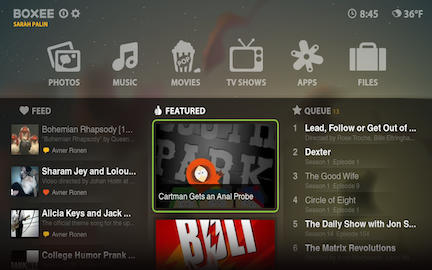
Boxee is Apple TV done right. It’s a great, Net-connected, “social” media player that allows you to play video from all over the Web as well as files from file-sharing networks. It streams content from sites like Netflix, Pandora and Last.fm, and makes it easy to get entertainment recommendations from friends. It transforms the Apple TV into a truly-useful internet video device.
The beta adds a much-improved that’s easier to navigate. Boxee on Apple TV was previously available only as an early alpha version. The latest beta was released in January but was unavailable for Apple TV users — until now.
A group of Boxee users have updated the ATV-Usb creator to install the Boxee Beta.
Users who already have Boxee Alpha installed on their AppleTV can simply update Launcher and then update Boxee to install the beta, no patchstick needed.
TotalFinder is starting to cause a buzz in the Mac community. The app aims to bring something to Finder long-rumored to be coming from Apple itself: tabs. We spoke to developer Antonin Hildebrand about his project, the reasons behind it, and his plans for its future.
Please note: TotalFinder is alpha software that integrates with Finder. Run it at your own risk and ensure you back up your system before installing it.