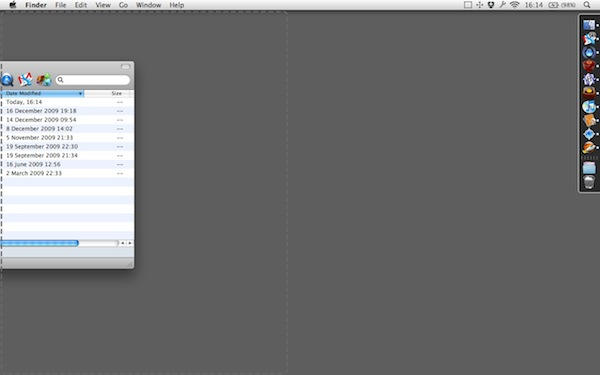
Cinch in action - note the visual feedback as a dotted outline of where the window will be moved to
One of the features I loved from the first moment I saw it in Windows 7 was Snap, the one that lets you instantly resize any document window by dragging it to one side of your screen.
Irradiated Software makes a Mac utility that does a similar job. It’s called Sizeup, and I find it pretty useful. But it’s keyboard-controlled, not mouse-controlled, and you have to remember some new shortcuts to get the most from it. How about a mouse-controlled alternative?
Enter Cinch, a new app from the Sizeup developers.
Screens of all shapes and sizes can end up cluttered with windows and palettes all over the place. On tiny little MacBook screens you get everything overlapping everything else; on ginormous 27″ iMac screens, everything’s so far apart you have to crane your neck to take it all in.
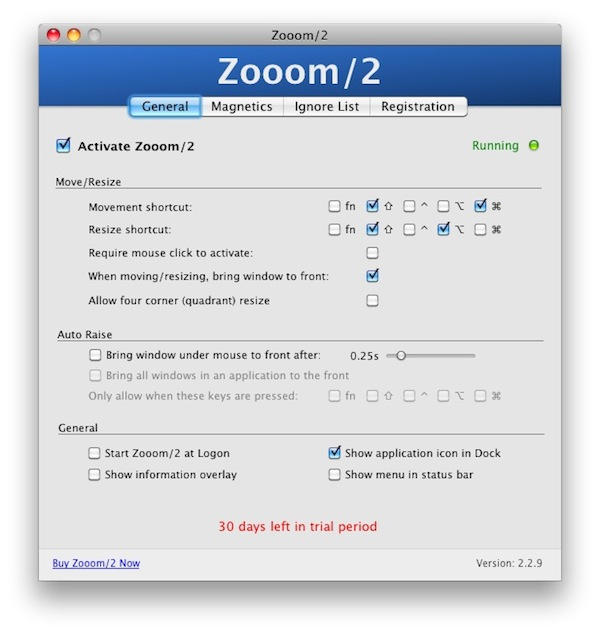
Step forward Zooom/2, a utility designed to make managing all those windows a little bit easier.
Today’s bevy of bargains starts with a bundle of nano applications from MacHeist. Included in the offer is VirusBarrier X5 for free. The VirusBarrier barrier is part of MacHeist’s nanoBundle: twitterific, mariner write and four other applications. To partake, you’ll need to register and post a Facebook announcement. The deal ends today. Also on tap: an iPhone 3GS for $149 and a number of MacBook Pro laptops, including a 1.83 GHz version sporting a 15-inch screen for $750.
As always, for details on these deals and more, check out CoM’s “Daily Deals” page after the jump.
With over 75 gazillion apps in the iTunes App Store now having generated more than Umpteen billion downloads, it might seem a tad preposterous to try and pick the 10 with the most beautiful GUIs.
But we’ve never let being a tad preposterous stop us before and we’re not saying these are the 10 most beautiful apps in the App Store — we’re just saying these 10 are beautiful. In almost every case, too, they have other redeeming features that make them worth checking out if you don’t have them already.
And don’t forget to let us know in comments if you’ve found something useful and beautiful that we may have missed here.
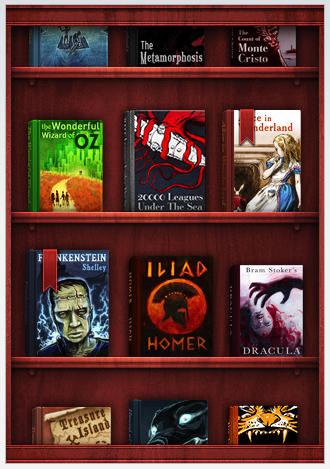
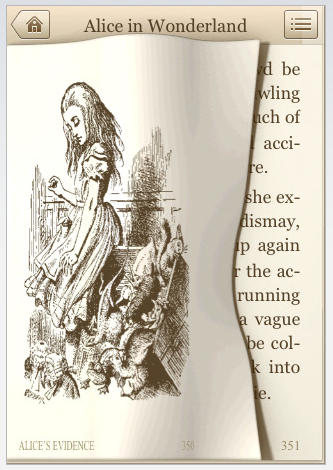
Classics is the, uh, classic reader app that lets you experience some of the greatest works of literature ever produced — in a digital format that’s so natural and so obvious, it just feels right. Meticulous care has been given to the typography and illustration of works such as Alice in Wonderland, The Art of War, Paradise Lost and many more, with sensual touches like realistic 3D page flips, a satin bookmark to remember where you left off reading and a beautiful woodgrain bookcase to store your collection.
What is it? It’s one of my all-time favourite Menu Bar apps, and was recently updated to work with Snow Leopard. I’m delighted to have just re-installed it after a spell of trying to live without it.
The app is called I Love Stars, and I prefer it over ever other iTunes helper I’ve tried. And I’ve tried quite a few.
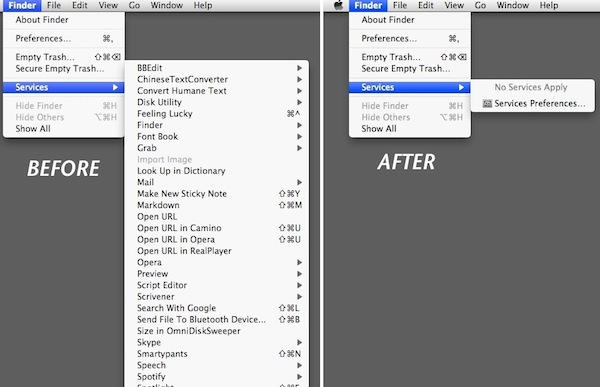
Snow Leopard’s revitalised Services menu is probably my favorite improvement among the many included in the upgrade.
At long last, the user has been given total control over Services. We can choose whether or not they are used, we can assign keyboard shortcuts that suit us, and we can create entirely new Services using Automator.
The crucial difference between Services in Leopard and Services in Snow Leopard is context.
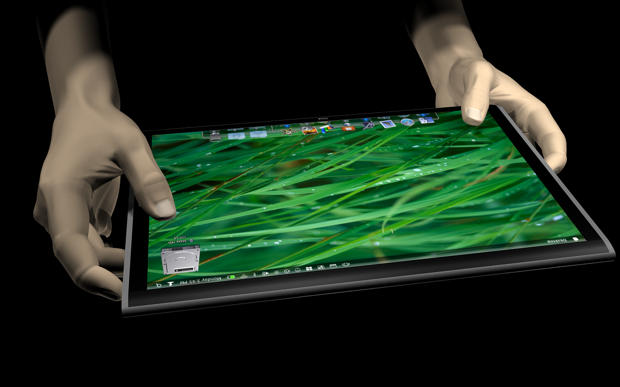
Here’s how Apple’s tablet will work and why it’ll be a paradigm shift. Using your fingers as an input device is extremely intuitive, and it’ll make the mouse and keyboard seem as antiquated as punch cards.
On the following pages is a gallery of concept designs created by Jon Doe, an anonymous grad student from Georgia who has done a LOT of thinking about how Apple’s tablet will work.
Doe has done a remarkable job of figuring it out. Over the course of a year, Doe has imagined how the device might work, what gestures it might support, and how Apple could adapt its popular iLife software to work in a multitouch environment. He’s created a blog to showcase his ideas and a series of YouTube videos. There’s so much to see, I’m publishing several posts over the next few days.
“The problem is that the current PC interface (PC as in Macs, Windows, and Linux boxes) is outdated,” says Doe. “We’re reaching the limit of what we can do with a mouse and keyboard.”
Check out the video and gallery after the jump to see why Apple’s tablet will be such an exciting device.
Are you a Gmail person? With more than one @gmail.com account? Thought so. How many times have you thought how much you like Gmail but felt frustrated by one aspect or another of the limits (mostly time and productivity-oriented) imposed by working with email in a web browser?
Yup. Well, guess what? There’s an app for that.
Mailplane brings Gmail to your Mac desktop and unleashes power and productivity you’ve only wished for in Google’s excellent mail product.
We’re only just now checking Mailplane out, but with support for:
# Drag and drop attachments
# Multiple Gmail accounts
# New mail notifications
# Easy screenshot sending
# Gmail shortcuts
# Integration with OmniFocus,
our first impressions are that Mailplane is well worth giving a more extensive test drive. It’s got a 30 day free trial and we’ll be giving you our more extensive review in about a month.
If you check Mailplane out, be sure to let us know what you think about it in comments.