SocialPhone is a brand new app for iOS that combines an impressive, full-featured address book with access to Facebook, LinkedIn and Twitter in one handy application.
Apple’s put down webOS before in the smartphone wars, but you can’t keep a solid operating system down for the count: six months after HP acquired Palm, they have just announced webOS 2.0 and the Pre 2 smartphone.
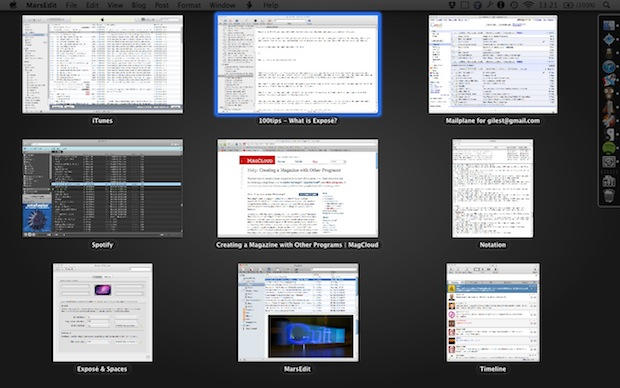
Exposé is an OS X feature designed to help you move around many documents and applications quickly and easily.
All you have to do is push a button (or move your mouse in a particular way, or drag your fingers on the trackpad), and all your open windows, from all your open applications, will be displayed on screen at once, shrunk down so that you can see them all.
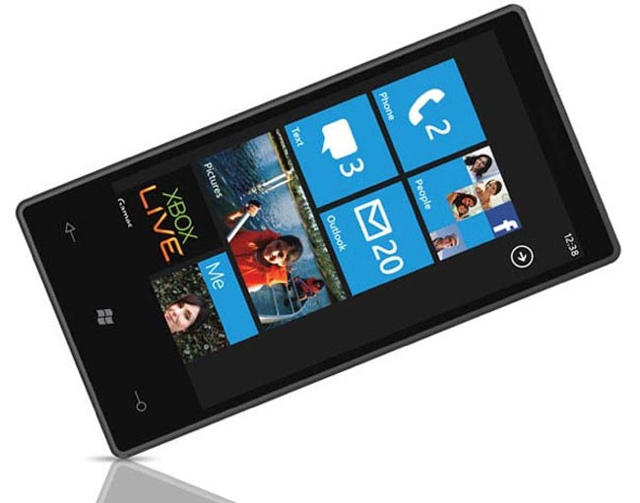
It’s taken them over three years to respond to the revolutionary shift in the mobile operating system landscape posed by iOS, but Microsoft has finally done it and released a properly modern, properly app-laden and properly multi-touchable successor to the Windows Mobile series: Windows Phone 7. But what differentiates Windows Phone 7 from Windows Mobile 6.5, Windows Mobile 6 and a host of even crappier mobile operating systems squirted out by Microsoft?
Quite a bit, actually, and it’s quite a bit better… but it’s still two years behind the curve of iOS.
The tweet says it all: I’m back using Camino after switching to Safari when version 5 was released back in July.
Although I appreciate Safari’s speed while browsing, and the variety of extensions on offer was wonderful to see, there was one problem that drove me back to Camino: crashes and beachballs.
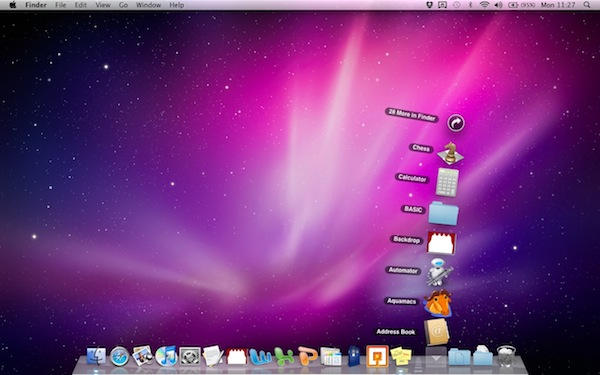
Back in tip number 5, we had a look at how the Dock is laid out. Application shortcuts are on the left, folders on the right.
It’s pretty clear what the shortcuts do: they open an app for you. If it’s already open, they switch you to it. You can change which ones stay in the Dock all the time, so that you’ve got quick access to the applications you use most often. But what happens with the folders on the right, and how do they work differently?
The idea with folders in the Dock is to make it easier to get to what’s inside them. When they’re in the Dock, they’re known as “stacks”.
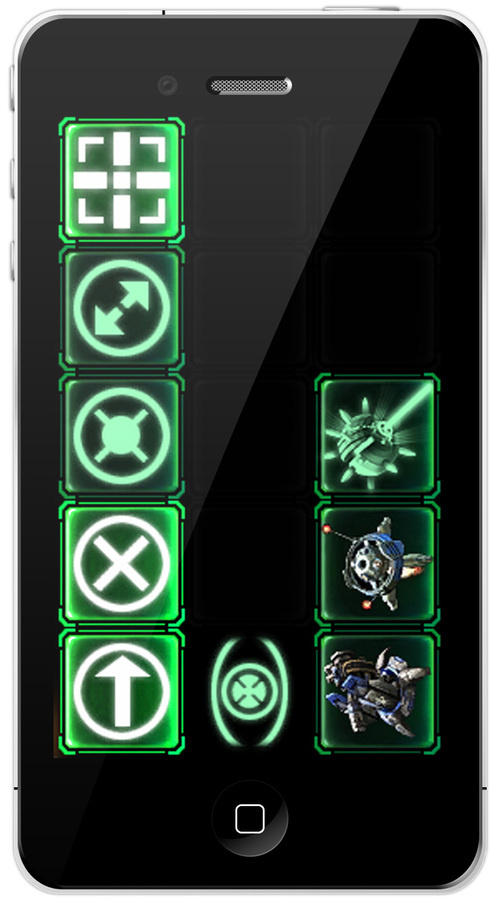
Keeping the dozens of keyboard shortcuts necessary to be competitive in Blizzard’s new multi-faction, space RTS Stacraft II mind mapped can be difficult for even the most caffeinated South Korean pro gamer, but if you’ve got an iOS device, pulling off a successful Zerg rush is about to get a whole lot easier, thanks to the Starcraft II Gameboard.
Developed by Daniel Hellerman, the Starcraft II Gameboard turns your iPhone, iPod Touch or iPad into a dedicated control pad, from which you can easily issue orders and build new units. Essentially, it syncs with a program on your computer and allows you to send complicated keyboard hot key combinations just by tapping an icon with your finger. You can even look up information in a Starcraft II unit encyclopedia while you’re at it.
The Starcraft II Gameboard is expected to arrive in the App Store in September for $2.99. The only problem is, the client software needed for the program to run is for Windows-based systems only… which seems like a huge oversight, given Starcraft II‘s excellent native Mac port.
This is the Option symbol, which you’ll see quite a lot of as you use Mac OS X.
Depending on the age of your Mac or your keyboard, the key itself might have all sorts of different things on it. It might just have the option symbol. It might have the word “Alt” on it, or the word “Option”; or both; or some combination of one of those words and the symbol.
This can make things confusing for newcomers. To make it easier, remember that Option = Alt = ⌥, and that the key you need is adjacent to the Command key.
Just as the Mac Command key is similar to the Windows Control key, so the Mac Option key is similar to the Windows Alt key, or the AltGr key. Hold it down while pressing other keys, to make them do different things. It’s a modifier.