Mobile menu toggle

Search results for: mechanical keyboard

Part 1: From PC pigsty to prim M1 Pro MacBook workstation [Setups]

By

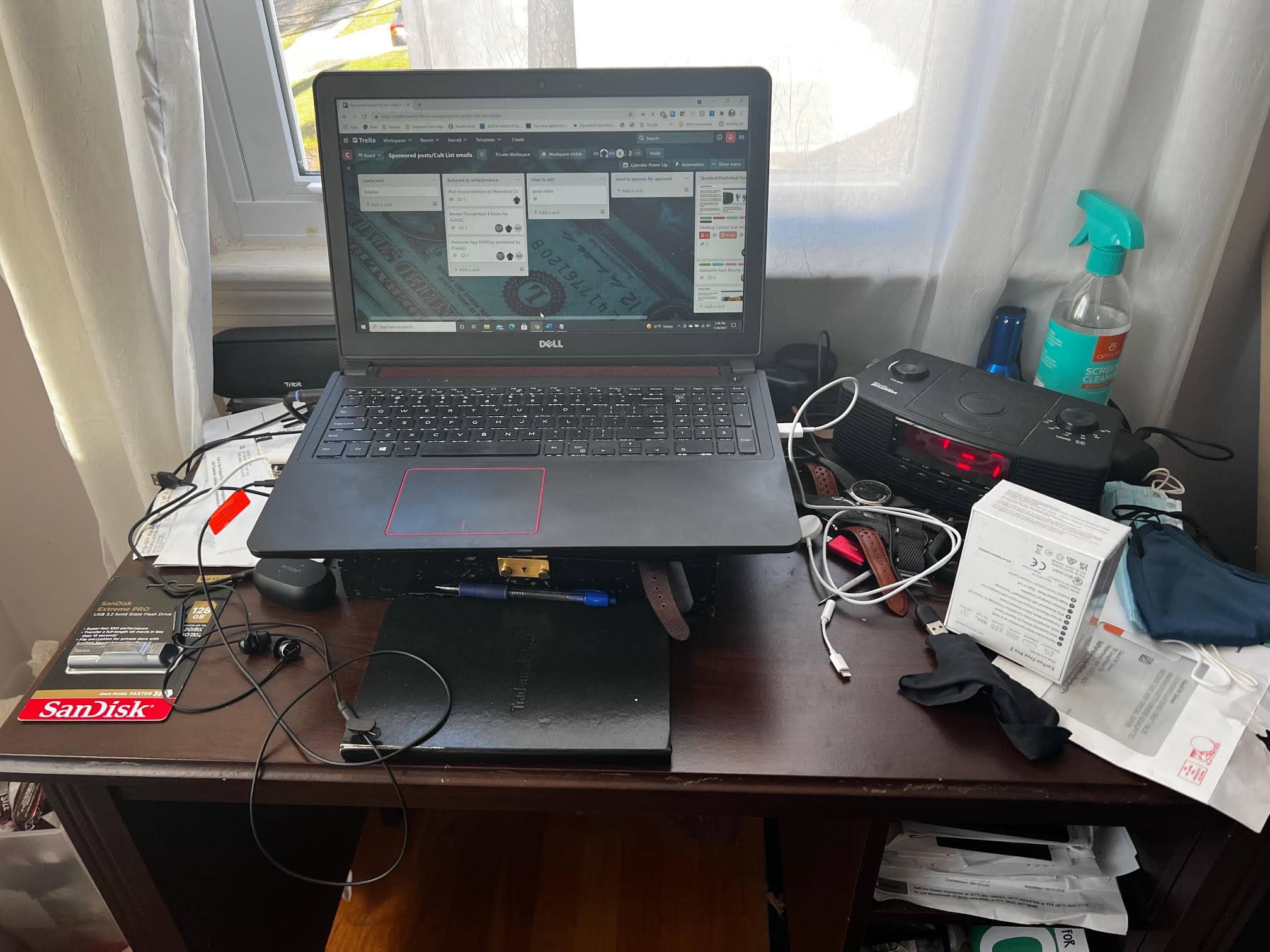
Before: A fine Dell Inspiron laptop perched atop a mess.
BEFORE: A fine Dell Inspiron laptop perched atop a mess.
Photo: David Snow/Cult of Mac

Not long ago I sold, gave away or trashed most of my possessions and moved across the U.S. Soon after arrival, I found my computer unresponsive. The ol’ HP Pavilion laptop stopped powering on reliably. So I borrowed a perfectly good Dell laptop from my brother and kept on writing, mainly for Cult of Mac. I just happened to be “between Macs” at the time. But now I have a brand new 14-inch M1 Pro MacBook.

Thanks to the swanky new Apple laptop plus a few other bits and pieces I quickly acquired, as of today I no longer wallow in a PC laptop pigsty (yeah, the photo above is genuine, though I swear it wasn’t always quite that messy). I’ve got a proper Mac computer setup for the first time in a while.

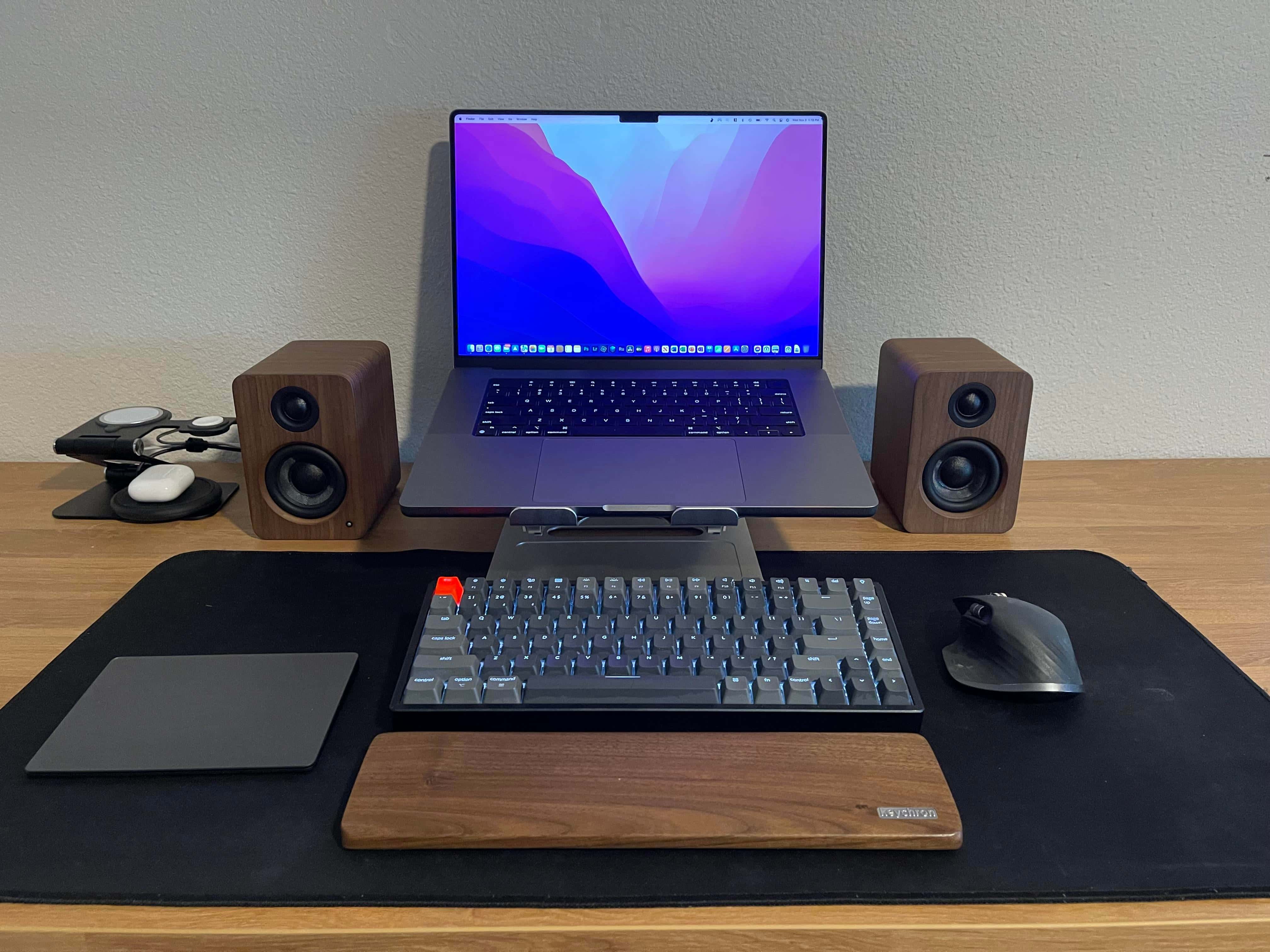
No external monitor? Build an ergonomically correct setup around your laptop. [Setups]

By

It may look complete, but this M1 MacBook Pro setup is waiting for a big secondary display.
Photo: [email protected]

From time to time, as you work on making your computer setup all it can be, you order new equipment. And maybe it takes a long time to arrive. Perhaps “supply chain” issues intervene. And if that piece of equipment is your workstation’s visual centerpiece — the magnificent display, placed just so for graphical and ergonomic bliss — then what do you do, when you have no external monitor?

Do you hunch over your laptop until your neck and your back and everything else hurts? Not necessarily.

M1 Mac mini and gaming PC share massive screen real estate [Setups]

By

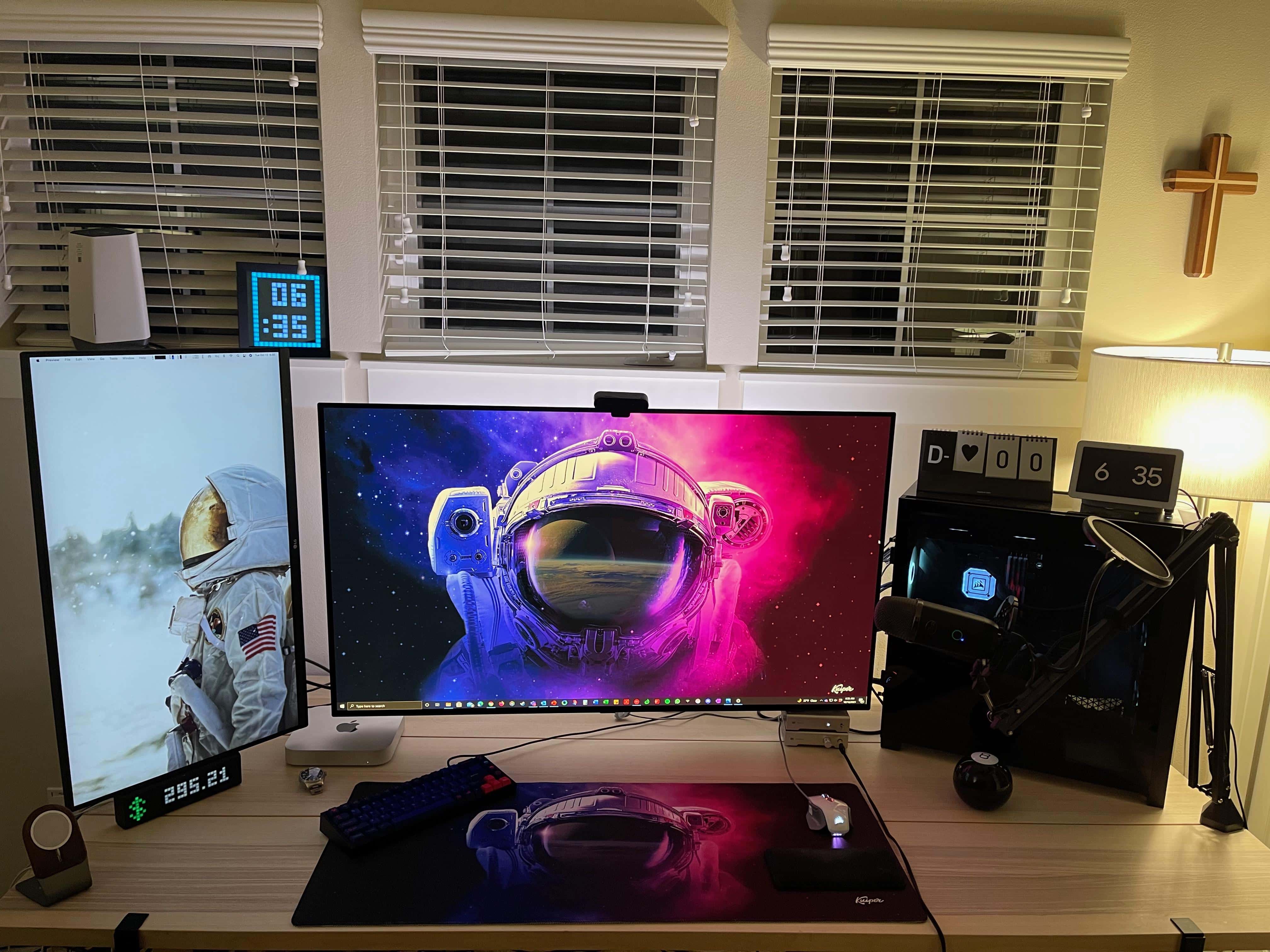
Who says a Mac mini and a gaming PC can't get along just fine?
Photo: [email protected]

Who says an M1 Mac mini and a revved-up gaming PC can’t get along? Macs aren’t known to excel at gaming, so it’s natural for many folks to keep a Mac alongside a tricked-out gaming rig. These days, it’s easy to switch back and forth, as we’ll see in today computer setup featuring a massive TV screen and a slightly more modest monitor.

Why go with stacked displays? [Setups]

By

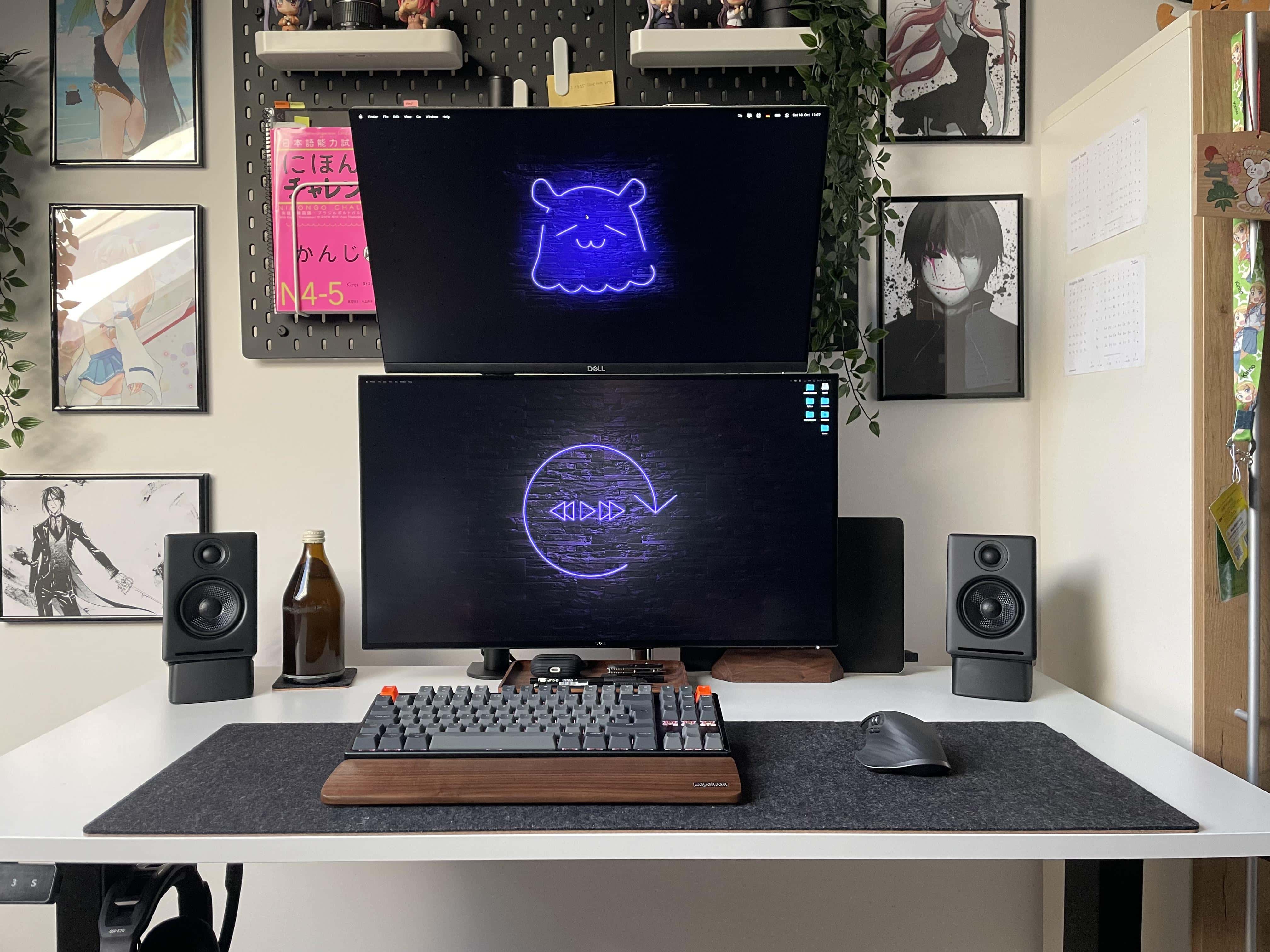
People wonder why one monitor isn't set vertically (portrait) rather than way up high. Well, there's a reason for that.

When you see people online showing off their computer setups with dual displays, you often see side-by-side horizontal monitors (landscape mode). Sometimes you see a horizontal screen and a vertical one (portrait mode). And sometimes you see stacked displays, with one landscape-oriented monitor mounted on top of another.

Sometimes you see the stack because of space issues, where there’s simply no room to either side of the setup. Other times you see a stack when someone wants to run four or five displays. And there are cases where the user couldn’t get one monitor to work in portrait mode, so they had to have both screens in landscape mode.

The beauty of monitor and laptop stands (and a Hulk cord holder) [Setups]

By

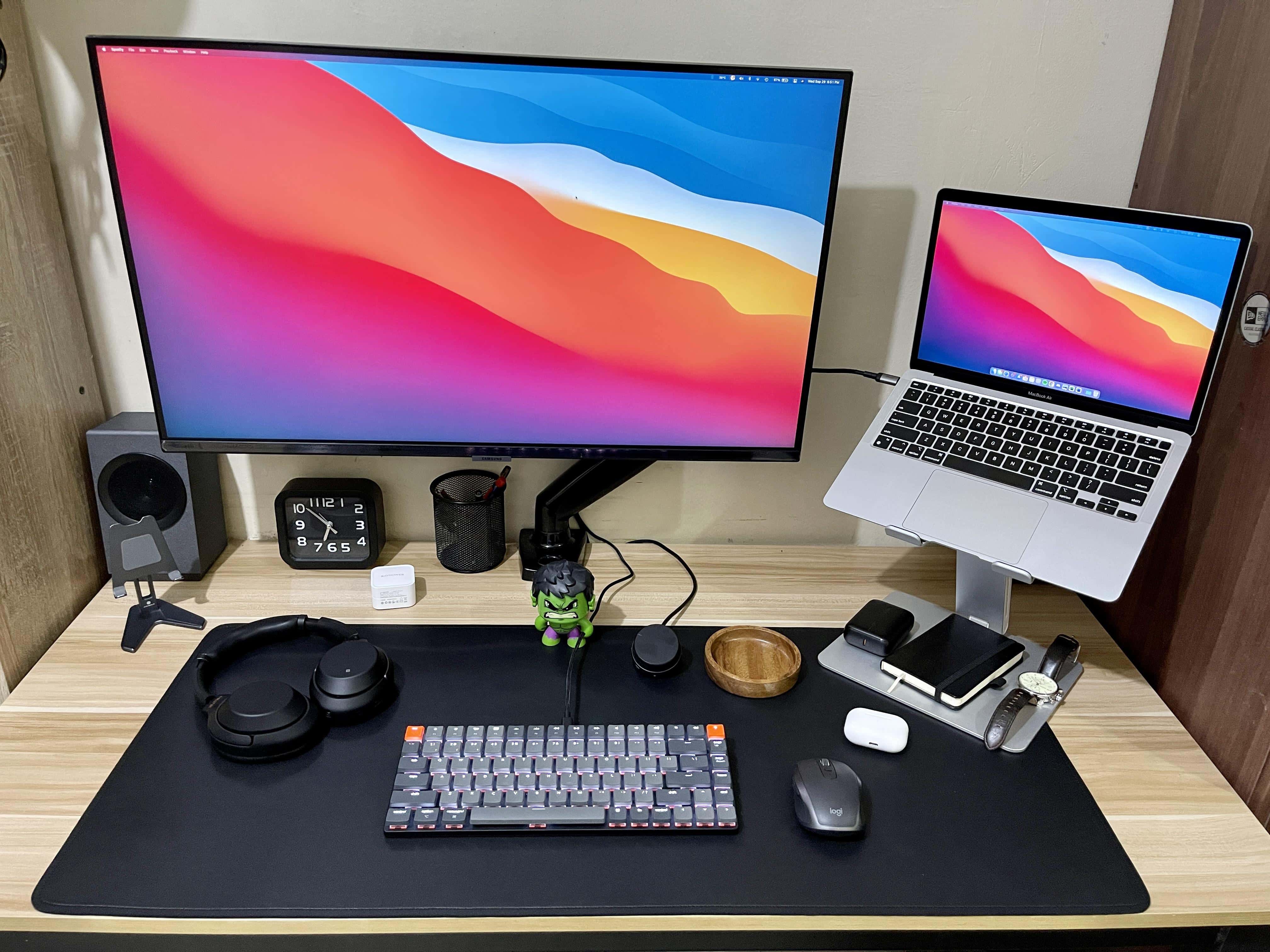
When you don't a big desk, stands for monitor and laptop are great space-savers.
Photo: [email protected]

In the world of computer setups, space is often at a premium. When you’ve got computers, displays, peripherals, gadgets and cables, you need some surface area. But not everyone has a big desk, much less more than one. That’s where certain types of stands and mounting arms come in handy.

Going all mini all of the time [Setups]

By

It's all
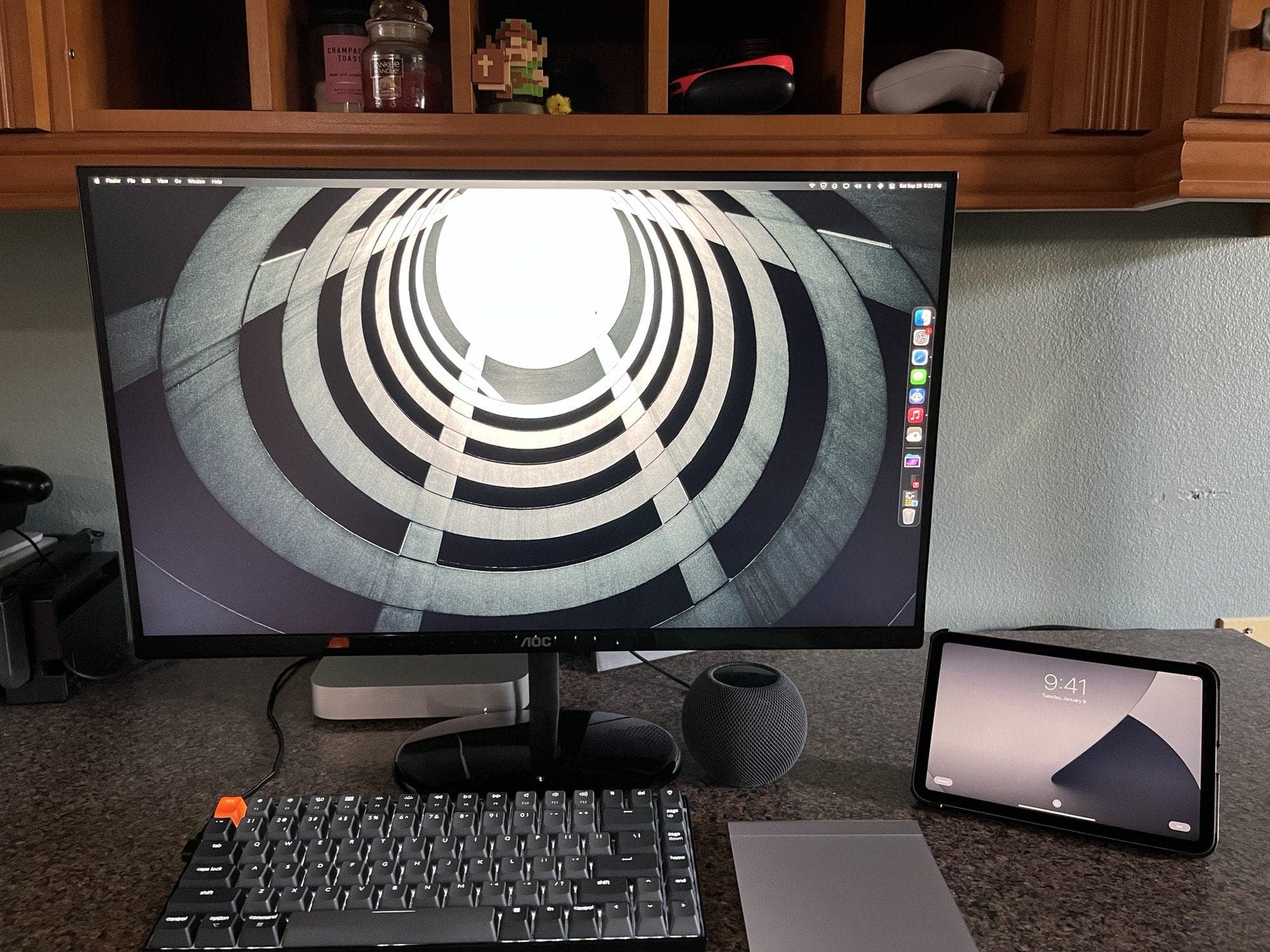
It's all "mini" except the monitor, pretty much.
Photo: [email protected]

The new M1 iPad mini garners rave reviews for its powerful performance and easily handled size. The M1 Mac mini is well-established as a compact but capable desktop machine. The HomePod mini smart speaker has flourished after the demise of the full-sized HomePod. So it’s no wonder to see “all mini” computer setups cropping up.

‘Finally, 1 cord to rule them all!’ [Setups]

By

Maybe
Maybe "1 cord to rule them all," but not replace them all.
Photo: [email protected]

You’ve got to love somebody bragging about getting their computer setup’s cable management down to one cord, because it’s never really one cord. They don’t mean it literally. It’s just that one cord to a hub or dock helped reduce their previously tangled mess of cables splaying out all over the place.

Curved 40-inch HD display is too much monitor for some [Setups]

By

Not bad for something stashed in the corner of your kid's room.
Photo: [email protected]

In the ongoing discussion about whether a gargantuan ultra-wide monitor beats dual monitors or vice versa, some people still chime in favoring one modest display to either of the above choices. Of course, these days, “modest” can mean in excess of 30 inches, plus a lot of bells and whistles.

Tame hairy cables gone wild — or don’t [Setups]

By

"Honestly that's how it is supposed to be," one comment said of the cable mess. "Bushy just like the 70s."
Photo: [email protected]

A recurring theme across computer setups everywhere is the need for better cable management. It’s all about how well the careless, disheveled slob throwing together the gear — here we’re referring mainly to ourselves, not you — deals with the thorny mess of electrical cords and connectors that help make the workstation go.

1 32 33 34 35 36 48