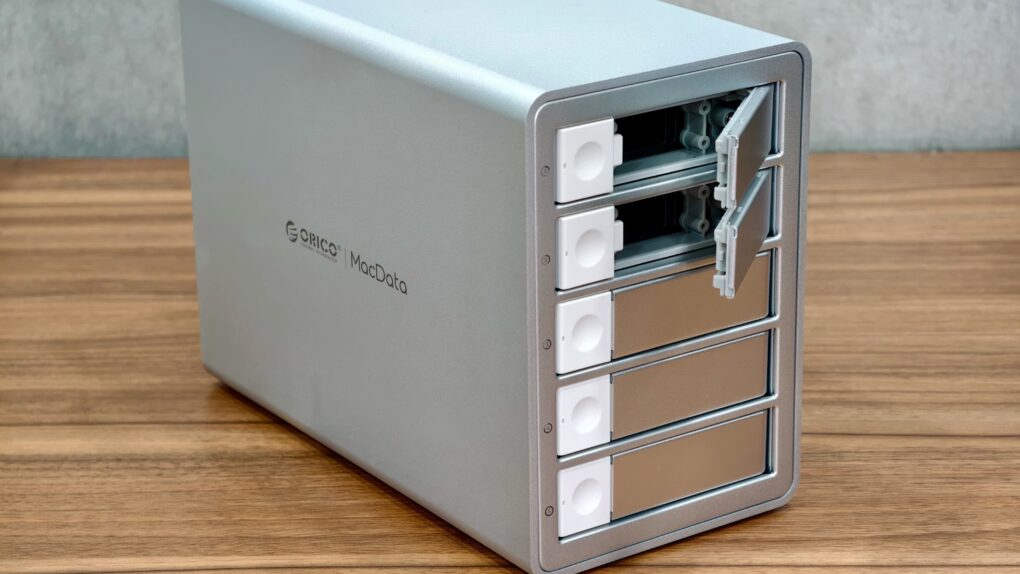
The Orico MacData Vault puts five SATA drives and hardware RAID into a compact aluminum enclosure that looks right at home beside a Mac. It feels solid and runs quietly.
However, its screw-mounted drive trays and hardware-only RAID controls make the setup feel more dated than I expected from a premium direct-attached storage, aka DAS, device in 2026. There is also an important catch for Mac users. Find out more in my review.
This post contains affiliate links. Cult of Mac may earn a commission when you use our links to buy items.
Orico MacData Vault review: DAS simplicity without NAS complexity
With cloud storage, you store your files in a remote location owned and operated by Google, Apple, Microsoft or some other company. But if you prefer massive, expandable local storage capacity, you need a hardware solution like a DAS or a network-attached storage system, a.k.a NAS.
The Orico MacData Vault provides an easy way to hoard your data locally in a beautiful enclosure. But its polished exterior conceals an experience that feels oddly stuck in the past — with a sticker price that seems thoroughly modern in these inflationary times. (An exclusive discount for Cult of Mac readers helps.)
The differences between a NAS and a DAS
Before deciding whether the Orico MacData Vault belongs on your desk, it helps to understand how a DAS device differs from a NAS.
With a NAS, you connect a mini-server to your network, enabling you to store files from all devices on that network. Just as with cloud storage, remote storage does not directly connect to your Mac.
That’s not the case with a DAS. It connects directly to your Mac over USB and appears in macOS like any other external drive. Think of it like a big USB drive with a built-in enclosure that can hold multiple drives — and whose storage capacity can be expanded. As a result, a DAS can deliver much higher read/write speeds than NAS or cloud storage.
Another benefit of a DAS is that it requires no extra software or configuration, unlike a NAS. Connect a DAS to a computer, format the storage, and it’s ready to go. The DAS can then store massive photo libraries, video projects, local backups or archives.
If you don’t have multiple devices to back up data from and are just looking for a way to add more storage to your Mac for video projects, photo libraries, local backups or archives, a DAS will work just fine.
The Orico MacData Vault can hold up to five SATA HDDs or SSDs, with the company advertising up to 130TB of total capacity and a maximum of 26TB per drive. It supports RAID 0, RAID 1, RAID 3, RAID 5 and RAID 10, along with BIG and Normal/JBOD modes.
So, depending on your needs, you can prioritize speed, redundancy, maximum capacity or access to each disk separately without relying on macOS software RAID.
The Orico MacData Vault packs five SATA drive bays and flexible hardware RAID into a compact, Mac-friendly aluminum enclosure.
- Holds five 2.5-inch or 3.5-inch SATA HDDs or SSDs
- Multiple hardware RAID modes
- Silent operation
- No tool-less hard drive installation
- Hardware RAID setup is not intuitive
- Cannot utilize full 20 Gbps speeds on Mac
- Full price is hard to justify
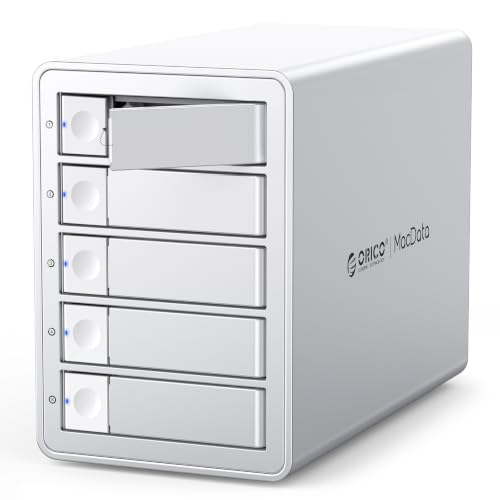
Table of contents: Orico MacData Vault review
- Compact design that belongs beside a Mac
- Five bays, but bring out the screwdriver
- Is the Orico MacData Vault worth it?
- Price and availability
Compact design that belongs beside a Mac
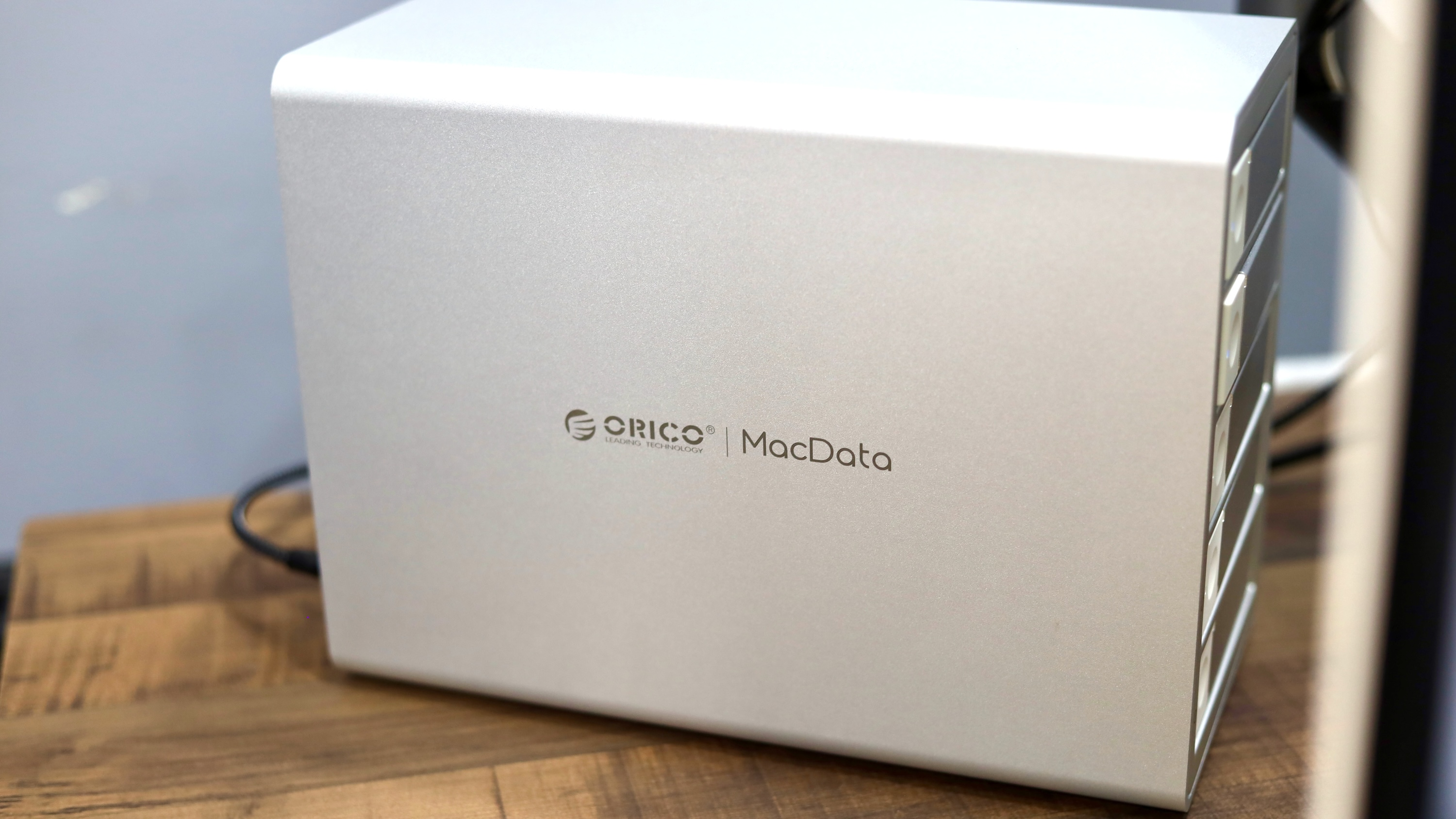
Photo: Rajesh Pandey/Cult of Mac
The MacData Vault makes a strong first impression. Its aluminum enclosure feels solid, and I found no uneven panels, loose sections or other build-quality concerns. It is also relatively compact for a device that can fit five full-size hard drives.
The silver finish closely matches Apple’s silver shade. So, it will not look out of place on a desk with a Mac Studio, a Mac mini or a silver Mac sitting next to it.
The power supply is built into the chassis, so there is no oversized external power brick to hide under the desk. Orico uses a 150W internal power supply, which offers more than enough juice to power five hard disks and other internal chips.
Five bays, but bring out the screwdriver
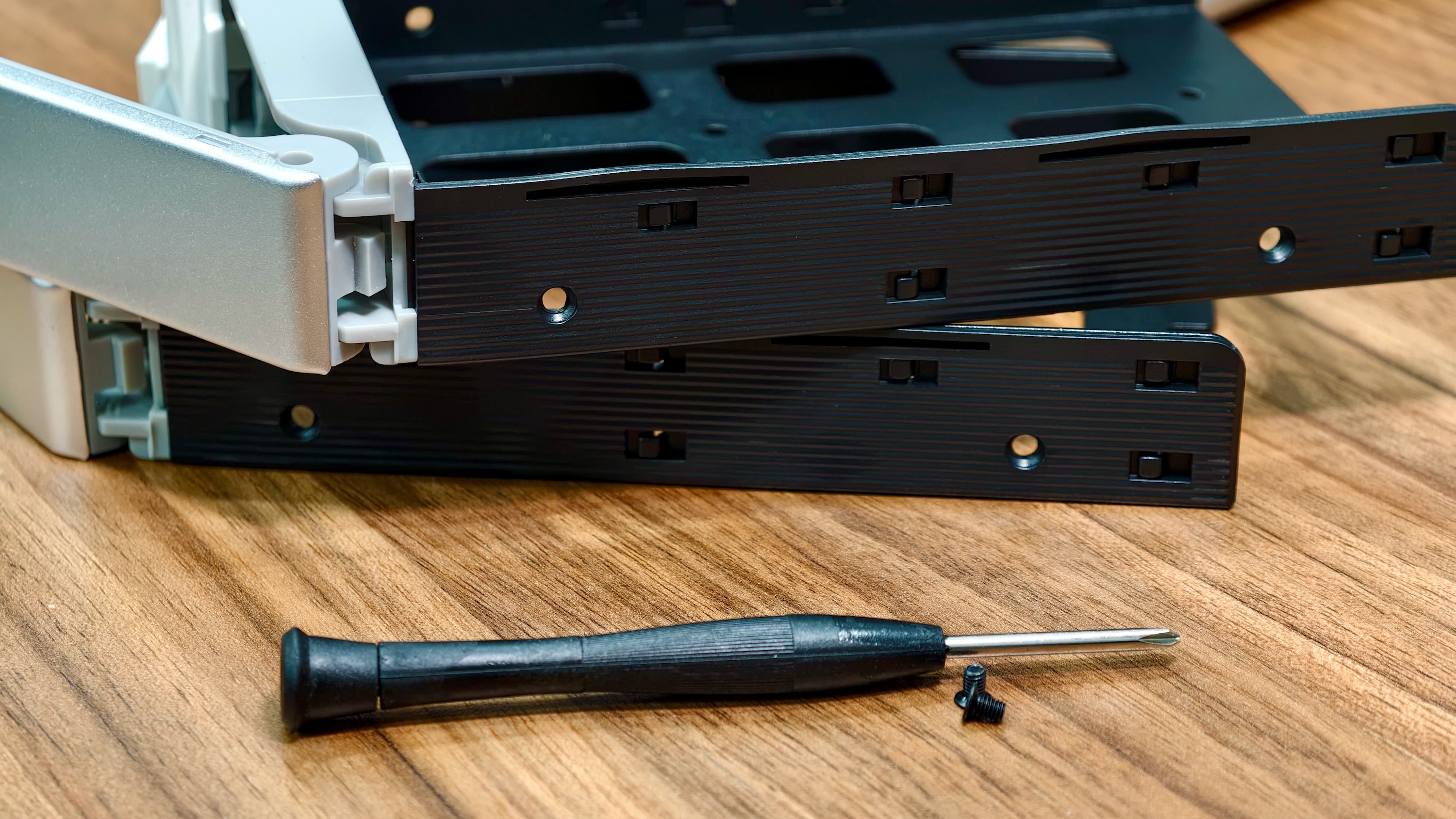
Photo: Rajesh Pandey/Cult of Mac
Unfortunately, the premium build of the Orico MacData Vault comes with a major compromise. The trays are not tool-less, so you must secure every HDD or SSD using screws.
Orico includes the required screws and even bundles a screwdriver in the box. While thoughtful, it feels odd for a DAS aimed at Mac users in 2026 to not include tool-less trays.
If you plan to set up the DAS once and forget about it, the unappealing installation process is not a big deal. But if you plan to add or remove drives, test different configurations or replace disks as your storage needs change, the lack of tool-less trays will become a major annoyance.
RAID flexibility comes with an old-school setup
The MacData Vault handles RAID in hardware, so your array does not depend on macOS software to function. This means you don’t need to use your Mac to create software RAID. The built-in JMicro controller takes care of that.
A hardware RAID is more reliable as it does not add unwanted CPU overhead. And, in some cases, it can even deliver better performance.
The Orico five-bay DAS supports all popular RAID modes, including RAID 0 for speed, RAID 1 for mirroring, RAID 5 for a balance of capacity and drive-failure protection and RAID 10 for mirrored stripes.
The bummer is that Orico does not offer a dedicated Mac app to configure the array. Instead, you select the RAID mode using a row of small switches on the rear of the enclosure.
The included guide explains the switch positions for each mode. After moving the switches into the required configuration, you must press and hold the reset button for a few seconds to apply the change.
A native Mac app would have helped with setup
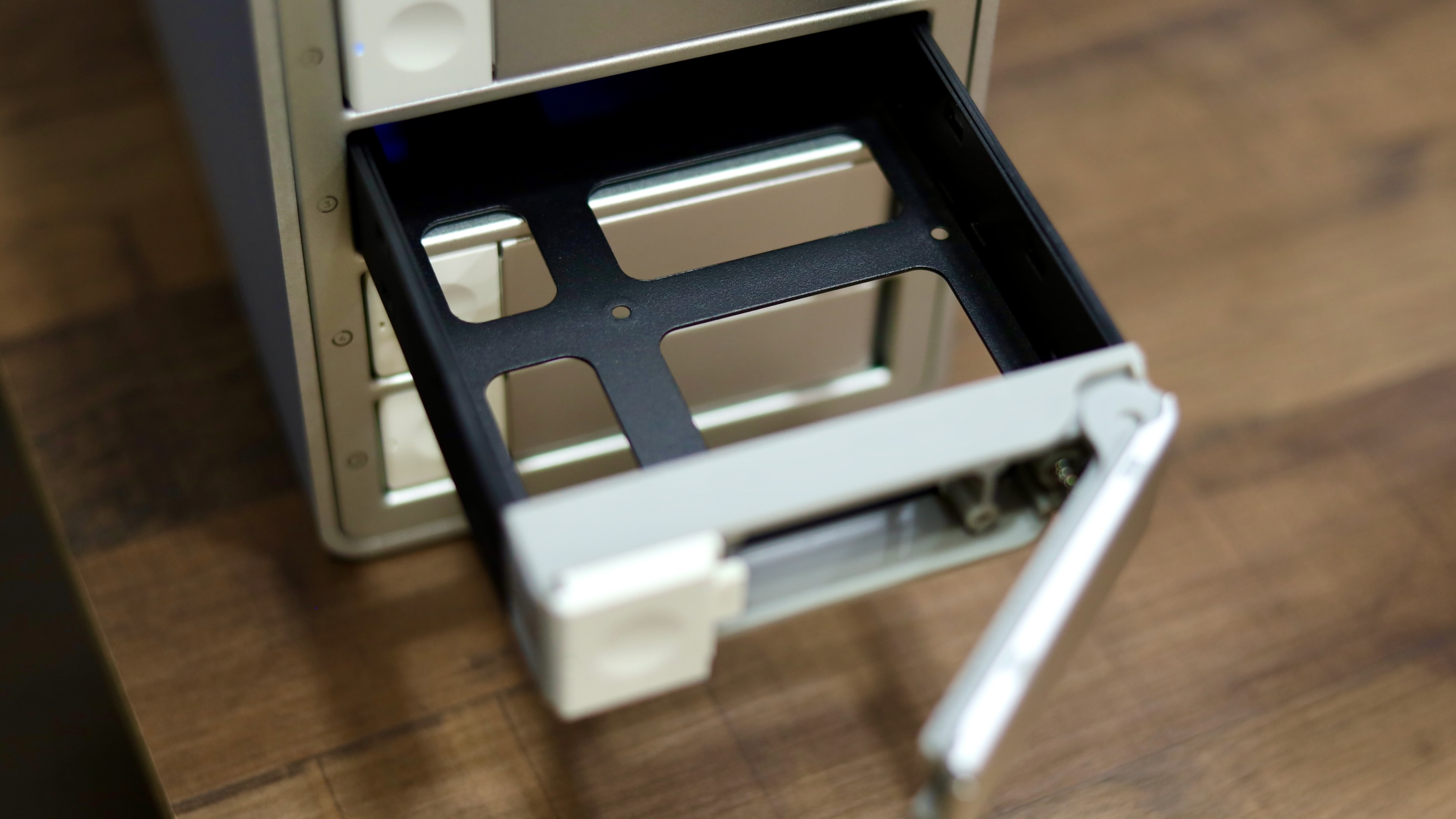
Photo: Rajesh Pandey/Cult of Mac
The process works, but it is not user-friendly. My concern is what happens if, after a few months or a year or two down the line, I misplace the included guide and need to change the RAID mode on the DAS.
A native Mac utility would have helped with the setup, explaining the various RAID modes and guiding through the configuration process. Instead, I had to first go through the guide, double-check the switches and understand that changing the RAID configuration can destroy the data on the installed disks.
There is one advantage to the hardware controls, though. Once the array is configured, you don’t need to worry about managing the DAS at all. Still, Orico could make the initial setup far friendlier for new users without giving up hardware RAID.
The 20Gbps connection has a Mac-size catch
Orico advertises the MacData Vault with a USB 3.2 Gen 2×2 connection capable of 20Gbps. The included USB-C cable is also rated for that speed.
The problem is that it uses the USB 3.2 Gen 2×2 standard. The port looks the same as any other USB-C port on your Mac and other devices. But it’s slightly different — not physically, but in how it works. And no, it’s not a Thunderbolt port, either.
Theoretically, the Orico five-bay DAS supports 20Gbps speeds over USB. The catch is that Macs do not support the USB 3.2 Gen 2×2 standard. They support USB 3.2 Gen 2×1 and Thunderbolt 4/5. That’s the case with all Macs, starting from the M1 Mac mini to the M5 Pro/Max MacBooks.
Will you notice the bottleneck? Maybe.
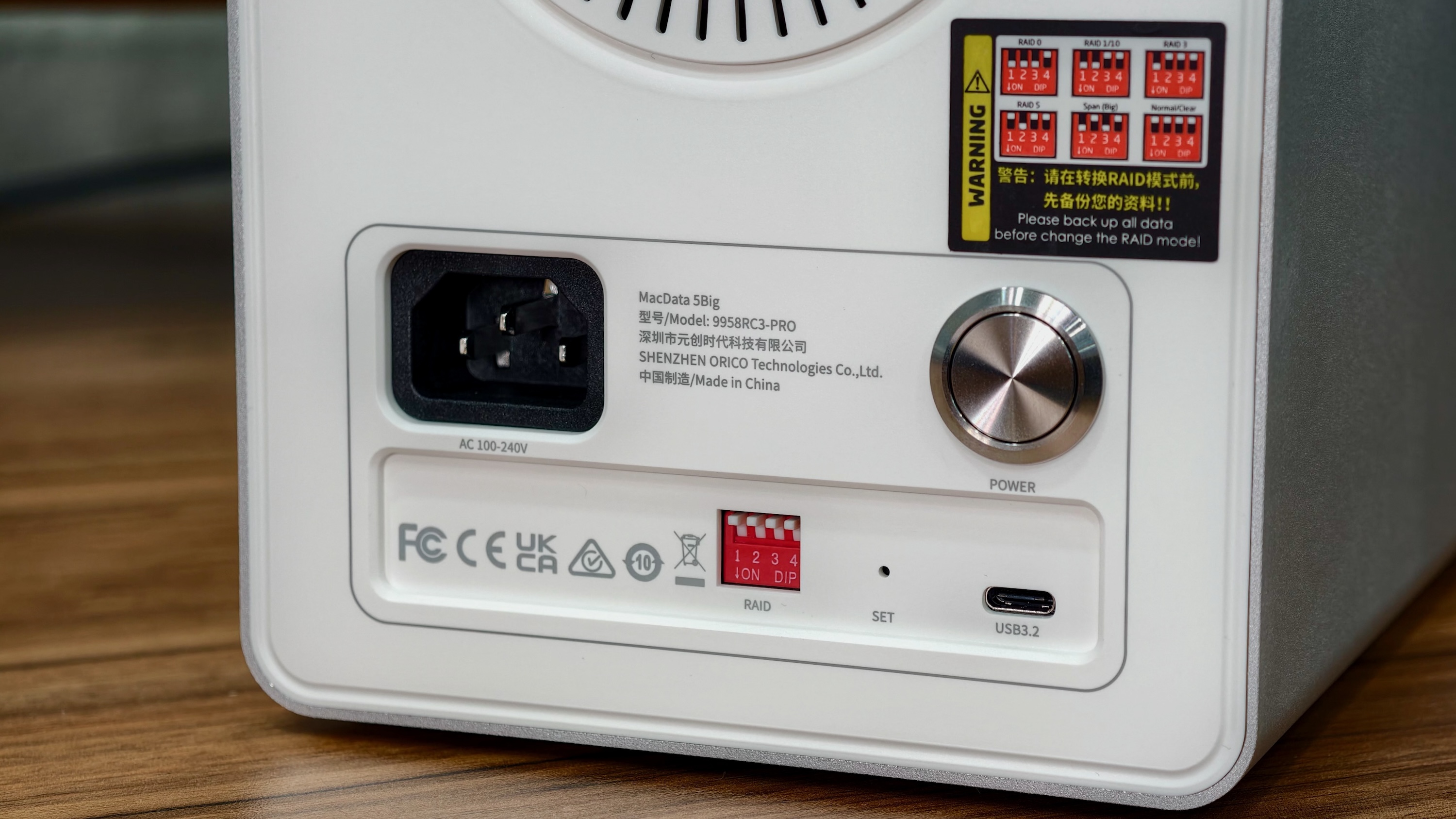
Photo: Rajesh Pandey/Cult of Mac
In my testing, macOS reported a link speed of 10 Gb/s when I connected the enclosure through a CalDigit TS5 Plus dock. Even when directly connected to my M5 Pro MacBook Pro, macOS still reported the same 10Gb/s connection.
So while Orico’s five-bay DAS might support 20 Gbps speeds over USB, with a Mac, you are limited to 10 Gbps speeds.
The slower connection speed did not affect my workflow, as I used the DAS as a backup drive for my MacBook Pro. However, if you plan to combine four or five SSDs or HDDs in RAID 0, you will hit that 10Gbps ceiling.
This can create a bottleneck if you plan to use the DAS as a scratch disk for video editing or other intensive read/write tasks. While 10Gbps is more than enough — you will get data transfer speeds of 1GB/s or more — it can be a problem when editing 6K or 8K video footage off the DAS.
No one-port SATA bottleneck
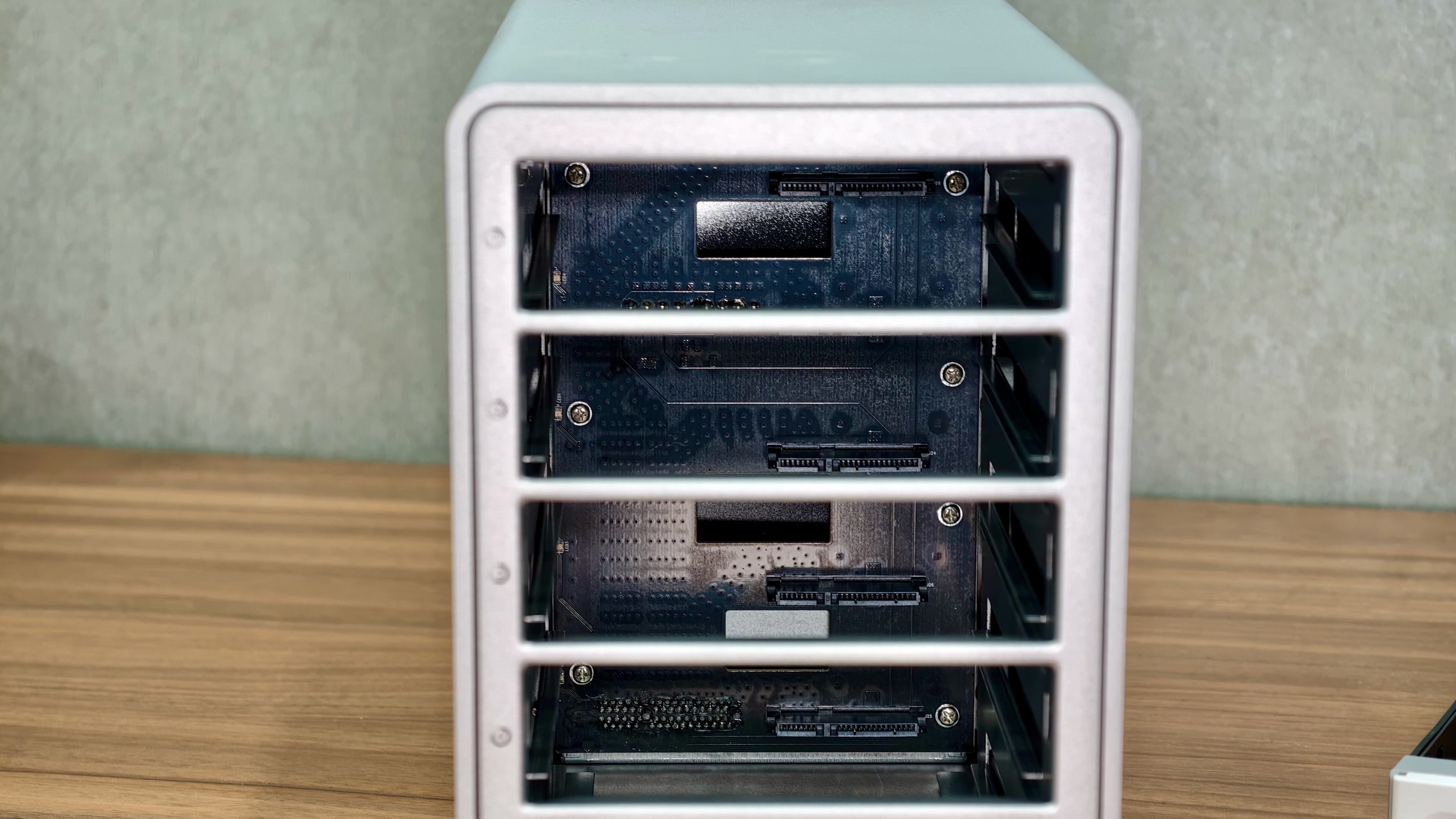
Photo: Rajesh Pandey/Cult of Mac
Some budget DAS devices connect several drives through a SATA port multiplier. That means instead of each drive getting its own SATA connection, they share the bandwidth of one SATA 6Gbps connection.
This can limit speeds, especially when multiple SSDs are in RAID 0.
That’s not the case with Orico’s five-bay MacData Vault. It uses a JMicron JMS591 controller, which is the company’s flagship product. Its documentation shows a hardware RAID engine connected to five SATA 6Gbps ports and claims more than 2,000 MB/s of sequential throughput over a 20 Gbps USB connection.
Quiet cooling without distracting fan noise
With multiple hard drives inside a tiny enclosure, an active cooling system is a must. Otherwise, the hard disks can run hot, which can negatively affect their lifespan.
The Orico MacData Vault comes with an active cooling system to keep the drives cool. And even better, the fan runs quietly. During my month-long testing for this review, I never heard the fans spin once, even when transferring 100GB of data to the DAS.
Is the Orico MacData Vault worth it?
What I like most about the MacData Vault is that once you finish the initial RAID setup process, you can forget all about it. The vault sits quietly beside my Mac, giving direct access to a large pool of expandable storage. For my workflow, that simplicity is the real appeal of a DAS.
But it’s not without its flaws. Securing five drives with screws feels archaic, and setting RAID through tiny rear switches is not the experience I expect from a premium Mac accessory. I also cannot ignore that my MacBook Pro connects at 10 Gbps, so I do not get the full benefit of the 20 Gbps interface highlighted on the box.
At its regular $500 Amazon price, these compromises are hard to overlook.
The Qnap TR-004 costs $219 and provides four bays, hardware RAID and USB-C, though its interface tops out at 5 Gbps. Then, there’s the four-bay OWC ThunderBay 4, which costs about $400 and offers a significantly faster 40 Gbps Thunderbolt connection.
The Orico five-bay DAS is more expensive than OWC’s offering, costing $500. At its full MSRP, it’s difficult to recommend, especially since the OWC ThunderBay 4 is cheaper and supports the faster Thunderbolt connection. Orico also offers a four-bay version of the MacData Vault, which costs $400 before discount.
A special discount for Cult of Mac readers
At full price, the pricing of both Orico DAS devices is hard to justify. However, a $100 discount for Cult of Mac readers makes the MacData Vault a more attractive proposition. Just use the coupon code “CULTOFMAC” at checkout.
With $100 off, you can get the five-bay MacData Vault for $400 and the four-bay version for $300. The discount makes the four-bay model especially attractive, as it costs only slightly more than the competition while offering a faster host interface and a superior JMicron controller.
I would hesitate to recommend either variant of the Orico MacData Vault at full price. But, at $100-plus discounts, they are worth considering.
★★★★☆
Pricing and availability
The five-bay Orico MacData Vault costs $500 on Amazon, but Cult of Mac readers can get it for $400 after a $100 discount. The four-bay model gets the same $100 discount, bringing its price down from $400 to $300.
The Orico MacData Vault packs five SATA drive bays and flexible hardware RAID into a compact, Mac-friendly aluminum enclosure.
- Holds five 2.5-inch or 3.5-inch SATA HDDs or SSDs
- Multiple hardware RAID modes
- Silent operation
- No tool-less hard drive installation
- Hardware RAID setup is not intuitive
- Cannot utilize full 20 Gbps speeds on Mac
- Full price is hard to justify
Orico provided Cult of Mac with a review unit for this article. See our reviews policy, and check out more in-depth reviews of Apple-related items.

Rajesh has been writing about consumer technology for over a decade, with a strong focus on iPhones, Macs and Apple’s ecosystem. He enjoys digging into Apple software updates, hardware changes, and discovering new Mac apps that make work faster and more enjoyable.
You can reach out to him at mail[at]rajeshpandey.me.

