Mobile menu toggle

OS X - page 10

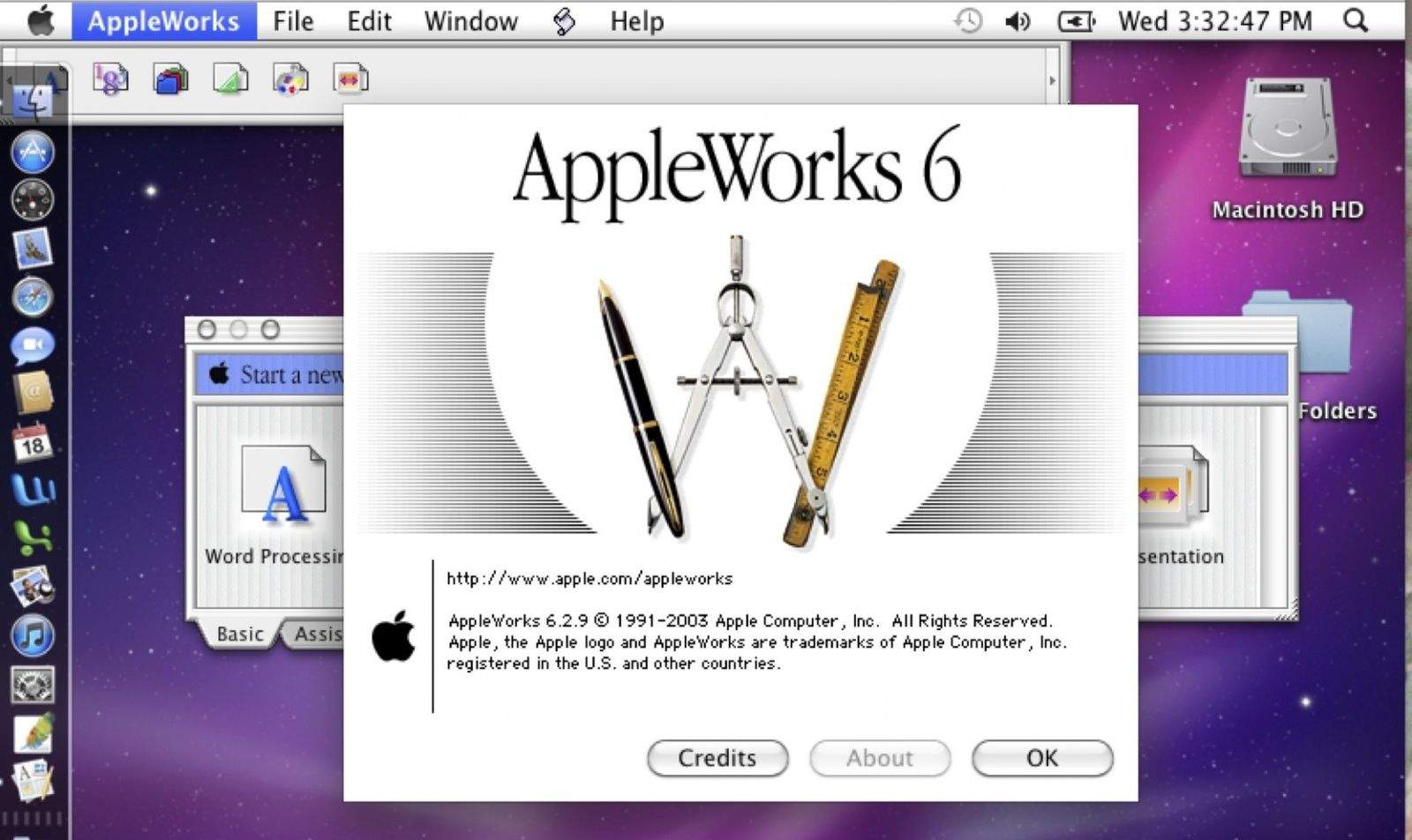
Updated – Convert System OS 9 AppleWorks 6 Files To OS X Pages Files [OS X Tips]

By

Appleworks

Cult of Mac reader Nancy S. asks, “How can I convert my Appleworks files to Page files. I have many old files that APple didn’t think were important but I could still use them.”

If you’ve been using Macs for a while, chances are that you have a few older documents that you may have created in Appleworks 5 or 6 that you’d like to open on your newer Mac, possibly running OS X Mountain Lion or above.

Here are a few things you can do to try and make this happen.

How To Easily Change The File Type Of A Folder Full Of Images [OS X Tips]

By

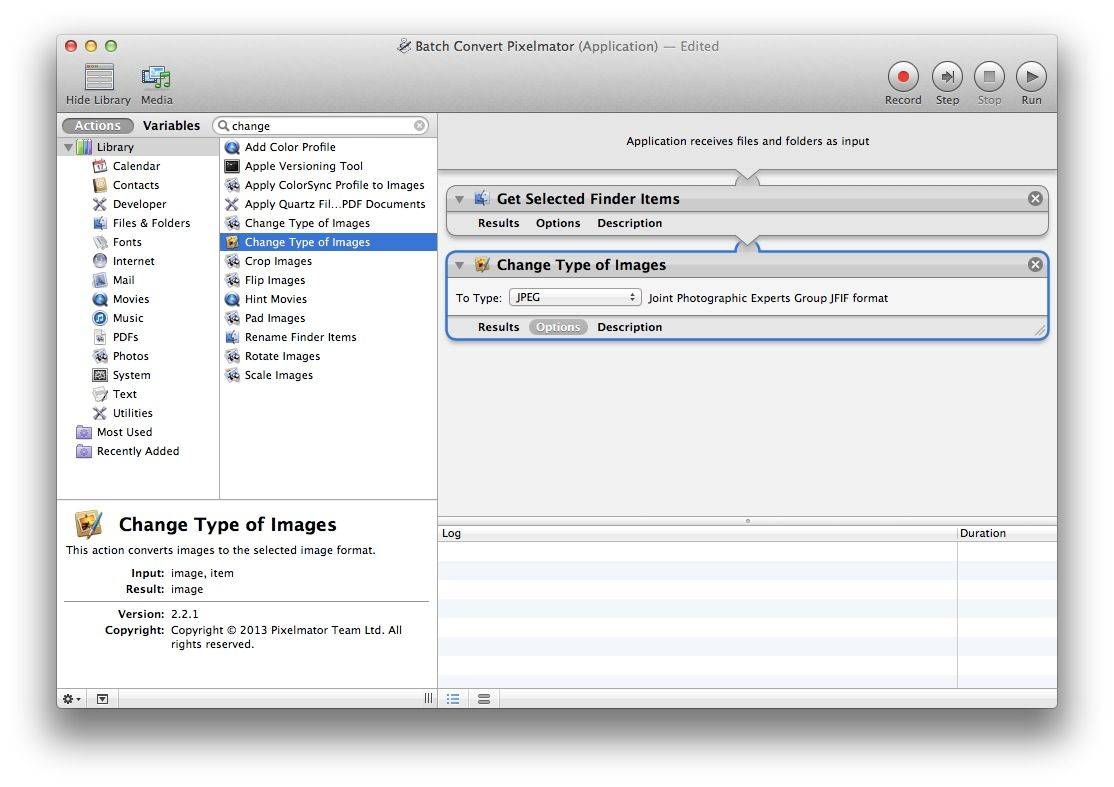
Batch Processing Pixelmator

One of the things we get a lot here at Cult of Mac, especially in our coverage of games, is folders full of promotional images. Now, for a variety of reasons, we often need to change the type of those images from, say, PNG to JPG files.

You can use Preview, of course, opening them all at once, and then selecting them all, then exporting them all to a new folder with a new image type. It’s workable, but it’s tedious.

Using Pixelmator, an affordable image editing program for the Mac, Automator (no relation), a scripting app bundled in Mac OS X, and Alfred, a pretty slick app launching application, you can make these changes much faster.

Here’s how.

Whoops! Reconnect Your Bluetooth Keyboard And Mac After Logging Out [OS X Tips]

By

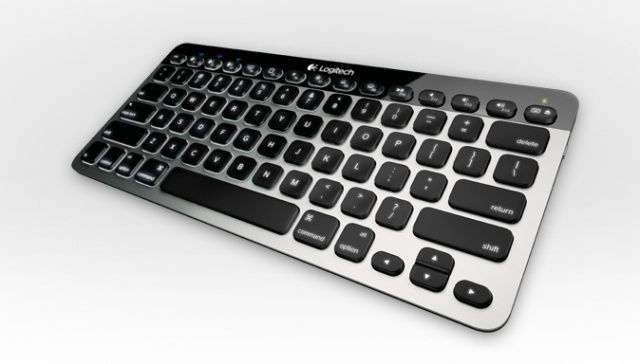
logitech-easy-switch-keyboard

So, it happened that a friend of mine turned off Bluetooth on her Mac mini, and then turned it off for the evening. When she got up the next morning, her Bluetooth keyboard was on, as per usual, but she couldn’t log in on start up, as her Mac did not see her keyboard.

She was worried that she’d have to go borrow or buy a wired keyboard, plug it in, and enter her password, then turn Bluetooth on again to make her wireless keyboard work again.

Luckily, that’s not what had to happen. Here’s how we solved it.

PC Switchers Rejoice – Your Mac’s Trackpad Can Also Tap To Click [OS X Tips]

By

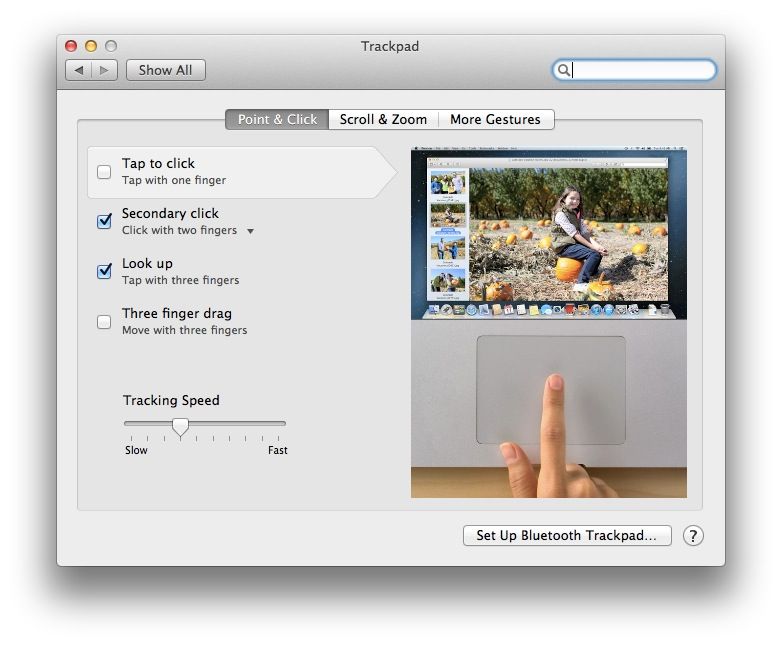
Trackpad Tap To Click

If there’s one thing PC users have the hardest time with when they use my Macbook Air, it’s the trackpad. What seems completely common and functional to me leaves them baffled and confused.

“How do I click the mouse?” they ask, tapping away in frustration, not knowing that all you need to do is press down a bit and, you know, actually click the thing.

If you’re one of those folks, or you just like to be able to tap the trackpad without actually pressing it down, here’s how to do so.

Use These Emacs Legacy Keyboard Shortcuts To Move Around In Your Text Files [OS X Tips]

By

Mac OS X Keyboard

When you’re writing up a long document, or even in the middle of a simple one, it’s good to be able to move around and edit in the text without taking your hands off the keyboard. All the little switches from keyboard to mouse and back again take up valuable time, and–perhaps more importantly–force you to change the way your brain is processing information.

Using the arrow keys is a good way to move the cursor around, and of course there are the standard Command key shortcuts, but did you know that there’s some legacy keyboard shortcuts that come to us all the way back in Emacs, a popular text editing program for Unix, the operating system Mac OS X is based?

There are, and here are a few good ones. I’ve tested them in Text Edit, but chances are several Mac text editing programs will take advantage of these.

Find The Directory Path Of Documents (Or Rename Them) With Proxy Icons [OS X Tips]

By

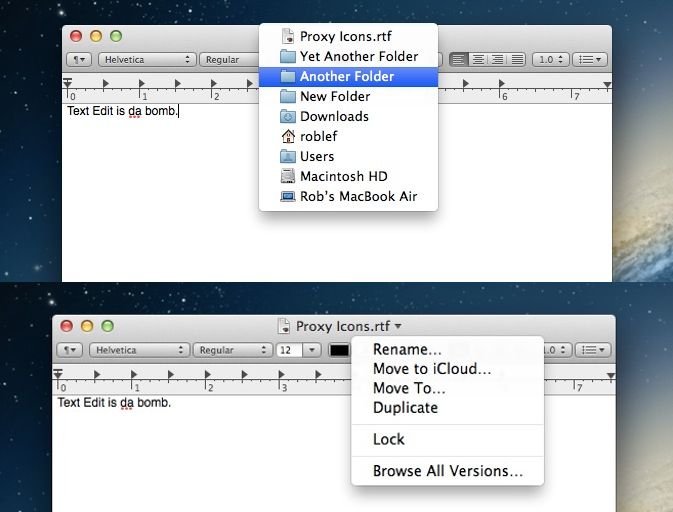
Proxy Icons

The OS X Finder is an amazing thing, letting you create folder within folder, duplicate files, find your documents, and generally get stuff done. More and more, the Finder features are being integrated across all apps and documents on your Mac.

Case in point is the ability to find the directory path of a document from the document’s title bar, as well as being able to (since Mountain Lion, anyway) rename your documents in the title bar as well. All of this is thanks to the proxy icon, which Apple defines as: “An icon in the title bar of a document window that users can manipulate as if they were manipulating the corresponding file-system object.”

Here’s how to use them on your Mac.

How Fast Is That External Drive? Find Out With Disk Speed Test [OS X Tips]

By

Disk Speed Test

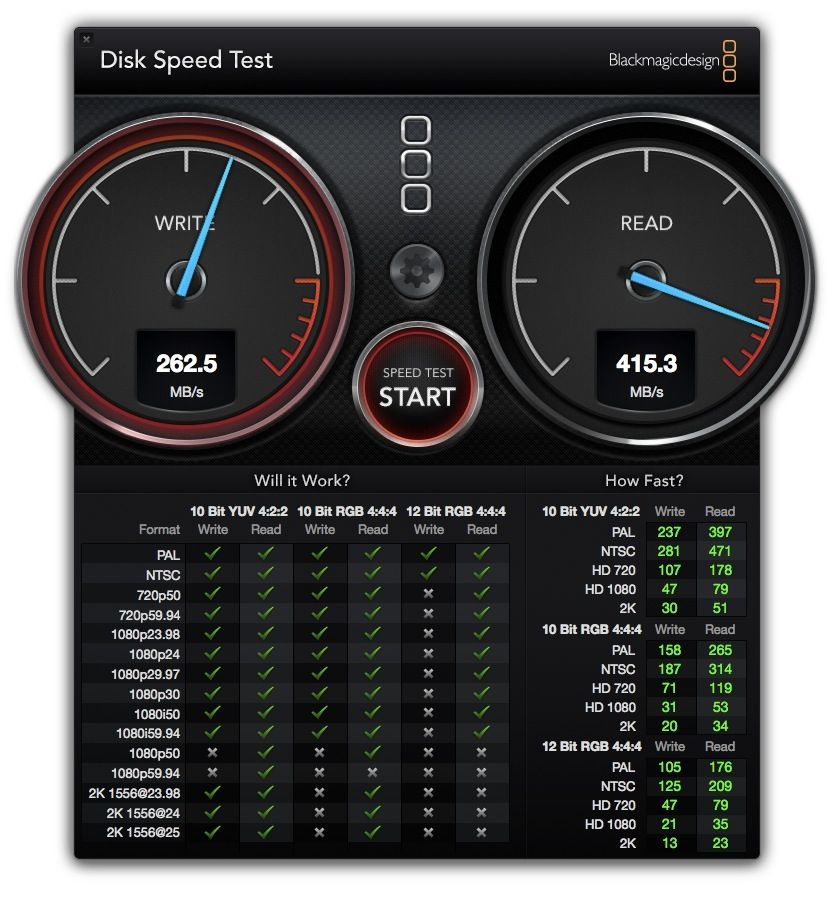
I’ve just picked up one of those fancy USB 3 drives to use with my Macbook Air as a sort of secondary backup when I travel, as it was so inexpensive for a 120 Gb drive. I wanted to know how much faster it might be, even on my non-USB 3 Air, than the run of the mill USB drive that you can pick up for a few bucks at the local electronics store, or get as a giveaway at a tech conference, for example. I also wanted to see how fast the new SSD drive that I installed in my Macbook Air was, just for kicks.

I wasn’t sure how to measure the relative speed of these drives, though, until I found out about Disk Speed Test from the fine folks over at OS X Daily. I was able to check the speed of my fast USB drive, my internal SSD drive, and an external USB-powered drive, and compare them all, which is pretty peachy.

Here’s how it works.

De-Clutter Your Mavericks Beta Sidebar – Delete Tags Off Of Your Mac [OS X Tips]

By

Delete Tags

With all the excitement over the recent release of Apple’s mobile operating system, iOS 7, it’s easy to forget that the Cupertino-based company has another OS in the works, OS X Mavericks Beta. Currently at version 8 of the Developer Preview, or beta, OS X Mavericks continues to quietly update in the background, with more refinements over time.

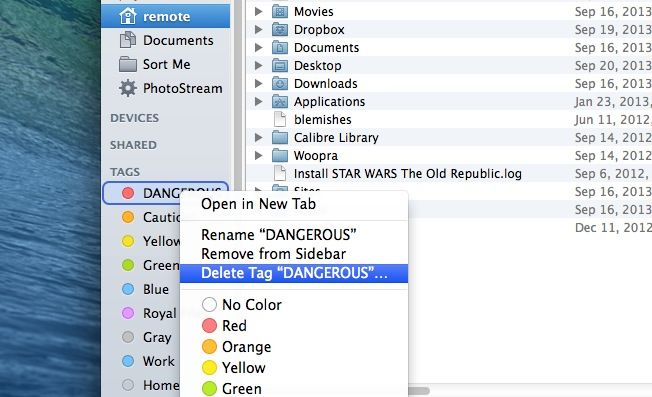
One of these improvements is the ability to delete tags from the sidebar. As you may recall, we showed you how to add and modify tags to the list in the Finder sidebar, as well as how to drag and drop files to tag them.

It turns out, though, that now you can actually delete tags as well, completing the tag circle of life. Here’s how.

Stop Yelling – Turn Off The Caps Lock Key On Your Mac [OS X Tips]

By

Turn Off Caps Lock

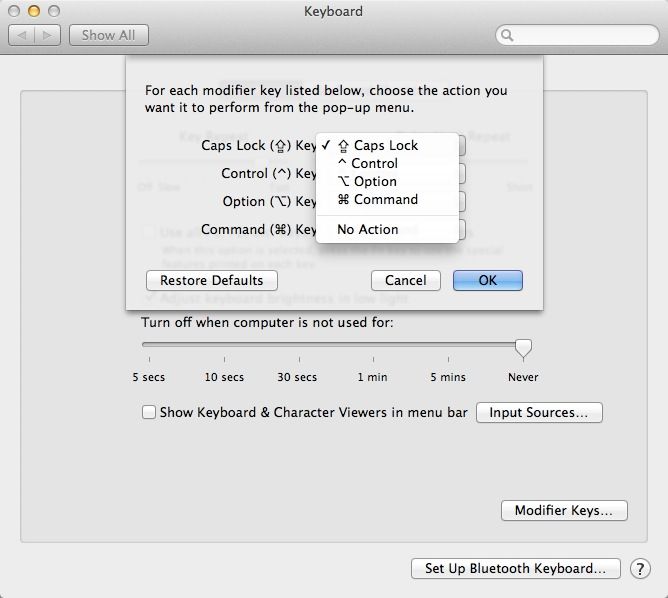
Maybe it’s just me, but I always picture someone yelling at me when I get messages and emails in all capital letters. It might just be a mistake on their end, I suppose, since it’s fairly easy to accidentally hit the Caps Lock when you’re aiming for the Shift key on today’s smaller laptop keyboards.

No worries, though, since it’s pretty easy to actually turn the Caps Lock key off on your Mac. Here’s how.

iOS 7 Revs Up Gaming With New Controllers, Developer Tools

By

Apple Controller Specs bottom

iOS 7 provides two new features under the hood that will blow the lid off mobile gaming: game controllers and a sprite animation and particle physics engine. While these may not sound super sexy, they have the potential to revolutionize the way we play games on our mobile devices. The first is a recognition that many games really need physical buttons to provide high-end gaming experiences, while the second is a step toward supporting game developers in the way that development engines like Unreal and Unity already do, but built right in to the operating system. Together, these two developments are nothing less than—forgive the pun—complete game changers. Mobile gaming is already a big business for game developers, publishers, and Apple. And while Apple has never put gaming front and center before, that’s going to change with iOS 7. Gaming is already huge; now it’s going to get even bigger.

How To Use Your Mac To Record Your iOS Screen With Reflector [OS X Tips]

By

reflector

I wasn’t sure if this would be a good iOS Tip or OS X Tip, but I figure that since most of the heavy lifting occurs on your Mac, we’d post this as an OS X Tip.

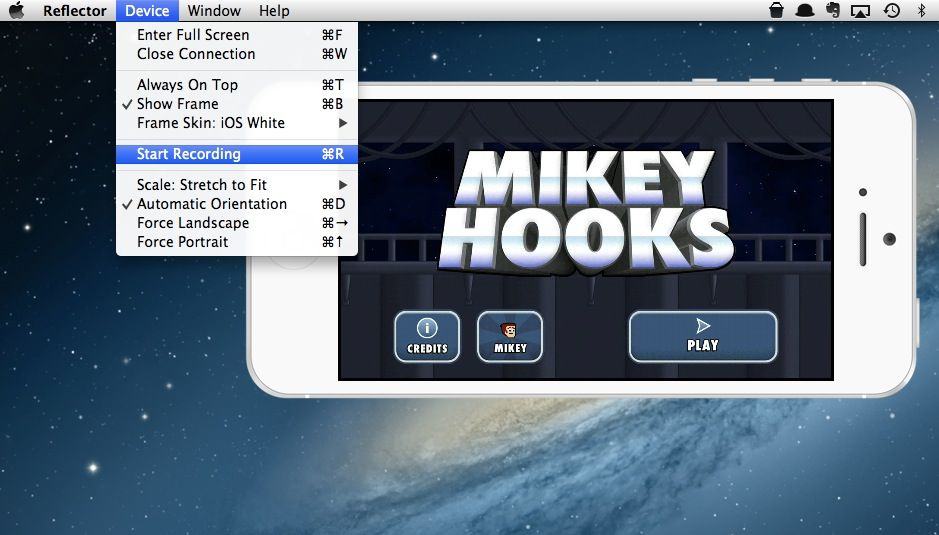
Ever want to record your iPhone screen? Maybe take a video of something you’re doing on your iPad? Well, you can record any portion of your screen with Quicktime Player, which we’ll cover later this week, but the easy way to get a video of what’s going on on your iPad or iPhone is to use an OS X App: Reflector.

What the app does is trick your iOS device into thinking that your Mac is an AirPlay device, like an Apple TV. Once your iPhone or iPad is sending it’s video display to your Mac, Reflector has a built-in recording option.

Here’s how to make it all happen.

Turn Off Autocorrect On Your Mac For More Authentic Errors [OS X Tips]

By

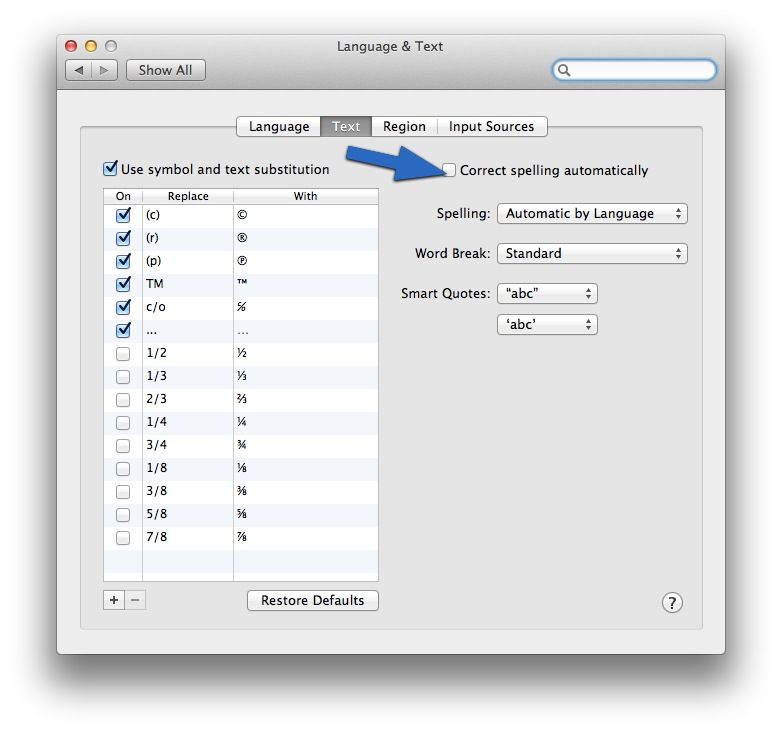
Autocorrect fail
Autocorrect fail
Screenshot: Autocorrectfailness.com

One of the worst things, in my opinion, is how modern autocorrect fixes words that I’ve misspelled into correctly spelled but inappropriate words. What’s worse is the way Mac OS X arrogantly assumes that I must mean the word that makes no sense in context, because it is closest to the typo I just made.

For me, it’s far better to just see the red line of doom; that way< i can right click and choose the right word, or just type it again. I mean, it's typing; it shouldn't be that big a deal to do it twice. If you're like me and want to turn this "feature" off, here's how.

Use Safari To Create Your Own Web-Based Dashboard Widgets [OS X Tips]

By

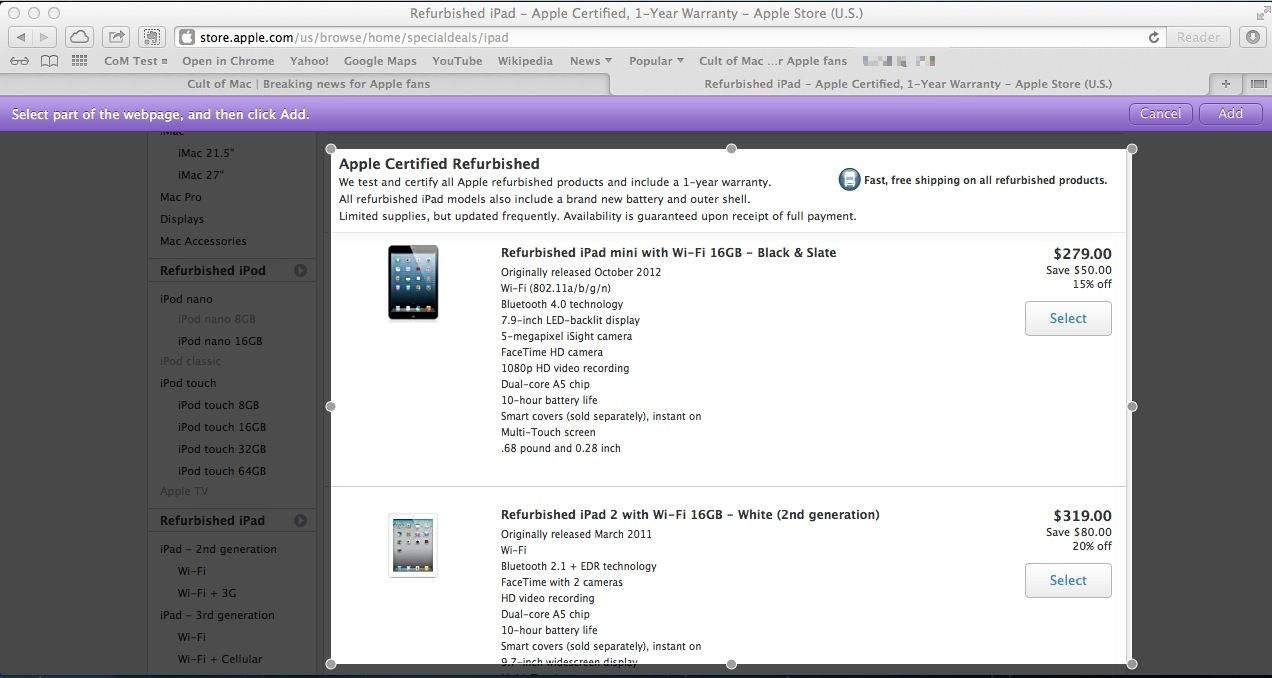
Safari Widget

Poor Dashboard widgets. They seem so sad, sitting there, their vast potential wasted by a lack of any good ones.

Luckily, our friends over at OS X Daily have pointed out a pretty slick way to roll your own using Safari. Who knew?

Here’s how to make your own darn widgets in OS X with nothing more than a copy of Safari and any web page you want to keep track of.

Summon A Dictionary Definition With A Three-Fingered Tap [OS X Tips]

By

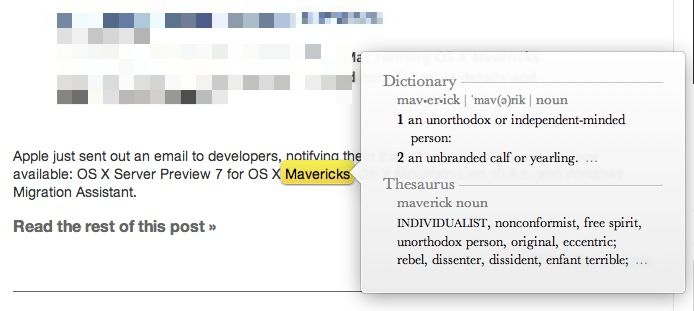
Dictionary Three Finger Tap

Having access to a dictionary is one way to really improve your vocabulary. When my teacher in eighth grade English class told me that, I ignored it, because who has time to stop reading, grab the dictionary from the shelf (or under my seat, in middle school), and look up that word. By the time I was done with that, I’d have lost any meaning in the reading I was doing, anyway. Ugh.

Flash forward to now, and almost every device has a dictionary attached to it. The same is true for Mac OS X, at least the Mountain Lion variety, and it’s super easy to bring up.

Share Files Quickly And Easily With Messages [OS X Tips]

By

Send Files via iMessage

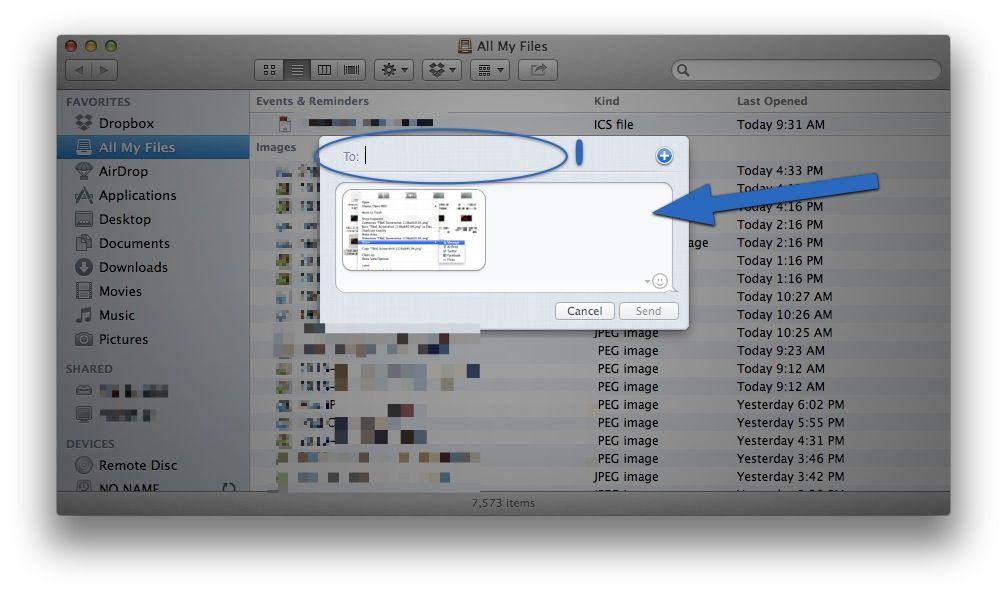
Ever need to send a buddy a quick screenshot or file? How about sending a file from your iPhone to your friend on a Mac?

Getting files from one computer to another is a fairly easy task, what with email and services like Dropbox around, but I’ve been using Messages to send files to friends, family, and even myself lately.

Here’s how to do it.

How To Sign A PDF Form On Your Mac Without Printing It [OS X Tips]

By

PDF Signatures

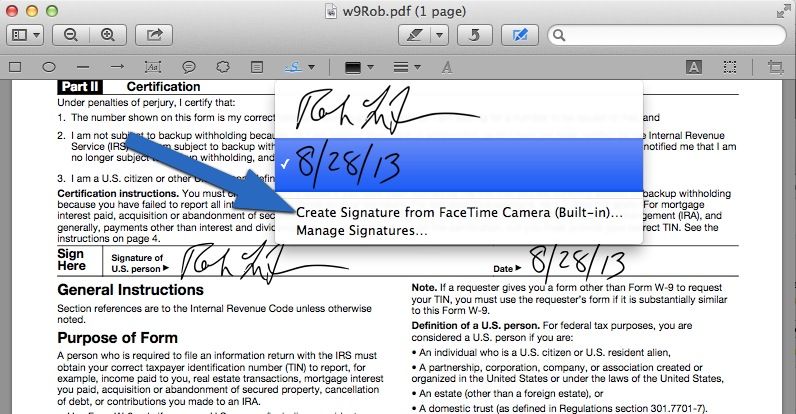
As it turns out, I end up having to sign a lot of documents, such as contracts, IRS forms, and the like. Many of these are in PDF form (bravo), and some even let me fill them out via my keyboard (even better).

Unfortunately, they still expect us to print these babies out, sign them with a pen, and then get them back into some sort of digital format, via a scanner or picture with our iPhone or something.

Luckily, Apple’s own Preview makes all that superflous. It’s super easy to get your pen and paper signature onto a PDF. Here’s how.

Add Network Locations And Switch Among Them In The Apple Menu [OS X Tips]

By

Location Location Location

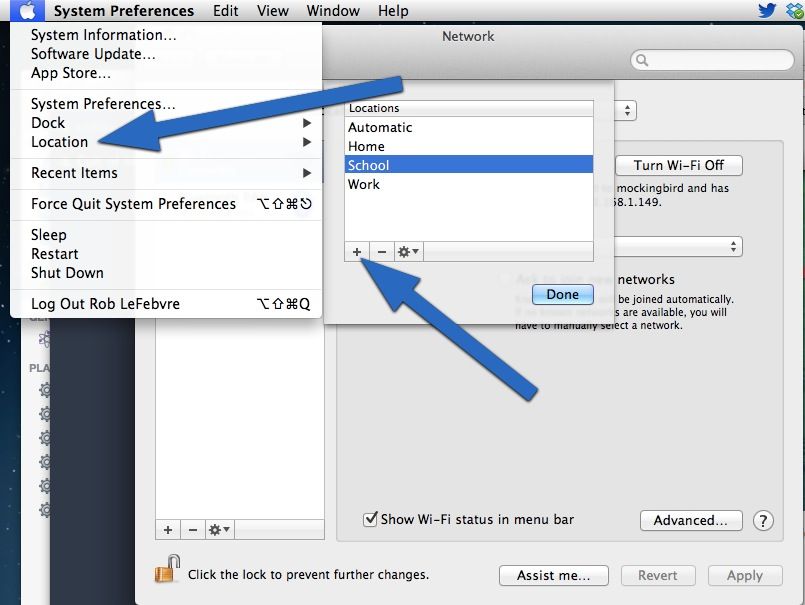
Network locations are extremely useful if you use your Mac across a variety of networking environments, like a Proxy-laden school building, a super secured enterprise site, or a special set up at home. Each environment could take a ton of extra time setting up the details if you only had one networking setup system.

Luckily, Mac has always had this idea of Locations, a way of setting and saving all the little networking details for each location you use your Mac in. Did you know, however, that you can switch between network locations in the Apple menu? I didn’t, so I figured I’d share what I found out.

How To Merge Two Folders Into One On Your Mountain Lion Mac [OS X Tips]

By

Merge Mountain Lion

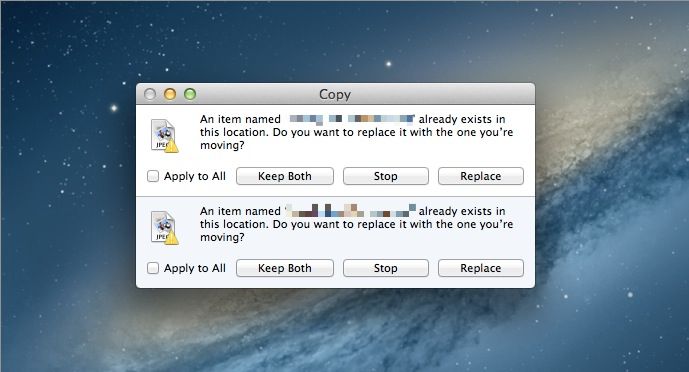
When you drag a bunch of items into a folder in the Finder on your Mac and some of the items in there have the same name, your Mac will ask you if you want to replace the items in the folder you’re dragging to. This is all well and good when you’re trying to do just that, but what about when you want to merge the files from the first folder to the second?

Well, it’s amazingly simple.

Enable The Web Server In Mountain Lion [OS X Tips]

By

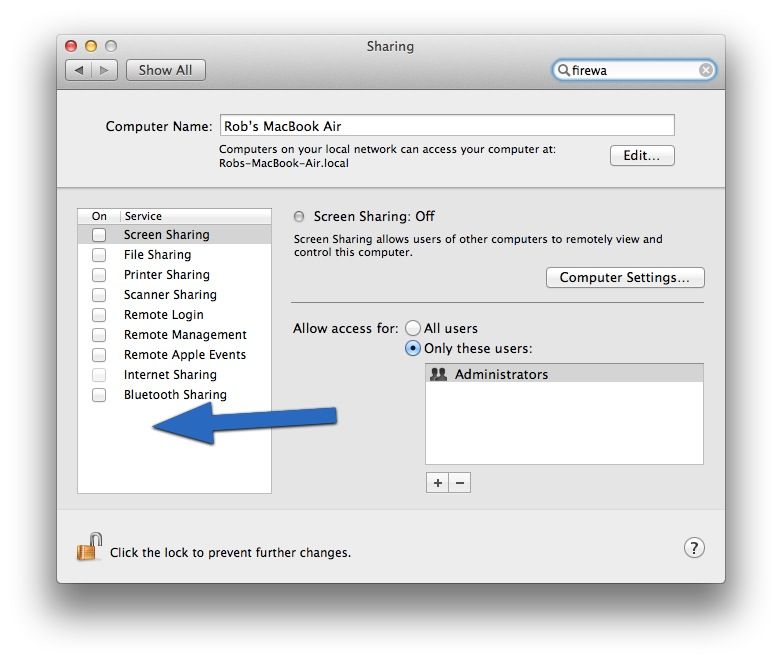
WebSharing

It used to be a no-brainer to enable the Apache web server included with Mac OS X. You’d hop into the System Preferences, fire up the Sharing preference pane, and then you’d be good to go.

Starting in Mountain Lion, however, Apple hasn’t given a user-friendly checkbox as in previous OS X releases. Instead you need a little bit of Terminal magic.

Here’s how to enable and start the Web Service in OS X Mountain Lion.

Merge Several Finder Windows Into One Tabbed Window With OS X Mavericks Beta [OS X Tips]

By

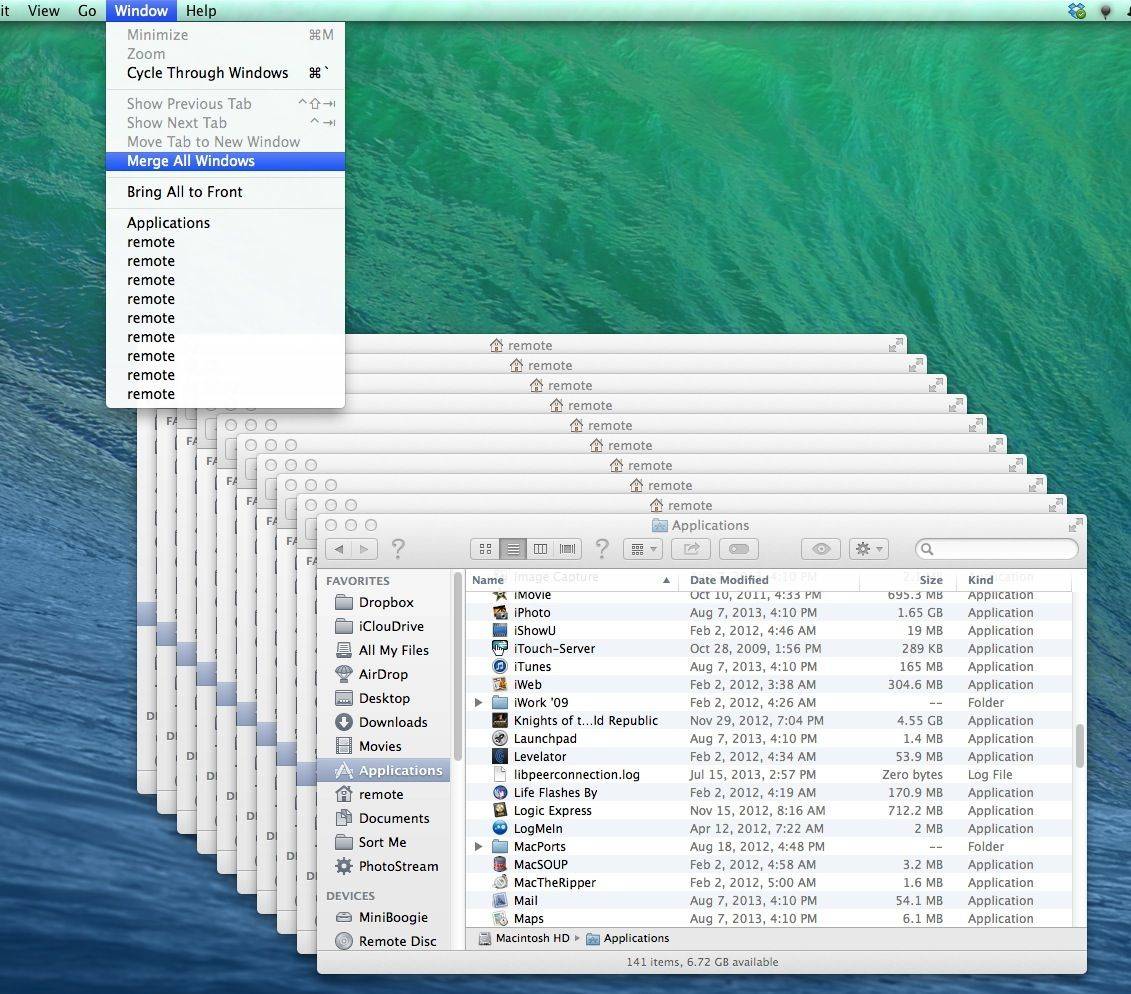
Merge All Windows

Ever end up with a lot of Finder windows floating around your Mac screen? In previous versions of Mac OS X, the choice was to close them all with a keyboard shortcut, Option-Command-W, which will end all your Finder suffering in one short tap.

In Mavericks beta, that still works. Yet Apple has also added another way to deal with multiple Finder windows: merging them. Here’s how.

Here’s Another, Easier Way To Make A New Folder Full Of Selected Items [OS X Tips]

By

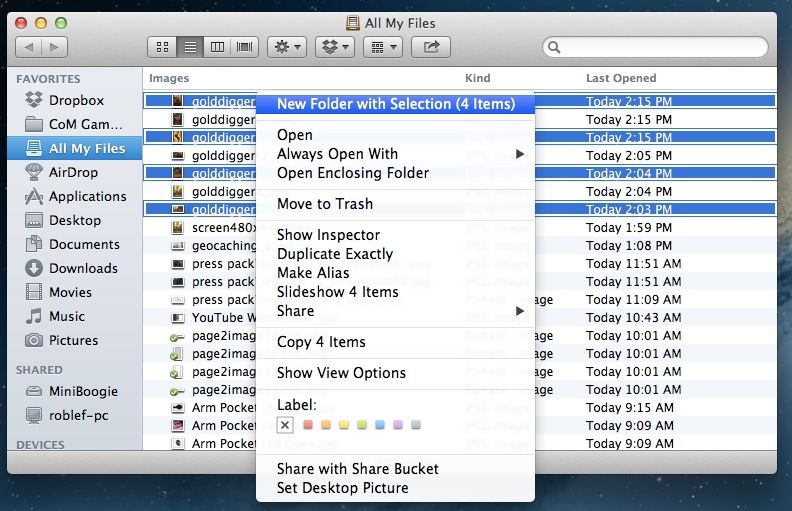
New Folder with Selection

I don’t know about you all, but I’ve been getting stuff into a new folder in the Finder the same way as I always have, just like I did way back in OS 7, OS 8, OS 9, and even ten years ago in OS X.

I make a new folder in the Finder using Shift-Command-N, or by selecting New Folder from the Finder menu, then Command- or Shift-click all the files I want to put into that folder, and drag them all over. I’ve heard you can even copy and paste files into a new folder the same way, but I’m kind of old school and don’t mess with that.

Today, though, I read about a totally different way to do this. Color me surprised (and a bit chagrined) to find out that there’s an easier way to put a bunch of items into a new folder in the Finder.

Find Your Stuff – Arrange Applications By Type In The Finder [OS X Tips]

By

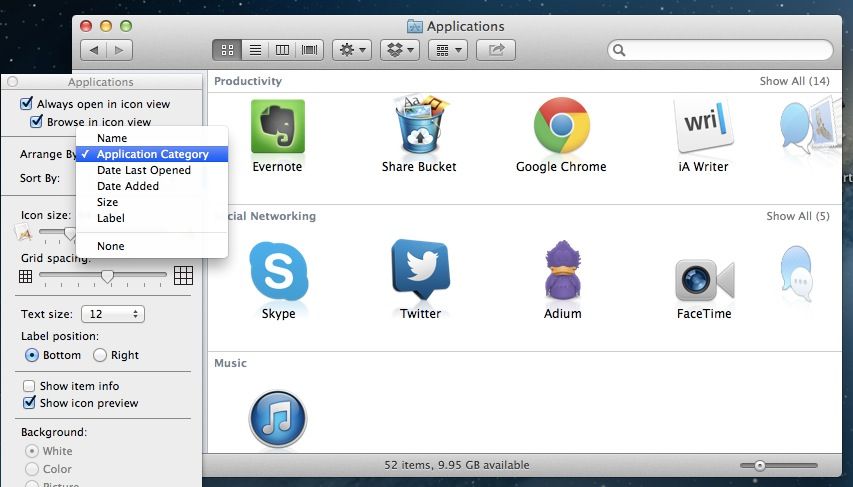
Application Type Arrange In Finder

The Finder in Mac OS X is specifically designed to help you find stuff. In any Finder Window, you can arrange the icons or lists of files alphabetically by Name, by Kind of file, by the Application that opens that file, by Date Last Opened, Added, Modified, or Created, and also by Size and by Label.

In list view, you can also click on the top column title to sort the list in ascending or descending order. It’s a pretty comprehensive way to find your stuff in the Finder, without even having to search for it.

Did you know, however, that you can also arrange Applications by application type (Productivity, Social Networking, Music, Video, and so on)? I didn’t, so here’s a tip on how to do just that.