
Congratulations — you got a new iPad! Whether it’s the entry-level iPad that brings the essential features at an affordable price, the iPad Air with the powerful M3 chip, the pocketable iPad mini or the top-of-the-line iPad Pro, you’ll want to set up your new device with the least amount of fuss.
We’re here to help you do just that with a ton of little tips and tweaks that will make sure you’re off and using that new iPad as quickly as possible. From backing up your old iPad (if you had one already) to getting up and running with a brand-new iPad from scratch, we’ve got you covered.
How to set up a new iPad
That first “Hello” screen when you fire up a new iPad is your invitation to turn a shiny piece of hardware into something that actually works for you. Whether you’re migrating settings and apps with Apple’s Quick Start, importing data from Android, activating cellular service, configuring Face ID/Touch ID and security, or organizing your Home screen and apps just right, the choices you make during setup shape how fluidly your iPad fits into your life.
Our guide cuts through the initial prompts to show you how to get your tablet up and running the right way — fast, secure and personalized.
The best way to set up an iPad is via an older iPad, iPhone or Android device. Apple’s great migration assistant will copy everything over. But sometimes you want to start from scratch. It isn’t much harder — but you need to go through a few extra steps.

EssayShark: Essay writing service with benefits
EssayShark is a legit writing service assisting college students and everyone in need with academic assignments in any discipline. Whenever a request: “Do my homework for me,” arises, the team of professional writers is ready to deal with essay struggles.
Table of contents: How to set up a new iPad
- Getting started
- Activate your iPad
- Set up Face ID
- Transfer apps and data
- Sign in with your Apple Account
- Customize and learn how to use your new iPad
Getting started: Set up an iPad
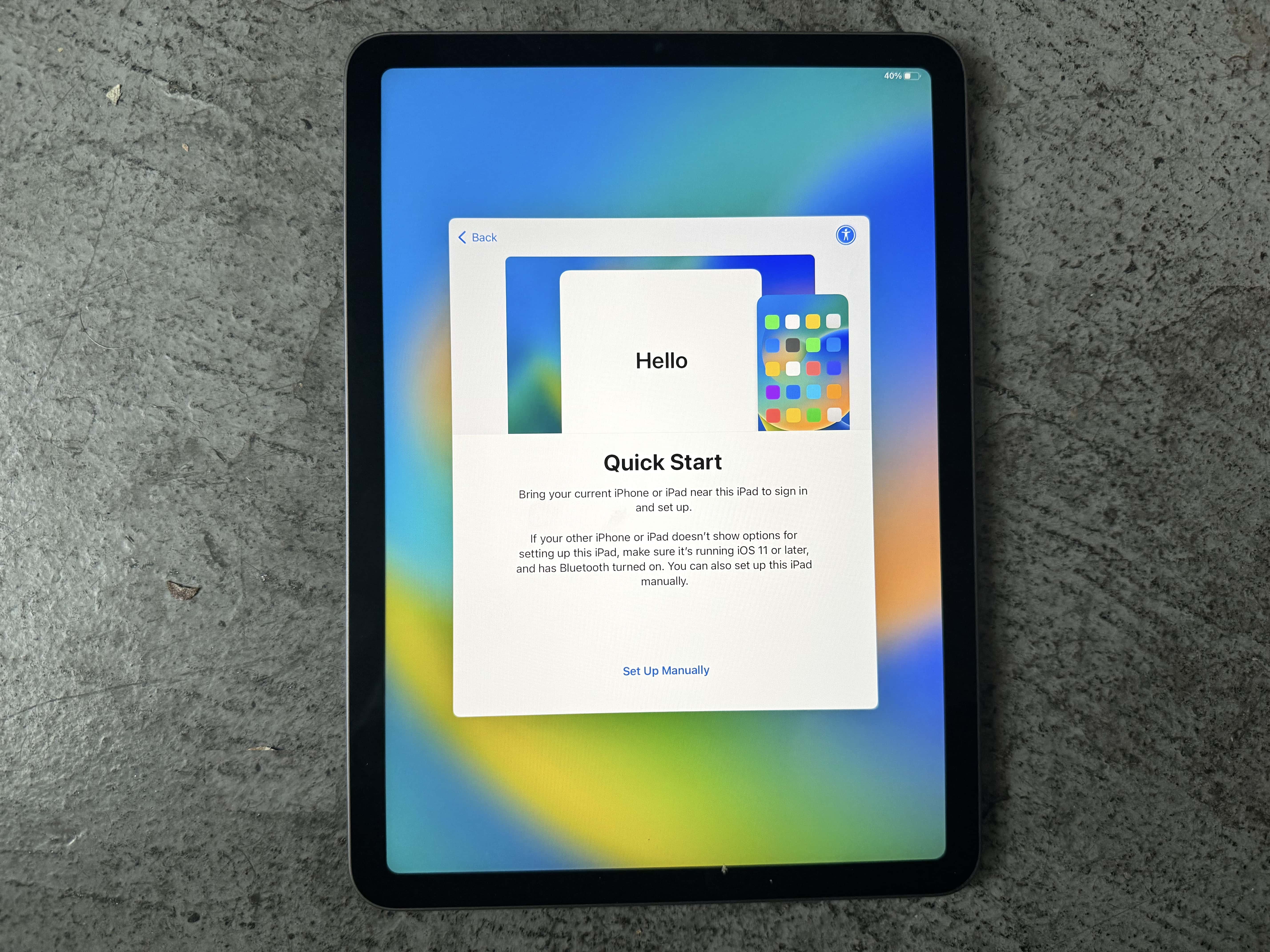
Photo: Leander Kahney/Cult of Mac
Your iPad will probably come with enough battery charge to get started out of the box if you’re buying new. Turn it on by holding the power button on the top.
If you’re jumping ship from an Android phone or tablet, tap Set Up Manually and continue. You’ll have to download the Move to iOS app on your old device. This app will guide you through the process of moving contacts, photos and more to your iPad.
The easiest way to set up a new iPad is to use Apple’s Quick Start feature, which quickly transfers settings and apps from your old device to your new one.

If you’re transferring from another iPhone or iPad, hold both devices next to each other to get signed in and set up. They should automatically detect each other. (If not, make sure your old device is connected to the same Wi-Fi network with Bluetooth turned on.) This is the way we recommend you do it. It’s easy, and fairly fast and painless.
Transfer your apps and data
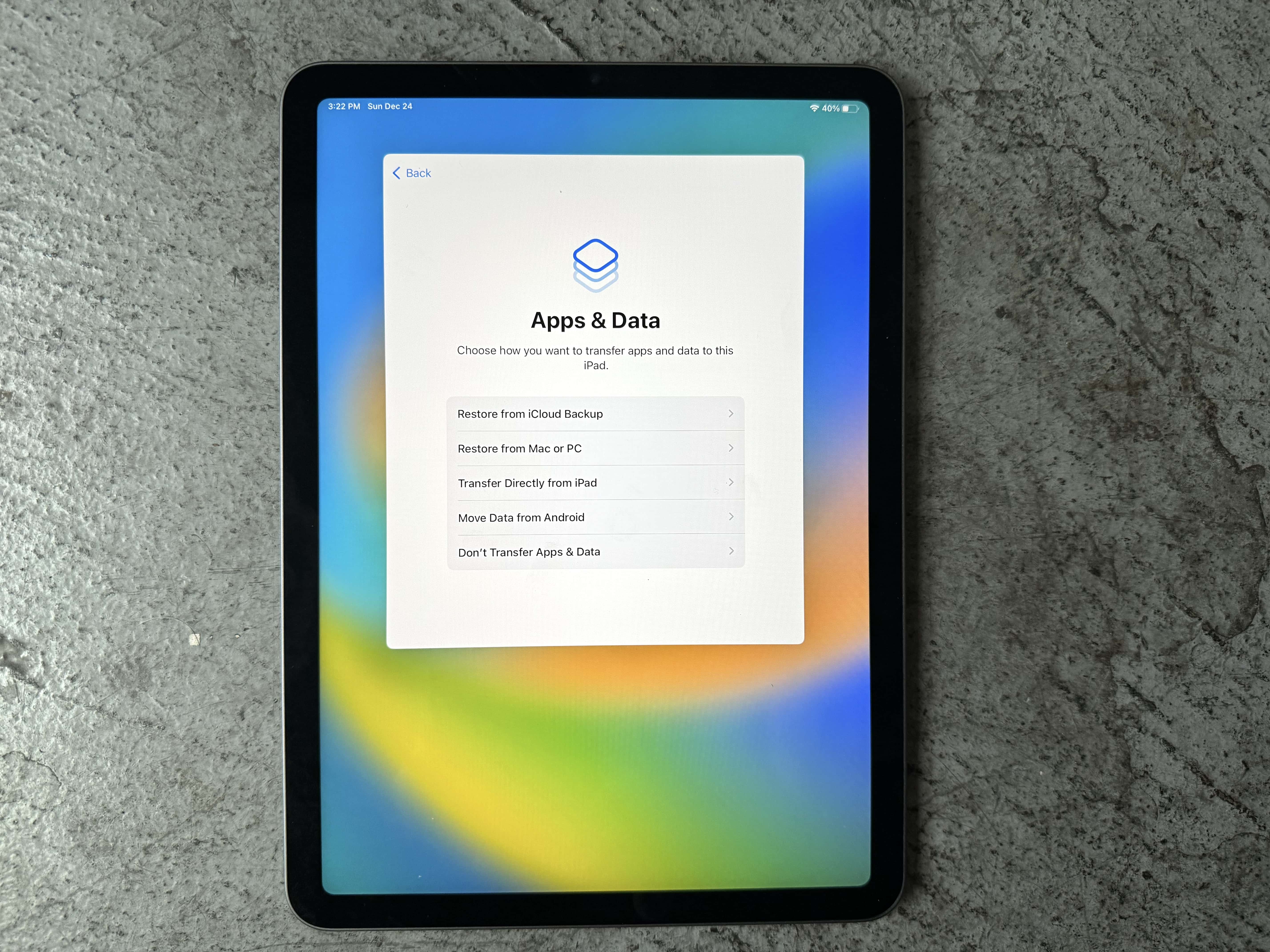
Photo: Leander Kahney/Cult of Mac
You have a few different choices for how you want to move your stuff over. If you’ve never owned a smartphone or a tablet before, just tap Don’t Transfer Apps & Data.
If you’re coming from another iPhone or iPad, tap Transfer Directly from iPad. This is hands-down the easiest way to move from an old device to a new one. All you have to do is keep your old and new devices close to each other. All of your apps, photos and data will be beamed from your old phone to your new phone. It works just like AirDrop.
If this is a replacement iPad for one that is no longer of this world, you can tap Restore from iCloud Backup. This option will also set up your new iPad exactly as your old iPad, but you’ll need a reliable internet connection to download everything.
Pick the latest backup you have and wait. Your tablet will download all the essential data to restore it and continue with setup. After you’re done, stay connected — the iPad will continue to download apps, messages and photos in the background.
Set up a new iPad from an Android device
If you have an Android phone or tablet, download Move to iOS from the Google Play Store. On your iPad, tap Move Data from Android, tap Continue and wait for the code to appear. Enter this code on your Android device (once you get the app opened).
Your iPad “will create a temporary Wi-Fi network” that your Android device needs to connect to. Once your two phones are connected, select the data you want to import and tap Continue.
After setup completes, learn the ins and outs of your new iPad
If this is your first iPad, you might want some more guidance on getting comfortable after you’re all set up.
- Use full-screen apps or multiple floating windows. Fullscreen mode keeps it simple, with one app taking over the screen at a time. Windowed apps lets you use multiple overlapping apps at once, like a computer.
- Use the revamped Split View mode to perfectly arrange two apps side-by-side.
- Fully customize your iPad’s Home Screen. Place icons anywhere on the screen. Fans of dark mode can now enjoy alternate dark mode icons. If you have a color theme you want to match, you can tint icons to any hue you want.
- Edit the buttons in Control Center. Add many more toggles and buttons, including those from third-party apps. You can resize some buttons to make them more prominent, and you can arrange your controls across multiple pages. In one fluid motion, you can swipe down to activate Control Center and continue swiping down to scroll through your pages.
- Customize your iPad’s Lock Screen with a bunch of widgets, aesthetics and styles. You have loads of fonts, colors, styles and themes available.
- Create Focus modes to customize notification settings for different times of day, like work, vacation, driving, personal time and more.
Camera and Photos features
- Hide photos from your library to keep secret and/or illicit images out of your main camera roll. Find them in the Hidden album.
- Tag photos with the names of your friends, family members and pets so you can easily find pictures of them later on. The Photos app will detect pictures of people automatically — you just need to give them a name.
Messages features
- Edit or unsend messages, soon after sending them, if you make a mistake.
- Schedule texts to send later on iPhone to make sure you never forget to send a reminder, birthday greeting or early morning message for someone in a different time zone. You can schedule a whole slew of texts up to a week in advance, with links, photos, attachments and more.
- iMessage effects can add much more meaning, emotion and fun to your texting. You can add bold, italics, underline and
strikethroughtext, just like a formatted document, and even choose from a bunch of cool, animated effects.
Apple Intelligence features
- Visually look up restaurants, objects, animals, plants, calendar events and more using your iPad’s camera.
- Create custom emoji based on a description or based on a person in your Photos library.
- The new Siri integrates with ChatGPT for answering questions, lets you type questions and answers your questions about Apple products.
- Writing tools can help you proofread, change tone, compose and summarize text.
- Image clean-up in Photos lets you erase elements from a picture by circling it.
- The “Reduce Interruptions” Focus mode intelligently chooses what notifications to silence and what to let through.
Note: D. Griffin Jones and Leander Kahney contributed to this article about how to set up an iPad. We originally published this article on September 18, 2019. We updated it with the latest information on December 24, 2025.

Rob LeFebvre is an Anchorage, Alaska-based writer and editor who has contributed to various tech, gaming and iOS sites, including 148Apps, Creative Screenwriting, Shelf-Awareness, VentureBeat, and Paste Magazine. Feel free to find Rob on Twitter @roblef, and send him a cookie once in a while; he’ll really appreciate it.


3 responses to “How to set up your new iPad the right way”
Nice guide. Getting the Pro tonight and will set it up according to your guide.
You need to update essential iPad apps. Your lie is really old and I have been looking for a list of best apps for new iPad Pro.
Need reload factory setting