
iPad users once again gain access to classic Split View multitasking in iPadOS 26.2. It’s back to being the best way to use two applications side-by-side on your iPad.
Apple nerfed Split View in iPadOS 26, but the latest OS update walks that mistake back — it’s as good as it’s ever been. Here’s how to use the revised version.
iPadOS 26.2 brings to iPad the best Split View yet
Split View is Apple’s streamlined multitasking feature that lets you work in two apps side by side, giving the iPad a more desktop-like feel while staying touch-friendly.
Whether you’re researching in Safari while taking notes, editing photos next to your file browser, or messaging while watching a video, Split View makes multitasking on the iPad faster and more natural.
The Goldilocks of multitasking
iPadOS 26 completely revamped iPad multitasking with a new system called Windowed Apps that features resizable, floating windows and macOS-style controls. Split View stayed around, but with fewer features. Most notably, you couldn’t pull applications out of the Dock and drop them into Split View.
In Apple’s defense, iPadOS 26 lets users open as many applications as they want in floating, resizable windows. Is a special system just for two apps really necessary? For many iPad users, the answer is most emphatically, “Yes.”
On an 11-inch or 13-inch tablet screen, opening half a dozen applications isn’t very practical, even though iPadOS makes that possible. For lots of people, two is the best arrangement. That’s all they ever have open, so it’s not surprising they want a special system to make opening two apps side by side easier.
That’s what Split View does. And it’s even better in iPadOS 26.2.
How to use Split View in iPadOS 26.2
As you go through this guide, you’ll notice that Split View in iPadOS 26.2 functions quite similarly to how it worked in iPadOS 18, but it’s not identical. In many ways, it’s better.
And please note that Apple did not pull Split View out of iPadOS 26. It was still there, just missing some of the functionality iPad users were familiar with. That’s now been walked back. The big change is that you can once again drag and drop applications out of the Dock and straight into Split View.
First off, you need to be running iPadOS 26.2 (or something newer) to use the improved version of this side-by-side multitasking system.
Also, your iPad can’t be in Full Screen Apps mode. To make the change, open the Settings app on your iPad, tap on Multitasking & Gestures, then choose Windowed Apps or Stage Manager.
Screenshot: Ed Hardy/Cult of Mac
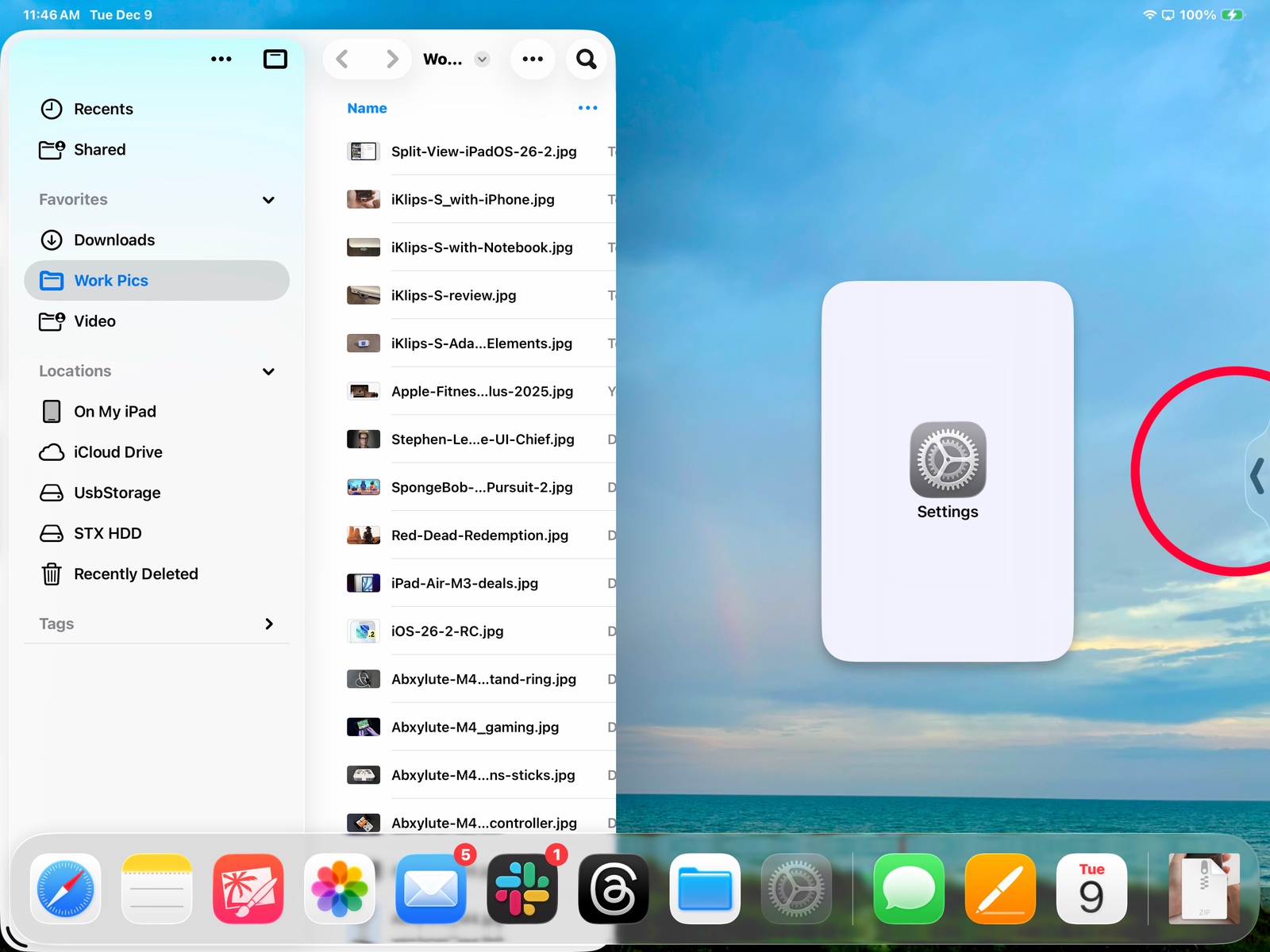
Now, for demonstration purposes, let’s add an application next to Settings in Split View. Or maybe you want to add it next to Safari. Whatever. Tap on an app in your Dock and drag it out.
Where you drop it will control how it opens. If you drop it near the center of your iPad screen, it’ll open as a floating window. But if you bring the icon you’re holding to the nearer the left or right side of the screen, it’ll open in Split View.
You’ll know the application is going into Split View when an icon with an arrowhead appears on the left or right side of the screen, depending on where you’re holding the app’s icon. When that shows up, drop the app icon. The application will open, taking up half the screen.
The Dock went giant size in iPadOS 26
Obviously, this feature depends heavily on the application you need being in the Dock. Fortunately, it can be if you need it.
That’s because the number of applications that the Dock can hold expanded with iPadOS 26. For some reason, Apple hasn’t officially given an exact number, but it’s about 20, depending on your device model.
Split View takes two apps
An application that’s already open can be easily put into Split screen. You even have multiple options to accomplish this. The easiest is to simply grab the top of the app’s window and flick it toward an open side of the screen — one where there’s not already an open app. Your application will automatically go into Split View.
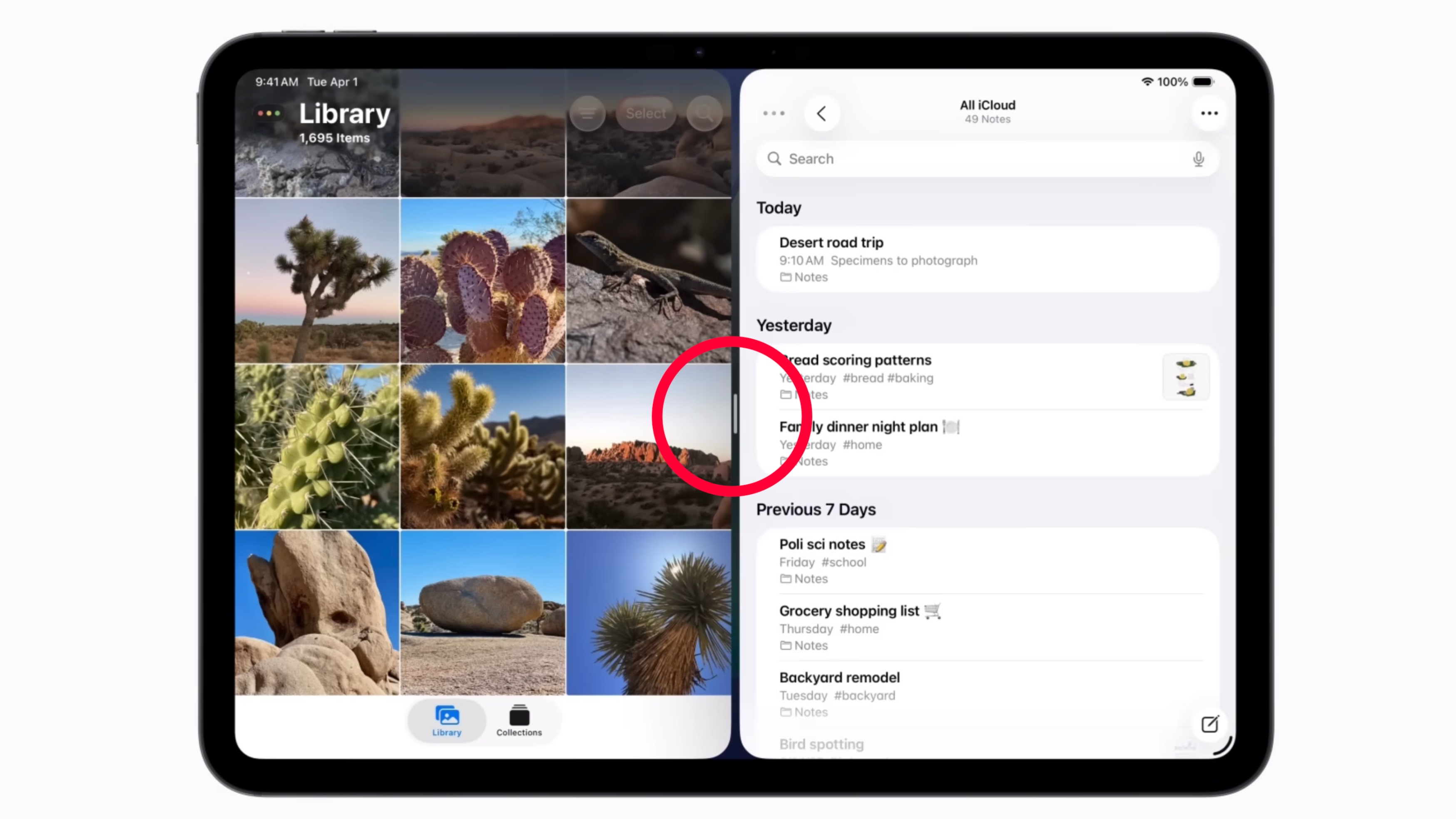
Alternatively, if you already have an application open in Split View, you can manually move and resize a second app’s window until it approximately takes the position it would if it were also in Split View. When it gets close enough, the application will put itself into Split View. You can tell because a handle appears in the black line that separates the two applications.
And there’s a third option. Tap and hold the window controls (with the red, yellow and green dots) in the upper-left corner of the app window you’re trying to arrange. This opens a drop-down box with various options. On that pop-up, under Move and Resize, tap on the icon that shows the app on the side you want it. It’ll go into Split View.
Make some adjustments
Screenshot: Apple
The thick black line that divides the two applications in Split View has a handle in the middle. Tap and hold on it, then slide the divider left or right, giving each application exactly as much or as little of the screen as you wish. The days when you had to choose between each app taking up exactly 25%, 50% or 75% of the screen are over.
To get out of Split View, you need only move one of the applications away from the left or right edge of the screen. Or close them. That hasn’t changed from iOS 18.
Don’t forget about Slide Over
Experts in old-school iPad multitasking might also be fans of Slide Over — the option to keep an application hidden off the side of your tablet’s screen until you need it.
It’s back in iPadOS 26.1. Read our guide on how to use the revamped Slide Over.

Ed Hardy has been writing full-time about tech for 26 years, and using it for much longer than that. His intro to Apple was a Macintosh SE/30 (which he still has), but now he uses a 13-inch iPad Pro as his primary computer.
That’s because he’s a “tablet first” type of guy. Rather than use a Macbook, he connects a keyboard case to the iPad. And instead of a desktop Mac, he connects his tablet to a 27-inch display and full-size keyboard. (So don’t try to tell him that everyone has to use a Mac to be productive.)
Before coming to Cult of Mac, Ed wrote for NotebookReview, TabletPCReview and Brighthand, as well as other sites.


One response to “iPadOS 26.2 delivers major Split View improvement — here’s how to use it”
The problem is the ugly and huge curved corners and required padding reduces the amount of content on the screen, and just looks ugly. Plus it’s too easy to accidentally mess up the layout. Apple shouldn’t have removed that existing functionality from full-screen app mode. Just another reason the UX for xOS 26 is terrible.