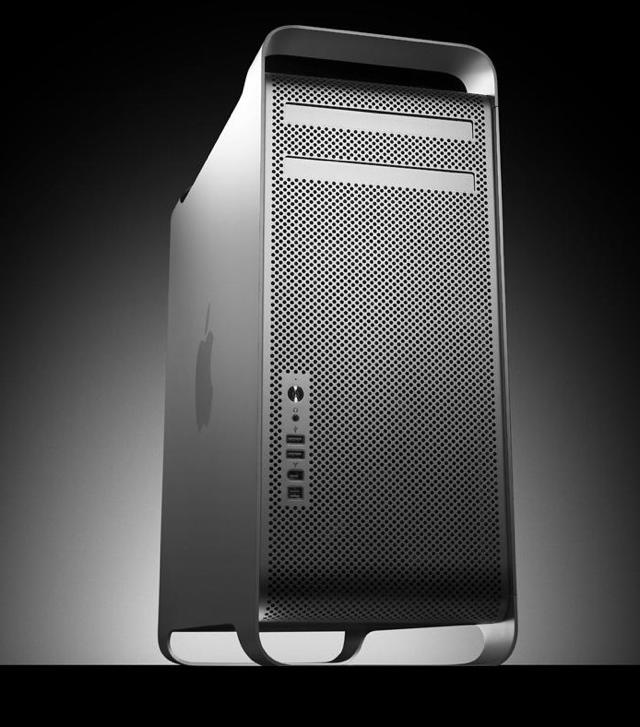
The new hexacore Mac Pro’s are coming, the screaming performance and egg frying potential of those new machines are making my previously five thousand dollar 2006 model look positively dated.
To be sure, I’m in the midst of a computational mid-life crisis. Follow me after the jump for the cure…
Not knowing your Mac’s password is like locking yourself out of the house; it’s inconvenient (at best) and always happens at the worst possible time. In our efforts to shield information from others we often wind up just blocking access for ourselves. Fortunately there are several ways to reset your Mac password when amnesia strikes or relevant information isn’t available.
Some methods of resetting your password can affect access to the keychain, however, where many of your other passwords are stored. Nothing in life is free…
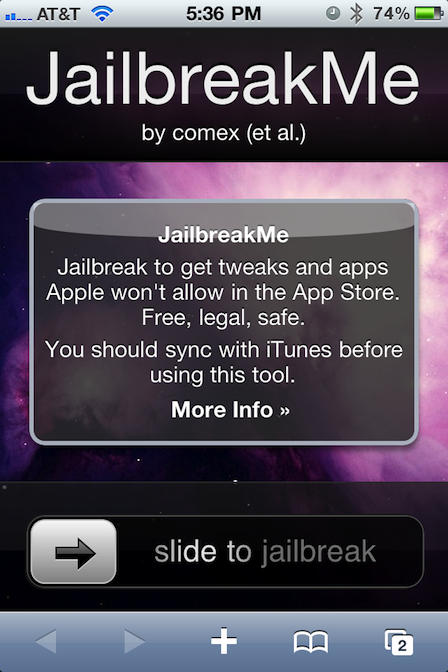
The iPhone 4 jailbreak is one of the easiest ever. You just visit the jailbreakme.com webpage in Mobile Safari, swipe the “Slide to Jailbreak” slider, and it installs the unofficial App Store Cydia on your device.
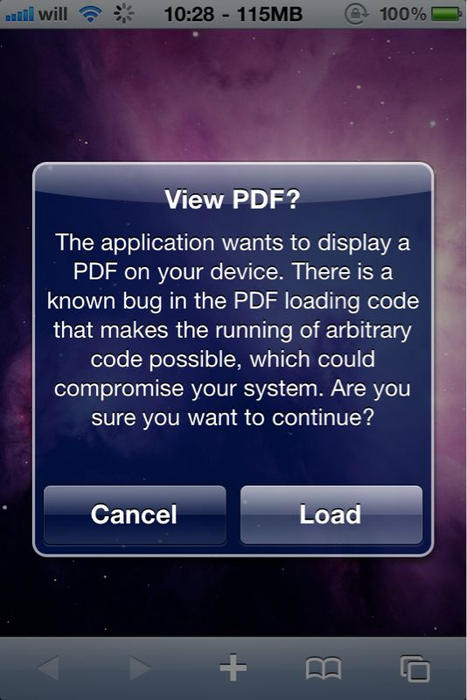
But it comes at a price. The jailbreak exploits a wide-open security hole that could easily be exploited by malicious hackers. Malicious sites that install malware could exploit the largely unkown, unpatched security hole.
Note: The security hole in Mobile Safari is not caused by jailbreaking the device. It is already there on all iOS devices, jailbroken or not.
Apple is sure to investigate the exploit and quickly issue an update. But in the meantime, here’s a quick patch you can install yourself:
iOS hackers have released jailbreakme.com, a browser-based jailbreak utility for the Apple iPhone 4, 3GS, and 3G when running iOS 4 or 4.0.1. The jailbreak is reminiscent of one of the original jailbreaks for the original iPhone.
In addition to the above devices the jailbreak is compatible with an iPad running iOS 3.2 and 3.2.1 and an iPod touch 3G running iOS 4.0.
iPhone and iPod owners have been jailbreaking — or unlocking the operating system to run applications not approved by Apple — since at least 2007.
Why bother?
There are a number of reasons to consider jailbreaking your iDevice, whether it’s to create Wi-Fi hotspots with MyWi, get tweaks and added functionalities, many that weren’t previously available (multi-tasking, Bluetooth access, tethering), and the freedom to use third-party apps that haven’t been approved by Apple, whose family-friendly content restrictions have occasionally bordered on absurd.
Apple doesn’t like jailbreakers because of the loss of revenue and control over the devices, but the US Copyright office recently ruled that jailbreaking your Apple device does not violate the DMCA and is legal. Keep in mind that Apple still voids your warranty if you jailbreak, but now they can’t threaten to slap you with a $2,500 fine.
Cult of Mac has put together a Jailbreak Superguide to get you busted out and moving on.
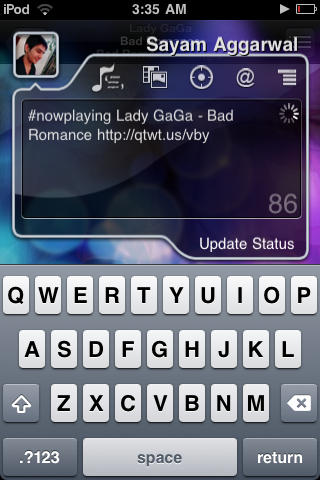
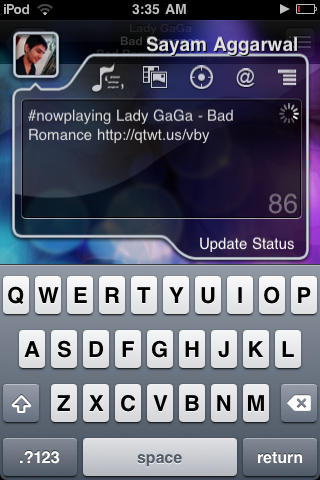
If you’re getting around now to jailbreaking your iPhone and love social media, think about adding qTweeter to your app arsenal.
There are plenty of awesome Twitter and Facebook iPhone apps, but Cult of Mac finds qTweeter a must-have because you can broadcast social media updates just by pulling the app down from the status bar, and, say, vent about your co-worker while reading a particularly annoying email (not that we would, of course), rave about a new band you’re listening to the track or ask the peanut gallery what you should have for dinner by sending them a link to a take-out menu from a web page.
This $4.99 app has been one of our favorites since it launched in 2009. Here’s Cult of Mac’s quick guide to getting you started with it.
If you type a lot on your iPhone and haven’t upgraded to iOS4, BTstack available on Cydia is worth checking out.
The iPhone’s on-screen keyboard and auto-correction are great, but if you write long missives or are used to hammering out complex messages on a keyboard, you’ve probably wanted to use an external keyboard to get your point across at one time or another.
This is where BTstack keyboard comes in: it’s a simple paid application that lets you hook up most external Bluetooth HID keyboards to your iPhone or iPod Touch. Keep in mind that it doesn’t support more sophisticated commands for your mobile opus (selection, copy/paste, etc.) but it works like a charm for straight typing. Here’s Cult of Mac’s quick guide to get you started.
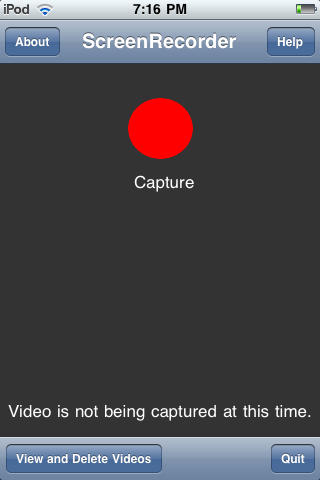
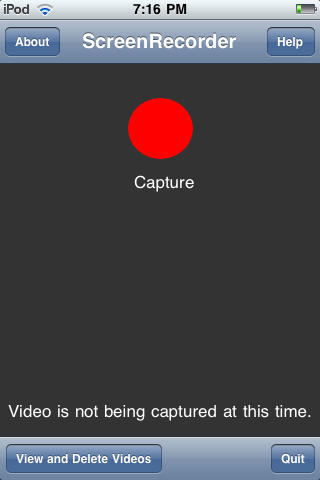
Your life is on your iPhone, so if you want to share it with friends, family and co-workers, what’s better than capturing what’s on your iPhone screen? ScreenRecorder for iPhone is a Cydia application that captures your iPhone screen — be it a tutorial, demo or demonstration — with the tap of a finger. Here’s Cult of Mac’s step-by-step guide of how this paid app works.
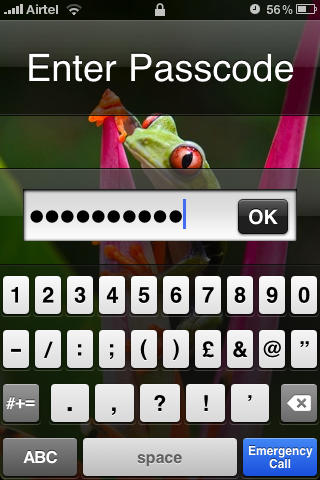
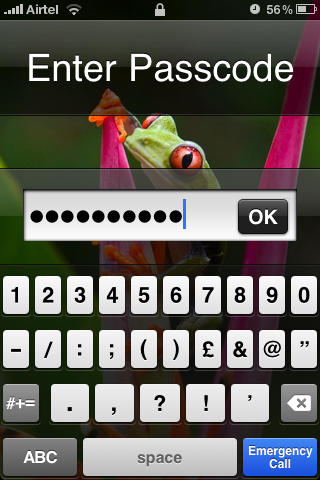
Although the iPhone does allow you to setup a lockscreen passcode, it doesn’t give much flexibility in choosing one, allowing you to set only a four-digit passcode. If that doesn’t pass your security test, here’s how to set passcode your ex won’t be able to guess. NB: If you haven’t upgraded to iOS4, this tutorial on setting up a lockscreen passcode is for you.
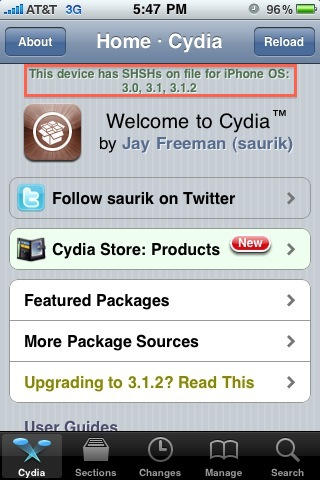
If you accidentally updated your jailbroken iPhone 3GS, you cannot simply downgrade it by restoring to an older version of the firmware (even in DFU mode) because of an added layer of security by Apple.
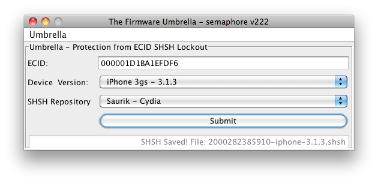
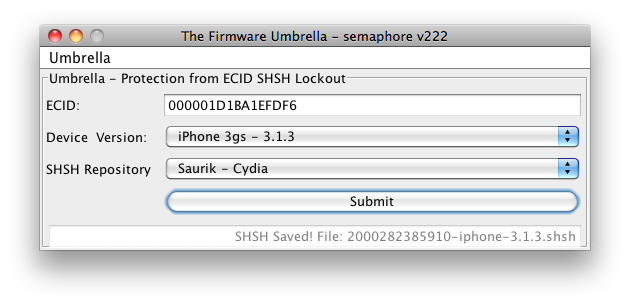
However, if you have a previously jailbroken iPhone 3GS, there’s a possibility that Cydia saved some files called SHSHs to help you bypass this added security. Cult of Mac’s how-to guide will help you do it.
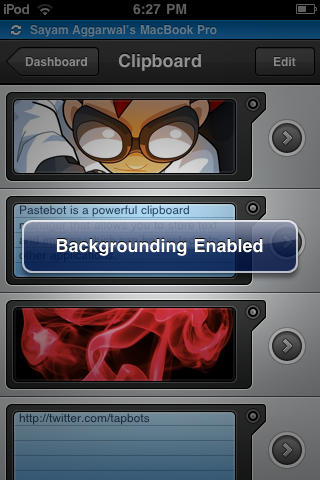
The Backgrounder app makes running multiple apps on your iPhone easier than juggling your daily schedule. Do keep in mind that running too many apps will slow down your device and suck the life out of its battery a lot quicker.
Still, Backgrounder is a great gratis app we’re glad to have handy. Here’s Cult of Mac’s guide to how it works.
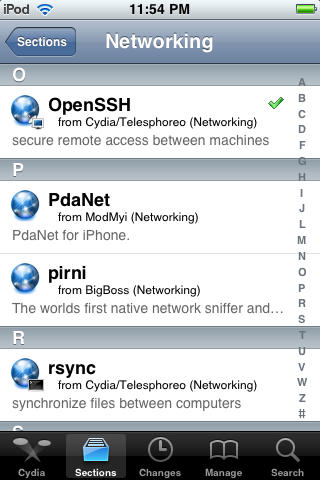
Unless you jailbreak your iPhone, the file system will remain off limits as Apple intended. Even so, many people who jailbreak their phones stop with Cydia. There are, however, a few reasons you might want access to the file system on your device. SSH allows you to do just that using a Wi-Fi connection and a suitable Mac or PC client.
It can come in handy should you need to install something that’s not directly available on Cydia, think beta apps, etc.
Here’s Cult of Mac’s how-to guide to get you started.
If you’re going to jailbreak your iPhone or iPad, before you get started, we highly recommend you backup your device’s SHSH blobs.
With the release of iPhone 3GS and iPod Touch G3, Apple added an extra layer of security to prevent hacking, jailbreaking and unlocking. Apple is constantly closing the exploits used by jailbreak hackers by updating the firmware of its iPhone/iPt and iPad. If you accidentally upgrade your jailbroken device to Apple’s latest firmware, you can’t re-jailbreak it until hackers release new jailbreak software.
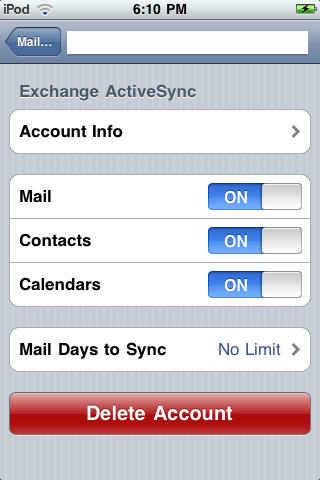
If you haven’t upgraded to iOS4, this app will allow you to access multiple Microsoft Exchange accounts on your iPhone, keeping your work and personal email and calendar info etc. always at hand. Here’s Cult of Mac’s how-to guide to getting started using the AddExchange application which allows you to add multiple Exchange accounts available from Cydia.
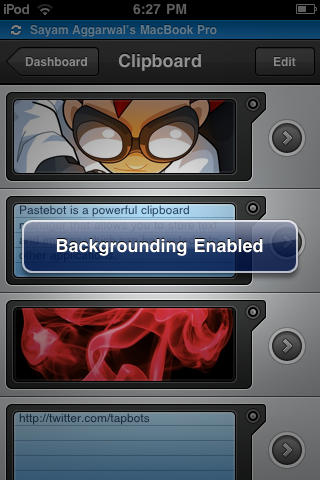
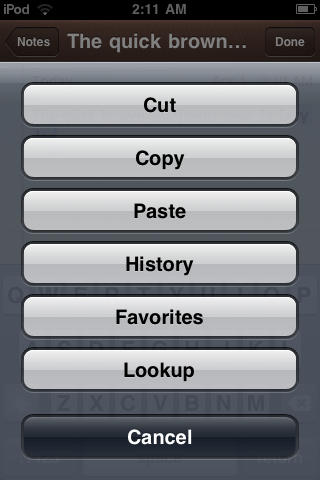
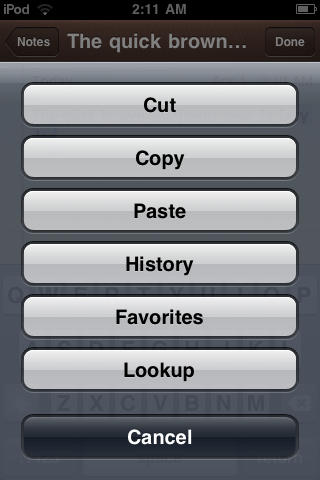
The iPhone, as Steve Jobs pointed out in his 4.0 keynote, currently has the best implementation of Copy/Paste feature of all smartphone platforms. However, it still does lack some feature like a history of the clips you’ve copied, web search for selected text, etc. If you add a Cydia app called Action Menu Plus Pack, which retails for $2.99, you can easily add those as well. Here’s Cult of Mac’s how-to guide for installing and using the app.
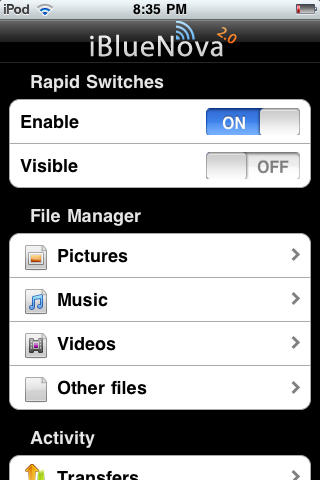
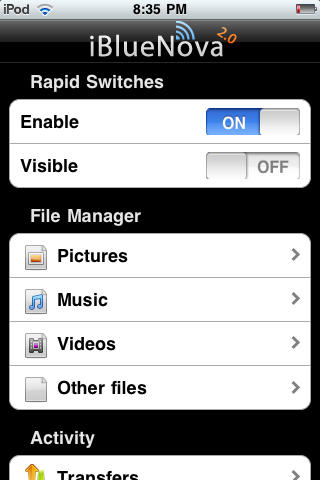
From the earliest iPhone and iPod Touch models, Apple opted to disable OBEX — aka Bluetooth file transfers on its devices for security reasons. Now, thanks to iBlueNova, a Cydia app well worth the $5.99 price tag, you can transfer files — music, pics, etc., — to and from your iDevices. Here’s Cult of Mac’s how-to guide to get you started.
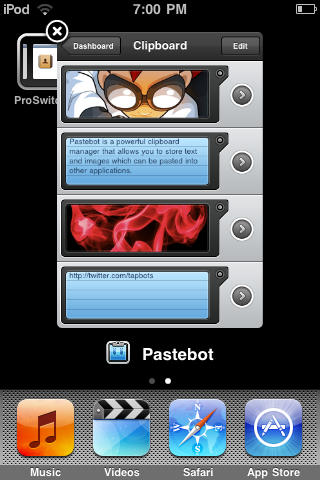
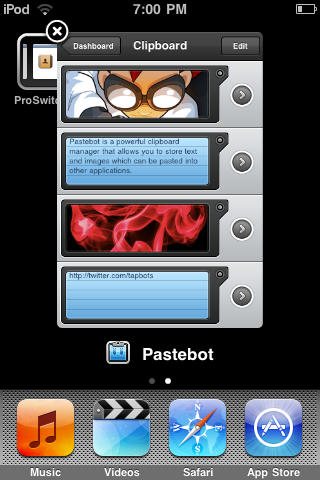
Thanks to iOS4, Apple now offers its own solution for switching between applications. If you’re using an older operating system, try this method for getting some multi-tasking on your Apple device using the handy ‘ProSwitcher’ app, which gets the job done using minimal memory to keep your device speedy as you pause that epic game to check out the weather.
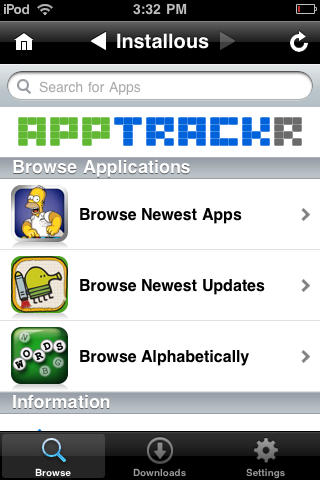
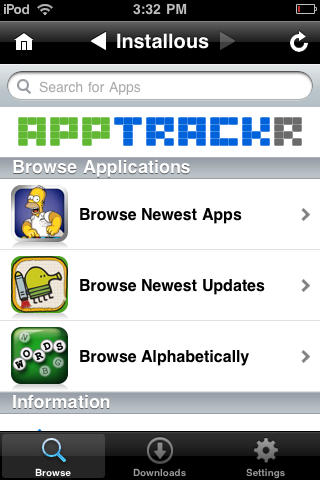
UPDATE: I was initially a little surprised by the vociferous reaction to this post about installing Installous, an unofficial App Store for pirated apps. The instructions are a quick Google search away and we’re hardly the first to publish an Installous how-to.
I guess we raised a few red flags — like putting “How To Pirate Apps” in the headline and including a half-hearted disclaimer. The intent was for it to be part of a comprehensive Jailbreaking Superguide that deals with all the things people want to do when they jailbreak their devices, including playing around with Installous.
The intent for the Superguide is to be straightforward and frank — a one-stop shop for everything people want to know about jailbreaking. We don’t condone piracy, but it’s a fact that a lot of people jailbreak their devices to experiment with things like Installous. I find it dishonest and hypocritical when publications skirt around issues like this; like publishing BitTorrent guides and pretending that no one’s going to download a pirated movie.
However, it’s obviously disingenuous to say we condemn piracy in a post that shows readers how to pirate software. Personally, I’ve always believed publishing information is one thing and acting on that information is another. I’ve always liked publications that informed me about things we’re not supposed to do. I can then make my own moral decision whether to act on that information or not.
But while pirating is something people indisputably do when jailbreaking, it was a misstep for us to actually include a comprehensive DIY. Whatever our intentions, it teeters on advocacy, and was thoughtlessly disrespectful to the many app developers out there who make their livings off of programs we admire and think people should pay for.
As our readers have pointed out in comments and on Twitter, we crossed a line here. CultofMac.com isn’t some modern-day Anarchist Cookbook. We support developers and enjoy their many wonderful creations. Saying there are ways out there to install cracked apps is one thing, showing people how to do it is another.
So my apologies to readers for misjudging this, and to developers for being insensitive and opportunistic.
Also, please don’t attack the author, Sayam. This was my idea, not his. He’s a freelance writer and I commissioned him to write it, so please don’t be mean to him.
— Leander.
PS: The BitTorrent link to “pirate” copies of my Cult of Mac book posted in the comments is actually a publisher-sanctioned seed. No Starch Press turned it into an e-book and seeded it. So please help yourself, it’s free and legal.
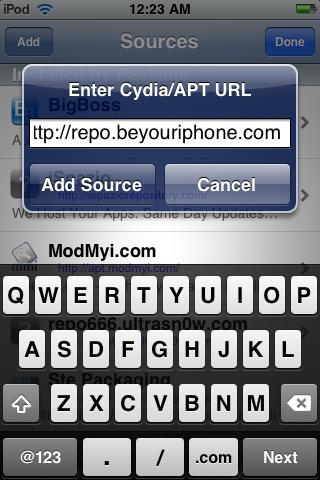
Although the Cydia app offers an extensive soup-to-nuts package, every once in awhile you might find it useful to add a source to the ones already available. Here’s Cult of Mac’s guide on how to add a source to Cydia.
Clues to the causes of Mac startup problems can be found by analyzing when in the boot process the system fails. Problems may be related to the power supply, battery, hard drive, logic board, OS corruption or an issue with a user account. Macs are reliable machines, but like many of us they get cranky from time to time.
Isolating where the problem is occurring is key to finding the solution. Unplug any external peripherals (disk drives, printer, etc.) to help narrow down the cause.
Tired of paying for ringtones for your iPhone? In this tutorial I will walk you through on how to create a ringtone from within iTunes using any song. This tutorial works on any song you may have purchased or ripped into iTunes. Read the full tutorial after the break.
A number of Cult of Mac readers, and numerous more on Apple’s Discussion boards, have reported a bevy of problems–some large, some small–after upgrading to iOS 4 or the iPhone 4. I don’t plan on boring you with a list of what users were complaining about. Instead, I will give you four troubleshooting tips that generally fix most, but not necessarily all iPhone and iOS problems.
(Yes, this is tip #18 and it’s appearing out of order – that’s my fault, because I wrote it then forgot to post it. Apologies to all. Now without further ado…)
Spaces is Apple’s implementation of an old idea known as virtual desktops. You might have used virtual desktop software on your PC.
It’s pretty self-explanatory. With Spaces active, your computer suddenly has a bunch of virtual screens hovering in mid-air around your monitor. You can switch between them with a keyboard shortcut or a mouse command, and make it seem like you have much more screen space available than you actually do.
A clone is a bootable backup of your Mac’s hard drive that provides redundancy for both your data and the Macintosh Operating System. Cloning is easy to do and is complementary to other backup methods like Time Machine. The ability to get up and working in minutes after a crash or system update gone awry can be a very useful thing.
Clones provide a way to rollback your Mac OS X installation. You can keep your clone updated using synchronization software to perform incremental updates, and can use your clone to boot another Mac should the need arise.
If Apple were interested in marketing their computers to people who live just to print, they’d probably use a slogan like: “Macs: PDF everywhere.” Or something.
Because it’s true. The ability to turn anything that’s printable into a PDF file is built right in to the OS X operating system. And it’s easy to get to from anywhere.