The new iPhone setup process gets easier every year. These days, you only need to do a few things to transfer all your old iPhone data to a new one. Still, certain tips and tricks can smooth the way.
The hot new tip this year is that you can directly transfer data from your old iPhone to your new one using a cable. Plus, other time-honored iPhone setup tricks will help things run smoothly. Here’s how to set up your new iPhone the right way.
New iPhone setup: How to do it the right way
This new iPhone setup guide attempts to cover all the bases. It starts with backing up your old iPhone, but obviously, you can skip that if you’re setting up your first iPhone or coming from an Android device.
If you’re an Android switcher, you can copy your data using the Move to iOS app. And setting up a new iPhone from scratch isn’t much harder — you just need to go through a few extra steps.
Table of contents: How to set up your new iPhone the right way
- Back up your old phone
- Use Apple’s Quick Start to set up your new iPhone
- Transfer apps and data
- Customize and learn how to use your new iPhone
Back up your old phone
Screenshot: D. Griffin Jones/Cult of Mac
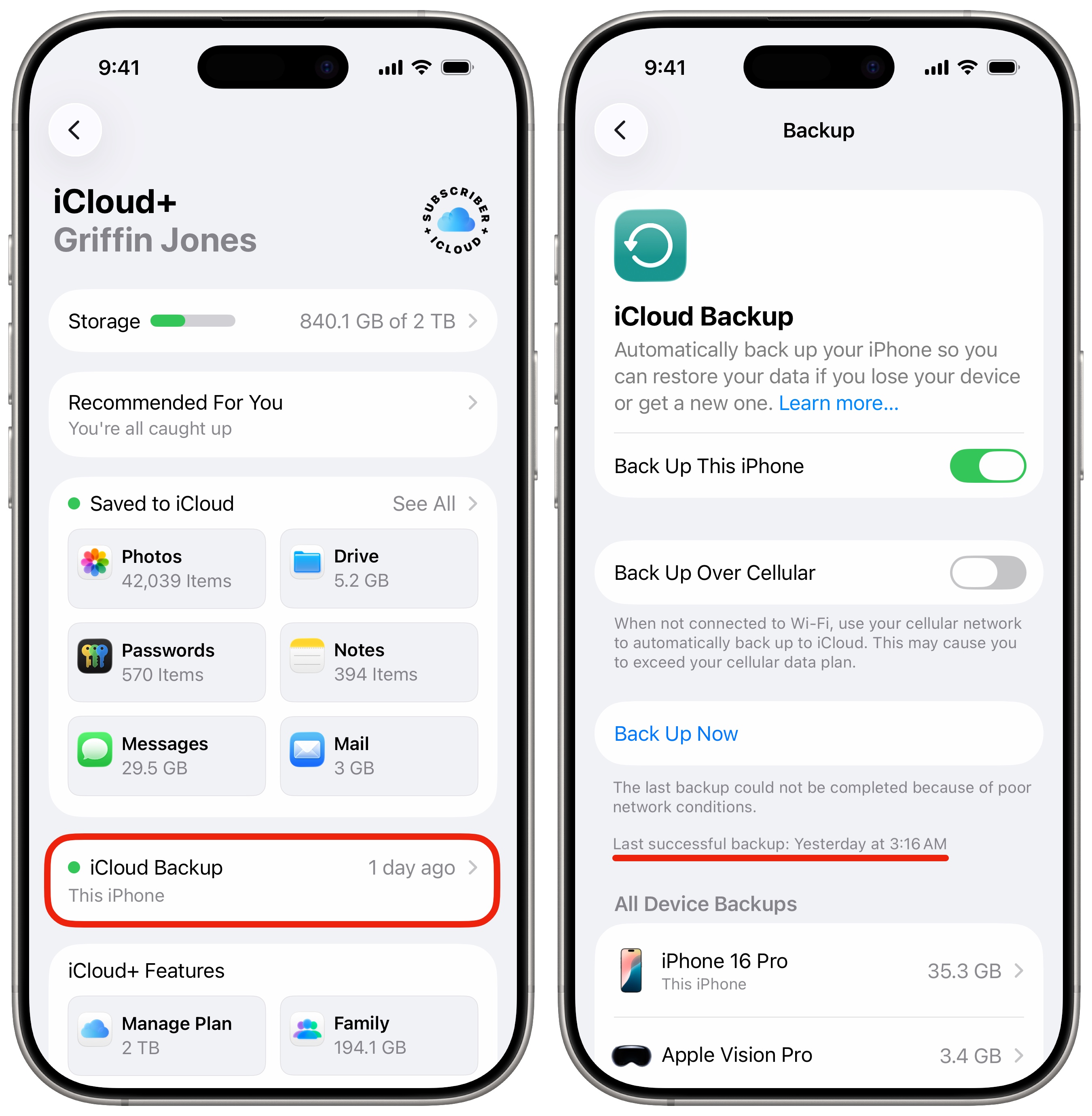
Before you start moving everything over, you should make sure that your phone is backed up. If the transfer freezes or gets interrupted, this backup could save your skin.
Double-check in Settings > [Your Name] > iCloud > iCloud Backup. Right under the button that says “Backup Now,” you should see small text that says, “Last successful backup.” If you have it set up properly, your phone will probably say it last backed up overnight.
If not, you need to make a backup. To do so, tap Back Up Now. If you don’t back up using iCloud, you can back up your phone by plugging it into a Mac or PC.
Use Apple’s Quick Start to set up your new iPhone

Screenshot: Apple
Your new iPhone will probably come with enough battery charge to get started out of the box. Turn on the device by holding the power button on the right side.
If you’re transferring from an Android phone, or if this is your first smartphone, tap Set Up Manually and continue. If you’re coming from Android, you should download the Move to iOS app on your old device. Google’s app will guide you through the process of moving contacts, photos and more to your iPhone.
The easiest way to set up a new iPhone is to use Apple’s Quick Start feature, which quickly transfers settings and apps from your old iPhone to your new one.

If you’re transferring from another iPhone, hold both devices next to each other and use Apple’s Quick Start feature to get signed in and set up. They should automatically detect each other. (If not, make sure your old device is connected to the same Wi-Fi network with Bluetooth turned on.) It’s easy, and fairly fast and painless.
Transfer your apps and data to set up your new iPhone

Screenshot: Apple
You have a few different choices for how to move your data over during the new iPhone setup process. If this is your first smartphone, just tap Don’t Transfer Apps & Data.
If you’re coming from an old iPhone, tap Transfer Directly from iPhone. This is hands-down the easiest way to move your data from an old iPhone to a new one. All you have to do is keep your old and new devices close to each other. Your old iPhone will beam all your apps, photos and data to your new phone. It works just like AirDrop.
If your old iPhone has been lost, stolen, shattered, exploded or is otherwise no longer of this world, you can tap Restore from iCloud Backup on your new iPhone. This option will set up the new device exactly like your old phone, but you’ll need a reliable internet connection to download everything.
Pick the latest backup you have and wait. Your phone will download all the essential data to restore it and continue with your new iPhone setup. After you finish, stay connected — the iPhone will continue to download apps, messages and photos in the background.
Set up a new iPhone from an Android phone
If you’re coming from an Android phone, download the Move to iOS app from Google Play. On your iPhone, tap Move Data from Android, tap Continue, and wait for the code to appear. Enter this code on your Android phone (once you open the app).
Your iPhone will create a temporary Wi-Fi network that your Android phone needs to connect to. Once your two phones connect, select the data you want to import and tap Continue.
After setup completes, learn the ins and outs of your new iPhone
If this is your first iPhone, you might want some more guidance on getting comfortable after you’re all set up.
- You can fully customize the Home Screen. Place icons anywhere on the screen. Fans of dark mode can now enjoy alternate dark mode icons. If you have a color theme you want to match, you can tint icons to any hue you want.
- You can edit the buttons in Control Center. Add many more toggles and buttons, including those from third-party apps. You can resize some buttons to make them more prominent, and you can arrange your controls across multiple pages. In one fluid motion, you can swipe down to activate Control Center and continue swiping down to scroll through your pages.
- Customize the Lock Screen with a bunch of widgets, aesthetics and styles. You have loads of fonts, colors, styles and themes available.
- Standby turns your phone into a smart display when it’s charging on your desk, your nightstand or the kitchen counter.
- Create Focus modes to customize notification settings for different times of day, like work, vacation, driving, personal time and more.
Camera and Photos features
- Hide photos from your library to keep secret and/or illicit images out of your main camera roll. Find them in the Hidden album.
- Tag photos with the names of your friends, family members and pets so you can easily find pictures of them later on. The Photos app will detect pictures of people automatically — you just need to give them a name.
- Photographic Styles built into your iPhone’s camera can give your pictures a radically different aesthetic.
- The new Camera Control button on the side opens the Camera app, takes pictures and adjusts camera settings on the fly. It offers a quick shortcut to using one of the most popular and important iPhone features.
Messages features
- Edit or unsend messages, soon after sending them, if you make a mistake.
- Schedule texts to send later on iPhone to make sure you never forget to send a reminder, birthday greeting or early morning message for someone in a different time zone. You can schedule a whole slew of texts up to a week in advance, with links, photos, attachments and more.
- iMessage effects can add much more meaning, emotion and fun to your texting. You can add bold, italics, underline and
strikethroughtext, just like a formatted document, and even choose from a bunch of cool, animated effects.
Apple Intelligence features
- Visually look up restaurants, objects, animals, plants, calendar events and more using the Camera Control on the iPhone 16 or the Action button on iPhone 15 Pro.
- Create custom emoji based on a description or based on a person in your Photos library.
- The new Siri integrates with ChatGPT for answering questions, lets you type questions and answers your questions about Apple products.
- Writing tools can help you proofread, change tone, compose and summarize text.
- Image clean-up in Photos lets you erase elements from a picture by circling it.
- The “Reduce Interruptions” Focus mode intelligently chooses what notifications to silence and what to let through.
Accessibility features
- Vehicle Motion Cues will help reduce feelings of motion sickness. With the feature turned on, dots along the edge of your iPhone screen will animate in sync with the motion of the plane, train or automobile you’re riding in.
- Music Haptics add another dimension to audio: vibration. The feature brings to life a track of rhythmic vibrations and patterns timed to certain Apple Music songs.
- Vocal Shortcuts let you control your phone by speaking a command out loud. Think “Hey Siri,” but for running your own custom actions from Apple’s Shortcuts app.
Note: D. Griffin Jones contributed to this article. We originally published this article on how to set up iPhone on September 20, 2019. We updated it with the latest information on December 24, 2020; December 24, 2022; December 24, 2023; December 24, 2024 and December 17, 2025.

Charlie Sorrel writes reviews and how-tos. Follow Charlie on Twitter at @mistercharlie, and at micro.blog on @mistercharlie

