If you want to know the fastest and easiest way to send someone photos, videos, files and so, so much more, you should know how to AirDrop. There’s no need to send an iMessage — Apple’s slick AirDrop feature will immediately send and open the content on someone else’s iPhone (or other Apple device). There’s no middle step.
AirDrop works iPhone-to-iPhone, iPhone-to-Mac, iPhone-to-iPad, Vision Pro-to-Mac — any combination and permutation of two Apple devices. And, if your friend has a Google Pixel 10, you can AirDrop with them, too!
Keep reading to find out everything you need to know about how to take advantage of AirDrop.
How to AirDrop, the fastest way to share stuff from iPhone to iPhone
Screenshot: D. Griffin Jones/Cult of Mac
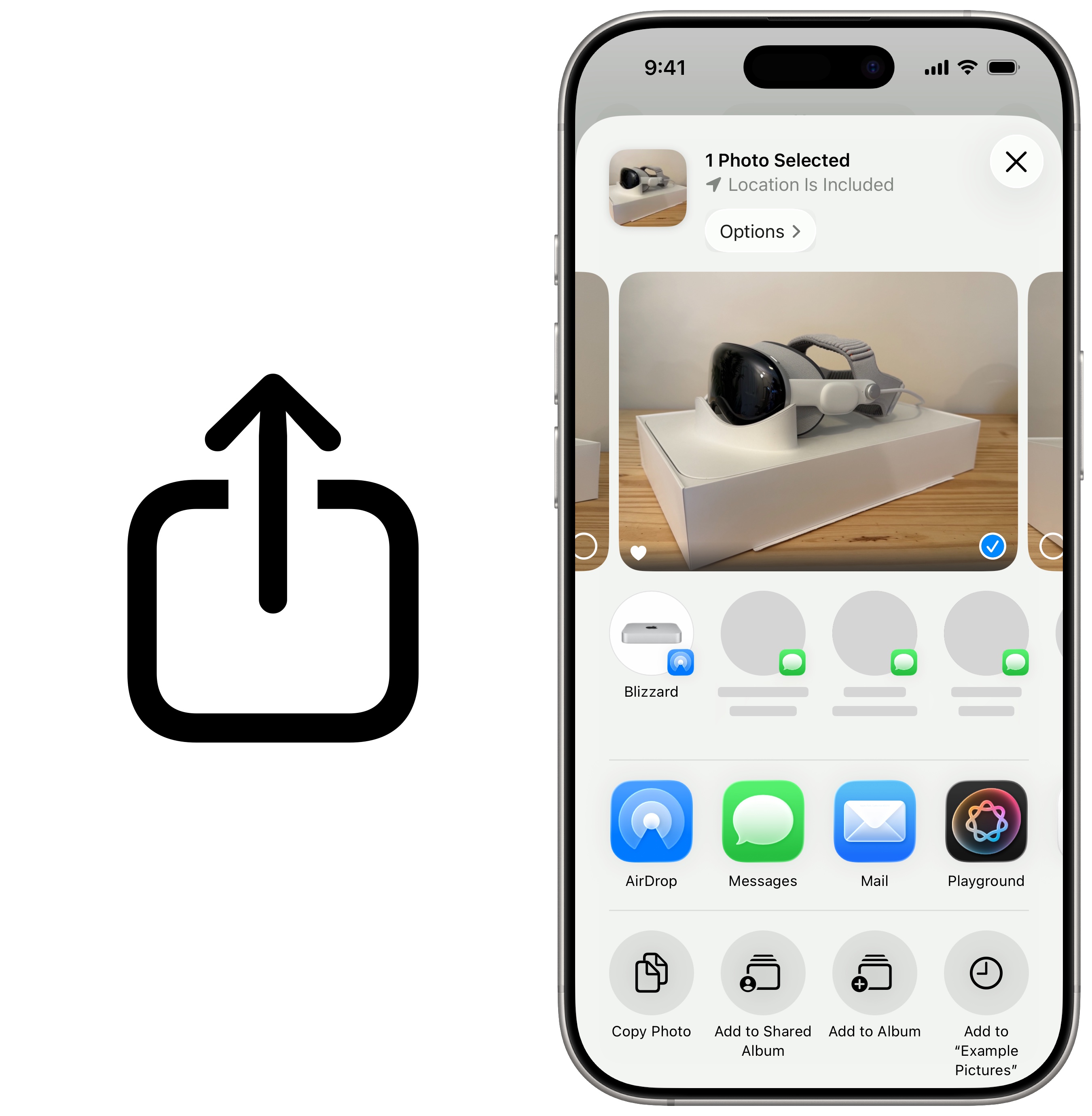
Just about anywhere you see the Share icon (left) or the share sheet (right) on your iPhone, you have something that can be sent using AirDrop. The most common use is sending pictures and videos, but there’s so much more you can do. There’s no limit on how much stuff you can send over AirDrop.
For instance, say you bring up a restaurant menu on your phone in Safari. You can easily AirDrop it to your iPhone-carrying friends so they can see it, too. If you’re looking at a product on Amazon, looking to share a game on the App Store, or inviting someone to share a Note or Reminders list, AirDrop is the way to go.
AirDrop works using a system called Apple Wireless Direct Link. Even if you’re not on Wi-Fi, both devices create a temporary peer-to-peer Wi-Fi connection to each other to carry the file transfer. The benefit is that while you may not have great service or a Wi-Fi 6e network, you’ll still get the fastest possible speeds on AirDrop.
Table of contents: How to AirDrop
- How to AirDrop on iPhone
- How to share with somebody who’s not in your contacts list
- How to make sure AirDrop is enabled
- How to AirDrop from Android
- More iPhone basics
How to AirDrop on iPhone

Screenshot: D. Griffin Jones/Cult of Mac
To use AirDrop, hit the Share button. If someone in your contacts is standing nearby and their device is active (screen on, unlocked) they should appear at the top of the list of potential recipients. (You’ll also see your own Apple devices here, too, in case you want to send something from your iPhone to your Mac or iPad.)
Then, simply tap the recipient’s contact image to share the desired content with them via AirDrop. The person on the other end will need to tap Accept when they receive the AirDrop prompt. If you’re both on iOS 17.1 or later, you don’t even need to keep standing nearby — you can walk away and the AirDrop will continue remotely over the internet.
How to share with somebody who’s not in your contacts list
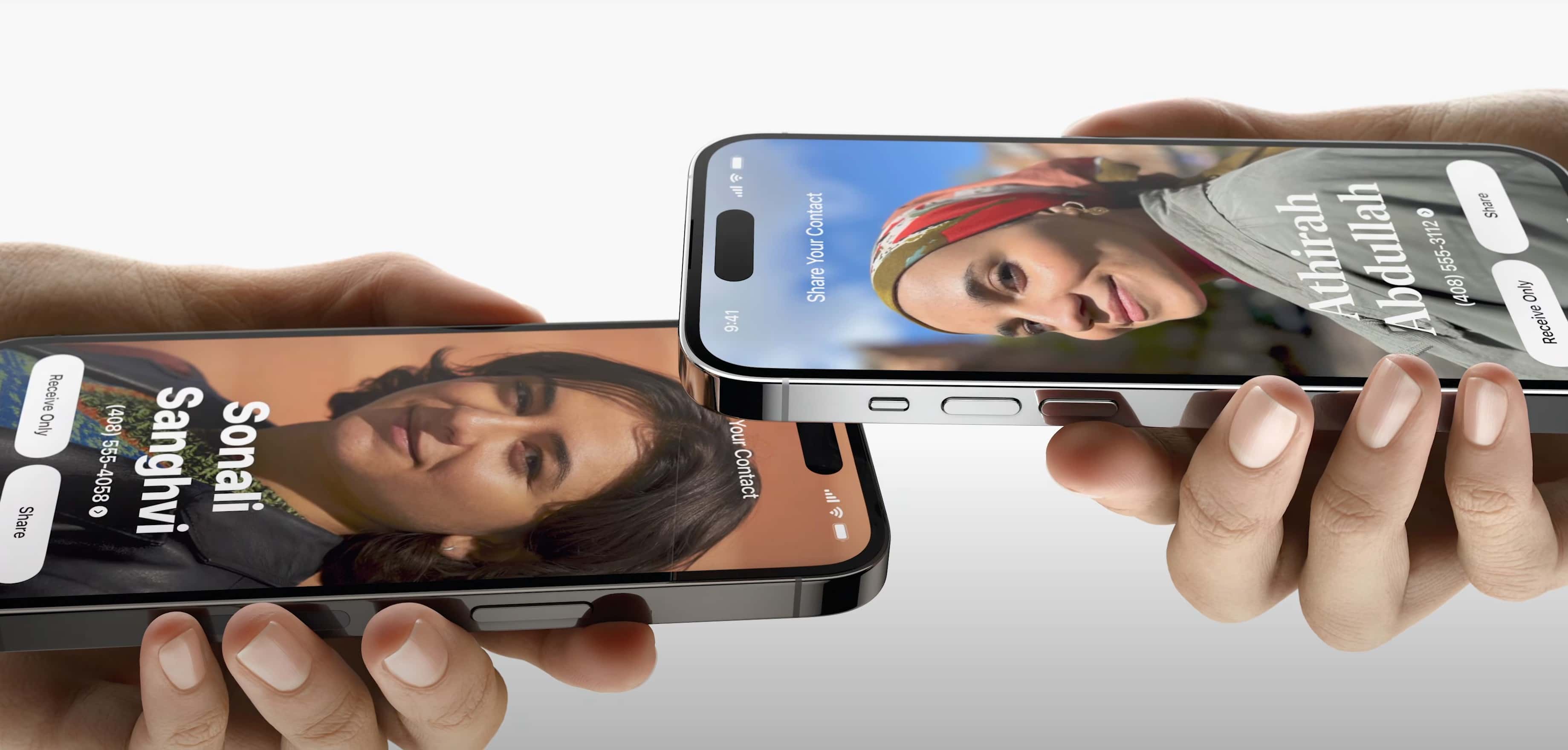
Photo: Apple
If the person isn’t in your contacts, you can still use AirDrop (see the next section below), but there’s actually an even easier way to share files quickly, assuming you’re both running iOS 17 or later. With the share sheet open, simply hold your phones together — top to top — to make the transfer instantly. You also get to see a really cool pulsing animation with a cool haptic effect!
If you do the same gesture normally, without the share sheet open, you can use this feature to instantly exchange contact information. This feature is called NameDrop. It’s much easier than exchanging your phones and typing in your number by hand. (Interestingly, these features don’t work if one of the devices is connected to wireless CarPlay or a Personal Hotspot.)
How to make sure AirDrop is enabled
Screenshot: D. Griffin Jones/Cult of Mac
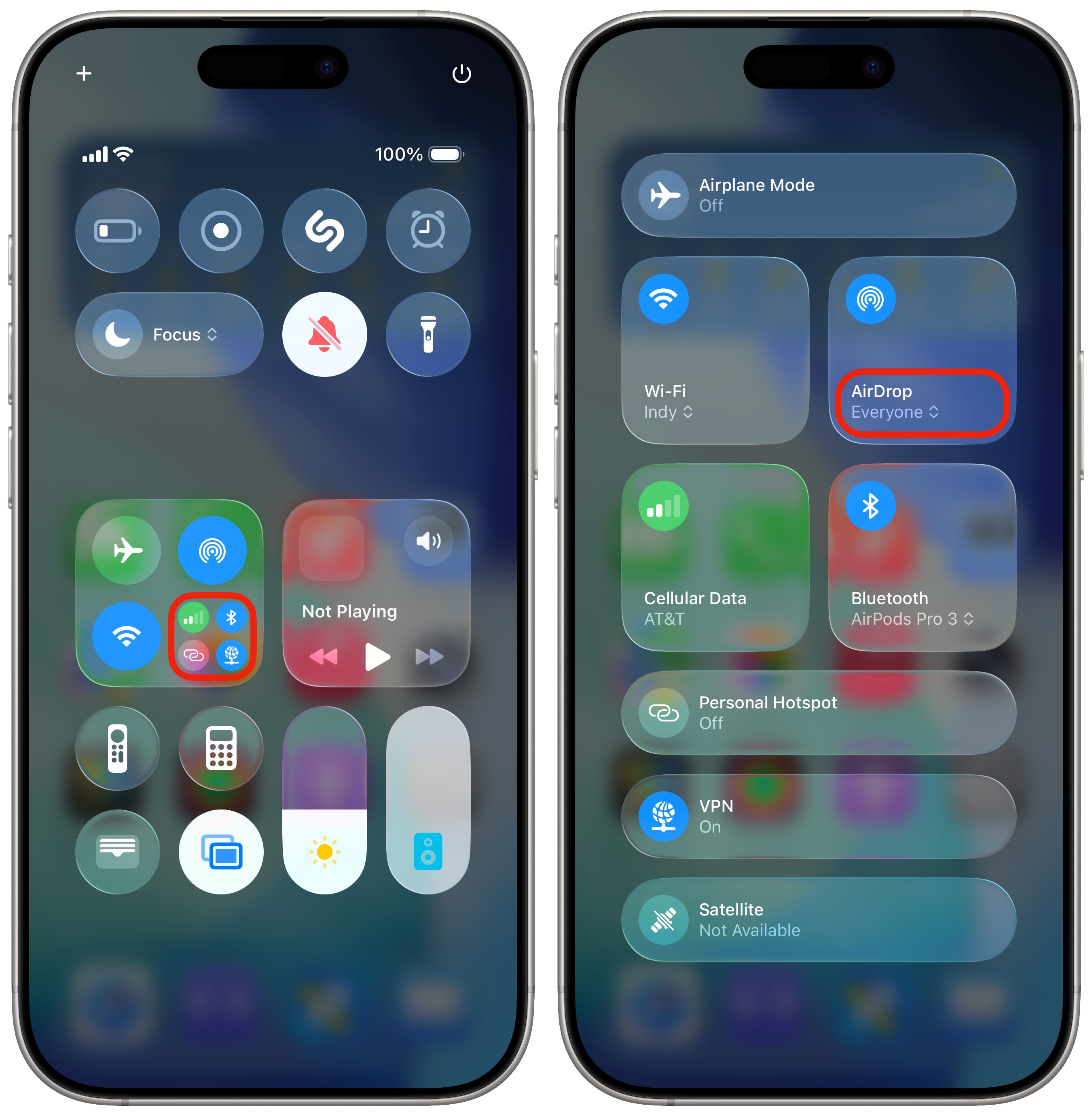
If the above features don’t work, you can make sure AirDrop is enabled in Control Center. Have the other person open Control Center, tap and hold on the box in the upper left, tap on the AirDrop button and set it to Everyone for 10 minutes. It’ll automatically revert to Contacts Only, so you’ll need to do this every time you share with someone who isn’t in your contacts list.
From your end, you’ll need to tap the AirDrop option in the share sheet. You’ll see the name of the person’s device, which is probably something like “Griffin’s iPhone,” unless they’ve renamed it to something else.
How to AirDrop with an Android device
Some Android phones now work with AirDrop (although the feature’s called Quick Share on those devices). The capability might come to more devices in the future.
From Android to iPhone: On the iPhone, make sure AirDrop is enabled for everyone from Control Center. On the Android device, bring up Quick Settings by swiping down from the top of the screen, and tap Quick Share. Select what you want to share, then under “Send to nearby devices,” tap on the iPhone you’d like to share it with. The iPhone will receive a notification; tap Accept.
From iPhone to Android: On the iPhone, tap the Share button to bring up the share sheet. Tap AirDrop to see all the nearby devices. Select the Android device from the list.
More iPhone basics
- You can fully customize your iPhone’s Home Screen. Place icons anywhere on the screen. Fans of dark mode can now enjoy alternate dark mode icons. If you have a color theme you want to match, you can tint icons to any hue you want.
- You can edit the buttons in Control Center. Add many more toggles and buttons, including those from third-party apps. You can resize some buttons to make them more prominent, and you can arrange your controls across multiple pages. In one fluid motion, you can swipe down to activate Control Center and continue swiping down to scroll through your pages.
- StandBy mode turns your iPhone into a smart display when it’s sitting on your desk, your nightstand or the kitchen counter.
- Customize your iPhone’s Lock Screen with a bunch of widgets, aesthetics and styles. You can choose from loads of fonts, colors, styles and themes.
We originally published this article on how to AirDrop files on June 4, 2024. We updated it with the latest information on November 28, 2025, and again on August 3, 2026.

D. Griffin Jones was a writer, podcaster and video producer for Cult of Mac. Griffin has been a passionate computer enthusiast since 2002, when he got his first PC — but since getting a Mac in 2008, he hasn’t turned back. His skills in graphic and web design, along with video and podcast editing, are self-taught over 20+ years. Griffin has a bachelor’s degree in computer science and has written several (unpublished) apps for Mac and iOS. His collection of old computers is made up of 40+ desktops, laptops, PDAs and devices, dating back to the early ’80s.
Griffin writes for his personal blog, Extra Ordinary, and is currently looking for work.

