Mobile menu toggle

Top stories - page 245

These Bluetooth earbuds are a great, affordable alternative to AirPods at just $25

By

bluetooth earbuds
No need to break the bank with these great Bluetooth earbuds.
Photo: Sound Sense

It’s pretty hard to argue against the quality of AirPods and AirPods Pro — especially if you’re a fan of Apple products. Unfortunately, they come with a pretty hefty price tag. And while reviewers across the board can make the argument that they come loaded with premium features, you can find similarly high-quality earbuds for a fraction of the price.

These Sound Sense Bluetooth Earphones + Portable Charging Box are a great AirPods alternative, offering both high-quality sound and 30 hours of playback off a single charge.

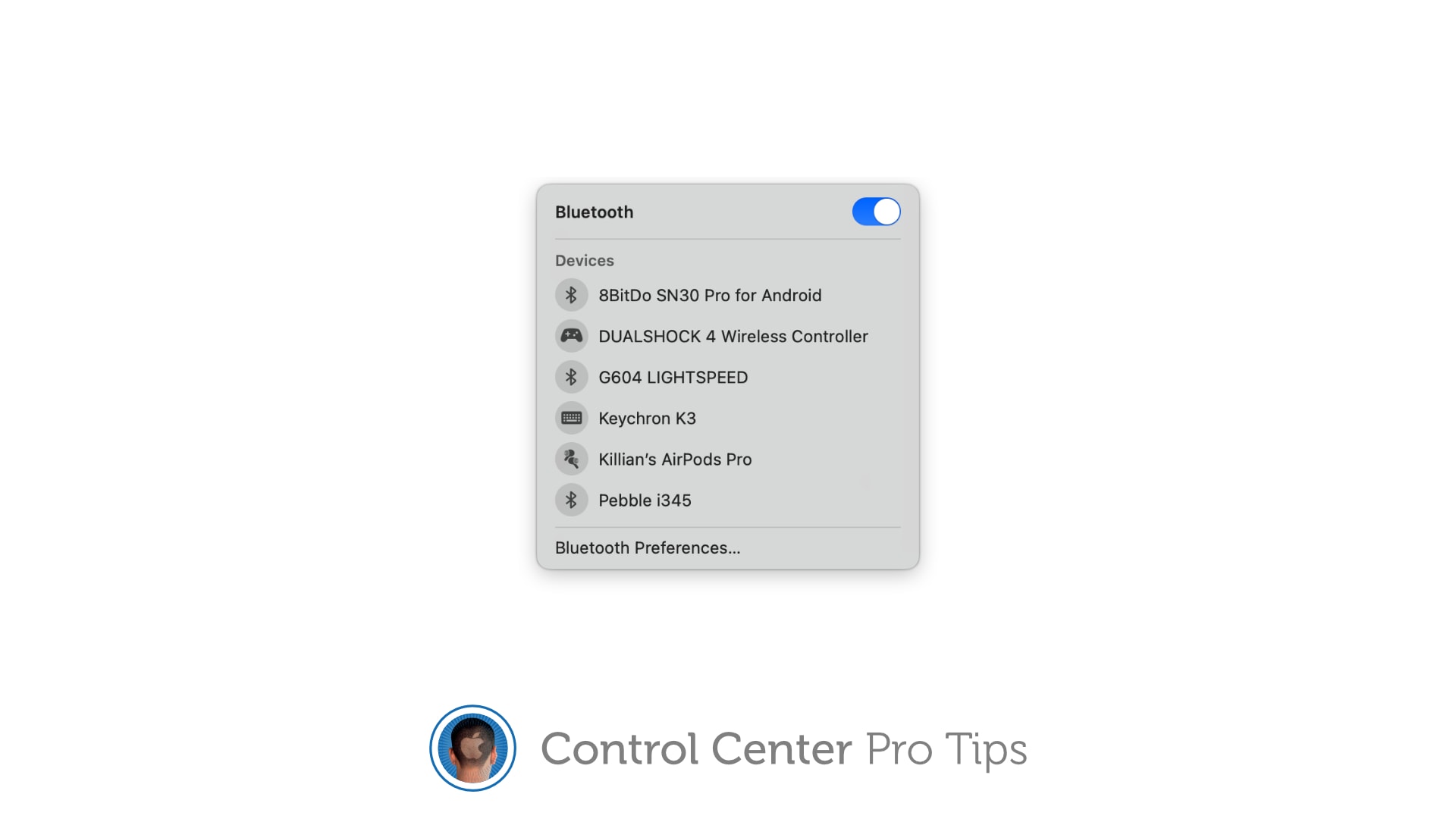
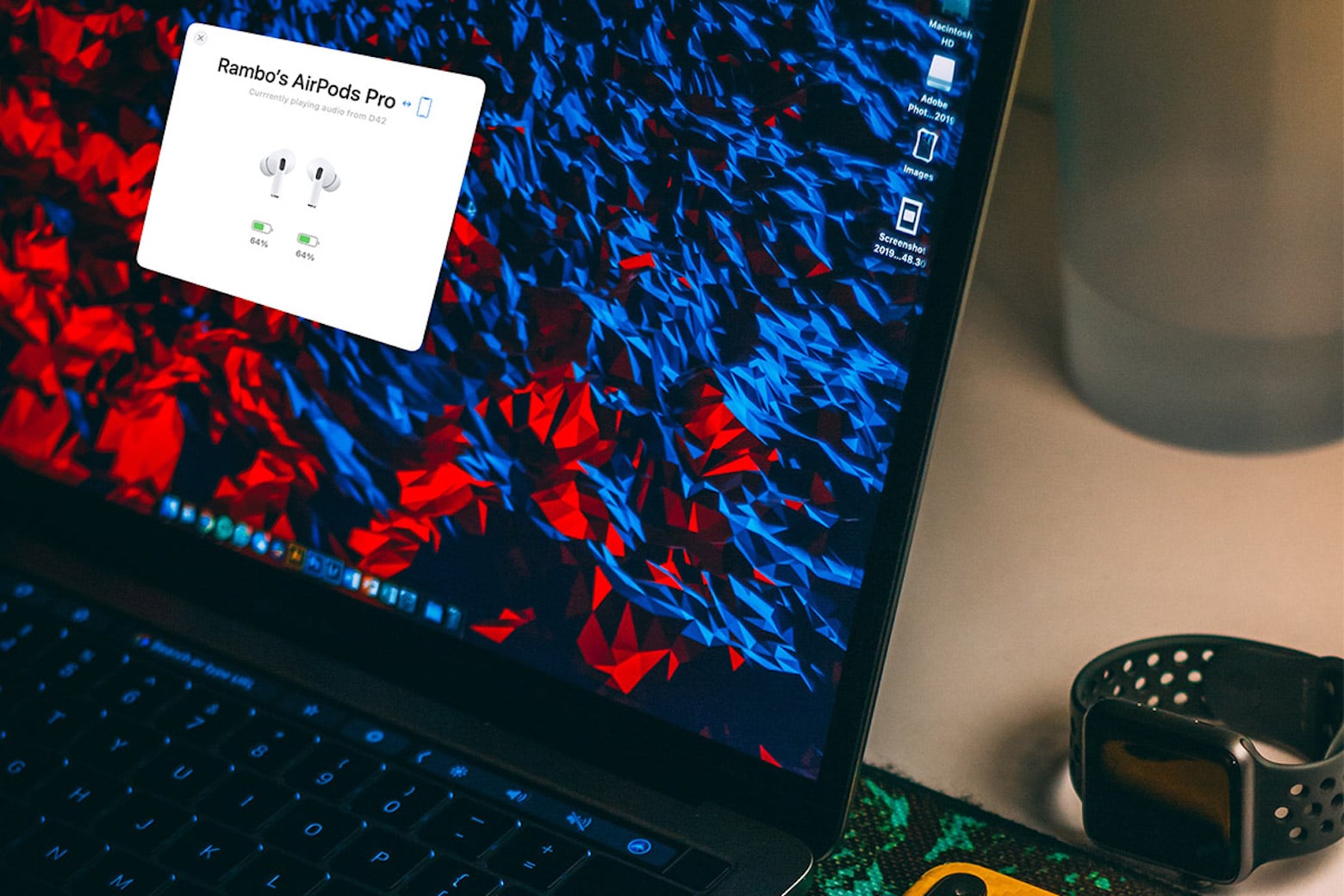
Easily manage Bluetooth devices inside Control Center [Pro tip]

By

Manage Bluetooth devices in Control Center
Managing wireless devices can be easy with Control Center.
Image: Killian Bell/Cult of Mac

Control Center Pro Tips WeekWe want to help you master Control Center, one of the most powerful and underutilized features on Apple devices. Cult of Mac’s Control Center Pro Tips series will show you how to make the most of this useful toolbox on iPhone, iPad, Apple Watch and Mac.

Quickly connect to Bluetooth devices by using Control Center on iPhone, iPad, and Mac. You won’t need to fiddle around inside Settings or System Preferences — just a couple of taps is all it takes to start pairing.

We’ll show you how.

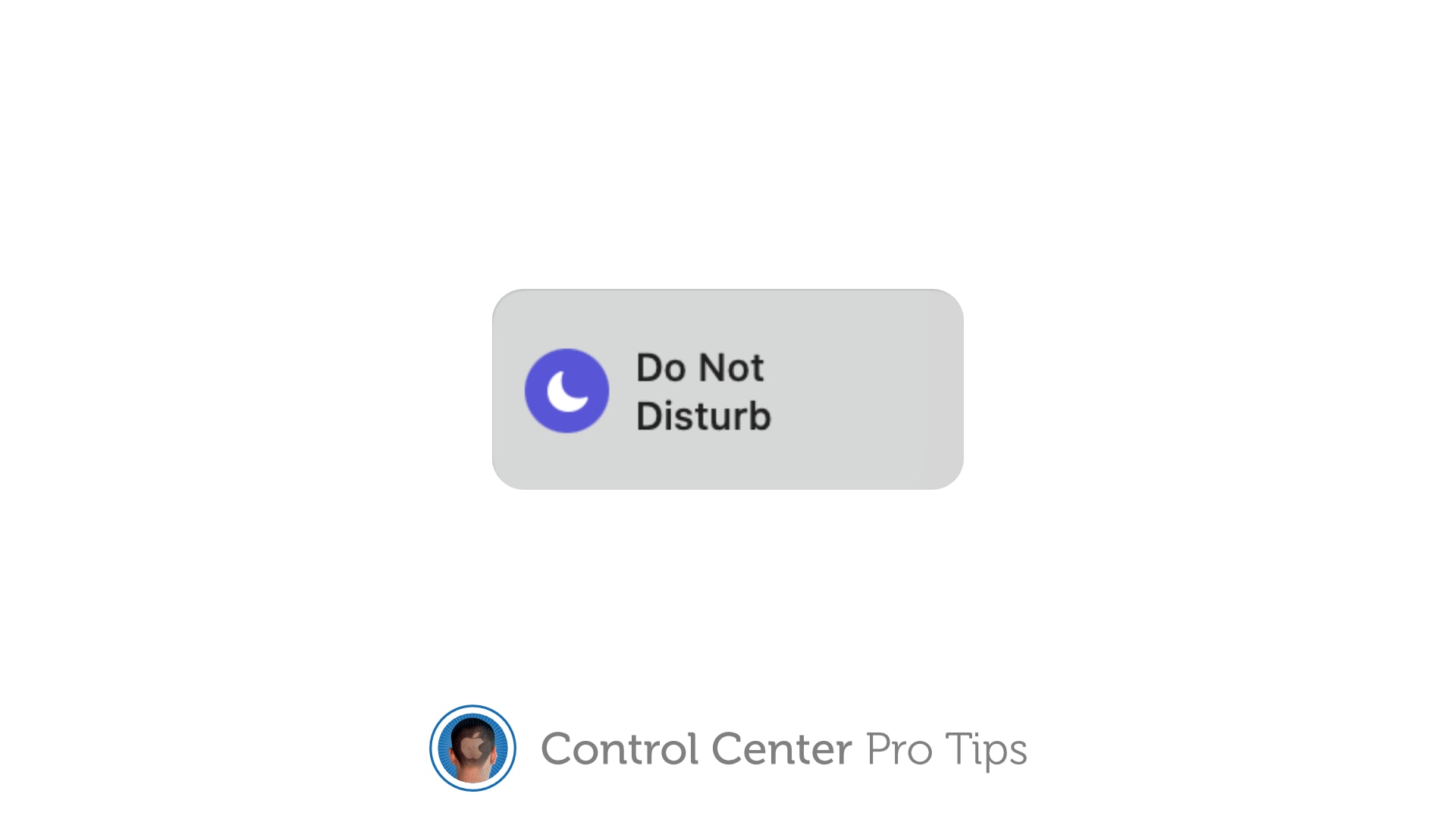
Quickly toggle Do Not Disturb mode using Control Center [Pro tip]

By

Toggle Do Not Disturb in Control Center
The quickest, easiest way to silence your device.
Image: Killian Bell/Cult of Mac

Control Center Pro Tips Week

We want to help you master Control Center, one of the most powerful and underutilized features on Apple devices. Cult of Mac’s Control Center Pro Tips series will show you how to make the most of this useful toolbox on iPhone, iPad, Apple Watch and Mac.

Heading into an important meeting and need your iPhone to keep quiet? Don’t worry about turning off your device or messing around inside the Settings app; toggle Do Not Disturb mode with one tap in Control Center.

We’ll show you how on all Apple devices.

Toggle True Tone in no time from inside Control Center [Pro tip]

By

Toggle True Tone in Control Center
Don't waste your time inside System Preferences.
Image: Killian Bell/Cult of Mac

Control Center Pro Tips WeekWe want to help you master Control Center, one of the most powerful and underutilized features on Apple devices. Cult of Mac’s Control Center Pro Tips series will show you how to make the most of this useful toolbox on iPhone, iPad, Apple Watch and Mac.

Need to disable True Tone on your iPhone, iPad, or Mac? You could open the Settings app and dig around inside there for a few minutes until you find what you need. Or you could toggle the feature in an instant right inside Control Center.

We’ll show you how.

SanDisk’s 2-in-1 flash drive lets iPhone, Mac, iPad securely exchange files [Review]

By

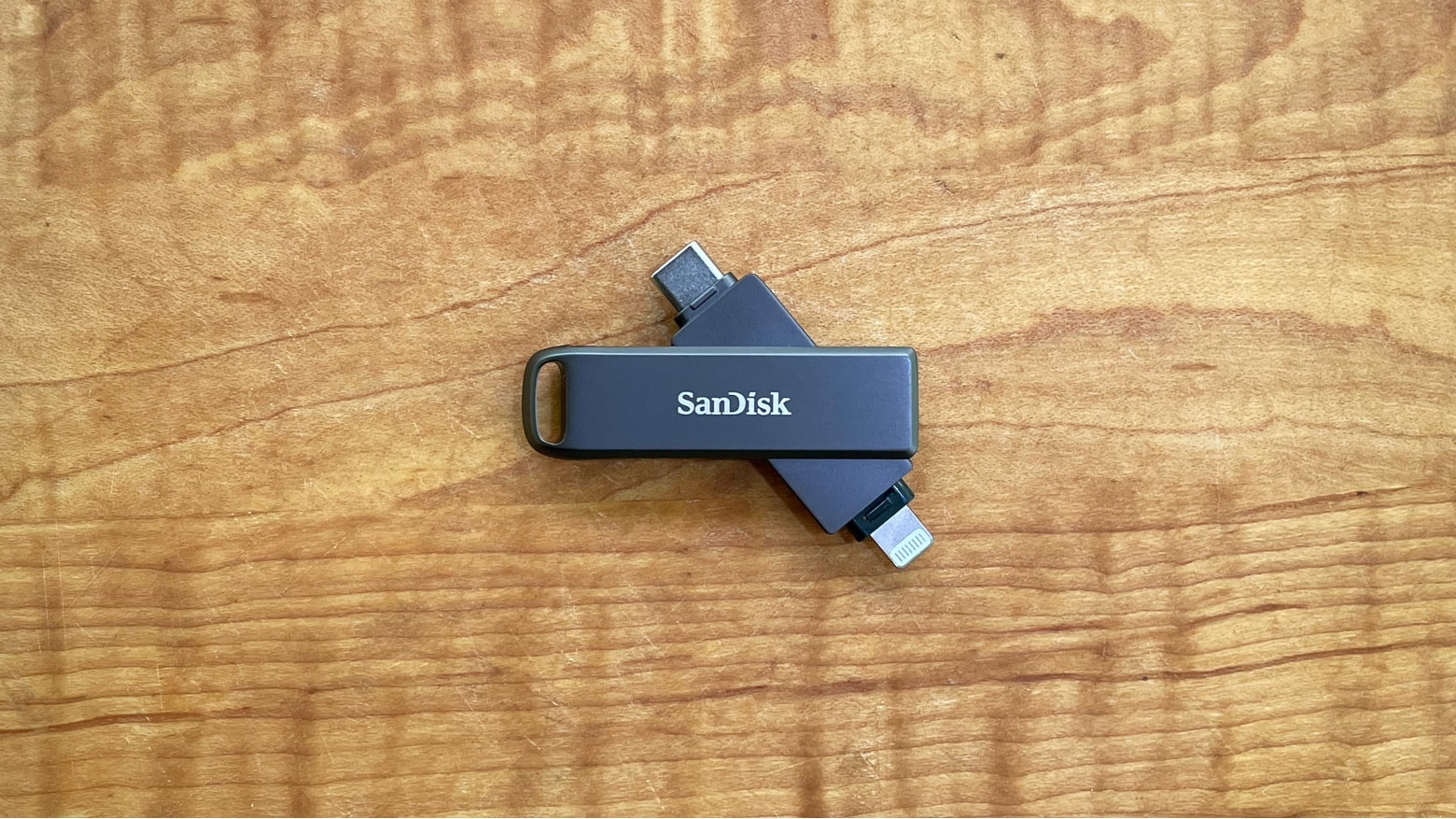
SanDisk iXpand Flash Drive Luxe review
The SanDisk iXpand Flash Drive Luxe has both USB-C and Lightning connectors for maximum compatibility.
Photo: Ed Hardy/Cult of Mac

The SanDisk iXpand Flash Drive Luxe includes both Lightning and USB Type-C connectors so it plugs into almost any computer. You can easily access the same collection of files from an iPhone, Mac or iPad without resorting to iCloud, etc. Even better, the drive is small and comes in an all-metal casing.

I tested the iXpand Luxe with multiple devices. Here’s its strengths and weaknesses.

$40 fitness watch offers 15 different health-tracking features

By

fitness watch
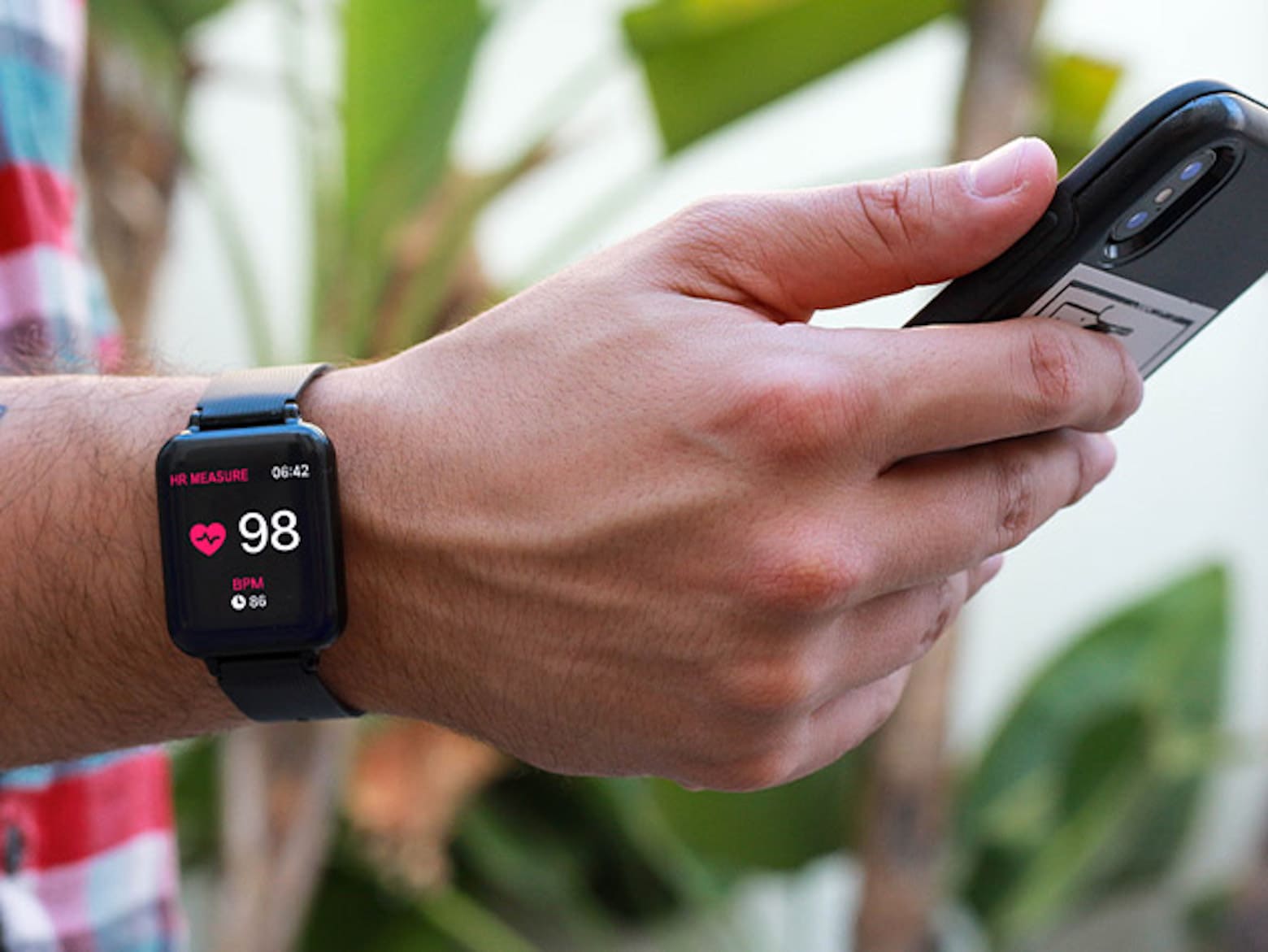
This robust fitness watch is an affordable Apple Watch alternative.
Photo: Smart Fit

If there’s one thing you should get a handle on, it’s your overall wellness. An Apple Watch works great for that, but you don’t necessarily need to spend the same amount of cash to get a robust fitness tracker. The Smart Fit Multi-Functional Wellness & Fitness Watch offers 15 high-tech features to help you monitor stats that will help you meet your fitness goals.

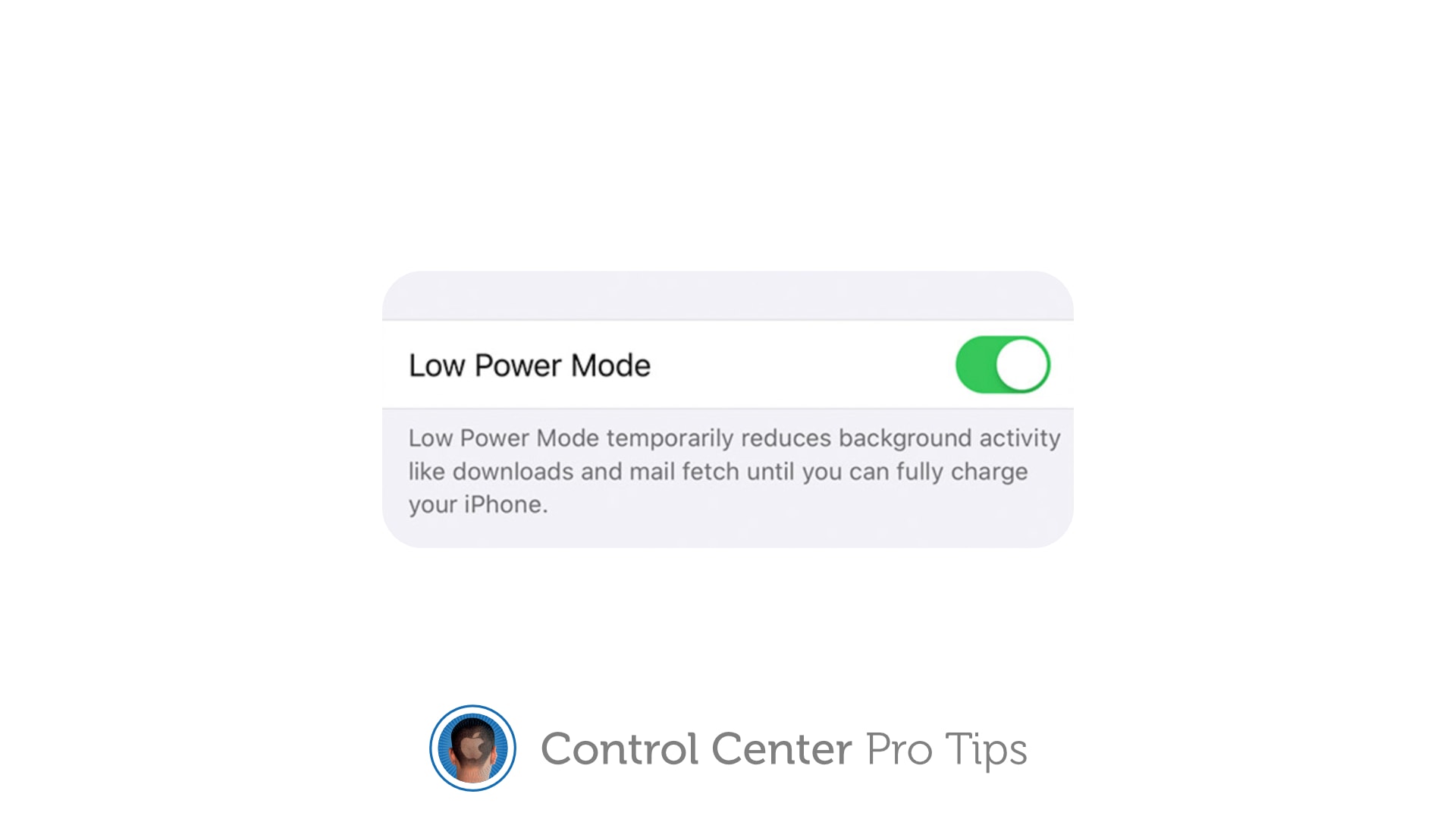
Extend battery life by using Low Power Mode in Control Center [Pro tip]

By

Activate Low Power Mode in Control Center
Enable Low Power Mode to get you through a long day.
Image: Killian Bell/Cult of Mac

Control Center Pro Tips WeekWe want to help you master Control Center, one of the most powerful and underutilized features on Apple devices. Cult of Mac’s Control Center Pro Tips series will show you how to make the most of this useful toolbox on iPhone, iPad, Apple Watch and Mac.

Worried your iPhone or iPad battery isn’t going to last you all day? Activate Low Power Mode inside Control Center to minimize how much energy your device is consuming when it’s not being used. It’s super-simple to use, won’t get in your way, and it makes a big difference.

We’ll show you how and explain a similar feature — Power Reserve — that you can activate on Apple Watch.

Make iPhone’s Calculator app easy to access with Control Center [Pro tip]

By

Add the Calculator app to Control Center
There's no need for the Calculator to take up Home screen space.
Image: Killian Bell/Cult of Mac

Control Center Pro Tips WeekWe want to help you master Control Center, one of the most powerful and underutilized features on Apple devices. Cult of Mac’s Control Center Pro Tips series will show you how to make the most of this useful toolbox on iPhone, iPad, Apple Watch and Mac.

You don’t need to keep the Calculator app on your iPhone’s Home screen just to make it easy to find when you need it. Add it to Control Center instead and you’ll be ready to do math anywhere, anytime with just a swipe and a tap.

We’ll show you how.

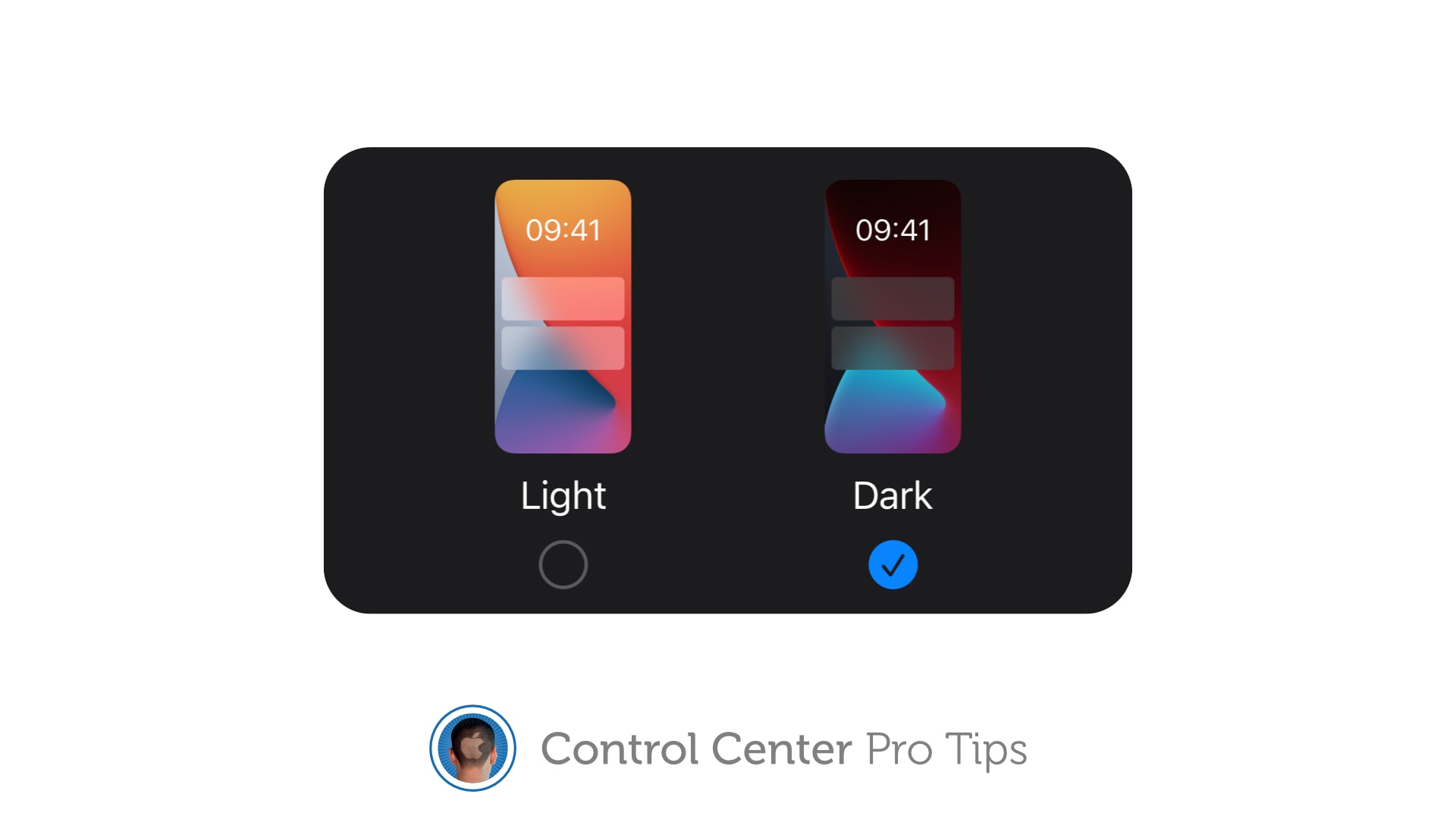
Toggle Dark Mode with a tap using Control Center on iOS and Mac [Pro tip]

By

There's no need to dig around inside the Settings app to activate dark mode on your iPhone, iPad, or Mac.
There's no need to dig around inside the Settings app.
Image: Killian Bell/Cult of Mac

Control Center Pro Tips WeekWe want to help you master Control Center, one of the most powerful and underutilized features on Apple devices. Cult of Mac’s Control Center Pro Tips series will show you how to make the most of this useful toolbox on iPhone, iPad, Apple Watch and Mac.

There’s no need to dig around inside the Settings app to activate Dark Mode on your iPhone, iPad or Mac. Simply add the Dark Mode button to Control Center and you can quickly toggle it on or off in just a tap.

We’ll show you how in this Control Center pro tip.

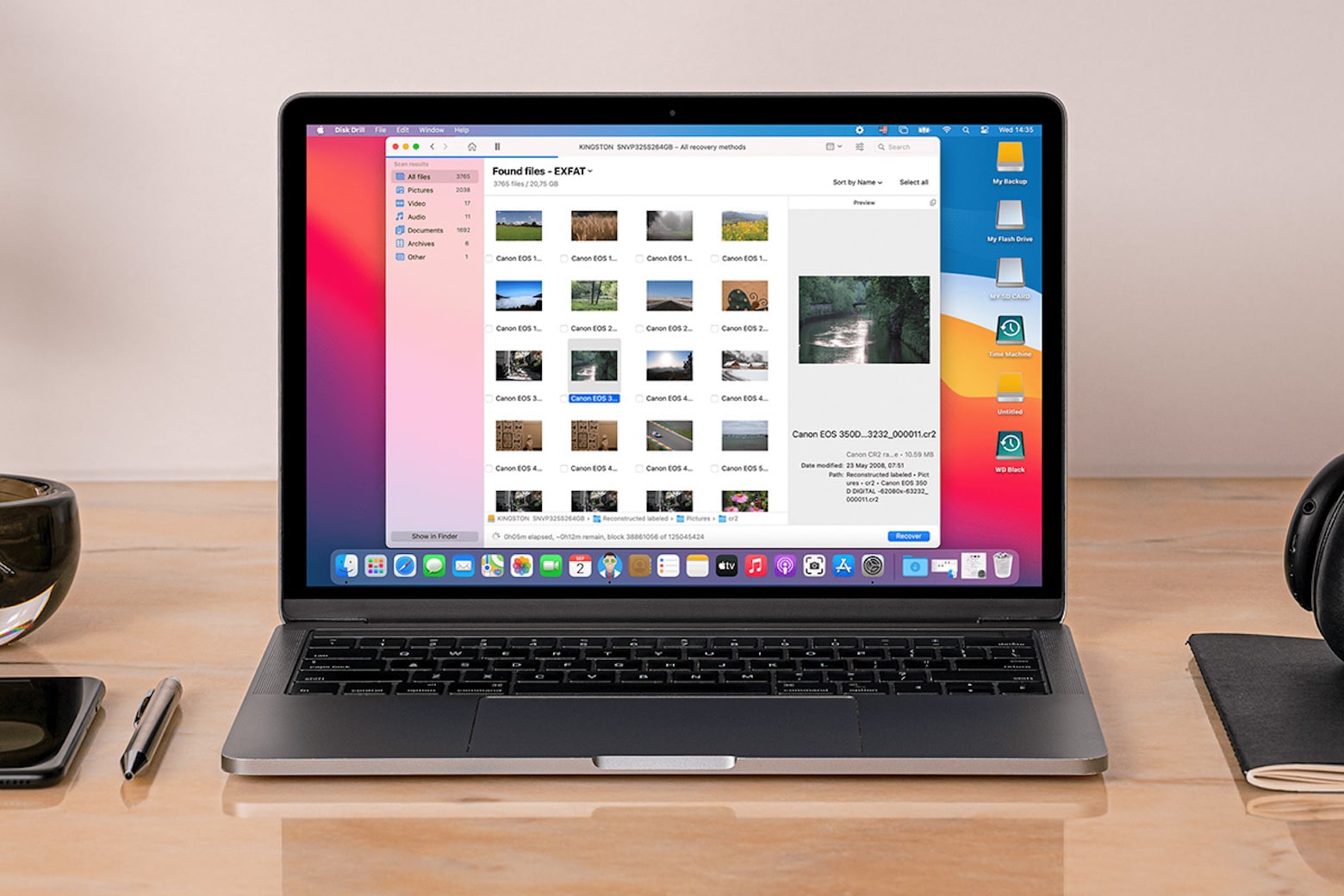
This Mac data-recovery app can retrieve lost files for just $50

By

data recovery
This amazing Mac app is a top-notch data-recovery tool.
Photo: Disk Drill Pro

If you’ve ever accidentally deleted some of your most important Mac files, keep reading. This data-saving app might just change your life.

Disk Drill Pro is an easy-to-use data-recovery app that allows you to recover documents, music, photos, videos or even whole partitions that have gone missing from your computer. That’s right: Those accidentally deleted files may not be lost forever as you feared.

While recovering your most precious files is priceless, Disk Drill Pro 4 is available now for just $49.99, making data retrieval easier and cheaper than ever before.

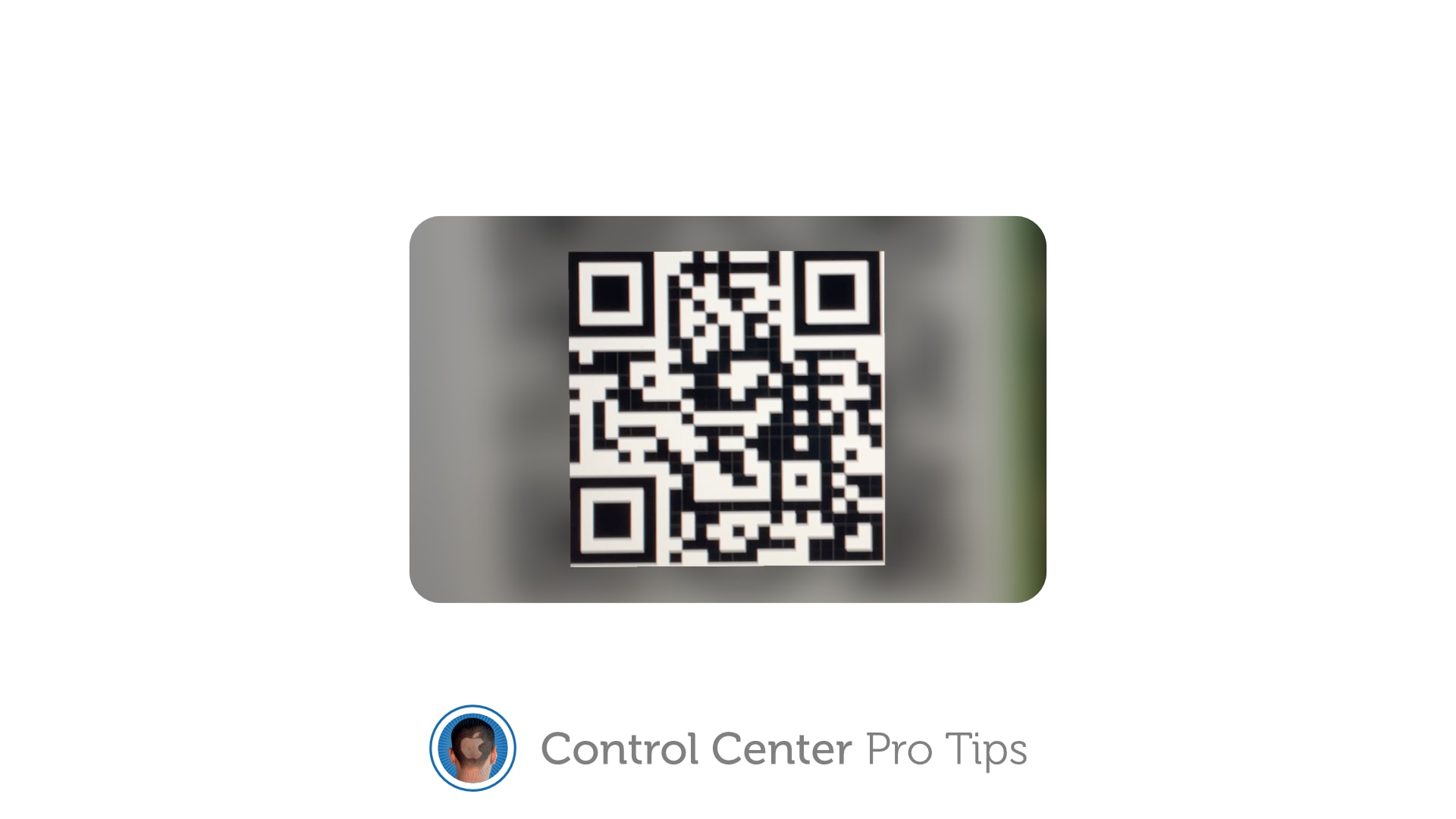
Quickly scan a QR code from inside Control Center [Pro tip]

By

Add a QR code scanner to Control Center
The dedicated Code Scanner app is ready when you need it.

Control Center Pro Tips WeekWe want to help you master Control Center, one of the most powerful and underutilized features on Apple devices. Cult of Mac’s Control Center Pro Tips series will show you how to make the most of this useful toolbox on iPhone, iPad, Apple Watch and Mac.

Need to scan a QR code in a jiffy? Add a handy code reader to Control Center on iPhone and iPad that’s quick and easy to find in just a swipe. We’ll show you how.

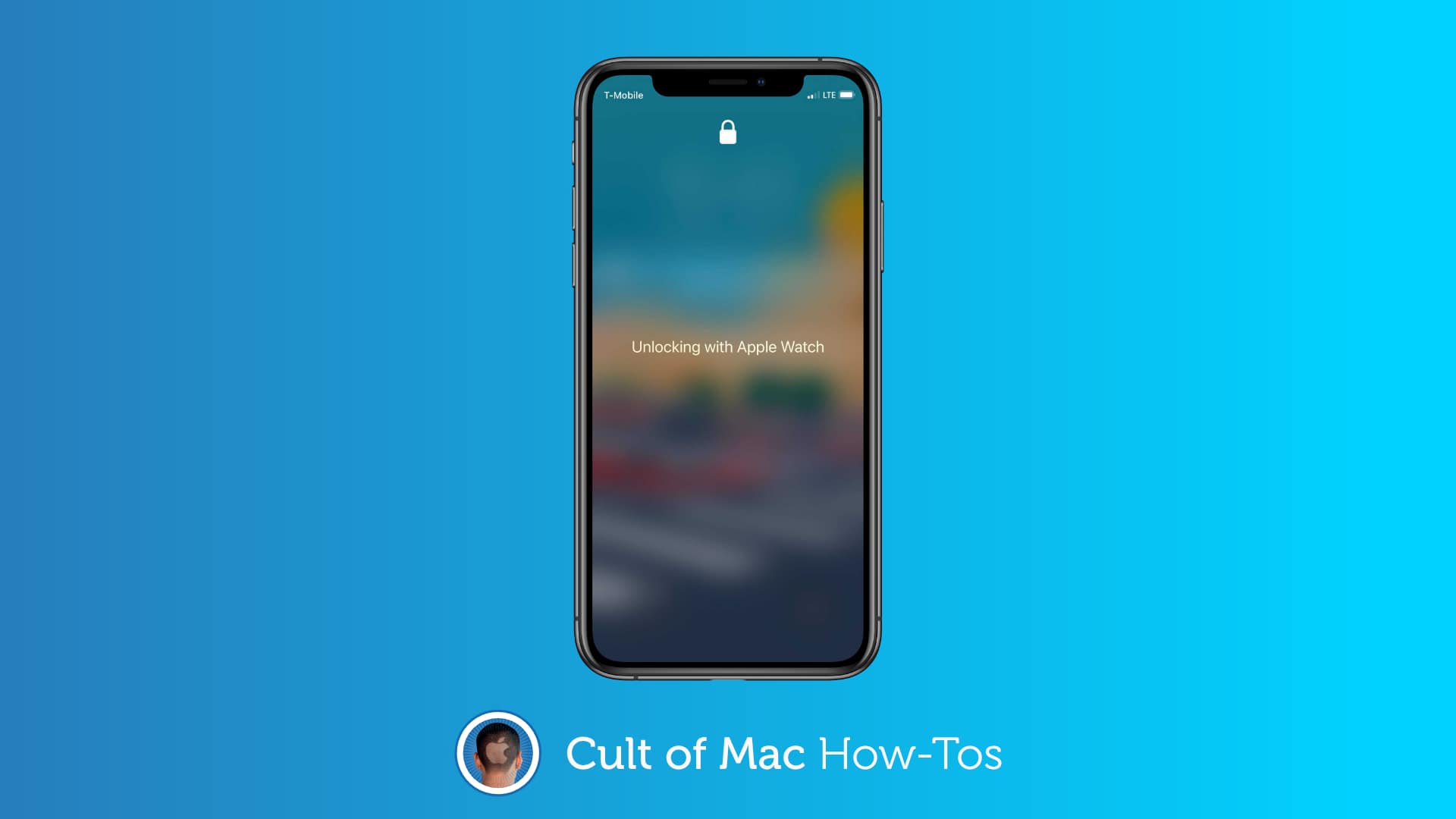
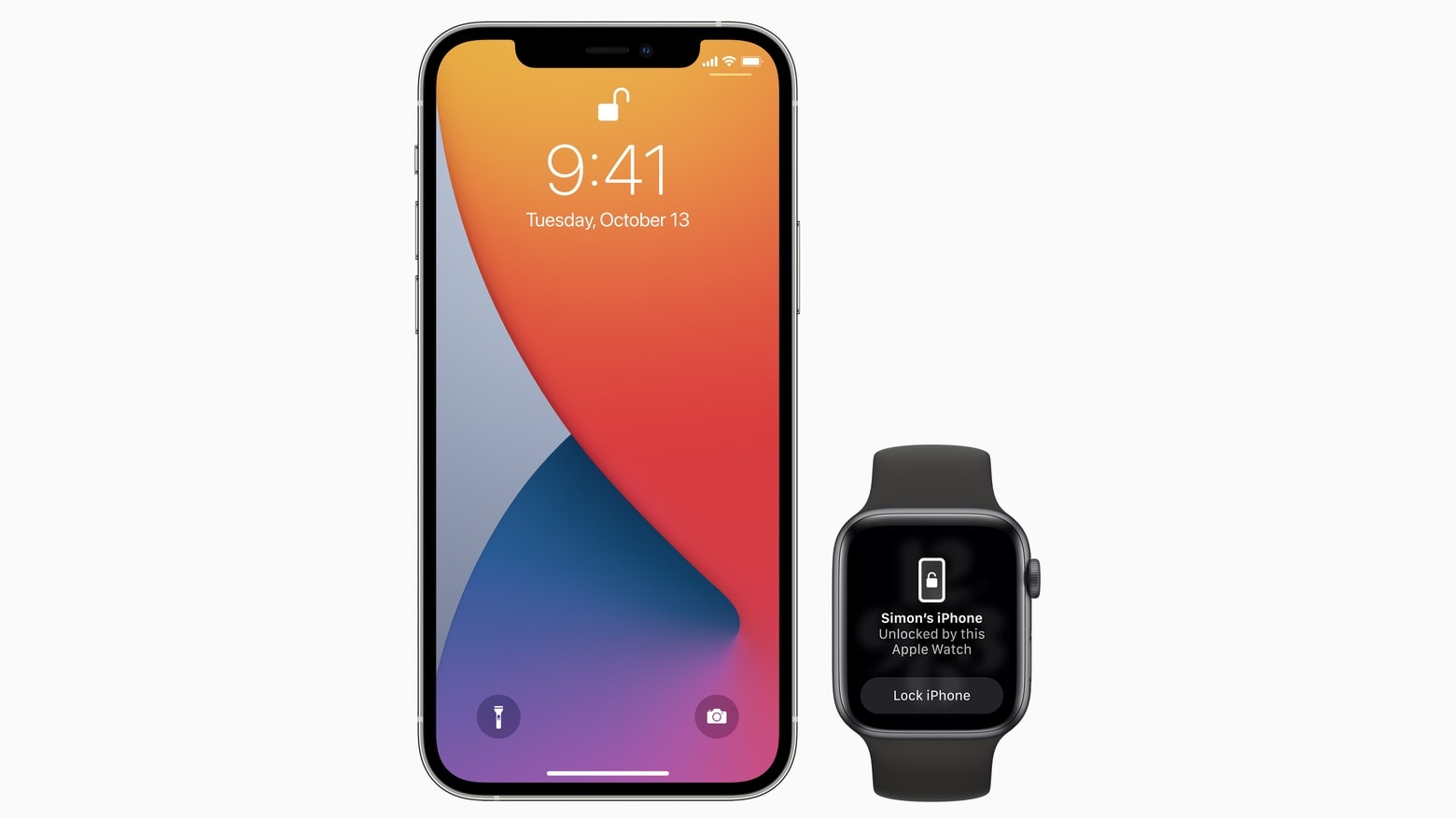
Why Apple Watch’s iPhone unlock changes your freakin’ face-mask life

By

Why Apple Watch’s iPhone unlock will change your freakin’ life
Being able to to unlock your iPhone while wearing a face mask is the best reason yet to get an Apple Watch.
Photo: Ivan Samkov/Pexels CC

iOS 14.5 is the best update of the pandemic era because it works with your Apple Watch to remove the hassle of unlocking your iPhone while wearing a face mask. You don’t have to type in your passcode every single damn time. The phone just unlocks. Like it’s supposed to.

But the trick does require an Apple Watch. If you’ve been on the bubble about getting one, this feature should go a long way toward convincing you. It serves as yet another elegant example of how Apple’s ecosystem offers users simple solutions to modern life’s annoyances.

Automate your marketing design with this powerful, discounted app

By

design app
Create stunning marketing materials with one of the best design apps around.
Photo: RelayThat

If you’ve ever messed around with design software like Photoshop, Illustrator or InDesign, you know they aren’t exactly intuitive — especially if you don’t have design experience.

However, owning effective marketing and design collateral is essential if you want to grow your brand. Luckily, when you’re short on time (and resources), technology is on your side. This RelayThat Design App: Lifetime Subscription helps you automatically produce the designs you need in just a fraction of the time, for whatever platform you need to publish your fresh new assets on.

New iOS 14.5 emoji will set your heart on fire [Updated]

By

Look forward to some fun new emoji in iOS 14.5.
The release of iOS 14.5 gives iPhone and iPad users access to some fun new emoji.
Photo: Emojipedia/Cult of Mac

The fresh emoji appearing in iOS 14.5 will set your heart afire. Or at least let you show that in texts. The new collection of pictographs also includes some new faces, and plenty of additional variations to show how we couple up in the 21st century.

iPad users get the same emoji thanks to iPadOS 14.5 and macOS 11.3, which also launched on Monday.

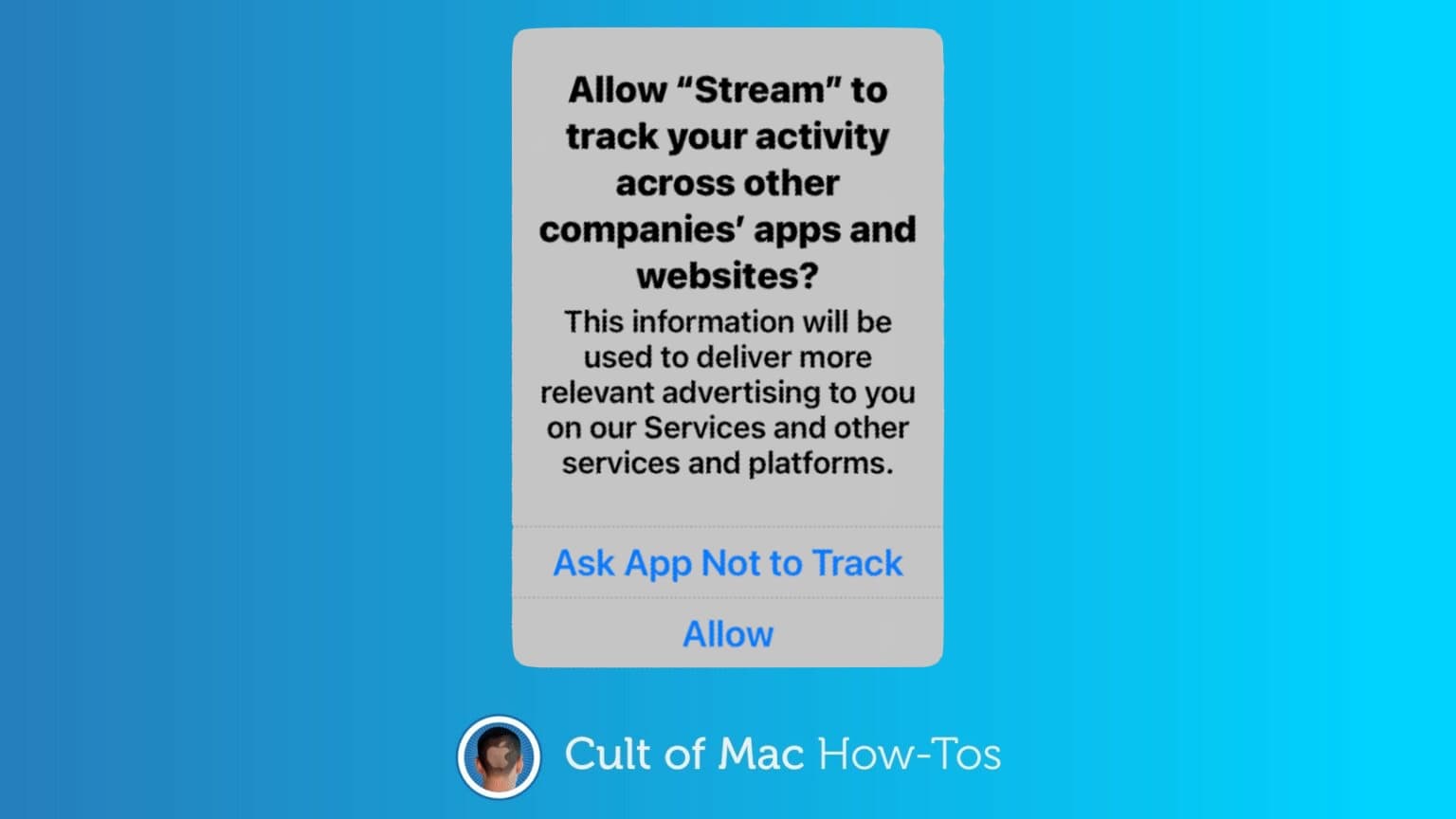
How to stop apps from tracking you in iOS 14.5

By

How to allow/prevent apps tracking you
Thanks to App Tracking Transparency in iOS 14.5, it’s up to your to decide whether third-party applications track you.
Graphic: Cult of Mac

iPhone and iPad just got a significant new privacy protection, preventing third-party apps from tracking you without permission. App Tracking Transparency debuted in iOS 14.5 and iPadOS 14.5.

Here’s how to use it. And what to do about all the popups asking, “Allow [THIS APP] to track your activity?”

iOS 14.5 brings App Tracking Transparency, mask-friendly Face ID

By

iOS 14.5 brings App Tracking Transparency, mask-friendly Face ID
Starting with iOS 14.5, iPhone owners can use their Apple Watch to securely unlock their handset when attempting to use Face ID while wearing a face mask.
Photo: Apple

Apple on Monday gave all iPhone users access to iOS 14.5. And iPad users can install iPadOS 14.5  Today’s updates bring a ton of new features, including unlocking an iPhone with an Apple Watch while wearing a mask.

The OS updates also bring App Tracking Transparency, a controversial change that makes it harder for apps to track users for targeted advertising. Other upgrades include new emoji, fresh Siri voices, additional features for Apple’s news and map apps, support for the just-announced AirTag trackers and a wholesale redesign of the Podcasts app.

watchOS 7.4, which is necessary for the new mask-friendly Face ID feature, and tvOS 14.5 also became available today, along with macOS Big Sur 11.3.

Desperately seeking keyboard recommendations [Setups]

By

Which keyboard would you suggest for this setup?
Photo: KunalBH@Reddit

Redditor KunalBH bought a compact, no-frills Anker keyboard to use with his iPad in 2017. Now he’s asking the universe for help finding a worthy replacement (or additional) keyboard for his MacBook Pro-based setup.

Passionate suggestions are pouring in. See below for some of the leading contenders.

Enjoy sweet savings on Mac mini, MacBook Pro refurbs today only

By

Save on 13.3-inch MacBook Pro from 2020
Get yours for as little as $589.99.
Photo: Apple

Need an affordable Mac that can handle all your everyday tasks? Order a powerful Mac mini or MacBook Pro refurb from Woot and save hundreds. Prices start at just $589.99, but the sale is good for today only.

Don’t miss out!

This post contains affiliate links. Cult of Mac may earn a commission when you use our links to buy items.

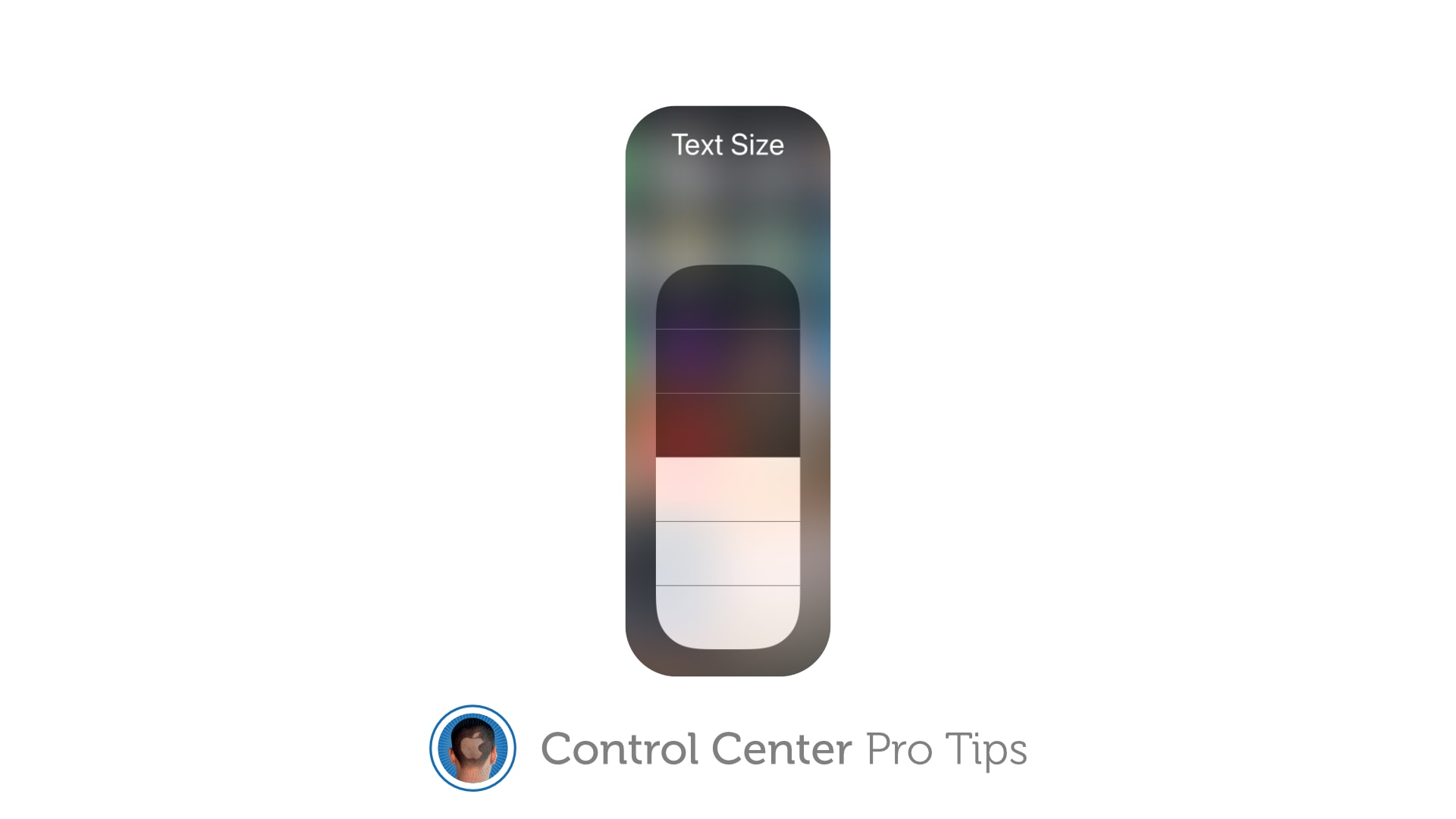
Change system text size on the fly using Control Center [Pro tip]

By

Change system text size in Control Center
Don't squint to read text on your iPhone and iPad.
Image: Killian Bell/Cult of Mac

Control Center Pro Tips WeekWe want to help you master Control Center, one of the most powerful and underutilized features on Apple devices. Cult of Mac’s Control Center Pro Tips series will show you how to make the most of this useful toolbox on iPhone, iPad, Apple Watch and Mac.

Left your reading glasses at home? Switch system text sizes on the fly using Control Center to make text messages, emails, websites, and more easier to read on iPhone and iPad. We’ll show you how.

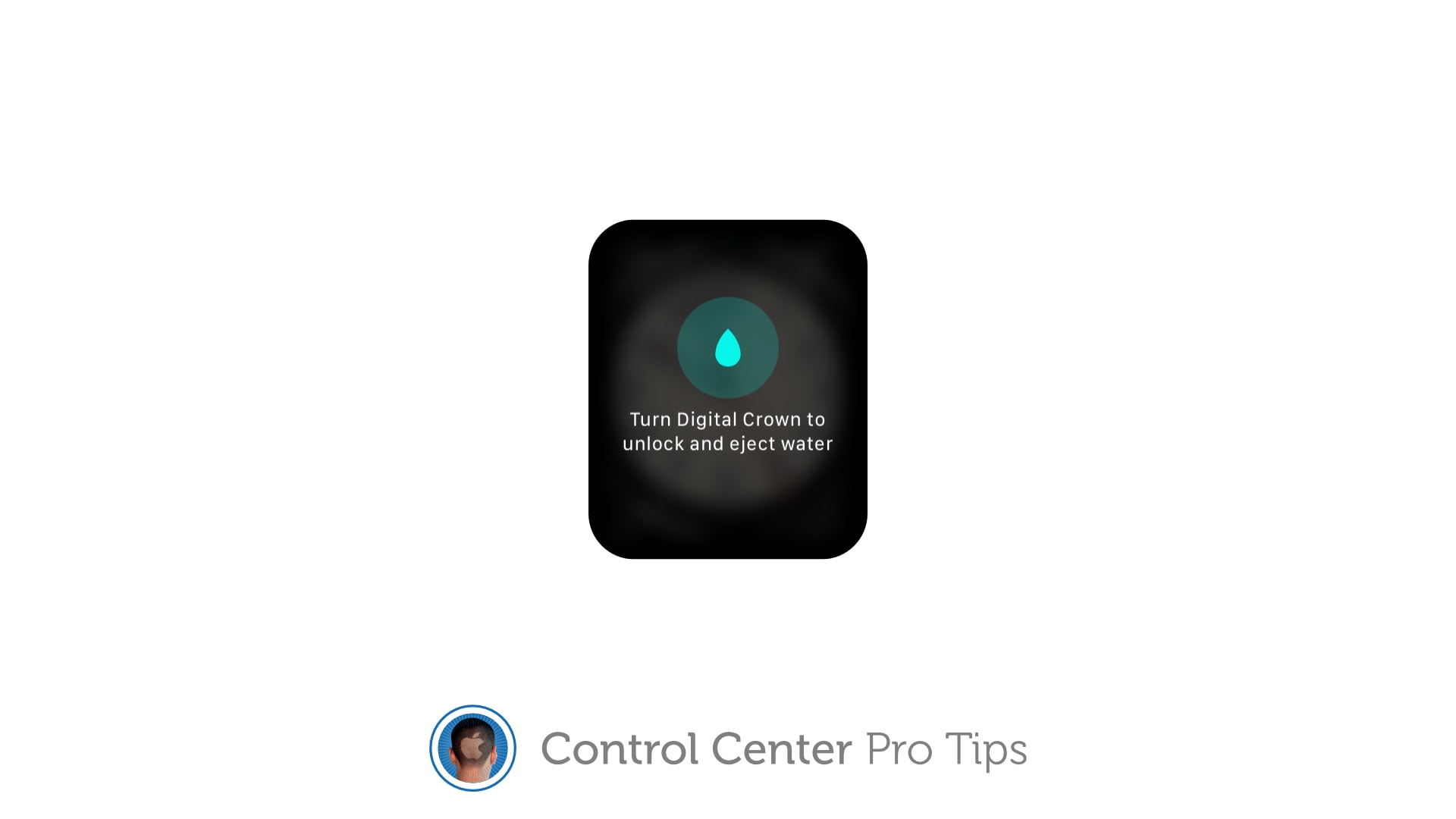
Clear water from your Apple Watch speaker using Control Center [Pro tip]

By

Clear water from Apple Watch
Get your Apple Watch sounding good again.
Image: Killian Bell/Cult of Mac

Control Center Pro Tips WeekWe want to help you master Control Center, one of the most powerful and underutilized features on Apple devices. Cult of Mac’s Control Center Pro Tips series will show you how to make the most of this useful toolbox on iPhone, iPad, Apple Watch and Mac.

Have you noticed your Apple Watch isn’t sounding so good after getting wet? That’s likely because there is liquid lodged inside its speaker. But don’t worry — you can quickly clear it with just one tap in Control Center.

We’ll show you how.

Start a screen recording on iPhone or iPad inside Control Center [Pro tip]

By

How to start screen recording from Control Center
Capture sweet gameplays, top tips, and more.
Image: Killian Bell/Cult of Mac

Control Center Pro Tips WeekWe want to help you master Control Center, one of the most powerful and underutilized features on Apple devices. Cult of Mac’s Control Center Pro Tips series will show you how to make the most of this useful toolbox on iPhone, iPad, Apple Watch and Mac.

Want to capture what’s happening on the screen of your iPhone or iPad. Apple’s built-in screen recording feature makes that incredibly easy, and you can activate it with just one tap inside Control Center.

We’ll show you how.

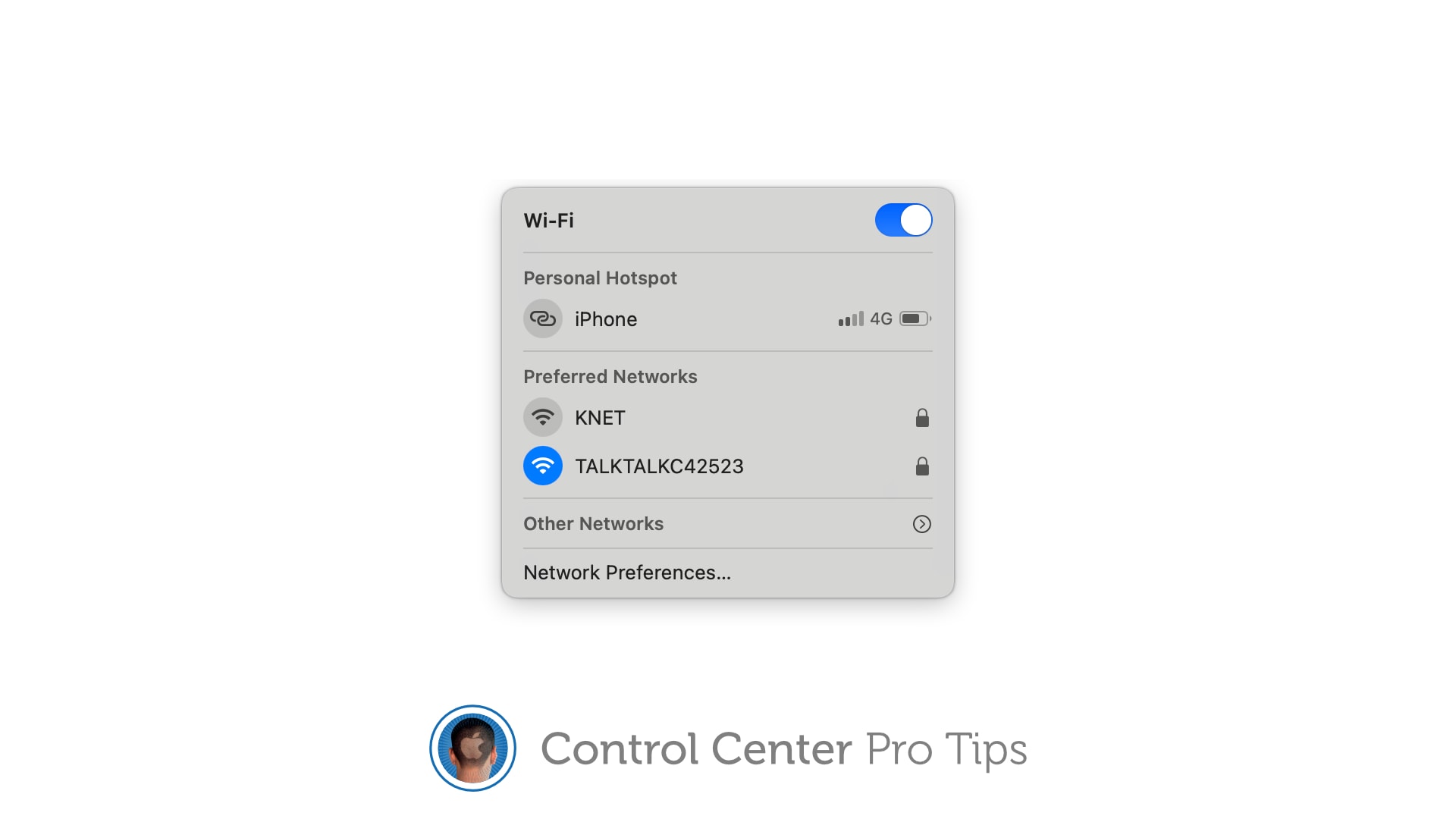
Switch Wi-Fi networks in a snap using Control Center [Pro tip]

By

Switch Wi-Fi networks in Control Center
The quick and easy way to change connections.
Image: Killian Bell/Cult of Mac

Control Center Pro Tips WeekWe want to help you master Control Center, one of the most powerful and underutilized features on Apple devices. Cult of Mac’s Control Center Pro Tips series will show you how to make the most of this useful toolbox on iPhone, iPad, Apple Watch and Mac.

There’s no need to mess around inside System Preferences or the Settings app when you want to change Wi-Fi networks. Open Control Center on your Apple device and make the switch in a snap.

We’ll show you how on iPhone, iPad, Apple Watch, and Mac.