Sure, there are quite a few keyboard shortcuts to navigate Spotlight, making it more of a power user tool than you’d think.
Did you know, however, that you can reveal found items in the Finder using Spotlight? Me neither. So here’s how.
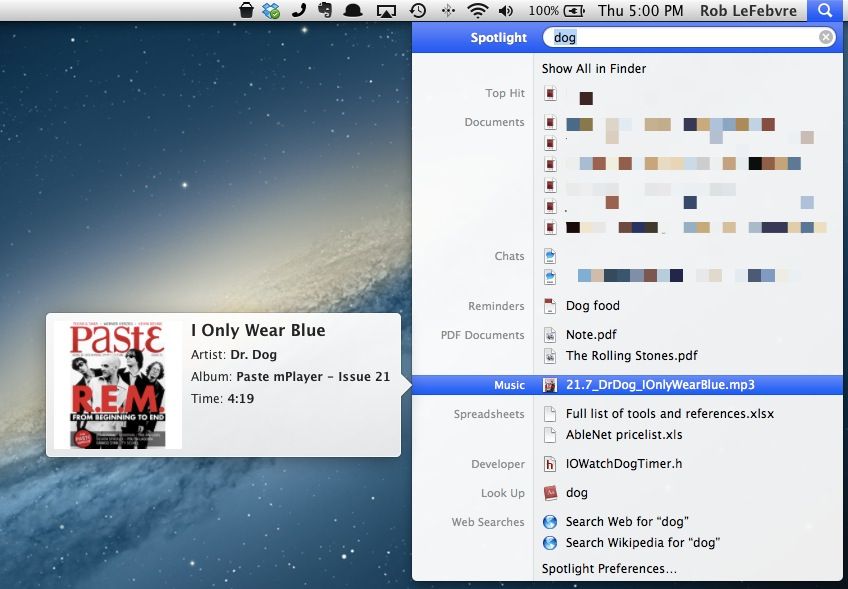
Sure, there are quite a few keyboard shortcuts to navigate Spotlight, making it more of a power user tool than you’d think.
Did you know, however, that you can reveal found items in the Finder using Spotlight? Me neither. So here’s how.

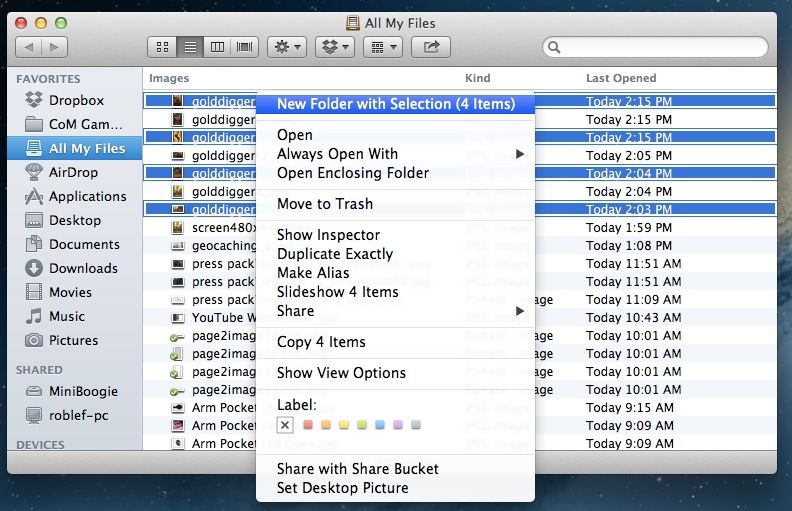
I don’t know about you all, but I’ve been getting stuff into a new folder in the Finder the same way as I always have, just like I did way back in OS 7, OS 8, OS 9, and even ten years ago in OS X.
I make a new folder in the Finder using Shift-Command-N, or by selecting New Folder from the Finder menu, then Command- or Shift-click all the files I want to put into that folder, and drag them all over. I’ve heard you can even copy and paste files into a new folder the same way, but I’m kind of old school and don’t mess with that.
Today, though, I read about a totally different way to do this. Color me surprised (and a bit chagrined) to find out that there’s an easier way to put a bunch of items into a new folder in the Finder.
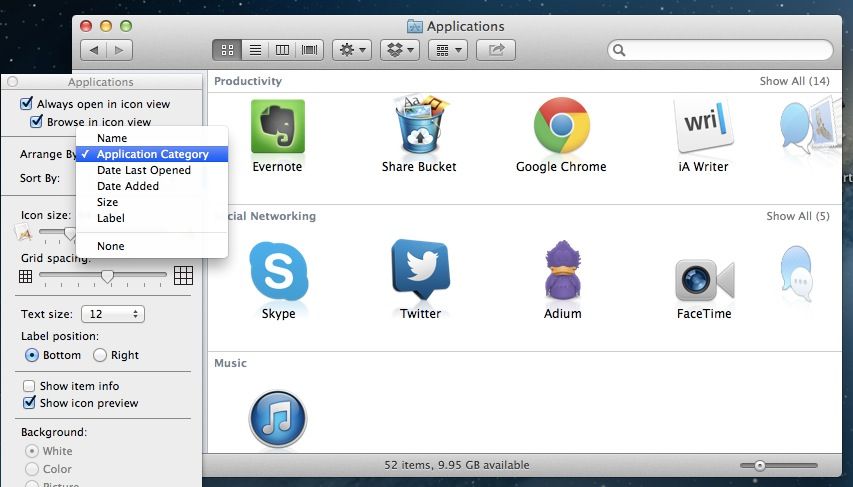
The Finder in Mac OS X is specifically designed to help you find stuff. In any Finder Window, you can arrange the icons or lists of files alphabetically by Name, by Kind of file, by the Application that opens that file, by Date Last Opened, Added, Modified, or Created, and also by Size and by Label.
In list view, you can also click on the top column title to sort the list in ascending or descending order. It’s a pretty comprehensive way to find your stuff in the Finder, without even having to search for it.
Did you know, however, that you can also arrange Applications by application type (Productivity, Social Networking, Music, Video, and so on)? I didn’t, so here’s a tip on how to do just that.
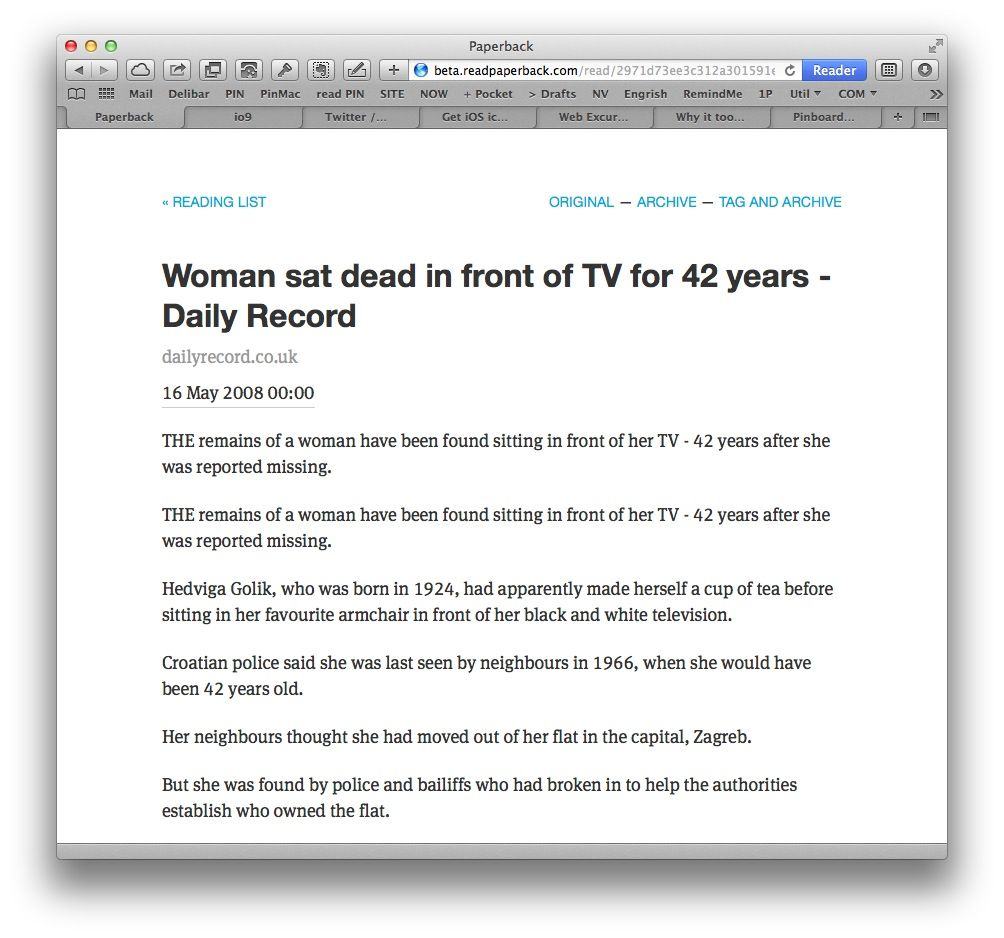
Paperback is a minimal read-later service that uses your Pinboard account as a source for articles. Any time you check the “Read Later” box when saving bookmarks to your Pinboard account, these items are added to a rudimentary queue. Paperback uses this list to provide you with a nice, clean, Instapaper-like web view of these links.
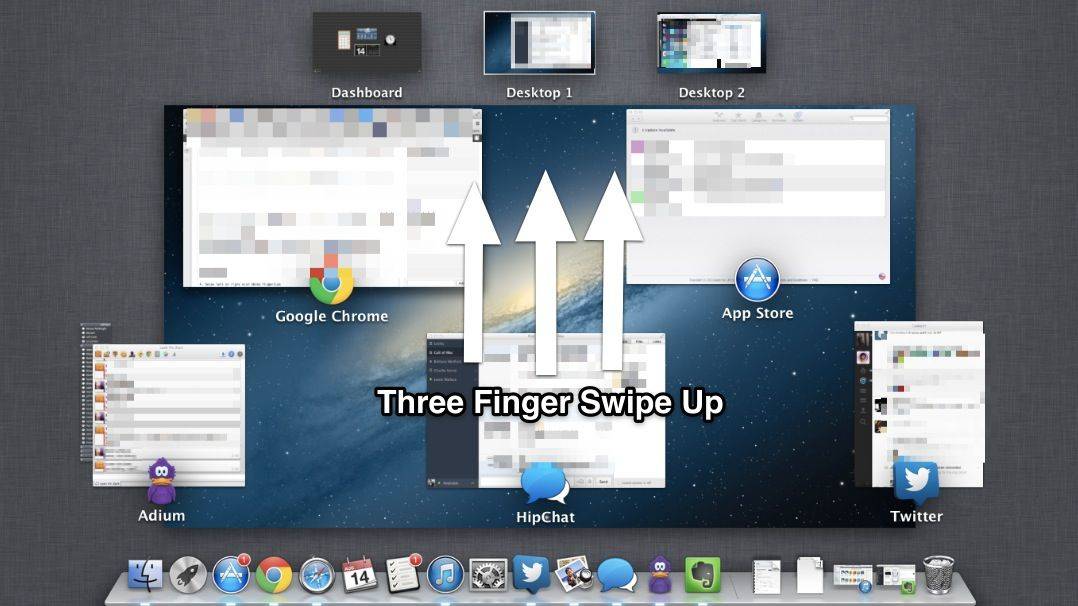
This one’s for all you Macbook and Magic Trackpad users; you know who you are. Mac OS X comes with Mission Control, a way to see all the open applications running on your Mac. Typically, you can hit the F3 key to bring up Mission Control and see what’s what on your Mac.
Similarly, you can either click on any Desktop Space across the top of Mission Control, or hit Command-Arrow (right or left) to switch to different Desktop Spaces on your Mac. This makes it easy to visually keep things separate. Some folks keep their web browser in one Desktop Space, and their word processing app in another, switching back and forth as they need the respective apps.
If you’re using a trackpad to access your Mac OS X laptop, or you’re using a magic trackpad connected to your Mac desktop, however, there are a couple of cool trackpad gestures you can use to do the same thing.
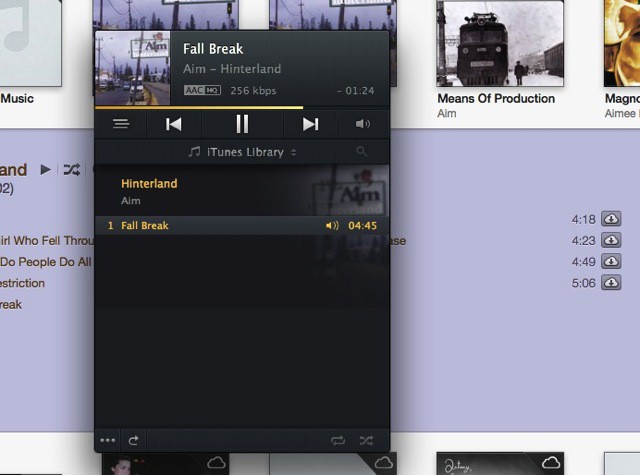
We all hate iTunes—it’s the fashionable thing to do. The smarter amongst us have switched over to Rdio and Spotify or another streaming service, and use iTunes solely as a way to sync our iDevices.
But Vox is a new app (launching today) which will give you access to your iTunes library without all the cruft that makes it almost impossible to use for, you know, tunes. It’s pretty sweet.
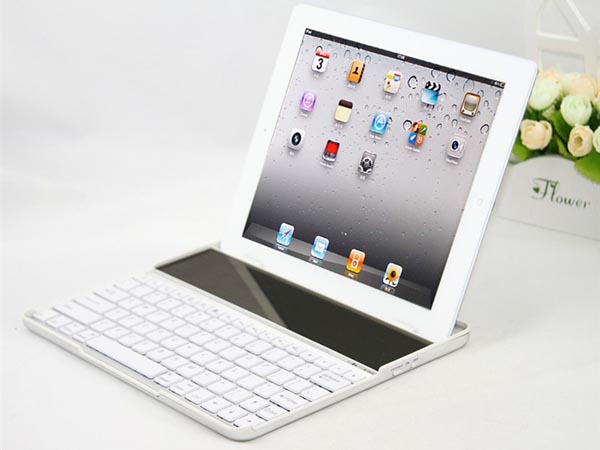
You might – as I did – laugh at the idea of a solar-powered keyboard for the iPad. And then you will remember that independence from power supplies is one of the iPad’s main features. And then you will take a closer look at this aluminum and plastic slab and see that it looks a lot like my favorite iPad keyboard from Zagg.
Screenshots are the life blood of this tips column, and I’m willing to bet a lot of you use the feature, built right in to your Mac, to capture images of stuff on your screen to share with friends, family, co-workers, and so on. It’s super simple to use; just hit Command-Shift-3 to take a picture of the whole screen, or Command-Shift-4 to just select a portion of it.
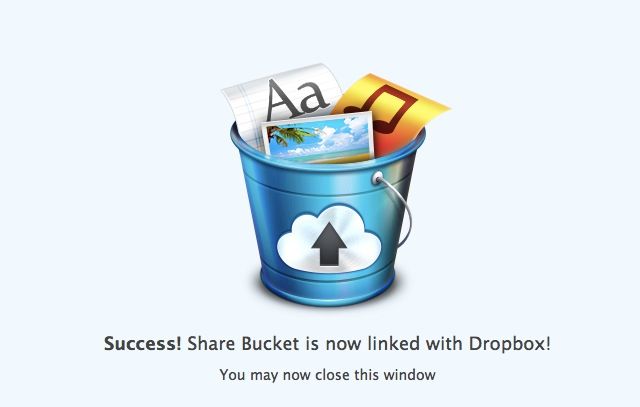
Any challenger to this ease of use is going to have to have something a little extra. Share Bucket may just be that app. Not only can it take screenshots of portions of your screen, but it can annotate those screenshots with circles, arrows, and blurs (for confidential info). Better yet, it connects to not one, but three different cloud services: Dropbox, Google Drive, and Microsoft’s SkyDrive.
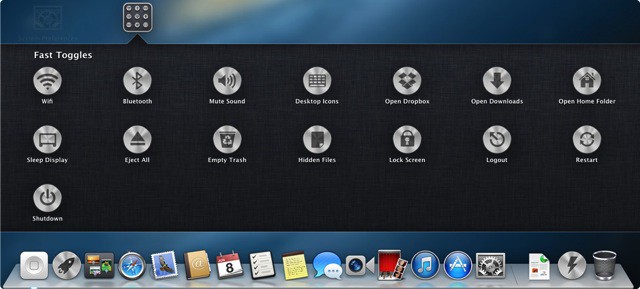
One of the best things in the new iOS7 beta is Command Center, which lets you toggle Bluetooth, Wi-Fi, the flashlight (on the iPhone anyway), AirDrop and others from one quick-to-access place. Fast Toggles wants to do the same and more, only on your Mac.
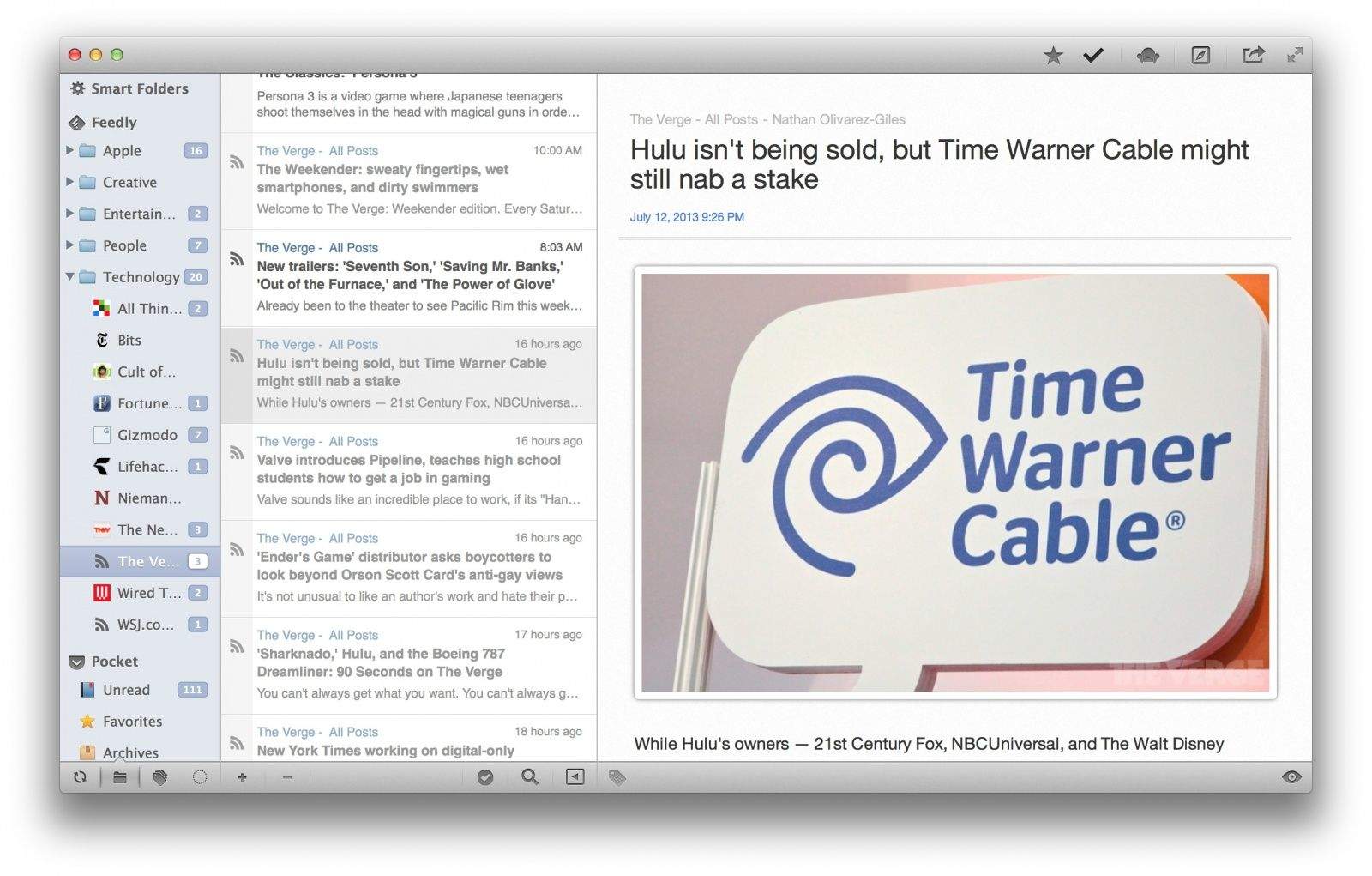
ReadKit is one of the best read-it-later/RSS apps out there for the Mac. It supports a nice lineup of services, and now it has been updated with Feedly integration. Although Feedly is the best Google Reader alternative for most people, it has been lacking a solid Mac app—until now.
Here’s the full list of changes and bug fixes in ReadKit 2.2: