Mobile menu toggle

Search results for: shortcuts

Rich Notes: The Rich-Text Text Editor For iOS

By

cult_logo_featured_image_missing_default1920x1080

Here’s a little something that might get you formatted-text nerds excited: Rich Notes, yet another new text-editing app, lets you write on the iPad in rich text. That is, you can italicize and embolden your words right there on the page. Yes, this works with some other apps, but Rich Notes lets you use keyboard shortcuts to do it. If you have an external keyboard hooked up, CMD-B and CMD-I will do just what they do in every desktop app.

Rich notes comes from the developer DenVog, who also makes the excellent Index Card app for iPhone and iPad. It’s due to launch on February 20th. Let’s take a look:


Radium 3 Is Here, And It’s Half Price In The Mac App Store

By

Simple, elegant, audio.

Ever since we reviewed this sweet menu bar internet radio app for the Mac, we’ve used it to tune into thousands upon thousands of stations just ripe for the listening. It was one of our 15 top apps of 2010, and one of the essential apps in the Freelance Mac App Bundle that came out back in June of 2011.

Now Radium is back with a new icon and a new version, ready to take on a whole new set of fans with its easy to use, small footprint, and just plain full-of-audio awesomeness that we’ve all come to expect from the Mac app. Plus? It’s half off right now in the App Store.

FioWriter Text Editor For iOS Is Great On iPad, Not So Much On iPhone [Review]

By

Wait, what's that round the back there?

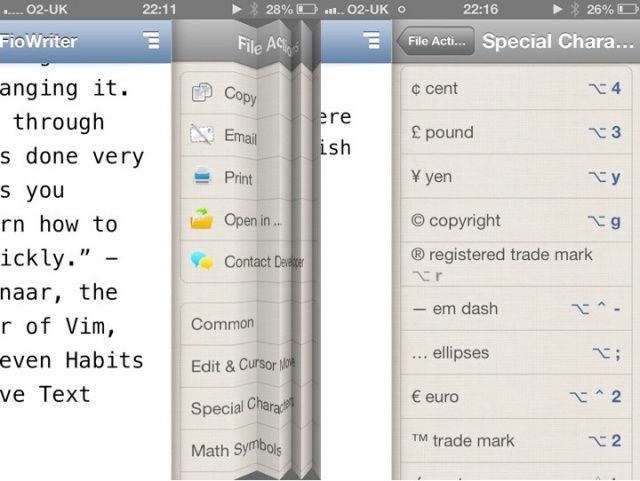
FioWriter is a text editor for iOS, outwardly similar to many that have gone before it, but with a style all of its own. One important difference is that it provides keyboard shortcuts of the sort you’re familiar with on your desktop computer. Their usefulness, however, depends on the device you’re typing on.

Make The Invert Display Keyboard Shortcut Work Again In Mountain Lion [OS X Tips]

By

Invert Colors Keyboard Shortcut

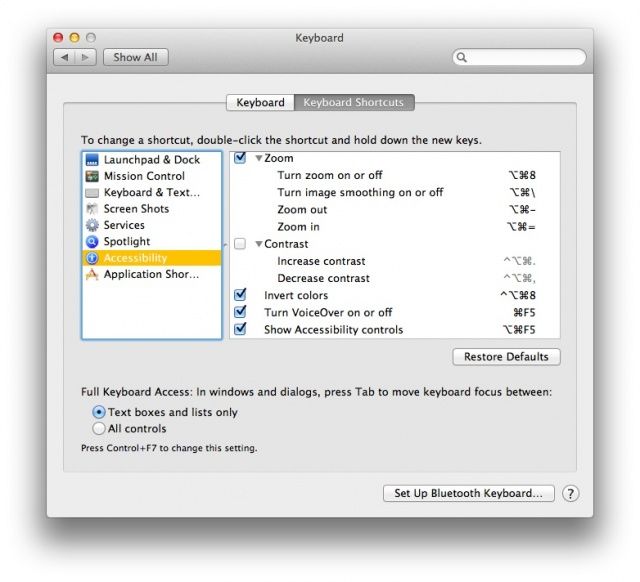
If you were used to inverting the colors on your Mac with a Control-Command-Option-8, you might have noticed that this has changed in OS X Mountain Lion. The older keyboard shortcut doesn’t work any more, and has been replaced with the less simple Command-Option-F5 shortcut to bring up an Accessibility Options dialog box. You have to then manually click the checkbox next to Invert Display Colors.

Here’s how to get the old shortcut back, for a quick invert.

The BlackBerry Z10: A Promising Start, But Don’t Switch Yet [Review]

By

post-214649-image-aa3aa242919b14e396f464626ba10098-jpg

BlackBerry — previously Research in Motion — launched the new BlackBerry Z10 last week, the first smartphone to run the company’s new BlackBerry 10 operating system. Originally set to launch in late 2012, the Z10 has been a long time coming for BlackBerry fans, and it’s a hugely important milestone for the Canadian company.

Many see this as BlackBerry’s last hope of survival in today’s cutthroat smartphone market. It’s been rapidly losing market share to Android and iOS devices over the past five years, and it hasn’t evolved quick enough to put up any sort of a fight. But it’s better later than never.

BlackBerry 10’s here now, and with the help of the Z10 — and later the Q10 — it’s going to be trying to persuade you to give up your iPhone or Android-powered smartphone in favor of a brand new platform. But is it good enough?

I’m a long-time iOS user who recently made the switch to Android, and I’ve been really curious to see if the Z10 is any good. I’ve been using the device almost exclusively since its release; here’s Cult Of Android’s review.

Mastering The Option Key On Your OS X Mac [Feature]

By

keyboardOptionblk

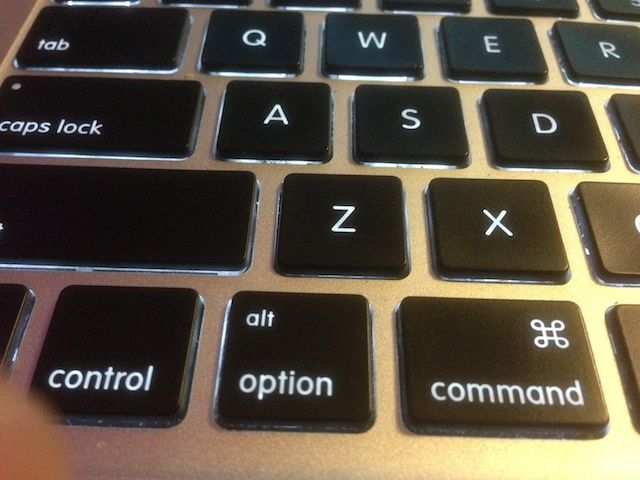
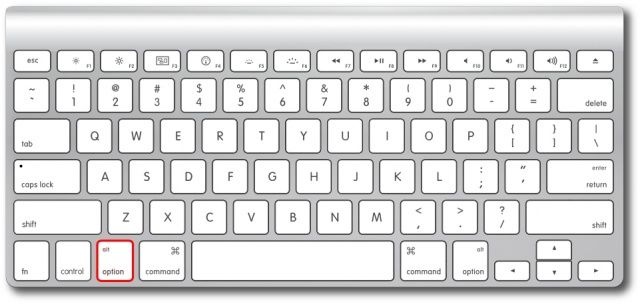
The Option key is a powerful ally in the transition from new, beginner user of OS X to the power user that you want to be. There are a ton of hidden features in the Finder alone that are hidden behind the underrated and unassuming Option key. There are Option key tricks for the OS X Menu Bar, for apps in the iWork suite, in Safari, and a few more random ones to boot.

So, sit back, relax, and get ready to hit that Option key a whole bunch of times in a row.

Master The Option Key In iWork [OS X Tips]

By

This keyboard has seen some use, right?

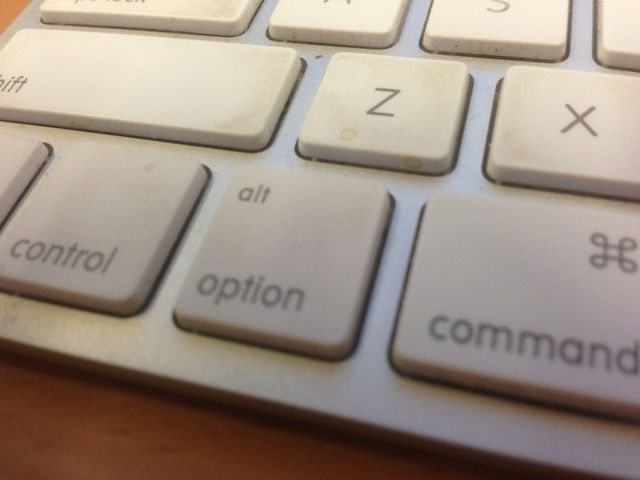
The Option key is a fantastic part of Mac OS X, making many features accessible that would otherwise be hidden. We’ve spent a couple of days talking about how to maximize the Option key in your power-user Mac workflow, in the Finder and in the Menu Bar.

Today, we’re going to spend some time with Apple’s office productivity suite, iWork, and show you some cool tips on using the Option key in Pages, Keynote, and Numbers.

Mastering Writing Kit, iOS’s Best Word Processor [Feature]

By

1359391233.jpg

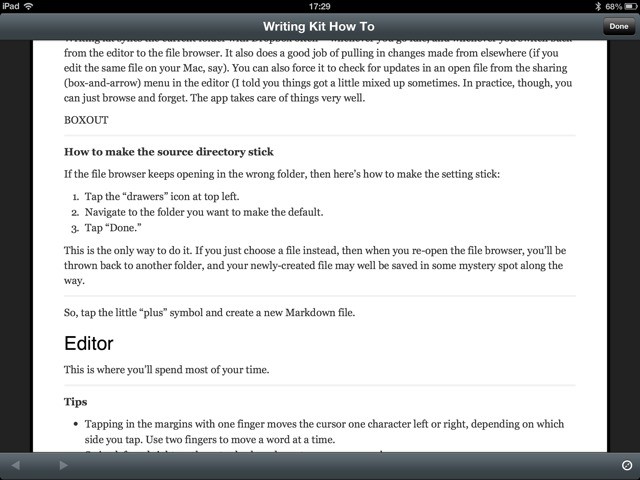
Writing Kit is one of the best text editors on the iPad (and iPhone), but it can be a little confusing at first. It’s made for people who write for a living, and specifically for those who write for the web. To this end, Writing Kit contains not only a world-class Markdown-friendly text editor, but a web browser, quick-research tools and connections to an embarrassment of other web services.

Once you get used to it, Writing Kit will quickly become your writing app of choice. With that in mind, here’s a guide to help you make the most of it.

Master The Option Key In OS X Finder [OS X Tips]

By

Apple-Keyboard-Option-Key

The Option key is a powerful ally in the transition from new, beginner user of OS X to the power user that you want to be. There are a ton of hidden features in the Finder alone that are hidden behind the underrated and unassuming Option key.

Here are some of the more useful ones.

Safely Restart, Sleep, Or Shut Down Your Mac From The Power Button Dialog Using The Keyboard [OS X Tips]

By

MacBook-Air-backlit-keyboard.jpg

We showed you a handful of fantastic, instant keyboard shortcuts to shut down, reboot, or sleep your Mac, but an even safer way is to bring up the Power button dialog box that happens when you hit the, well, Power button on your Mac. That’s the one in the upper right corner of the keyboard on most modern Macs, while some older Macs have it as a separate button integrated into the body of the Mac itself.

Either way, hit that Power button and then you can use the following keyboard shortcuts to activate the different options in the dialog.