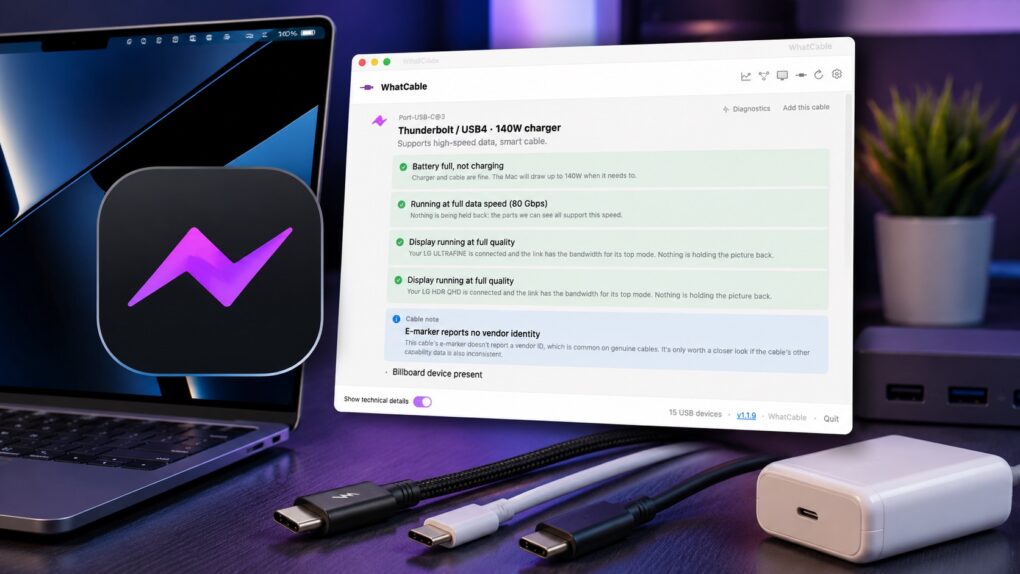
A free Mac app called WhatCable solves the biggest problem with USB-C cables: They all look alike, but they are not all the same.
Plug a USB-C cable into your Mac, and WhatCable can tell you how much power it can deliver, how fast it can transfer data and more. And a pro version for power users serves up even more data about the cables in your collection. The app’s earning accolades online (and hit No. 4 on ProductHunt), so I decided to put it to the test.
WhatCable solves the USB-C cable confusion
USB-C was supposed to simplify our lives by replacing a mess of different ports with a single, universal connector. And for the most part, it did — except for that whole “they all look the same” problem.
Some USB-C cables support 240W charging and Thunderbolt speeds, while others are limited to 60W charging and sluggish USB 2.0 speeds. Worse, there’s usually no easy way to tell them apart just by looking.
For instance, the USB-C cable that Apple ships with the iPhone and the one you get with one of its high-end Studio Displays are not the same. They look the same, but they are not. Even with a 140W USB-C charger, your MacBook Pro would take forever to charge with an iPhone’s USB-C cable.
That’s due to the difference in the cables’ specifications. Sure, the iPhone’s cable features USB-C connectors on both ends, but it can only carry 60W of power. Worse, it only supports USB 2’s slow (480Mbps) data transfer speeds. In comparison, a Thunderbolt 5 cable, which looks identical to the iPhone’s USB-C cable, can carry up to 240W of power and transfer data at 80Gbps.
I have more USB-C cables than I can care to count, and I can’t tell them apart just by looking, even though they vary wildly in terms of charging capabilities and throughput.
A Mac app that can identify your USB-C cables’ capabilities
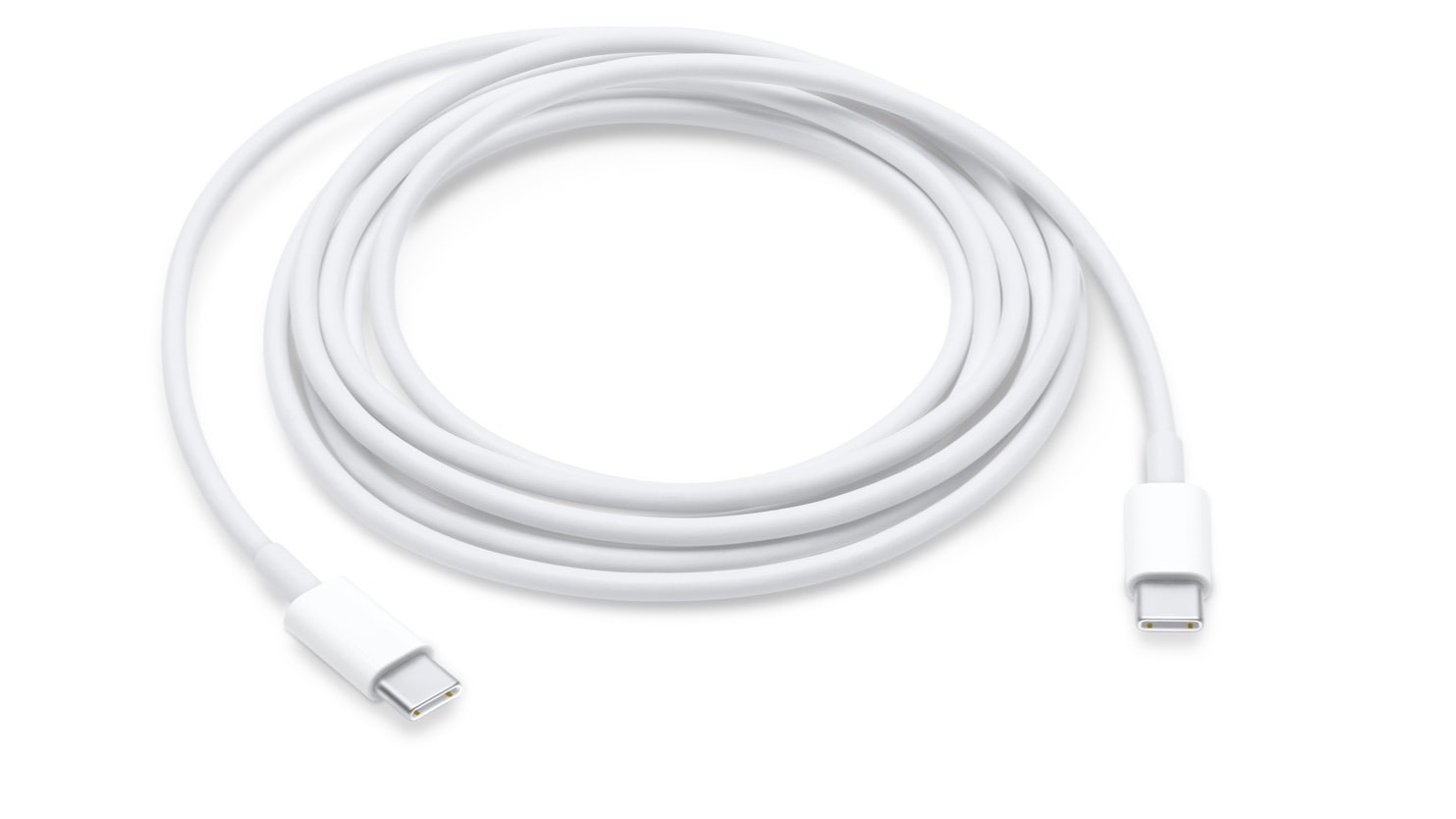
Photo: Apple
WhatCable can put an end to the chaos. The free app for Apple silicon Macs quickly identifies the capabilities of a connected USB-C cable in seconds.
The best part is how simple WhatCable is to use. You don’t need to decipher how to use the app or what it’s trying to tell you. Simply download WhatCable and install it on your Mac.
Upon launch, the app automatically detects any USB-C cables connected directly to your Mac. It then displays their properties — including maximum charging capability, top data transfer speed and whether the cable is active or passive — in a series of easy-to-understand status cards.
In my case, WhatCable correctly confirmed that my MacBook Pro was charging at the negotiated 140W speed, the cable was delivering its full 80Gbps bandwidth, and both external LG monitors were running at their highest supported resolution.
All your USB-C cables, completely demystified
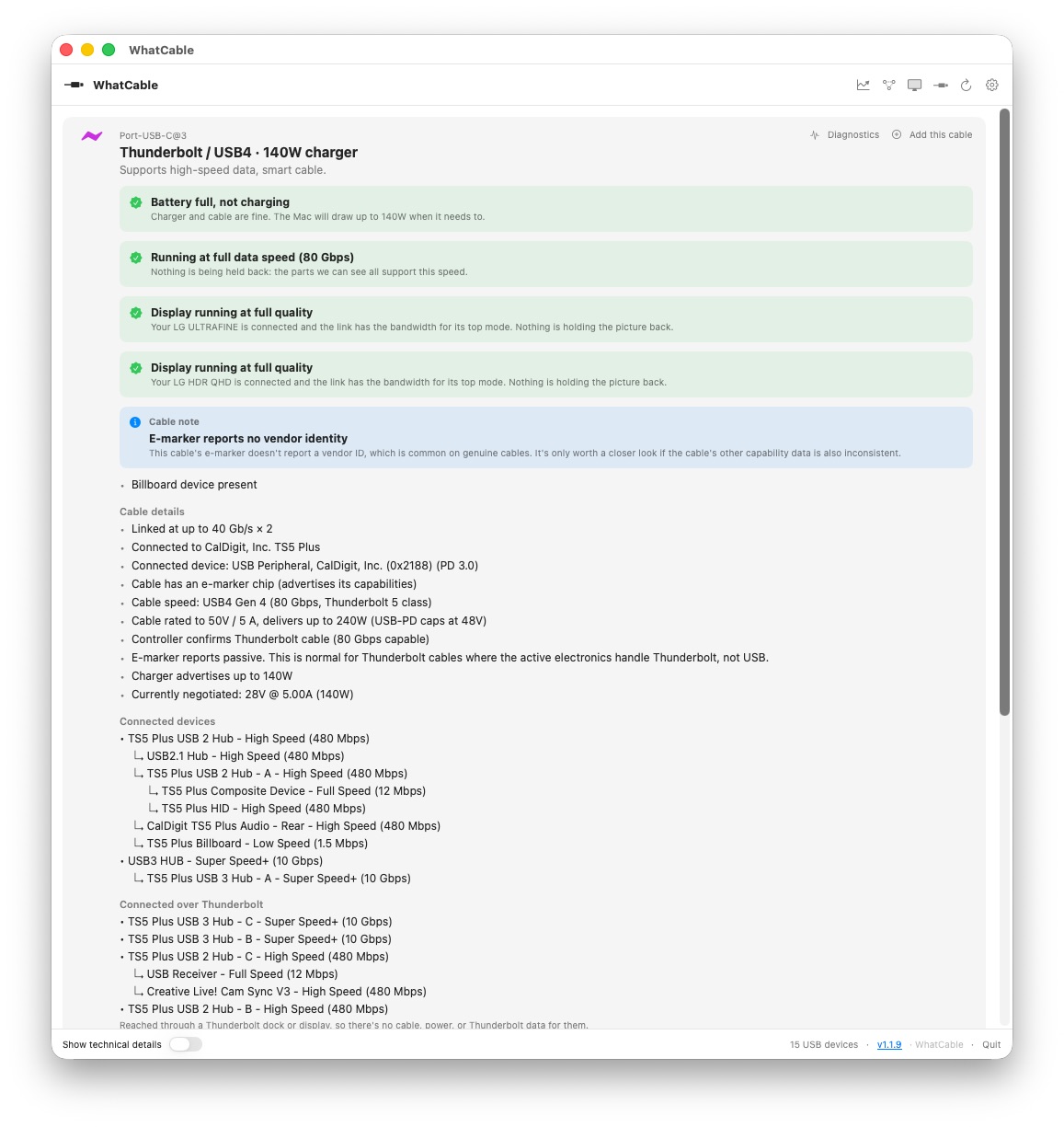
Photo: Rajesh Pandey/Cult of Mac
I tested WhatCable with several USB-C cables lying around my desk, including Apple’s USB-C charging cable, a Thunderbolt 5 cable and several third-party cables whose specifications I didn’t remember.
In every case, the app correctly identified their capabilities within seconds. It was surprisingly satisfying to finally know which cables were suitable for charging my MacBook Pro, which could handle high-speed external SSDs and which were best left for juicing up accessories.
- See also: Best external SSDs for Mac or iPad
WhatCable successfully mapped and identified every device connected to my MacBook Pro through a Thunderbolt 5 dock and correctly displayed the speed at which they were operating.
I initially expected it to identify the USB-C cables connected to my CalDigit TS5 Plus dock. However, those don’t show up because macOS doesn’t expose their low-level information. So, if you’re trying to identify a specific USB-C cable in your collection, you must connect it directly to one of your Mac’s USB-C ports for WhatCable to work its magic.
- See also: Best Thunderbolt 5 docks for Macs
The paid version of WhatCable takes things a step further
There’s even a pro version of the app, WhatCable Pro, which provides even more detailed information. The one-time upgrade costs $13.98 that unlocks a suite of advanced diagnostics.
One of its most useful features is live power metering, which displays the actual watts, amps and voltage flowing through each USB-C port, updated every two seconds. That’s handy for checking whether your MacBook is charging at full speed or for testing a new charger or cable.
WhatCable Pro also includes cable history, allowing you to name and save individual cables in your collection. The app recognizes them the next time you plug them in and builds a timeline of their performance. This includes the negotiated charging speed, data transfer speed, etc.
More importantly, WhatCable Pro detects and highlights the weak link in your USB-C chain. It compares what your Mac, cable, dock, charger and connected device each support against what was actually negotiated.
WhatCable: A simple solution to a surprisingly common problem
USB-C has undoubtedly made life easier by replacing a drawer full of proprietary cables with a single connector. Ironically, that convenience comes with a new challenge: It’s almost impossible to know what a USB-C cable is actually capable of just by looking at it.
That’s what makes WhatCable such a useful app. If, like me, you have a drawer full of USB-C cables, WhatCable can help ensure you are using the right cable for the job.
For most users, the free version of the app is more than good enough. But if you are a power user who regularly works with docks, external displays or other USB-C gear, WhatCable Pro offers enough extra diagnostics to justify its modest price.
Download: WhatCable

Rajesh has been writing about consumer technology for over a decade, with a strong focus on iPhones, Macs and Apple’s ecosystem. He enjoys digging into Apple software updates, hardware changes, and discovering new Mac apps that make work faster and more enjoyable.
You can reach out to him at mail[at]rajeshpandey.me.

