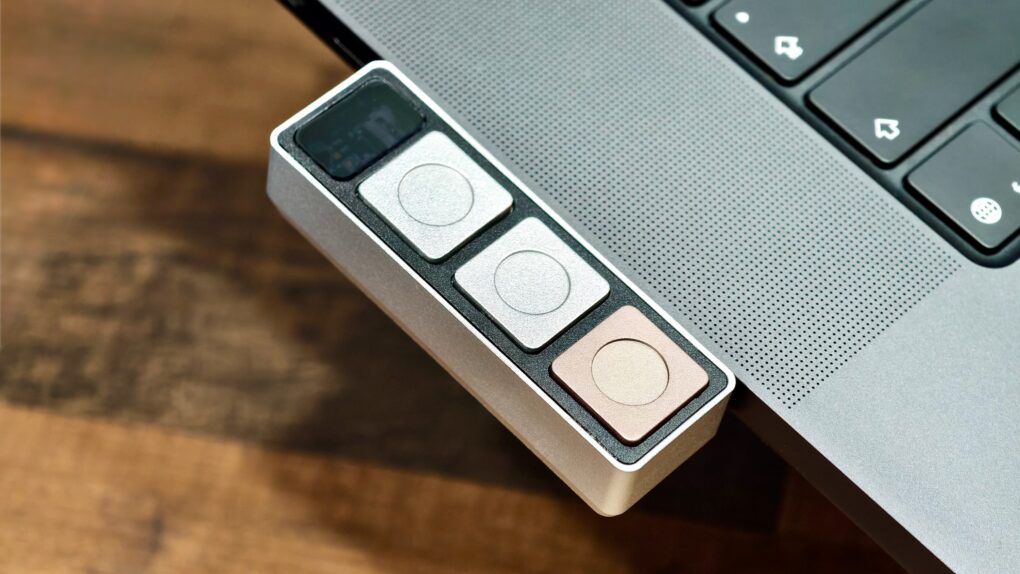
I have more than a dozen keyboard shortcuts set up on my MacBook. But between Slack, Zoom, Safari, Chrome and countless other apps, there’s no way I can remember them all. That’s the problem Project Mirage’s Dune aims to solve.
At first glance, Dune looks like a programmable macro pad. But it’s much smarter than that, as it adds three context-aware buttons next to your MacBook’s keyboard. It’s an interesting idea, but does it actually work in real life?
Dune review: A context-aware macro pad for MacBooks
I keep a programmable macro pad on my desk for frequently used shortcuts. Pressing the first key opens my Telegram chat with my business partner. The second opens an important Slack channel. And so on. The setup gets even more complicated because the keys can perform different actions depending on the app I’m using.
The problem is that unless I use a shortcut every day, I often forget what it’s assigned to. Dune takes a different approach. It doesn’t expect me to memorize a long list of shortcuts. Instead, its context-aware buttons automatically surface the actions that make the most sense for the app I’m currently using.
Dune is a unique productivity accessory for MacBook that places three context-aware buttons beside your keyboard. Unlike a traditional macro pad, the buttons automatically change based on the app you're using, making frequently used shortcuts easier to access without memorizing dozens of keyboard combinations.
- Intelligent context-aware shortcuts
- Claude integration for custom automations
- Floating on-screen eliminate guesswork
- Buttons are too easy to press
- Works best only with MacBooks
- Marketplace needs more scripts
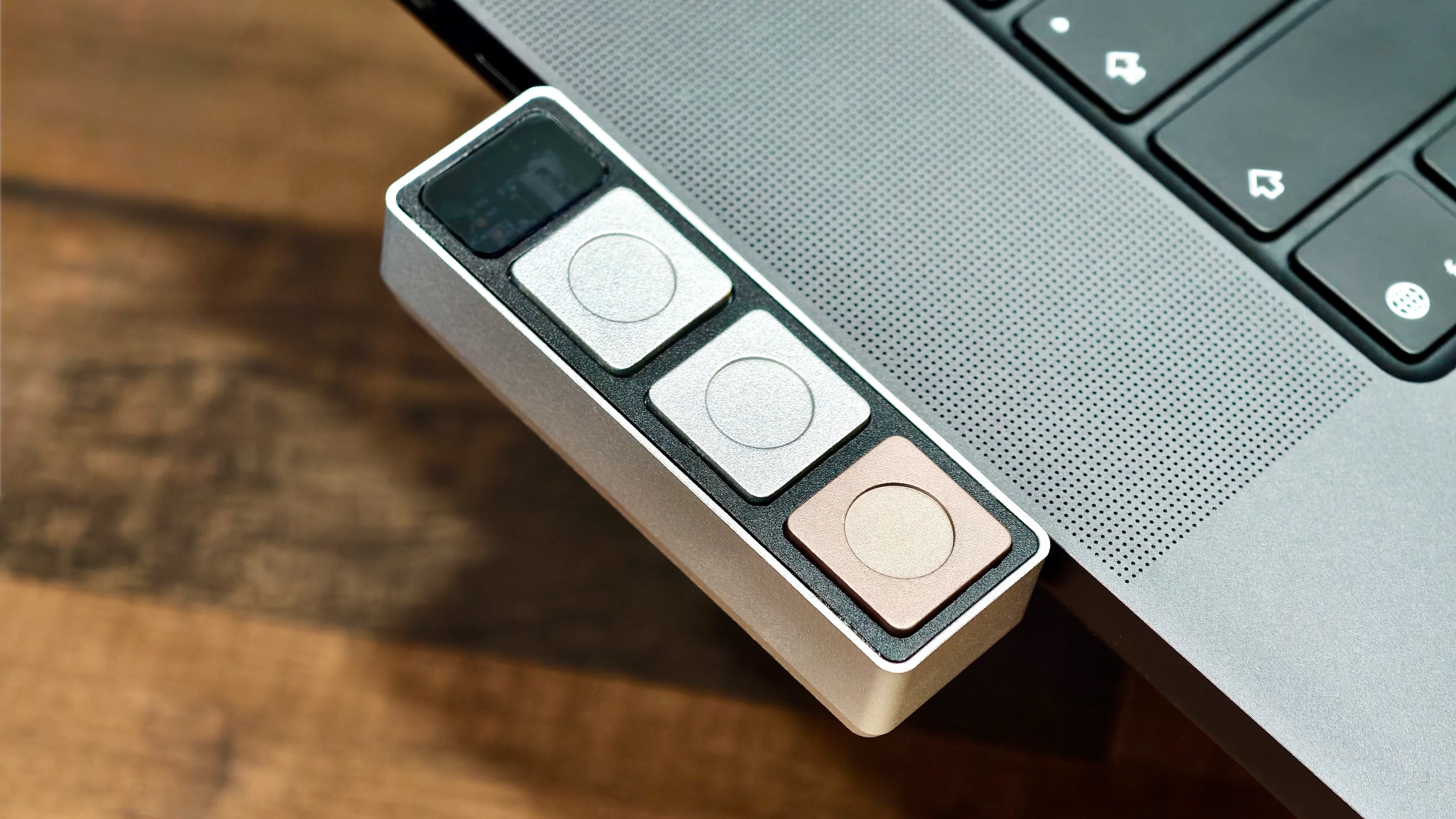
Table of contents: Project Mirage’s Dune review
- Premium build, with a couple of compromises
- Dune’s software is where the magic happens
- Where Dune falls short
- Is Dune worth the price?
Premium build, with a couple of compromises
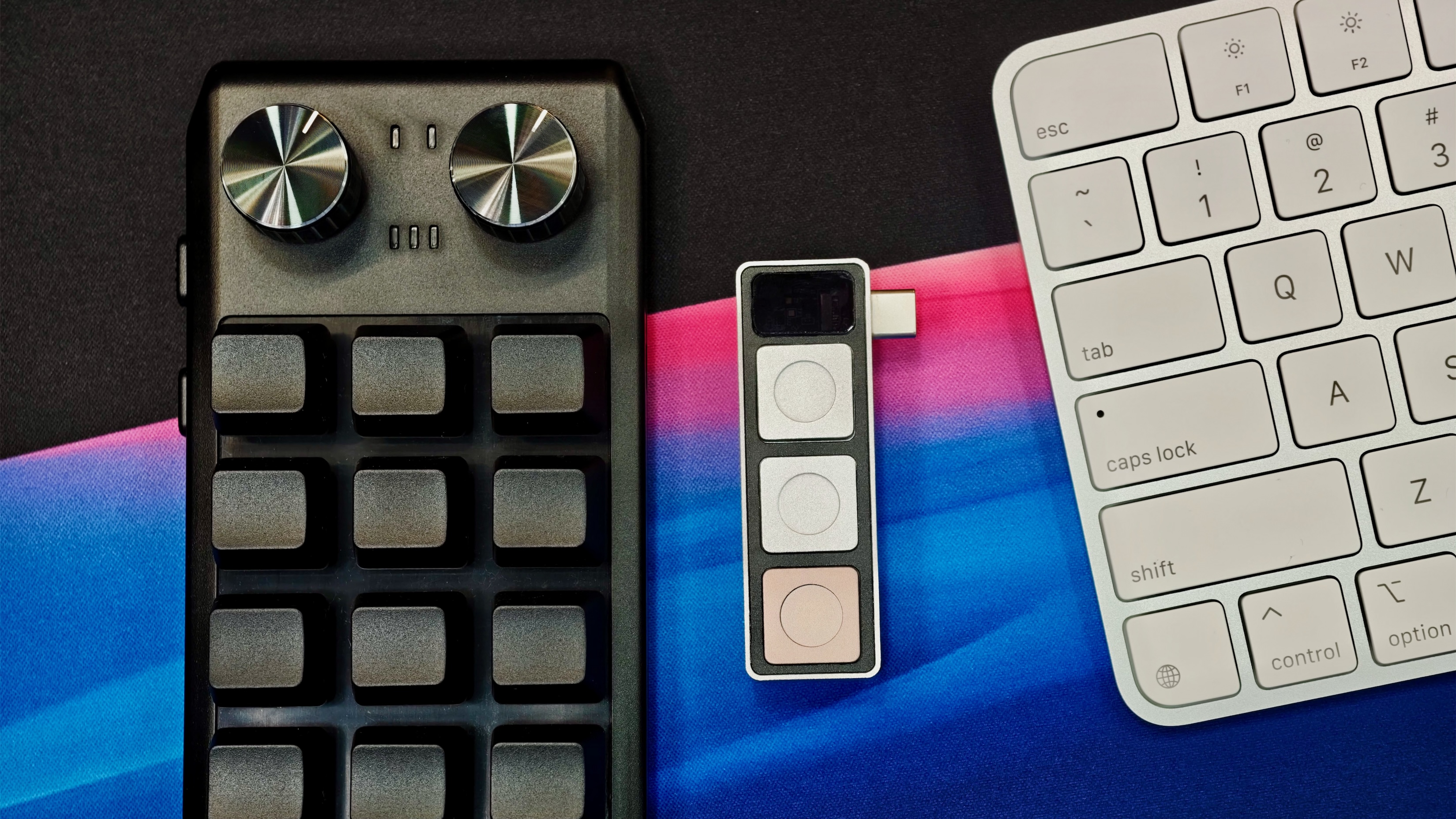
Photo: Rajesh Pandey/Cult of Mac
In a nutshell, Dune is a compact, three-button macro pad that plugs directly into the left USB-C port of your MacBook. Despite its small size, it is reassuringly well-built and feels premium. That’s largely due to the machined anodized aluminum body. Even the keycaps are made of the same premium metal.
Of the three buttons, the one on the bottom stands out with a copper-gold finish, while a translucent strip along the top houses an LED that briefly glows whenever a key is pressed.
It’s just a hair thicker than my 16-inch MacBook Pro and sits almost flush with its body. That makes it feel like a natural extension of the MacBook itself, rather than an add-on.
It’s this premium machined anodized aluminum body and the unique design that make Dune stand out from other programmable macro pads, at least from a design perspective.
But Dune’s design isn’t perfect. My biggest complaint is with the buttons themselves. They are surprisingly easy to press and don’t offer the crisp, tactile feedback that a Mac keyboard provides. Given the thoughtful design, I expected better tactile feedback and firmer actuation, similar to Apple’s Magic Keyboard.
The other compromise is Dune’s physical design. Due to its design, you can only plug it into a MacBook’s left USB-C port. Only then does it feel like a natural extension of the Mac.
However, that also means you can’t use Dune with a Mac mini, iMac or Mac Studio. Plus, if, like me, you primarily use your MacBook Pro docked to an external display, you’ll likely have to unplug your Thunderbolt dock to use Dune. You can always connect it through a dongle, but that defeats much of its elegant, integrated design.
Switching from a 12-button macro pad to Dune, I was hesitant at first. I wasn’t convinced that just three buttons could replace a dozen. More is always better, right? But I was wrong.
Dune’s software is where the magic happens
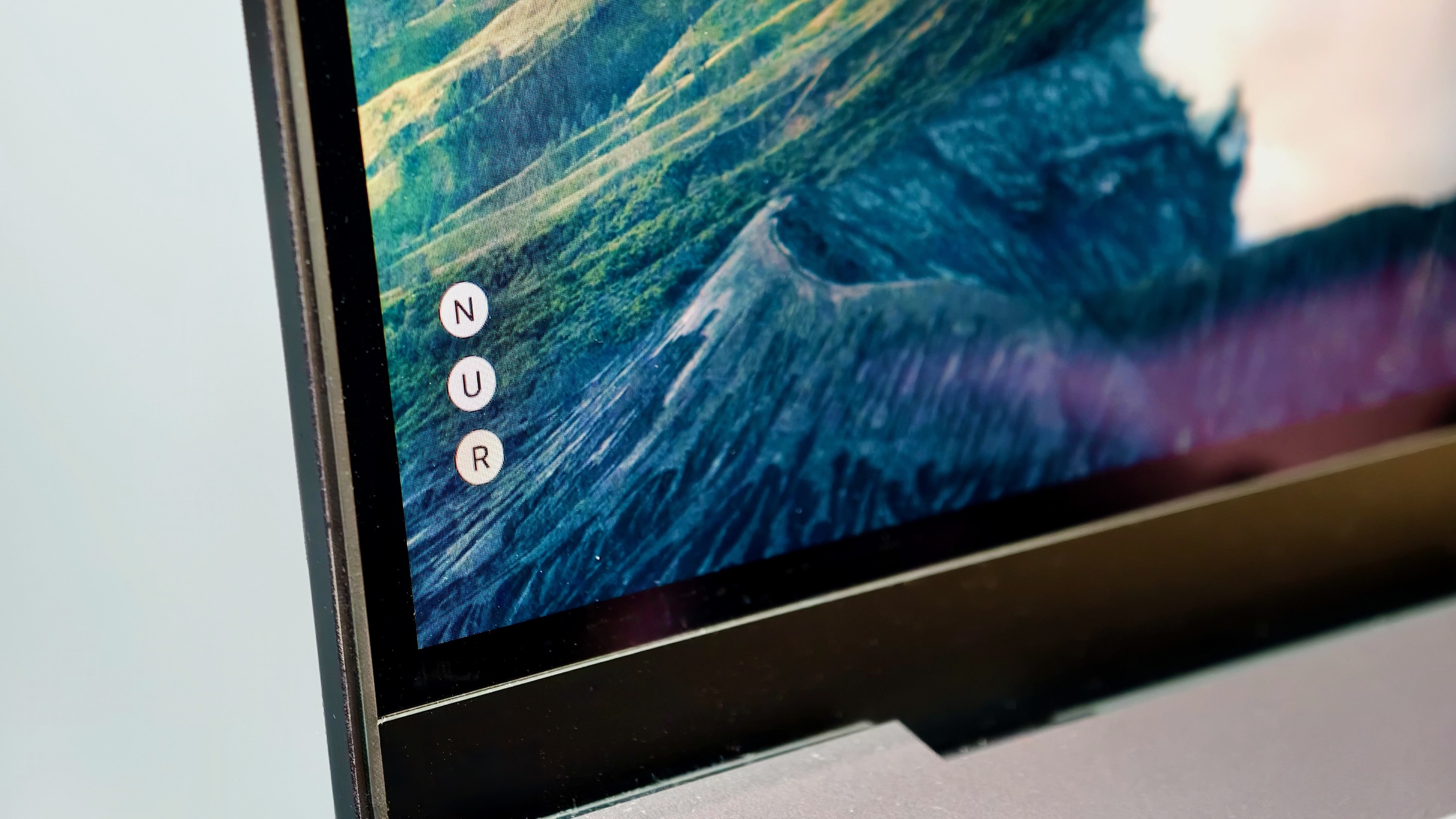
Photo: Rajesh Pandey/Cult of Mac
The reason Dune’s three buttons are enough is that they rarely do the same thing twice. Dune’s companion app automatically changes what each button does based on the app currently in use. So, the shortcuts that matter are always within reach.
More importantly, since Dune is context-aware, the keys automatically surface relevant shortcuts depending on the app I’m using.
To make things even easier, Dune’s companion Mac app displays three floating labels along the edge of the screen, each corresponding to one of the three buttons. As you switch between apps, these labels update in real time to show the action assigned to each button. That means I don’t have to remember what each key does; a quick glance at the screen is enough.
For example, I frequently attend Google Meet and Zoom calls throughout the workday. Instead of trying to remember the keyboard shortcuts for muting my microphone or turning the camera on and off, Dune surfaces those actions automatically. I can simply glance at the floating labels and know exactly which button to press.
Yes, 3 buttons can work better than 12
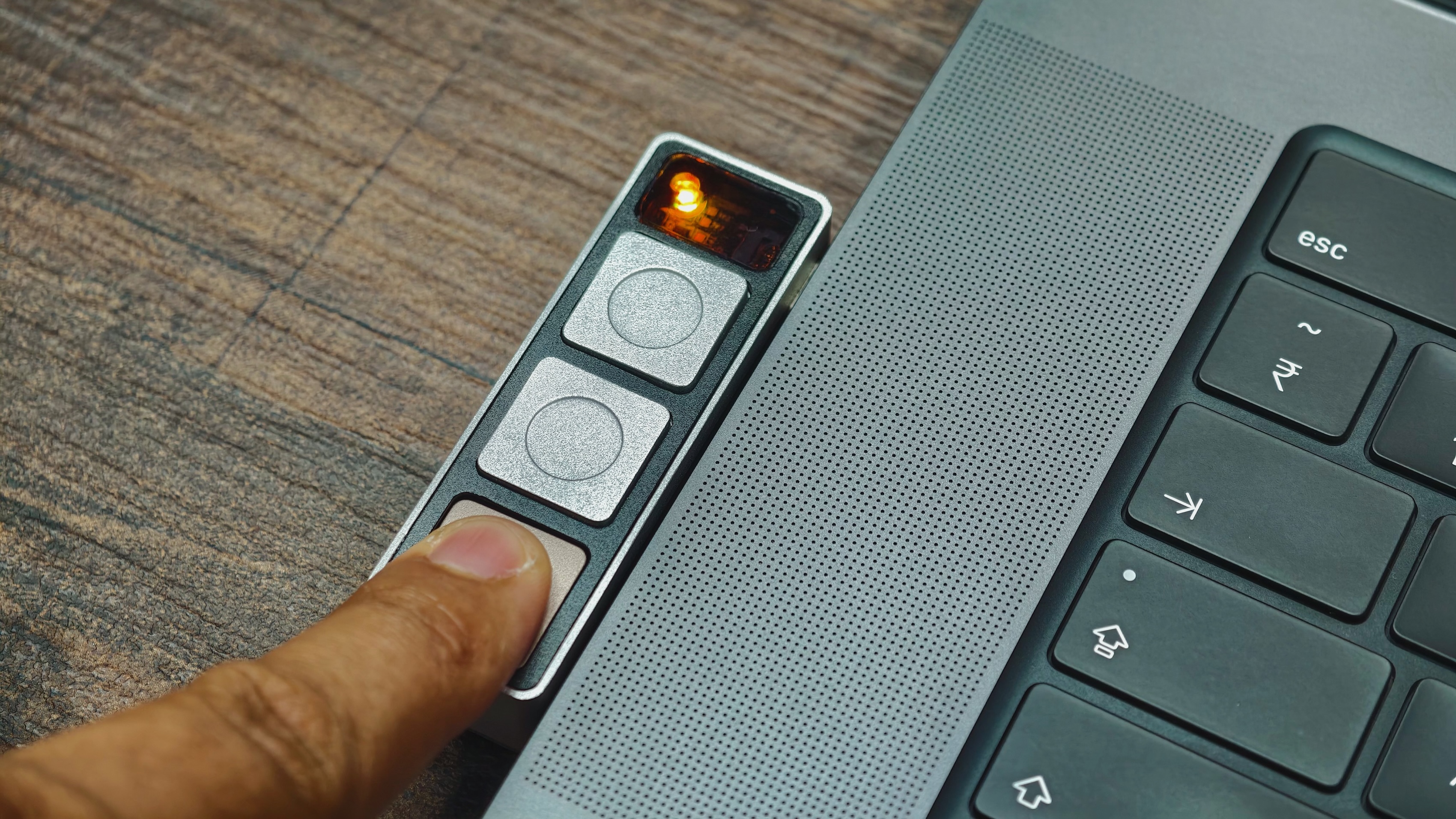
Photo: Rajesh Pandey/Cult of Mac
That’s what makes Dune so much easier to use than a traditional macro pad. With my 12-button macro pad, I constantly need to remember what every key is mapped to. Dune removes that mental overhead by surfacing the shortcuts exactly when I need them.
Instead of cluttering the screen with text, the companion app shows three small floating labels along the edge of the display, one for each button. The labels use the first letter of the assigned action. Hovering the mouse over them reveals the full shortcut name.
It’s possible to set custom shortcuts for each button using the Dune Mac app. These shortcuts can be app-specific, so the same button can perform one action in Slack and something entirely different in Excel.
Beyond basic shortcut mapping, the app has two standout features: Marketplace and Build with Claude.
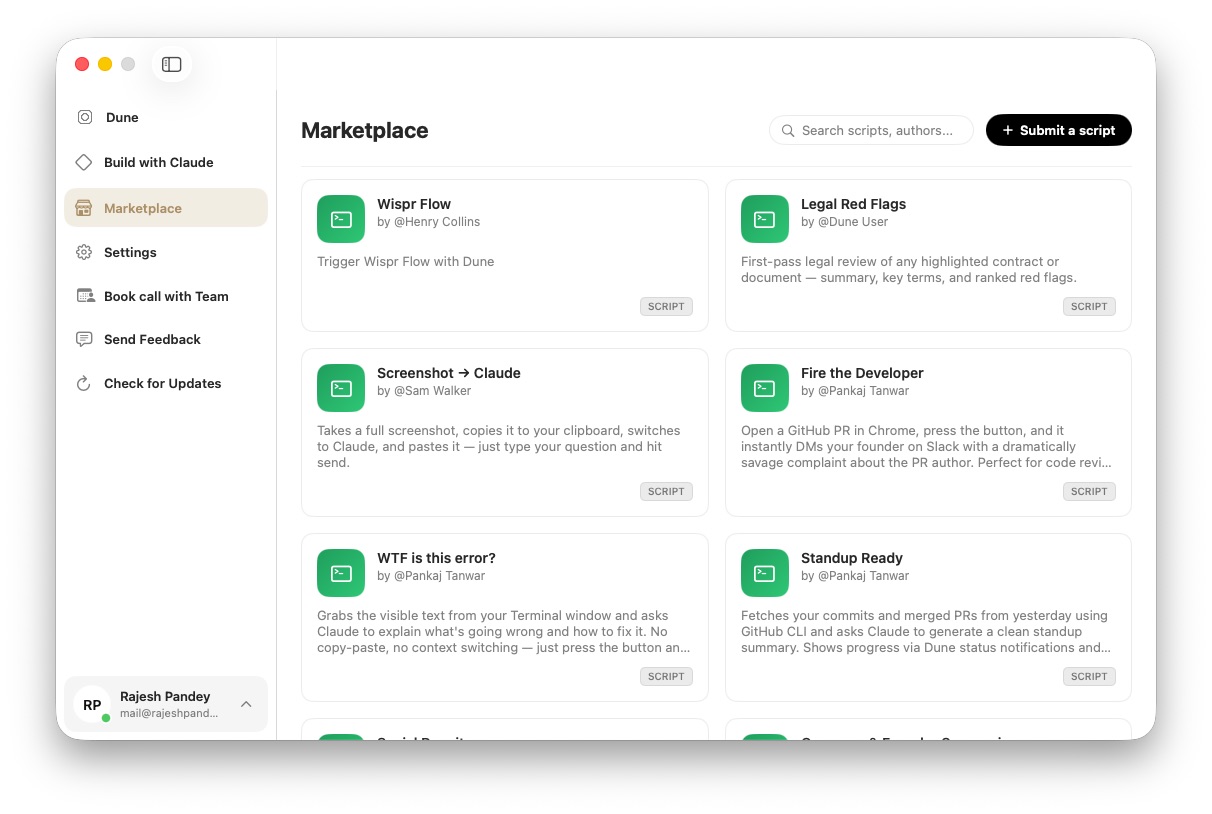
The Marketplace lets you browse scripts and shortcuts shared by other Dune users.
These range from simple productivity shortcuts, like taking a screenshot and copying it to the clipboard, to more advanced automations, such as triggering Wispr Flow, checking your Claude usage limits or generating standup summaries from GitHub activity. Installing them is as easy as clicking a button.
Claud integration makes Dune even better
Screenshot: Rajesh Pandey/Cult of Mac
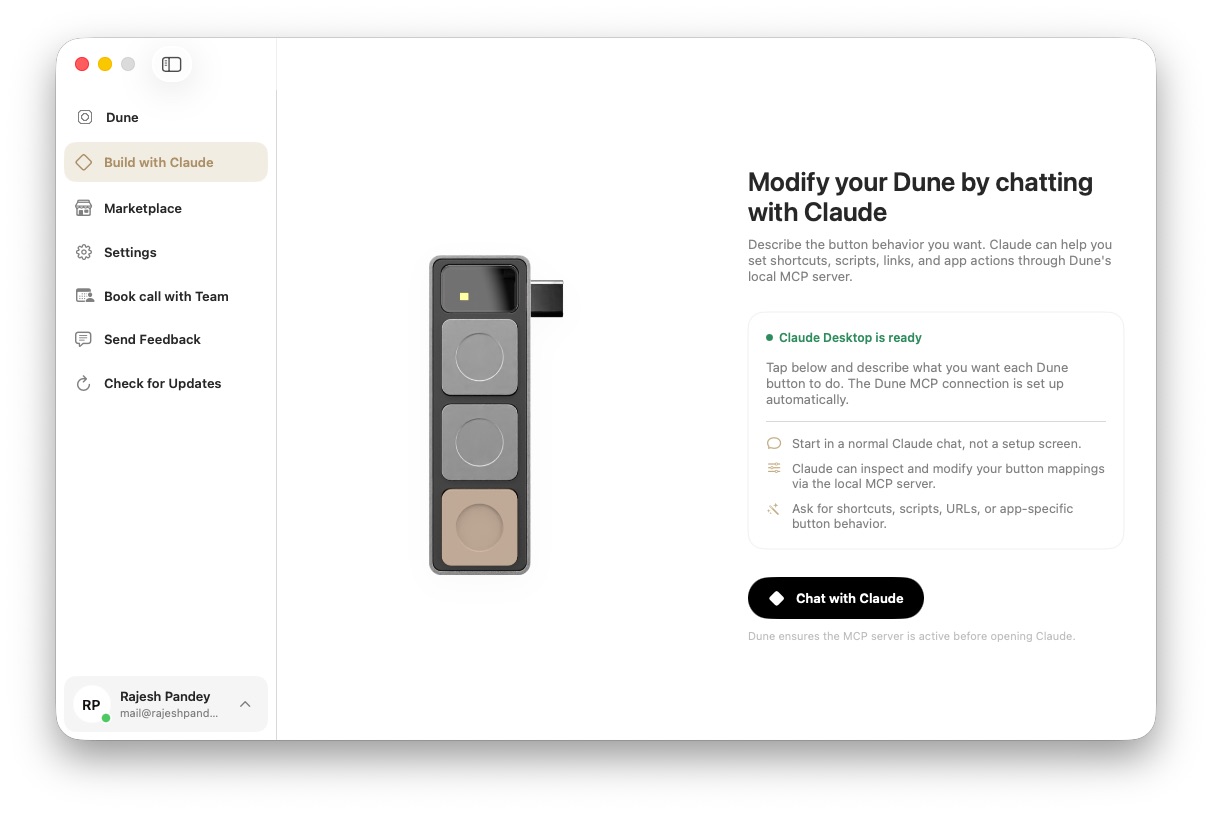
Dune’s Build with Claude feature proves even more impressive. Dune exposes a local MCP server to Claude, allowing you to create or modify shortcuts using natural language. Instead of manually piecing together automations, I describe what I want, and Claude takes care of the rest.
I found this especially useful for creating shortcuts tailored to my workflow. For example, I created one that instantly closes all open apps and puts my Mac to sleep, saving me from manually quitting everything at the end of the day.
Another opens my Telegram chat with my wife with a single press. It’s this Claude integration that makes Dune so much more than just a macro pad. More importantly, it takes the hassle out of setting up complex automations. I can describe what I want and have a working script or shortcut ready in a minute or two.
Where Dune falls short
Dune isn’t perfect, though.
From a hardware viewpoint, my biggest complaint is the buttons themselves. They are simply too easy to press. I expected them to have a firmer, more deliberate feel. As a result, on more than one occasion, I triggered a shortcut accidentally while reaching across my desk.
Given the effort that Project Mirage put into Dune’s design, I would have expected the buttons themselves to be a bit more robust. Hopefully, the company will improve this in the next hardware revision.
My other gripe is with Dune’s Marketplace. While it’s a great idea, it’s currently underdeveloped. At the time of writing this review, it contains only a handful of community-created scripts. Some prove useful, but the small library does not cater to a wide range of needs.
Screenshot: Rajesh Pandey/Cult of Mac
That’s a missed opportunity because not everyone will want to use Claude to create custom scripts. Many users will want to browse the Marketplace, install a few useful automations, and start using Dune right away. A richer library of first-party and community-created scripts would make Dune much more approachable for new users.
So, if you buy a Dune, prepare yourself to spend some time creating your own scripts using Claude.
Is Dune worth the price?
Dune is one of those products whose value is difficult to appreciate until you use it. Before I started testing it, I wasn’t convinced three buttons could replace my 12-button macro pad.
However, after I used it for a few days, unlearned my old shortcuts, and started using Dune’s shortcuts, I found myself reaching for Dune more often than my macro pad. The context-aware shortcuts and floating labels remove the biggest pain point of programmable keypads: remembering what every button does.
At $149, Dune isn’t an impulse purchase. And in its current form, a few rough edges remain that Project Mirage needs to iron out, including the overly sensitive buttons and the limited Marketplace.
Still, if you primarily work from a MacBook and regularly jump between apps throughout the day, Dune is a genuinely useful productivity accessory. It won’t replace your keyboard shortcuts, but it will make many of the ones you use every day easier to access and harder to forget.
Dune is a unique productivity accessory for MacBook that places three context-aware buttons beside your keyboard. Unlike a traditional macro pad, the buttons automatically change based on the app you're using, making frequently used shortcuts easier to access without memorizing dozens of keyboard combinations.
- Intelligent context-aware shortcuts
- Claude integration for custom automations
- Floating on-screen eliminate guesswork
- Buttons are too easy to press
- Works best only with MacBooks
- Marketplace needs more scripts
ReelCharge provided Cult of Mac with a review unit for this article. See our reviews policy, and check out more in-depth reviews of Apple-related items.

Rajesh has been writing about consumer technology for over a decade, with a strong focus on iPhones, Macs and Apple’s ecosystem. He enjoys digging into Apple software updates, hardware changes, and discovering new Mac apps that make work faster and more enjoyable.
You can reach out to him at mail[at]rajeshpandey.me.

