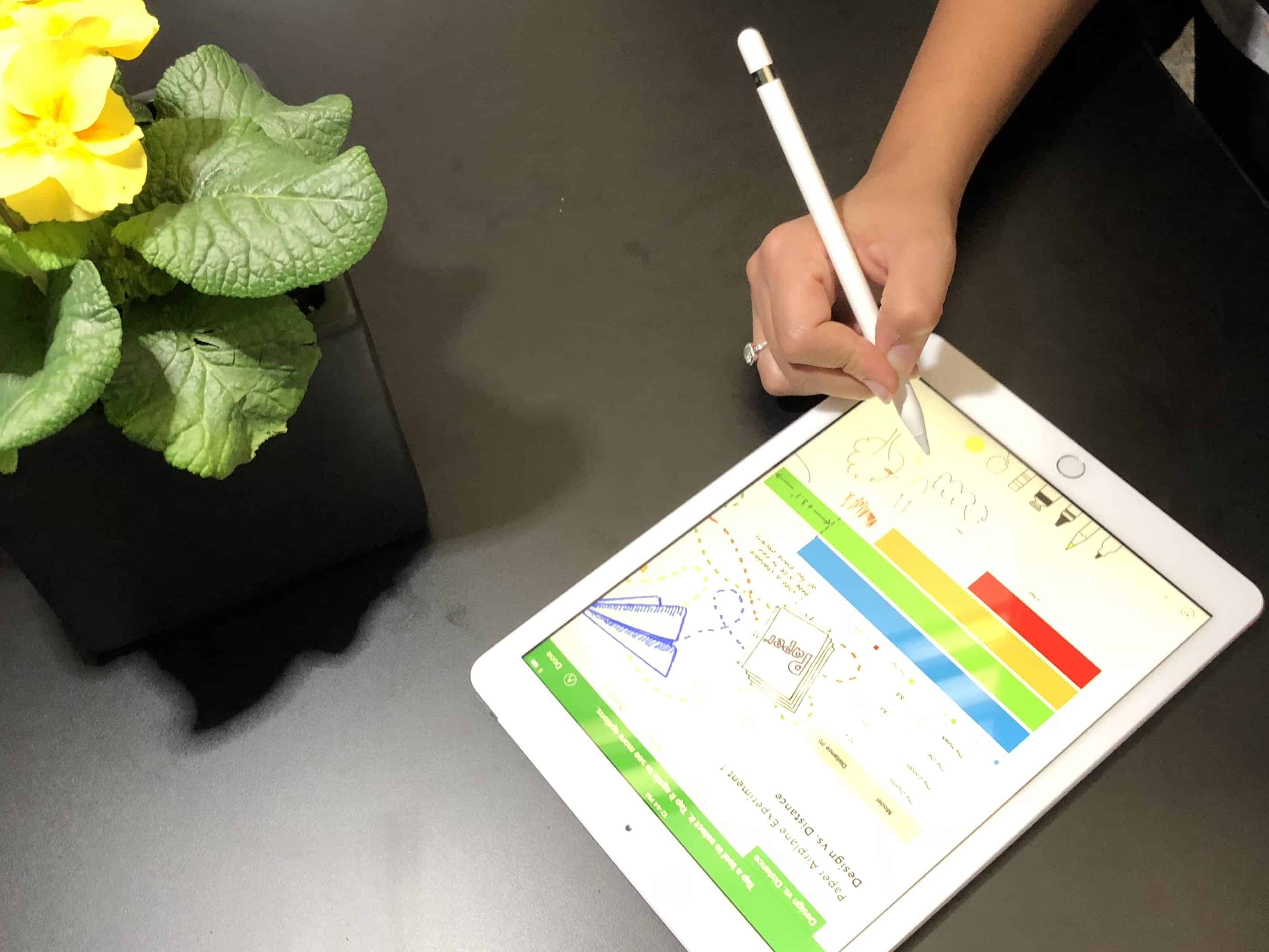
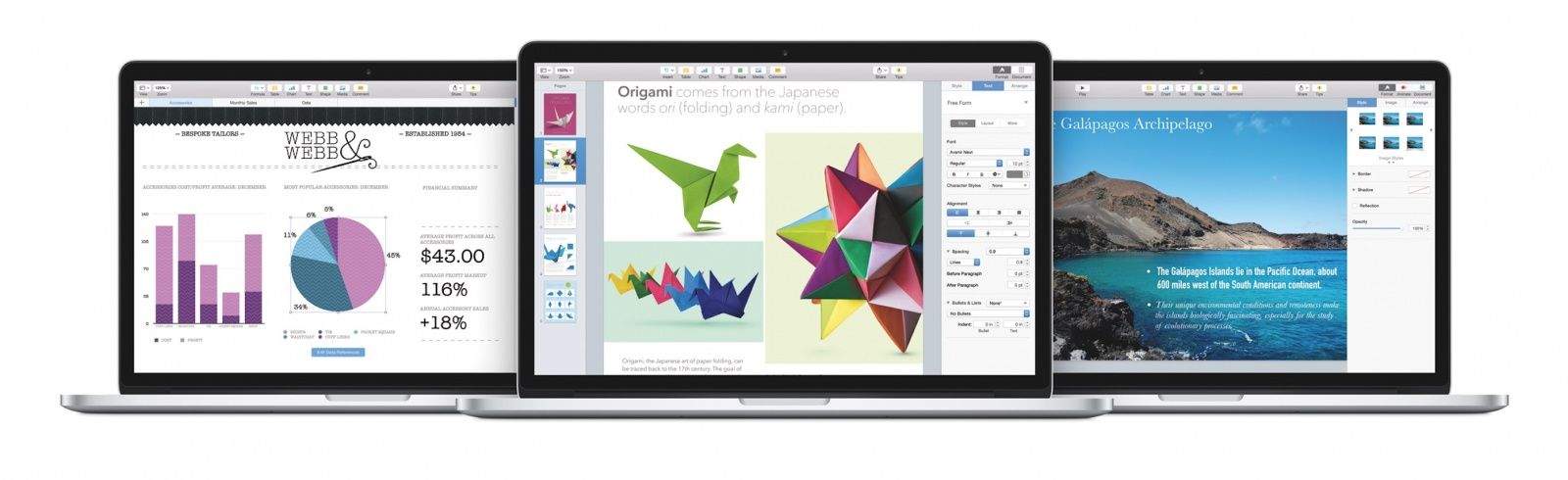
Improvements to smart annotations in Pages are just one of myriad changes in iWork for iOS and Mac released today. Photo: Ian Fuchs/Cult of Mac
Updates to all the apps in the Apple iWork for iOS suite boast many additional features. Pages’ and Numbers’ ability to record, edit, and play audio is just the start. In both those, and Keynote too, an Apple Pencil can be used to select and scroll. And the are plenty more.
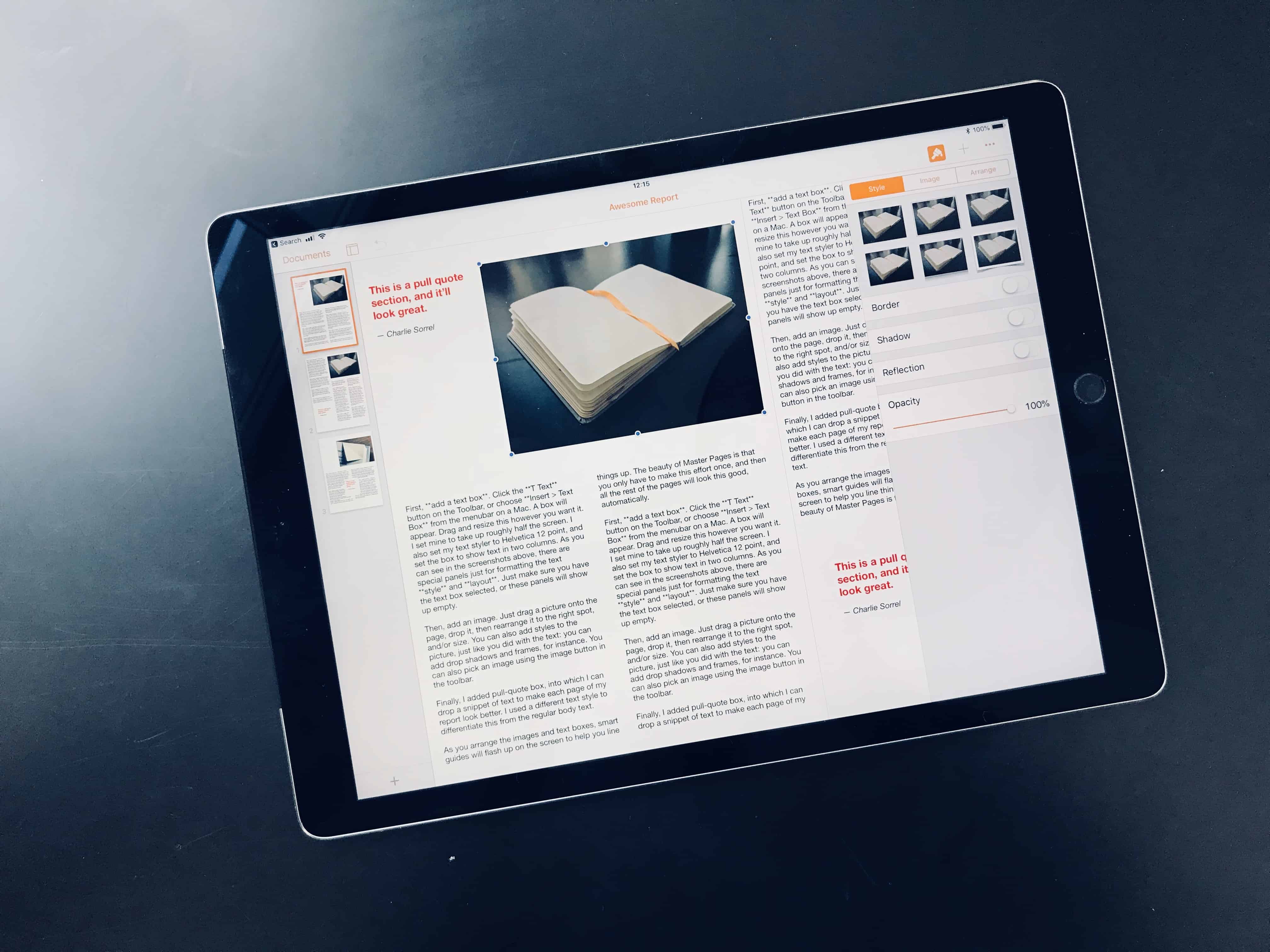
Pages may be the best "desktop" publishing app for most people. Photo: Charlie Sorrel/Cult of Mac
Today we’re going to use the new features in Pages 4.0 to create an amazing report. If you need to write a book report, or create a longer document for school or work, the new Master Pages feature in Apple’s free word processor will prove extremely handy.
With Pages, it’s now easier than ever to throw together an amazing-looking document with almost no effort. Apart from the writing, that is.
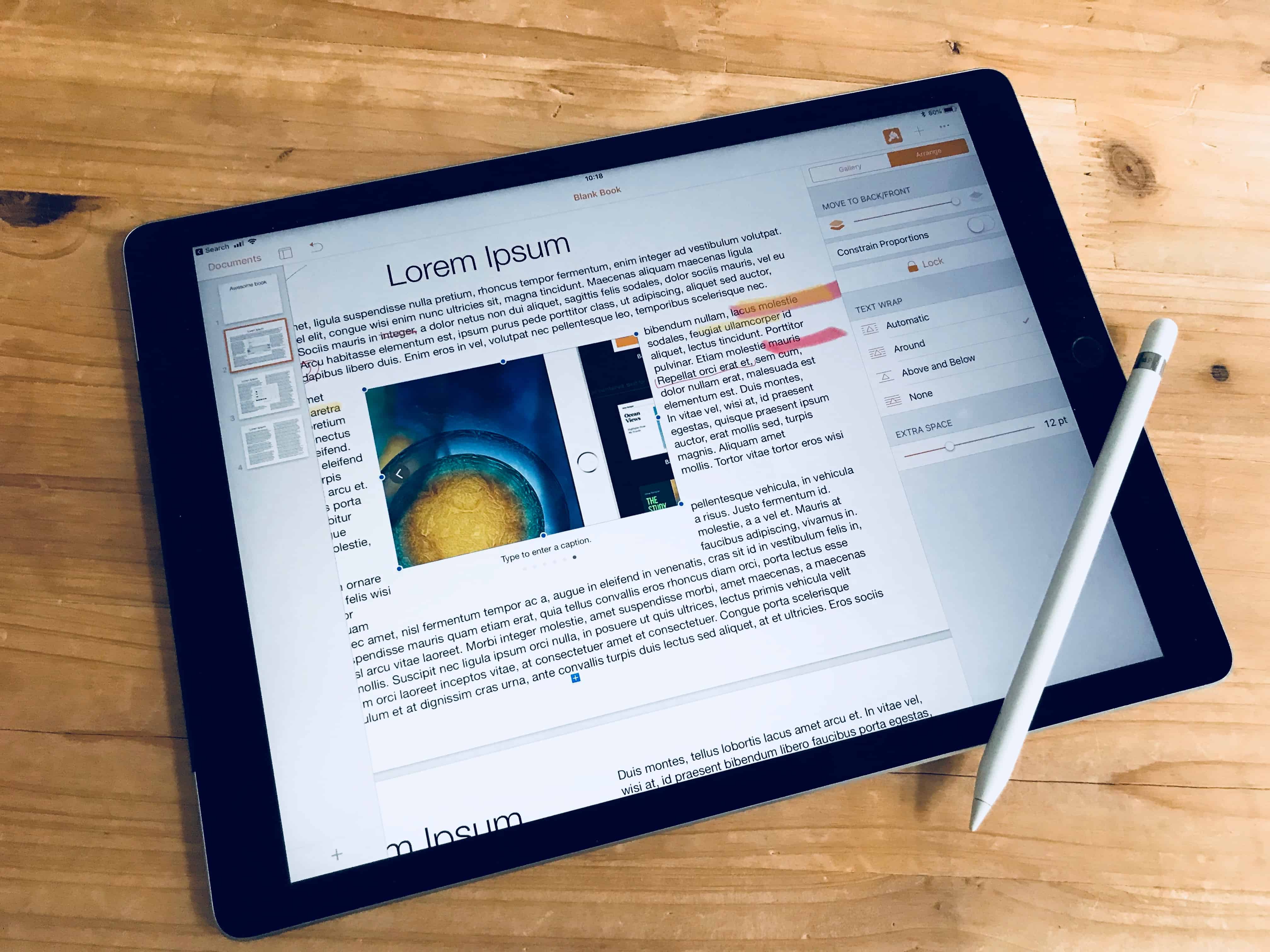
Image galleries are easy to add, and look great. Photo: Charlie Sorrel/Cult of Mac
The new Apple Pencil-friendly version of Pages for iPad also has a couple of other big new features. One of these is iBook creation, which we’ll look at in another post. Today we’re going to see how to add an Image Gallery to a regular Pages document. This is handy if you need to include lots of pictures into a document, but don’t want to use pages and pages to do so.
You could, for instance, include galleries of vacation photos in a newsletter for family and friends, with images stacked into daily galleries, or organized by event. Or you could pile a bunch of diagrams into one Image Gallery, allowing you to include a lot more information without cluttering the document. Better still, you can export your Pages document as an eBook, and the galleries become fully interactive.
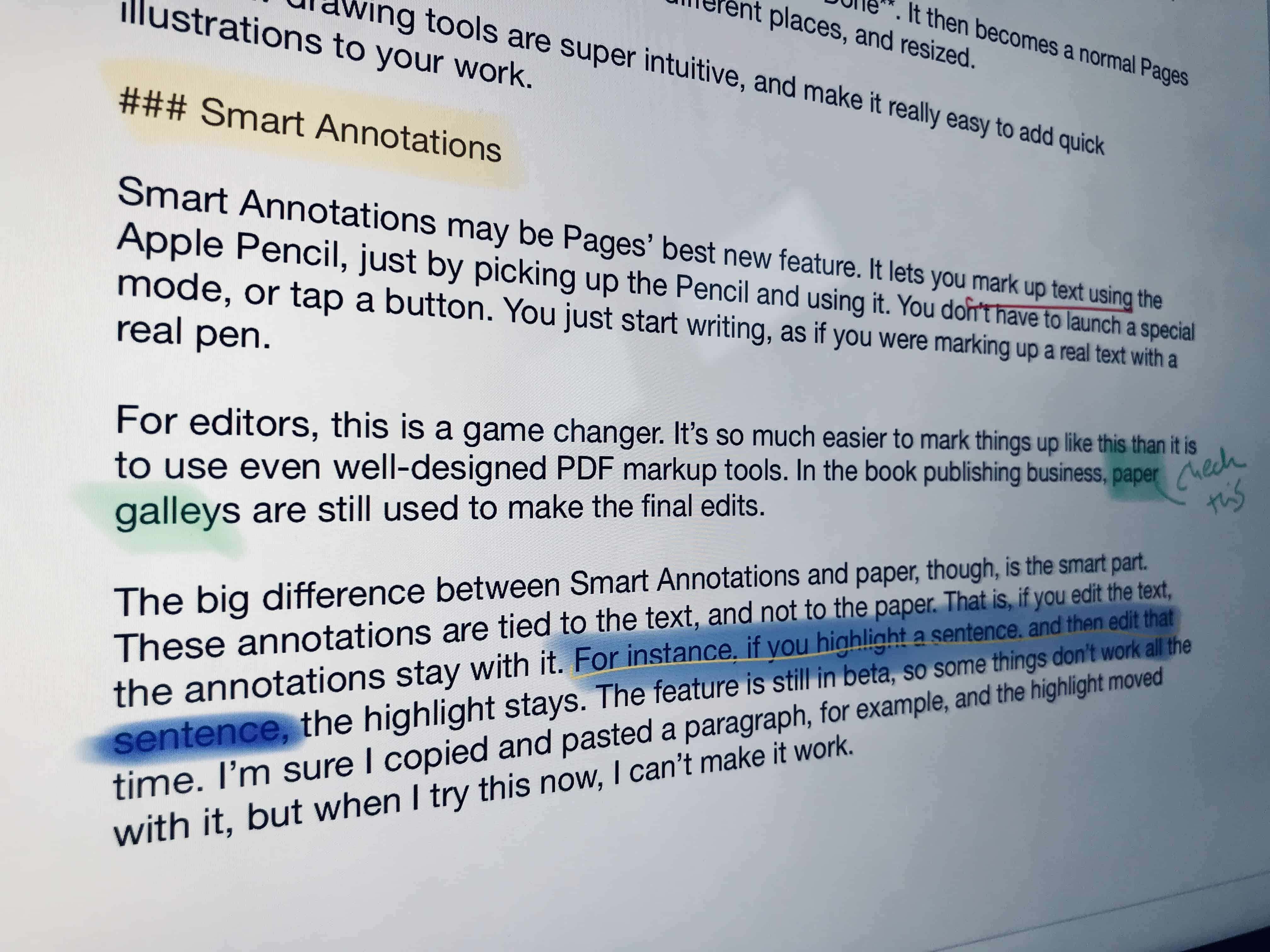
Pages’ pixels might finally be better than paper. Photo: Charlie Sorrel/Cult of Mac
In Pages 4.0 for iPad, you can use Apple Pencil for more than just tapping stuff. Now you can use two great new iOS-only features in Apple’s word processing software. Smart Annotations lets you mark up text just like a teacher would — scoring red lines through words, running a highlighter over a sentence, etc. And a new drawing mode means you can easily add a sketch to a page just by tapping it with the pencil.
The drawing feature is neat, and brings Pages into line with Apple’s Notes app. But Smart Annotations will be a game-changer for many people, because it replicates something many folks still prefer to do on paper. Here’s how to take advantage of the new Pages features.
Apple is ready to takeover the classroom. Photo: Ian Fuchs
Apple is ready to unleash a wave of new software for teachers going into the 2018 school year.
At its big “field trip” education event in Chicago today, Apple unveiled a series of new apps and APIs that will make it easier for students and teachers to embrace the iPad. From the redesigned iWork iOS apps to the new ClassKit framework, Apple’s got something new for students, teachers and developers.
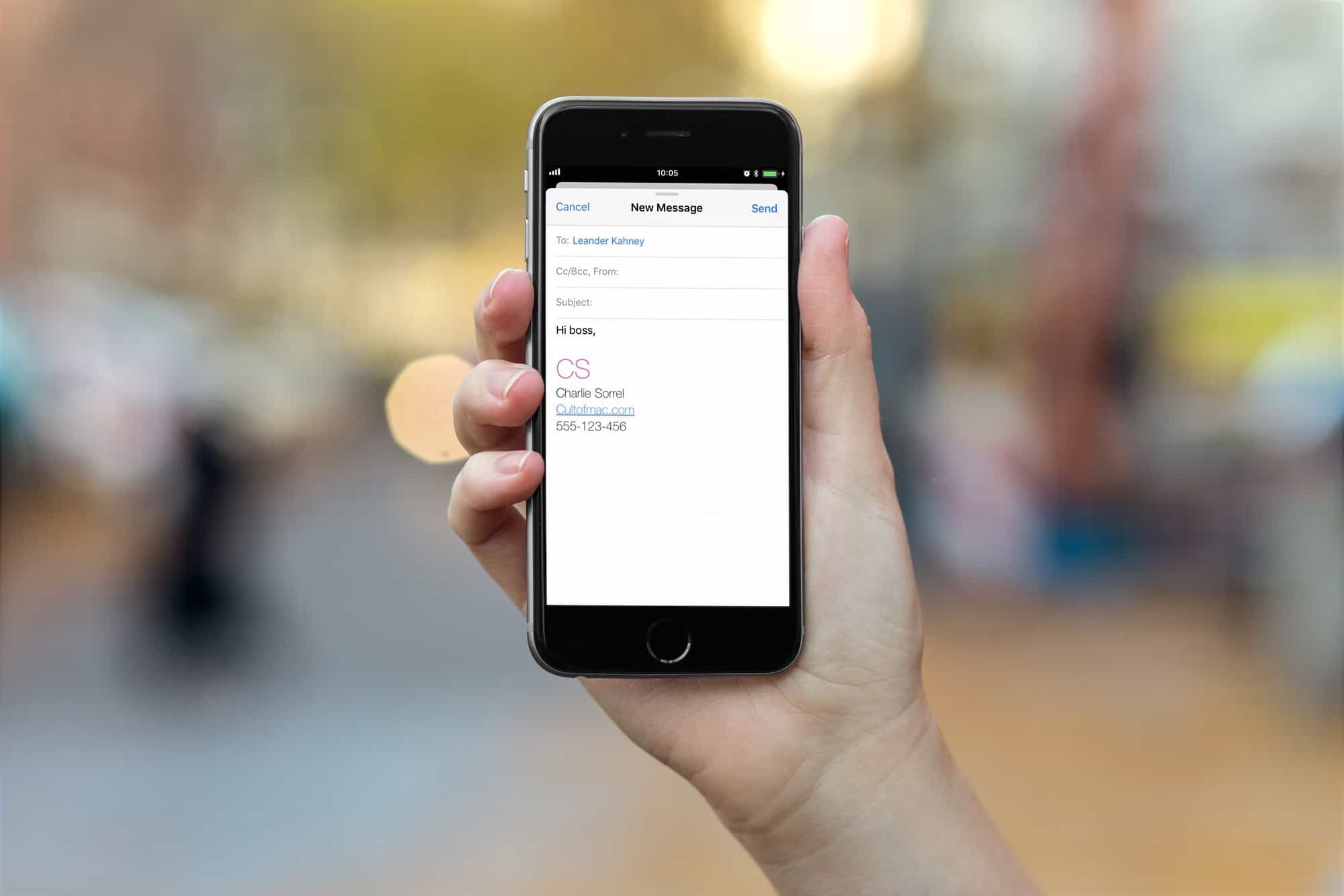
Make your email look way awesomer with a fancy signature. Photo: Cult of Mac
You already know that you can add a signature to your outgoing emails in the Mail app on iOS and macOS, but did you know that you can make that signature fancy? And I mean, really fancy. You don’t just have to put your email address or phone number in there in regular text. You can add any kind of text you like, complete with colors and cool fonts. You can even add an image.
Today, almost everyone carries a smartphone, and that’s where we keep our contacts lists. And yet we still exchange business cards. Why? They’re easy to use, they don’t require you to mess withAirDrop, or any other convoluted way to share, and — perhaps most important — they’re customary. We’re used to handing over our details on card. So today we’re going to see how to make and print a business card in Pages, for Mac or iOS. The good news is, it’s super easy. The bad news? Think of the trees.
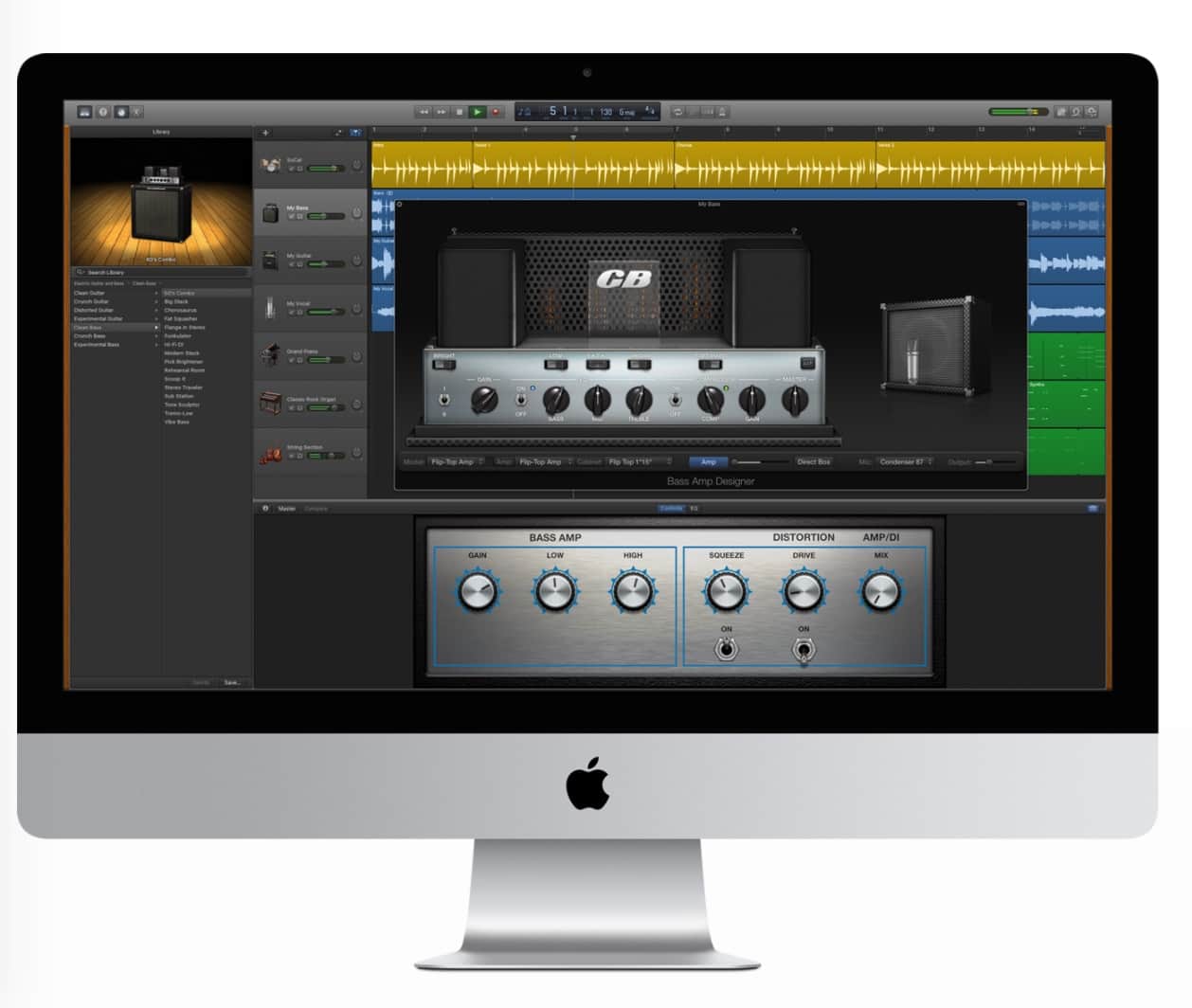
With iOS 11, you don't need to go to a recording studio to collaborate on a song. Photo: Iñaki de Bilbao/Flickr CC
One of the great new features in iOS 11 and macOS High Sierra is shared documents. You can create almost any kind of file, and collaborate on it with other people. This can be a simple Pages document, or a complex song in GarageBand. In theory, the file will be updated with everybody’s changes, so you can work on the same project without emailing a zillion copies back and forth.
Currently, this feature ranges from a little shaky, to rock solid, depending on what apps you are using. Here’s how to share and collaborate using GarageBand in iOS 11.
iWork adds Files integration, and drag-and-drop support. Photo: Apple
Apple has pushed updates for Pages, Numbers, and Keynote on iPad and iPhone, updating its iWork apps to work with iOS 11. The apps now have full support for drag-and-drop, as well as giving us a glimpse of how the new iOS 11 file manager — named Files — works inside other apps. Let’s look at the new features in the iWork suite for iOS 11.
The iWork suite just got an update across iOS and macOS, with some neat new features for Keynote, Pages, and Numbers. But the headline new feature is the addition of a brand new Shapes Library across all the apps. You know that section that always let you put little squares and circles into your documents? That’s still there, but those lame-o shapes have been joined by hundreds of new shapes that will actually be useful. They’re kind of like silhouetted emojis.
You no longer need to buy a new Mac to get GarageBand for free. Photo: Apple
The best apps made by Apple for iPhone and iPad are finally available for free to all users.
As part of an update to its iWork and iLife apps this morning, Apple changed the price for both the Mac and iOS versions, giving customers access to a suite of apps that can be used for music and video or getting work done.
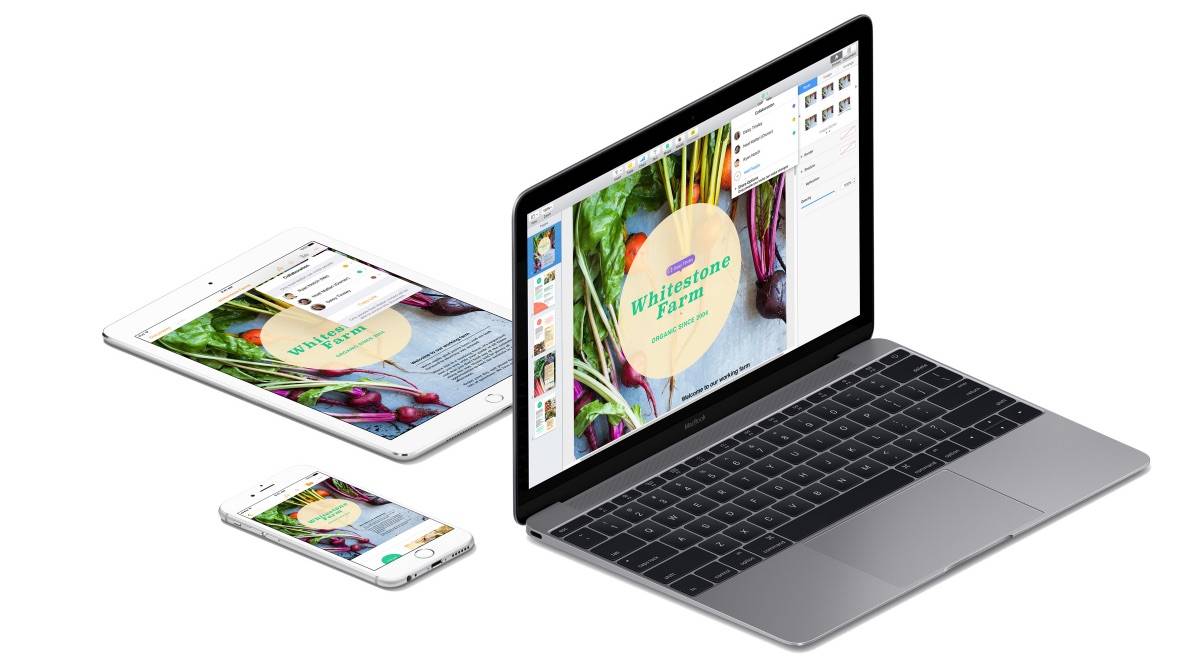
Real-time collaboration is now on the Mac. Photo: Apple
Apple’s iWork productivity software received a huge update today alongside the launch of macOS Sierra.
Pages, Keynote and Numbers all got upgraded with the new real-time collaboration Apple gave us a glimpse of at this year’s Worldwide Developers Conference. The new feature is still in beta, but it makes the apps more powerful than ever in the workplace by allowing teams to edit documents simultaneously.
All three of Apple’s productivity apps just came out of beta on iCloud.com, and Apple’s also updated all of them for both iOS 9 and OS X El Capitan. There’s a host of improvements and fixes both large and small for each app on each platform.
All the full specifications are over at Apple’s productivity suite landing page, but here are ten of the best improvements for this long-running, venerable suite of word processing, presentation, and spreadsheet apps from our favorite Cupertino-based company.
Don't look for Netflix on your Apple Watch any time soon. You'd go blind. Photo: Netflix (via YouTube)
The Apple Watch has been out for a few months now, and it’s given us plenty of time to decide what we do and don’t want from the wearable. It’s a versatile device, to be sure, but that doesn’t mean that we expect it to do everything for us. In fact, a lot of the apps that we use all the time on our iPhones and iPads would be ill-suited, if not impossible for that plucky little screen.
Here are some Apple Watch apps that wouldn’t break our hearts if nobody ever got around to making them.
Here's how to get the iWork suite for free on older Macs. Photo: Cult of Mac
If you bought a Mac from 2013 on, you can download the iWork suite of apps — Pages, Keynote and Numbers — from the Mac App Store absolutely free. But what if you bought an older Mac? You have to pay, and they’re expensive, running $19.99 each.
Thankfully, there’s a trick you can use to download iWork apps from the App Store for free. Here’s how.
With these handy tips (and warnings), you'll master iCloud Drive in no time. Photo: Jim Merithew/Cult of Mac Photo: Jim Merithew/Cult of Mac
If you haven’t been scared off cloud services by the Fappening or past horrors like MobileMe, you might want to try iCloud Drive, Apple’s answer to Dropbox and Google Drive. It’s a pretty great concept, an extension of the Apple philosophy from way back – documents are identified by the apps they were created by. Before, though, you needed to export a file from a drawing app to use it with a painting app. With iCloud Drive, you’ll be able to move from one app to another much more easily.
Before you begin, make sure you’ve read and understand the warning about using iCloud Drive if you haven’t yet installed OS X Yosemite on your Mac. If you haven’t installed the Yosemite public beta, apps on your iOS 8 devices will be unable to share data with companion apps on your Mac. Consider yourself warned.
If you choose to enable iCloud Drive on your iOS 8 device, and you have an OS X Yosemite beta installed on your Mac, here’s how to use it the right way.
Though our iPads can be great for relaxation, sometimes it’s crucial to use these mobile workhorses for business. Luckily, when there is a lot being asked of you and deadlines are to be met, there are applications that can help save the day.
In today’s video, we reveal our top three must-have applications that will help you get your work done more efficiently. Take care of your documents, get your to-do lists organized and more with these functional apps.
Today Apple made some upgrades to its web-based version of the iWork suite that are more suited for those working in large teams. The number of people that can collaborate on a single document has been doubled to 100, and the maximum storage size for files and docs has also been increased.
Today Apple released a slew of updates to its iWork productivity suite. On the web, iWork for iCloud has received an iOS 7-like makeover in every aspect except the editing interface. Browsing for documents on iCloud.com now looks more like it does on iOS.
An emphasis has been placed on document sharing with a new “Shared with Me” menu in each app’s toolbar. You can also share password-protected documents, presentations, and spreadsheets.
Apple didn’t just update iWork’s web apps today. Several updates have been released on iOS and OS X as well.
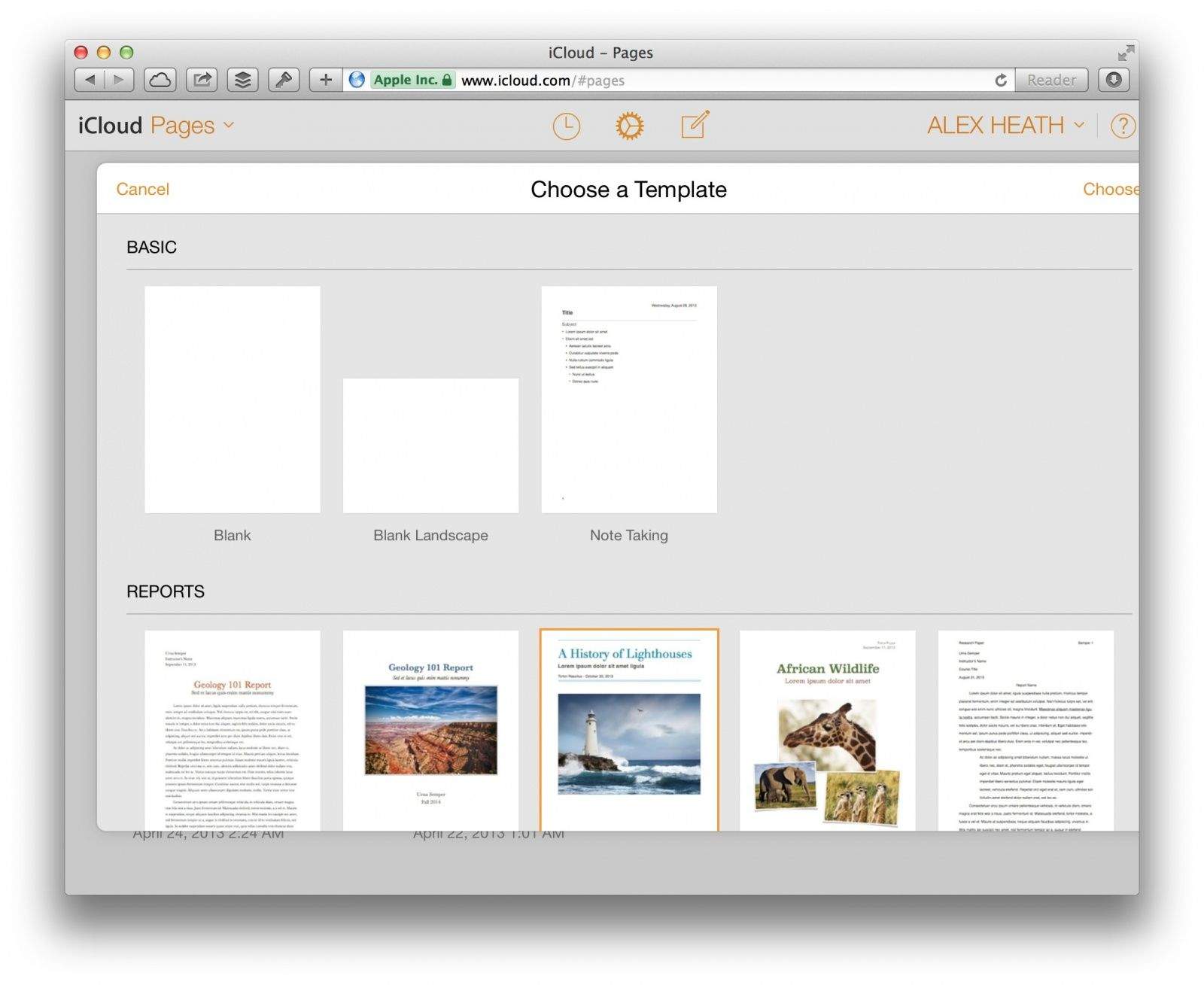
We’re big fans of Apple’s Pages app on iOS here, as it allows us to create and edit good-looking documents easily and on the go. Pages’ stunning array of templates, combined with the ease of use associated with an app built by Apple itself for its flagship touchscreen device, make it a must-have app on anyone’s iPad.
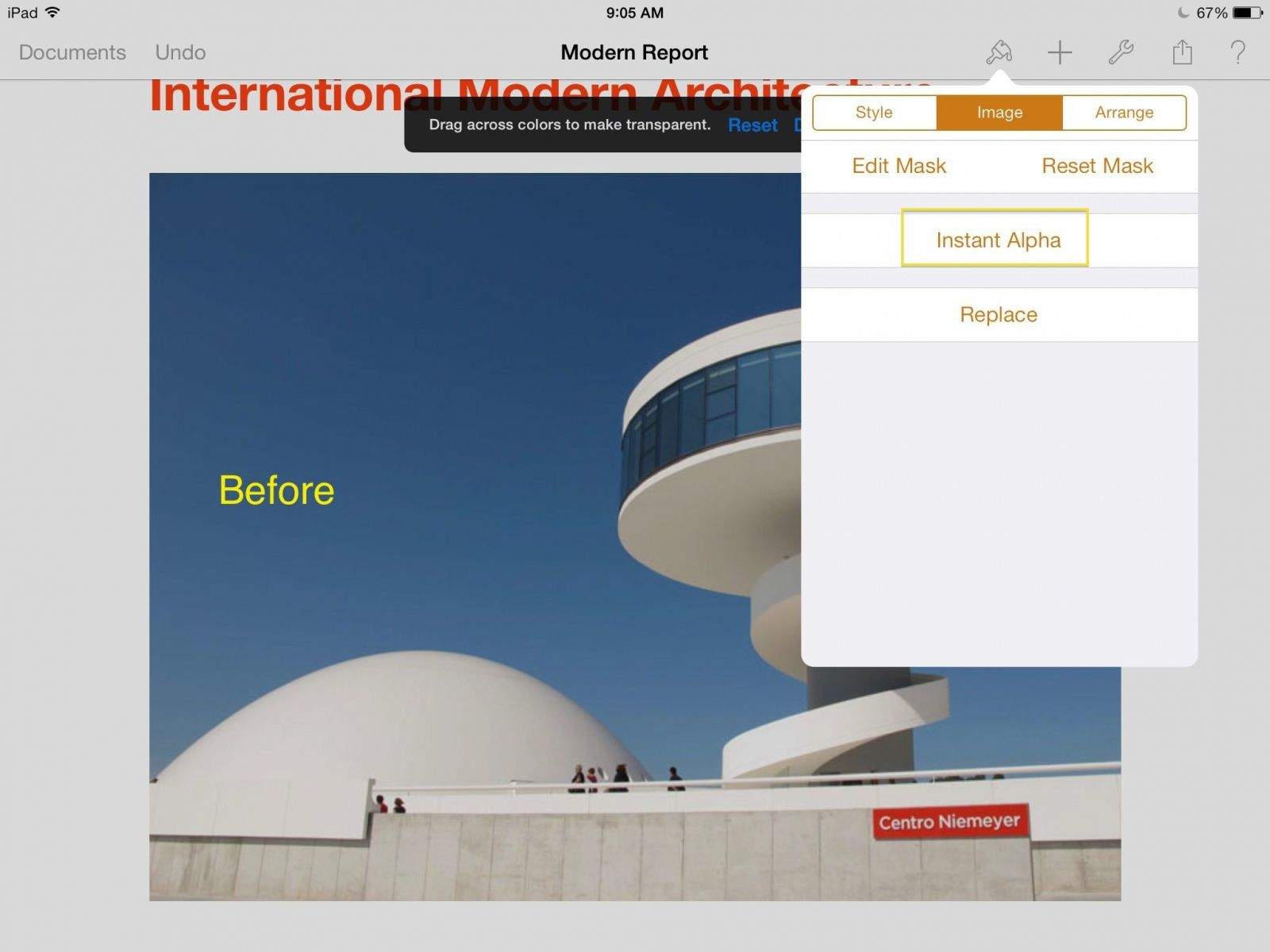
Color us excited, then, when we heard about a hidden feature in Pages that lets us delete backgrounds from photos right from within the app itself. Instant Alpha is a super helpful feature when we need to get rid of a large solid color background without dropping the image into an editing program first.
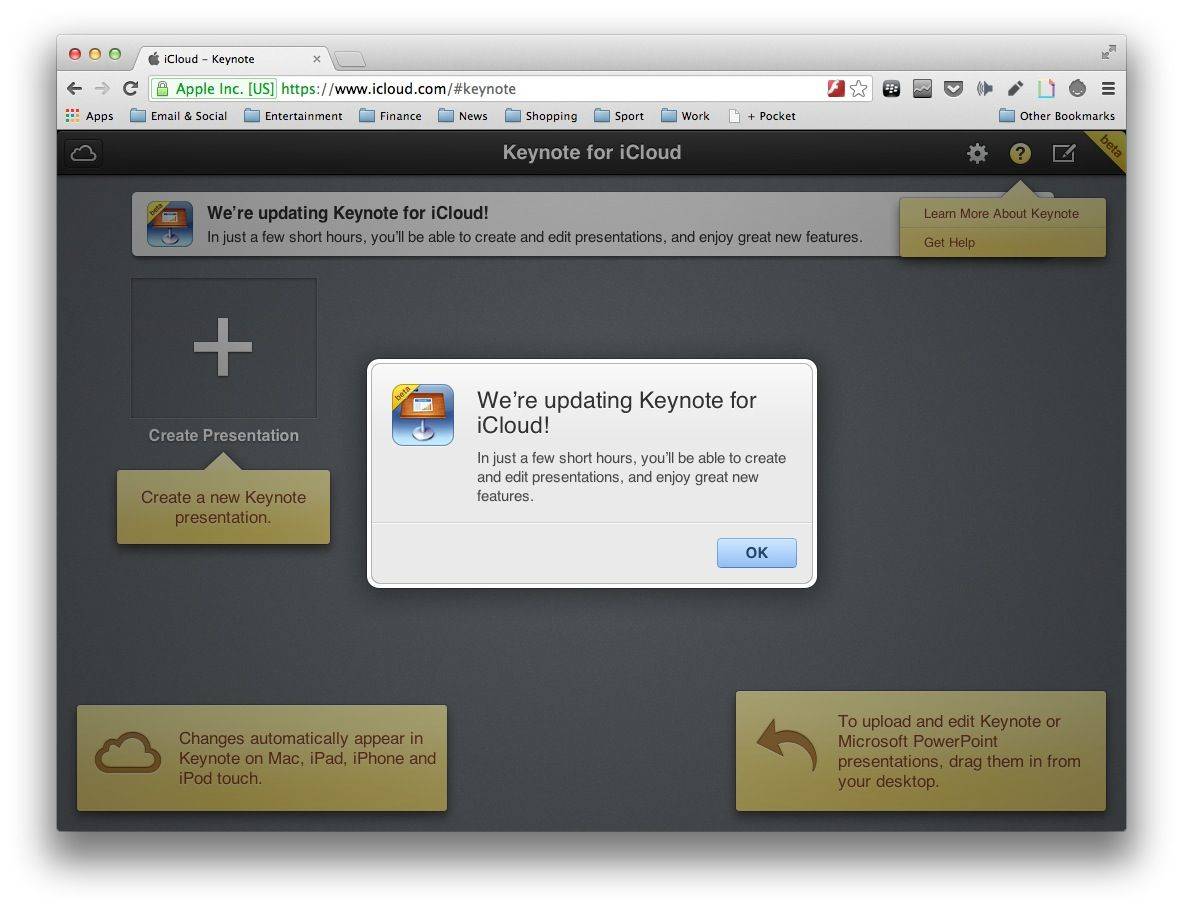
Apple’s iWork for iCloud apps have been made unavailable ahead of today’s iPad event, pretty much confirming that we will see updates for Pages, Keynote, and Numbers during the keynote. “In just a few short hours, you’ll be able to create and edit documents, and enjoy great new features,” a notice reads.
Your swanky new iPhone 5s may be significantly faster than its predecessors, but it’s twice as likely to crash when running third-party apps as the iPhone 5 and the iPhone 5c. New research from Crittercism, a company that monitors mobile app performance, has found that apps crash around 2% on the iPhone 5s, but under 1% on its siblings.
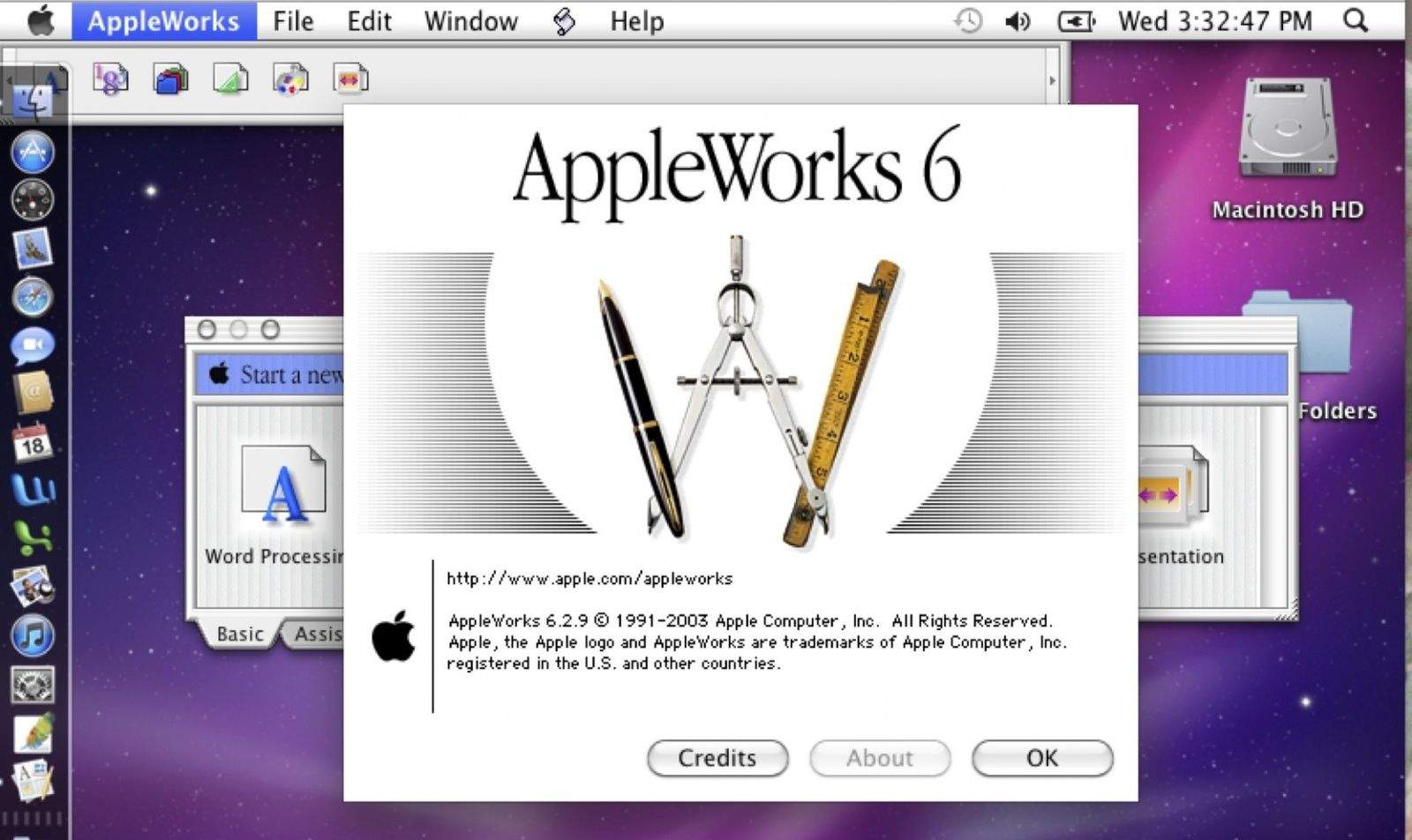
Cult of Mac reader Nancy S. asks, “How can I convert my Appleworks files to Page files. I have many old files that APple didn’t think were important but I could still use them.”
If you’ve been using Macs for a while, chances are that you have a few older documents that you may have created in Appleworks 5 or 6 that you’d like to open on your newer Mac, possibly running OS X Mountain Lion or above.
Here are a few things you can do to try and make this happen.
The iWork for iCloud beta, which allows you to use Pages, Numbers, and Keynote inside your web browser, is now available to all at iCloud.com. You do not need to be an existing iWork customer to take advantage of the apps, but if you are, you can now access all of the iWork documents you’ve stored in iCloud from absolutely anywhere.