Mobile menu toggle

How to set up your new AirTag the right way

By

AirTag
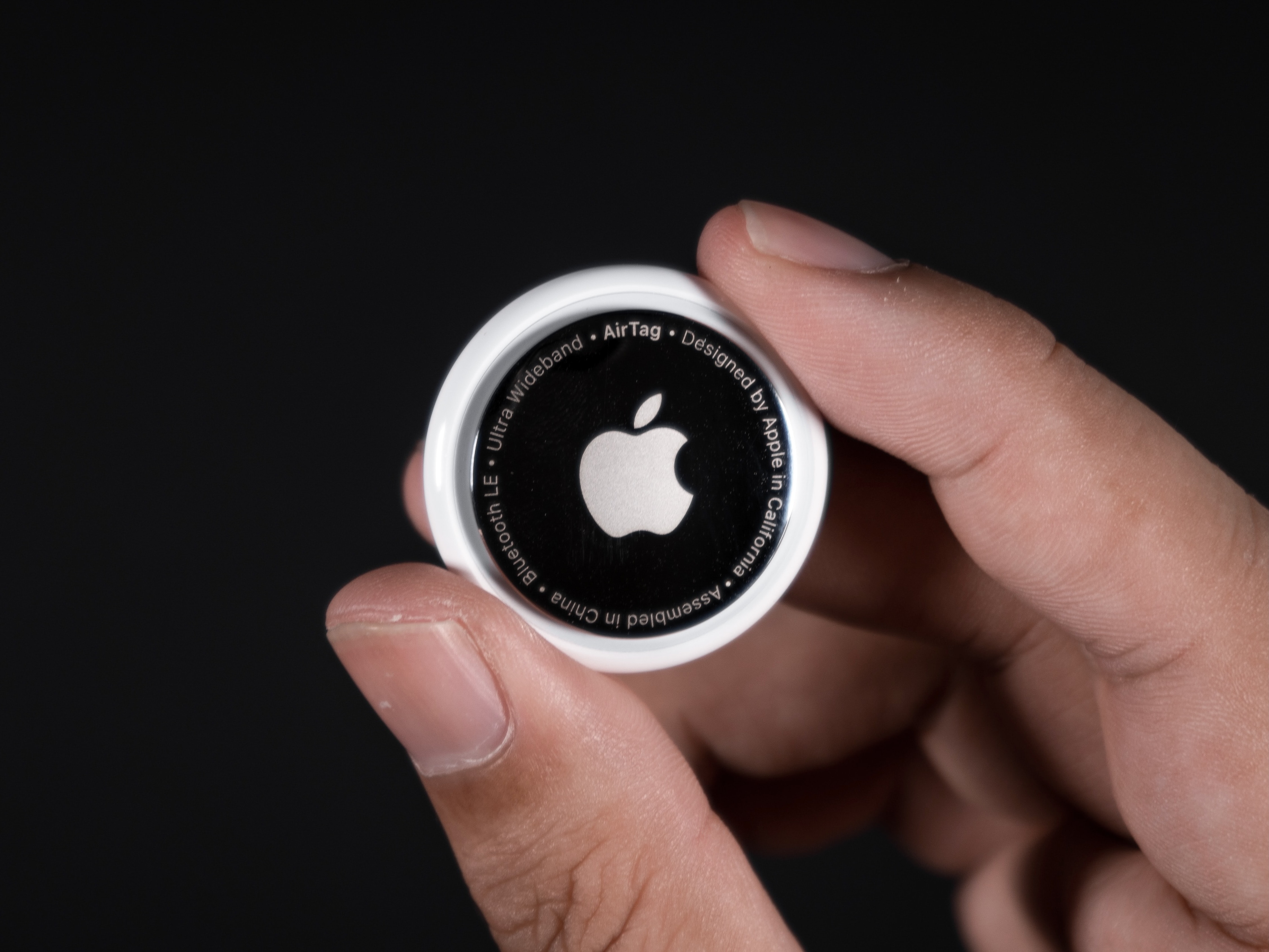
Stick an AirTag in your car in case it's stolen.
Photo: Mark Chan/Unsplash

The Apple AirTag is arguably among the company’s most useful product releases in recent years. Once you set up an AirTag, it gives you powerful options for locating it (and whatever you attach it to). Put one of Apple’s tracking tags on an item like a keychain or luggage, and you can easily track its location from your iPhone, Mac, or iPad. If you’re wondering, do AirTags make noise, the answer is yes, but only in specific circumstances.

Since AirTag’s launch, numerous reports have detailed how the tracking tag helped owners find lost items. If you recently acquired an AirTag, here’s how you can set it up the right way and use it properly.

How to set up your new Mac like a pro

By

Set Up Your New Mac
Let's get that nice new Mac set up, shall we?
Photo: Apple

It’s a great season to get a new Mac. Every Mac today is a great buy. If you’re one of the lucky people to get one this year, here’s how to set up your Mac like a pro.

So rip open that box, tear off that plastic and get to the good stuff.

Here is Cult of Mac’s guide to setting up your new Mac the right way.

Price drop: Turn your MacBook into a full workstation with this 13-in-1 dock

By

Plug into productivity with this 13-in-1 USB-C docking station.
Mac users can grab this 13-in-1 docking station to add the ports they need.
Photo: Cult of Mac Deals

Need more ports for your MacBook? This affordable docking station for MacBook Pro or MacBook Air packs a whole desktop’s worth of ports into a compact form that connects with a single USB-C cable.

Eliminate the mad search to find the proper dongle for the task at hand. Get the 13-in-1 Docking Station with Dual HDMI for just $44.97 (regularly $70) for a limited time.

How to set up your new iPad the right way

By

Set Up Your New iPad
Let's get your new iPad up and running.
Photo: Apple

Congratulations — you got a new iPad! Whether it’s the entry-level iPad that brings the essential features to an affordable price, the iPad Air with the powerful M2, the pocketable iPad mini or the top-of-the-line iPad Pro, you’ll want to set up your new device with the least amount of fuss.

We’re here to help you do just that with a ton of little tips and tweaks that will make sure you’re off and using that new iPad as quickly as possible. From backing up your old iPad (if you had one already) to getting up and running with a brand-new iPad from scratch, we’ve got you covered.

How to track Santa from your Mac, iPhone or iPad

By

Santa Tracker
NORAD’s Santa tracker app is available for iPhone and iPad. And there’s a website for Macs.
Photo: NORAD

It’s Christmas Eve, and Santa Claus is on his way. You can find out exactly where he is with the help of the NORAD Santa tracker and your Mac or iPhone. You can even track Jolly Old Saint Nick’s progress in real time.

Here’s how to keep an eye on Kris Kringle‘s progress.

Today in Apple history: Apple’s new tablet is called … iSlate?

By

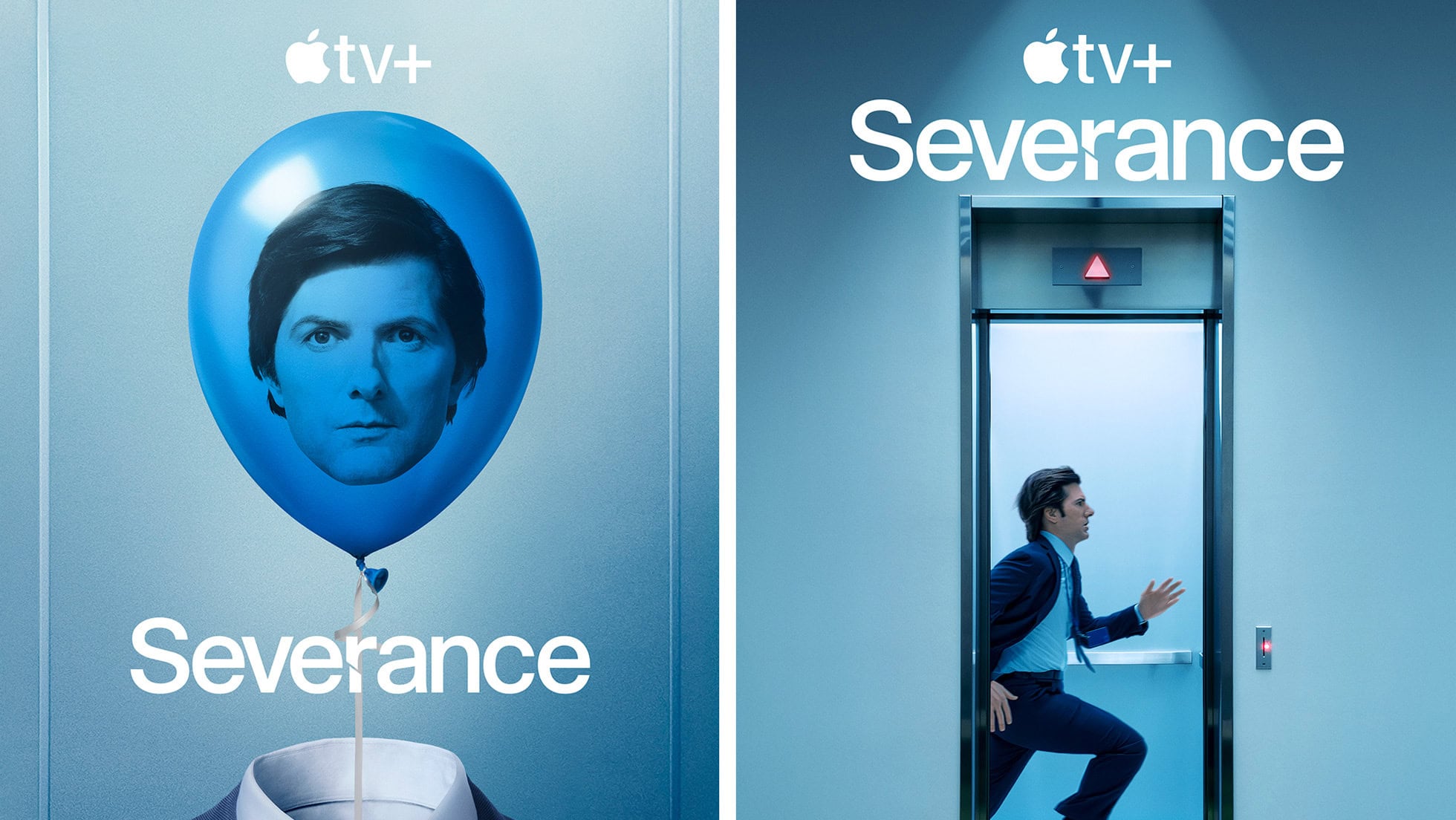
Today in Apple history: December 24, 2009: Pre-iPad rumors indicate Apple will call its tablet the
Pre-iPad rumors indicate Apple will call its tablet the "iSlate."
Illustration: Apple/Cult of Mac

December 24: Today in Apple history: Apple's new tablet is called ... iSlate? December 24, 2009: As rumors of a possible Apple tablet reach the boiling point, word spreads online that the new device will be called the iSlate.


The news is based on the fact that Apple quietly acquired the domain name iSlate.com a few years earlier. Since Apple did the same thing for the iPhone back in the late 1990s, years before the iPhone actually debuted, it makes total sense that the company would follow suit with the naming of its tablet.

Of course, that didn’t end up happening.

Severance season 2: It gets even weirder [Watch new 8-minute sneak peek!]

By

Severance season 2 trailer
It's not like it's going to get any less weird, right?
Photo: Apple TV+

Watching the new Severance season two trailer, below — and the new sneak peek at the first eight minutes of episode one Apple TV+ dropped Monday — my excitement for the new episodes became one with my grim determination to watch the entire first season again before the undoubtedly bizarre new scenes of workplace hell start streaming on January 17, 2025.

Never before have I force-marched myself through a whole TV series season as a matter of preparation. But this funny-yet-unnerving workplace psycho-thriller deserves and demands it. If you’re preparing for season three and catching up on all things Apple, you might also want to check out how to activate Apple AirTag—and while you’re at it, read up on Apple TV+ renewing Severance for a third season.

Update: As a twisted sort of holiday gift, Apple TV+ posted a sneak peek at the first eight minutes of Severance season two on Monday, December 23. It’s safe to say the main character is very much on the run through Lumon Industries sterile yet deeply alienating hallways until he comes face to face with a team of direct reports he doesn’t recognize. And he ends up with more questions than answers in a one-on-one with Mr. Milchik. Watch the sneak peek at the link above and the trailer below.

How to set up your new iPhone the right way

By

Set Up Your New iPhone
We can get your new iPhone set up easily — no need to phone it in.
Photo: Apple

The new iPhone setup process gets easier every year. Apple continuously improves the steps needed to set up an iPhone. These days, you only need to do a few things to transfer all your old iPhone data to a new one. Still, certain tips and tricks can smooth the way.

The hot new tip this year is that you can directly transfer data from your old iPhone to your new one using a cable. Plus, other time-honored iPhone setup tricks will help things run smoothly. Here’s how to set up your new iPhone the right way.

Kick team productivity into gear with Microsoft Project, on sale for less than $20

By

Microsoft Project sale: Get project management software for less than $20 and do more on the job.
Work smarter with a lifetime of MS Project for just $19.97.
Photo: Cult of Mac Deals

Every project needs a good team, but even the best personnel can get tangled when the job sprawls into different areas. That’s when the right software isn’t just a help — it’s a necessity. Microsoft has been helping workers boost productivity for decades with critical software (including early Mac apps). But there’s one tool you won’t find bundled with Microsoft 365, and you can get it in our Microsoft Project sale.

Thanks to this deal, new users can now get a lifetime license to Microsoft Project Professional 2021 for PC for less than $20. That’s an 92% discount off the usual price of $249.99 … and our lowest price ever!

What to expect from Vision Pro in 2025

By

Vision Pro in 2025
Will there be any big Vision Pro news next year? Surprisingly so.
Image: D. Griffin Jones/Cult of Mac

Will 2025 be a big year for Apple’s exciting new Vision Pro platform? With a fast new chip, a major software upgrade and more jaw-dropping content, there could be a lot in store for the AR/VR headset next year.

The fledgling device is likely to get worthy new hardware upgrades — and maybe even a price drop. visionOS 3, the next major software update, will have had a full 12 months in the oven. That means it could be a substantial release. And as production of 3D immersive content continues to get easier, there may finally be a lot more spatial video to watch on the headset. In fact, that could turn out to be the device’s killer app.

2026 iPhone 18 Pro may feature a game-changing variable aperture camera

By

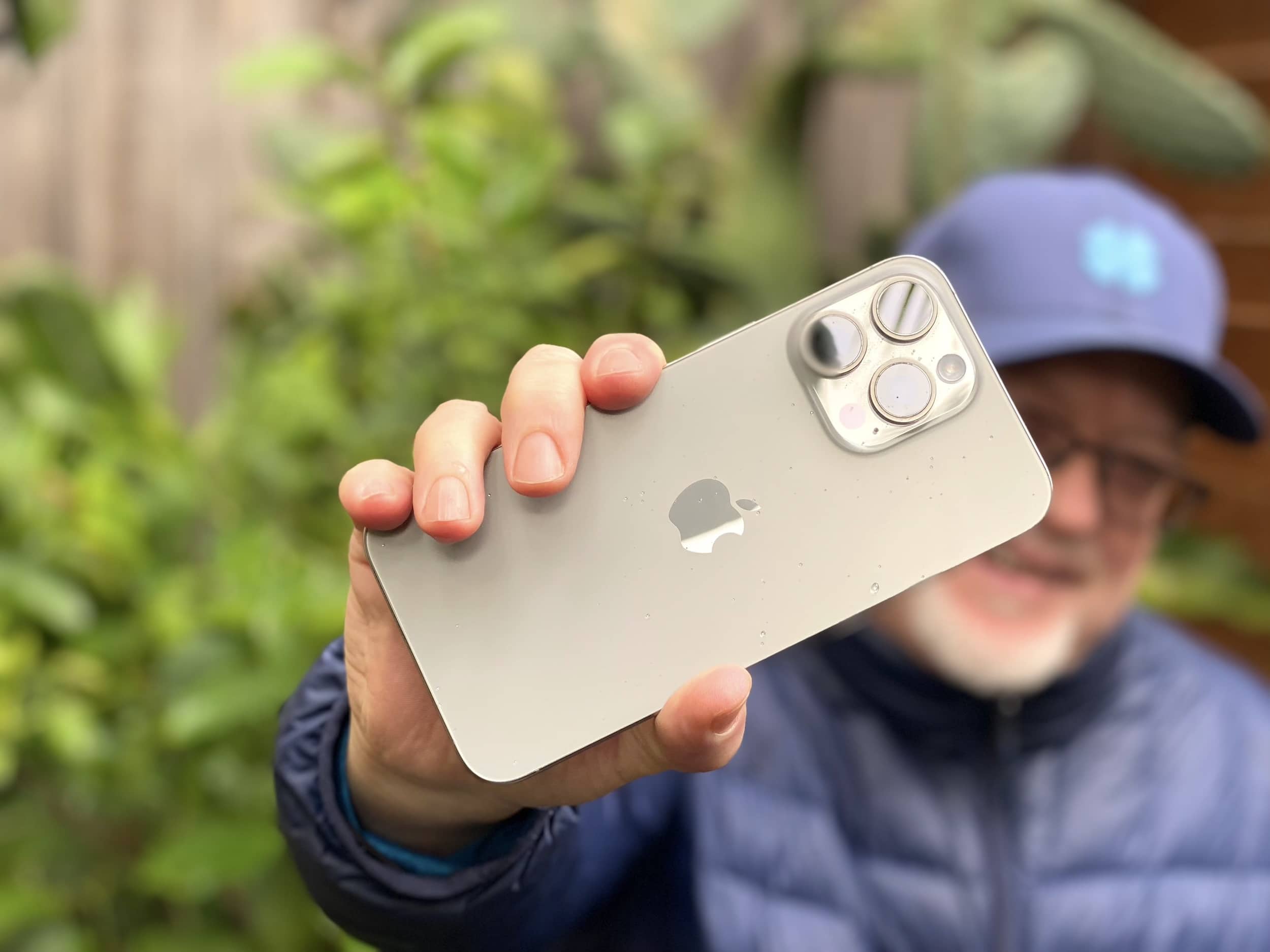
iPhone 15 Pro Max with no case, held aloft defiantly
The iPhone 18 Pro may introduce a groundbreaking feature inspired by professional-grade cameras.
Photo: Lyle Kahney/Cult of Mac

Apple could adopt a variable aperture system for the iPhone 18 Pro’s main camera that would enable the device to adjust the aperture size and light intake depending on surroundings.

DLSRs typically use a variable aperture lens system. Samsung and some Chinese Android manufacturers have also used the technology on their phones, albeit on a limited scale.

Swap Siri for handy buttons with this old-school Apple TV remote

By

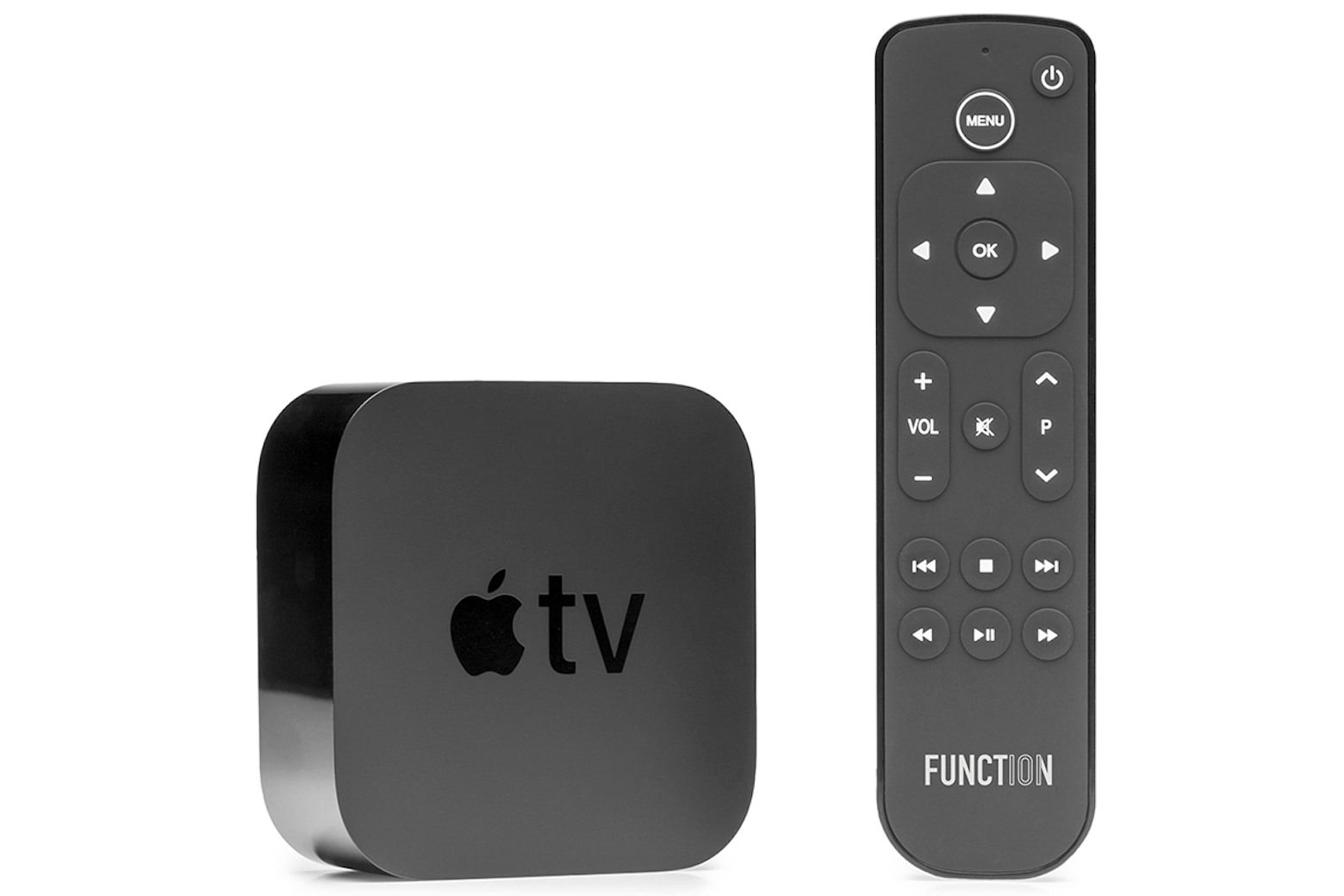
Grab an Apple TV replacement remote that doesn't require a conversation to change the channel
Finally, an Apple TV remote that isn't all talk.
Photo: Cult of Mac Deals

The Apple TV has a lot going for it, but the Siri Remote is pretty divisive, to say the least. If you like telling a half-smart robot what to do, you’re going to be hard-pressed to find a better remote. However, if you want a traditional TV-watching experience, the voice controls might not be your cup of tea. And this alternative Apple TV remote gives you all the buttons you might miss from the good old days.

The Function101 Button Remote was designed as a replacement remote for Apple TV and Apple TV 4K, and it makes it easier for you to use all the features built into your set-top streamer. For a limited time, you can get the Function101 Button Remote on sale for $19.97 (regularly $29.95).

How to share an AirTag with other people

By

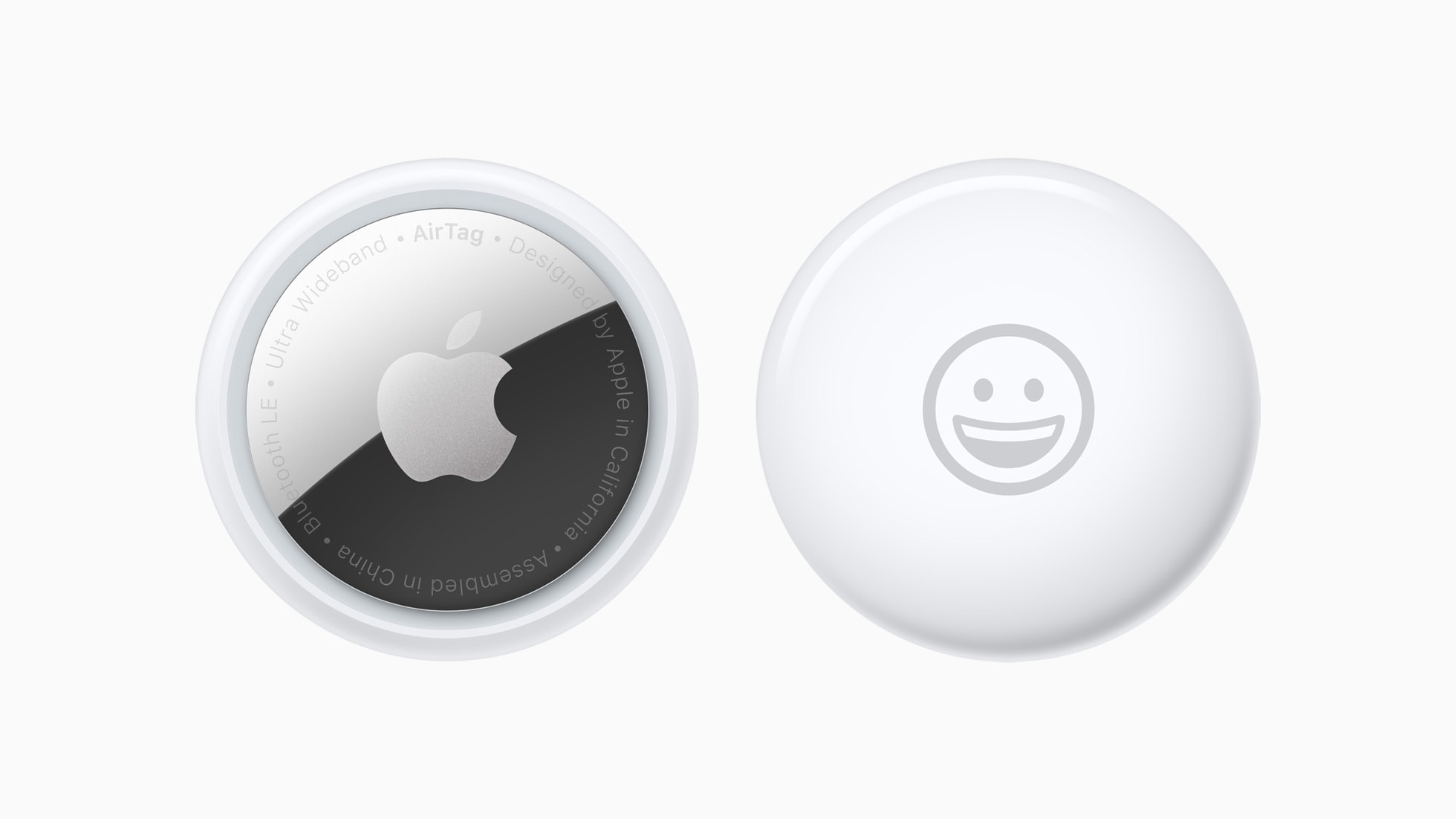
A New York Times reporter found that AirTag tracking and privacy alerts can work better than other trackers.
You can share an Apple AirTag with up to five people. Here’s how.
Photo: Apple

When Apple launched the AirTag, you could link the tracking tags to only one person. Luckily, Apple expanded that. Now you can share an AirTag with up to five other people, so each one can see where it is.

Here’s how to share an AirTag with family members or friends.

‘Small upgrade, big difference’ [Setups]

By

USB-C cable adapters
It's amazing what a difference a 90-degree cable connector can make in a the look of a computer setup. See the "before" photo below.
Photo: [email protected]

This holiday season, give yourself or someone else the timeless gift of better cable management. Today’s MacBook Pro and LG DualUp display user shows us one way to make a small but significant improvement in the look of a computer setup. You can use cables with 90-degree connectors rather than straight ones for a cleaner look (or get USB-C cable adapters with right-angle or vertical ends for your straight cables). Check out the “after” photo above and the “before” photo below.

And seriously, if you’re hard up for stocking-stuffer ideas, a USB-C adapter kit might be just the thing. See below.

Today in Apple history: Apple invents ‘slide to unlock’

By

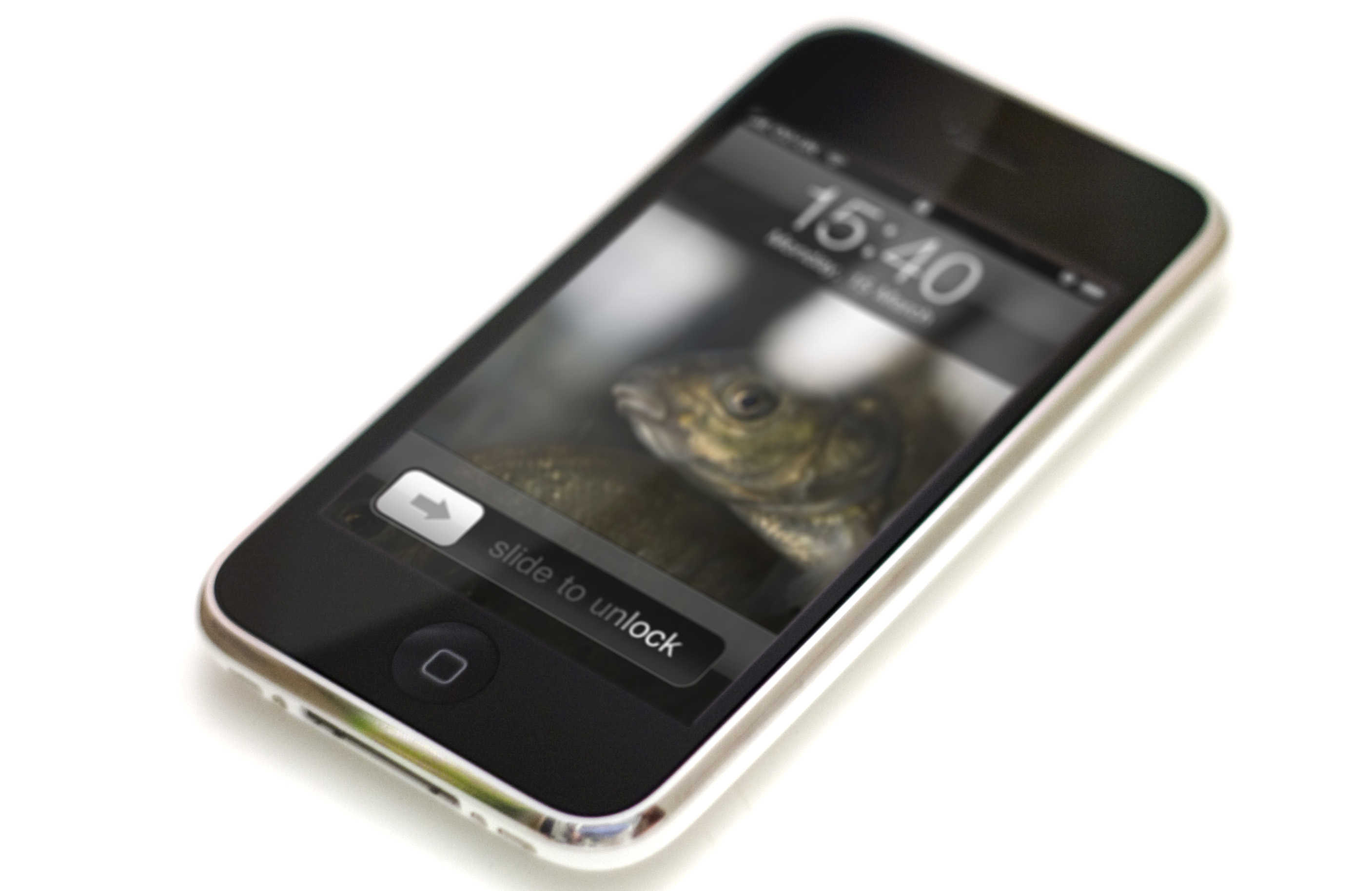
Apple didn't invent the Slide to Unlock gesture.
"Slide to unlock" drew audible gasps from the audience when Steve Jobs first showed it off.
Photo: Jared Earle/Flickr CC

December 23: Today in Apple history: Apple invents slide to unlock gesture for iPhone December 23, 2005: Apple files a patent application for its iconic “slide to unlock” gesture for the iPhone.

At this point, the iPhone remains a secret research project. However, the ability to unlock the device by sliding your finger across it signifies Apple’s big ambitions for its smartphone. Cupertino wants the iPhone it’s racing to develop to be easy to use, intuitive and miles ahead of the competition technologically.

Apple M5 processor might put in an early appearance

By

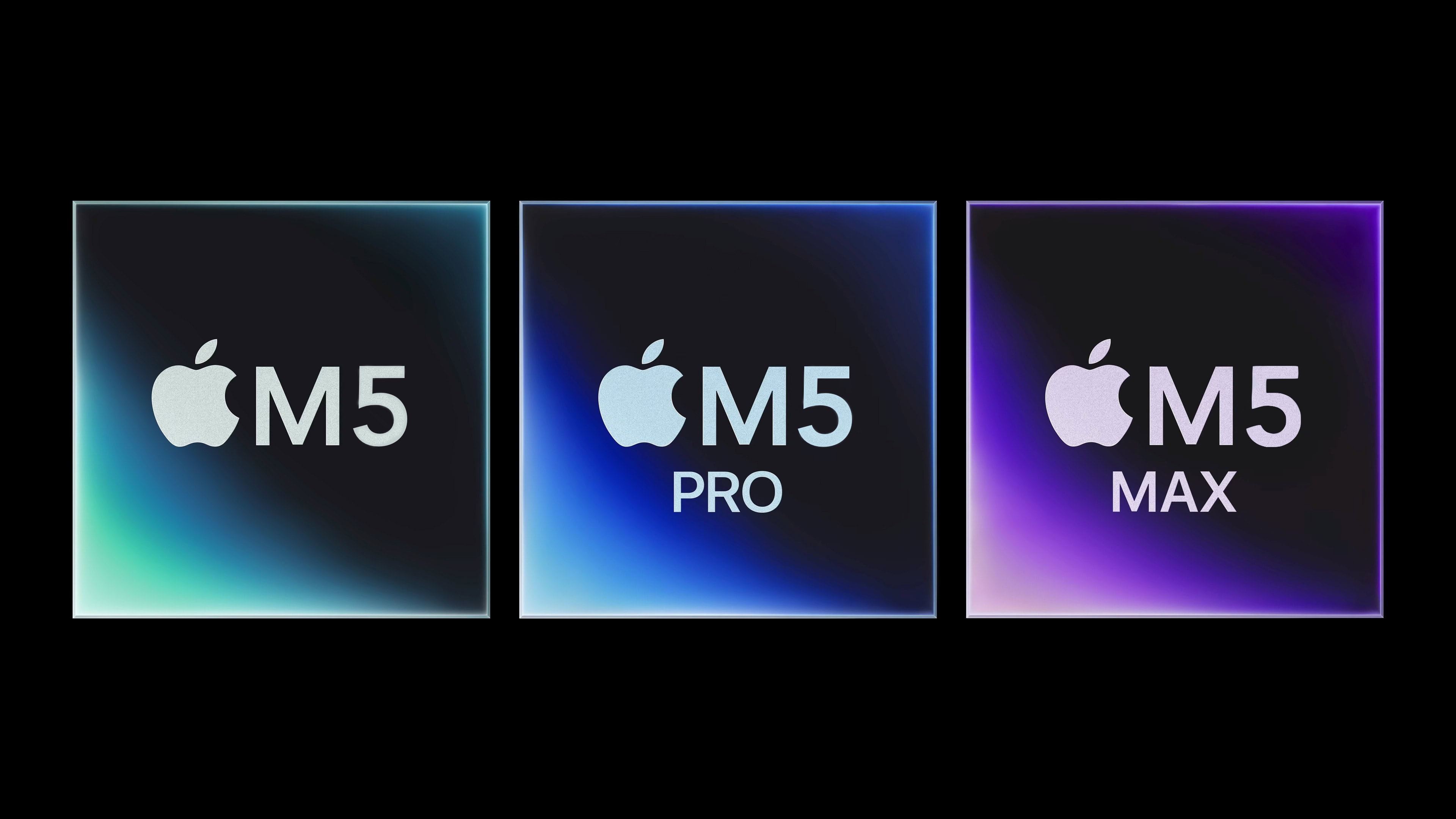
M5, M5 Pro, M5 Max
Expect the M5, M5 Pro and M5 Max processors in 2025.
Photo: Apple/Cult of Mac

It’s a safe bet that the Apple M5 processor will start replacing the current M4 in 2025, and it might even happen in the first half of the year.

That’s according to a roadmap of when the various versions of the chip will go into production leaked Monday by a reliable source of insider Apple information.

What to expect from the Mac in 2025

By

New Macs in 2025
A lot of Macs are coming next year.
Image: Apple/D. Griffin Jones/Cult of Mac

What does Apple have planned for the Mac in 2025? For the last couple of years, Apple’s been killing it with its desktop and laptop computers. The chips scream, the industrial design has never been better, and the Mac lineup is undoubtedly the best in Apple’s history. Just look at the amazing new Mac mini.

But can Apple keep up the pace next year?

Today in Apple history: iPhone comes to the world’s biggest carrier

By

Photo of Apple CEO Tim Cook talking with Chinese children to illustrate an Apple history article about the deal that brought the iPhone to China Mobile, the world's largest carrier.
China is a massive market for Apple.
Photo: Weibo/Tim Cook

"DecemberDecember 22, 2013: After months of false starts, Apple finally secures a deal with China Mobile to bring the iPhone to the world’s largest telecom company.

With 760 million potential iPhone customers in the offing, the deal shapes up as Apple’s most important yet for growing its brand in China. In fact, Apple CEO Tim Cook says the country soon will become the company’s biggest market.

Apple’s next big smart home move could bring Face ID to your doorbell

By

Apple security lock logo
A smart home doorbell from Apple with Face ID could become a reality.
Photo: Apple

Apple is reportedly working on a smart doorbell with Face ID-like facial recognition.

The device, still in its early development stages, seems unlikely to reach the market before late 2025 at the earliest. This timeline presumes Apple encounters no significant obstacles during development.

iOS 19 might not cut off any older iPhones

By

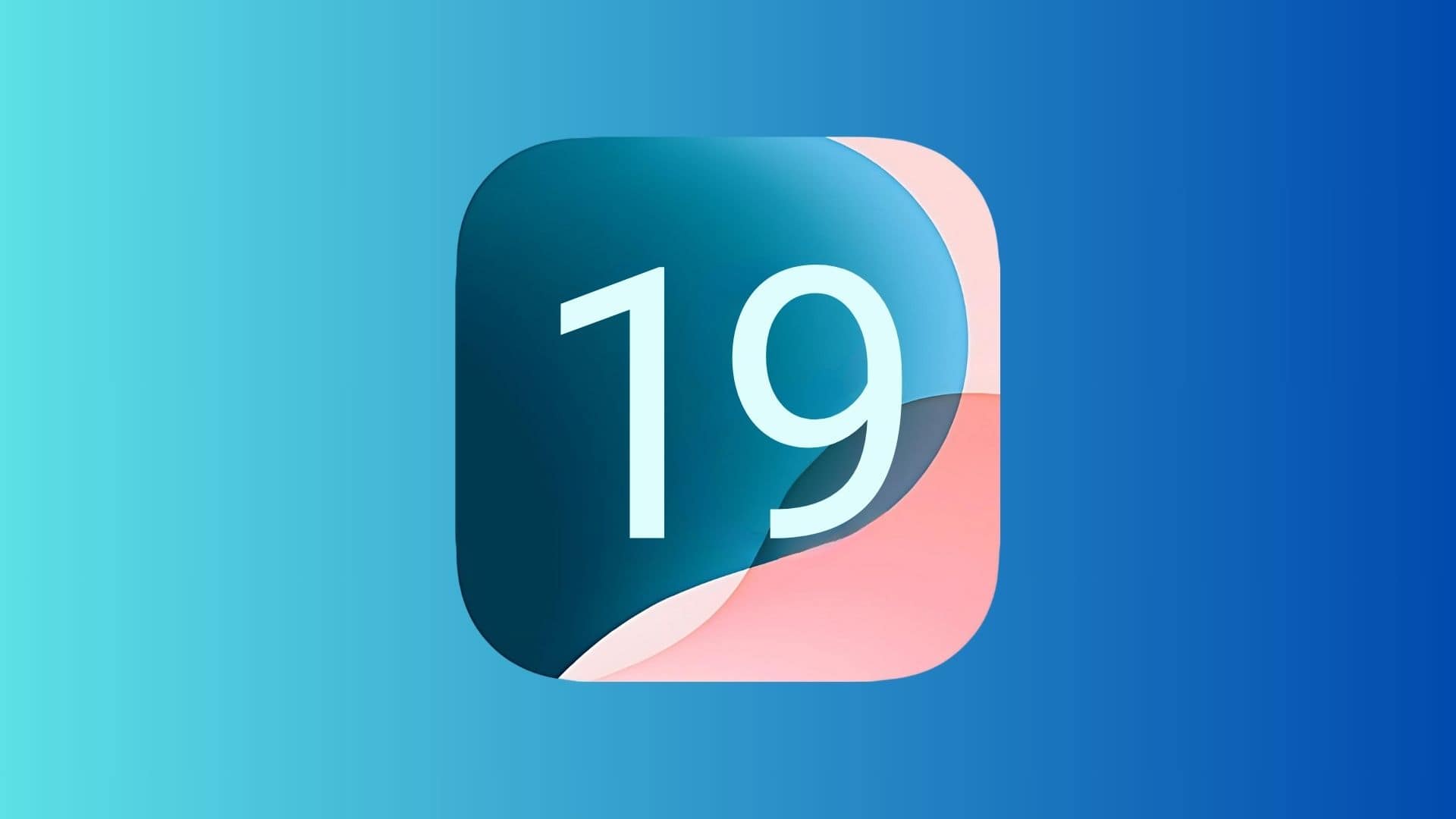
iOS 19 render logo
iOS 19 will supposedly work with iPhones launched in 2018.
Photo: Rajesh Pandey/Cult of Mac

Apple might not drop support for any of its older iPhones with iOS 19. The next big iOS update reportedly will support the same devices as iOS 18.

However, iPadOS 19 supposedly will not be compatible with the seventh-gen iPad.

Is this really what iPhone 17 Pro will look like? [The CultCast]

By

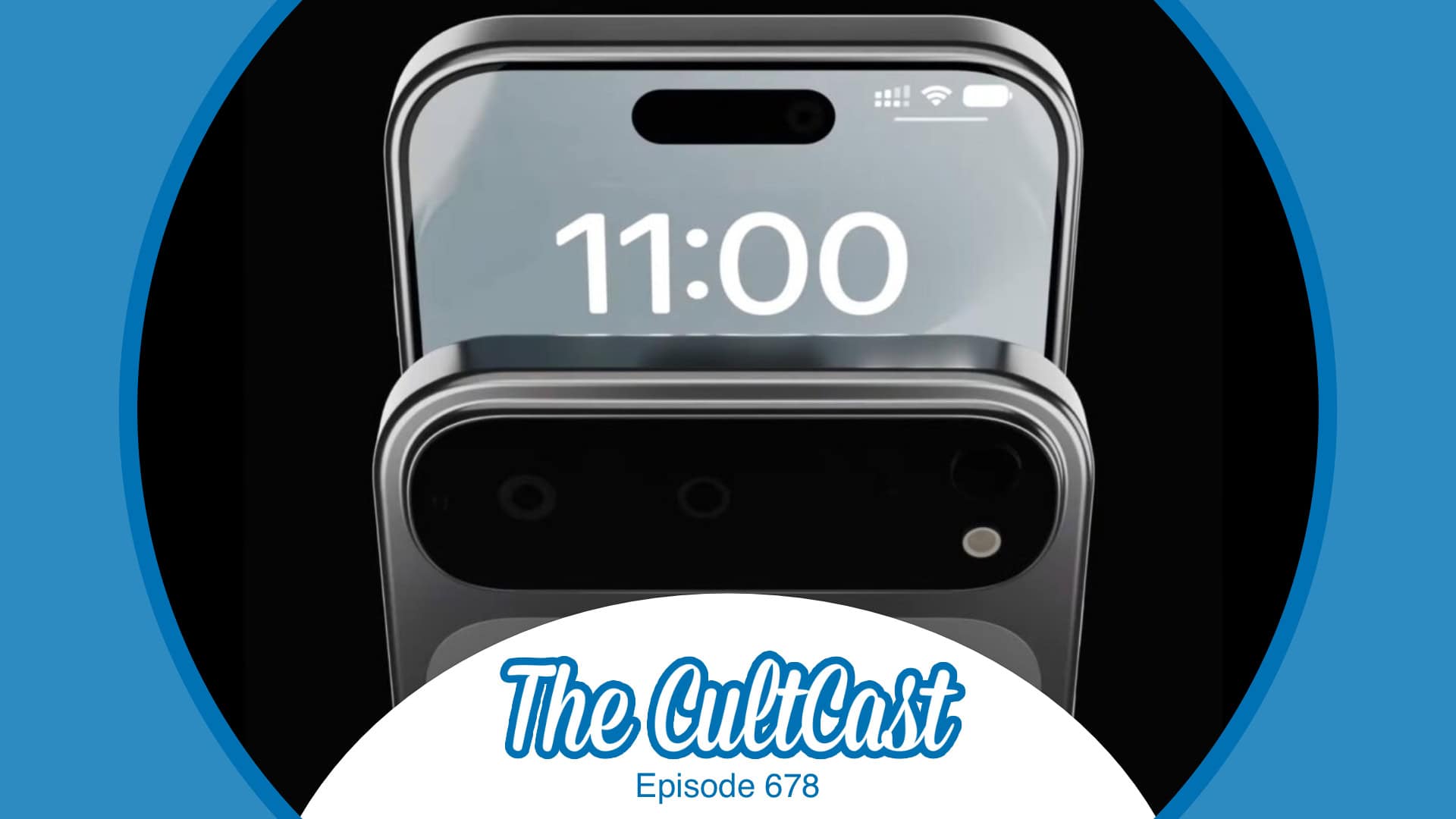
The CultCast episode 678, with iPhone 17 Pro renders based on latest Apple rumors
Is this the iPhone you want?
Image: Cult of Mac

This week on Cult of Mac’s podcast: Some new iPhone 17 Pro renders make us ponder whether Apple will (or should) create such a device. We discuss the pros, cons and alternative theories.

Also on The CultCast:

  • An update on when we might see the very first folding iPhone.
  • A ridiculous Apple Intelligence screwup lands Apple in hot water.
  • We wrap up with round two of our picks for best and worst of 2024.

Listen to this week’s episode of The CultCast in the Podcasts app or your favorite podcast app. (Be sure to subscribe and leave us a review if you like it!) Or watch the video live stream, embedded below.

What to do when your iPhone storage is full

By

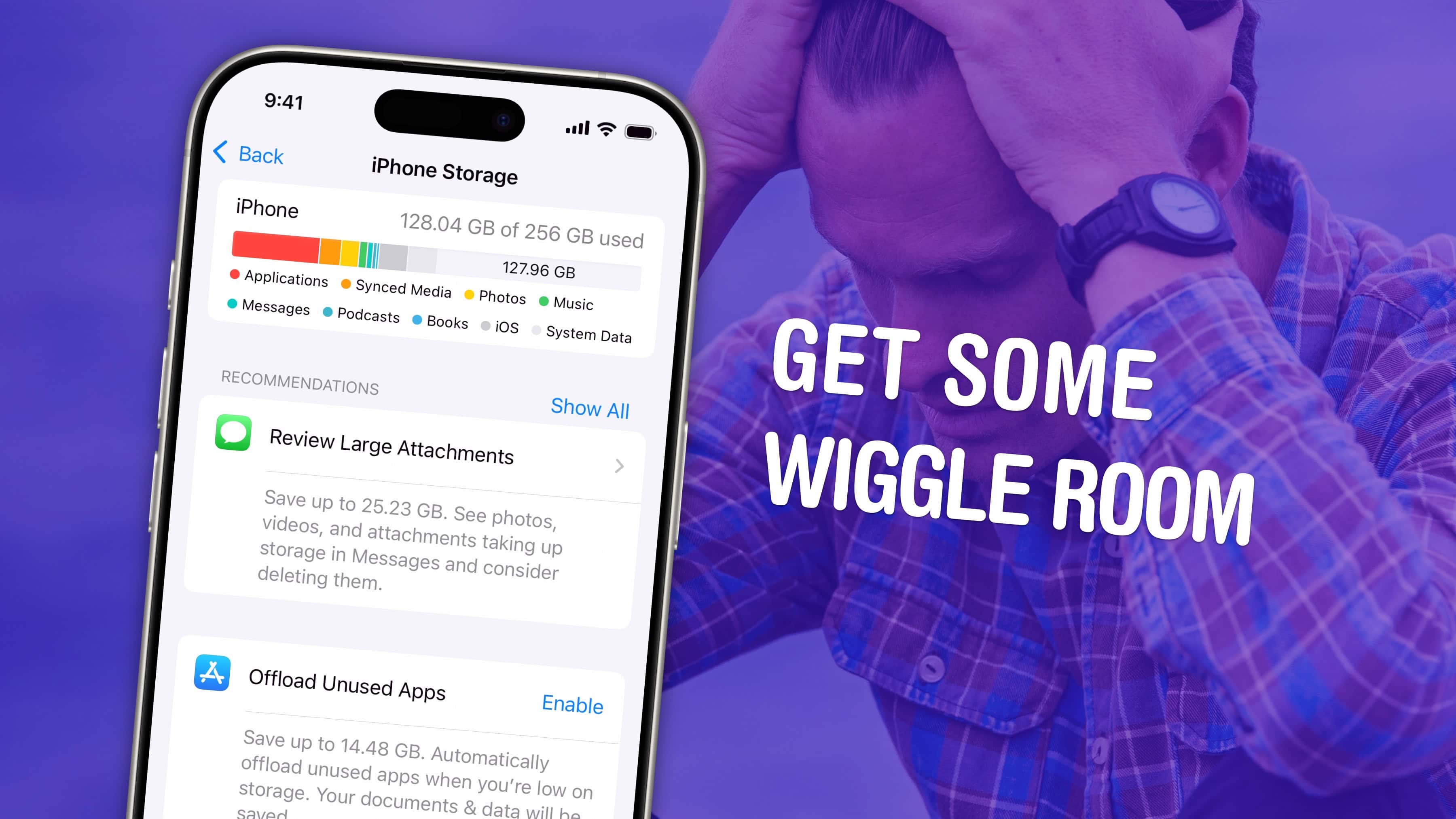
Get Some Wiggle Room
Get some space back on your phone.
Image: D. Griffin Jones/Cult of Mac

If your iPhone storage is full, you’ll need to quickly clear up space. You don’t need to panic and delete all your pictures, though. There are easy ways to free up iPhone storage without losing any precious data forever.

Apple put a convenient screen in Settings that can walk you through non-destructive ways to clear up space on your phone. Apps that you don’t use frequently can be temporarily uninstalled (and instantly redownloaded when you need them again). If you sync data to iCloud, like photos and music, your phone can automatically offload some of that data. You also can limit the number of podcasts your phone keeps, if you’re falling behind on your listening.

Here are the easiest steps you can take if your iPhone storage gets too full.

Today in Apple history: Marathon is Mac’s answer to Doom

By

First-person shooter Marathon gave Mac gamers something to be proud of.
Photo: Bungie

December 21: Today in Apple history: Marathon game is Mac's answer to Doom December 21, 1994: Mac gamers get their hands on Marathon, a sci-fi first-person shooter designed as an answer to the massive success of PC title Doom.

Created by Bungie, the team that would later make the Halo games, Marathon introduces important features to the FPS genre. Just as importantly, it isn’t available on PC. Marathon quickly becomes a favorite among Mac gamers.

Share your screen to (and from) any Mac, right from the Messages app

By

Help Out Your Parents
Screen Sharing is a great way to give remote tech support.
Image: Daniel Aragay/Wikimedia Commons/D. Griffin Jones/Cult of Mac

A little-known feature in macOS lets you share your Mac’s screen to someone else’s Mac directly from the Messages app — no third-party apps or downloads required. It’s great if you need to give tech support to a far-off family member in a pinch. Often, you just need to see what’s happening instead of counting on what your dear old father is trying to describe over the phone.

Get him to share his Mac’s screen with you, and you likely can solve his problem quickly. Even better, it’s not complicated setting up screen sharing on a Mac like it is on a PC. It takes only a few clicks in the Messages app. Let me show you all around this awesome hidden feature.