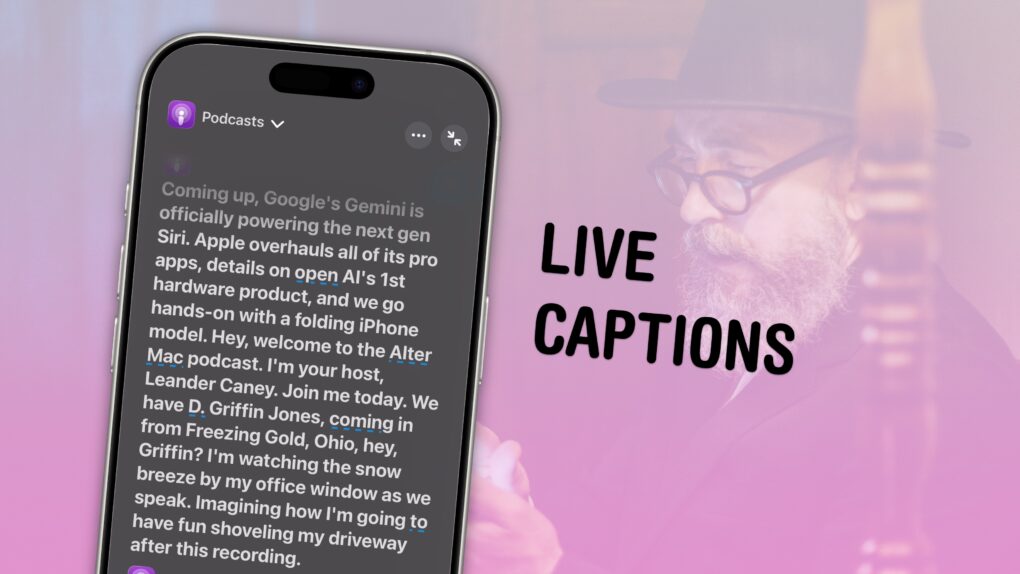
Live Captions on the iPhone generate subtitles of any media playing on your iPhone, or heard from the microphone in the real world. Powered by the Neural Engine in Apple’s custom silicon, the capability to turn words from music, videos and real-time conversations into real-time text is a boon to many users, in many different situations.
If you’re hard of hearing, for instance, the ability to see instant captions on the screen is a game changer. Or, if you don’t have headphones when you’re sitting in bed late at night and your partner is asleep – or you’re in any situation where you don’t want to make noise, like on the bus or in an office – you can turn on Live Captions to get subtitles.
The applications are endless and exciting. Here’s how to use Live Captions.
How to use Live Captions on iPhone
Live Captions made a big splash in May 2022 when Apple announced the feature alongside other new accessibility features coming to iOS. These features got their own day in the spotlight to mark Global Accessibility Awareness Day.
In subsequent years, the feature expanded to Vision Pro and Apple Watch. Paired with the added ability to get Live Captions of in-person conversations using your microphone, in addition to phone calls and FaceTime calls, it’s a powerful and versatile tool.
Table of Contents: Live Captions on iPhone
- Turn on and use Live Captions
- How accurate is it?
- Use Live Captions on Apple Watch
- Add a shortcut to activate Live Captions on your iPhone
- More accessibility features
Turn on and use Live Captions
Screenshot: D. Griffin Jones/Cult of Mac
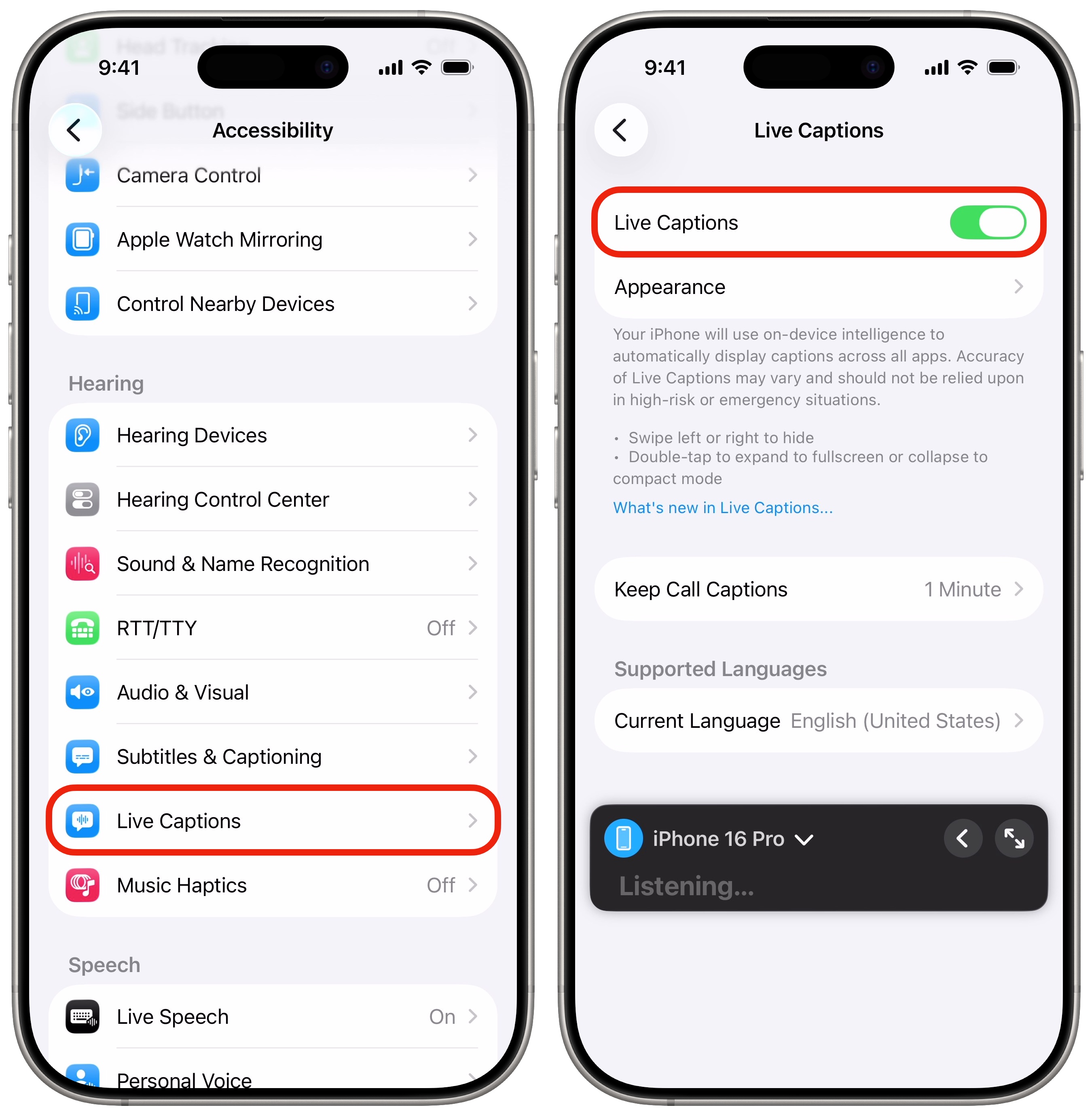
To turn it on, go to Settings > Accessibility > Live Captions (in the Hearing section) and enable Live Captions.
You should immediately see a floating on-screen widget. The menu on the left will let you toggle between captioning from the microphone and your phone’s audio. There’s also a button to minimize the widget and make it fullscreen.
In Appearance, you can customize the text size, color and opacity of the widget. You can choose to Keep Call Captions from a phone call for either one minute or one hour. You can also choose from any of these languages:
- English (United States)
- English (Australia)
- English (Canada)
- English (India)
- English (Singapore)
- English (United Kingdom)
- French (Canada)
- French (France)
- Cantonese (China mainland)
- Cantonese (Hong Kong)
- Chinese (China mainland)
- German (Germany)
- Japanese (Japan)
- Korean (South Korea)
- Spanish (Mexico)
- Spanish (Spain)
- Spanish (United States)
How accurate is it?
Screenshot: D. Griffin Jones/Cult of Mac
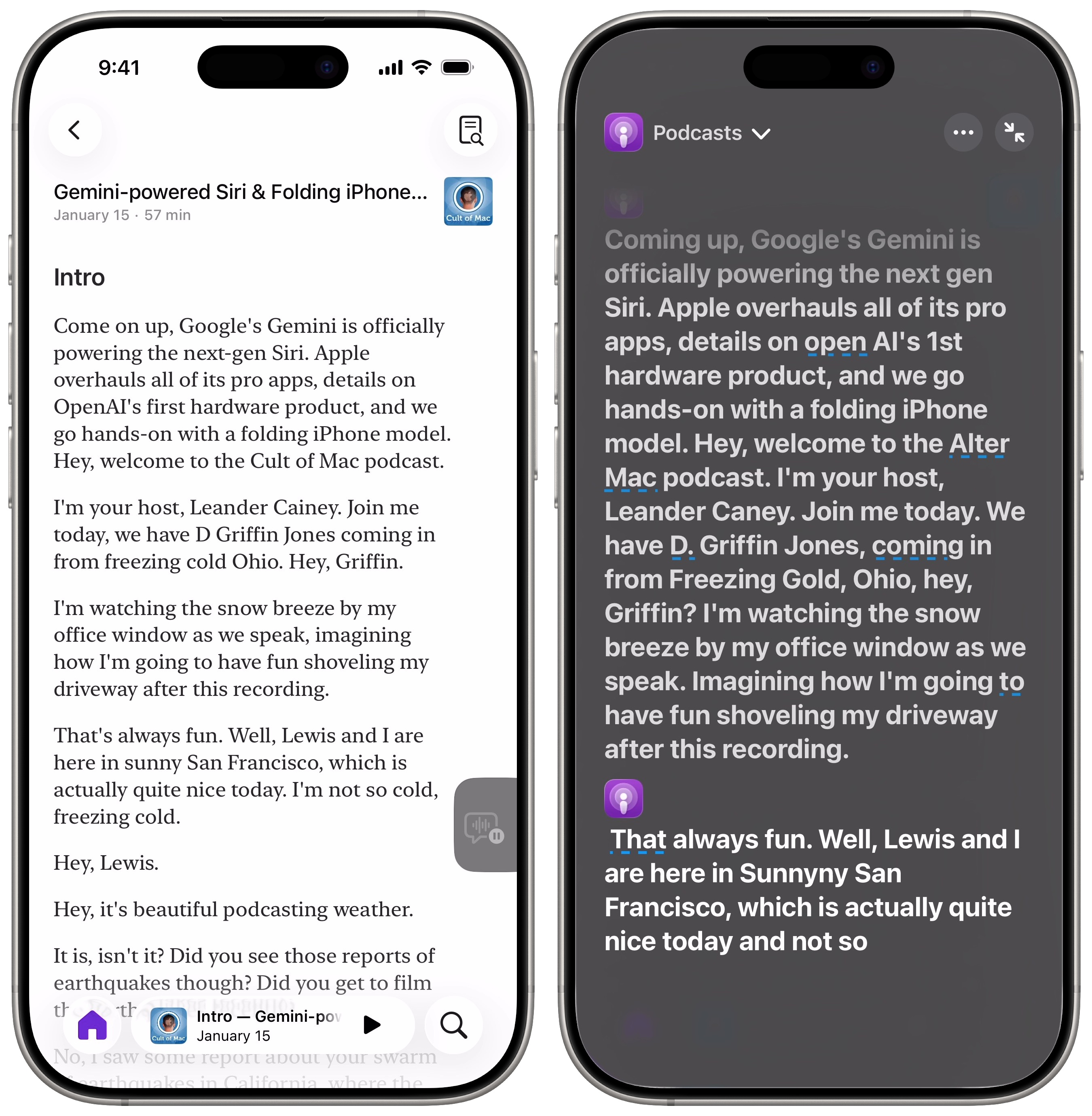
Apple has added extensive support for transcriptions to podcasts and lyrics in Apple Music. That makes comparing its accuracy very easy. As you can see, the Live Captions aren’t as accurate, but still mostly understandable.
Live Captions processes the audio as it hears it in real time. As Live Captions hears the end of a sentence, it might work backward and correct the beginning, adding punctuation or replacing sound-alike words, just like using dictation on your iPhone.
That makes the mini on-screen viewer a little hard to follow; you’ll probably want to maximize the window when you can. However, that covers up the app controls for pausing and skipping chapters.
Can you use Live Captions to parse music lyrics for you? Live Lyrics aren’t supported in every song — especially if you import your own music from live concerts or obscure bands.
This is more of a mixed bag. More spoken word songs, even with fast and complex lyrics, fared well. I tested “Ya Got Trouble” from The Music Man and “The Elements” by Tom Lehrer, with Live Captions correctly identifying most of the words. More typical songs struggle to get words with much accuracy at all.
Use Live Captions on Apple Watch
Screenshot: D. Griffin Jones/Cult of Mac
You can get Live Captions on your Apple Watch, too. This is more convenient if you want transcriptions for in-person conversations.
On your iPhone go to Settings > Accessibility > Audio & Visual > Live Listen to turn on Remote Control. This is what lets you enable the feature from your Apple Watch.
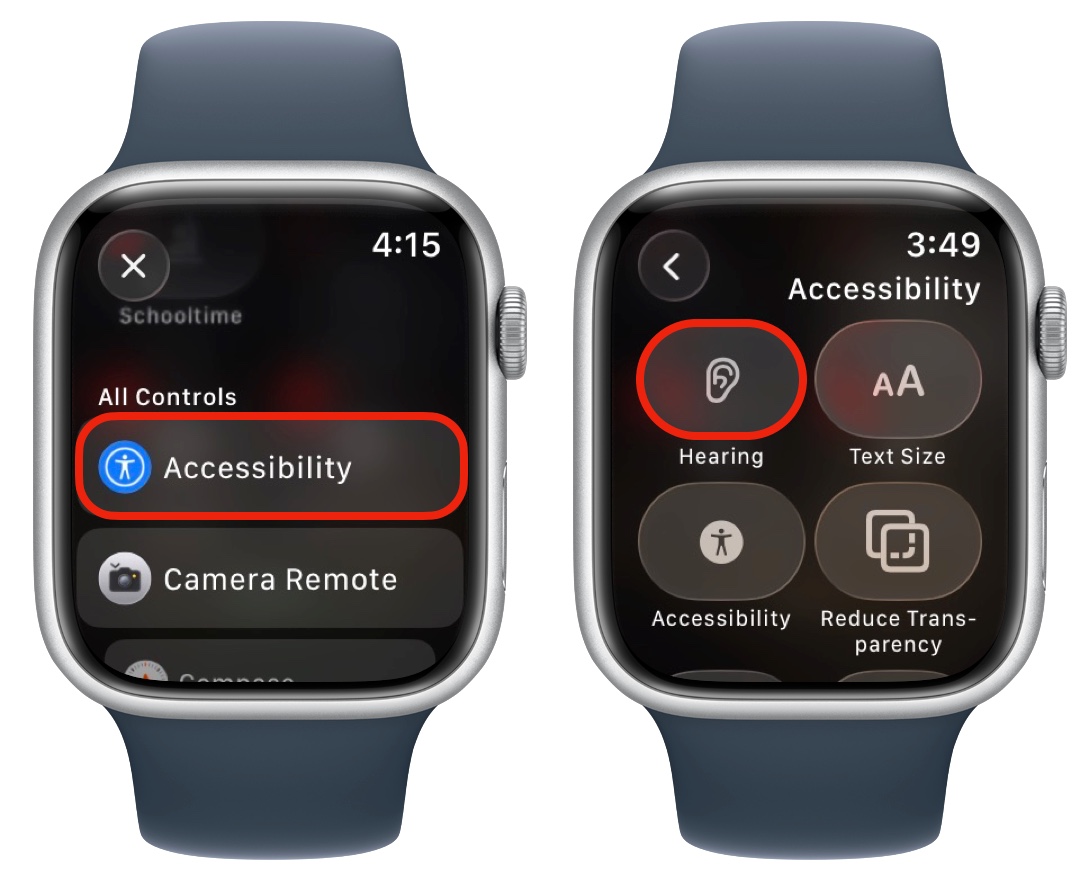
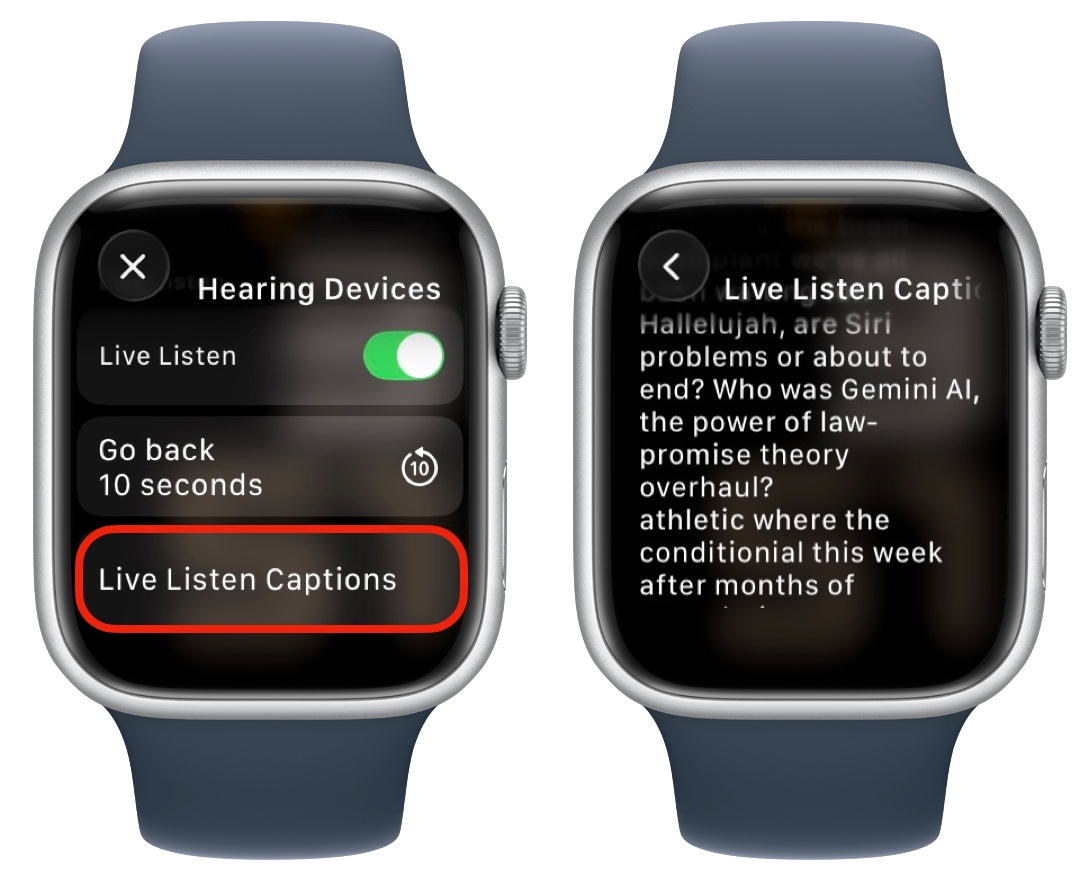
Then, on your Apple Watch, click the side button to open Control Center. Scroll to the bottom and tap Edit, then tap the + in the upper left corner. Scroll down to tap Accessibility, then tap to add the Hearing button. Move it up the list for easier access if you want, and tap Done.
Screenshot: D. Griffin Jones/Cult of Mac
Now, you can enable Live Listen Captions on your Apple Watch. Open Control Center, tap the Hearing button, turn on Live Listen, then tap Live Listen Captions to get subtitles. Part of using this feature is that it’ll also pipe audio through your phone speakers or AirPods, so it’s easier to hear.
Add a shortcut to activate Live Captions on your iPhone
Screenshot: D. Griffin Jones/Cult of Mac
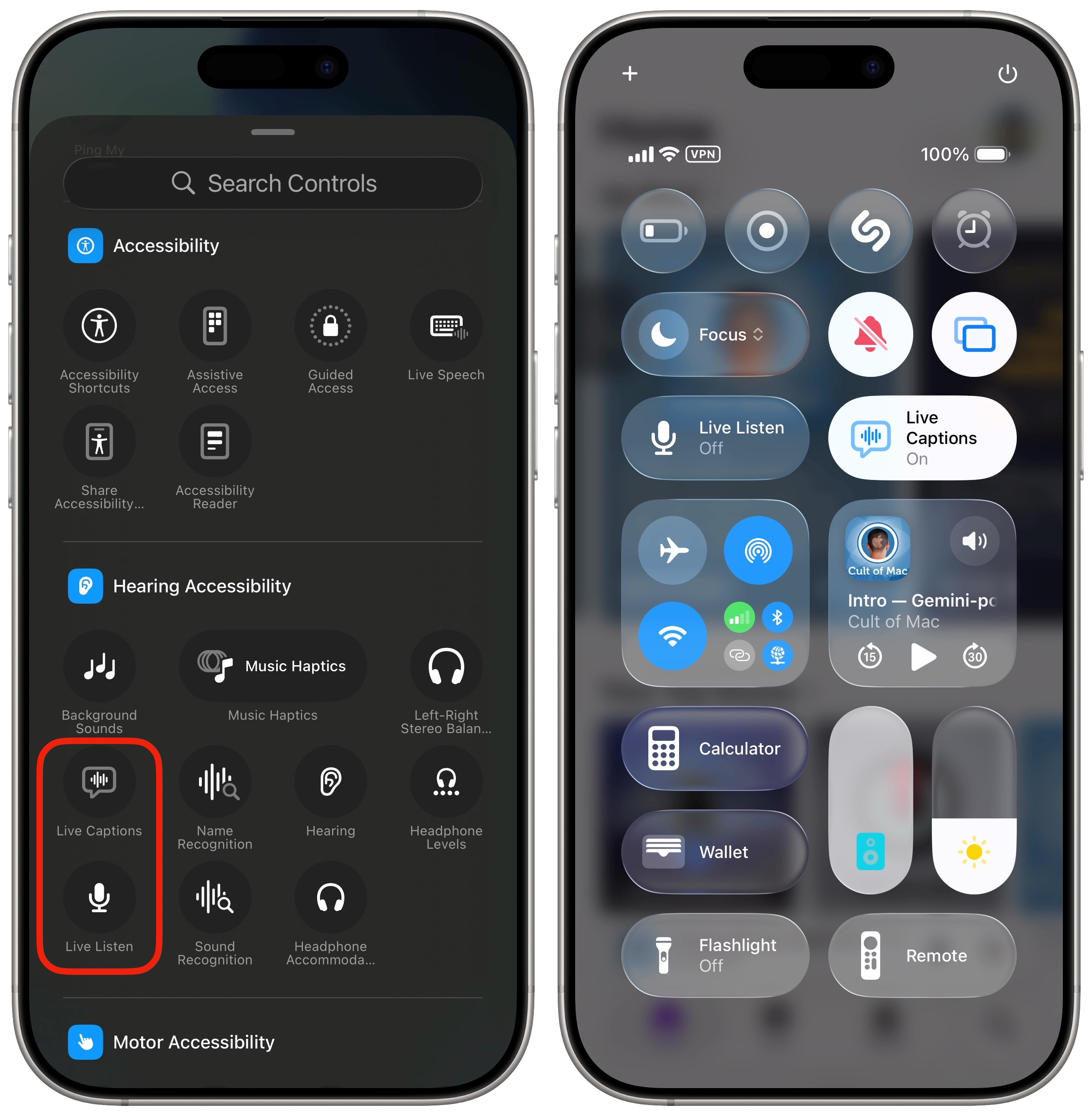
You also can add a button to Control Center that lets you quickly toggle Live Captions. Swipe down from the top-right of the display (or, if you have an iPhone 8 or iPhone SE, the bottom edge) to bring up Control Center.
Tap the + button in the upper right, then tap Add a Control at the bottom of the screen. Scroll down to the Hearing Accessibility section to add a button for Live Captions (and, if you use the Apple Watch feature, add a button for Live Listen, too).
More accessibility features
- Vehicle Motion Cues will help reduce feelings of motion sickness. With the feature turned on, dots along the edge of your iPhone screen will animate in sync with the motion of the plane, train or automobile you’re riding in.
- Eye Tracking lets you control your iPhone entirely with your eyes. You can use this feature in a pinch if you need to use your phone with soapy hands while doing the dishes.
- Music Haptics add another dimension to audio: vibration. The feature brings to life a track of rhythmic vibrations and patterns timed to certain Apple Music songs.
- Vocal Shortcuts let you control your phone by speaking a command out loud. Think “Hey Siri,” but for running your own custom actions from Apple’s Shortcuts app.
- Live Speech plays whatever you type into the keyboard out of the speakers. And Personal Voice lets you train your phone to mimic your own voice.
- Sound Recognition will continuously listen for certain sounds and will notify you when they’re recognized.
- Guided Access locks down your iPhone to a single app before you hand it to a kid or someone else.
This article on Live Captions for iPhone was originally published on July 19, 2022. We updated it with the latest information on September 29, 2022 and January 21, 2026.

D. Griffin Jones is a writer, podcaster and video producer for Cult of Mac. Griffin has been a passionate computer enthusiast since 2002, when he got his first PC — but since getting a Mac in 2008, he hasn’t turned back. His skills in graphic and web design, along with video and podcast editing, are self-taught over 20+ years. Griffin has a bachelor’s degree in computer science and has written several (unpublished) apps for Mac and iOS. His collection of old computers is made up of 40+ desktops, laptops, PDAs and devices, dating back to the early ’80s. He brings all of these creative and technical skills, along with a deep knowledge of Apple history, into his work for Cult of Mac.

