
Over the last year, my Mac has slowly filled up with apps that did not exist 18 months ago. Most of them were built by one person. Several of them replaced software I had paid for and used for the better part of a decade.
This shift is not a coincidence. AI has made it possible for a single developer to ship the kind of Mac app that used to require a small team and a couple of years to perfect. And the result is that great new Mac apps are launching almost every other week these days.
4 great AI-coded Mac apps that are worth the download
Macs are great for AI workflows, and the platform is just as good for building AI-assisted apps. Yes, there’s a lot of AI slop out there. I have lost count of the emails I have received in the last few months asking me to try a new AI-powered Wispr Flow clone. Similarly, every week I come across several AI-coded Mac apps on Reddit and X that clone a popular utility, each made by a vibe-coder in a single weekend.
Such apps might receive a lot of updates initially. But within a few weeks or months, the developer will likely abandon the project for something else.
AI slop is real, but some gems stand out
However, “built with AI” does not automatically mean an app is AI slop. Developers with a clear idea of what they want from a Mac app are building some outstanding apps with a little (or a lot of) help from AI.
To be clear, “vibe-coded” here can mean an app made entirely with AI, or a developer using AI to write part of the code to speed up development. The apps below sit somewhere along that range.
None of them were made in a weekend. Plus, they have been around for at least two or three months. More importantly, they have been receiving a steady stream of updates since launch.
Table of contents: 4 great AI-coded Mac apps
- Vitals: The app that finally replaced iStat Menus
- Mole: A Mac cleaner that doesn’t want your credit card
- ActionClip: The app that retired PopClip for me
- Folia Files: The most capable Finder replacement I’ve used
Vitals: The app that finally replaced iStat Menus
Screenshot: Rajesh Pandey/Cult of Mac
I have used iStat Menus for nearly eight years. It was one of the first apps I installed on every new Mac, and for a long time, nothing came close. But it has barely changed in recent years. The menu bar readouts are the same ones I was looking at in 2018.
I came across Vitals on X, and within a day of installing it, I uninstalled iStat Menus for good.
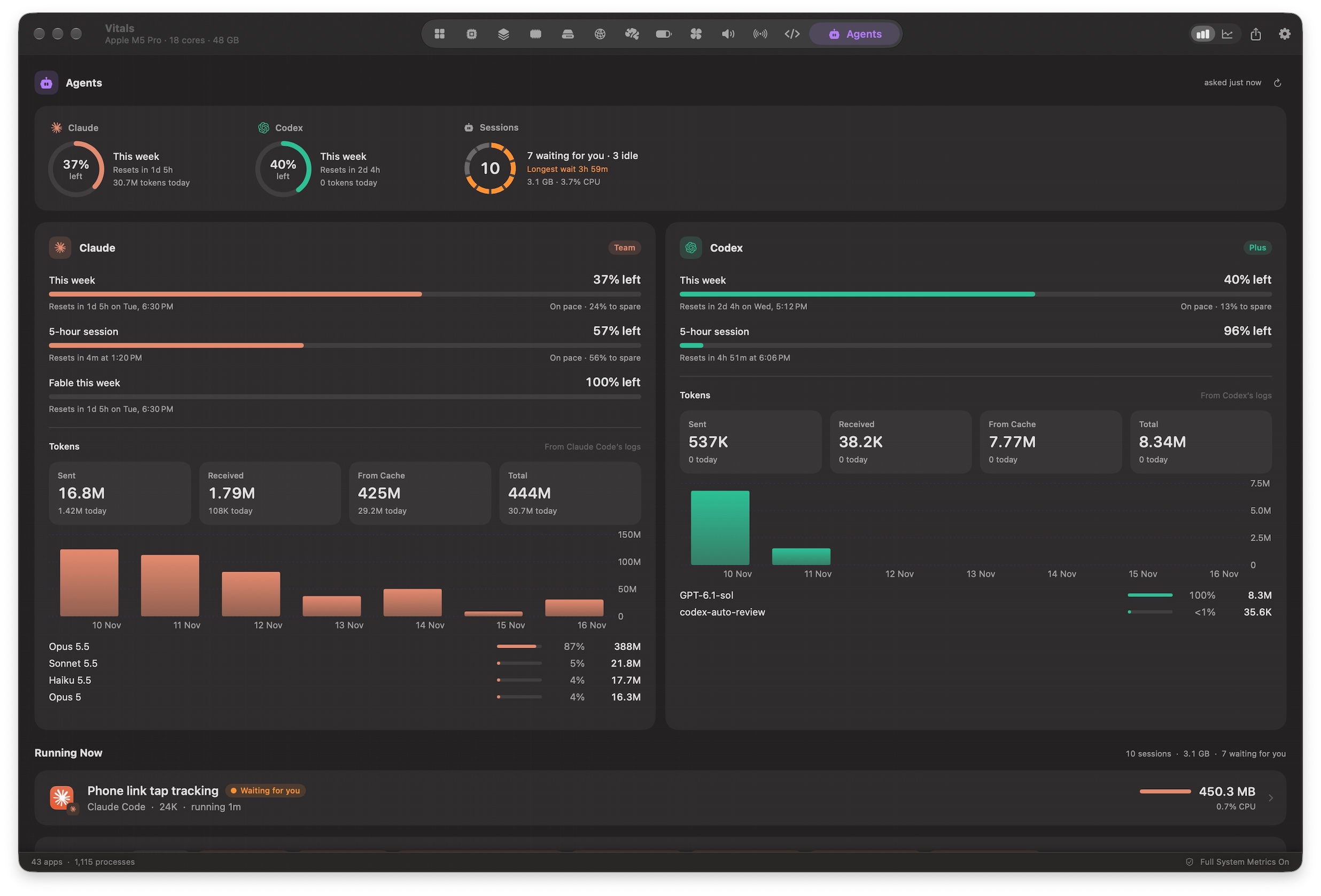
Vitals is not just an AI-coded iStat Menus replacement. The developer made it a complete package — and a better one at that, replacing both iStat Menus and the Mac’s built-in Activity Monitor.
Besides a better-looking and more detailed interface, Vitals provides far more information than a simple process list. Activity Monitor shows roughly a thousand rows on my Mac right now, most of them meaningless. Vitals groups every helper, tab and renderer under the app it belongs to, so that list collapses to about 60 apps.
Vitals also covers the basics that iStat Menus is known for. Every reading can sit in the menu bar as its own item — CPU, memory, network, temperature, battery — each shown as a number, a graph or both, turning red while that reading is under strain. I can show, hide and reorder the items, and ⌘-drag rearranges them. Clicking any one opens a dropdown with the full figures and the apps behind each, and clicking an app there jumps straight to it in the main window.
Managing your Mac’s fans
Vitals handles your Mac’s fans too, which was the other reason I held on to iStat Menus for so long. I can leave the fans under macOS’s automatic control, drag them to a fixed speed, or set a curve that maps temperature to fan speed. A “Quiet on Battery” rule keeps them down when I am unplugged, and they run at full speed above 203 degrees (95 degrees Celsius) no matter what I have set.
When my MacBook Pro suddenly gets warm, I no longer scroll a process list guessing which Google Chrome process to blame. Vitals tells me Chrome is up 1.2 GB in the last hour, and it keeps a year of history locally so I can see whether that is normal for my daily usage.
I also love Vitals’ ability to pull the history of my Mac’s usage for the last 30 days. The app gives me the kind of data and insights that iStat Menus never provided. Thanks to Vitals, I know I don’t need to worry about my Mac’s memory usage or pull the trigger on an M5 Max Mac Studio with 128GB of RAM.
As someone who runs Claude Code and Codex in the background, I like that Vitals tracks every ongoing session and project, including the ones I have forgotten about. I can even view how much of my weekly AI plan I have left.
That’s not all, though. Vitals also has an MCP server, so you can connect it to Claude or ChatGPT and directly ask questions. So, instead of hunting through tabs, I ask, “Why is my Mac warm?” “What’s on port 3000?” “How much did I download last week?” “Is my battery health still fine?”
The answers come from readings on my machine.
Download: Vitals ($19 for a lifetime license, $12 for a year of updates)
Mole: A Mac cleaner that doesn’t want your credit card

Screenshot: Rajesh Pandey/Cult of Mac
Mac cleaning utilities have a bad reputation, and it’s mostly deserved. The category is full of apps that invent problems, exaggerate how much space they’ll free, and ultimately nag you into a subscription.
Mole is the opposite of that, starting with the fact that it’s open source at its core.
I use the native Mac app every few weeks to clear out junk files and the data left behind by apps I have uninstalled.
Vitals’ Clean tab lists everything item by item. System Data gets its own group with local snapshots, system caches, logs and old macOS installers. Vitals also offers a separate section for the caches, old sessions and forgotten command-line tools that Claude Code, Codex and Cursor leave behind, which is where a lot of the space on my Mac was hiding.
Anything you might actually want — backups, local iCloud files, virtual machines, downloaded AI models — Vitals groups separately and leaves out of the cleanup total. A whitelist protects anything important to you.
Uninstalling apps, checking for updates and more
The Apps tab handles uninstalling software from your Mac. It lists every installed app, and when you remove one, it shows the leftover files that go with it before anything is deleted.
Besides cleaning junk and uninstalling apps, Mole does a lot more. It checks for updates from Sparkle, the App Store and Homebrew, so I can update apps without opening each one. I can also manage login and background items from the same tab.
There is more. Mole can refresh Quick Look, caches and common macOS services in one run. The Analyze tab draws a treemap of the whole disk so the biggest folders stand out. The Status tab shows live CPU, memory, GPU, disk, network, temperature and fan readings.
Scanning and reviewing what Mole finds is free, and each paid tool can be used a couple of times before you need a license. After that, it costs $19 for a lifetime license for two Macs. The open-source CLI version remains completely free if you are comfortable in Terminal.
Download: Mole ($19 for a lifetime license)
ActionClip: The app that retired PopClip for me

Screenshot: Rajesh Pandey/Cult of Mac
PopClip has been on my Mac for years. Select text, a little bar appears, click an action. It is a genuinely good idea and the implementation has aged well.
ActionClip does the same thing and then keeps going. The first major difference is the contextual menu. Selecting a URL surfaces link actions. When I select a paragraph of messy text, ActionClip shows formatting and case conversion actions.
This is different from PopClip, which mostly shows the extensions I installed.
ActionClip ships with 45 built-in actions, including copy, paste, translation, formatting, case conversion, sending text to notes, creating links and unit conversions. Most of them work without touching AI at all. You can pin the actions you use often and hide the rest.
My favorite part of ActionClip is the custom actions builder. These can include JavaScript text transformations, AI prompts, terminal commands, AppleScripts or link templates. And you don’t need to write these custom actions yourself. Instead, just describe what you want in natural language, and ActionClip will generate the necessary actions and scripts.
For AI-powered actions, you can choose where they run: Apple Intelligence for on-device processing, Ollama for local models, or your own API keys for services like ChatGPT, Claude and Gemini.
ActionClip is free for up to 30 action runs a day, which is enough to work out whether it fits your workflow. If you like it and need more, it’s quite affordable.
Download: ActionClip ($9 for a lifetime license for one Mac)
Folia Files: The most capable Finder replacement I’ve used
Screenshot: Rajesh Pandey/Cult of Mac
I have tried most popular Finder alternatives, including Path Finder, ForkLift, Bloom and QSpace. Each fixed something about Finder and introduced a new annoyance. So, I always came back to Finder.
Now, however, I am sticking with Folia Files.
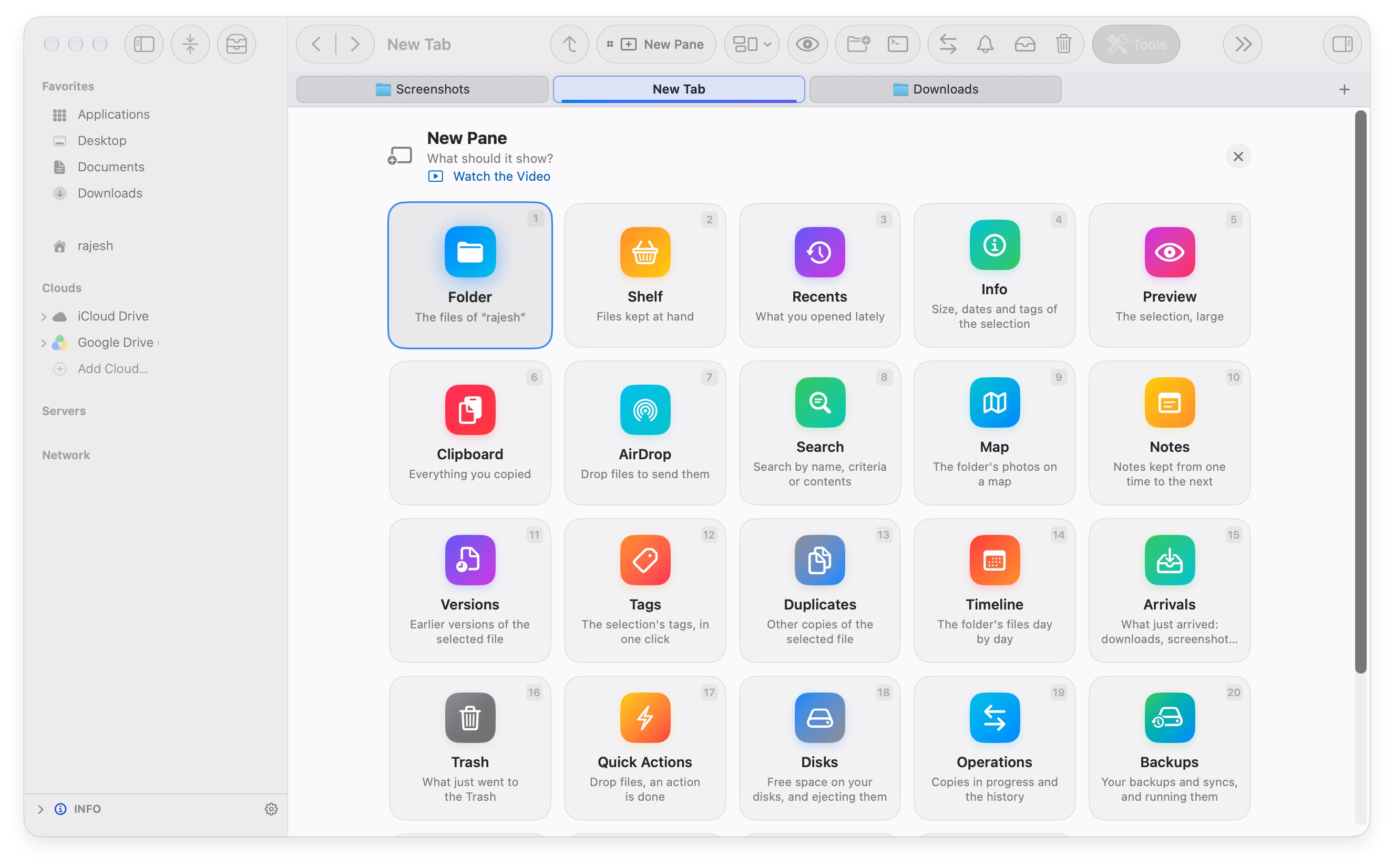
It’s highly customizable, offering the ability to create a view with as many panes as you want. Plus, there are nine view modes per pane, including icons, list, detailed list and tree. You can set every folder to remember its own sort order and grouping. For example, my Downloads folder automatically opens as a detailed list sorted by date, while my screenshots folder opens as a gallery.
The built-in terminal opens in whatever folder the pane is showing and follows you as you browse.
Folia Files also supports cloud storage services and servers. iCloud Drive, Dropbox, Google Drive, OneDrive and pCloud appear automatically, and you can add SMB, WebDAV, FTP, AFP and NFS shares, or use the bundled rclone for SFTP, S3 and Box.
One notable feature is Ask Folia (⌘J). It takes a plain-language request and shows you exactly what it intends to do before doing it.
Other features include 28 themes, colored folders with symbols, per-folder background images, space-bar previews for code, Markdown, JSON, CSV, fonts and archives, a screen-edge drawer, clipboard history, a file panel inside Open and Save dialogs, and AppleScript support.
Folia Files is certainly an expensive Finder replacement. A lifetime license costs $49.99 and covers three Macs. The good thing is that the developer plans to launch the app on the Mac App Store, though that version will lack the built-in terminal.
Download: Folia Files ($49.99 for a lifetime license for three Macs, seven-day free trial)

Rajesh has been writing about consumer technology for over a decade, with a strong focus on iPhones, Macs and Apple’s ecosystem. He enjoys digging into Apple software updates, hardware changes, and discovering new Mac apps that make work faster and more enjoyable.
You can reach out to him at mail[at]rajeshpandey.me.