
If you want to monitor a website for changes, you can do it for free with Apple’s Safari web browser. The new Notify Me feature in iOS 27 and macOS 27 makes it easy to watch a webpage for updates — and receive an alert if and when the content is altered.
Let’s say you want to make sure you never miss an update to your favorite band’s tour schedule. Safari’s new capability lets you watch the group’s website so you don’t need to check it yourself every day. Same goes for a city council website you’re monitoring, a local group you want to keep in touch with, etc.
Don’t rely on other people to send you an email update. Here’s how to use Safari’s Notify Me feature to monitor the websites that matter to you.
Monitor a website for changes with Safari with Notify Me
The web houses a humongous and ever-changing data set, and keeping tabs on a particular website (or a few of them) poses a challenge. Some paid services will monitor a website for you, but who needs another subscription?
Safari’s new Notify Me feature will check a website for changes as frequently as every hour.
How to use Notify Me on iPhone or Mac
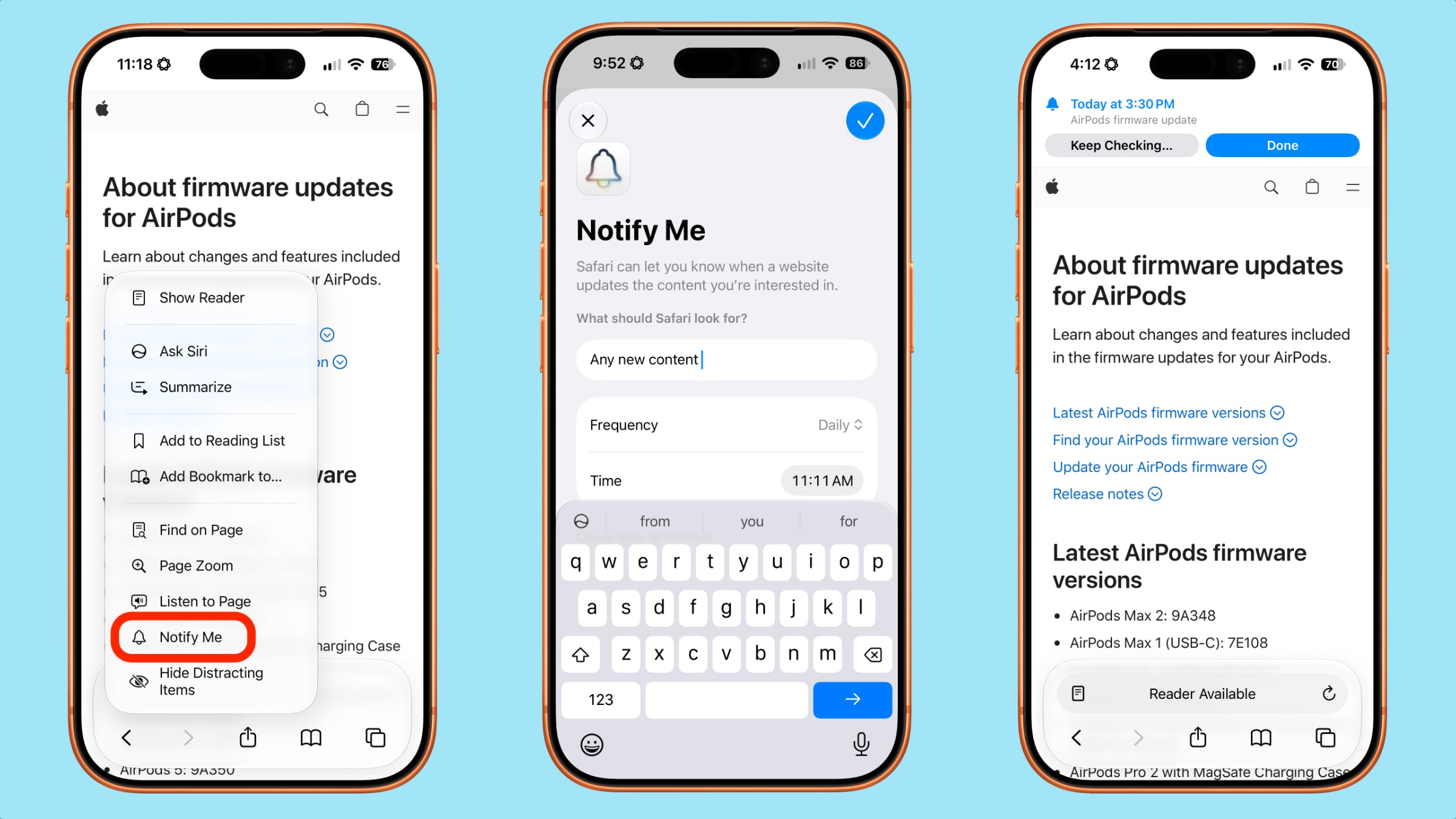
Image: Cult of Mac
To set up Notify Me and start monitoring a website, fire up Safari on your iPhone. (The feature works the same way on a Mac.) Then visit the webpage you want to track.
Tap the Page Menu button (the icon that looks like three horizontal lines) in Safari’s Smart Search bar. Then tap Notify Me. A pop-up will appear asking, “What should Safari look for?” In the text field, briefly describe the type of website change you want to monitor and receive notifications about.
Adjust frequency and time of Safari’s checks
By default, Safari will check the website daily at the time you set up the Notify Me alert. However, you can change this by tapping Edit. Then you can adjust the frequency (your choices include hourly, daily, weekly and monthly) and the exact time of Safari’s checks.
Once you square away the details, tap the big blue circle with a checkmark at the upper right of your iPhone’s screen. From then on, Safari will monitor the website for updates until you cancel your Notify Me alert.
An easy way to monitor a website for changes
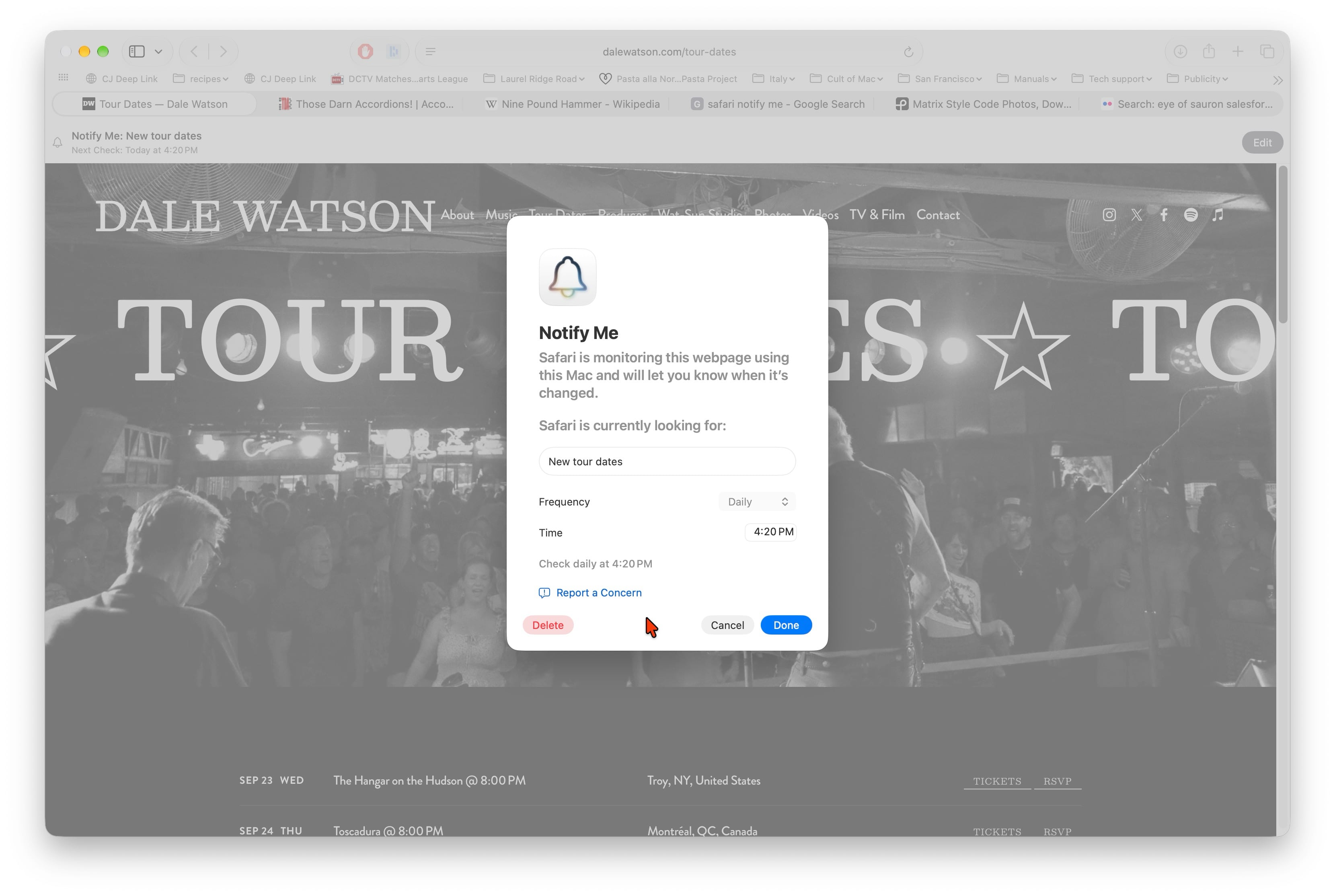
Image: Cult of Mac
From personal experience, I can tell you that Safari’s Notify Me feature works like a charm when you want to monitor websites. I set it up to check Apple’s AirPods firmware update page every hour when I needed information about the latest software. When Apple finally posted release notes, I received a notification telling me about it.
Other people appreciate this new iOS and macOS feature, too. Reddit user bradleythedeveloper called out Notify Me as a favorite feature in iOS 27.
“It has so many great uses, from checking for app updates (I was waiting for OnyX to update to be macOS 27 compatible and Notify Me let me know when the new version came out) to keeping track of prices and job alerts,” bradleythedeveloper wrote. “Apple Intelligence has really come from the ashes to become a cut above the rest, not in terms of power but how it integrates so well with everyday people things.”
Any time you need to monitor a webpage for changes, take advantage of Safari’s Notify Me feature and stay on top of things the easy way. It’s simple to set up and doesn’t cost you a thing.


