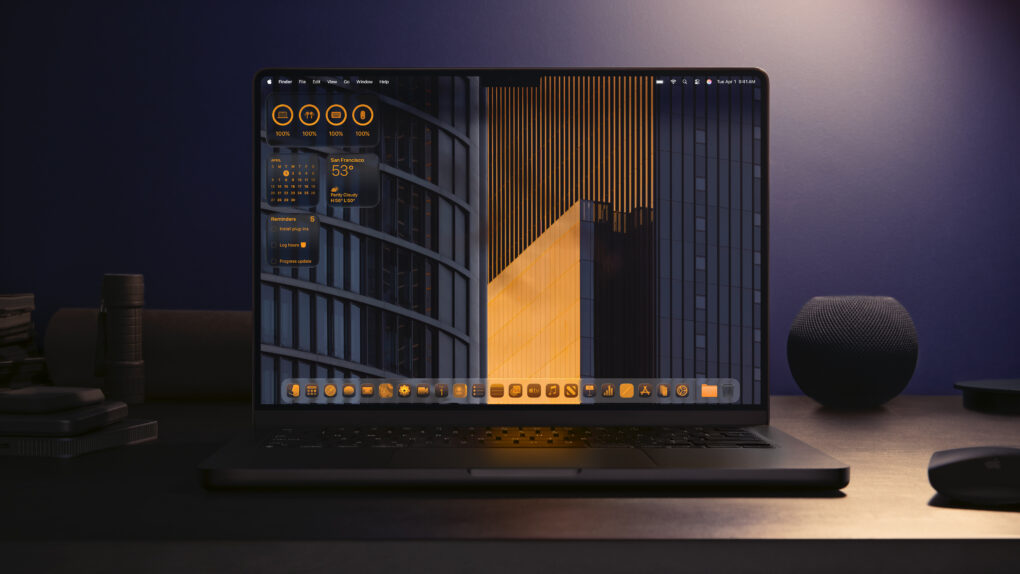
If you learn how to personalize your Mac, you can make your computer feel like home. Every MacBook might look like a boring aluminum rectangle out of the box, but you can match any aesthetic with a few tips and tricks.
For starters, you could cover the backside with stickers or a colorful plastic case. But your work doesn’t end there. You can easily give your Mac’s desktop, app icons, desktop folders and theme colors a coordinated look.
Here’s how to customize your Mac to give it that personal touch.
How to personalize your Mac
If you spend a lot of time at your computer, you want to make sure it matches your style. Who says a tool must look completely utilitarian and boring? If you spend hours a day staring at your Mac, it might as well be easy on the eyes.
The Mac has always been incredibly customizable. Just browse through some of the crazy themes users could install back in the days of Mac OS 9. And now, macOS 26 Tahoe provides more personalization options than ever.
Read on for a complete guide.
Table of contents: How to personalize your Mac
- Change your Mac’s desktop wallpaper
- Change your theme colors
- Set a custom icon and widget color
- Change your folder icons
- Set up the Aerial screensaver
- Change your user account icon
- More Mac how-tos
Change your Mac’s desktop wallpaper
Screenshot: D. Griffin Jones/Cult of Mac
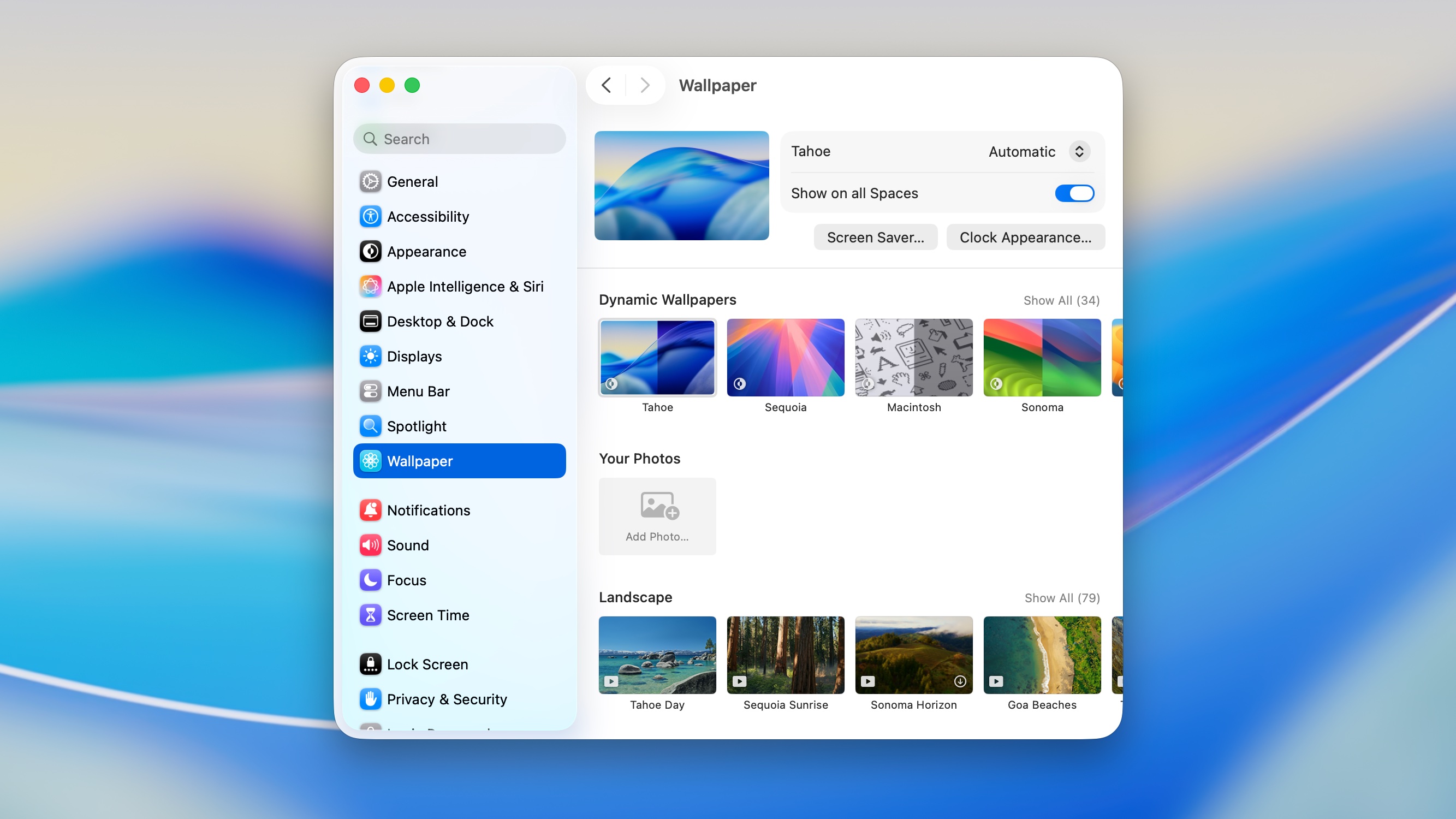
One of the biggest, most obvious changes you can make is to swap out your Mac desktop wallpaper. Your desktop is the first thing you see after unlocking your Mac; it sits there behind all the action. Unless you’re a madman with windows covering every inch of the screen, like me, you see your desktop constantly throughout the day.
In System Settings > Wallpaper, you can choose from many excellent built-in Apple wallpapers.
You can also drag in any picture into the “Add Photo” section to set it as your Mac’s wallpaper. It works best with widescreen, high-resolution images. A good wallpaper shouldn’t be too distracting, though. It should have a pretty uniform color without a lot of detail.
How to personalize your Mac theme colors
Screenshot: D. Griffin Jones/Cult of Mac
Customization goes beyond the wallpaper. You can learn how to personalize the Mac apps you use every day as well. If you own a MacBook Neo or iMac, it should come out of the box with an accent color that matches the chassis. But if you want a secondary color to contrast — or if you’re boring and have a silver Mac — you can pick a new color.
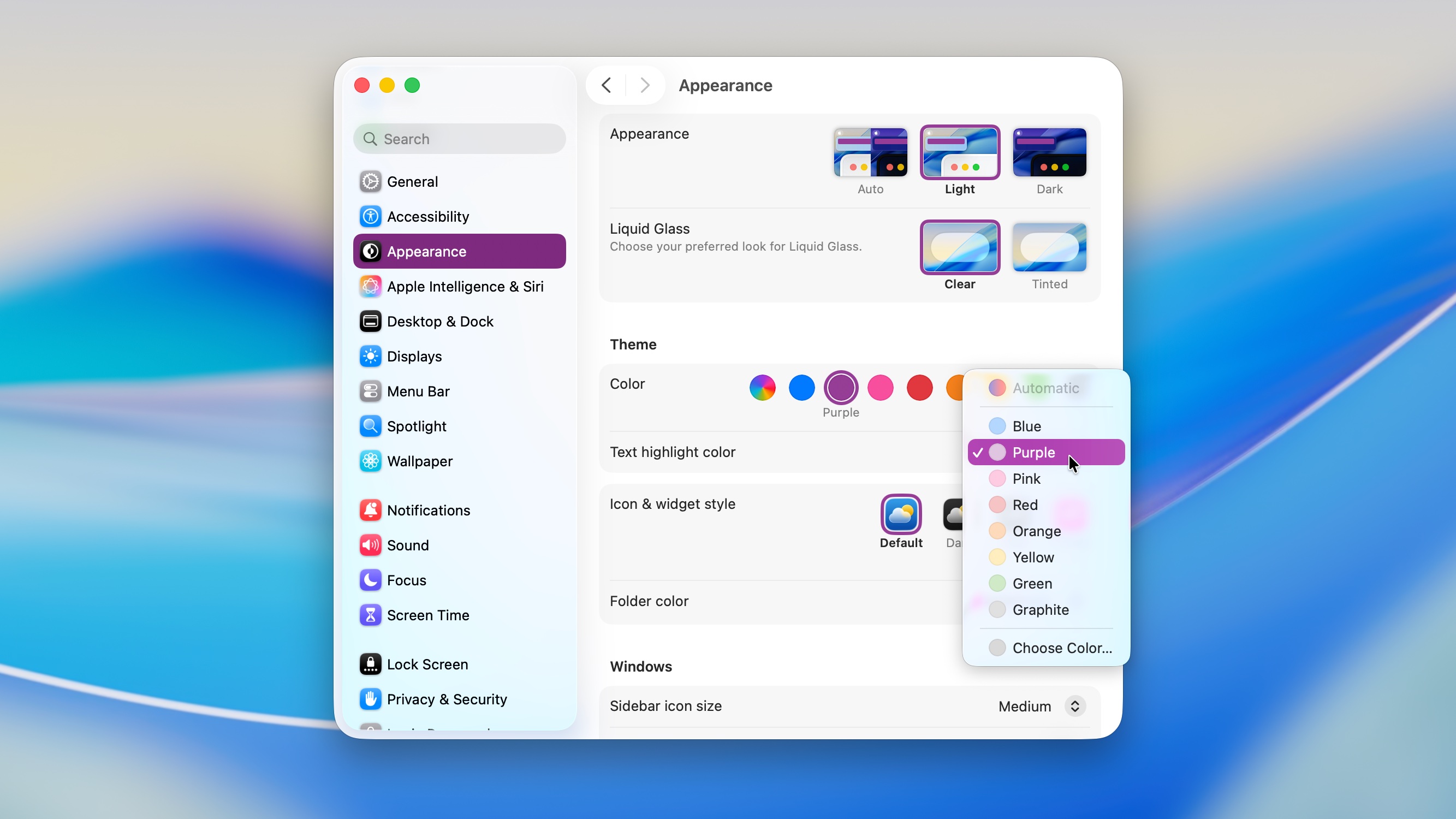
Go to System Settings > Appearance to change your Mac’s theme color. Multicolor lets each app pick an accent color, like purple for Podcasts and red for Music. You can choose from blue, purple, pink, red, orange, yellow, green and gray.
Text highlight color has all the same options. Automatic will match it to your theme color. Even if you don’t use a lot of native Mac apps — like if your work is mostly on the web — a text highlight color will pop up everywhere.
The Folder color setting below that changes the default look for folders in your Mac’s Finder. Automatic matches the theme color above — but you can set it to whatever you want. If you use the Finder in Icon view, like I do, adding a pop of color to all the folders will really complete the look.
Set a custom icon and widget color
Screenshot: D. Griffin Jones/Cult of Mac
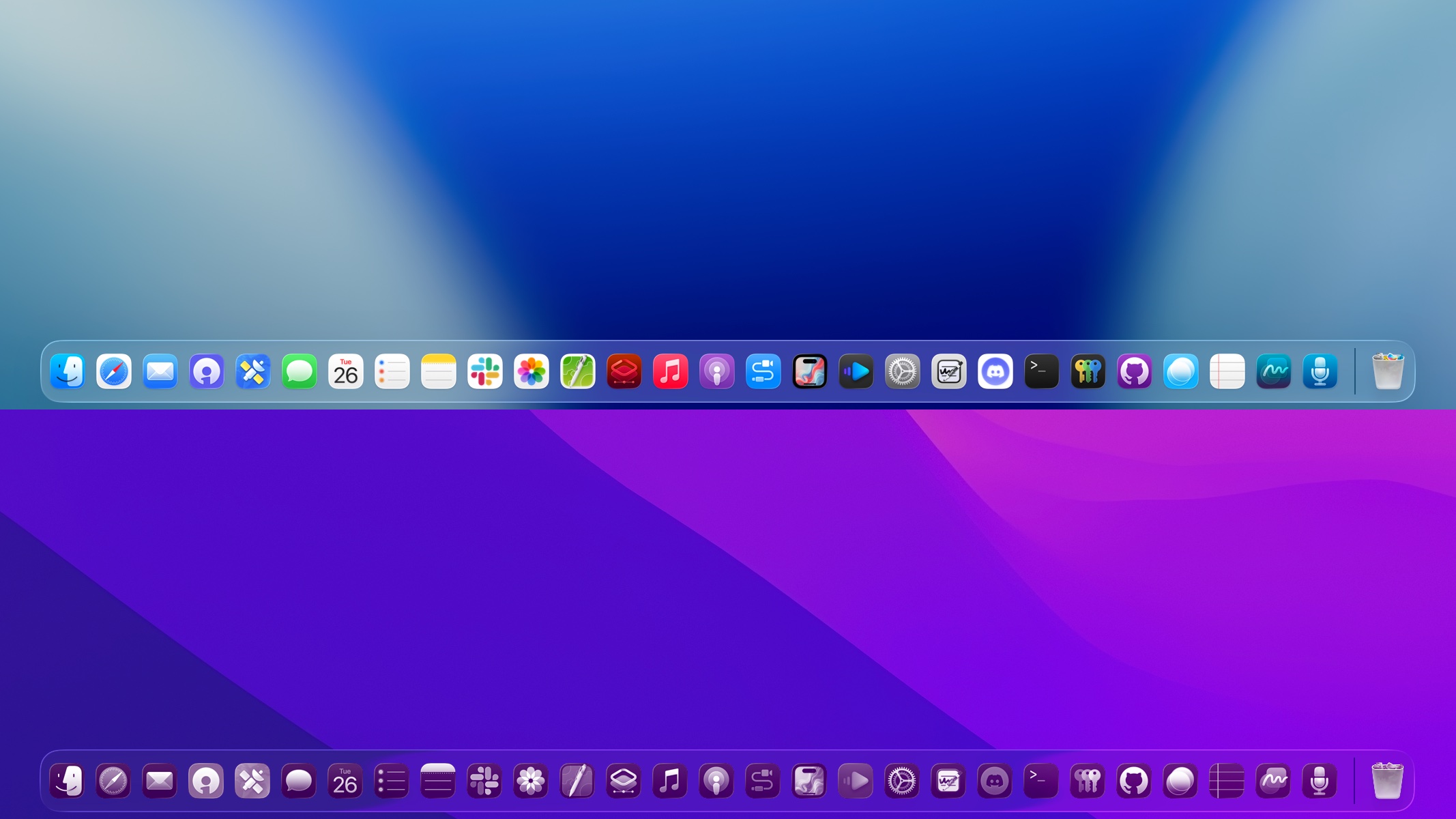
If you really want to commit to the bit, you can change your app icon and widget color, too. In System Settings > Appearance > Icon & widget style, choose the Tinted style to color your icons. You can choose between Light and Dark styles on your icons, or Auto to match your Mac’s system setting.
You can also choose a Clear style, which makes the icons transparent. It’ll blend in with your wallpaper.
As someone with a lot of apps in my Dock, I think this is a bridge too far — it makes the icons hard to distinguish. I rely on color cues to identify icons at a glance. But if you have a more minimal Mac, you should be able to appreciate the aesthetic.
How to personalize your Mac folder icons
Screenshot: D. Griffin Jones/Cult of Mac
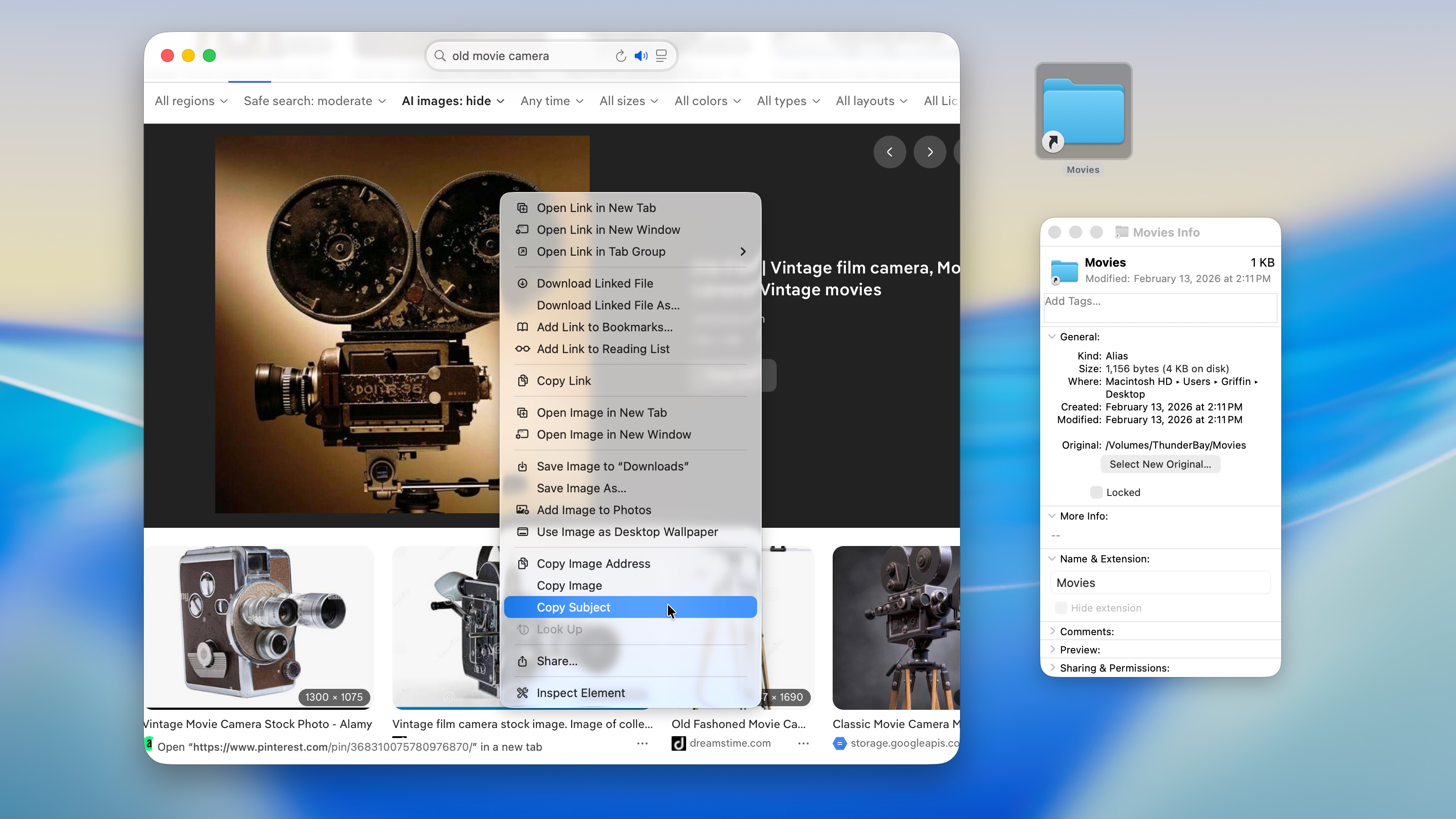
To make any folders you keep on your desktop cute, you can replace the folder icon with any image you want. For instance, if your wallpaper looks like an aquarium, you can make each icon a different fish that floats around inside. (Apple posted a bunch of great examples on TikTok.)
To do this, right-click on a picture and select Copy Subject. That’ll cut out the background of the photo. Then, right-click on a folder and select Get Info (⌘I). Click the little folder icon, then hit Paste (⌘V). That will replace the folder icon with whatever you copied.
If you have buyer’s remorse, don’t worry — it’s easy to undo. Bring up the Get Info panel again, select the icon, and hit Delete (⌫). That’ll reset it to its default state.
You’ll quickly learn that icons work better with images that are roughly square — they’ll be pretty small on your screen, after all.
If you want your custom folders to look bigger on your desktop, click on an empty spot on your desktop and go to View > View Options (⌘J). Then drag the Icon Size slider until they’re bigger. Try 64 × 64 or even 96 × 96.
Set up the Aerial screensaver

Photo: D. Griffin Jones/Cult of Mac
Changing your screensaver is another way to personalize your Mac. Especially if you have a big external display that you plug it into.
In System Settings > Wallpaper, click the Screen Saver… button. Select Custom at the top if you want to pick a different screensaver than your desktop.
- The macOS screensavers at the top are inspired by Mac software, both old and new.
- Aerial screensavers feature beautiful scenic shots from all around the globe. Pick Shuffle All at the very bottom for the most variety.
- In the Other section at the bottom, you will see some classics — Flurry, Arabesque, Word of the Day, Album Artwork and more. Drift is a newer addition that looks pretty cool, too.
To make sure your screensaver shows up, set Start Screen Saver to something like 10 minutes. Then, go to Lock Screen settings and set “Turn display off when inactive” to For 1 hour or longer.
This will turn your Mac into a beautiful art piece when it’s not being used.
How to personalize your Mac user account icon
Screenshot: D. Griffin Jones/Cult of Mac
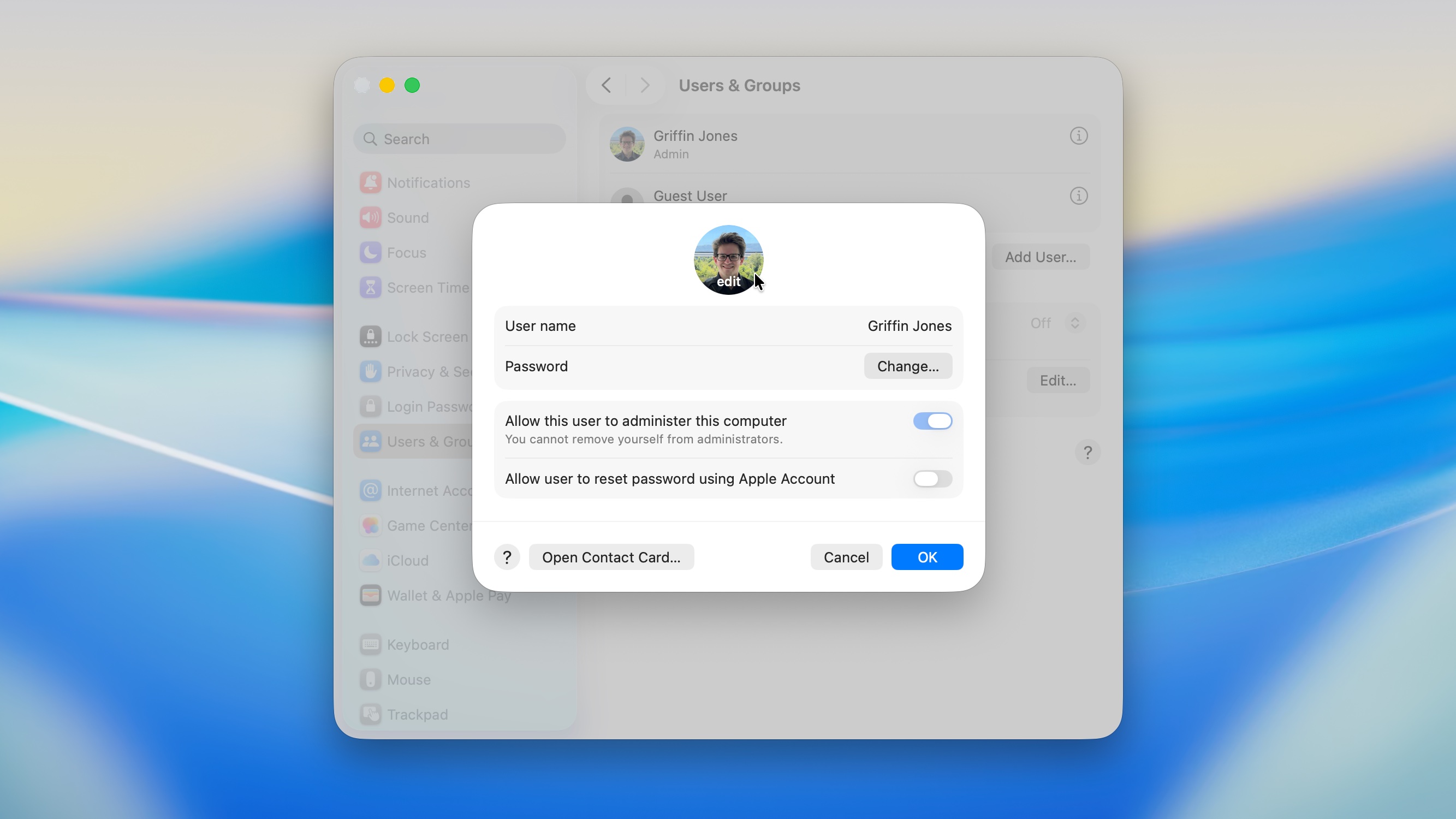
Last but not least, you can change your user account icon. It’s one of the first things you see when you open your Mac, after all.
Go to System Settings > Users & Groups, then click the ⓘ button next to your name. Drag a picture onto the icon to replace it. If it’s a picture of yourself, it’ll look best if it’s tightly cropped to your face. Click OK to save or Cancel to revert to the old one.
More Mac how-tos
Now that you know how to personalize your Mac, why not learn more tricks?
-
- Master Mac screenshots: Every shortcut and trick you need to know
- Everything you need to know about iPhone Mirroring on the Mac
- How to use the all-new Spotlight
- Rename multiple files on Mac the easy way
- 6 tricks to master Preview on the Mac
- How to use window snapping and tiling on the Mac
- Hidden Mac keyboard shortcuts you might not know

D. Griffin Jones was a writer, podcaster and video producer for Cult of Mac. Griffin has been a passionate computer enthusiast since 2002, when he got his first PC — but since getting a Mac in 2008, he hasn’t turned back. His skills in graphic and web design, along with video and podcast editing, are self-taught over 20+ years. Griffin has a bachelor’s degree in computer science and has written several (unpublished) apps for Mac and iOS. His collection of old computers is made up of 40+ desktops, laptops, PDAs and devices, dating back to the early ’80s.
Griffin writes for his personal blog, Extra Ordinary, and is currently looking for work.


One response to “6 ways to personalize your Mac and make it your own”
How do I get mine to look like that in the picture?