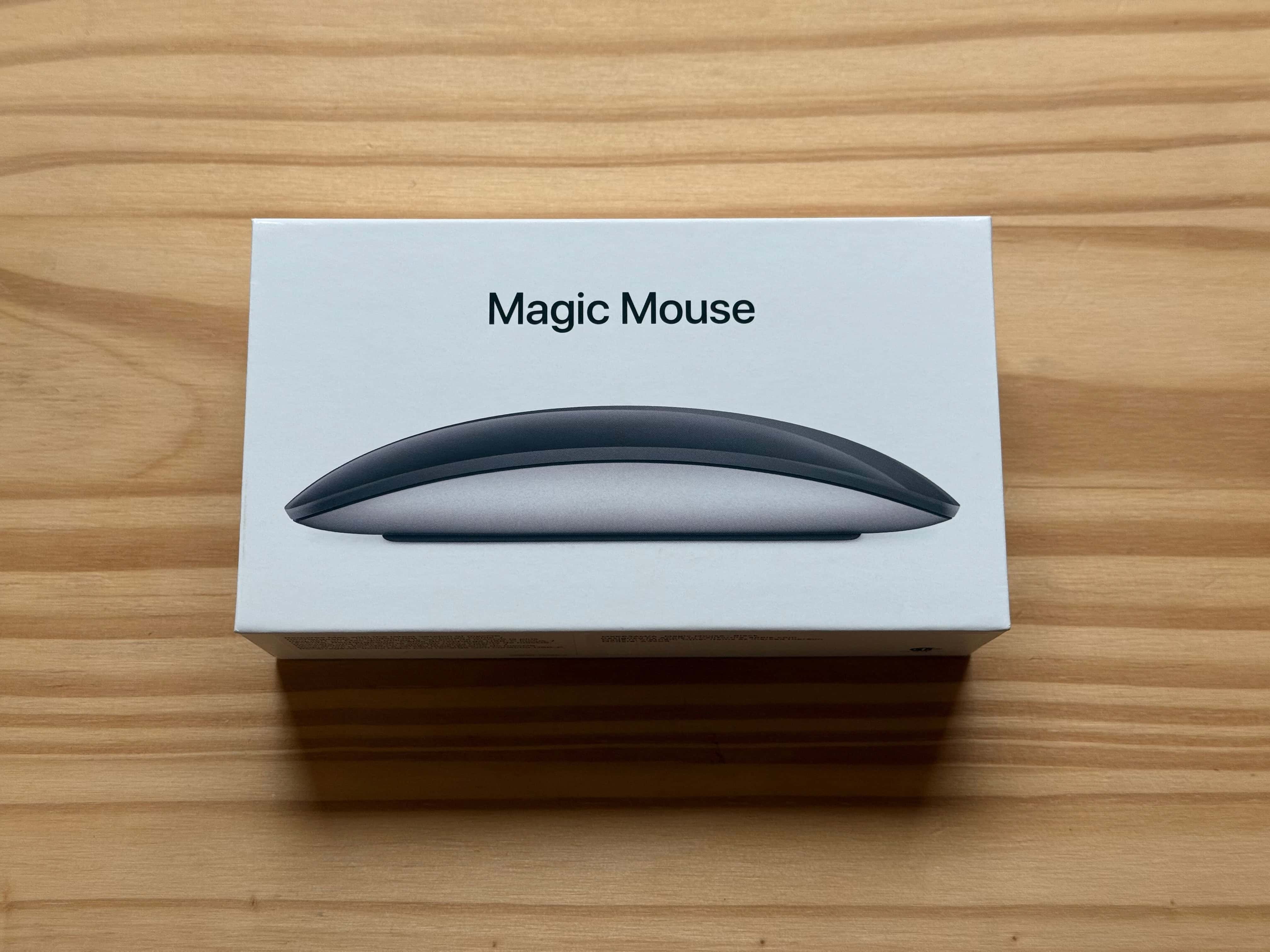
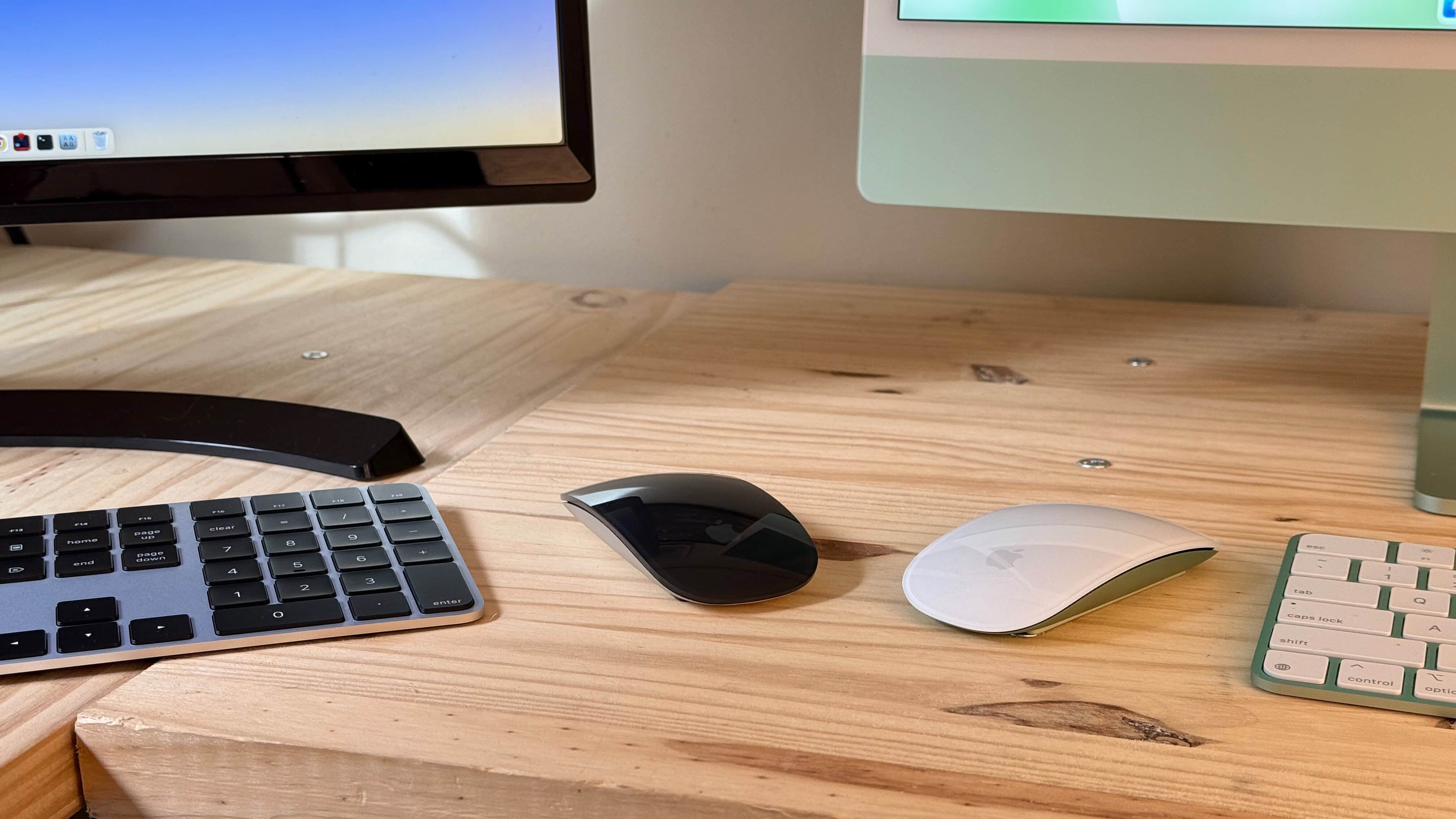
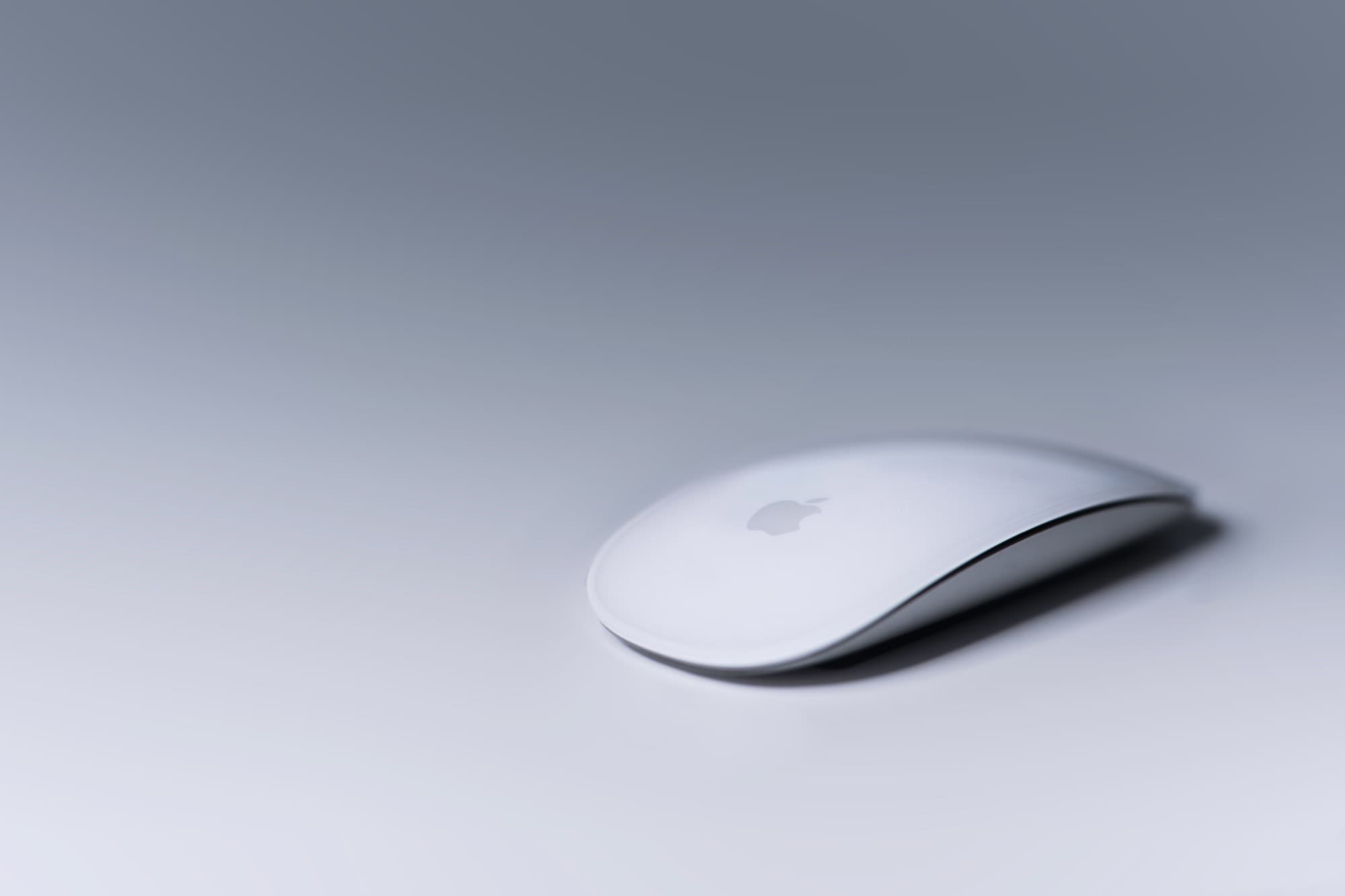
The Apple Magic Mouse is beautifully svelte, but some say it’s a triumph of form over function.
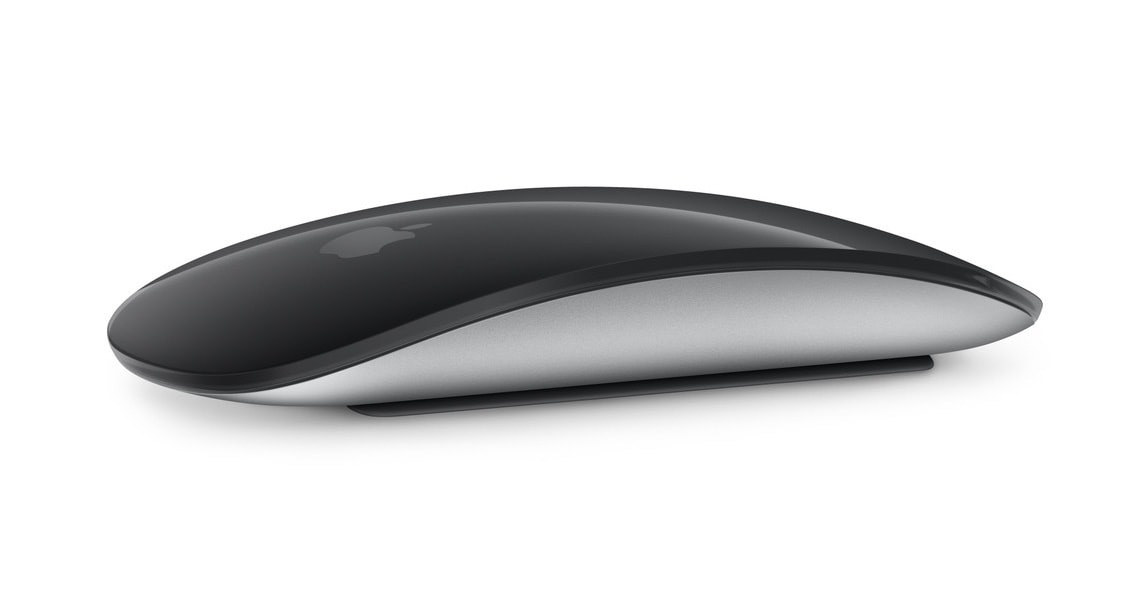
The Apple Magic Mouse is a sleek, minimalist wireless mouse designed to complement Apple’s line of Mac computers. Its standout feature is the multi-touch surface, which allows users to perform gestures such as swiping between pages and scrolling with a single finger, offering a smooth and intuitive navigation experience.
Unlike traditional mice, the Magic Mouse has no visible buttons or scroll wheel, relying instead on its seamless top surface for interaction. It connects via Bluetooth and features a rechargeable battery, typically charged via a Lightning cable.
While praised for its elegant design and integration with macOS, the mouse has received some criticism for ergonomics and the inconvenient placement of its charging port on the bottom, making it unusable while charging.
There is a rare chance to save on an official Apple mouse for your Mac or iPad. Image: Apple/CUlt of Mac
The Apple Magic Mouse doesn’t go on sale very often, so don’t miss a rare deal that saves you 19% on the svelte input device for your Mac or iPad. This new Apple Magic Mouse deal drops the price to just $63.99.
The sale is on the USB-C version, not the older Lightning model, so it’s a great opportunity to upgrade.
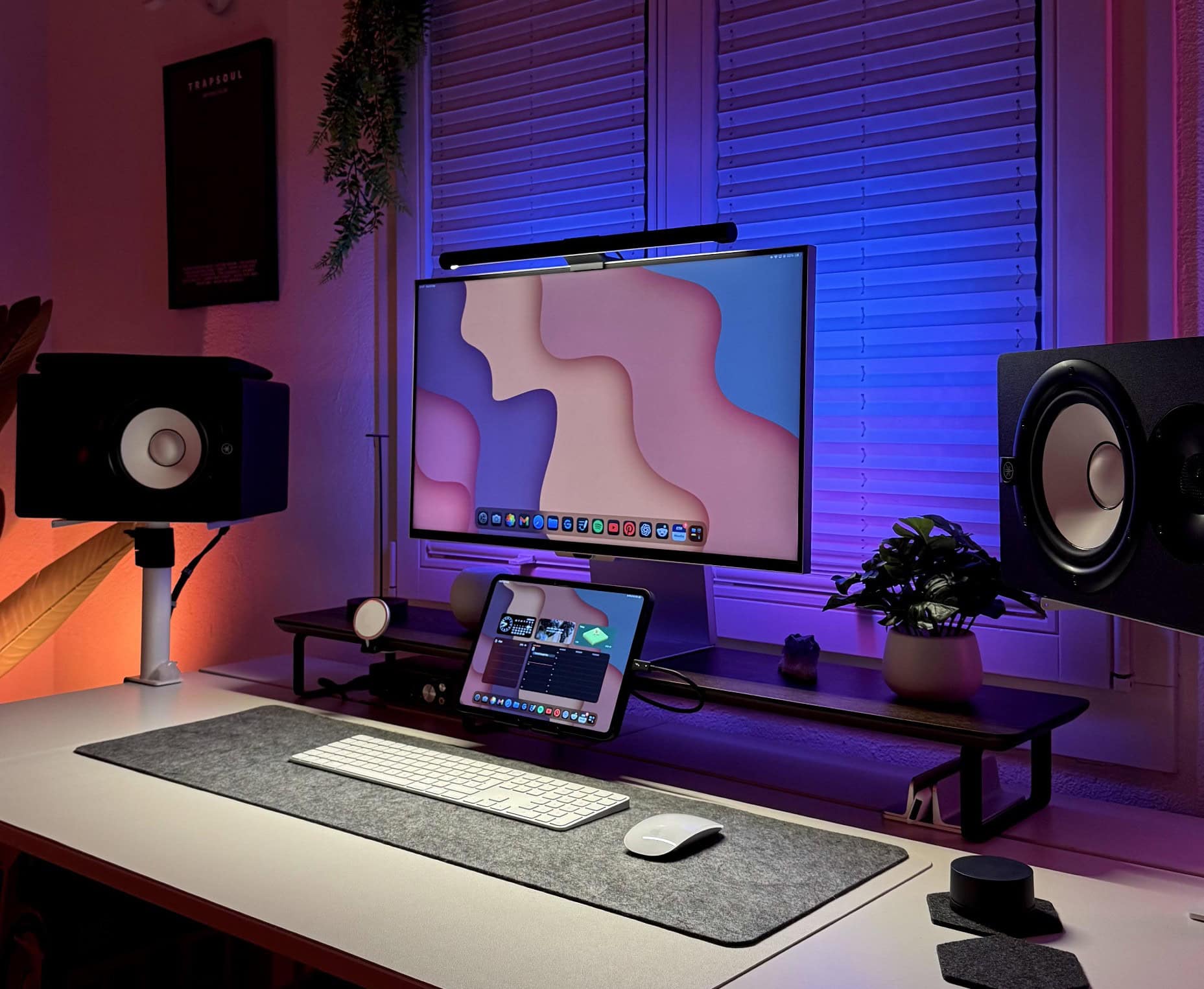
This user ponders replacing both the M1 MacBook Pro and the M3 iMac, possibly with an M4 Pro MacBook Pro. Photo:
Today’s featured setup user seeks out and gets good advice on his upgrade questions. He runs an aging MacBook Pro and a more recent iMac, but wonders about replacing them both with a newer MacBook Pro, perhaps an M4 Pro model. Commenters on his post offered useful thoughts, below, on future-proofing choices of Mac models as well as external display options.
Nick's setups has changed a lot since the one we showcased in early 2024. Photo: [email protected]
A growing number of people rely on iPad tablets — particularly iPad Pro — as their main daily driver. And with iPadOS 26 software currently in beta testing and available to all in September, this will become even easier to do. Today’s featured iPad-Studio Display setup doesn’t abandon Mac — in fact, it includes a hidden M4 MacBook Pro — but it makes the most of iPad Pro and looks damn good doing it.
In addition to a Studio Display, a whole lot of small screens are mounted on stands in this MacBook Pro setup. Photo: [email protected]
Careful mounting of devices is a hallmark of light and clean computer setups because it lifts most of the gear up off the desk, making room for other gear or simply creating clean, open space. In today’s setup, the MacBook Pro sitting open on a stand is just one of three small screens, including a portable monitor, that nicely complement and expand the Studio Display.
You can see this user works with an iPad. But where's the Mac mini? Photo: [email protected]
It’s a fun game for a Friday: Find the Mac mini in today’s featured setup photo, above. Or maybe it’s not so fun, because you’re doomed to failure. It’s not visible because the user mounted it on the back of his 5K Samsung ViewFinity S9 external monitor (which just happens to look just like its ultimate foe, Apple’s 5K Studio Display).
“It’s interesting to see how minimalist every Mac user seems to go with their setups,” noted a commenter. So our user quipped, “Apple store energy, hehe.”
What do you do if you need to operate a network of video cameras and store all the footage? Today’s power user not only runs an astounding trio of Mac Pro desktop computers, he piles up stacks of high-capacity UniFi Network Video Recorders — known as UNVRs — for video recording-storage from multiple cameras, plus routers and switches galore.
OK, so the iPhone 18's camera is not gonna look like that. But it might be stunning nevertheless! Image: Midjourney/Cult of Mac
This week on Cult of Mac’s podcast: The latest rumors indicate the iPhone 18 Pro will pack a variable aperture camera. Erfon and Griffin break down what that could mean — and why it could bring a significant photographic boost to the device.
Also on The CultCast:
We’ve got some picks for what to watch during this weekend’s Apple TV+ free binge-o-rama.
From the iPhone 17 Air to AirTags 2 (and maybe AirPods Pro 3), it looks like 2025 might be an exciting year for Apple — we discuss the stuff we’re most psyched about.
Apple’s Magic Mouse is due for an upgrade. But will it really come with voice controls?
We wrap up the show with our final picks for the best stuff of 2024.
Listen to this week’s episode of The CultCast in the Podcasts app or your favorite podcast app. (Be sure to subscribe and leave us a review if you like it!) Or watch the video live stream, embedded below.
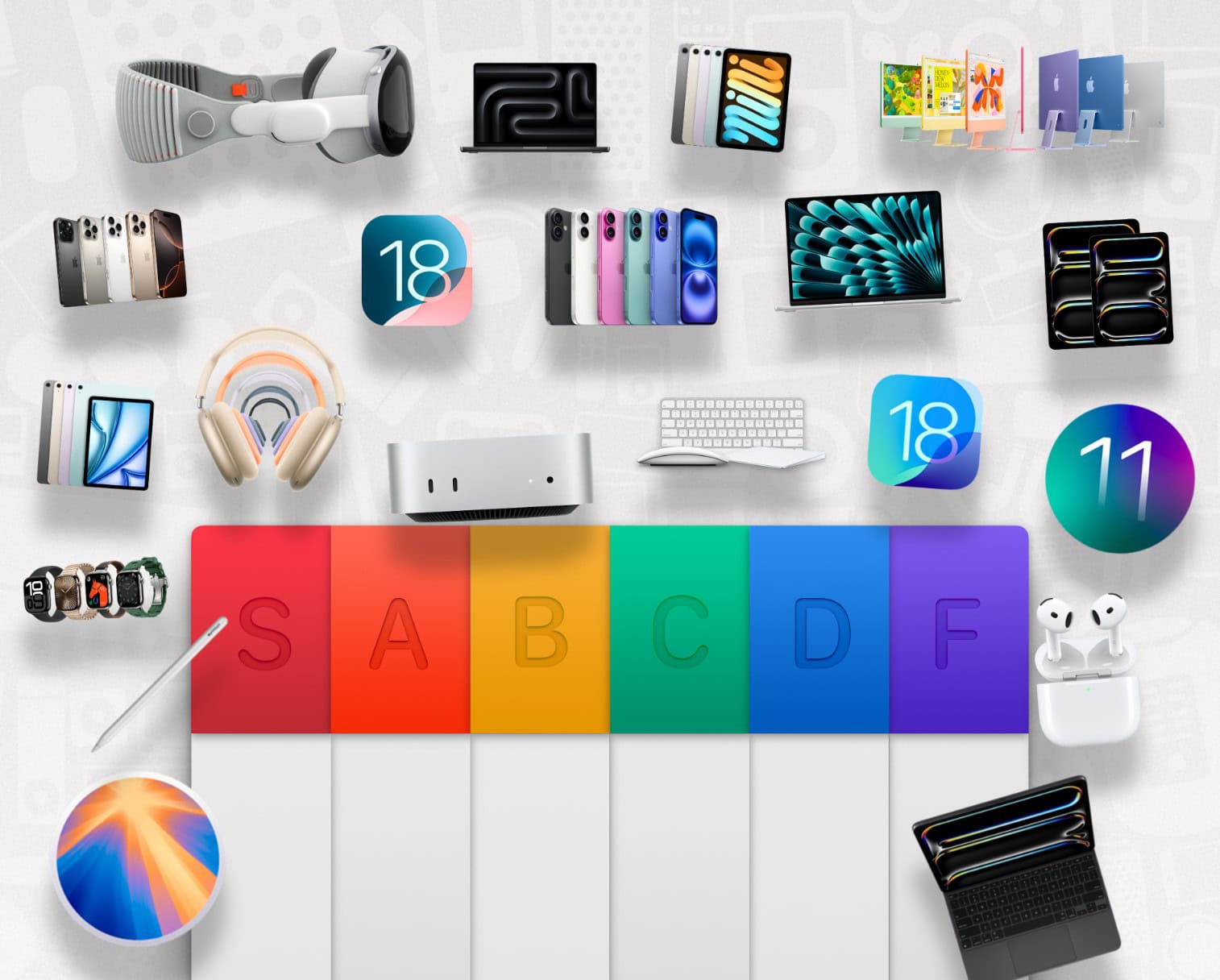
In the letter grades, A is second best, after S. And F is the worst, as you might expect. Photo: Basic Apple Guy
Designer Basic Apple Guy, known for nifty wallpapers for Mac, iPhone and iPad screens, dropped his annual Apple Product Tier List Monday. The Apple product rankings give letter grades to everything the iPhone giant released in 2024. He considers M4/M4 Pro Mac mini the best of the best, by the way.
“For the third year in a row, I am once again painting a target on my head and releasing my tier rankings of the products Apple released in the 2024 calendar year,” he wrote. Undoubtedly, not everyone will love his choices, particularly those he grades in the low D and F tiers, but he takes care to explain them.
Magic Mouse might finally get a refresh. Photo: D. Griffin Jones/Cult of Mac
Apple is planning to revamp the Magic Mouse with hand gestures, voice commands and more. And it may even move the controversial bottom charging port. The current design is over 15 years old, introduced back in 2009.
Since then, the Magic Mouse received minor upgrades, including the switch to an oddly-located Lightning port and, eventually, USB-C.
★★★☆☆
It comes in Black and White, with matching color accents if ordered with an iMac. Photo: D. Griffin Jones/Cult of Mac
The Magic Mouse has been updated with USB-C, and … well, that’s about it. You can ditch the Lightning cable on your desk, but that’s where the changes end.
It still has a design that’s uncomfortably thin for my hands and lacks modern niceties like Force Touch and multi-device pairing.
The Magic Mouse is, however, still the best (and maybe only) mouse that uses trackpad-style swiping and scrolling gestures in place of a traditional scroll wheel. If you can set all else aside, it’s a great experience.
The weird placement of the M4 Mac mini's power button is fueling "Buttongate." Image: Cult of Mac
Right after Apple unveiled the redesigned M4 Mac mini on Tuesday, people noticed the power button’s odd placement — on the bottom of the tiny but potent machine! The design provides precious little room for a fleshy finger to reach without tipping the whole computer to get at it. Since then, a variety of “fixes” have poked fun at this perceived error, which is most likely a very intentional Apple design choice.
Check out some of the best “Buttongate” fixes below.
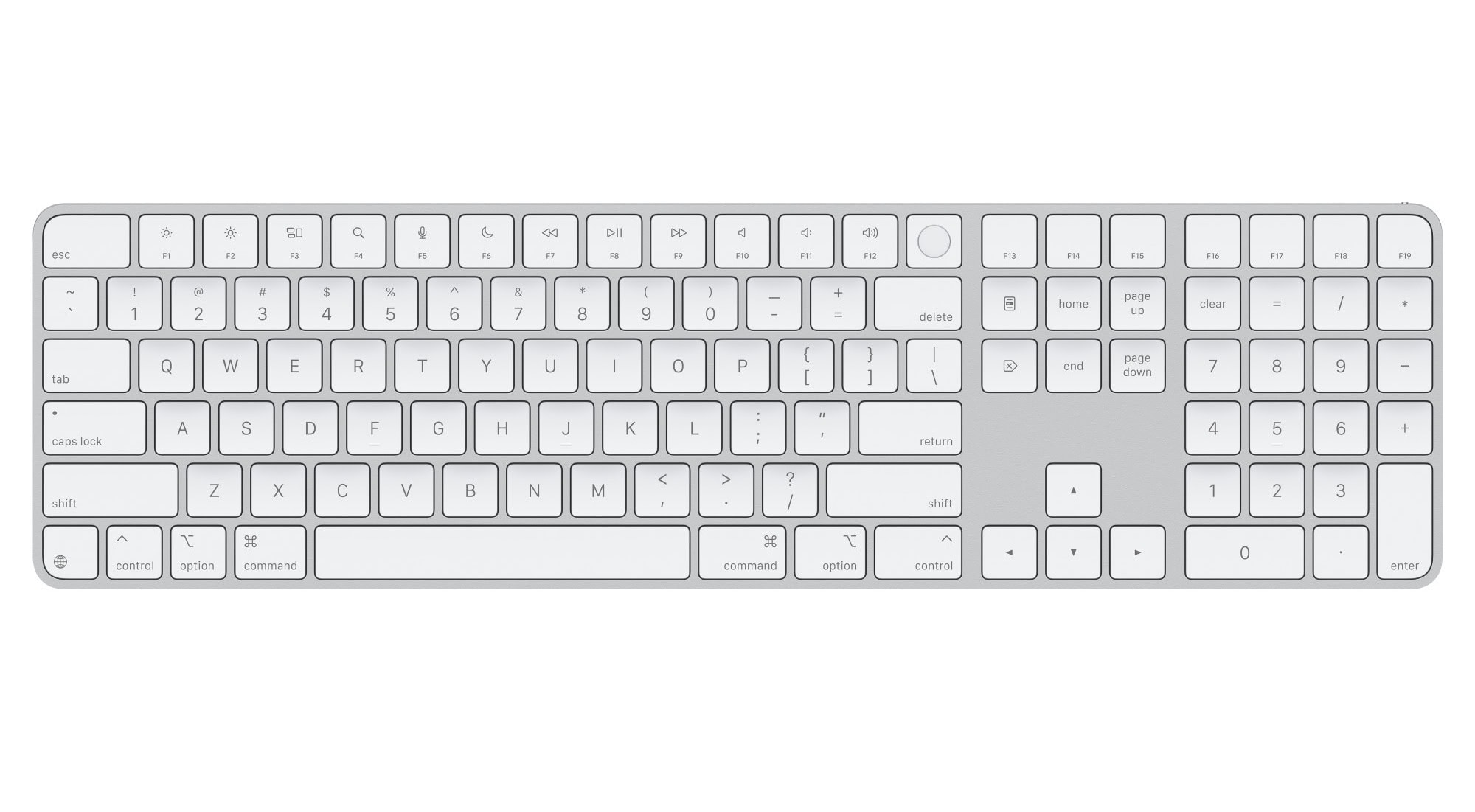
The latest full-sized Magic Keyboard with USB-C. Photo: Apple
Apple’s new Magic Keyboard, Magic Mouse and Magic Trackpad finally ditched the Lightning connector to become USB input devices Monday when they rolled out alongside color-matched versions for the new iMac, the first in this week’s M4 Mac announcements. The input devices, expected to ship October 31, are among the last of the iPhone giant’s accessories to make the change to USB-C.
Charging the Magic Mouse 2 remains a headache. Photo: Apple
When it comes to new tech, the focus understandably falls on what’s changed, not what stayed the same.
That’s absolutely the case for the new M4 iMac, which Apple unveiled on Monday. Plenty of attention is (rightly) being lavished on the iMac’s guts. The M4 chip is a screamer, and the machine now comes with 16GB of unified memory as standard, a welcome change. And the new colors look great.
However, one thing that drives Apple customers bonkers has stayed the same. That one thing is Apple’s terrible mouse — or, more specifically, the ridiculous location of the charging port on the Magic Mouse.
Coding with Magic Mouse? This dev loves it. Photo: [email protected]
Coding with Magic Mouse? Apple’s sleek input device has plenty of haters of all stripes. But at least one developer, who works with an M1 Max MacBook Pro, loves it. And perhaps even more surprisingly, he detests the mouse that is surely Magic Mouse’s biggest competitor, given how it shows up in most of the setups we cover.
A 34-inch curved ultra-wide monitor with 1440p resolution perfectly suits this developer. Photo: [email protected]
When it comes to Mac-centric computer setups, not every external display is Apple’s 6K Pro Display XDR or 5K Studio Display — far from it. And users’ choices come in various shapes and sizes. Today’s M1 Max MacBook Pro-using developer settled on a 34-inch Alienware curved ultra-wide monitor that hits his “sweet spot.” Find out why below. And don’t miss that nostalgia-inducing iPod Classic!
Turns out, it can be done — really easily. Image: D. Griffin Jones/Cult of Mac
So, you accidentally disabled Bluetooth on your Mac, and now you can’t use your wireless mouse or trackpad. You could dig out a wired mouse to reenable Bluetooth, but that’s a lot of effort. Instead, just use your keyboard to turn on Bluetooth on your Mac without a mouse.
We’ll show you how to get out of this computing pickle.
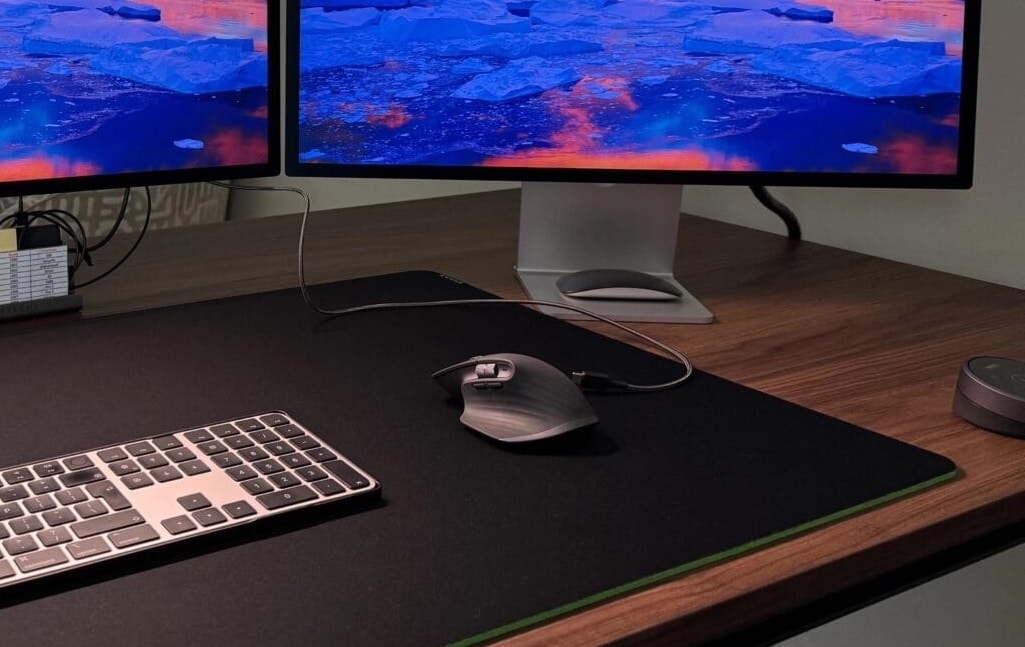
This Mac Studio setup with dual Studio Displays sparked a mouse fight. Photo: [email protected]
Sometimes a setup post on social media can express a common problem or disagreement quite well. Today’s Mac Studio and dual-Studio Display rig is pretty good example, showing the divide between users of Magic Mouse and one of its top competitors — Logitech MX Master 3 (and 3S) wireless mouse. So Magic Mouse vs. Logitech MX Master 3 is on.
Commenters split themselves into pro Magic Mouse and pro Logitech MX camps. And a bunch of them sought middle ground, finding things to like — or hate — about both mice.
You don't see two Studio Displays stacked on a desk shelf every day. But the user says neck pain isn't an issue. Photo: [email protected]
With all the computer setups out there with two, three and even five displays, sometimes you’ll see them stacked. But a dual-Studio Display setup that stacks one on top of the other is a rarity.
Today’s Mac Studio user, who is also an avid PlayStation 5 and Ninendo Switch gamer, said the stacked displays work well and don’t cause any neck pain from looking up all the time.
The daytime photograph shows the treasured HomePods clearly. Photo: [email protected]
Paired for stereo sound, two full-size HomePod smart speakers — the original or second generation — are a thing of auditory beauty. And they don’t just sound great, they look good, too. Yet we don’t see paired HomePods much in computer setups (HomePod minis yes, the big ones, no).
Today’s MacBook Pro setup takes full advantage of Apple audio, however, and the user couldn’t be happier. Well, except with Siri, that is. Check out their setup’s cheerful day version (above) and moody night version (below).
This user swears by the arms his 4 displays are mounted on. Photo: [email protected]
Sure, you can buy a computer monitor and set it up on the stand that came in the box. But what if you want to easily move the external display around? And what if you want to have multiple screens and move them around?
Keeping monitors up off the desk and mobile can really improve your setup. And the best way to do that is to mount your screens on arms. It takes some effort, but as today’s user points out below, it’s worth it.
Hansson's setup in Malibu, CA, features a Mac mini mounted behind a Pro Display XDR and a phenomenal set of KEF speakers. Photo: [email protected]
Developer David Heinemeier Hansson, known for creating the Ruby on Rails web development framework, showcased his rather stunning Mac mini computer setup this week on X (formerly Twitter).
The extraordinary 6K graphics of his Studio Display XDR and the articulate sound of his highly recommended KEF speakers complement the ocean views through the glass walls of his California office.
Everything in this setup but the keyboard, wrist rest, mouse and desk mat is mounted. Photo: [email protected]
I’ve said it before and I’ll say it again: If you’re not elevating your laptop, iPad and displays on mounts and arms, you’re limiting your computer setup. Today’s feature MacBook Pro and iPad setup illustrates the point well by putting those devices and dual displays on four separate mounts, some with moveable arms.
That makes all of those devices more flexible, and much easier to move around than they would be on stationary stands. It also frees up space on the desk.
Want a highly functional and symmetrical setup? Get two of most things. Photo: [email protected]
A New York City-based magazine editor showed off a beautiful computer setup that serves up twice the fun because it boasts two of everything. Well, not everything.
But it doubles up on a lot of the main gear — two M3 MacBooks Pro, two Studio Displays, two sets of Philips Hue smart lights, a pair of Yamaha speakers on stands and, believe it or not, two Magic Trackpads and a Magic Mouse.
Read more about the setup’s whys and wherefores below, and check out that gear list of links at the bottom of the article.
With the latest iPhones dropping the Lightning port in favor of USB-C, there was speculation (and hope) that Apple would release new versions of the Magic Mouse, Trackpad and Keyboard that also reject the Lightning port. Nope.
So charging these wireless devices still requires a Lightning cable.
This guy claims two Magic Trackpads is the way to go. Photo: [email protected]
From time to time we see setups with both a Magic Trackpad and a mouse because of their different peculiarities — mainly because many people find trackpads especially good for gesturing. But why would you use two Magic Trackpads?
Well, today’s MacBook Pro setup with dual Studio Displays and dual Magic Trackpads provides a use case.