Mobile menu toggle

Setups - page 14

Programmer loves his Logitech peripherals [Setups]

By

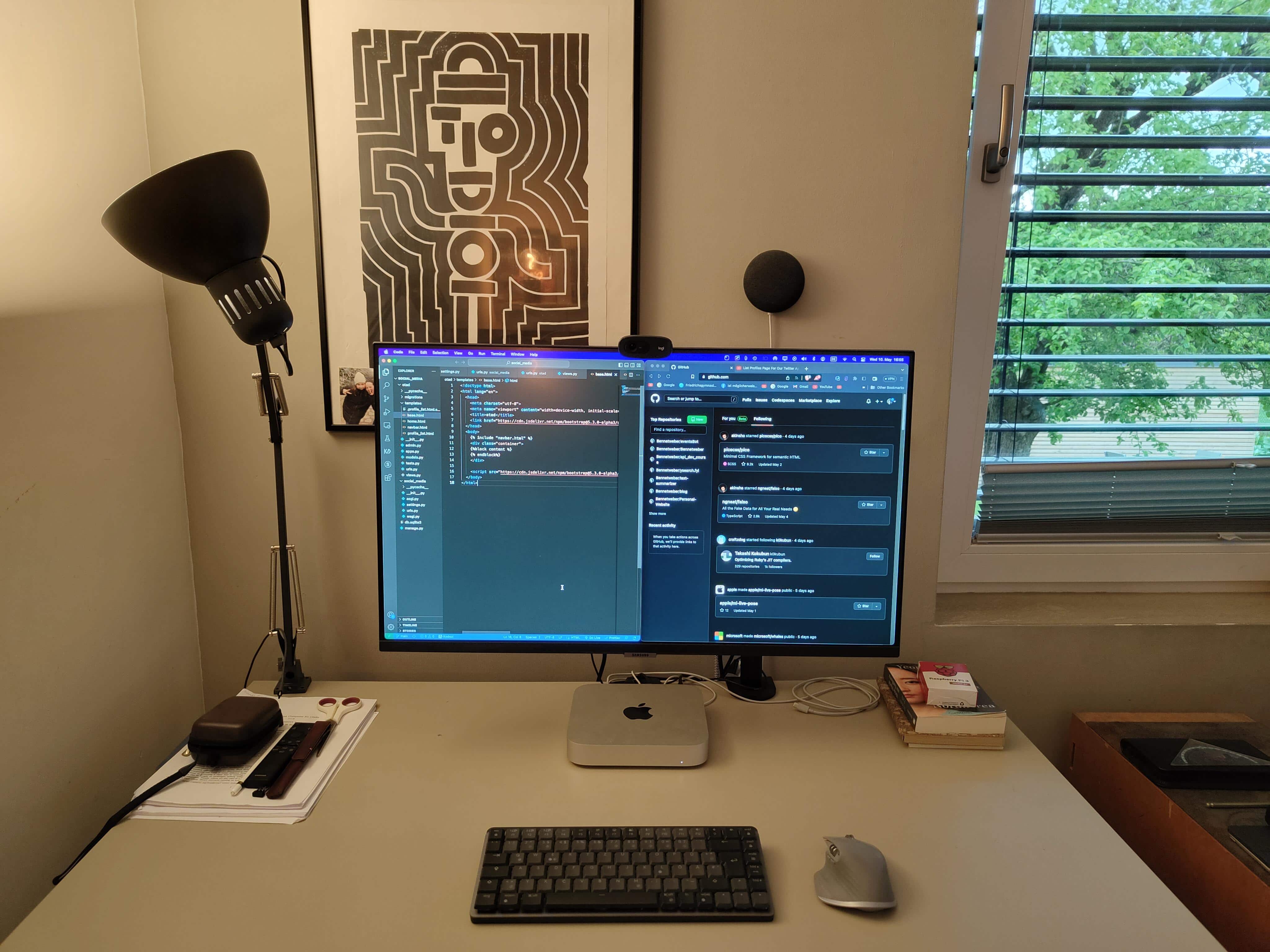
The programmer likes his Logitech Mini mechanical keyboard.
Photo: [email protected]

Before reading past the jump, take a look at today’s featured M1 Mac mini computer setup in the photograph above and see if you can quickly identify the two items that aren’t from peripherals giant Logitech — other than the main computer, display and furniture.

Both items are on the small side, so it might take a hard look to spot them. Answers below in the post and at the bottom just above the gear list.

Coder keeps old MacBook Pro around for just 1 reason [Setups]

By

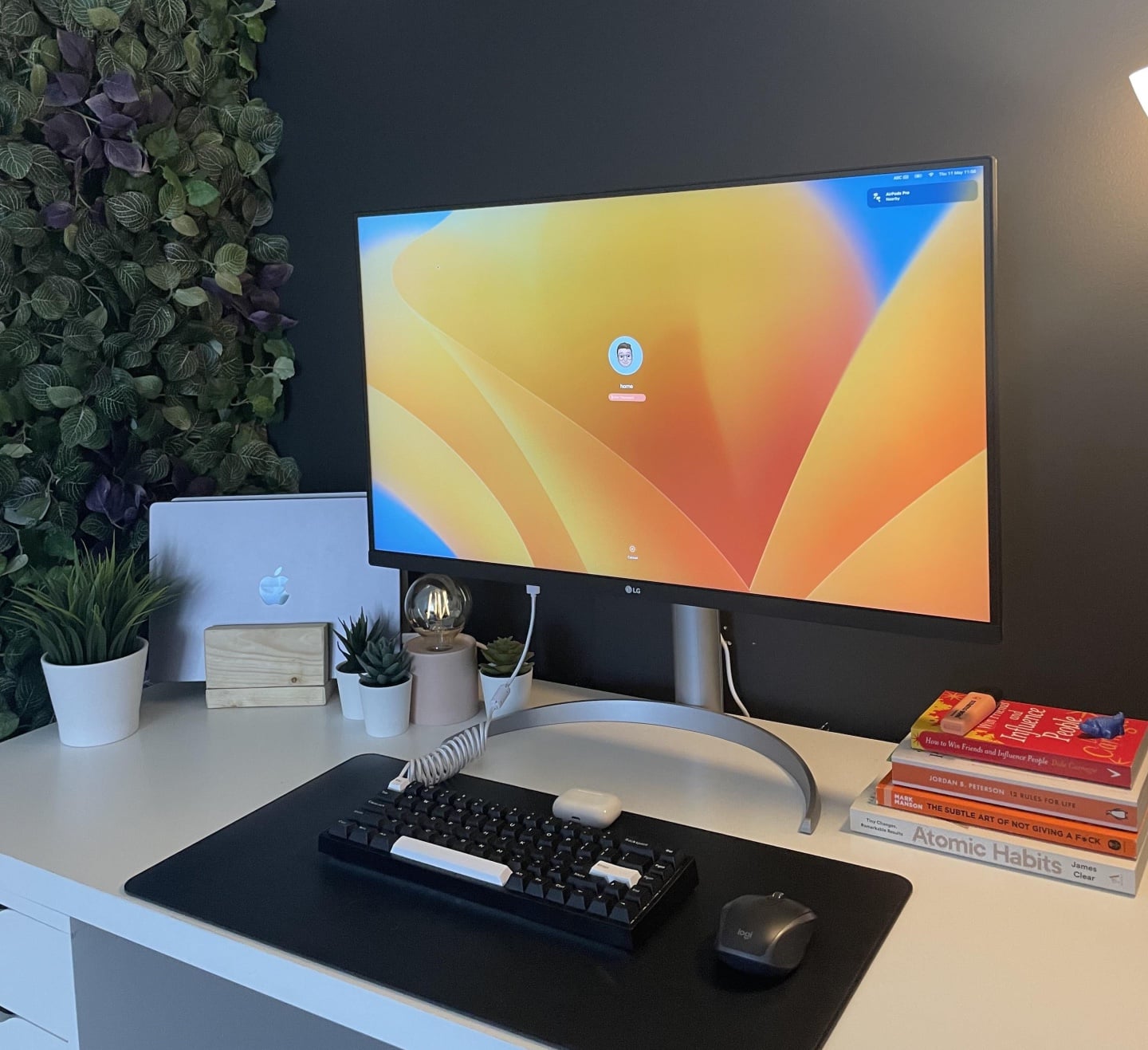
An M1 MacBook Pro or an older Intel-based Mac drive a 32-inch LG display.
Photo: [email protected]

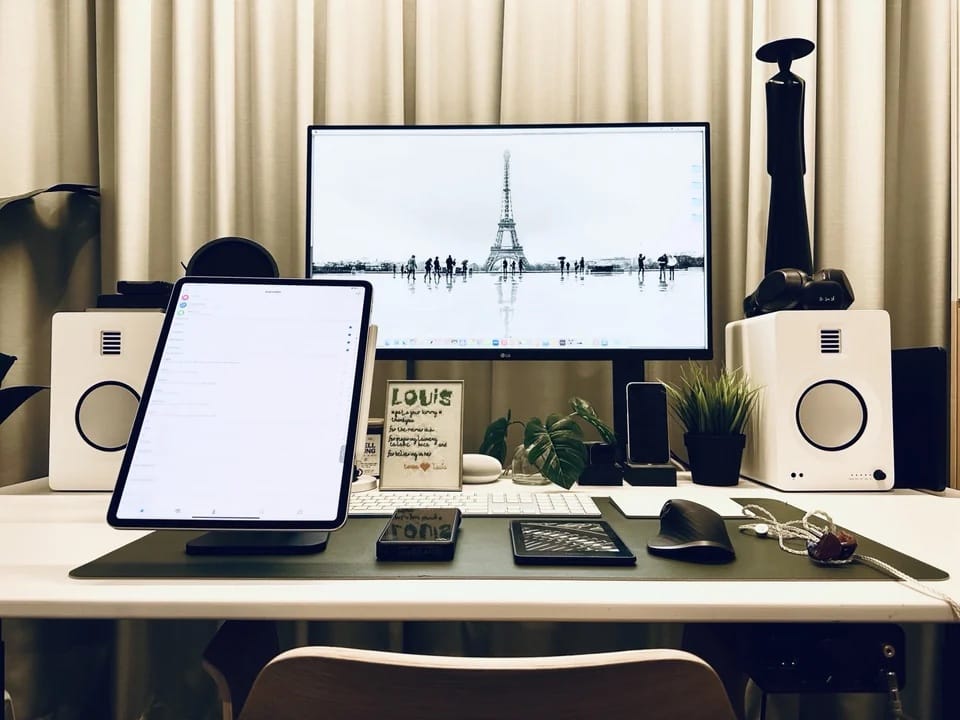
There’s nothing like a straightforward, reasonably up-to-date computer setup that is simply good enough for solid productivity. Today’s featured rig sports newer and older MacBook Pro laptops, an affordable 4K display, a pretty slick mechanical keyboard and homemade laptop stands.

The coder who uses it keeps the older Intel-powered MacBook Pro around despite having an M1 machine for a pretty typical reason, too.

Trim M2 MacBook Air rig packs stellar audio [Setups]

By

At a glance, you might not think this setup has 18 items in it not including the furniture.
Photo: [email protected]

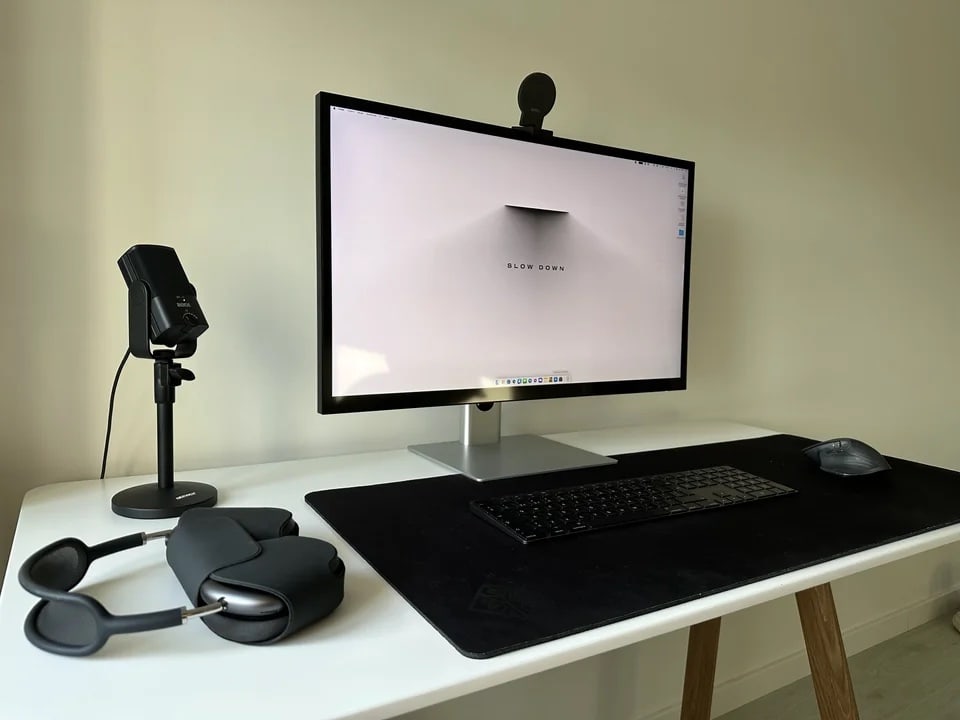
We’ve seen more M2 MacBook Pro laptops lately in Setups than M2 MacBook Air machines, but today’s featured setup bucks the trend. Its M2 MacBook Air drives a 34-inch LG 4K IPS display.

But it’s the setup’s audio gear that may grab your attention. AirPods Pro (2nd gen) make the cut, as do two other sets of premium earphones, outstanding speakers and one of Sony’s super-high-end Walkman MP3 players.

WFH gear to get when the boss pays for it [Setups]

By

An M2 Max MacBook Pro and a 42-inch OLED display? Yes, please.
Photo: [email protected]

Oh, what a joy to go computer-setup shopping — when your employer readily agrees to pay for everything. Today’s featured M2 Max MacBook Pro setup, which features a gorgeous 42-inch OLED smart TV as a display, came into being that very way.

Check out the setup’s gear, below, and see if that’s what you’d buy if your boss handed you a blank check.

You paid how much for that Pro Display XDR? [Setups]

By

A Pro Display XDR typically costs about $5,000, but this user got his for quite a bit less.
Photo: [email protected]

In a world of shockingly expensive Apple products, one magnificent items stands supreme — Pro Display XDR. If you’re among the legion of Apple fans who can’t quite crack open their wallets wide enough for a $1,600 Studio Display, you ain’t seen nothin’ yet.

Today’s MacBook Pro setup sports a Pro Display XDR that came at a shocking price, too — shockingly good, that is, all things considered.

Mac mini drives affordable ‘DIY Studio Display’ [Setups]

By

The user learned how to convert the 5K iMac display from a video.
Photo: [email protected]

It’s great that Apple put out a high-quality display that costs a lot less than the $5,000 Pro Display XDR. But the Studio Display, at $1,600, is still too pricey for many folks. If you’d rather have a 5K display for way less than a grand, today’s featured M2 Pro Mac mini setup is for you if you’re willing to do some work.

Following an instructional video included below, the user converted a 5K iMac to a 5K standard USB display for about $700.

Nursing student completes MacBook Air rig at super-low cost [Setups]

By

This nursing student's setup is quite affordable.
Photo: [email protected]

Many computer setups check all the functionality boxes at a cost of thousands of dollars. But who doesn’t love a complete setup that comes in at bargain-basement cost? Today’s featured MacBook Air workstation seems to cover all the bases without breaking the bank for the user, a nursing student.

How is the setup so affordable? In large part, because it relies on lesser-known brands and, in some cases, older equipment.

Could this be the perfect pair of displays? [Setups]

By

The user, a developer, finds a Studio Display paired with an LG DualUp monitor ideal for his work.
The user, a developer, finds a Studio Display paired with an LG DualUp monitor (left) ideal for his work.
Photo: [email protected]

Any conversation about “perfect” displays might just start and end with Apple’s Pro Display XDR. But not everyone is rich enough to buy one of those 6K monitors, which cost $5,000 or more. So the popular 5K Studio Display might have to do, along with something complementary.

One option graces today’s featured MacBook Pro setup. It recently swapped out ultra-wide and 4K monitors for a Studio Display and and the eccentric LG DualUp. They seem especially well-suited to certain types of workers.

Mac mini drives 3 displays in wild winged formation [Setups]

By

That's not a display configuration you see every day.

Just when you thought you’d seen every arrangement of displays known to computer setups, something comes along to surprise you. Today’s featured M2 Pro Mac mini setup puts a portrait-mode display at center and two landscape-mode displays sticking out like wings on either side of it. It’s kind of odd how rarely seen it actually is.

Another rarity is the user’s amazing assortment of audio components, including an unusually big “Schiit stack.”

Top 20 items to boost your setup for less than $50 [Setups]

By

In my case, the great sub-$50 adds were a wrist rest (wood or memory foam), a laptop stand and a monitor light bar.
Photo: David Snow/Cult of Mac

Computer setups aren’t all about the main machine and displays that cost hundreds or thousands of dollars. Plenty of smaller, less-expensive items turn out to be crucial — like gadget stands, USB-C hubs, the perfect mouse, smart light strips, desk mats and much more.

Today’s featured setup is a tribute to all the little things that make a difference — even double-sided tape.

Coder’s dual MacBooks look badass in teardown skins [Setups]

By

Are those MacBooks at left stripped of their cases?! Nope.
Photo: [email protected]

What’s better than having two MacBook Pro laptops in your computer setup? Having the two powerful machines wrapped in cool-looking skins that confound and excite onlookers, of course.

Such is the case with today’s dual-MacBook Pro, dual LG-display workstation that the user depends on for coding and videoconferencing.

Behind-desk lighting takes MacBook Pro rig to ‘next level’ [Setups]

By

A light strip -- in this case one from Nanoleaf -- can make a big difference.
Photo: [email protected]

A humble light strip can have a huge impact on a computer setup and even the room it’s in, providing functional lighting as well as setting a mood with white or colored lights at different temperatures (cool, warm, etc.). Today’s featured MacBook Pro setup uses nothing but a Nanoleaf Essentials light strip behind the desk and a Xiaomi monitor lamp to light its way. And they do so to great effect.

Read more about the lighting below, plus the setup’s use of a Sonos Bluetooth speaker for audio and an iPhone with Continuity Camera for effective videoconferencing.

MacBook Pro drives ‘minimal’ and moody space-gray rig [Setups]

By

There's plenty going on this
There's plenty going on this "minimal" computer setup.
Photo: [email protected]

People love their “minimal” computer setups, but everyone has a different idea of what that means. Today’s featured M1 MacBook Pro setup is on the spare side — not to mention beautifully photographed — but it actually has a lot going on.

From the powerful laptop and 4K display to the big-time external storage, backup power and extensive smart lighting, the setup’s more than a match for its owner’s photo editing work.

Huge OLED TV makes ‘perfect’ display (for some) [Setups]

By

That's a 42-inch OLED HD TV for a monitor.
Photo: [email protected]

New computer displays tend to get not just better over time, but bigger — within reason. Unlike TVs, they’re designed to be viewed from just a few feet away at most. But increasingly, we see people using smart TVs as external monitors to get that extra size into their desktop setups.

Today’s featured setup sports an M2 MacBook Pro driving a 42-inch LG OLED smart TV that the user describes as “perfect.”

Affordable iMac rig sees no need for Apple silicon [Setups]

By

You won't find any M1 or M2 Macs here.
Photo: [email protected]

Not every computer setup flaunted and much-admired on social media is an Apple silicon powerhouse with an ultra-fast M1 or M2 chip. Today’s featured setup leans on a 6-year-old iMac and a MacBook Air almost twice as old as that.

But with the help of an impressive-yet-affordable audio gear list and a trio of gaming systems, the rig gets the work and play done. And don’t miss the beefed up iPod classic in the mix.

Floating iPad Pro works as a ‘perfect’ second screen [Setups]

By

Whoah, how'd that iPad Pro learn to fly?
Photo: [email protected]

We often see computer setups festooned with several big external monitors, Mission Control style. But some great setups get by with zero external displays, like today’s featured iMac setup.

The iMac provides the main screen, of course. And then “black magic” makes the iPad Pro levitate as a second screen. Or something like that. See below.

Celebrating the joys of owning 2 Macs [Setups]

By

Some people seem to an M2 Mac mini and an M1 MacBook Air in one setup is overkill. Others wouldn't have it any other way.
Photo: [email protected]

Are two Macs better than one in a computer setup? People’s opinions differ. What’s overkill to one person could be a perfectly sensible use of resources to another.

Until recently, today’s featured setup ran just an M1 MacBook Air. But then the user added an M2 Mac mini. To discover all the reasons why — especially if you need an excuse to add a desktop machine to your laptop setup or vice versa — read on. If you’re looking for ways to streamline your workflow, you might also want to explore how to control MacBook with iPhone, which can enhance productivity and device integration.

Apple classics: If it ain’t broke, don’t replace it [Setups]

By

You can't see it, but a Mac Pro from 2013 drives this trio of Cinema Displays.
Photo: [email protected]

As the old saying goes, “If it ain’t broke, don’t fix it.” And if “it” refers to cool old Apple gear, you should reconsider replacing it, too — especially if it’s still going strong. Today’s featured setup boasts a “trash can” Mac Pro from 2013. It drives not one, not two but three Cinema Displays of yesteryear.

And that’s not all for the workstation’s retro wares. It also features Apple’s old iSight webcam, a Mighty Mouse and a Thunderbolt 2 hard drive for Time Machine backups. And how often do you see a solar-powered keyboard? It has one of those, too.

Stormtrooper head haunts Stream Deck-enabled MacBook Pro rig [Setups]

By

The stormtrooper hemet is custom-made and the Stream Deck uses customized shortcuts.
Photo: [email protected]

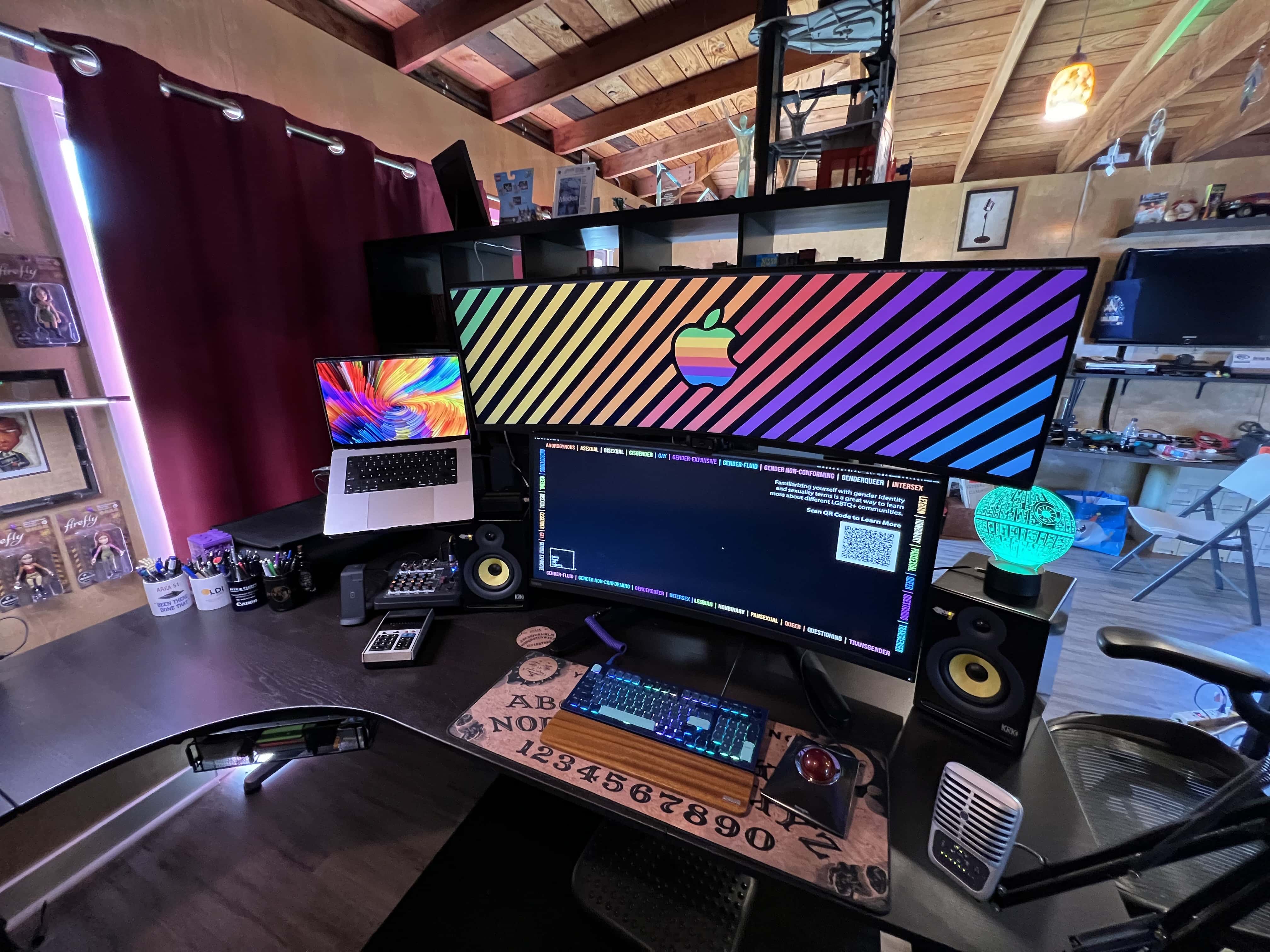
Attractive or fun decor can really give a computer setup an edge. Real plants. Vintage Apple gear. Epic Lego sets. Today’s featured MacBook Pro setup sports a detailed replica stormtrooper helmet from Star Wars.

It overlooks a Darth Vader-worthy 49-inch Samsung curved gaming display and an Elgato Stream Deck, which is associated with video streaming tasks but can also do a lot for productivity in general through shortcuts.

Under-desk mount keeps pesky Mac mini out of the way [Setups]

By

In the
In the "after" shot, the desk is a little more clear because the M1 Mac mini is nowhere to be seen.
Photo: [email protected]

There’s much to be said for hiding stuff under your desk. And we don’t mean cramming it down there like you shove junk under your bed. We mean mounting it properly out of sight. It gets said stuff — computers, docks, cables — off the desktop for a cleaner look to your setup, not to mention a more-efficient workspace.

Today’s featured setup uses an inexpensive acrylic mount to stash an M1 Mac mini and connected cables under the desk. Below you can see images of the mount itself as well the “before” shot of the setup. The “after” shot appears above.

Major workstation makeover covers all bases [Setups]

By

The nearly maxed-out M1 MacBook Pro is on a shelf out of frame.
Photo: [email protected]

We often see big upgrades to setups we’ve covered here in the past. But they’re not usually comprehensive, where everything from the daily-driver Mac to the input devices to the audio gear gets made over (and in some cases greatly expanded).

Let’s just say today’s featured MacBook Pro setup looked a lot different 2 years ago. It’s more evidence that a setup is never, ever “done.”

A MacBook Pro makes a questionable monitor stand [Setups]

By

It might take a moment to locate the MacBook Pro in this photo, even with the help of that nice Anglepoise desk lamp.
Photo: [email protected]

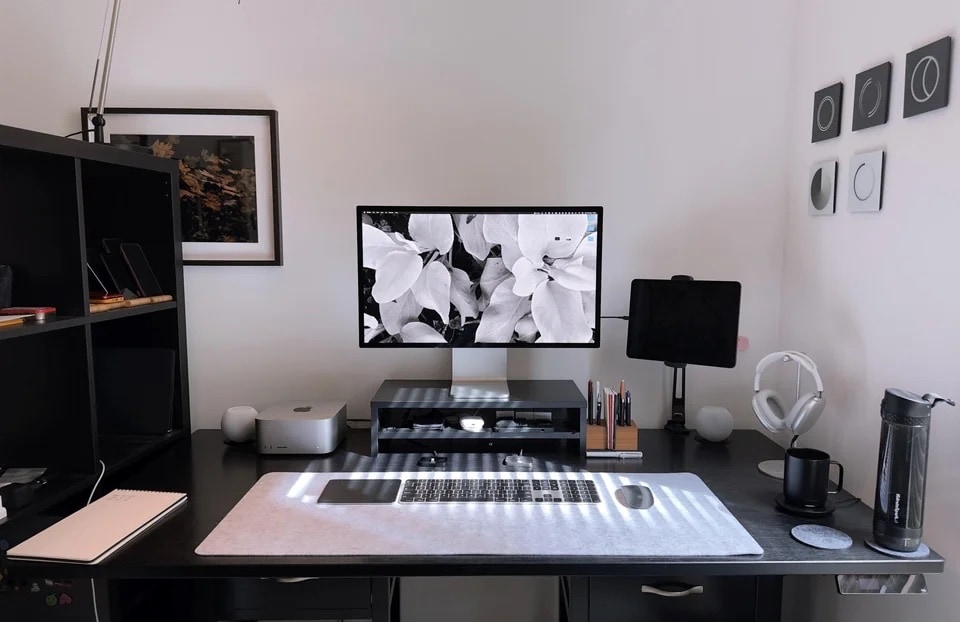
Today’s featured setup carries a strong vibe of minimalism — so much so it appeared to lack even a computer, at least at a glance at the photograph. But then we realized the laptop was stashed away in unusual (and questionable) fashion.

We recently featured a setup with the MacBook Pro and iPad hidden on a little shelf mounted under the desk. This time the laptop is stashed in a case sitting directly under the monitor stand’s base (not recommended).

Mac Studio stacked on Mac mini looks like a Pixar robot [Setups]

By

One commenter thought the Mac Studio stacked on the old Mac mini looked like a Pixar robot character.
Photo: [email protected]

This just in from the Things That Look Like Other Things Department: a Mac Studio desktop computer sitting on top of a Mac mini “looks like a small robot from Wall-E or one of the [other] Pixar films.”

Today’s featured setup sports the unintentional character in the form of an old Mac mini acting as a server and a stand for the much-newer Mac Studio. It’s pretty cute. You can imagine it rolling around, beeping and maybe firing off a laser blast.

How fast can you spot the MacBook Pro in this super-clean rig? [Setups]

By

It's an exceptionally clean setup. Even
It's an exceptionally clean setup. Even "absurdly" so, as one admirer said.
Photo: [email protected]

If there’s one thing computer-setup fans on social media value above all else, it’s a “clean” workstation. The best ones — neither messy nor cluttered with cables — place everything just so. Today’s featured MacBook Pro setup does a nice job with that.

And it even hides the laptop as well as an iPad. See how fast you can spot them. One commenter noted it took longer than it should have.