Mobile menu toggle

Search results for: watchos 2

Here’s hoping first iOS 13.3 beta fixes that huge memory bug

By

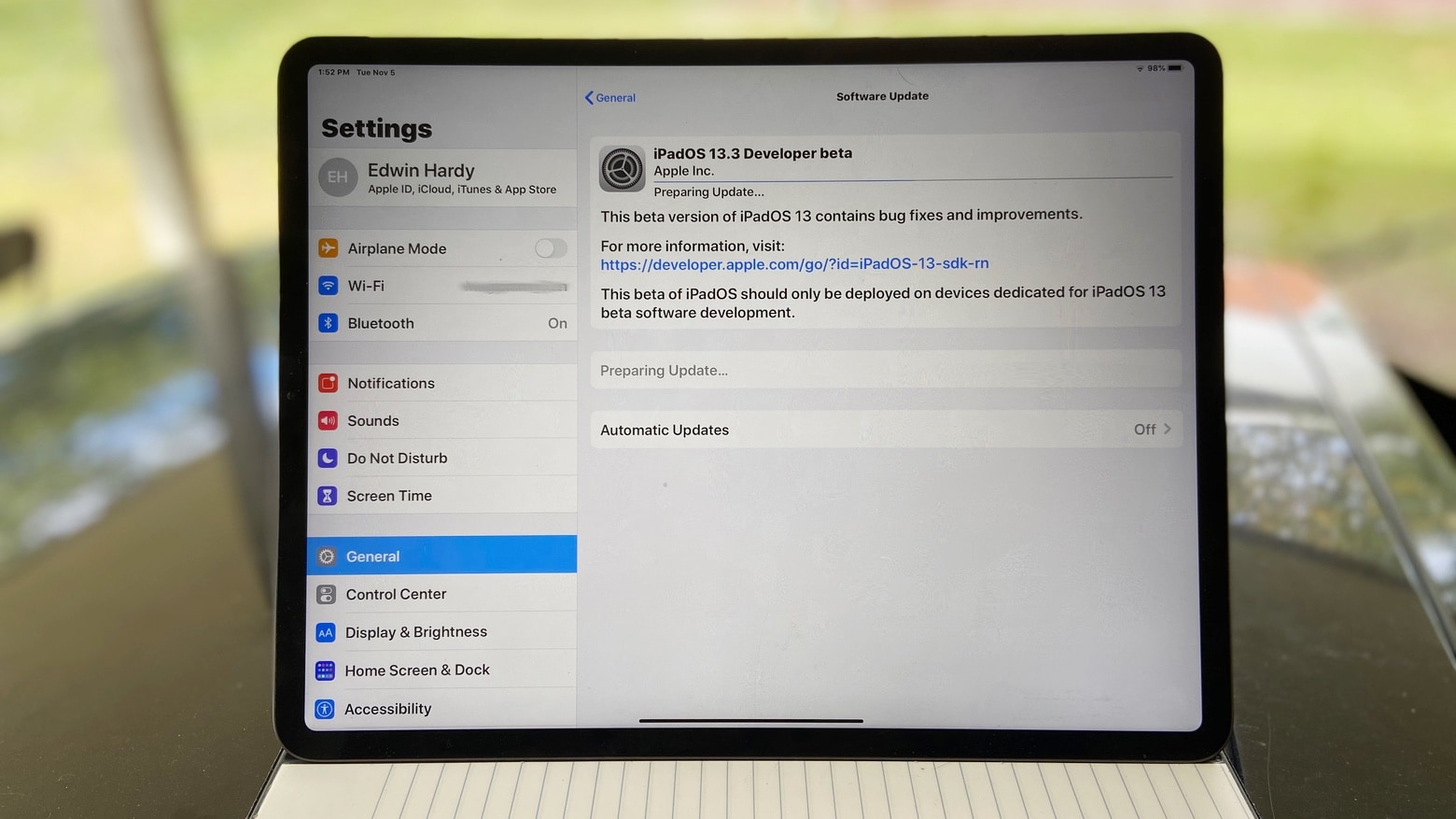
iPadOS 13.3 Developer beta
The first iPadOS 13.3 Developer beta is out, along with an iPhone version.
Photo: Ed Hardy/Cult of Mac

Apple has just begun beta testing the next updates for iPhone and iPad. It’s not known yet if iOS 13.3 and iPadOS 13.3 fix the serious memory management problem introduced in the previous version, introduced last week.

In addition, watchOS 6.1.1 also just entered beta testing.

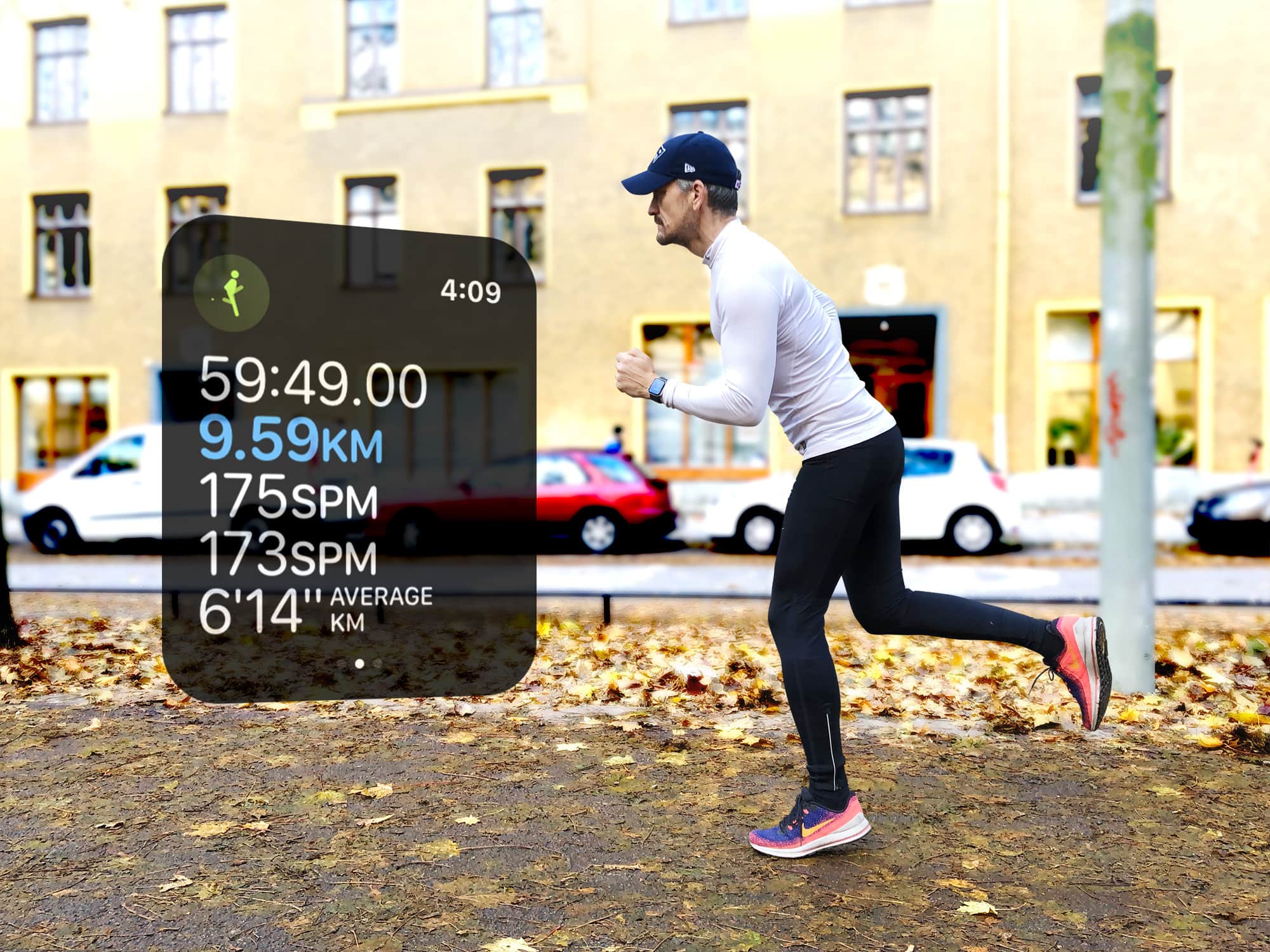
How to use running cadence on Apple Watch

By

What does cadence tell you about your running?
Photo: Graham Bower/Cult of Mac

The Apple Watch running cadence setting arrived in watchOS 5, but if you didn’t notice, you’re not alone. It tends to get buried in the myriad stats Cupertino provides for runners. Plus, there’s a lot of confusion about what it actually means and whether it’s useful.

But when you understand what your running cadence is telling you, it can help make you run faster and reduce your risk of injury. So it’s definitely worth taking the time to get your head around it. Here’s our handy guide.

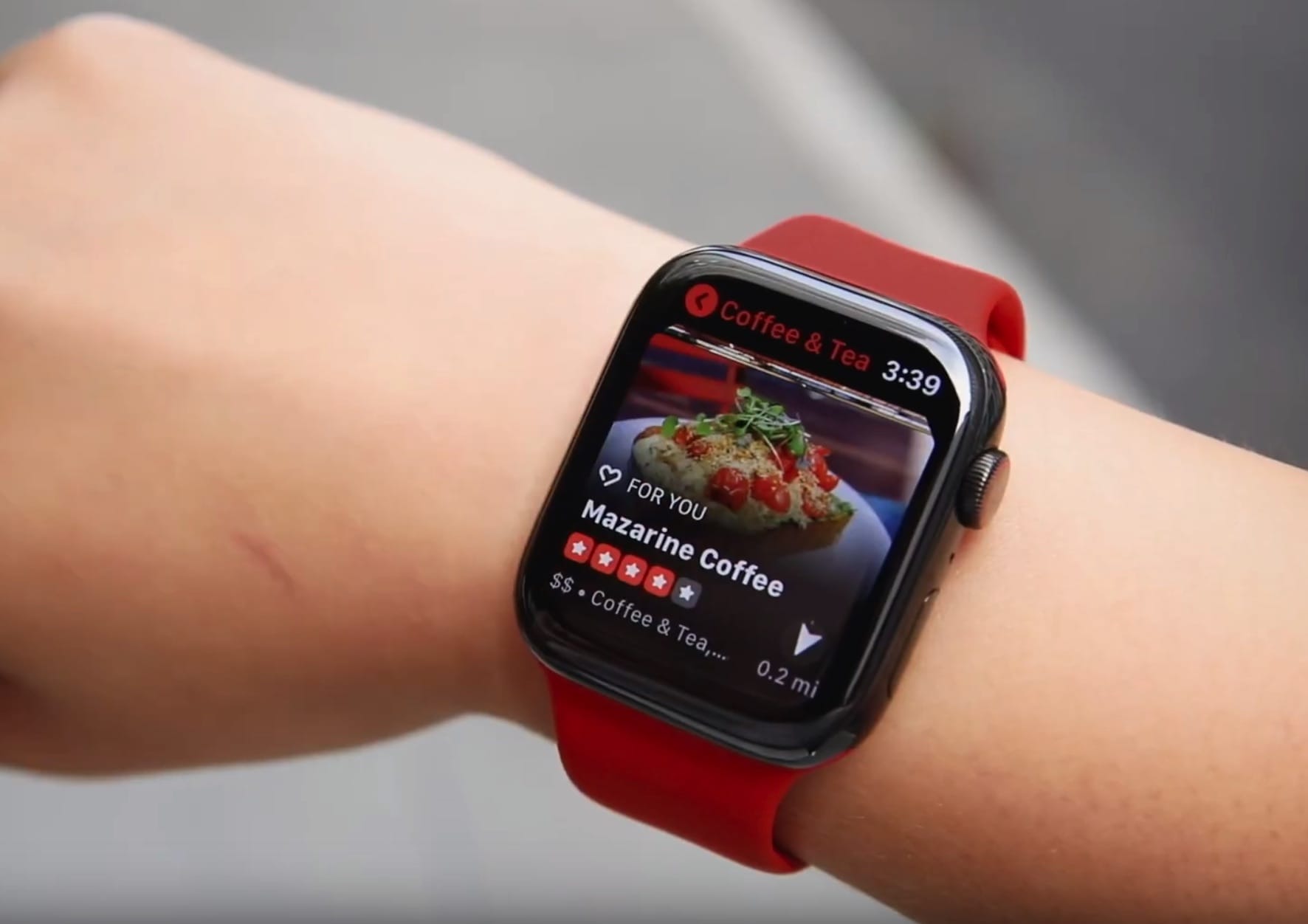
Yelp uses Apple Watch compass to make finding things easier

By

Yelp uses Apple Watch compass to make finding things easier
Yelp's watchOS app just got better.
Photo: Yelp

Yelp has updated its Apple Watch app to make use of the Apple Watch Series 5’s in-built compass feature.

The compass is now able to point users in the direction of local businesses. Depending on where you’re facing, the app will tell users have far they are from places they may want to visit.

Apple AR is already here, and you’re probably wearing it right now [Opinion]

By

Apple AR already surrounds us.
Apple’s AR already surrounds us.
Photo: Drew Graham/Unsplash

“Apple is all-in on augmented reality. But where will it lead?” That’s a pretty standard view of Apple’s experiments with visual AR, aka overlaying virtual objects onto the real world, via the iPhone’s camera and screen.

But Apple is already providing a fully immersive AR overlay onto the real world, to millions of users — only it isn’t using a screen. AirPods are augmented reality. They are also a part of a new computing paradigm that Apple snuck into the world without telling anybody. This paradigm currently consists of AirPods, iPhone, Apple Watch and the HomePod. And it is as discreet and low-key as it is important.

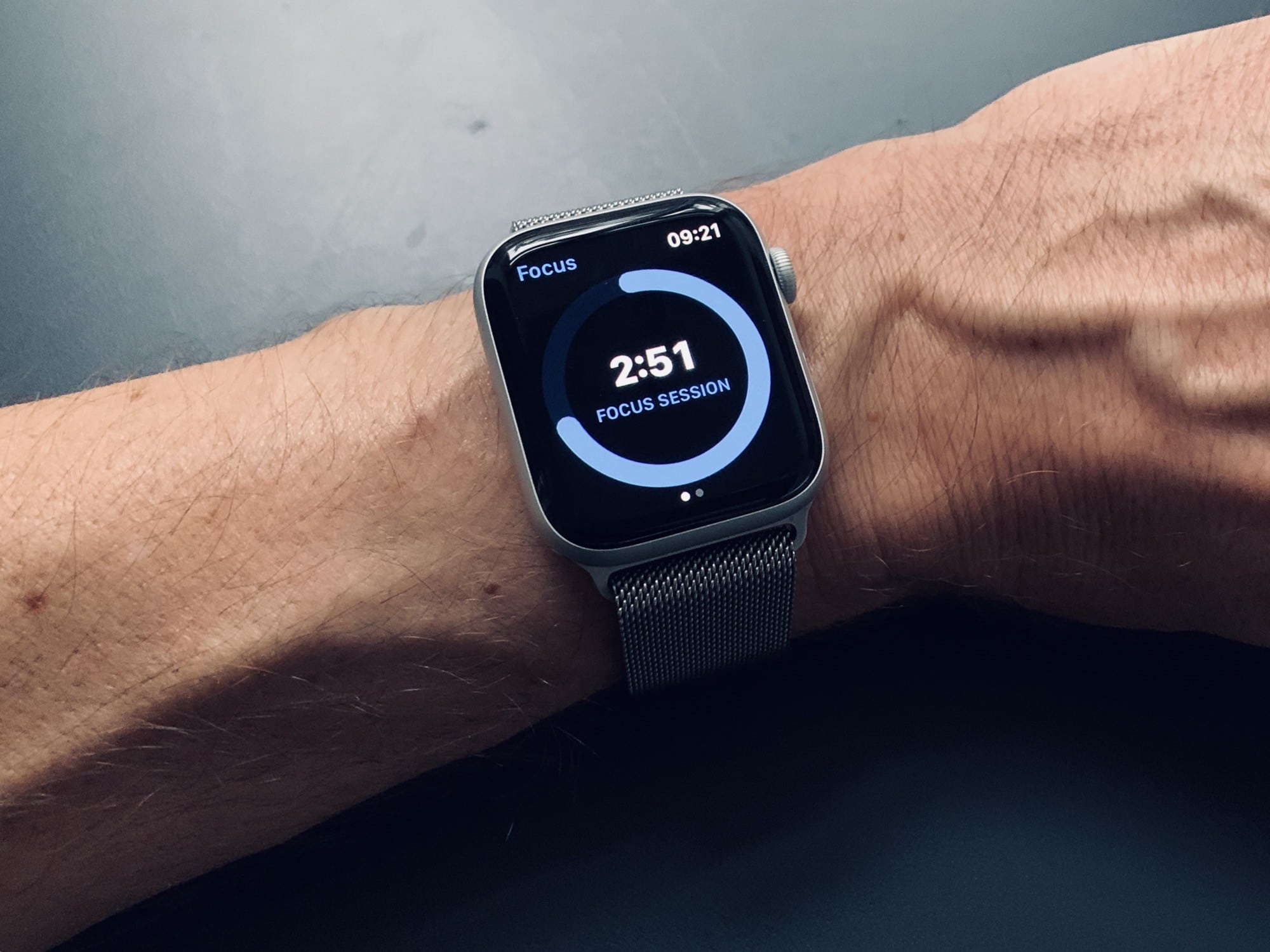
How to master the Apple Watch Dock

By

Apple Watch dock

Photo: Charlie Sorrel/Cult of Mac

There are two buttons on the Apple Watch. You can press the Digital Crown, and you can press the side button. If you press the side button when your watch is displaying its watch face, then you’ll pop up the Dock. But what, exactly, is the Apple Watch Dock?

Just like the docks on macOS and iOS, it provides quick access to your most-used apps. But the Apple Watch Dock doesn’t work like the docks on Apple’s other devices. Here’s how to use it — and how to customize it.

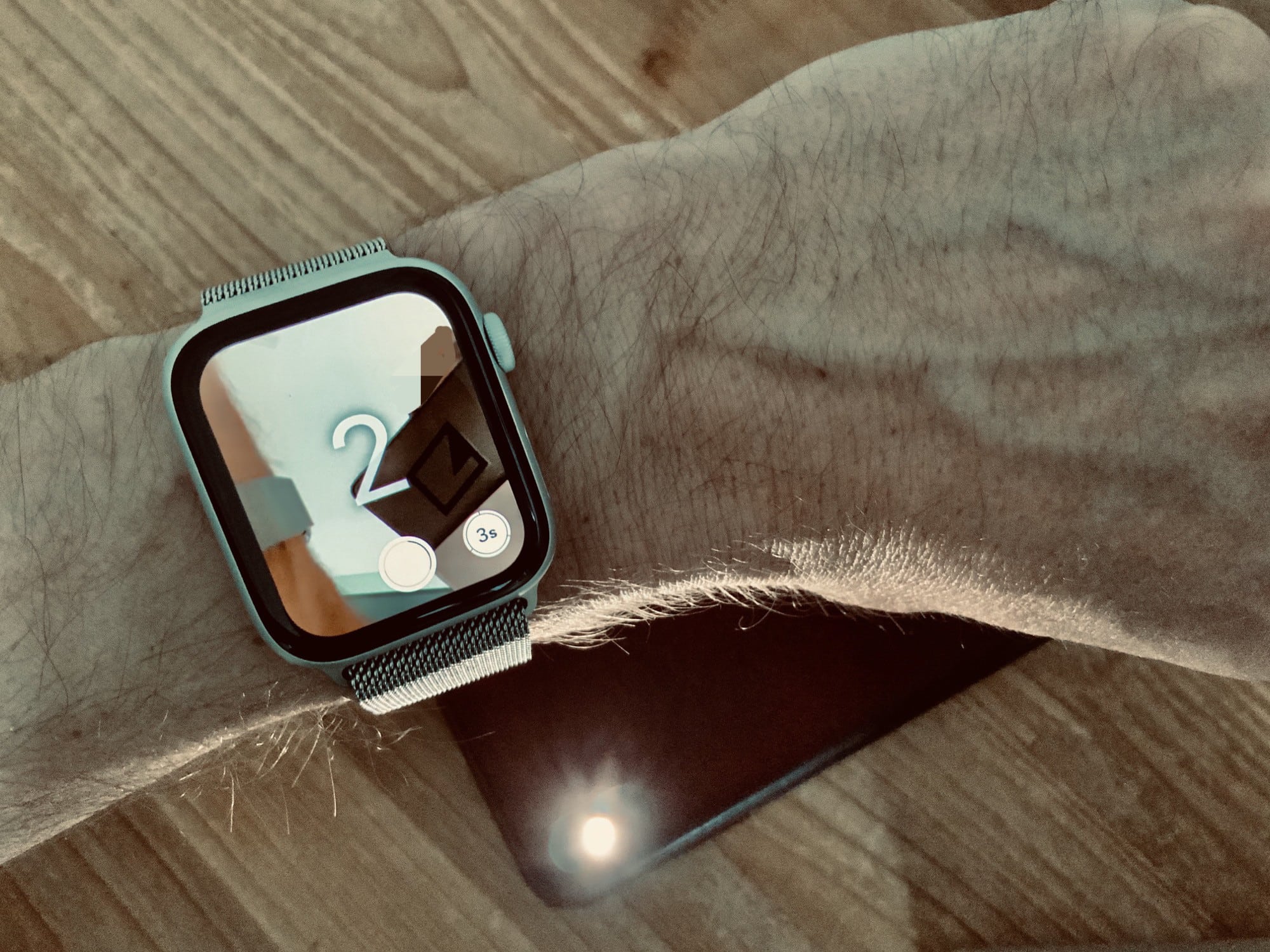
How to use the Apple Watch to snap remote selfies

By

Apple Watch camera remote
Apple Watch camera remote inception.
Photo: Charlie Sorrel/Cult of Mac

The Apple Watch is an amazing fitness tracker, and a pretty good notification device. But it has other tricks — tricks that you maybe didn’t know about, or didn’t realize would be quite as useful as they are. One is the Camera app. The Apple Watch doesn’t have its own camera, but it does give you remote control of your iPhone’s camera.

This lets you trigger the camera’s shutter, or record a video, from anywhere in range of your iPhone’s Bluetooth radio. Why? Group self-portraits, without having to set the timer and run back to your friends in time to smile. Videos: I used the video camera function just this week to record my progress for my guitar teacher. Like I said, it might be more useful than you’d expect.

Here’s how to use the Apple Watch camera remote.

Make Apple Watch easier to read with built-in Zoom

By

zoom apple watch
Zoooom!
Photo: Charlie Sorrel/Cult of Mac

Even though the Apple Watch is just a tiny little computer on your wrist, it still packs plenty of accessibility options. And one of the most useful — and accessible — of these options is Zoom. This built-in feature lets you hold a virtual magnifying glass over the watch’s display, and then scroll across this expanded view to make reading easy.

Today we’re going to see how to switch on Apple Watch Zoom, how to use it and — maybe most important — how to switch it off again.

Apple Watch Series 5: Big little changes [Review]

By

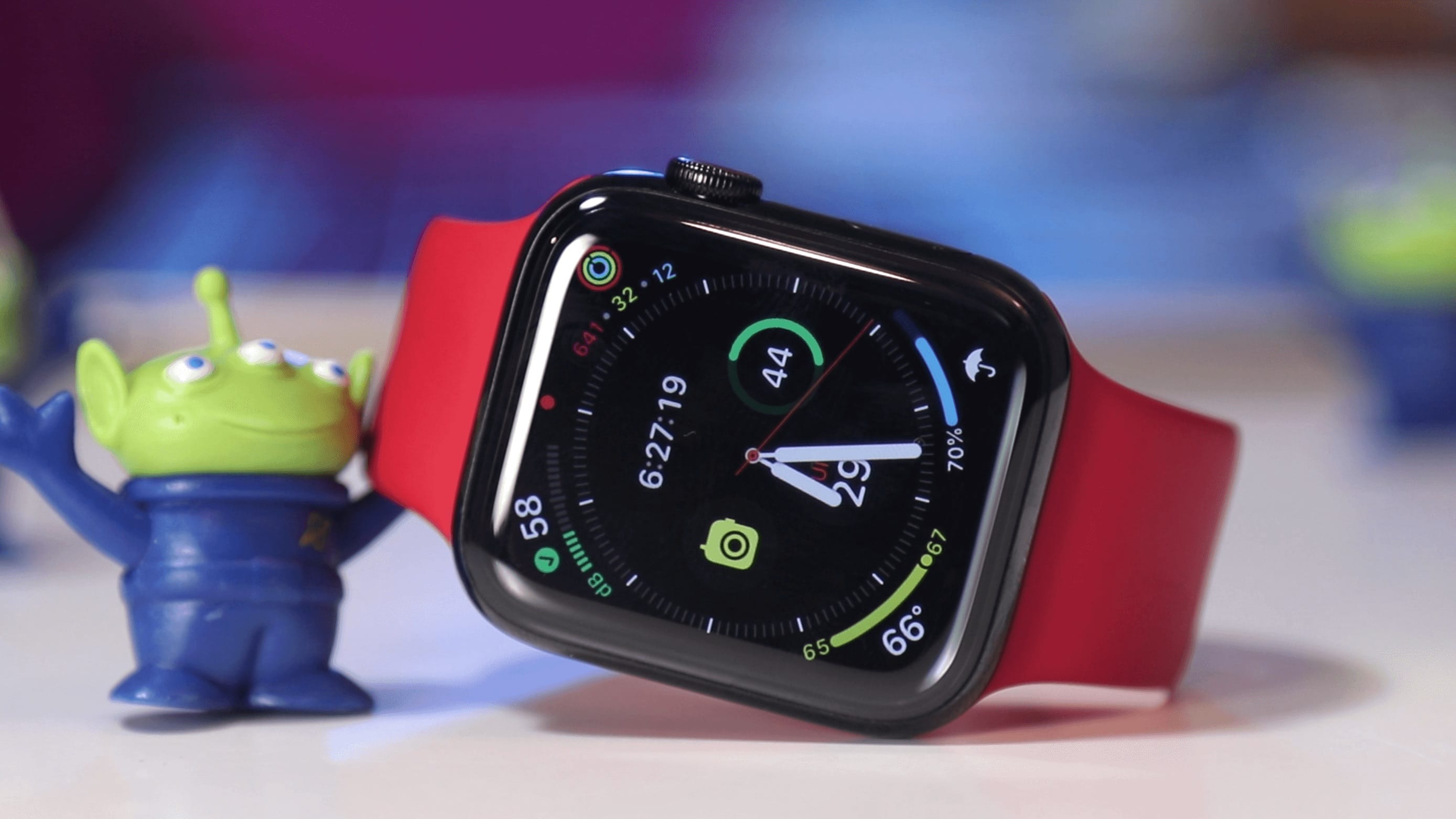
Apple Watch Series 5 info graph face with little alien
Apple Watch could soon help you get better sleep.
Photo: Ian Fuchs/Cult of Mac

During the past week with Apple Watch Series 5, I’ve been testing the device. Once again, I took a new watch on my family vacation to Disney World, using it whenever possible to make my life easier.

So does the Series 5, with its always-on display, live up to the hype? And is it worth the upgrade if you’re on an older version? Watch our video review, or read our full Apple Watch Series 5 review, to find out if the new watch is right for you.

Hands-on with the new Apple Watch Series 5 compass

By

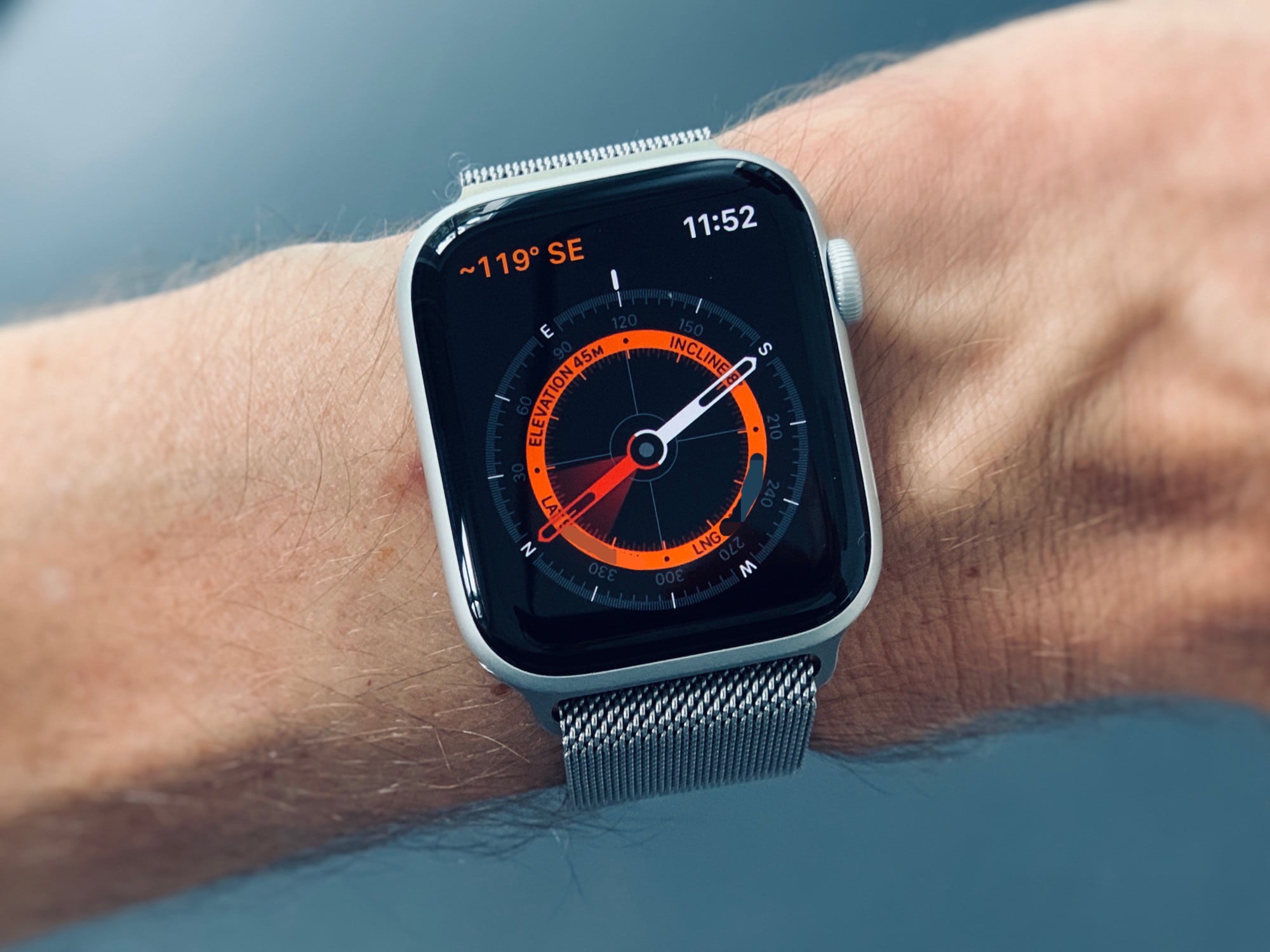
Apple Watch compass
The Milanese Loop's magnet doesn't seem to trouble the compass.
Photo: Charlie Sorrel/Cult of Mac

WatchOS 6 introduces a new Compass app (only for the Apple Watch Series 5), along with a couple of Compass complications. It works pretty much exactly like you’d expect, only with a few neat extras. You can access it from the All Apps screen, or by tapping the Compass complication on one of your Apple Watch faces. Let’s take a look.