Get a grip on all those windows with this powerful, intuitive organizer. Photo: Cult of Mac Deals
Many of us would are equally embarrassed about the tidiness of our desktop as our bedroom. No wonder TV shows about organizing spaces are so popular: we can all use some help getting things in order.
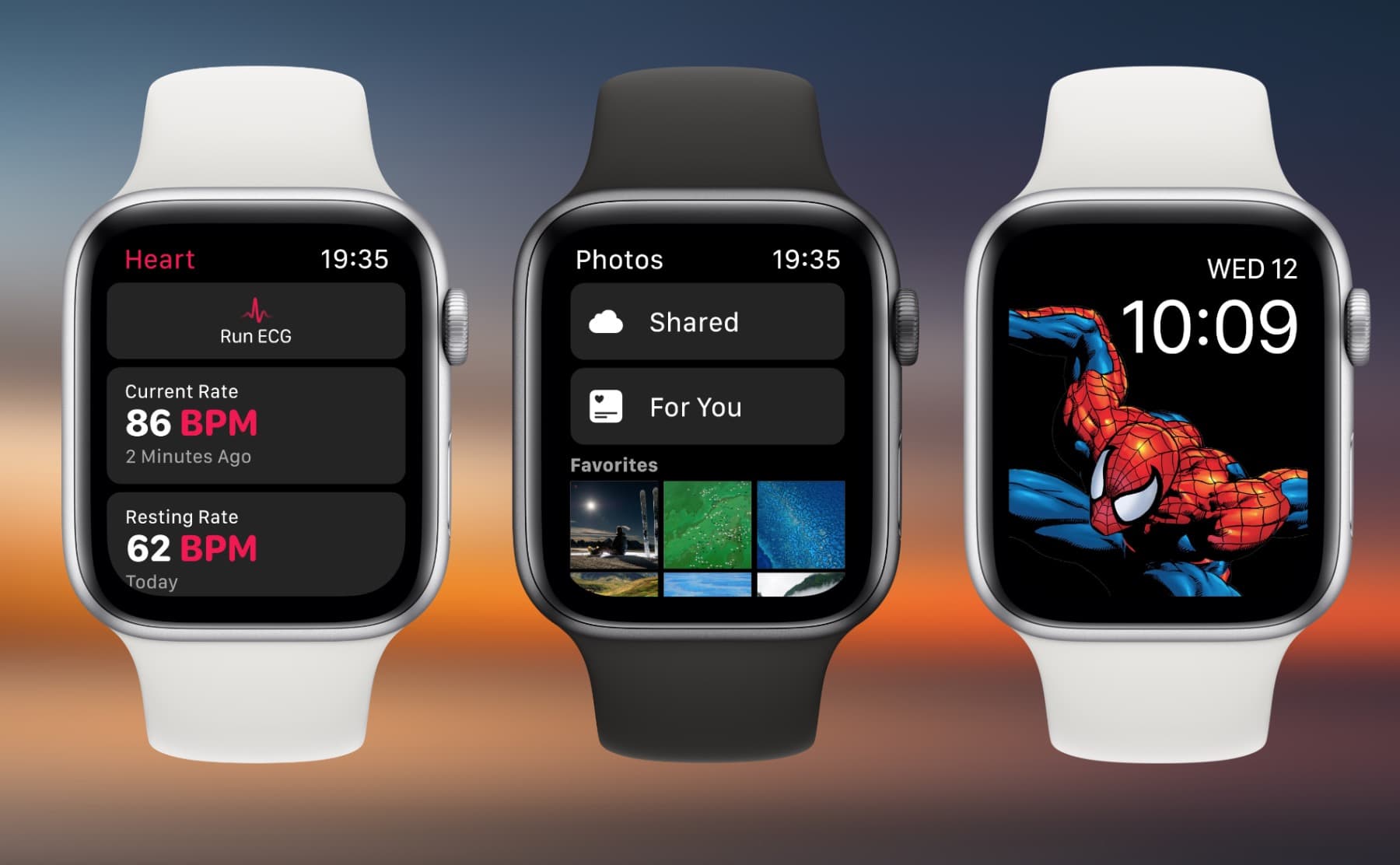
watchOS 6 could be jam packed with new stuff. Photo: Jake Sworski
The grand unveiling of watchOS 6 is a little more than a month away. Leaked details on watchOS 6 have been pretty scarce in the lead up to WWDC 2019, but that hasn’t stopped concept designer Jake Sworski from coming up with a plethora of feature ideas that will take Apple Watch to the next level.
In his latest watchOS 6 concept, Sworski and his friends have dreamed up tons of big and little features that would add more information to Apple Watch. New watch faces, sleep tracking, activity ring advancements and more are all there. If Apple puts even half of these features in watchOS 6 we’ll be totally blown away.
Dust off any old USB keyboard and get your Bluetooth back in action. Photo: Charlie Sorrel/Cult of Mac
You wake up or restart your Mac, and nothing is connected. Your Bluetooth keyboard does nothing. You wiggle your Bluetooth mouse or trackpad, and the on-screen pointer refuses to wiggle in response. The problem? Your Mac’s Bluetooth is switched off. But how do you switch it back on without a mouse? If you ever find yourself in this situation, here’s a simple guide onturn on Bluetooth Mac without mouse.
Today we’ll see how to activate Bluetooth on an iMac, Mac Pro or Mac mini 1 without having to touch a mouse or trackpad. All you need are a USB keyboard, Spotlight and one clever trick.
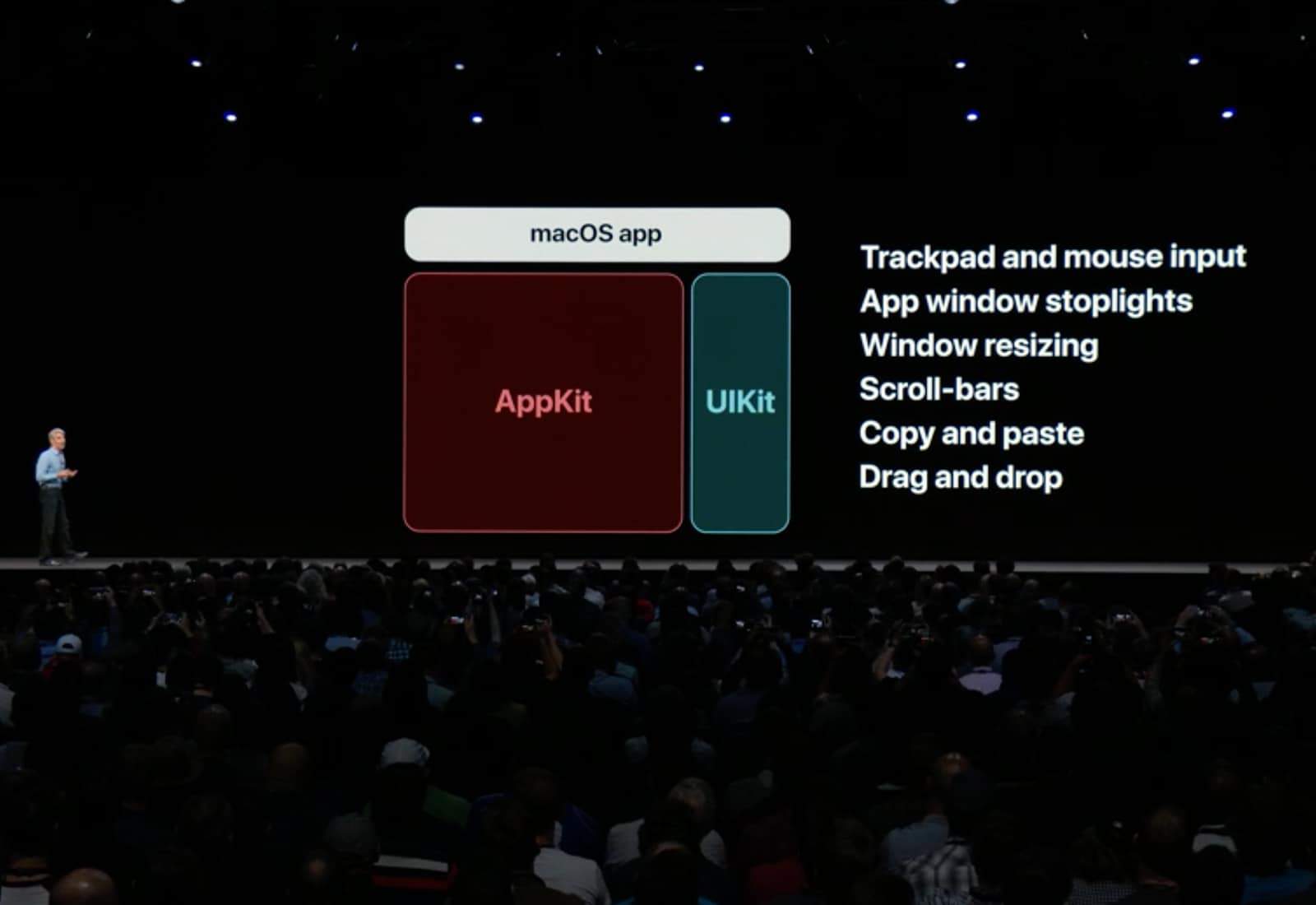
Making an iOS app into a Mac one could some be as easy as pressing a button, thanks to the “Marzipan” project. Photo: Apple
The days of laboriously converting an iPhone or iPad application to run on a Mac are almost over. Soon, preparing an iOS app to run on macOS will reportedly be as simple as the developer checking a checkbox.
This is part of a trove of good news for developers — and users — leaking out today.
This weekend I made a shortcut that takes a list of songs, adds up the total duration, and shows it in a notification.
The first part was easy. The Shortcuts app has a great action that can tell you anything about an iTunes Media file (or any other media file), including its duration. I whipped up a shortcut to cycle through a list of music tracks, adding up the durations along the way. It took five minutes, tops.
Then things started to go wrong. The shortcut returned the total duration in seconds. I don’t know about you, but for me, a number like 4,166.867 isn’t that useful. I prefer something like 01:09:26, or 1 hour 9 minutes and 36 seconds. The problem was, I couldn’t get from one to the other.
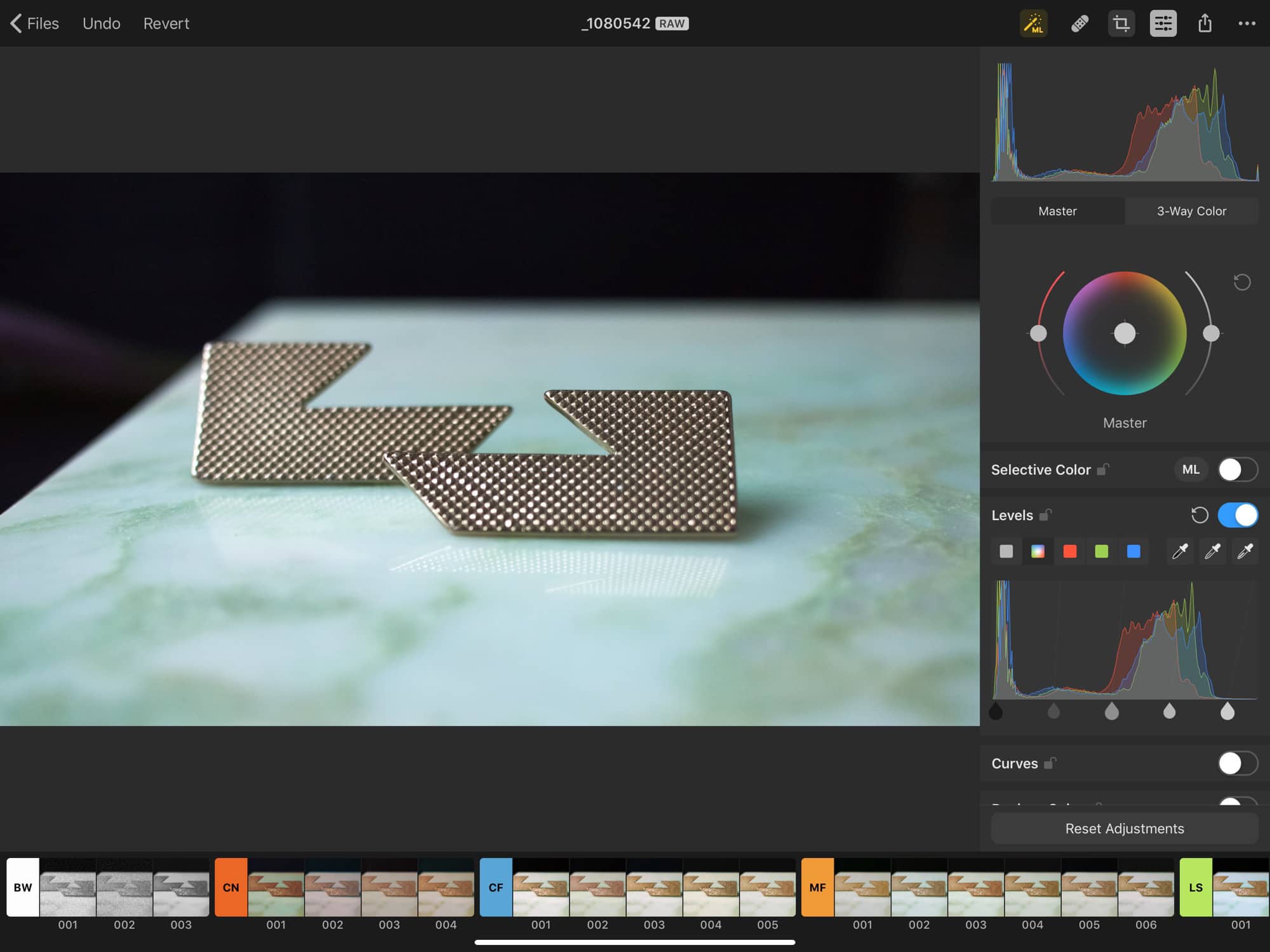
Pixelmator Photo should be on every photographer’s iPad. Photo: Nuria Gregori
Pixelmator Photo, a new image-editing app for iPad, gives you tons of tools for tweaking your images. The app lets you apply filters, crop, trim and generally making your photos look great.
In this regard, Pixelmator Photo is like a zillion other photo apps for iOS. What sets it apart are a) the now-expected Pixelmator polish, and b) machine learning that powers pretty much everything.
I’ve taken the app, which launches today, for a quick spin, and it’s pretty great. The photo-editing space is so crowded with great apps, though, that we’re spoiled for choice. How does Pixelmator Photo match up?
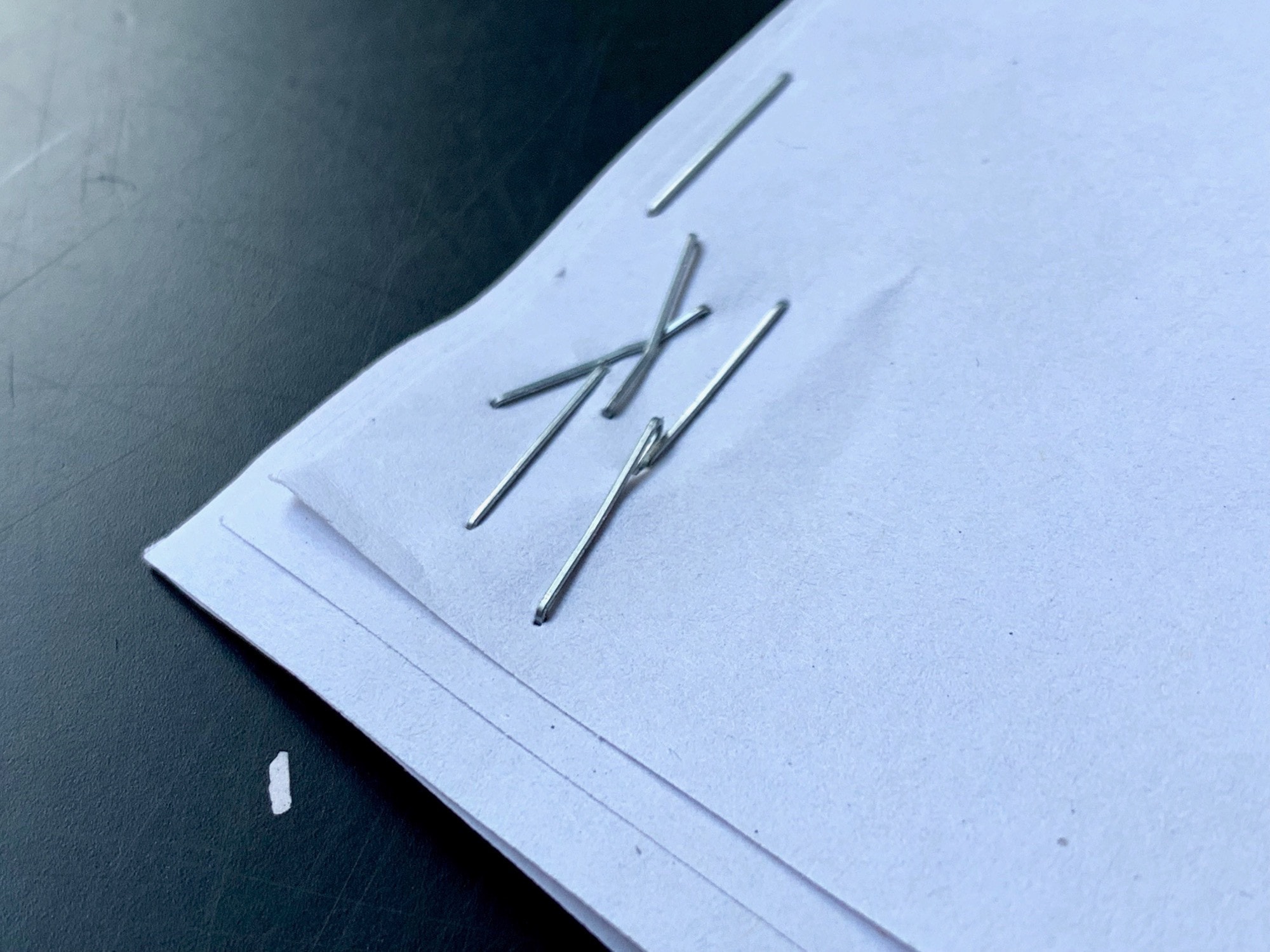
This is how we used to merge PDFs before computers. Photo: Charlie Sorrel/Cult of Mac
Contrary to what you might expect, merging PDFs is easier on your iPhone than on your Mac. On the desktop, you first need to open both PDFs in the Preview app, and then work out how to combine the two of them. On the iPhone or iPad, you can select your PDFs in the Files app (or in the Mail app, or anywhere else you find them), and use a quick shortcut to combine and save them in one go.
It’s instant, foolproof, and Just Works™. Let’s see just how easy it is to merge PDFs on iOS.
The app makes it easier than ever to find contacts and, more importantly, keep your contact lists in order. It looks great, is incredibly fast, and works with all of your existing contacts on iOS.
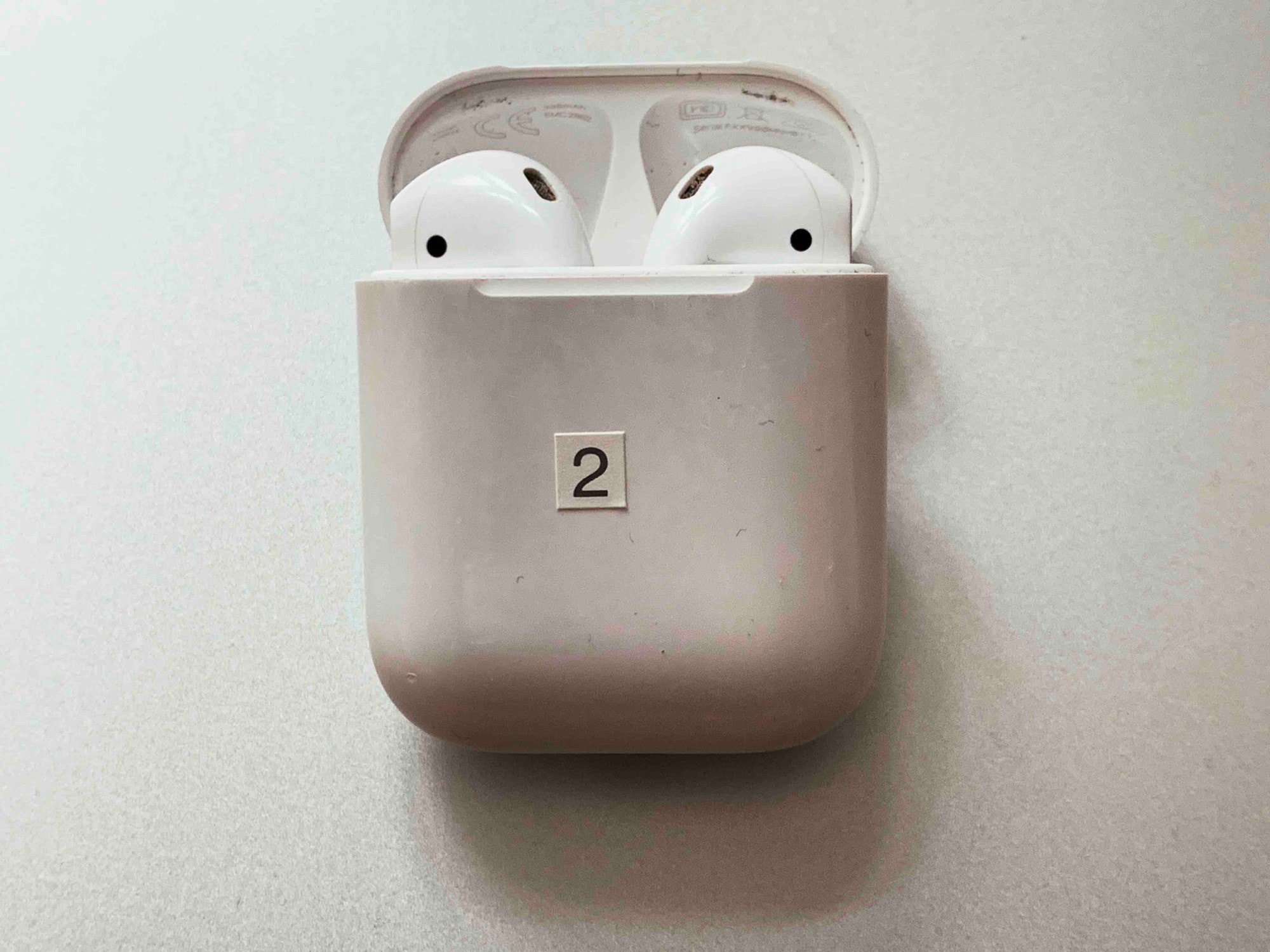
This won’t fool anybody. Photo: Charlie Sorrel/Cult of Mac
AirPods 2 have arrived. Faster, longer-lasting, and with extra Hey Siri action, they’re a solid upgrade to the (deservedly well-loved) originals.
The new AirPods work — for the most part — just like the old ones, with a few extra Siri options. And that means that all the best AirPod tricks, like eavesdropping with Live Listen, and customizing your double-taps, all still work. Check out our roundup of the best tips and tricks for AirPods 2.