Mobile menu toggle

Search results for: SSD

Maximum mood indigo: Go crazy with the lighting [Setups]

By

Feel like you're drowning or freezing to death? It could be the lighting.
Photo: [email protected]

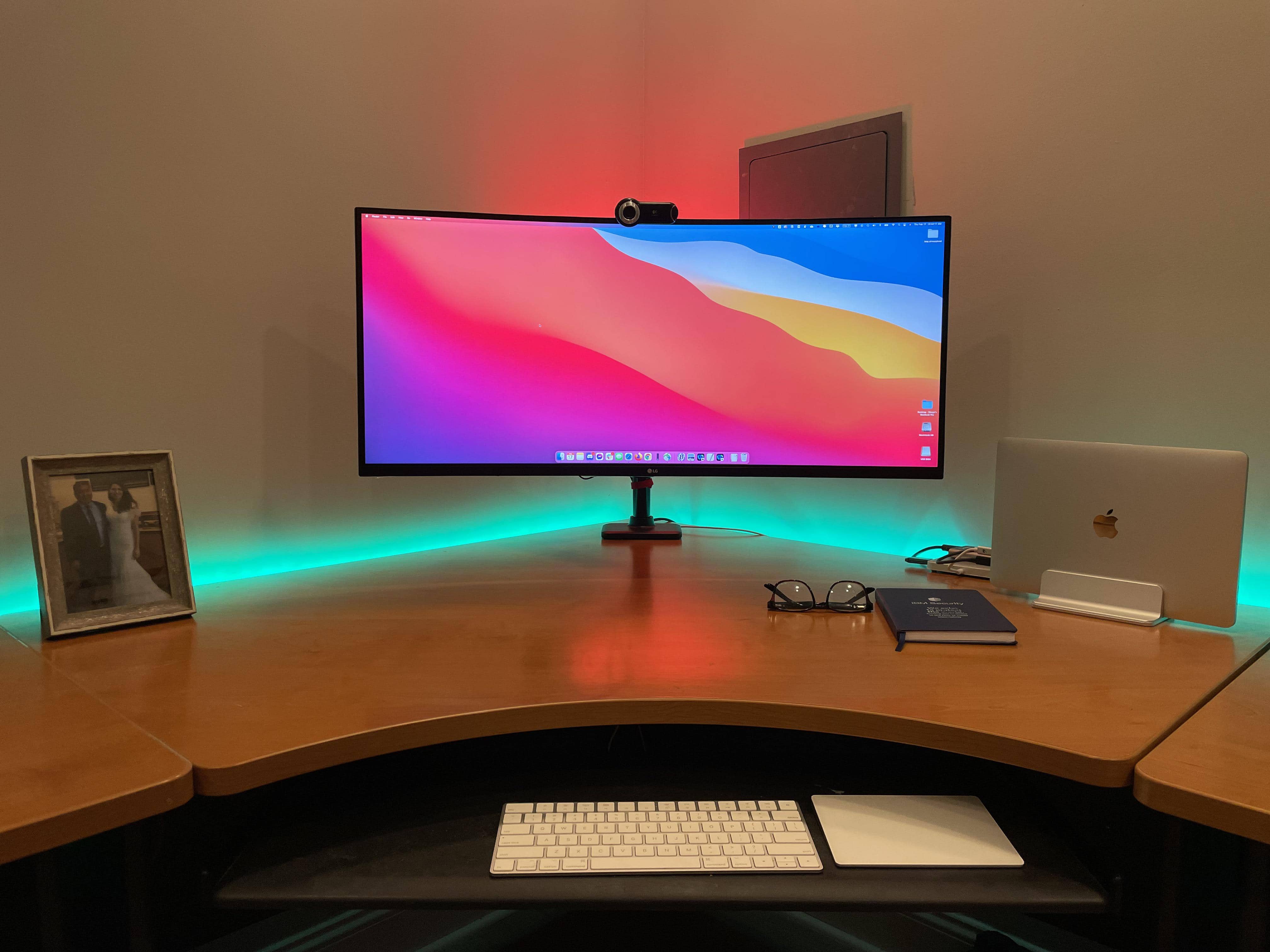
Ever wonder how people get crazy-cool mood lighting in and around their computer setups? You see it all the time in folks’ photos on social media sites. The hardware — computer, displays, peripherals, other gear — may be fabulous in its own right, but the lighting just takes it to another level.

Or not. Sometimes lighting ends up being too flashy — as in, on the verge of fit-inducing. And sometimes it’s just too much of one thing. Today’s featured setup shows a cool blue wash that might just drown productivity. Or maybe it’s just for off-duty hours.

Whatever your preferences, an increasing array of products can help you get your setup light show on.

This dual-display trick is not for everyone [Setups]

By

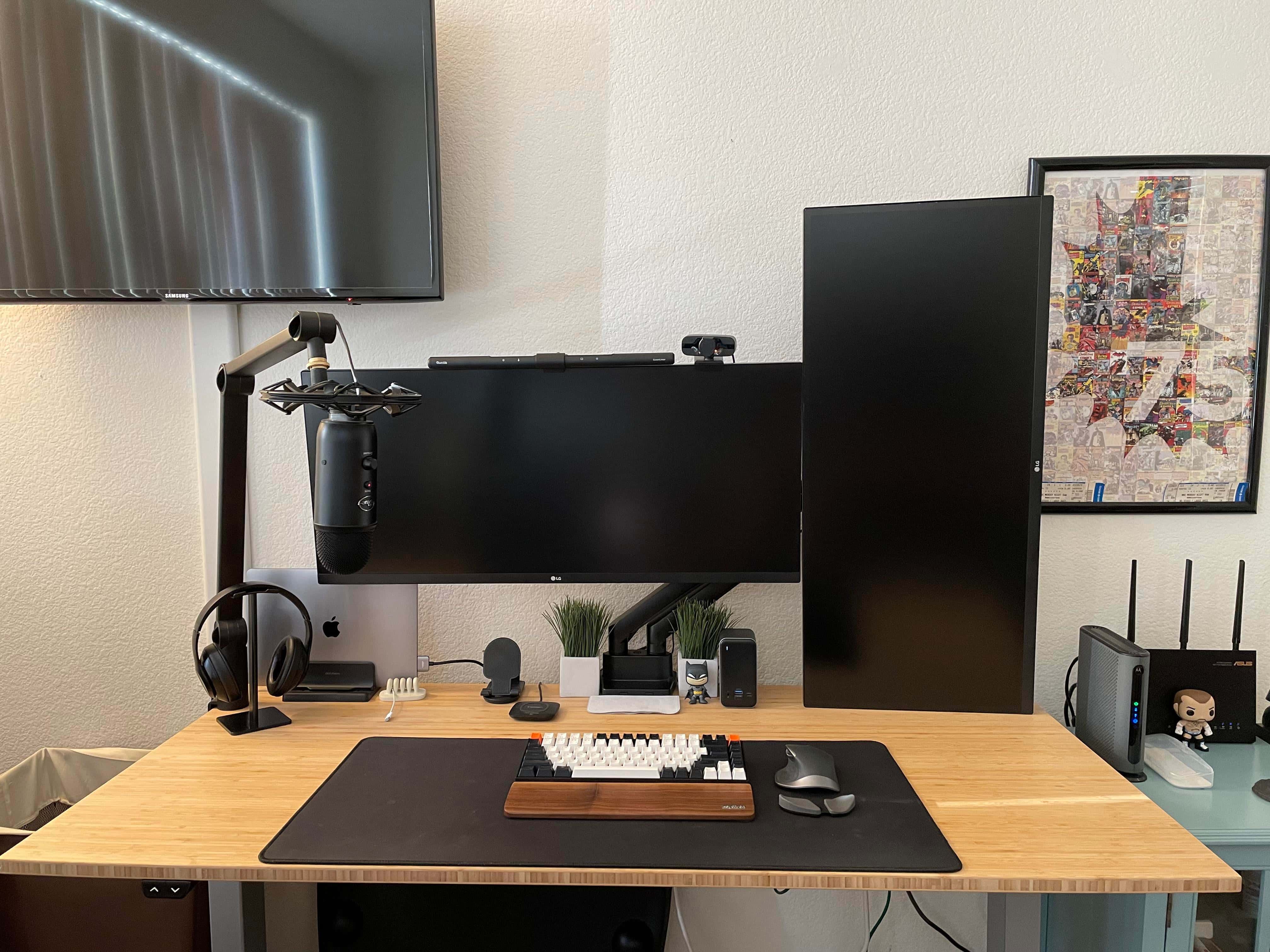
You get a tall and narrow display when your portrait-mode (vertical) monitor is an ultra-wide.
Photo: [email protected]

As we know from looking at lots of computer setups, having at least two monitors is popular, and so is having at least one of those in portrait mode (vertical). But what if you have dual displays and both are ultra-wide screens? Turned on end, isn’t the one in portrait mode going to be awfully tall?

Today’s featured setup provides an answer to those questions. Here the MacBook Pro-centered setup features two 34-inch displays in different orientations.

A place for everything and everything in its place [Setups]

By

Behold a computer setup where everything appears in its proper place. And even the printer works reliably.
Photo: [email protected]

Not all “before and after” posts showcasing computer setups on social media are created equal. Sometimes the description and commentary leave out too much information. Sometimes the photographs are inconclusive. And sometimes the improvements just don’t have much “wow” factor.

Today’s featured setup splits the difference. The “before” photo, below, doesn’t offer much to go on. But the “after” photo, above, shows a well-planned setup with a place for everything and everything in its place. And the gear list, below, supports that.

It might not get a “wow” out of you, but it could be instructional.

Can a 16-inch M1 MacBook Pro setup be ‘budget-friendly?’ [Setups]

By

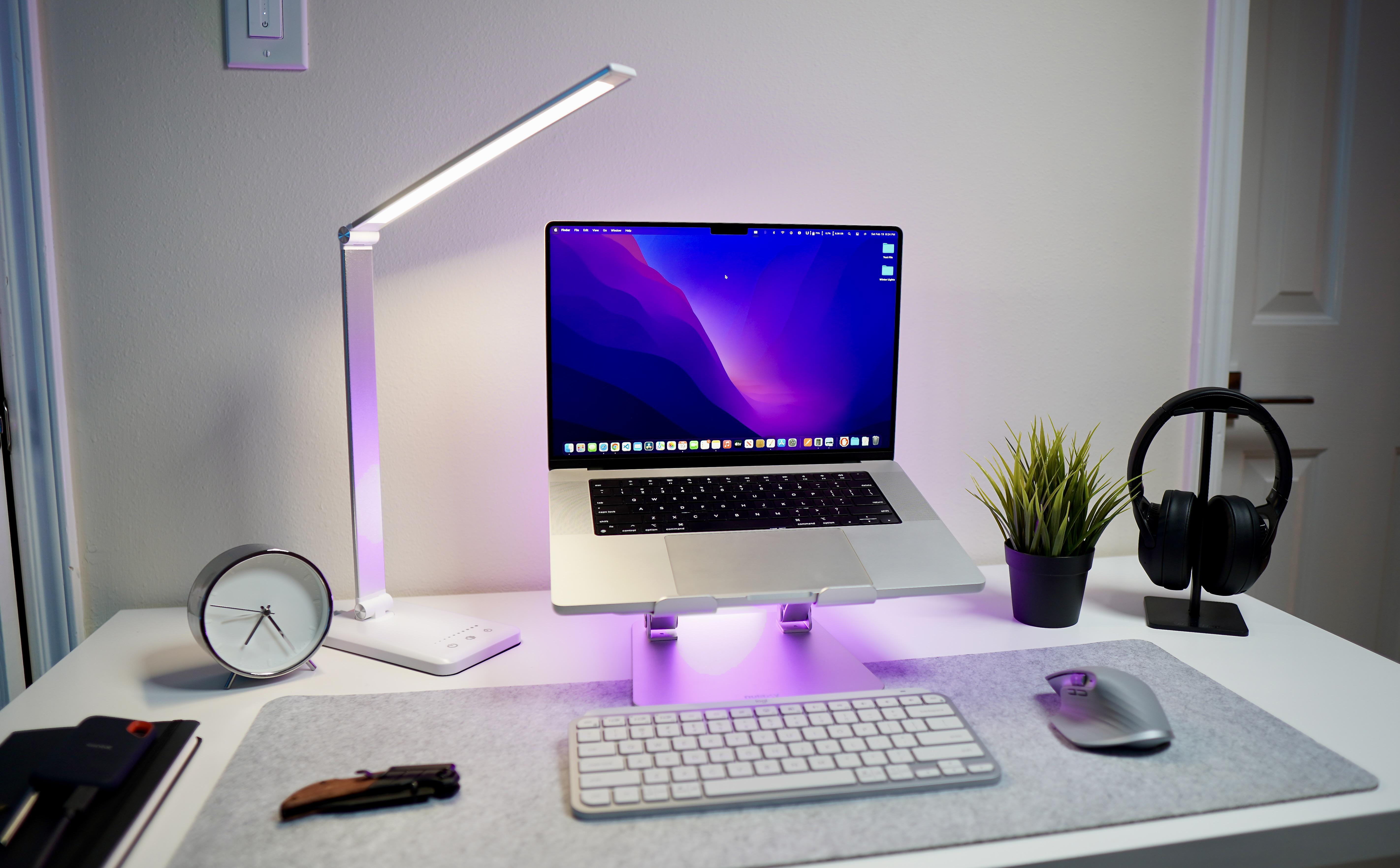
Everything here is budget-friendly, or not too far from it. But not the laptop.
Photo: [email protected]

Is it reasonable to call a computer setup “budget-friendly” if it includes a new 16-inch M1 MacBook Pro? Well, is there such a thing as an Lamborghini economy car? How about a thrift-store Faberge egg? Or maybe a bargain-basement super yacht?

OK, we exaggerate slightly. You don’t have to be a billionaire to afford a nice Mac. But it helps.

Today’s featured setup makes a go of getting some “budget-friendly” cred despite its high-powered centerpiece — with mixed results.

Should every workstation have a 3D printer? [Setups]

By

The 3D printer at left helped make other parts of this computer setup.
Photo: [email protected]

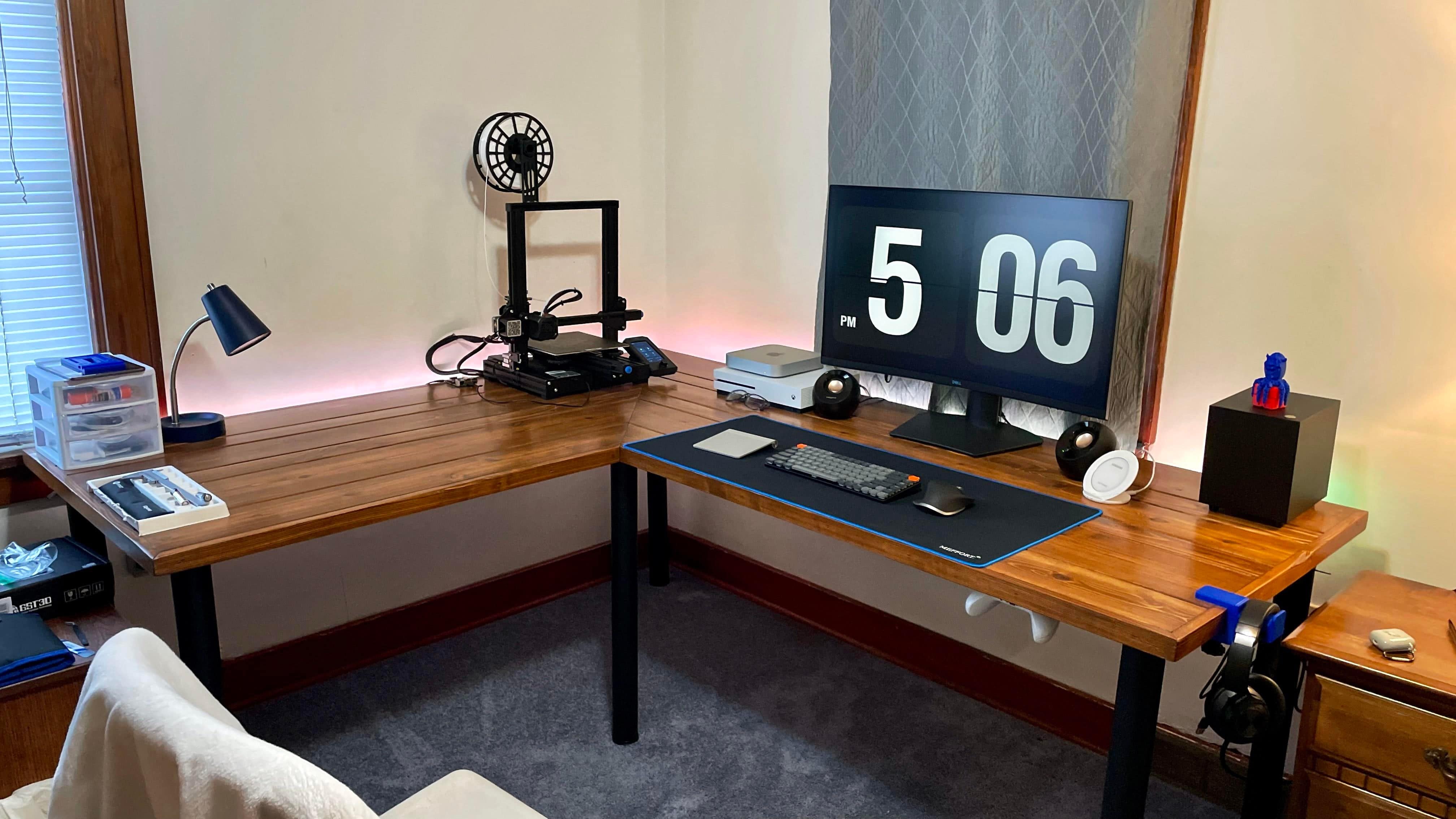
You still rarely see a computer setup with a 3D printer in it. Today’s featured setup is an exception. You can see the printer against the wall on the left in the photo above.

Probably more workstations in the near future will have them. Why? Not only are they becoming more affordable, you can use them to make parts of the setup!

Drool-worthy gear: Former PC gamer goes all-in on Mac conversion [Setups]

By

You don't see two Pro Display XDRs in one setup very often.
Photo: [email protected]

When a software engineering manager who works from home decided to leave PC gaming behind, he went all-in on his Mac conversion. In part he did it for work. He slings a lot of native code for macOS in building HR recruitment software. But, working and playing from home full time, in part he did it for himself.

So why wouldn’t he buy a super-tricked out 16-inch M1 Max MacBook Pro, not one but two Apple Pro Display XDRs and pretty much top-shelf everything else?

Displays: To stack or not to stack? [Setups]

By

Would you put a 28-inch 4K monitor on top of this 35-inch display, or next to it?
Photo: [email protected]

When you see a computer setup with two monitors stacked on top of each other, what do you think? Maybe something like … doesn’t the person have to crane their neck to look at the top one? Isn’t it uncomfortable? Where does the webcam go? What’s wrong with side-by-side, maybe with one in portrait (vertical) mode instead of landscape?

The person behind today’s featured setup is confronting those very questions on the way to deciding a common multi-display conundrum: to stack or not to stack? That is the question.

Add 3 super-fast ports to your Mac with Plugable’s Thunderbolt hub [Review]

By

Plugable USB4-HUB3A Thunderbolt hub review
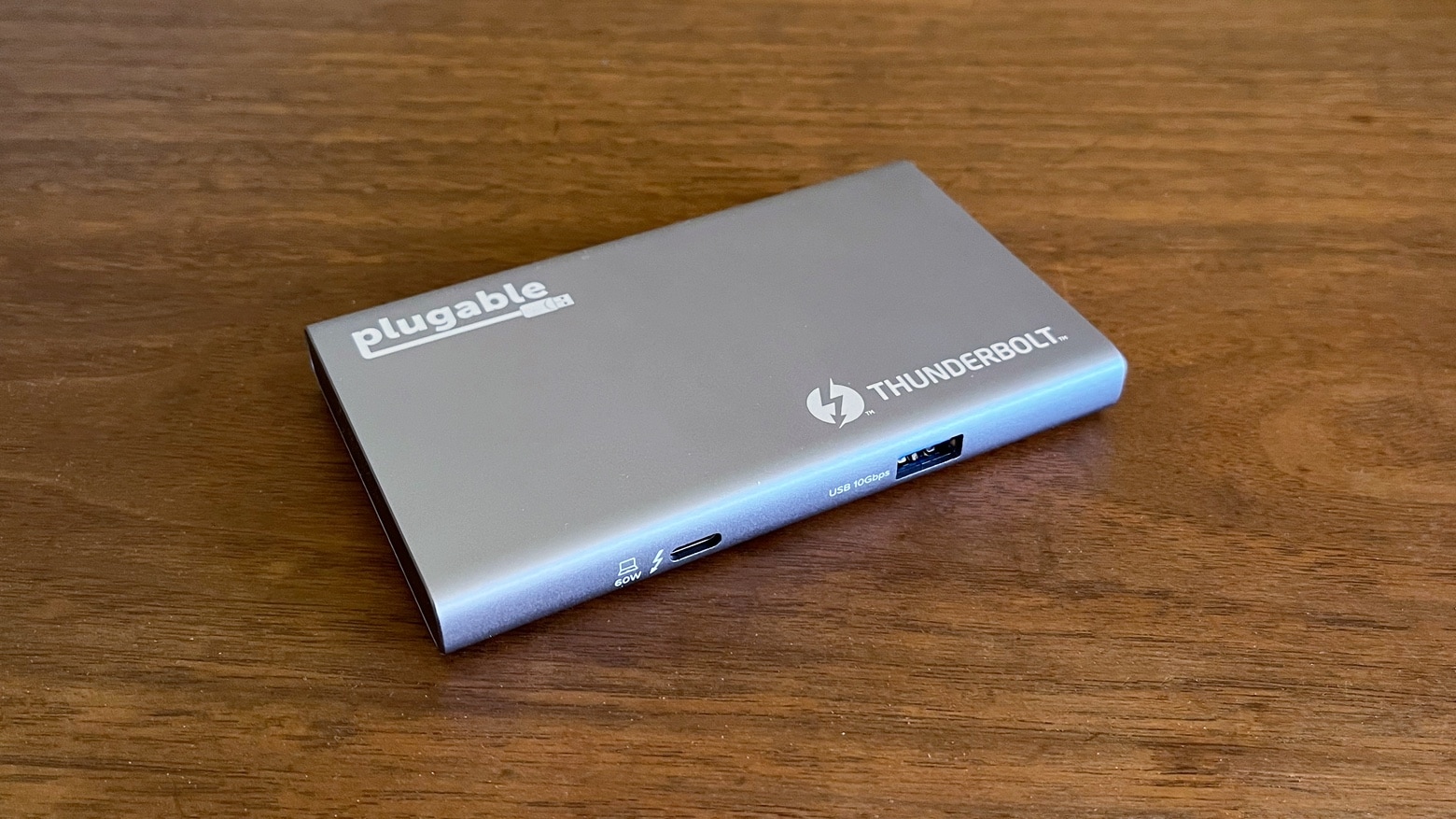
The Plugable USB4-HUB3A doesn’t take up much room on your desk, and adds three Thunderbolt 4 ports to your Mac.
Photo: Ed Hardy/Cult of Mac

If you want more Thunderbolt ports for your Mac, the Plugable USB4-HUB3A hub offers a trio of them. And they are fully functional, offering up to 40 Gbps transfer speeds and support for 4K monitors. Plus, there’s a USB-A port for good measure.

I put Plugable’s new Thunderbolt hub through a round of testing to be sure it lives up to specs.

Running classic Cinema Displays with newer Macs [Setups]

By

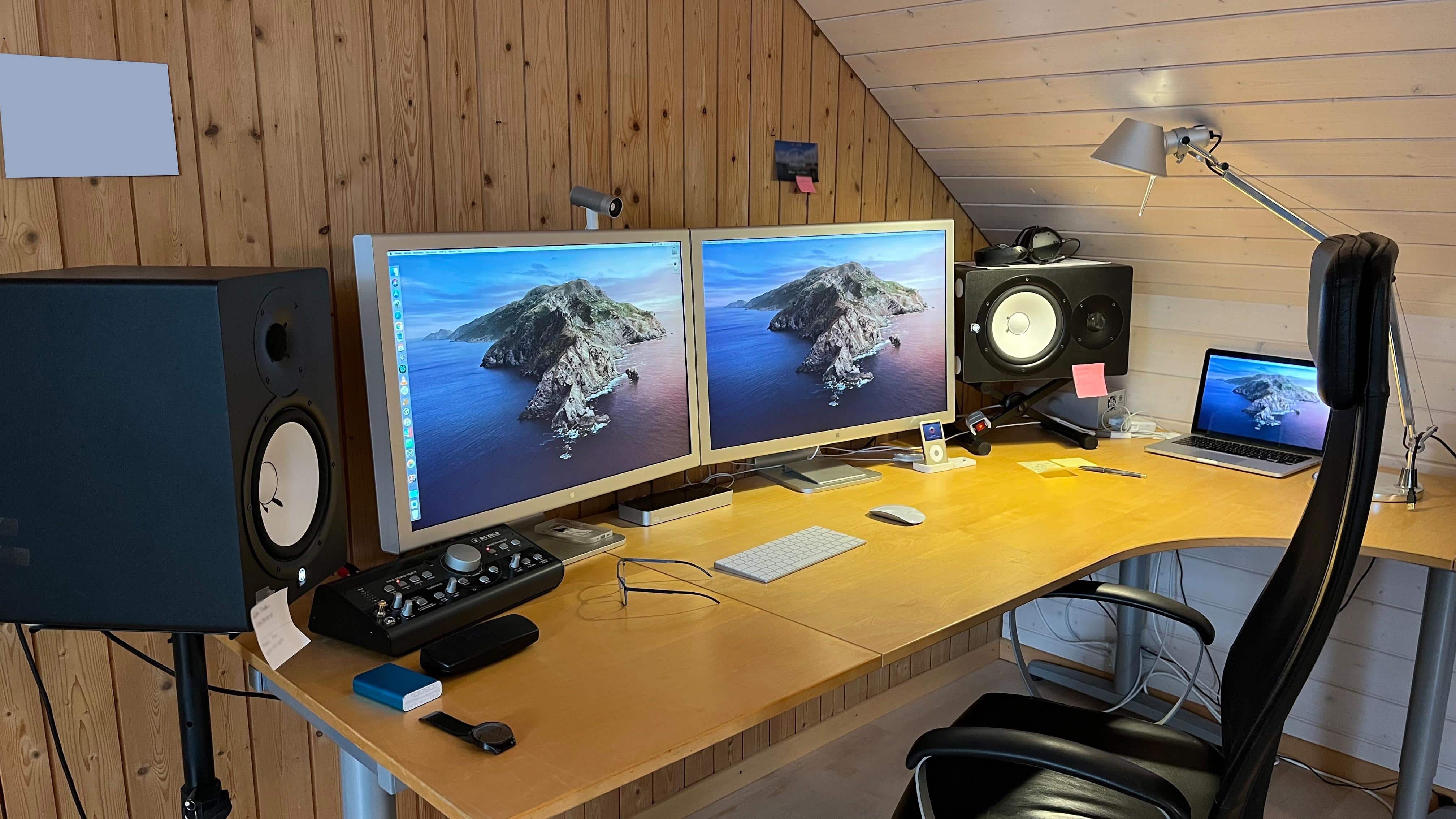
Which makes you swoon more, the 30-inch Cinema Displays or the Yamaha powered speakers?
Which makes you swoon more, the 30-inch Cinema Displays or the mounted Yamaha powered speakers with the Mackie Big Knob controller?
Photo: [email protected]

There’s something special about old Apple gear. Maybe that’s why it comes up fairly frequently in Cult of Mac‘s Setups coverage. One of the most-beloved classics in Apple’s storied history of beloved products is the Cinema Display. Today’s featured setup sports not one but two 30-inch Cinema Displays, the big stunners Steve Jobs introduced to an absolutely dazzled Worldwide Developers Conference audience in 2004.

So, naturally, questions came up about how to best use them with a newer Mac.

1 72 73 74 75 76 144