Mobile menu toggle

Search results for: SSD

MiniDrive Uses SD MacBook Slot To Add Extra Storage [Review]

By

IMG_1754.JPG
MiniDrive by  MiniDrive
Category: Storage
Works With: SD-slot-equipped Mac
Price: $20

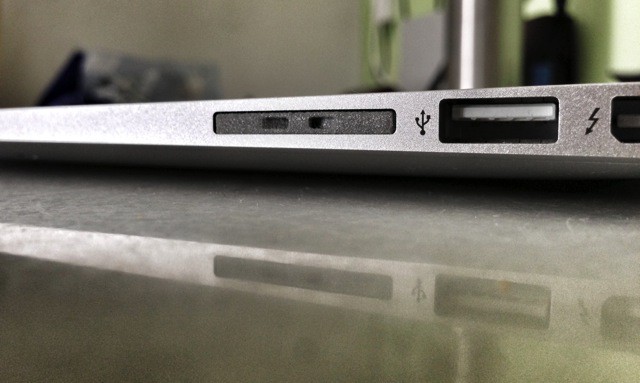
The  MiniDrive is tiny caddy that lets you hide a microSD card entirely inside the SD card slot on your MacBook Air (or any other Mac with an SD slot). The idea is that you can cheaply add storage to your SSD-equipped Mac.

When I first wrote up the MiniDrive as a news piece, a whole bunch of readers got in contact to tell me how much it sucked, mostly because it didn’t fit properly into the SD slot on their Macs.

My experience has been fine, so I’m putting down those bad experiences to being the first wave of Kickstarter order fulfillments. That’s no excuse, clearly – if you sell something it should work – but I can only review what I have to review. And so I will.

UPDATE: This MiniDrive has nothing to do with the Nifty Minidrive I saw at CES. Sorry for any confusion.

Everything Apple Announced Today At WWDC [Round-Up]

By

timcookios7

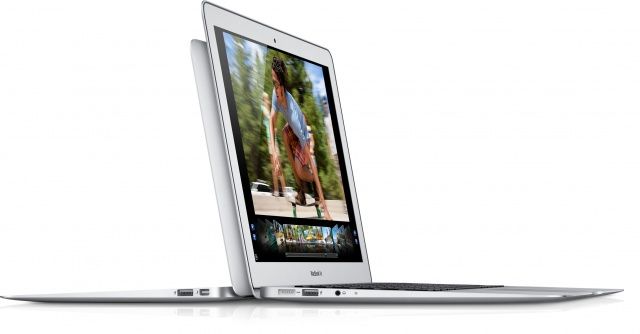
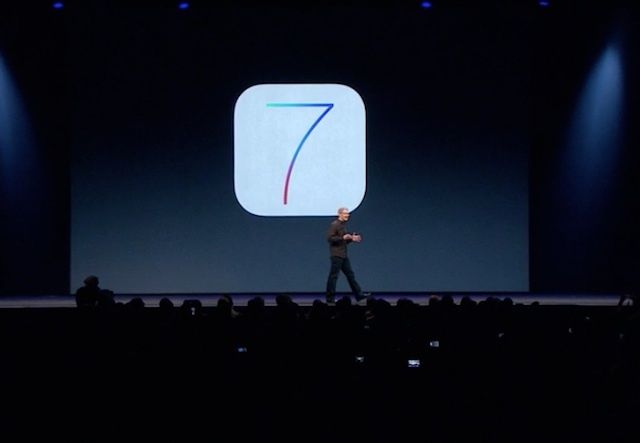
Apple just finished its WWDC keynote and holy crap, there is a ton of new stuff coming to iOS 7 and OS X. A radical looking Mac Pro was also showed off alongside some MacBook Airs with all-day battery life.

To help save you some time, here’s a list of everything new Apple introduced today at WWDC 2013 that we’ll be updating throughout the day as new info become available.

Lightroom 5 Released: Smart Previews, Upright, Better Healing

By

upright.jpg

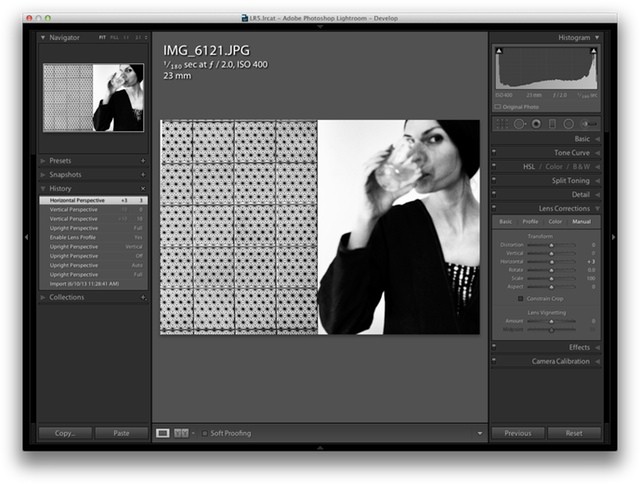
Lightroom 5 is now officially official, and you can grab the final version from Adobe for $150 (there’s a one-month trial built in if you want it). Should you upgrade from v4? Probably. Unlike Photoshop, which adds more and more flashy-but-pointless features just to keep people upgrading, Lightroom is still young enough that the new features are super useful and – ironically – they also make it less and less likely you’ll need to resort to Photoshop to polish and fix your images.

Great Alternatives To iPhoto [Feature]

By

Screen-Shot-2013-06-06-at-1.17.43-PM.jpg

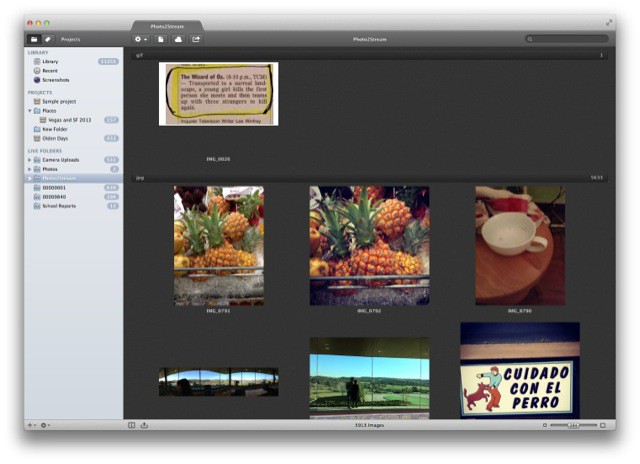
I’m not going to list all the problems with Apple’s iPhotos for OS X. I’ll just say that it’s clunky, slow, the library bloats as fast as a mob informer that’s been dumped in the Hudson, Photo Stream doesn’t work reliably and – every frikkin time I switch back to the app – it flips to the “Last Import” section in the source list. So I set out to find an alternative. This article will tell you all about my final choice – called Pixa – and a little bit about the alternatives.

Five Tricky, Advanced Ways To Save Space On Your Mac Hard Drive [Feature]

By

Photo: Apple
So thin, so light, so...easy to fill with cruft.

 Saving space on your Mac’s hard drive is more important than ever, especially if you use one with a faster but smaller solid-state drive in it, like my MacBook Air. Being able to manage your space wisely is the key here, and once you’ve done the obvious things, like pare down your Applications folder and delete all those iMovie source files, it’s time to get tricky and a bit advanced. If you’re using a MacBook Pro M1, optimizing storage is even more crucial to ensure you get the best performance from your device.

Here’s five things that you can do to get rid of hard drive bloat, if you dare.

Save Space On Your Hard Drive – Disable SafeSleep Mode On Your Mac [OS X Tips]

By

SafeSleep Mode Disable

Warning – this tip is fairly advanced. Use it at your own risk.

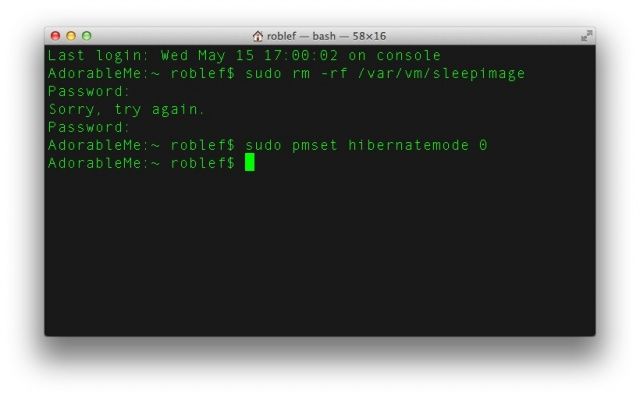
There’s a feature that debuted back in 2005, called SafeSleep. Basically, it’s a hibernation mode designed to save the current state of your running Mac, so that it can start up exactly the same way you left it when you put the Mac to sleep, even if the battery runs out and it shuts down completely.

In OS Lion, Apple introduced two new features, called Autosave and Resume which mirrors this functionality. Turning off SafeSleep, then, is really just disabling a duplicate feature. It shouldn’t affect Autosave or Resume if you’re running OS Lion or later, and it could potentially save you gigabytes of hard drive space.

Here’s how to do it, though we caution you not to do this if you’re even slightly uncomfortable with the idea.

Save Space On Your Hard Drive – Delete System Logs And QuickLook Cache Files [OS X Tips]

By

QuickLook and System Logs

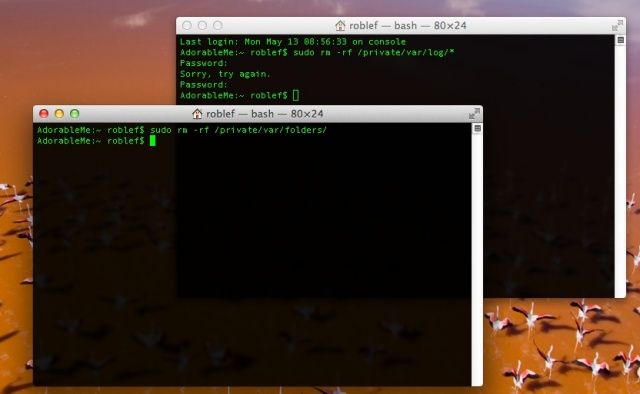
There are many files that help make your system usable, but they can build up over time. System logs, for example, keep track of usage, errors, and services running on your Mac, but unless you look at these often via an app like Console, you’ll probably not need a ton of log files taking up space on your Mac, especially if you have one with a low-volume SSD.

QuickLook cache files make your Mac feel zippy when you hit the spacebar to preview files in the Finder or Open/Save dialogs. If you can stand a bit of a wait to do this, deleting these files can save you some space as well.

Put together, you might save a decent amount of space on your hard drive, so give it a shot. Here’s how.

Keep Your Mac’s Hard Drive Secure And Protected With Stellar Drive Clone [Deals]

By

CoM - Stellar

Our Macs contain an extremely significant amount of our livelihood, so we’re always willing to protect that. This Cult of Mac Deals offer is for a simple and powerful application that backs up all of our applications and files so we don’t have to worry about the ‘what ifs?”.

Knowing our Mac’s hard drive is backed up, secure, and protected gives us the confidence to continue to do what we do best. Now it’s your turn to let go of all your worries so you can continue to do what you do best – and at just $19.99, Stellar Drive Clone is your solution.

Save space on your hard drive: Delete unwanted speech voices from your Mac [OS X Tips]

By

Save space on your hard drive: Delete unwanted speech voices from your Mac [OS X Tips]
You can reclaim considerable space on your hard drive by losing these files.
Screenshot: Cult of Mac

Hard drive space is at a premium these days, with files getting larger and solid state drives (SSD) becoming more affordable and ubiquitous. I’m typing on a MacBook Air right now, and making sure I don’t clutter up the drive with unnecessary files is important to me.

One way to do this is to get rid of the voices that Mac OS X uses for text-to-speech. These files can take up a decent amount of space, which may well be why iOS only allows the one onboard, now that I think about it.

Anyway, if you’re not using those text-to-speech voices, you might as well clear them off your drive and save some space. Here’s how.

Save space on your Mac hard drive: Delete user cache files [OS X Tips]

By

Delete User Cache Files

Saving space on your Mac hard drive is a key strategy, especially when you’re using a Macbook Air, with it’s strictly solid state drive (SSD). Even if you’re using a desktop Mac with a hard drive that seemed like “plenty of space” when you bought it, there will come a time when you’ll be looking to save some of it for more data. Why not get rid of the non-essential stuff on your Mac’s hard drive?

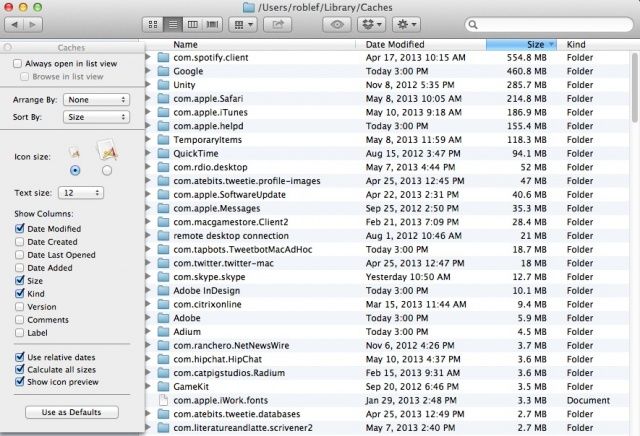
When you delete apps to help recover disk space, they can leave user cache files behind. These are the files that help improve the performance of OS X and various apps that are installed on your Mac. If you’re no longer using an app, you can delete these files to free up some space. Here’s how.