Warning – this tip is fairly advanced. Use it at your own risk.
There’s a feature that debuted back in 2005, called SafeSleep. Basically, it’s a hibernation mode designed to save the current state of your running Mac, so that it can start up exactly the same way you left it when you put the Mac to sleep, even if the battery runs out and it shuts down completely.
In OS Lion, Apple introduced two new features, called Autosave and Resume which mirrors this functionality. Turning off SafeSleep, then, is really just disabling a duplicate feature. It shouldn’t affect Autosave or Resume if you’re running OS Lion or later, and it could potentially save you gigabytes of hard drive space.
Here’s how to do it, though we caution you not to do this if you’re even slightly uncomfortable with the idea.
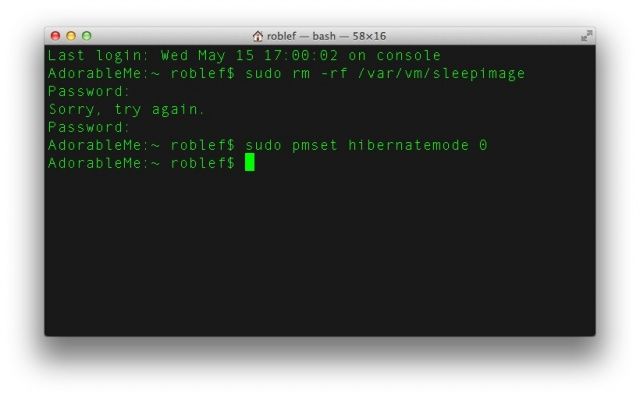
To disable the SafeSleep mode altogether, launch Terminal and type or paste the following command:
sudo pmset hibernatemode 0
This turns off hibernation mode, disabling SafeSleep. Now you need to delete the space-eating SafeSleep image file. Type or paste the following command into Terminal:
sudo rm /var/vm/sleepimage
If your Mac is usually plugged in while sleeping, and you don’t tend to run the battery down below 20 percent, you’re never really using SafeSleep mode, anyway, so disabling it to save some space makes sense. Macs with a non-SSD in them take a little bit of time to save the SleepSave image to their hard drives, but the SSD Macs take no time at all. The potential benefit, then, on an SSD-equipped Mac is the storage space.
If you want to re-enable SafeSleep mode again, type or paste this command into Terminal to reset SafeSleep mode:
sudo pmset -a hibernatemode 3
And things should be back to the way they were.
Source: TUAW

Rob LeFebvre is an Anchorage, Alaska-based writer and editor who has contributed to various tech, gaming and iOS sites, including 148Apps, Creative Screenwriting, Shelf-Awareness, VentureBeat, and Paste Magazine. Feel free to find Rob on Twitter @roblef, and send him a cookie once in a while; he’ll really appreciate it.

