Mobile menu toggle

Search results for: M1 MacBook Air

Macworld Shocker — Is There a MacBook Air Backlash Brewing?

By

cult_logo_featured_image_missing_default1920x1080

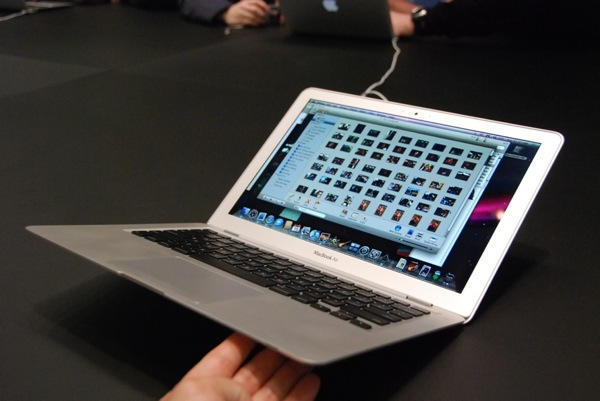
It looks like there’s a mini backlash brewing against the beautiful but pricey MacBook Air — online at least.

Over at MacRumors, a “first impressions” gallery of the new sub-notebook is drawing far more negative reader comments than positive ones.

Yes, Mac fans like the Air’s thin profile, but there’s a lot of bitching about its limitations — the price, soldered ram, non-replaceable battery, and paying extra for an ethernet port or DVD drive.

“It’s an expensive, disposable toy,” says one MacRumors reader.

5 reasons you desperately need a desk mat [Setups]

By

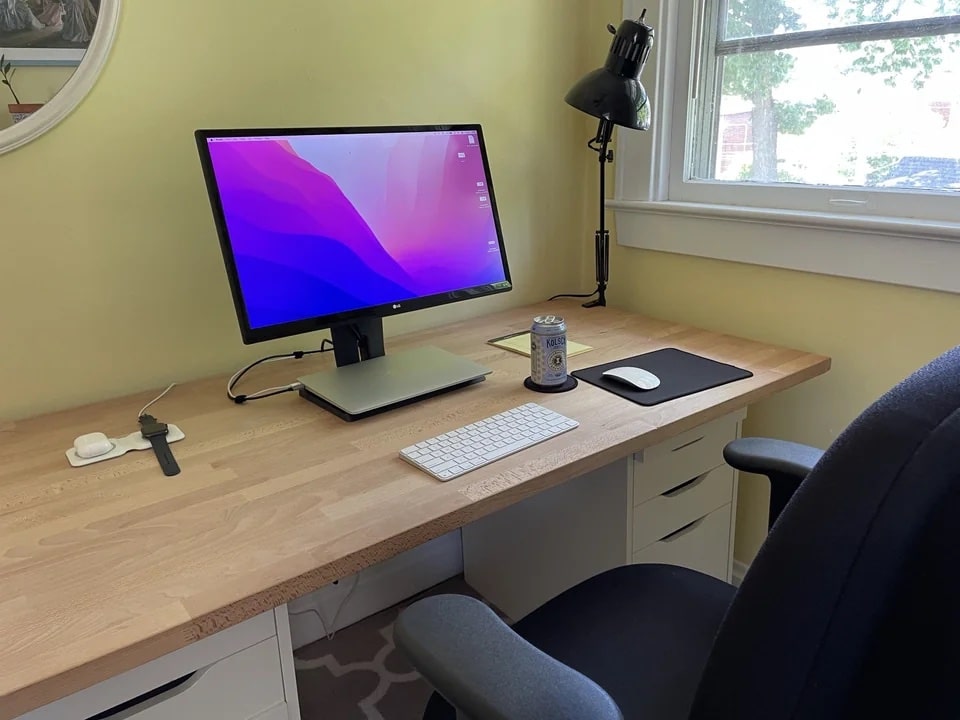
What's missing in the picture?
Photo: [email protected]

You may already have a mouse pad in your computer setup, but what about a desk mat? Similar concepts in some ways, those two. But many folks may not even think of a desk mat as a necessary item in a computer setup. Or they may consider it an afterthought rather than any sort of priority.

But the humble desk mat, reminiscent of grandpa’s desk blotter, has its benefits. And that came up with today’s featured, desk-mat-free M1 MacBook Air setup.

How to use the all-new Spotlight in macOS 26 Tahoe

By

Try The All-New Spotlight
Great news for people who like finding things.
Image: Apple/D. Griffin Jones/Cult of Mac

Spotlight on the Mac is a universal search bar, available everywhere, ready to quickly launch an app or find a file. And in macOS 26 Tahoe, Apple supercharged Spotlight by adding many advanced features.

Spotlight has a new visual interface for browsing apps on your Mac. It’s also a powerful tool for running Shortcuts and actions inside the apps you use. And, finally, it’s a clipboard manager, too.

Here are the ins and outs of Spotlight on the Mac.

Everything new in macOS 26 Tahoe: Supercharged Spotlight and 40+ other features

By

macOS 26 Tahoe hero image.
A fresh new look for Mac.
Image: Apple

macOS 26 Tahoe is a milestone update with a dramatic new look, new power tools for pro users — and over 45 new features. It’s still recognizably Mac, but with a fresh coat of paint (or, should I say, glass). And there’s plenty to dive into once you get settled.

Spotlight has picked up lots of new features, replacing Launchpad and adding a native clipboard manager. There are loads of great enhancements to group chats in Messages. Other great enhancements are in Safari, Passwords, Maps, Photos, Journal and more. And a few new apps come over from iOS: Phone, Journal, Magnifier and the all-new Games app.

The update is out now; here’s what to expect.

What’s the difference between USB-C and Thunderbolt?

By

difference between USB-C and Thunderbolt
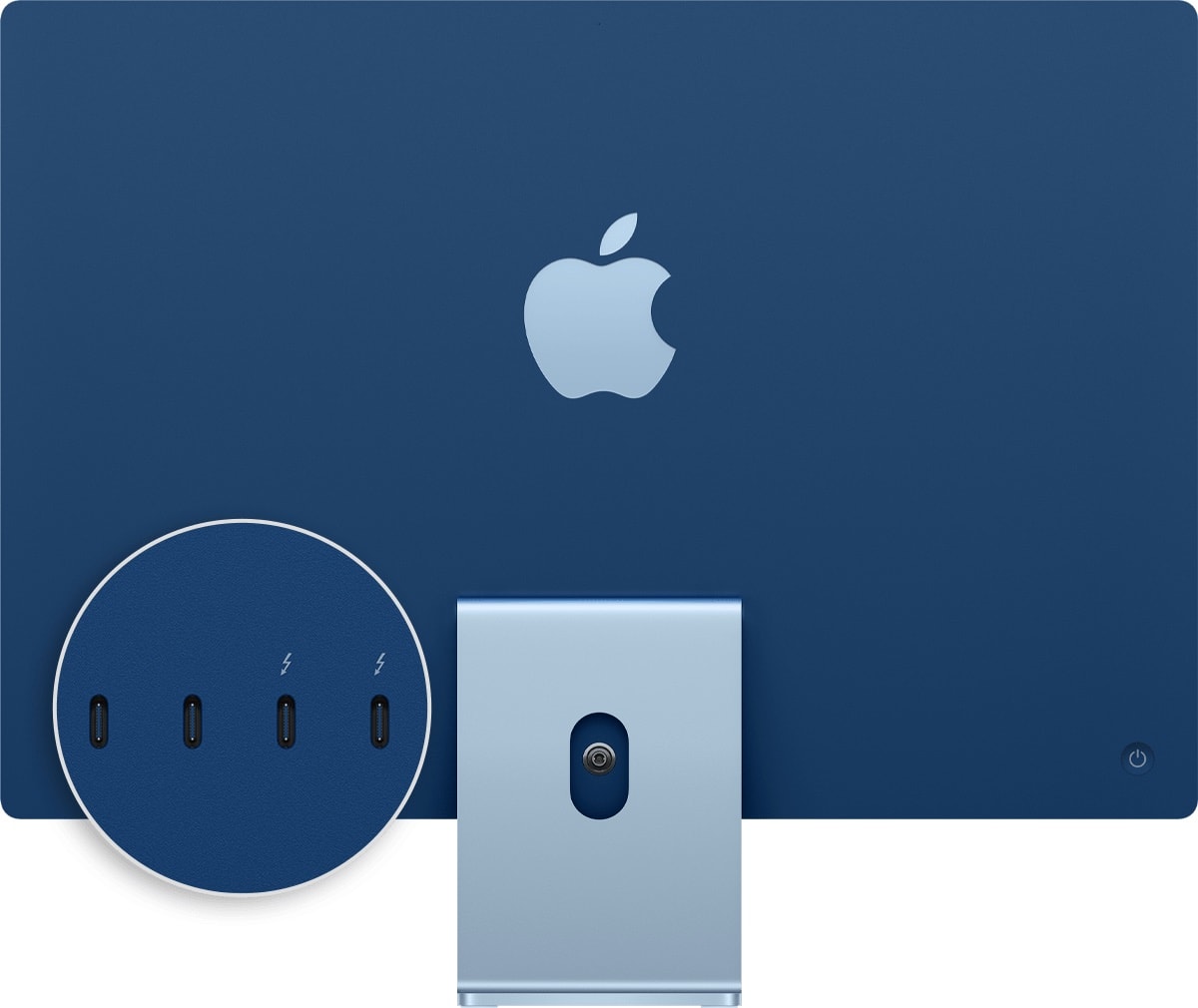
This 2021 iMac shows two of its four rear ports have Thunderbolt capability. Note the lightning-bolt symbol.
Photo: Apple

Apple sometimes mixes up connector types among devices, and that might confuse people even more over the differences between USB-C and Thunderbolt. The connectors look alike, work similarly and accept the same cables. Yet they’re not the same.

Let’s look at the key differences, how the ascendant Thunderbolt 5 improves on Thunderbolt 4, and which kind of port and cable best suits your tasks like charging and data transfer.

Today in Apple history: Mac’s first 100 days prove a roaring success

By

Mac 128k Beauty Shot
The original Mac was a smash hit. Sort of.
Photo: iFixit

May 3: Today in Apple history: Mac's first 100 days prove a roaring success May 3, 1984: Apple marks the all-important first 100 days of Mac sales, signaling whether the product launch is a hit with customers.
The results outstrip even Steve Jobs’ most optimistic targets. Unfortunately, not everything is as positive as it seems following the successful Mac launch.

Studio Display beats down Samsung ultra-wide monitor [Setups]

By

displays for Mac mini
Here's the ultra-wide Samsung 1440p monitor used with Mac Mini.
Photo: [email protected]

Apple’s 27-inch 5K Studio Display continues to impress users — aside from its steep price tag. Lots of folks look for affordable alternatives. Today’s Mac mini user owns a Studio Display, but he wanted to try an ultra-wide Samsung Odyssey G8 OLED display. Well, guess what. He keeps going back to the Studio Display. See below for all the reasons why.

Studio Display user loves M4 iPad Pro as second monitor [Setups]

By

mirror M4 iPad Pro setup
This MacBook Air users loves using his 13-inch M4 iPad Pro as a second external display. His Studio Display displays his iPad screen in the photo above.
Photo: [email protected]

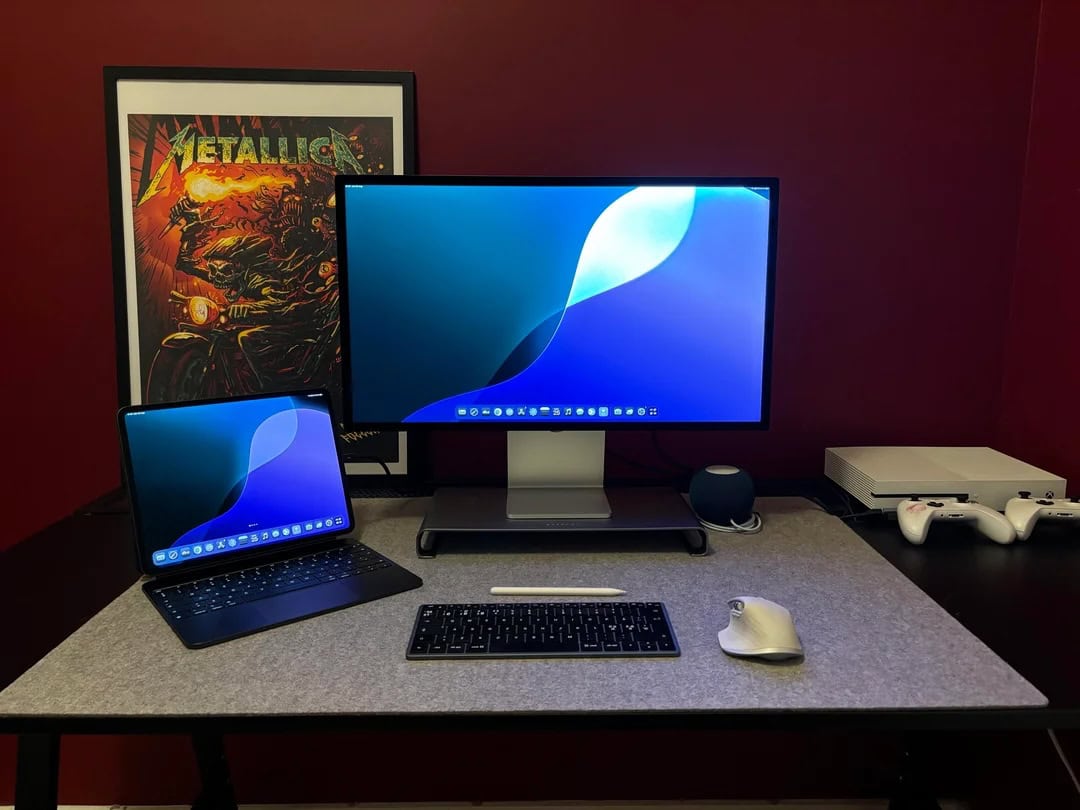
Many users out there on social media can’t seem to get enough external displays into their computer setups. Sometimes we see as many as six big screens. But don’t forget a simple way you can always add another small screen. Namely, don’t just add your MacBook open on the desk or on a stand. Include your iPad, too. Today’s M1 MacBook Air user proudly has his M4 iPad Pro mirror on Studio Display as it sits in the mix on a Twelve South stand.

This trick makes Xbox play nice with Studio Display [Setups]

By

using Xbox with Studio Display
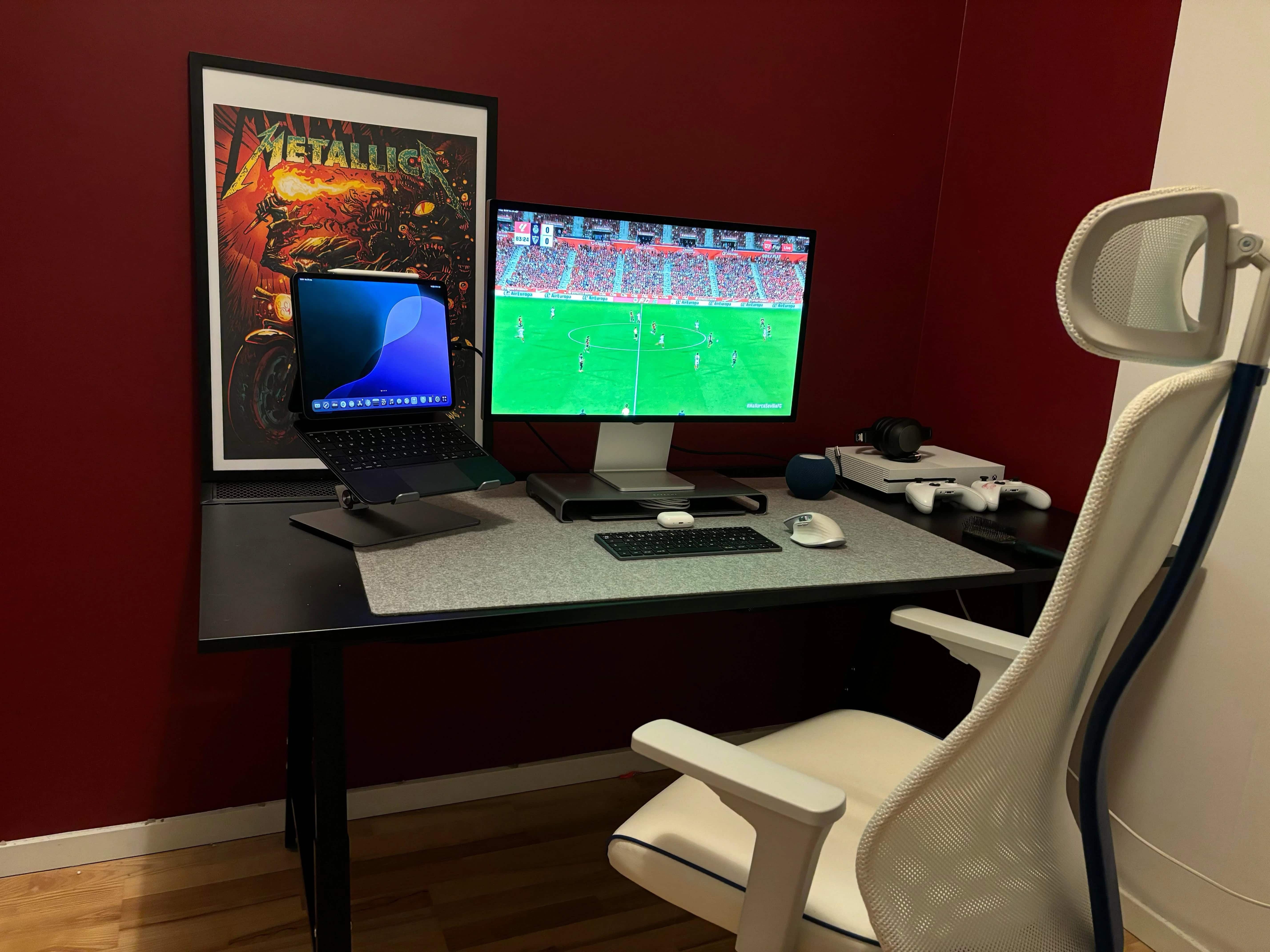
This MacBook Air user found an easy way to use Xbox with Studio Display.
Photo: [email protected]

Macs have gained ground in the gaming world with the rise of Apple silicon chips, as those M-series chips massively boost performance. But sometimes you just want to play on a console rather than your computer. Today’s MacBook Air user switches to Xbox One for gaming. And he gave simple advice, below, to curious commenters who wanted to know how he gets the system to work with his Studio Display. He describes his method below.

Monitor smackdown: Studio Display vs. Samsung ViewFinity S9 [Setups]

By

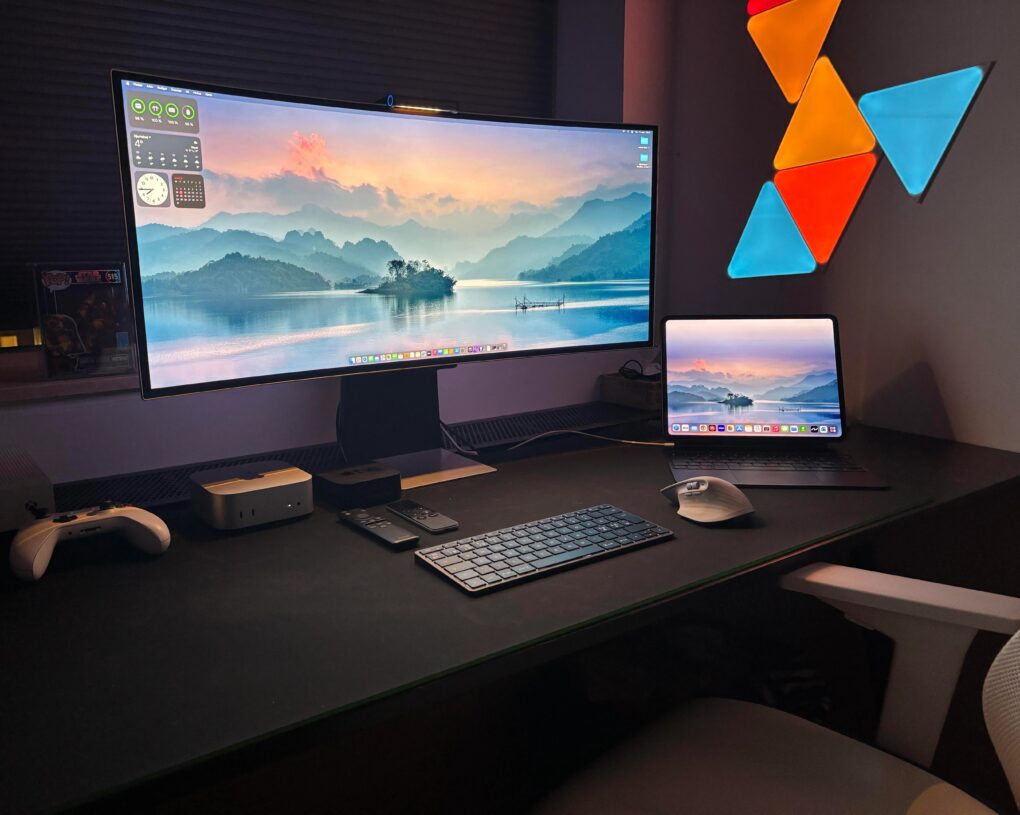
Samsung ViewFinity S9 setup
Will the replacement for the Xiaomi curved display in this moody MacBook Pro setup be a Samsung ViewFinity S9 or a Studio Display?
Photo: [email protected]

In the battle of 5K resolution displays, it’s Studio Display against a small-but-growing army of foes (at least for Mac fans). Today’s M1 MacBook Pro user looks to replace a 1440K gaming display with either a Samsung ViewFinity S9 curved 5K monitor or with Apple’s well-liked but somewhat-pricey Studio Display. The advice she got leaned heavily toward Apple.

1 44 45 46 47 48 99