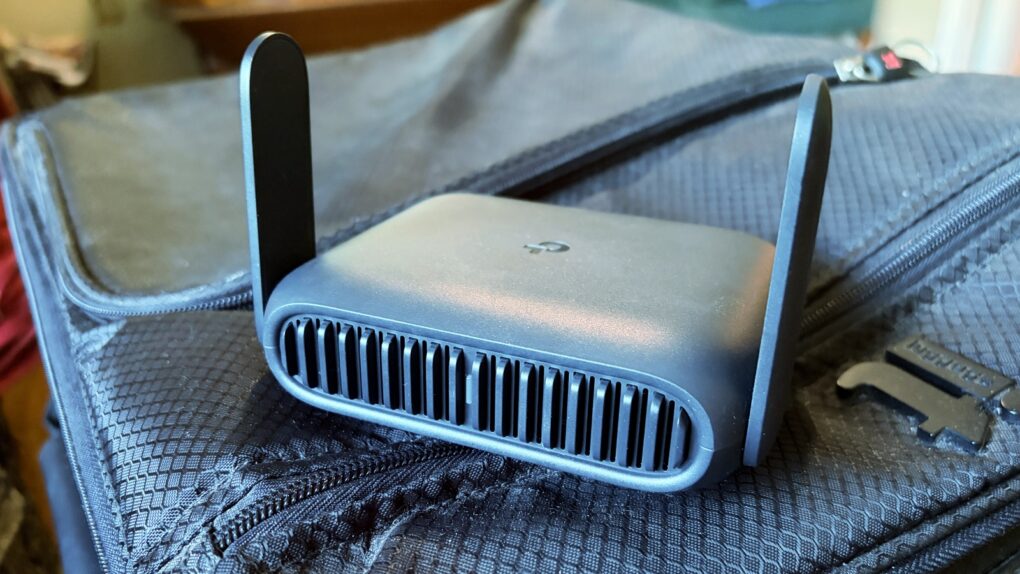
The TP-Link Roam 7 is small enough to be easily portable, but nevertheless provides speedy and reliable wireless connections to all your gear, no matter where you go.
I tested the travel router with Wi-Fi 7 on a recent beach trip. Here’s how it stands up to real-world use.
TP-Link Roam 7 review
For frequent travelers, a compact travel router offers a simple way to stay connected and enjoy a more consistent internet experience on the road.
To me, the primary advantage is convenience. When traveling, I can set up the router to connect to the local network, then my iPhone, iPad, etc. connect to the router. That means I don’t have to reconfigure my computers for the local Wi-Fi on every trip.
The TP-Link Roam 7 BE3600 is perfect for this, as it can use Ethernet or make a Wi-Fi connection to the local router. In a pinch, it can even get internet access from my iPhone.
As a bonus feature, I can plug an SSD into the router and give everyone who connects to it access to a collection of movies.
There’s also a security benefit. If for some reason I’m suspicious about where I’m staying, I can completely disconnect the local router and use my own instead.
Merging Wi-Fi 7 Technology, Roam 7 delivers fast wireless speed for uninterrupted video streaming, downloading and online gaming all at the same time.
Connects to Ethernet or public Wi-Fi and creates a private, secure network for all your devices. Supports up to 90 devices at once, ideal for hotels, Airbnbs, airports and home use
- Very portable
- Supports Wi-Fi 7 for reliable connectivity
- No 6GHz support

Table of contents: TP-Link Roam 7 review
- Small enough to be ready to travel
- Speedy Wi-Fi 7 performance
- 4 connectivity options
- Ports for multiple features
- A network file server, too
- There’s an app for that
- TP-Link Roam 7 review: Final thoughts
- Pricing
Small enough to be ready to travel
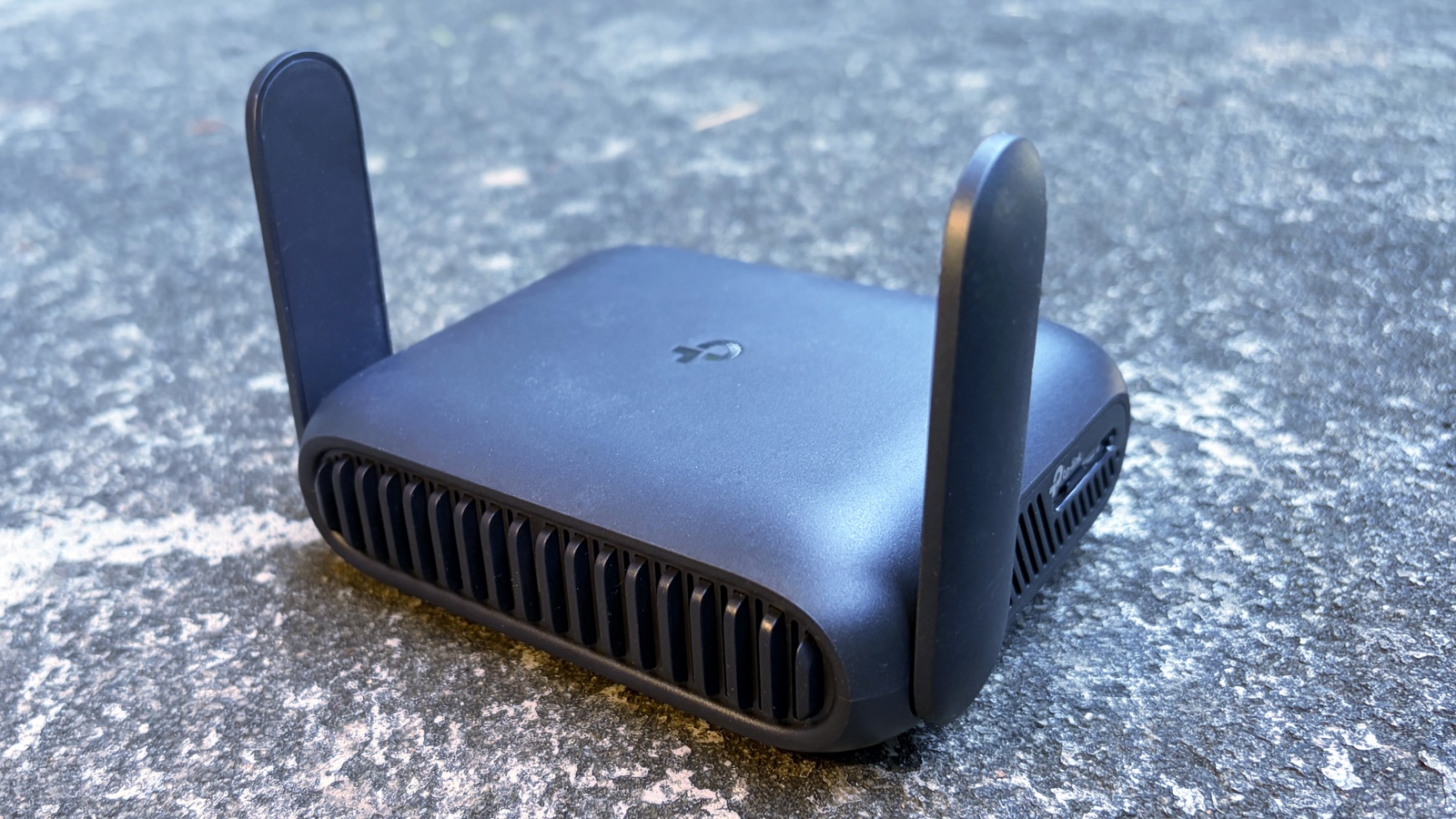
Photo: Ed Hardy/Cult of Mac
The TP-Link Roam 7 is travel-ready. It measures 5 inches wide, 3.7 inches deep and 1.5 inches thick. There are a couple of antennas that swivel down to make the device more portable.
To make it even easier to take on trips, the router gets power via a USB-C port. It comes with a 5V/3A charger, but a multi-port travel charger can do the job — my multimeter shows the device pulls only 5W. Even a power bank can handle that.
Just note that the device doesn’t include a built-in battery. It requires external power if you want to take it camping.
Speedy Wi-Fi 7 performance
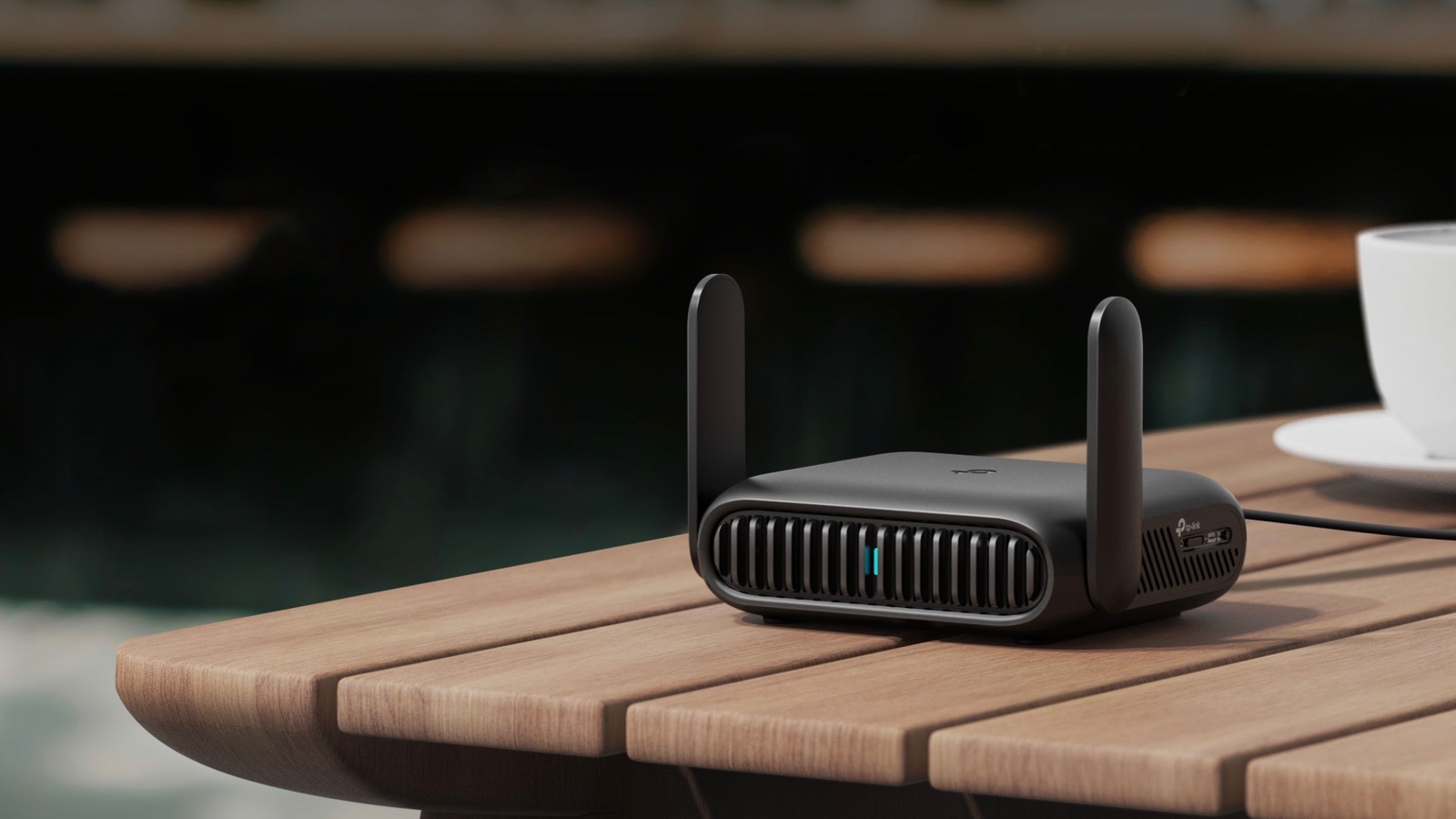
Photo: TP-Link
iPhone, iPad and MacBook users shouldn’t buy anything but Wi-Fi 7 routers. Even for travel. Recent models support it, and Wi-Fi 7 (802.11be) promises a significant leap in wireless performance, delivering faster speeds, lower latency and improved reliability than previous generations of Wi-Fi.
To me, the best feature is Multi-Link Operation: instead of connecting over 5GHz or 2.4GHz, the latest standard uses both for improved performance. That’s especially important with a travel router like the TP-Link Roam 7 that might need to connect in a rental house, hotel, airport, etc.
That said, the Roam 7 lacks another of the advantages of Wi-Fi 7: support for the 6GHz band. It supports only 5GHz and 2.4GHz.
The router supports up to 360MBps on the 5GHz band and 86MBps on the 2.4 GHz band. Odds are, any network you connect to will be slower than that, especially in a coffee shop or rental condo.
During testing in my home office with SpeedTest, I found that the travel router provides virtually identical performance as my regular router when my computer is near the Roam 7, or at a medium distance. That’s great!
However, at longer range — where connectivity is always a challenge no matter the router — performance drops off usually quickly. At a location where my home router speed drops to 64Mbps, the best the TP-Link’s travel version can do is about 8Mbps.
4 connectivity options
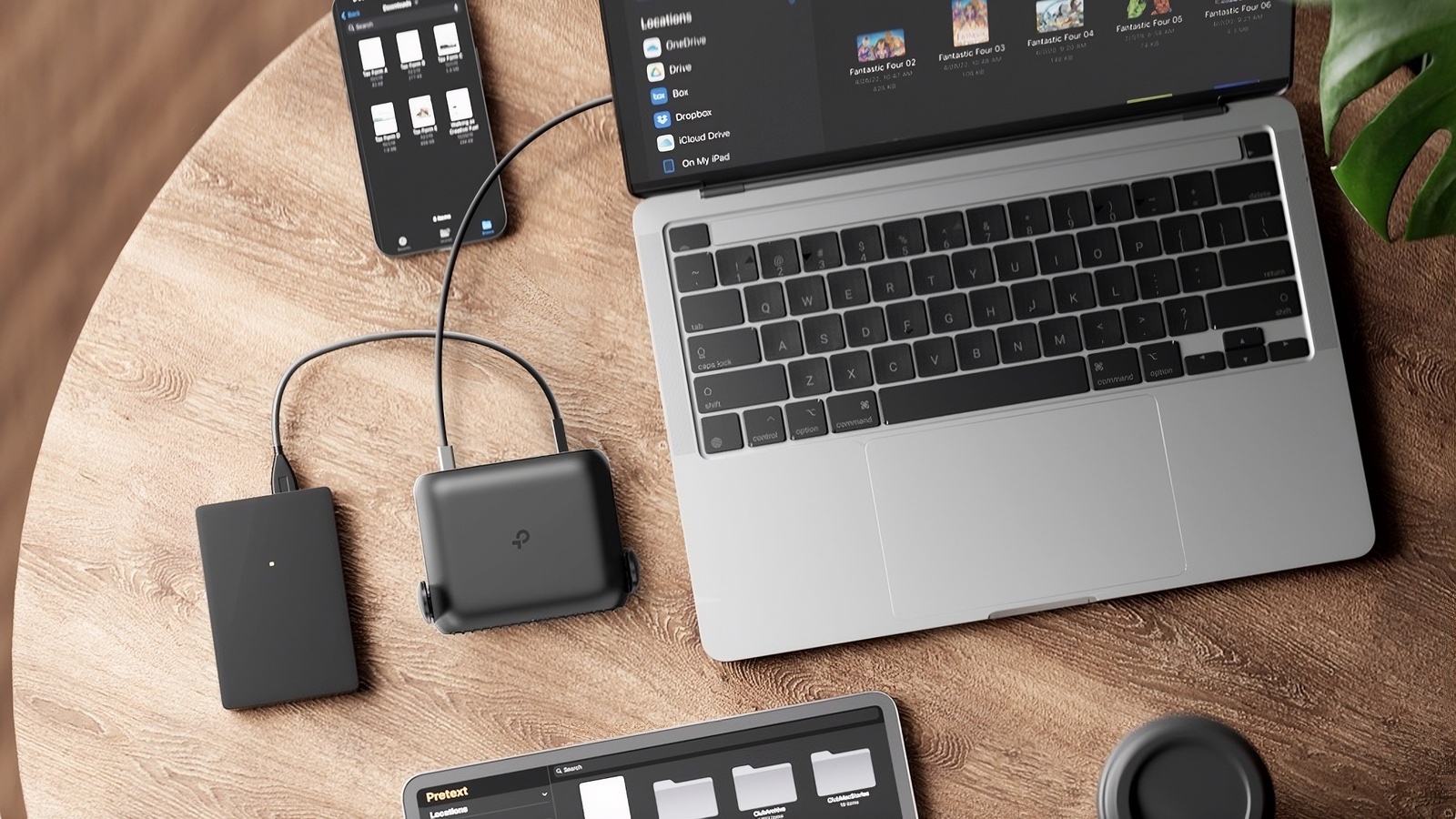
Photo: TP-Link
The TP-Link Roam 7 includes multiple ways to get internet access, giving me plenty of flexibility.
The list starts with Ethernet. That’s the standard version – plug the router into a network and you’re ready to provide Wi-Fi to up to 90 computers. This is what I did when renting a house at the beach, and it was the primary way I tested the product.
Another option is Hotspot Mode. The Roam 7 can connect to a Wi-Fi network and then use that to give all my computers access. This can be a money saver when staying somewhere that charges a fee for each device connected to the network.
Plus there’s Client Mode, in which the router acts as a Wi-Fi extender. Could come in handy if you end up in a bedroom in your in-laws house a long way from the nearest Wi-Fi hotspot.
And there’s one more trick: a USB mode. This lets me connect my iPhone to the router and share its cellular-wireless connection with a group of computers over Wi-Fi. Just be aware that you’ll need a cable with USB-A and USB-C. I tested this with my iPhone 17 — everything went great. This could be very convenient on a camping trip. (Just don’t forget a battery for the router.)
Ports for multiple features
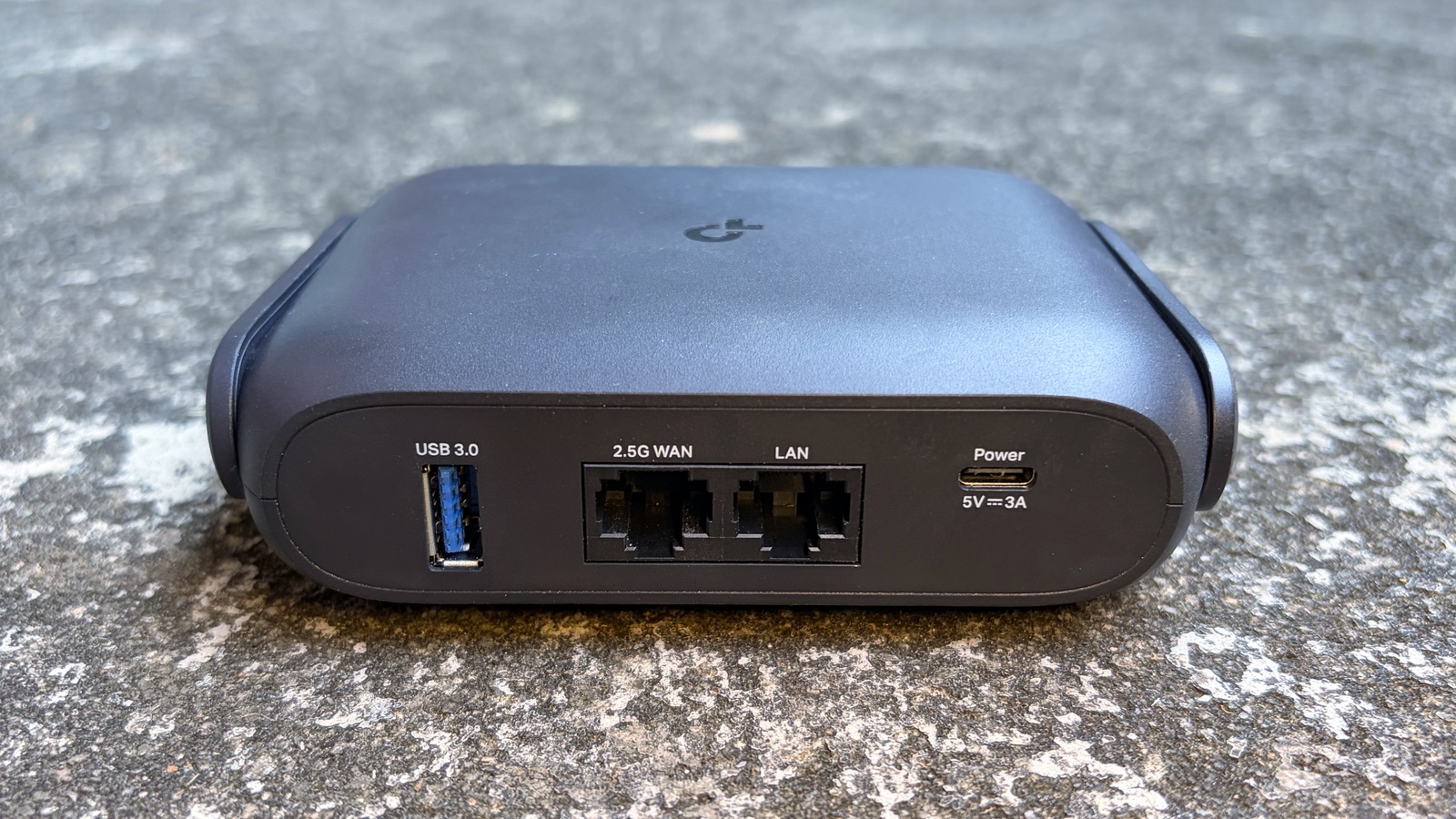
Photo: Ed Hardy/Cult of Mac
On the back of the TP-Link Roam 7 I find a 2.5G Ethernet port to connect the travel router to the local network. Next to it is a second Ethernet port in case I want one of my computers to have a direct connection. It tops out at 1Gbps, though.
I already mentioned the USB-C port used to charge the travel router.
There’s also the USB-A port used to connect my iPhone to the router for USB mode. Alternatively, it can be used to connect external drives.
A network file server, too
If I plug an external drive into the USB-A port on the back of the TP-Link Roam 7, any computer connected to the router can access files stored on the drive.
I always travel with an SSD full of my favorite movies. When I’m stuck on a plane or at a mountain cabin with terrible internet access, I can count on having something to watch. All I need to do is plug this SSD into the Roam 7 and everyone I’m traveling with can watch these.
The drive is accessible through the macOS Finder or the iOS Files app. The feature supports FTP, SMB and WebDAV.
There’s an app for that
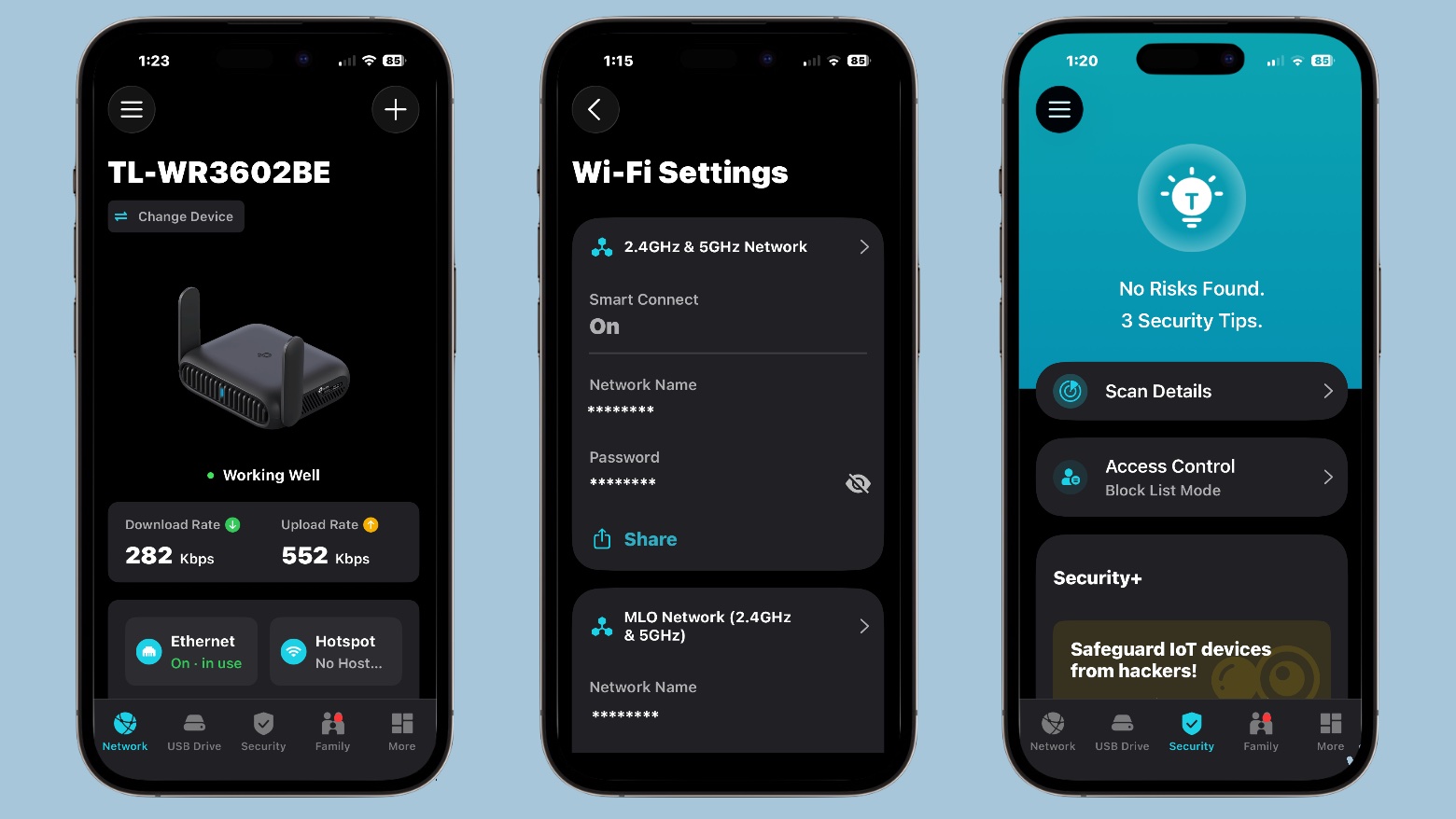
Screenshots: Ed Hardy/Cult of Mac
All the functions of the Roam 7 are controlled via TP-Link’s free Tether app. That’s the software for all the company’s routers, and it’s been around for years. That means TP-Link has had loads of time to polish it.
This isn’t the first router I’ve used from this company, so I am well familiar with the Tether app. And it is about as well designed as I can hope for.
Setting up a router isn’t anyone’s idea of fun, but Tether makes the job not too onerous. I advise patience – there are a lot of settings you’ll need to enter. Passwords, network names and so forth.
TP-Link Roam 7 review: Final thoughts
I’m frequently on the road and have used many travel routers over the years. That’s why I expected this one to have the usual compromises, especially short range and slow performance. Not at all! I’m really quite pleased.
And the built-in network file server is a welcome bonus.
The product isn’t perfect, though. I miss 6GHz support on a Wi-Fi 7 router.
★★★★☆
Pricing
The TP-Link Roam 7 BE3600 goes for $129.99 when it’s not on sale.
Merging Wi-Fi 7 Technology, Roam 7 delivers fast wireless speed for uninterrupted video streaming, downloading and online gaming all at the same time.
Connects to Ethernet or public Wi-Fi and creates a private, secure network for all your devices. Supports up to 90 devices at once, ideal for hotels, Airbnbs, airports and home use
- Very portable
- Supports Wi-Fi 7 for reliable connectivity
- No 6GHz support
TP-Link provided Cult of Mac with a review unit for this article. See our reviews policy, and check out more in-depth reviews of Apple-related items.

Ed Hardy has been writing full-time about tech for 26 years, and using it for much longer than that. His intro to Apple was a Macintosh SE/30 (which he still has), but now he uses a 13-inch iPad Pro as his primary computer.
That’s because he’s a “tablet first” type of guy. Rather than use a Macbook, he connects a keyboard case to the iPad. And instead of a desktop Mac, he connects his tablet to a 27-inch display and full-size keyboard. (So don’t try to tell him that everyone has to use a Mac to be productive.)
Before coming to Cult of Mac, Ed wrote for NotebookReview, TabletPCReview and Brighthand, as well as other sites.

