Have you ever had the desire to change how your applications look your Mac? Perhaps you want them to look like the icons found in iOS, as seen in the picture above? Although fairly unknown, it is possible in Mac OS X. All you’ll need to get started is img2icns. While there is no plain and obvious way to go about it, it’s actually fairly simple once you know what to do, as demonstrated in this video.
Sometimes, even Macs get laggy. Logging in can be sluggish, and even just routine tasks can start to crawl. Whether you know it or not, resource hogs can be lurking in your system and slowing down your work. After following these five simple steps though, your Mac can be almost as good as new.
GeekTool is a neat little System Preferences add-on that lets you expand the usability of your desktop. Whether it be adding the time, date, weather, or even your Twitter feed, GeekTool can change your desktop from a boring backdrop to a useful information center. This video will show you how to setup GeekTool to fit your needs, as well as where to find many useful add-ons for it.
Don’t trust your kids with open access to your credit card? I can’t blame you. In order to let your kids have an iTunes account though, you need to enter your credit card information, giving them free reign over your purchases, right? Wrong. While it may appear this way, there is a way to set up an iTunes account that involves absolutely no credit cards at all. This video will show you what to do.
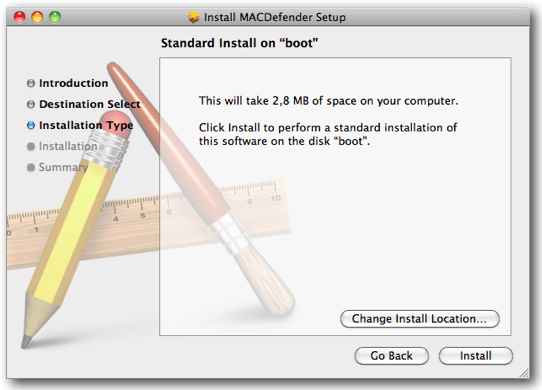
A new malware threat called ‘MACDefender’ is targeting Mac OS X users browsing the web using Apple’s Safari browser. The software automatically downloads a file through JavaScript, but users must first agree to install the software, making the potential threat a low risk to careful users.
The malicious software was highlighted on Monday by Intego – the company behind the VirusBarrier X6 antivirus software for Mac – after Apple Support Community users started reporting the threat. Intego say the software prompts users to download a compressed ZIP archive after clicking on a dodgy link in their search engines. The file is then decompressed and begins installing MACDefender on the system.
The latest build of Mac OS X Lion introduces an iOS-like method of removing applications installed via the Mac App Store. Within the new Launchpad application, users can click and hold on an app’s icon to start the ‘jiggling’ – just like in iOS – and an ‘X’ button appears in the corner of each icon which users can click to uninstall applications.
Don’t worry about deleting applications accidentally, however; just like iOS, users will be greeted with a message that asks them whether they’re sure they wish to delete the application. Clicking delete will move the application, and any files associated with it, to the Trash.
This feature currently only works with applications purchased from the Mac App Store, but I’m hoping it works with any application installed on your Mac when Lion is finally released.
A new Safari feature hidden within the latest Mac OS X Lion build is expected to compete with services like Instapaper and ReadItLater as a method of saving pages for later reading. The ‘Reading List’ feature appears to be partly based on HTML and javascript, and is likely synchronize bookmarks between Mac and iOS devices.
Discovered by MacRumors, Apple’s description of the feature is the following:
Reading List lets you collect webpages and links for you to read later. To add the current page to your Reading List, click Add Page. You can also Shift-click a link to quickly add it to the list. To hide and show Reading List, click the Reading List icon (eyeglasses) in the bookmarks bar.
The feature is currently inactive within the latest build of Lion, so those running the release won’t be able to try it out just yet, but as a massive Instapaper addict I can’t wait for Reading List to go live.
Sometimes Dashboard can seem like a hassle. While it can be very handy for quick tasks, having to open a specific application to access these widgets can become cumbersome. It is also impossible to perform other tasks while using these widgets. Well, a simple command can fix all of that, and let you enjoy widgets alongside Mac OS X applications. Find out what to do in this video.
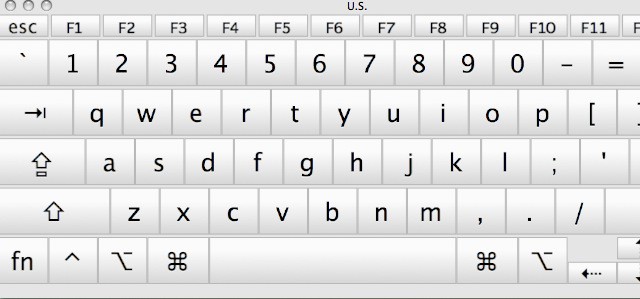
Have you ever needed to insert a special character while typing a document in Mac OS X, but didn’t know how? Apple doesn’t provide an easily accessible way to view which keys generate which characters. Buried in System Preferences though, is a keyboard viewer which will let you figure out which keys give which symbols. This video will show you how to enable this function and use it to discover helpful key combinations.
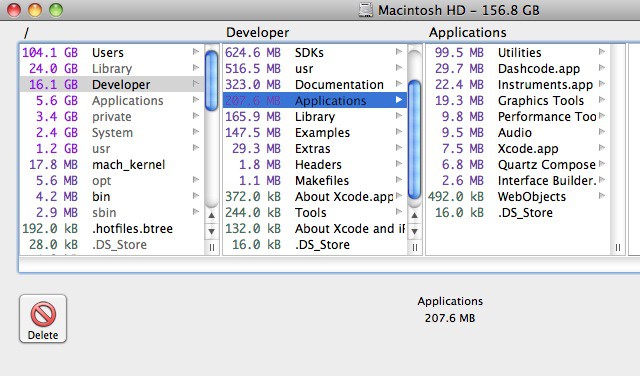
It happens to everyone. Over time, large files will build up on your hard drive and take up space needed for important files, such as photos, music, and the like. It can be frustrating trying to find these files to see if they are of any importance. Enter OmniDiskSweeper, a free utility that solves all those problems. As you’ll see in this video, it’s a handy tool that can help you free up a lot of space.
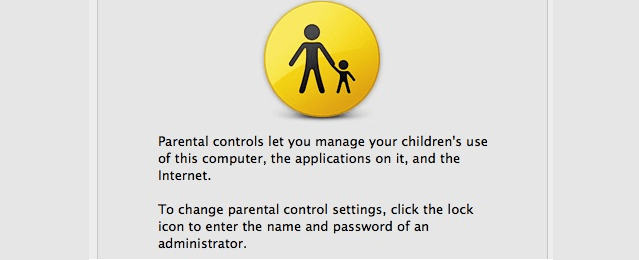
As a parent, it is always important to keep tabs on what your children are doing on the computer. Whether it’s the sites they are visiting, the amount of time they spend online, or even what applications they are using, Mac OS X can cover it. OS X includes a set of parental controls that can be tweaked to anyone’s liking. In this video, you will see how to set up parental controls and use the features that work best for you.
Ten years ago Apple bestowed a new operating system unto the world, Mac OS X. A merger of NeXTStep and the Classic Mac OS, OS X finally delivered Apple’s first major evolution in OS design after a half decade of failed attempts: Taligent, Copland, Rhapsody…
To teach new users how to use its new creation, for a few years Apple included an explanatory brochure titled Welcome to Mac OS X with every copy. These booklets provided a helpful introduction to the new OS. In honor of the tenth anniversary of OS X, here’s a look back at how Apple described things in 2001.
The instal disk for Max OS X. Photo by malagent: http://www.flickr.com/photos/49368060@N00/2310215514/
Mac OS X celebrates its tenth birthday today. The groundbreaking operating system was introduced to the public on March 24, 2001. Mac OS X helped reverse Apple’s fortunes in the desktop PC market, and has underpinned a lot of Apple’s subsequent success. Most importantly, it spawned iOS, which runs today’s iPads and iPhones.
Below is the story of how OS X’s game-changing interface came about. The story gives some insight into corporate creativity at Apple. OS X’s interface started as a side project. But as soon as Steve Jobs got wind of it, it was fast-tracked. Jobs became intimately involved in its development — a scary prospect for the programmers working on it.
But the struggle wasn’t just in its development. Apple had to nail the switch from the old Mac OS to the new, or it could have sunk the company. Guess which ally was crucial to the transition — Apple’s old enemy, Microsoft.
With the launch of OS X, Jobs finally took the title of Apple’s permanent CEO. Prior to that he’d been the interim CEO, or iCEO, and OS X was the last major part of the company he needed to fix.
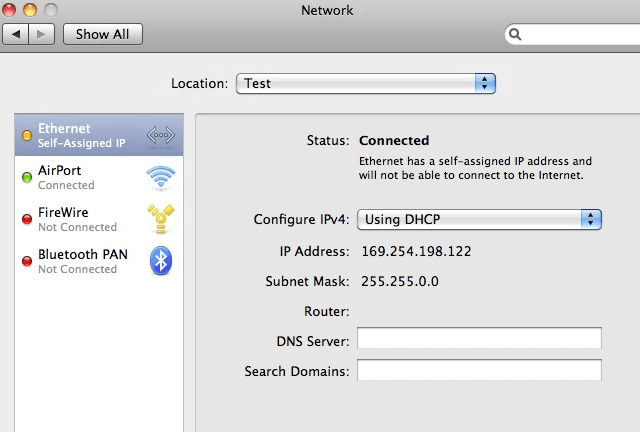
Not being able to get online can be a frustrating problem. It can cost hours of time and test your patience. See, Mac OS X doesn’t always work properly all of the time, and will occasionally assign itself an IP address, which will result in you being unable to connect to the internet. Luckily, there is an easy solution. You can use System Preferences to set a new Network Location, as well as renew your DHCP lease to fix the problem. This video will show you how to quickly fix the problem of self assigned IP addresses through System Preferences.
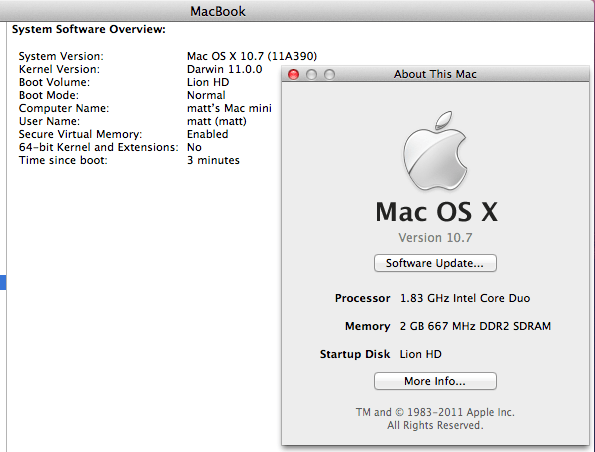
For those of you who like living on the Bleeding Age – while running on older hardware – Cult of Mac received this tip from reader Matt Briggs about getting his Core Duo based MacBook running the Lion Developer Preview installation of Mac OS X 10.7:
I managed to get the Lion preview running on a supposedly unsupported Macbook Core Duo from May 2006.
I installed Lion on a USB drive hooked up to a Mac Mini Core 2 Duo 2009, then removed /System/Library/CoreServices/PlatformSupport.plist and the same drive booted in the Macbook with no issues!
there might be some stricter restrictions in the future, but pretty good right now!
IMPORTANT: This is an unverified tip of an unsupported configuration. Use a spare hard drive for any tests, do not overwrite your primary system. This capability may not last in the official release versions.
I don’t have a Core Duo system myself to test this, so if anyone can duplicate these results on their own system please let us know in the comments.
Here’s a quick video tour of the new Mail client in OS X Lion. It’s got a three-pane view, nicely threaded “Conversations,” and a goes full screen. It’s very good. Mail alone is a good reason to upgrade to Lion.
Here’s a quick overview of Mission Control and Launchpad in OS X Lion, Apple’s upcoming major update to OS X.
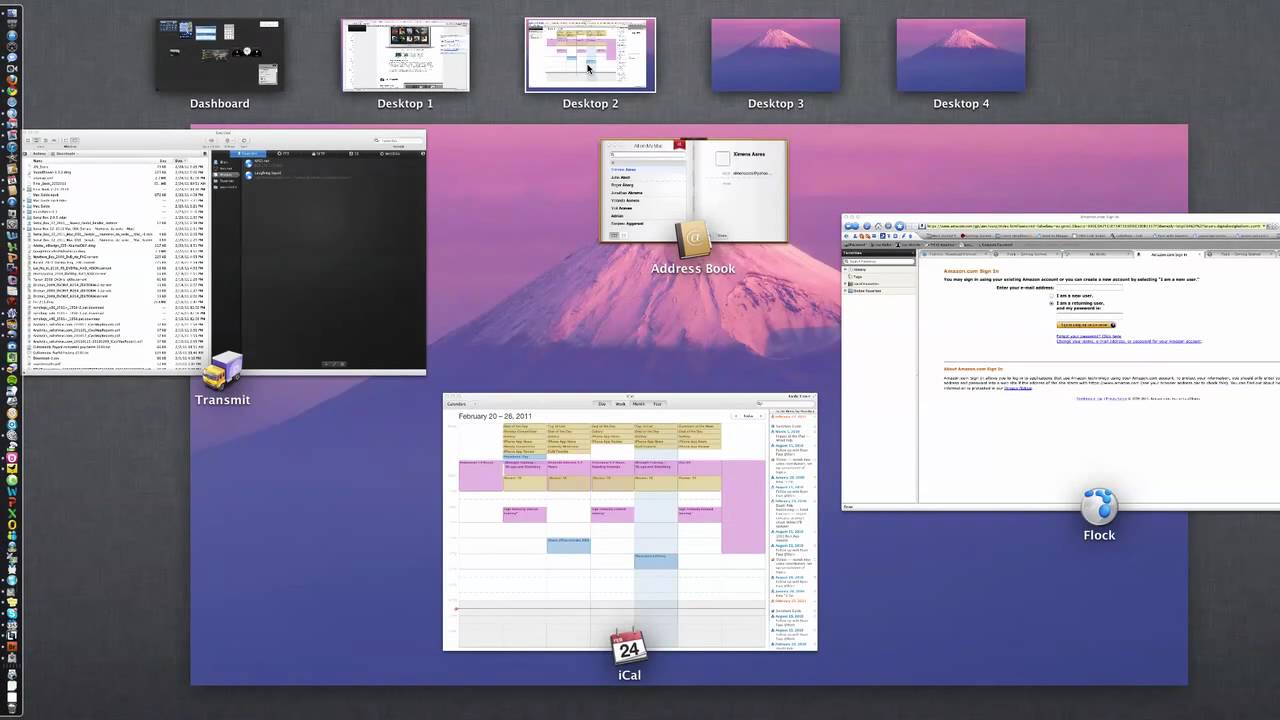
Mission Control is like Expose, Spaces and Dashboard on steroids: Hit a hot corner and all the open windows fly away. You then get an overview of all the running applications, with thumbnails of open windows. There’s also your Dashboard widgets and virtual desktops in Spaces. When it was first previewed by Apple last year, critics said Mission Control was a mess, but I think it’s pretty good. It works really well. It’s much clearer than Expose, and I can see it becoming a central part of my workflow.
Launchpad, on the other hand, won’t be. Launchpad is like the Home screen on the iPad. Icons for all your apps are displayed in a grid. But it suffers from the same problem as the iPad — it’s hard to find the app you’re looking for among the clutter. Much easier to launch a search. Same in Lion.
As you’ve probably heard, touchpad scrolling is backwards in OS X Lion. Instead of pulling your fingers down to scroll down a window, you know push your fingers up.
Confused? You will be. It undoes years of muscle memory. So why would Apple do this?
It’s easy: because of iOS. It’s the same gesture you make on the screen of an iOS device when you scroll up and down the screen. You want to scroll down? You pull the content up.
It’s another example of the influence of iOS on OS X.
Now that you’ve read all those stories of the nice new features packed into Mac OS X Lion, I’m sure you’re dying to get your hands on the Developer Preview and try them out for yourself. Luckily for those of you not signed up to the Mac Developer Program, there are already a few websites out there that are selling access to the beta release.
Unfortunately, it’s not quite as easy as just downloading and installing the software onto your Mac – your system first needs to be authorized to use developer releases. This means signing up to the service at $99 per year – which is pretty costly just to play around with Developer Previews.
That’s where LEi Mobile comes in: all they ask for is a donation of at least $10 and in return they’ll authorize your Mac through their developer account and enable you to download and install the Lion preview on your system. But be quick – they’re already selling like hot cakes and won’t be around for too long.
We’ll keep hunting for other sites offering this service and update this story as frequently as necessary. If you know of another site offering this service, let us know in the comments!
Please note that installing developer previews on your Mac is very risky, and not recommended on your main system. The previews are previews for a reason and lots can go wrong with these builds. Cult of Mac is in no way associated with any of the websites selling Lion access, and we accept no responsibility for any damage to your system or data.
Apple’s Developer Forums going crazy about the new way to install OS X Lion through the Mac App Store. There’s complaints about failed downloads, invalid redemption codes and overall installation issues. But once developers get it installed, they say the new OS is awesome and totally opens up the Mac to new possibilities.
It is a popularly held belief that one day Mac OS X and iOS are destined to merge into one OS to rule them all. When Apple announced last October that Lion, the next major update of Mac OS X would feature some of the best ideas from iOS, it only added to the convergence speculation.
But are Apple’s two operating systems really destined to converge? After all, they both seem to be doing very well by themselves. The Mac may benefit from some iOS features, but it’s hardly struggling on its own. Mac sales are stronger than ever. So what exactly would the advantages be?
A few hours before popular rumor indicated it would launch, Apple pumped Mac OS X 10.6.6 down through Software Update … most notably including support for the new Mac App Store, which is launching with more than a thousand apps, including a very sexy new Twitter for Mac client.
iWork ’11 is, surprisingly, not debuting on the Mac App Store, but you can find Aperture, at least, as well as iLife ’11. Check out the press release after the jump, and check in later for more of our impressions.
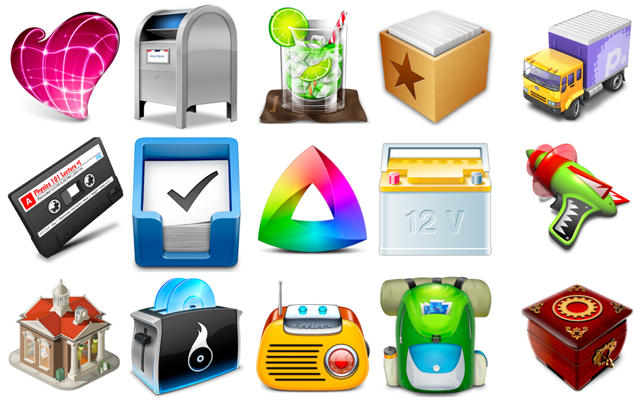
When Apple updated the iTunes 10 icon earlier this year, it sparked huge controversy among Mac users everywhere — many branded the new icon ugly, lifeless, and unconventional. The debate showed that lots of Mac users like to see beautiful apps with beautiful icons.
Here are 15 of our favorite Mac OS X icons from 2010 that stand out for being beautifully designed, brilliantly colorful, and wonderfully unique. We’ve selected icons that make you want to find out more about an application, and that you’d proudly place in your dock for all to see.
We hope you like them. Check them out after the break. If you know better icons, please tell us about them in the comments. Free apps for the best ideas.
When you try to open a file that your Mac doesn’t already have a default app registered to, it doesn’t know what to do, so it either asks you to choose the application you want to use, or it will — if you so desire it — unceremoniously dump you back to Finder.
That’s actually not a very elegant way to handle unrecognized file extensions. Windows has a better system, for goodness’ sake: it will automatically search the web for applications that can open the file.
Luckily, with the arrival of the Mac App Store in January as well as the release of Mac OS X 10.6.6, that’s all slated to change. As it turns out, Apple has very cleverly deigned to integrate the App Store into the prompt you get when OS X doesn’t know what to do with a file: you can now search the Mac App Store for one that’ll work to open it. Keen!
Last week’s great disappointment was the discovery that Apple had mostly pulled AirPrint support from OS X 10.6.5, which would allow you to print documents directly from iOS to almost any shared network printer. Native AirPrint support was trimmed only to a small number of AirPrint-compatible HP printers, and while hacks exist to get AirPrint support back via the command line, they’re a little beyond the capability of most users.
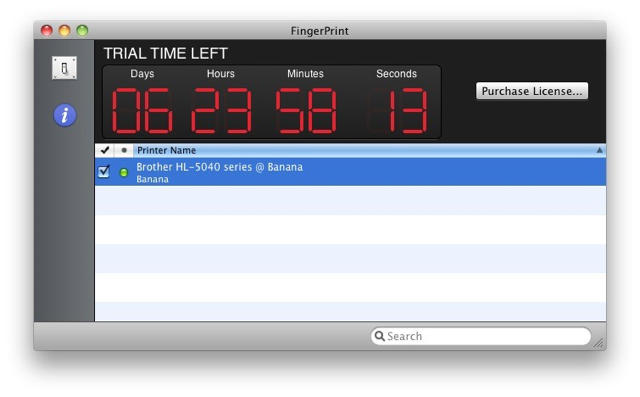
Enter FingerPrint, a new application from Collobos Software that enables AirPrint printing over Bonjour for many of the omitted printers. It accomplishes its neat trick by fooling Bonjour into broadcasting your normal printer in such a way that iOS 4.2 can see it.