The macOS Tahoe menu bar icons are one of the more universally panned changes in Apple’s redesigned Mac operating system. They clutter the interface, making it hard to find what you’re actually looking for. And on top of that, different apps use different icons for different actions — it’s not remotely consistent.
You don’t need to live your life this way, though. Developer and hacker Steve Troughton-Smith figured out a quick way to disable the icons. You need to crack open the Mac’s Terminal app, but luckily, you can paste a single command in to bid (most of) the icons adieu.
How to hide the macOS Tahoe menu bar icons
Nikita Propokov outlined in great detail the major problems with the proliferation of new icons in the macOS Tahoe menu bar. In short:
- They’re too small on screen to be useful or even legible.
- Every icon consists of black-and-white line art, so they all blend together.
- The same actions use different icons in different apps.
- Many icons look quite similar, with incredibly minor or subtle differences between them.
That’s probably why the original user interface guidelines for the Mac said not to put an icon next to every single menu bar item. If you want to fix your Mac, and do away with most of the macOS Tahoe menu icons, here’s what you should do.
Open the Terminal
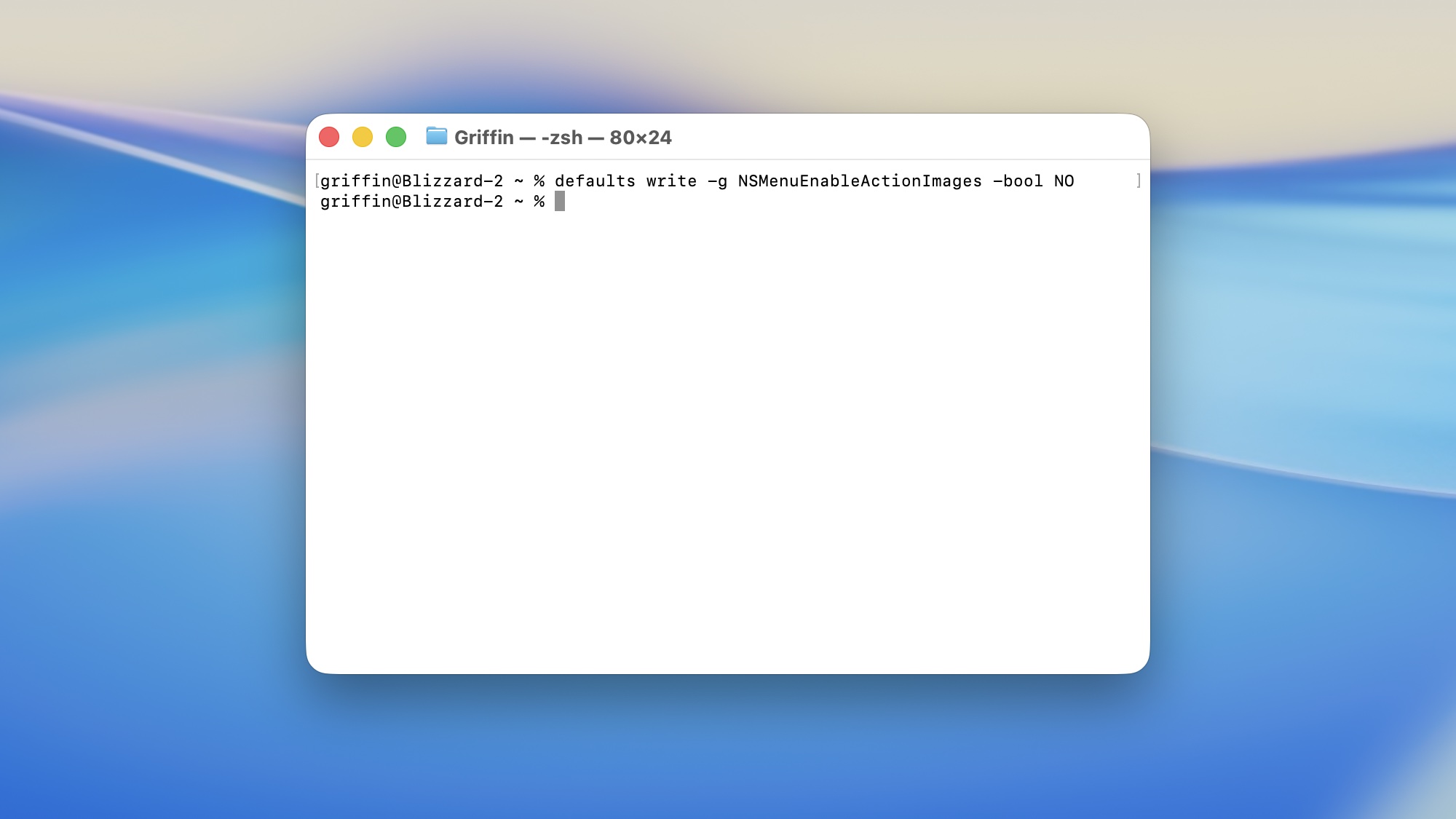
Screenshot: D. Griffin Jones/Cult of Mac
Launch the Terminal app. You can search for it from Spotlight by hitting Command-Space (⌘␣), or you can find it in the Finder in the Applications > Utilities folder.
Paste this command
defaults write -g NSMenuEnableActionImages -bool NO
Copy that command (⌘C), then paste it into your Terminal window (⌘V), and hit Return (↩). It doesn’t run any code; all it does is change a hidden preference in your Mac to hide “action images” — the icons in the menu bar.
Reboot your Mac
For all the changes to take place, you should reboot your Mac. If you’re not that patient, you might find success quitting and reopening each app one at a time.
There are a few icons that this fix doesn’t affect. They will remain visible. The items in the Window menu, like “Arrange Left & Right,” keep their icons. (Those icons are actually helpful.)
Get the menu bar icons back
If you ever want to reverse the setting back to the defaults, just copy and paste this command into Terminal, then hit Return:
defaults write -g NSMenuEnableActionImages -bool YES
More Mac tips
- How to use the all-new Spotlight in macOS 26 Tahoe
- Share your screen to (and from) any Mac, right from the Messages app
- 6 tricks to master Preview on the Mac
- Rename multiple files on Mac the easy way
- Hidden Mac keyboard shortcuts you might not know
- Pro Tip: Hot Corners make it easy to mouse around your Mac

D. Griffin Jones was a writer, podcaster and video producer for Cult of Mac. Griffin has been a passionate computer enthusiast since 2002, when he got his first PC — but since getting a Mac in 2008, he hasn’t turned back. His skills in graphic and web design, along with video and podcast editing, are self-taught over 20+ years. Griffin has a bachelor’s degree in computer science and has written several (unpublished) apps for Mac and iOS. His collection of old computers is made up of 40+ desktops, laptops, PDAs and devices, dating back to the early ’80s.
Griffin writes for his personal blog, Extra Ordinary, and is currently looking for work.


3 responses to “How to hide all the menu bar icons in macOS Tahoe”
Its works… Crappy icons are gone.
What icons are you writing about?
This seems like going after a fly with a bazooka. The icons are so small they are barely noticeable.