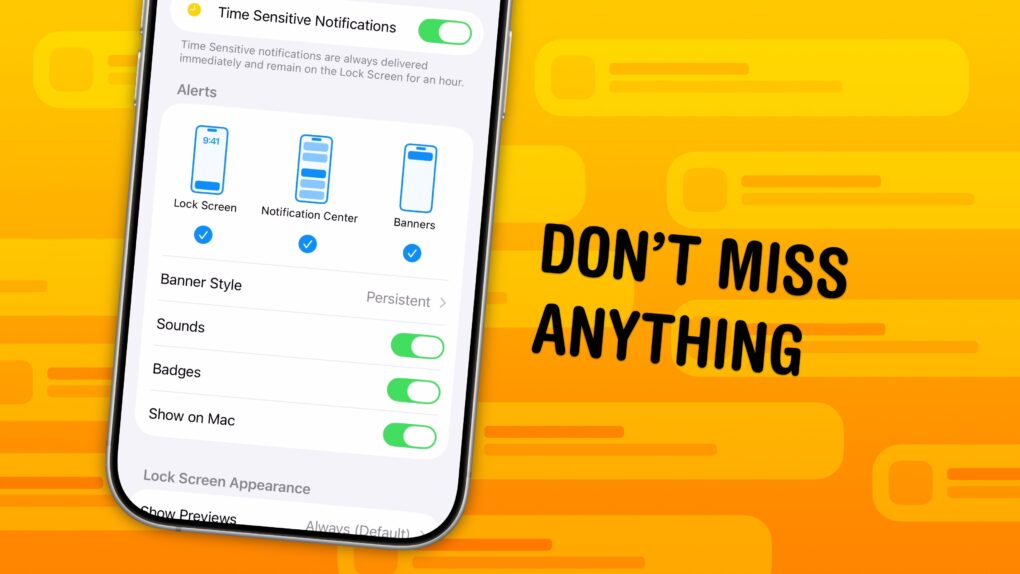
 You can set up persistent notifications from specific apps so they stick to the top of your iPhone screen. With persistent notifications in iOS, when your phone is unlocked and an important alert comes in, the notification will stay visible at the top of the screen until you act upon it.
It’s an easy way to make sure you don’t miss (or forget about) critical notifications on your iPhone.
This proves super-handy for things like medication reminders. It also works wonders if you’re the sort of person who ignores notifications once they disappear from your iPhone screen. I’ll show you how to make your notifications sticky.
Set iOS app notifications as persistent
Junky apps often spam you with notification bait. Unless you seriously cull what you allow to appear in your iPhone’s Notification Center, those spammy apps can train you to ignore important banner notifications.
Setting up persistent notifications for critical iOS apps can help cut through the clutter. Once you set them up, they stay on your screen until you actually act upon them. That way, you won’t lose track of them if your Notification Center resembles a junk drawer.
Table of contents: Set iOS app notifications as persistent
- Change app notification settings
- Clean up what accumulates in Notification Center
- More ways to stay focused
Change app notification settings
Screenshot: D. Griffin Jones/Cult of Mac
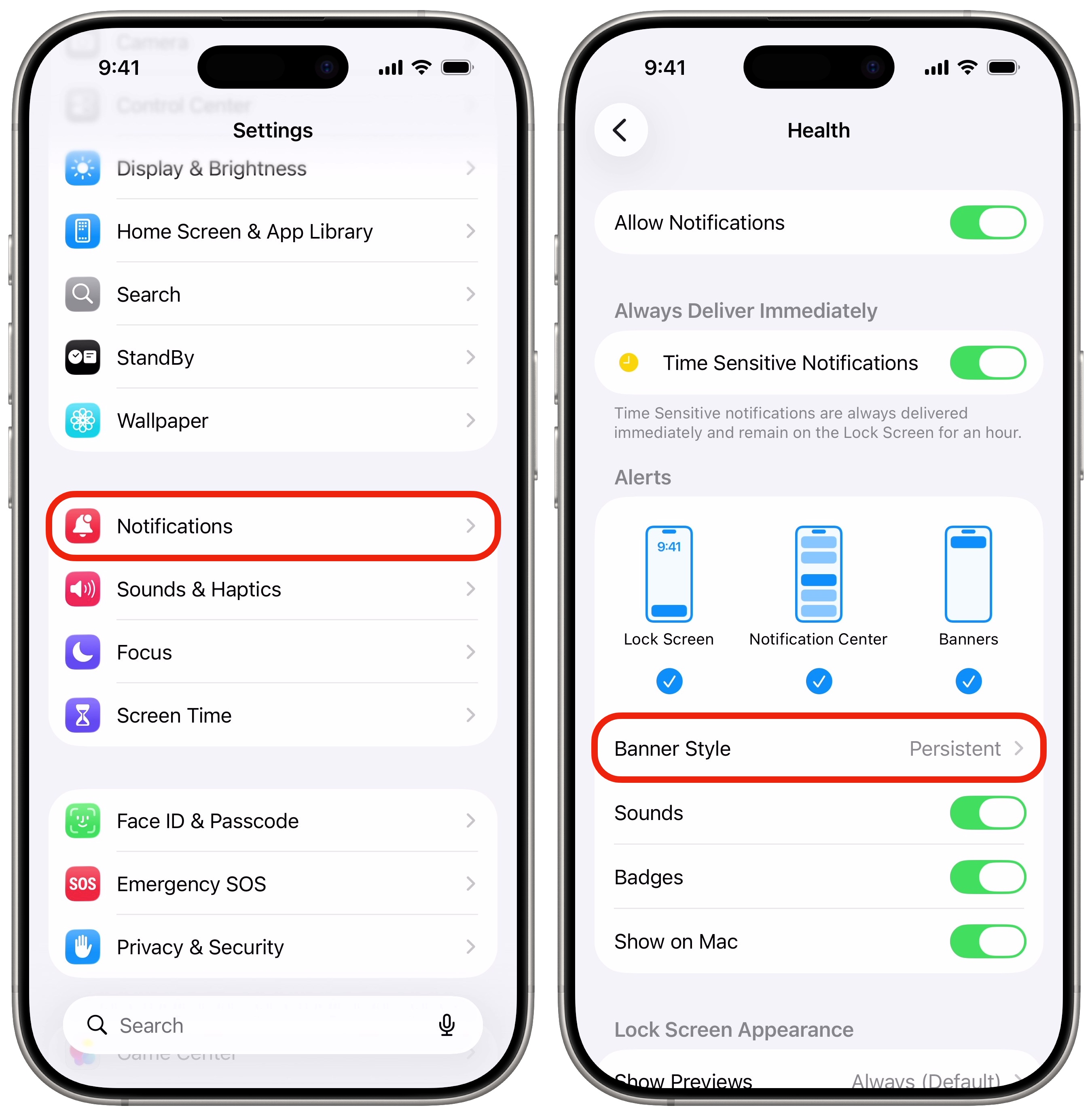
To set up persistent iOS notifications, go to Settings > Notifications on your iPhone and select the app you want to change. Set Banner Style to Persistent. Now, when you’re on your phone and a notification comes in, it won’t disappear after five seconds. It’ll stay there until you tap on it or intentionally dismiss it.
Setting up persistent notifications in iOS will make important notifications much harder to ignore. This feature proves especially handy if you use Apple’s medication logging feature or you’re tracking someone’s journey in Apple Maps.
Clean up what accumulates in your iPhone’s Notification Center
Screenshot: D. Griffin Jones/Cult of Mac
After you set up persistent notifications on your iOS device, you should tidy up your Notification Center. Apple devised the Notification Center as a convenient place to find notifications you missed. But if yours is filled with useless junk, you’ll never bother looking. And if you do, you’ll have a hard time finding what you’re looking for.
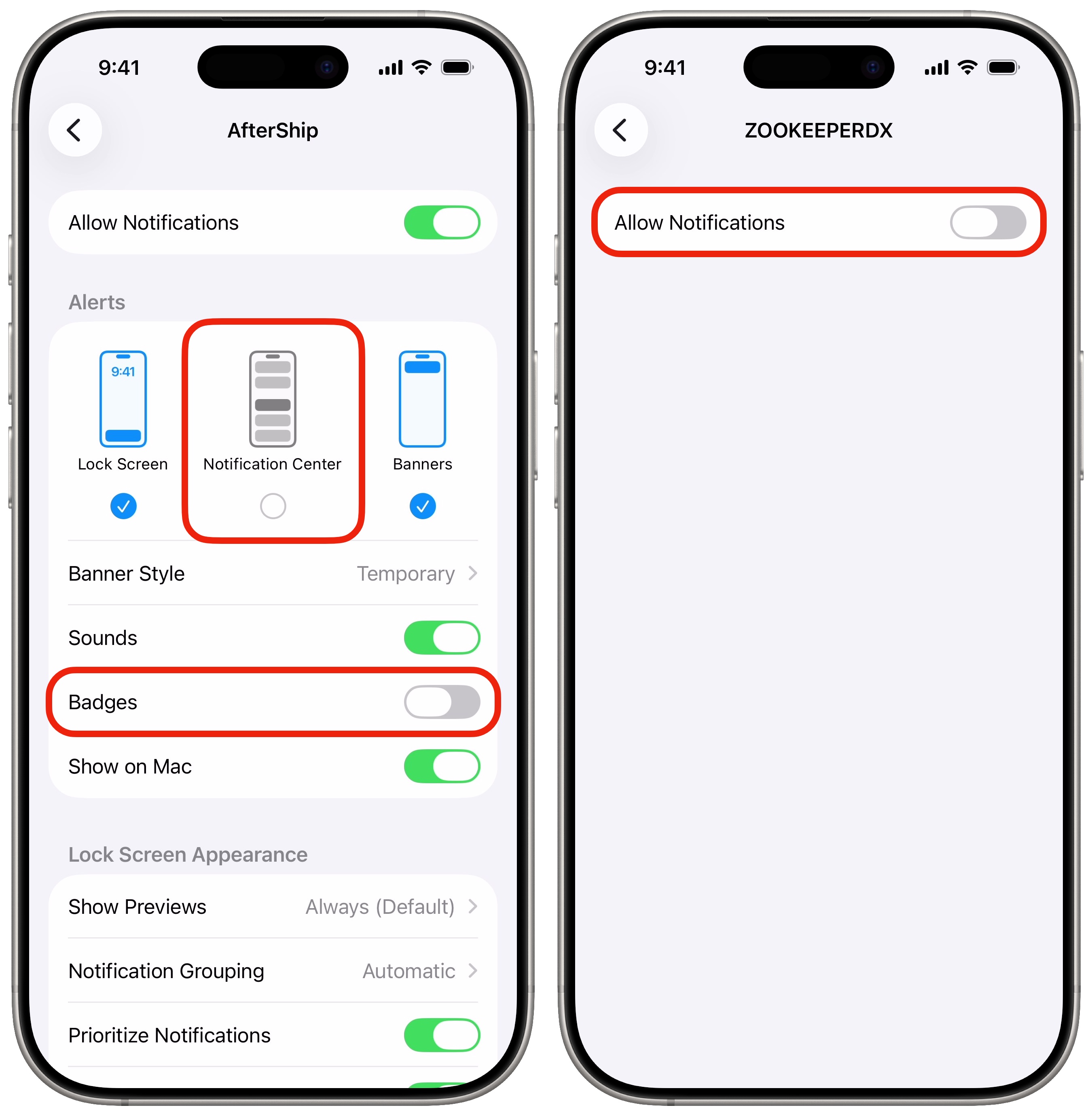
To reduce the clutter, take a moment to evaluate what types of notifications you need from your apps. For instance, when using a package-tracking app like AfterShip, I find it useful to see updates when they come in. But after I see the update, the information is no longer necessary. I don’t need a badge on the app icon, nor do I need the notification to stay in my iPhone’s Notification Center. There’s nothing I need to do because I already know when the package will arrive. So for that app, I turned off Notification Center and Badges.
When it comes to games, I turn off notifications for all of them: What the Golf?, Pokémon Go, everything. Games seem especially bad about notification spam. I’m never going to get a notification from a game that isn’t bait to get me to play again. For these apps, I uncheck Allow Notifications at the very top to block everything.
More ways to stay focused
As with setting persistent iOS notifications, your customization will vary from app to app. If you take the time to clean up notification settings, your phone will feel like it’s working for you rather than against you. If you want to dive deeper into this world, the next step is to set up Focus modes for different times of the day.
Also, if you’re running iOS 26.2 or later, you can take notifications to the next extreme. In Reminders, you can set a super-important reminder as an alarm. You’ll never forget to take out the trash again.
We originally published this article on persistent notifications on April 6, 2023. We updated it with the latest information on September 18, 2024, and January 9, 2026.

D. Griffin Jones was a writer, podcaster and video producer for Cult of Mac. Griffin has been a passionate computer enthusiast since 2002, when he got his first PC — but since getting a Mac in 2008, he hasn’t turned back. His skills in graphic and web design, along with video and podcast editing, are self-taught over 20+ years. Griffin has a bachelor’s degree in computer science and has written several (unpublished) apps for Mac and iOS. His collection of old computers is made up of 40+ desktops, laptops, PDAs and devices, dating back to the early ’80s.
Griffin writes for his personal blog, Extra Ordinary, and is currently looking for work.

