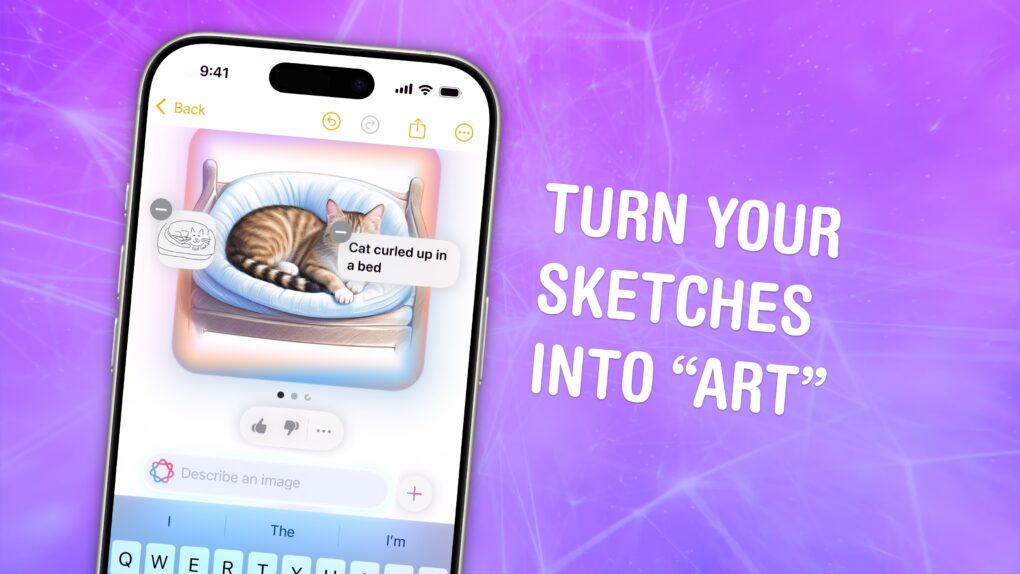
Image Wand is a new feature in Apple Notes that turns rough sketches into full images — and creates images from scratch based on text prompts. Granted, it’s powered by Image Playground, so the imagery it creates isn’t exactly state of the art. Apple’s image-making tools still lag other AI systems. But if you’re a struggling artist, it may improve your squiggles.
Image Wand is part of Apple Intelligence, the growing set of AI features that work on the latest iPhones, Macs and iPads. It runs entirely on-device, so you don’t have to worry about usage limits, tokens or setting up accounts.
Check out how Image Wand works in the article below, or watch our quick video.
How to use Image Wand in Apple Notes
AI image creation is one of the most controversial applications of rapidly evolving AI technology. From the theft of artwork for training data, automated replication of artists’ trademark styles to the flood of generated content on social media, people are now referring to a lot of AI content derogatorily as ‘slop.’
Apple’s typical measured approach has left the company unprepared to compete. While Image Playground plays to Apple’s strengths of a great user interface with many guardrails to avoid copyright and content controversy, the images it produces are mediocre at best.
Nonetheless, you can try it out for free, if you have a compatible iPhone (iPhone 15 Pro or later) — without limits. So it’s worth a few minutes checking out.
Table of Contents:
- Install iOS 18.2 and enable Apple Intelligence
- Create an image based on your notes
- Turn a sketch into an image
- More Apple Intelligence features
Install iOS 18.2 and enable Apple Intelligence
Image Wand is a part of Apple Intelligence, available in iOS 18.2. As with all Apple Intelligence features, you’ll need an iPhone, Mac or iPad with an M-series chip, an A17 Pro chip or greater to use the feature.
You can install iOS 18.2 by going to Settings > General > Software Update. After you update, you’ll be prompted to enable Apple Intelligence during setup.
Create an image based on your notes with Image Wand
Screenshot: D. Griffin Jones/Cult of Mac
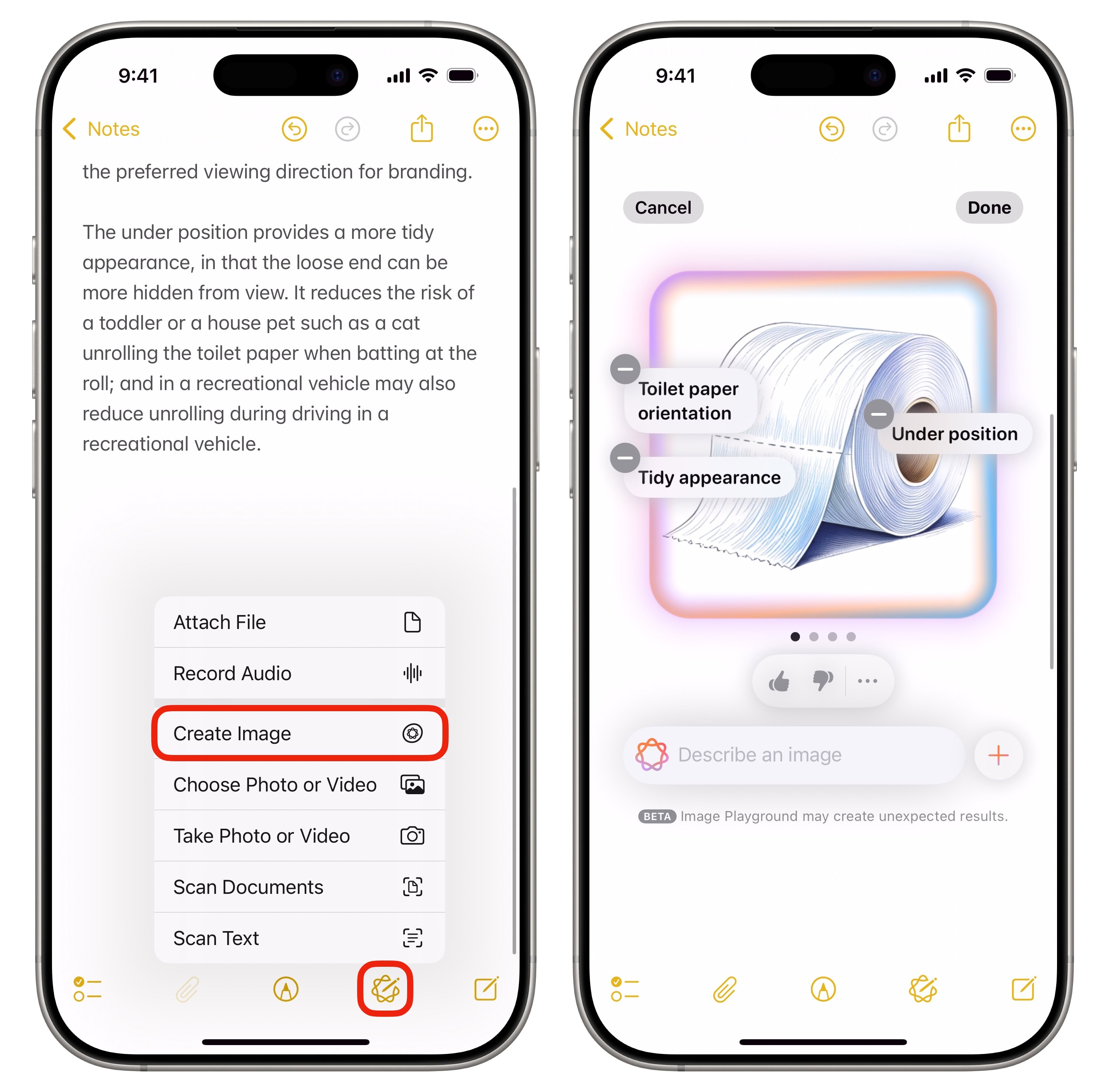
To use Image Wand in the Notes app, tap the Attachments button (paperclip icon), then tap Create Image.
It’ll use the context of your notes to make a relevant image. I copied the text from the Wikipedia article on toilet paper orientation. Its generated image was a sketch of a loo roll — with additional descriptors pulled from the text.
Just as with Image Playground, you can add more prompts by typing in the text box. Or, you can remove prompts by tapping on the floating bubbles. You can also switch over to Animation or Illustration styles by tapping the + button. Tap Done to save the image or Cancel to remove it.
Turn a sketch into an image with Image Wand
Screenshot: D. Griffin Jones/Cult of Mac
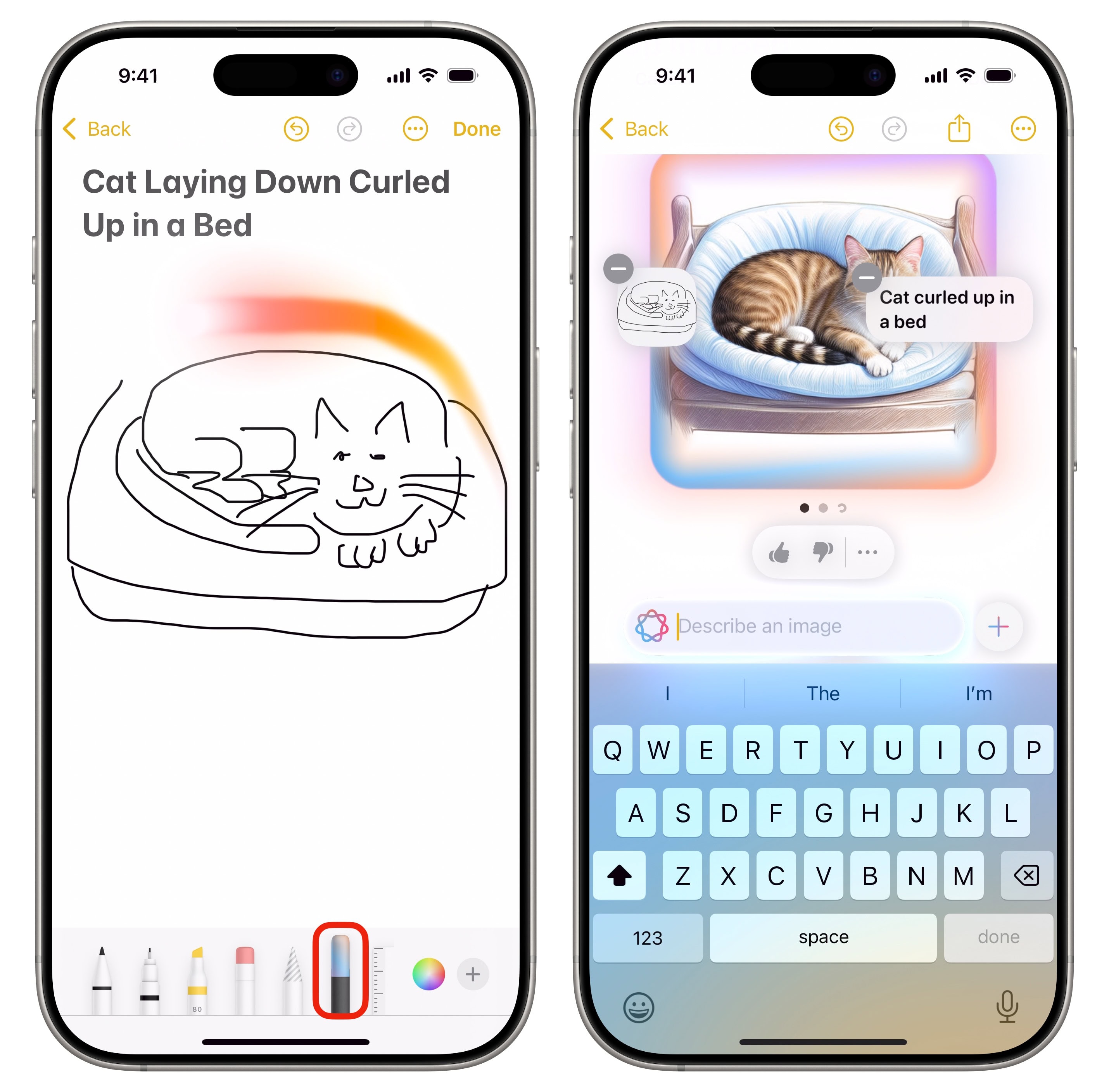
If you have a rough drawing or sketch in your note already, you can convert it into an AI image. Just tap the Markup button (pen icon), then tap the new Image Wand tool. Circle part of a drawing to use it as input, then type in your own description of the image and Image Wand will generate something new.
It seems to take a broad sort of inspiration from your sketch, but often deviates from it, putting much more weight on your description. You can write a completely unrelated description to your drawing and it’ll just … draw that instead. Which, in my opinion, defeats the purpose.
I can see some use for this tool on the iPhone, where at best you can only make rough sketches with your finger — as long as you’re OK with the ugly generative art that Image Wand makes. But if I owned an iPad and an Apple Pencil, I don’t think I’d see the point. Image Wand doesn’t enhance your drawing so much as it paints over it. No matter how much detail you add, the AI will still ignore it.
Nonetheless, Image Wand is a fun novelty to play around with for a bit.
More Apple Intelligence features
Beyond Image Wand, there are many more Apple Intelligence features to check out:
- How to use Apple Intelligence writing tools
- Remove an object from a photo with Apple Intelligence
- Create custom emoji in Messages using Genmoji
- Look things up with your camera using Visual Intelligence
- How to get Apple Intelligence features early — and in the EU

D. Griffin Jones was a writer, podcaster and video producer for Cult of Mac. Griffin has been a passionate computer enthusiast since 2002, when he got his first PC — but since getting a Mac in 2008, he hasn’t turned back. His skills in graphic and web design, along with video and podcast editing, are self-taught over 20+ years. Griffin has a bachelor’s degree in computer science and has written several (unpublished) apps for Mac and iOS. His collection of old computers is made up of 40+ desktops, laptops, PDAs and devices, dating back to the early ’80s.
Griffin writes for his personal blog, Extra Ordinary, and is currently looking for work.

