If you’ve called out, “Hey Siri” to your iPhone before, you know the joy of this Star Trek-style technology. You don’t even need to hold the Home button down. Sure, your iPhone needs to be plugged in, but it’s a pretty neat party trick.
Excitingly, you can do something similar on your Mac: activating dictation with a voice command. The next time you get a great idea and need to document it, you can just call to your Mac and dictate it right then. No pen, no paper, no walking all the way to your keyboard.
Here’s how.
Set up voice command on your Mac
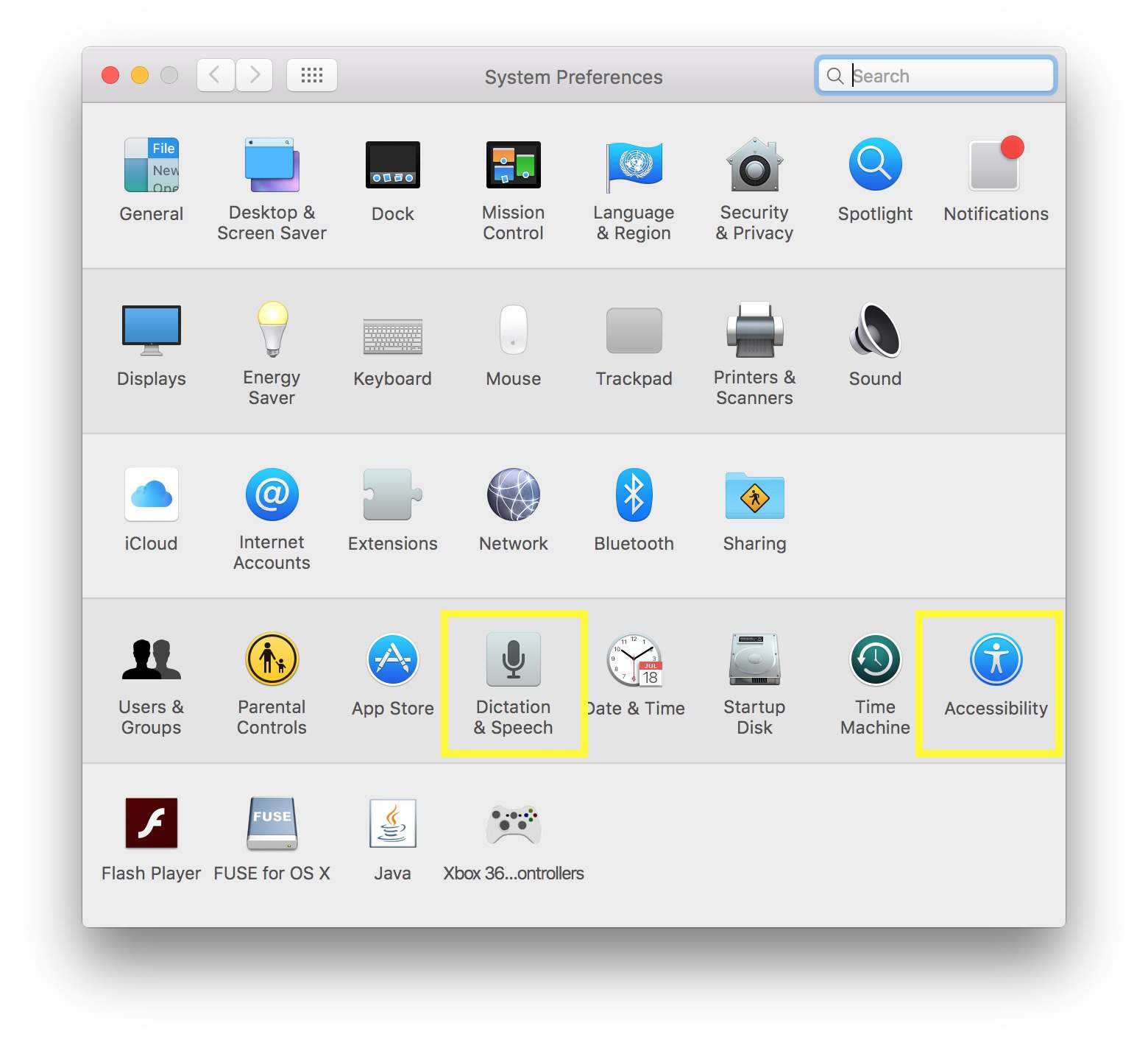
Photo: Rob LeFebvre/Cult of Mac
Launch System Preferences, either from your Dock or Apple Menu, and then click on Dictation & Speech. When you enable Dictation by clicking the On radio button the first time, you’ll be asked if you want to enable Enhanced Dictation, which is a 1.2 G download. Go ahead and do just that: it will allow you to dictate when offline as well as allow for a more natural speaking pattern.
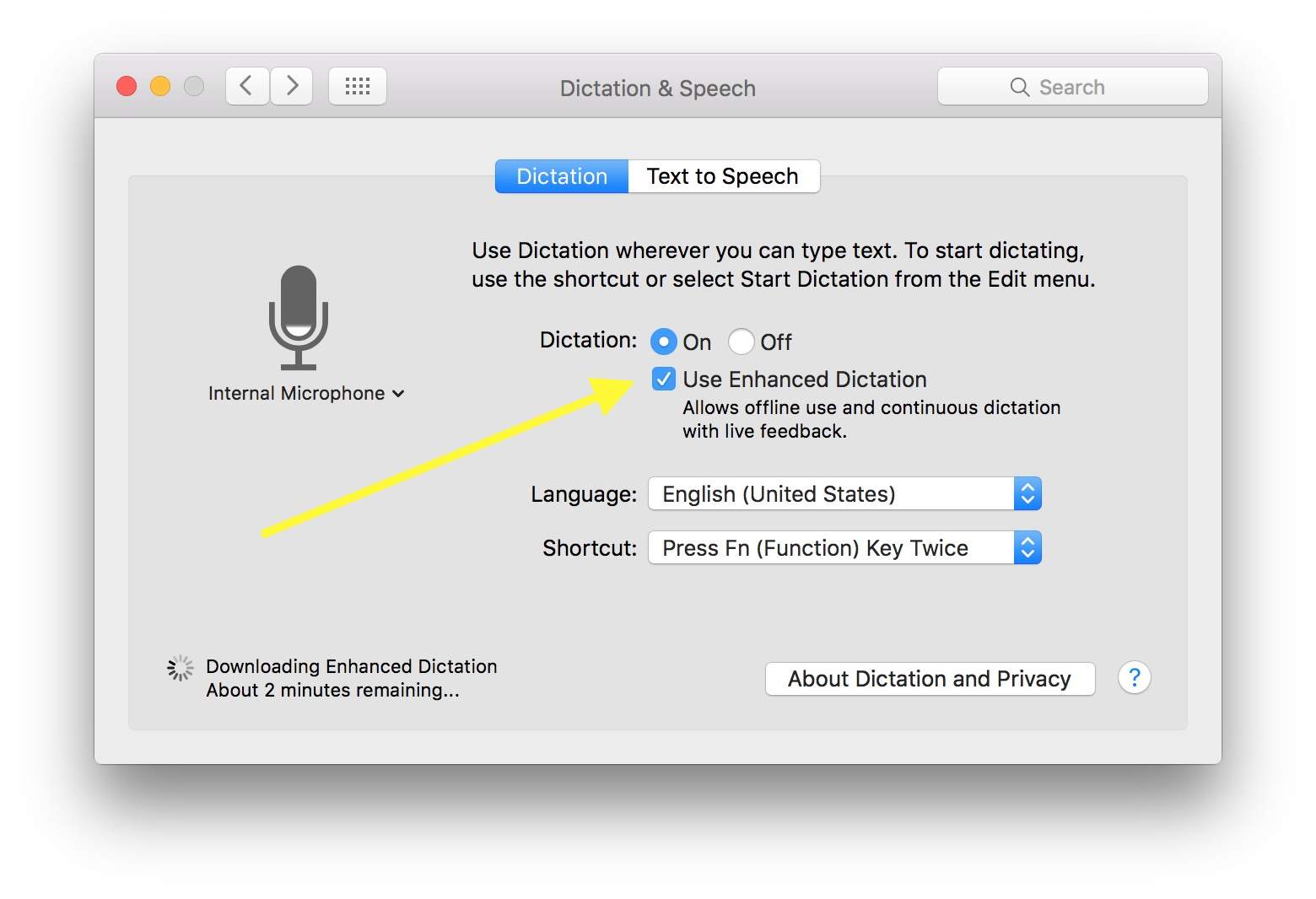
Photo: Rob LeFebvre/Cult of Mac
Next, back out to the main System Preferences screen and click on Accessibility. Scroll to the bottom of the list in the left-hand pane and click on Dictation. Then, click on the Dictation Commands button to the right, and then click to check the Enable advanced commands checkbox.
Click the Done button, and then check the Enable the dictation keyword phrase checkbox. Enter the phrase you want your Mac to listen for to start dictation. Something pithy, like “Hey, Macintosh,” or (if you’re feeling sassy) “Hey, Mr. MacPants.”
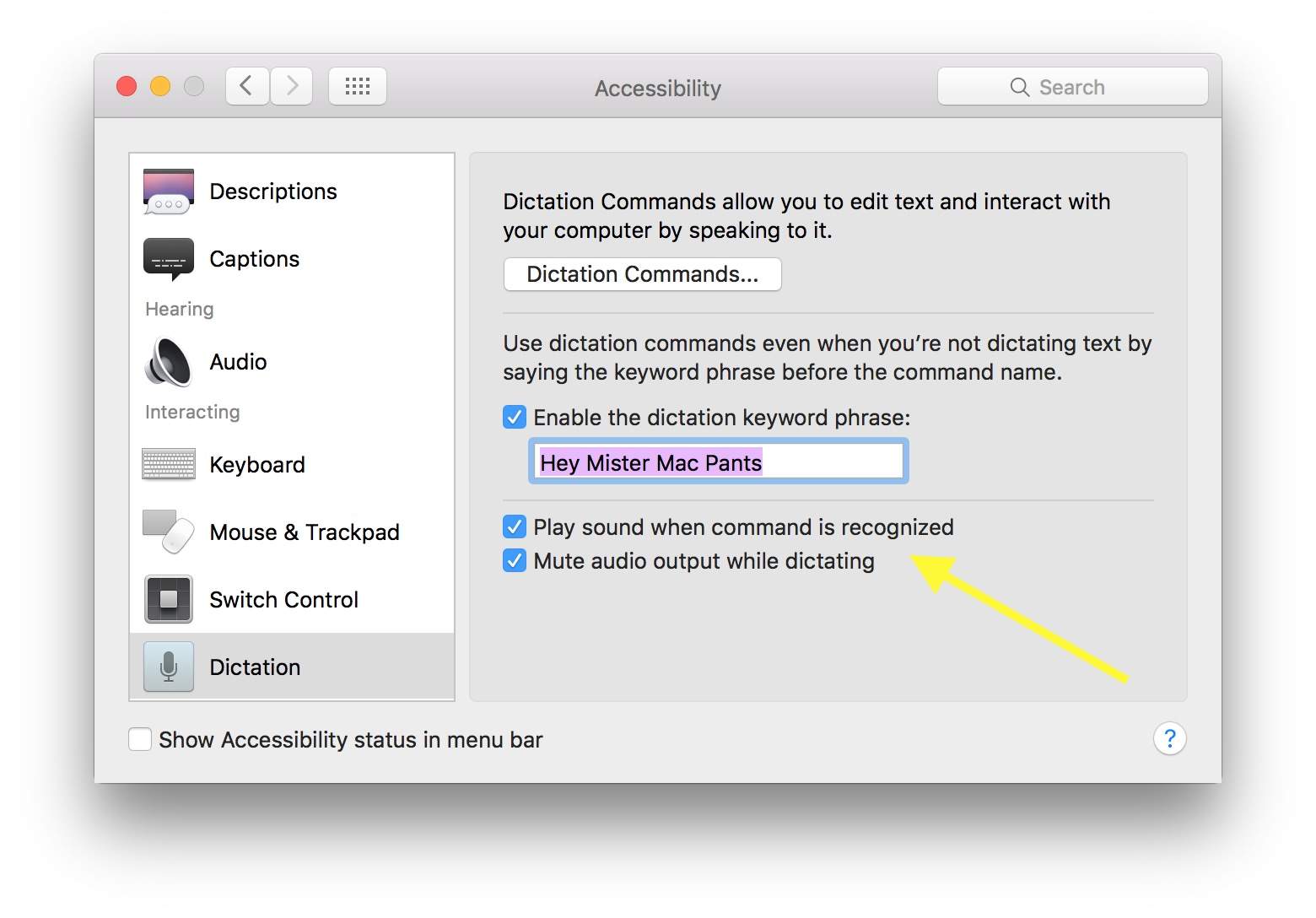
Photo: Rob LeFebvre/Cult of Mac
Enable “Play sound when command is recognized” so you can hear if your Mac is ready to dictate. Otherwise, you’ll be chatting away to your computer and it won’t be listening. Insert marital joke here.
You probably also want to enable “Mute audio output while dictating,” so that any sounds from your Mac won’t interfere with your dictation. You can close System preferences, now.
Tell your Mac what to type
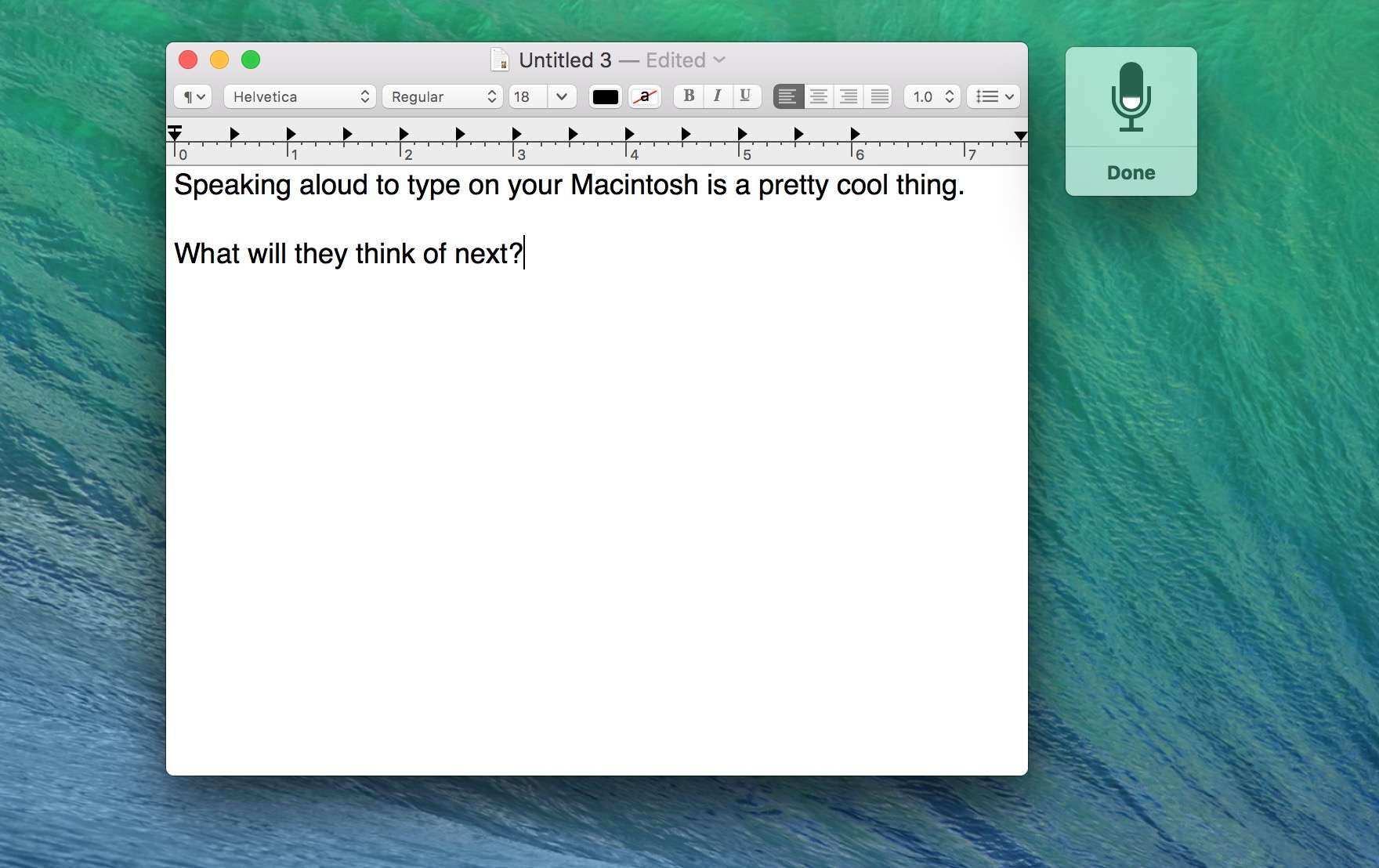
Photo: Rob LeFebvre/Cult of Mac
Now all you need to do is to test it out. Open something like TextEdit and then call out your command phrase. The little dictation window will appear, and the mic icon within it will have an animated level on it. Simply speak what you want it to type. There are a ton of other actions you can employ, too, like Select All, Undo That, Uppercase That, and more – all found in the Dictation Commands button in the Accessibility pane as above.
Dictation should work wherever you can type, including Safari, Reminders, Pages, and the like. If your Mac has trouble reacting to your voice command, try a simpler phrase, or just hit the Function key twice to bring up Dictation. Hooray!
Via: OS X Daily

Rob LeFebvre is an Anchorage, Alaska-based writer and editor who has contributed to various tech, gaming and iOS sites, including 148Apps, Creative Screenwriting, Shelf-Awareness, VentureBeat, and Paste Magazine. Feel free to find Rob on Twitter @roblef, and send him a cookie once in a while; he’ll really appreciate it.


10 responses to “How to get Hey Siri-style dictation on your Mac”
Nope, followed exact steps and it won’t work. My Mac just sits there. Otherwise, I can activate it easily with a double click the Fn key. But not my voice.
Same, struggling…
Try saying “Computer, Start Dictation” If you have a special keyword phase use that followed by start dictation. This article would make a lot more since if it included that.
Thank you! That worked! I wonder why the article didn’t mention this critical step.
You just need to say “Start dictation”. It’s in the Advanced Commands list. My iMac works, albeit slowly. Pretty cool to be able to zoom in and out and scroll to top of screen.
Me too. Running a MacBook Pro 15 RD. I’ve tried these steps by several bloggers with no success every time.
Me too, won’t work
If you have a special keyword phase say that followed by saying “start dictation”. This article would make a lot more since if it included that instruction. Also search dictation commands for mac for even more commands.
That did it! Thanks!
For your iPhone 6s and 6s Plus to respond to the “Hey Siri” command, it no longer have to be plugged into a charger.