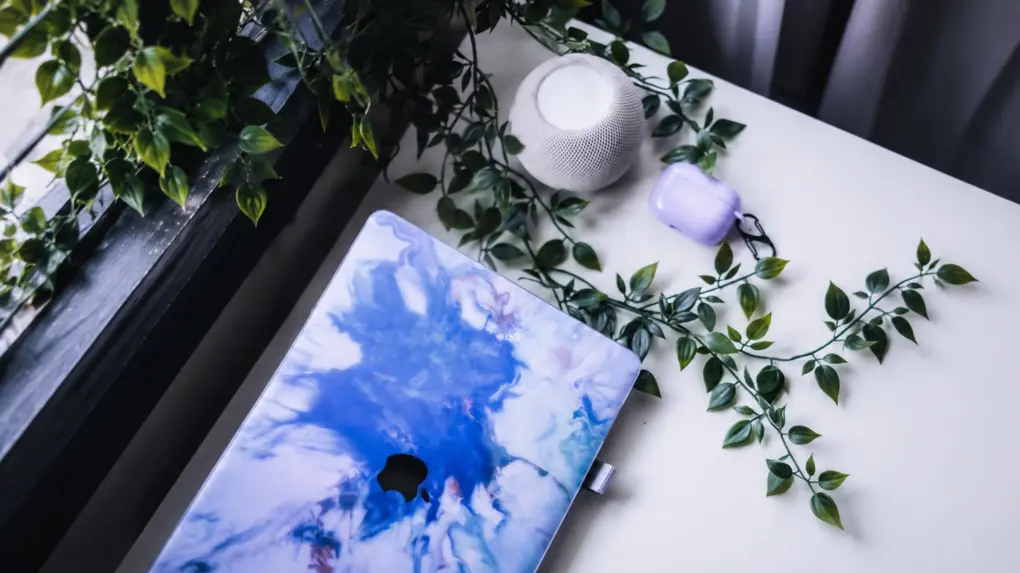
Apple just added a long-overdue feature to the HomePod: You can finally set it to be the default speaker for your Mac.
Previously, you could send audio from a Mac to the smart speaker over AirPlay, but the connection was temporary. No longer — the HomePod can be the computer’s default speaker with a persistent connection.
Here’s how to set it up.
HomePod just got more useful to Mac users
The speakers built into your Mac are surprisingly good, but they can’t hold a candle to a HomePod. Apple’s smart speaker produces rich audio with deeper bass and clearer vocals, making music, movies and podcasts more enjoyable.
Anyone who made a habit of connecting their Mac to a HomePod via AirPlay knows all that already. They also know the frustration from when they realized the connection wasn’t permanent.
Those days are over. With software updates on your Mac and speaker, you can “set HomePod as the audio output for everything you do on your Mac, with a responsive and persistent AirPlay connection,” according to Apple.
Make the change, and system sounds, video calls and other audio will play through HomePod without repeatedly reconnecting through AirPlay.
Check that your Mac and HomePod are compatible
Before you start, make sure your smart speaker has been updated to the new HomePod Software 27.2 or later. Your Mac also needs macOS 27.2, which just debuted.
And there’s a hardware requirement. The new default-speaker feature works with the second-generation HomePod and the new HomePod mini 2, paired with a Mac that supports Wi-Fi 6E or later. That excludes some older Macs, even if they can run a recent version of macOS.
Set HomePod as your Mac’s default speaker
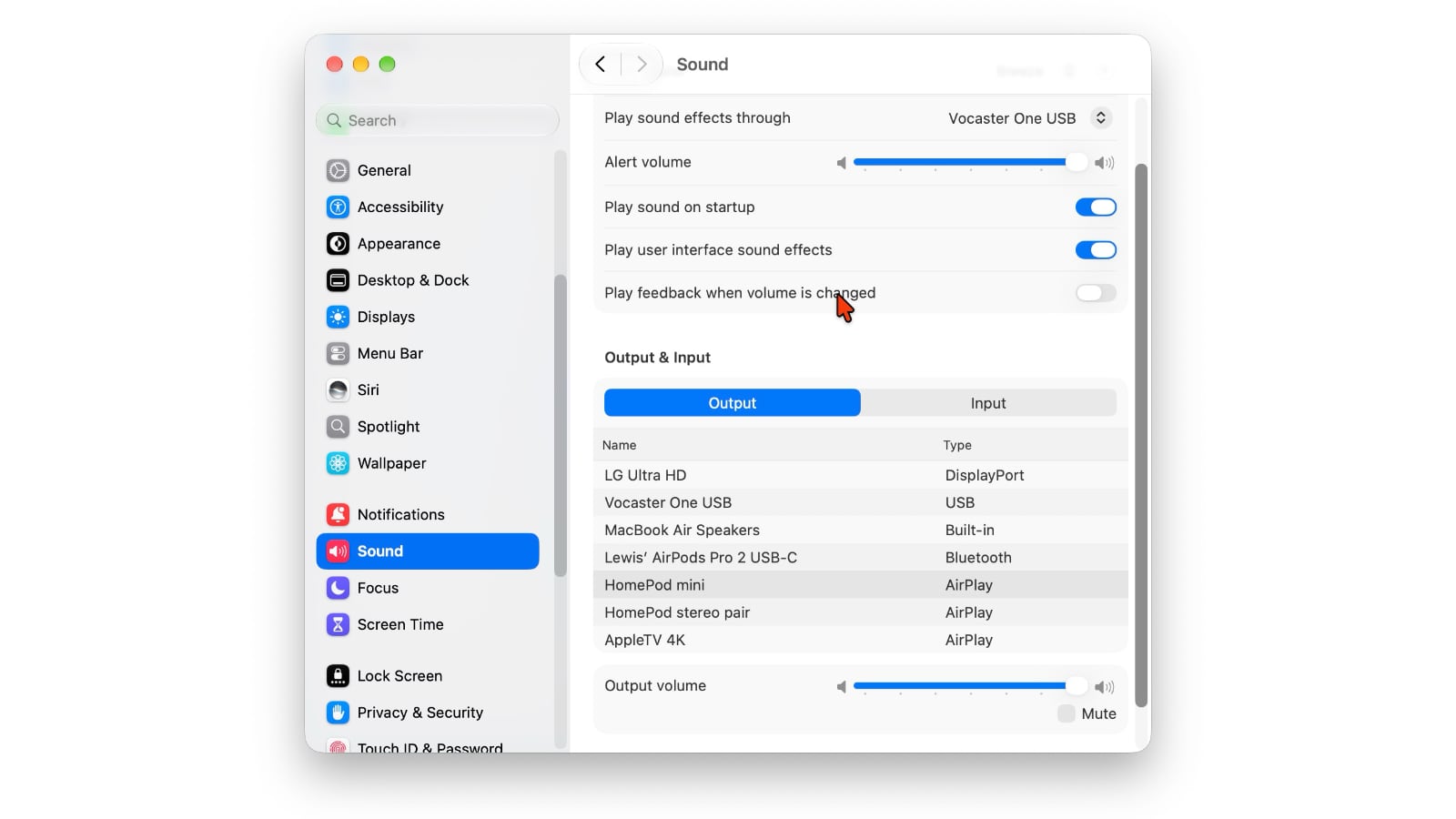
Screenshot: Cult of Mac
Once your devices are ready, switching your Mac’s audio output to HomePod takes just a few steps.
- Click the Apple menu in the upper-left corner of your screen and select System Settings.
- In the sidebar, click Sound, then select the Output tab or section.
- Select your HomePod’s name from the list of available audio output devices. If you have a compatible stereo pair, you can select the pair instead.
It’s that last step that’s the big change here. Previously, you could send audio from your Mac to a HomePod via AirPlay, but you couldn’t create a persistent connection. Now you can.
A HomePod can fill the room with sound, while a stereo pair provides a wider, more immersive listening experience. Enjoy!

Ed Hardy has been writing full-time about tech for 26 years, and using it for much longer than that. His intro to Apple was a Macintosh SE/30 (which he still has), but now he uses a 13-inch iPad Pro as his primary computer.
That’s because he’s a “tablet first” type of guy. Rather than use a Macbook, he connects a keyboard case to the iPad. And instead of a desktop Mac, he connects his tablet to a 27-inch display and full-size keyboard. (So don’t try to tell him that everyone has to use a Mac to be productive.)
Before coming to Cult of Mac, Ed wrote for NotebookReview, TabletPCReview and Brighthand, as well as other sites.


One response to “How to make a HomePod your Mac’s default speaker”
In the same vein, does anyone know if you can somehow make a HomePod (or mini) the default speaker for an iPad?