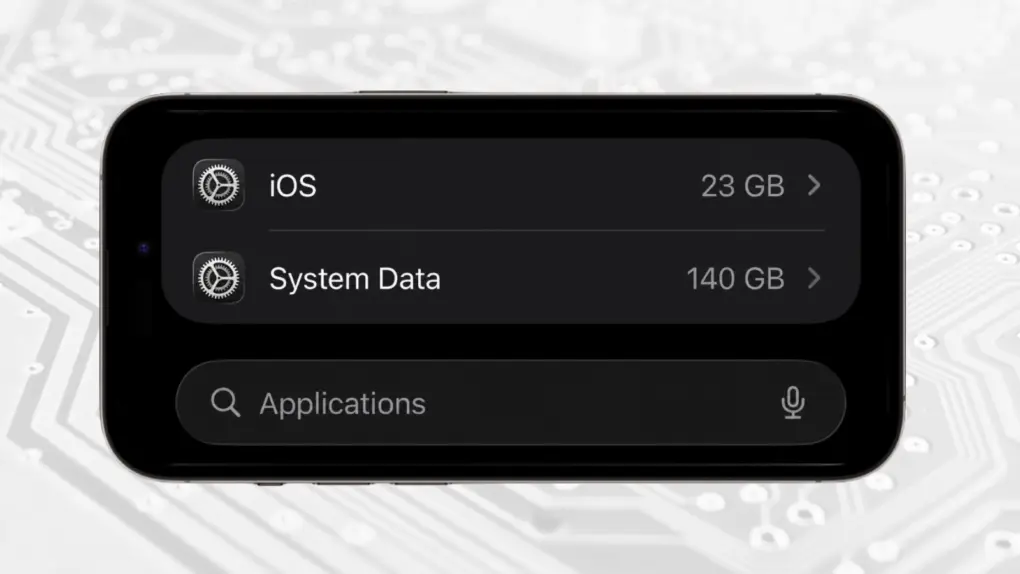
If your iPhone is running short of space, the culprit might be a bug in iOS that causes System Data to grow out of control.
It can be a serious problem. Gigabytes of storage can be choked with useless data, preventing you from using it.
Here’s what to do if your iPhone is running out of space because of an enormous iOS System Data collection. And it doesn’t require deleting your precious photos and apps.
Fixing your iPhone’s expanding iOS System Data problem
System Data in iOS is a catchall for caches, logs, dictionaries, Spotlight indexes databases, and more. The operating system temporarily stores these files because keeping frequently accessed information locally can make the phone faster. But when the space is needed for something else, iOS is supposed to remove those files.
The problem is that sometimes that automatic cleanup process doesn’t work properly. I’ve seen complaints of System Data growing by tens of gigabytes and, in extreme cases, more than 100GB.
There’s a fix. Actually, there’s a collection of fixes which you can apply until your iPhone System Data shrinks to something reasonable.
Defining the problem: How much System Data is on your iPhone?
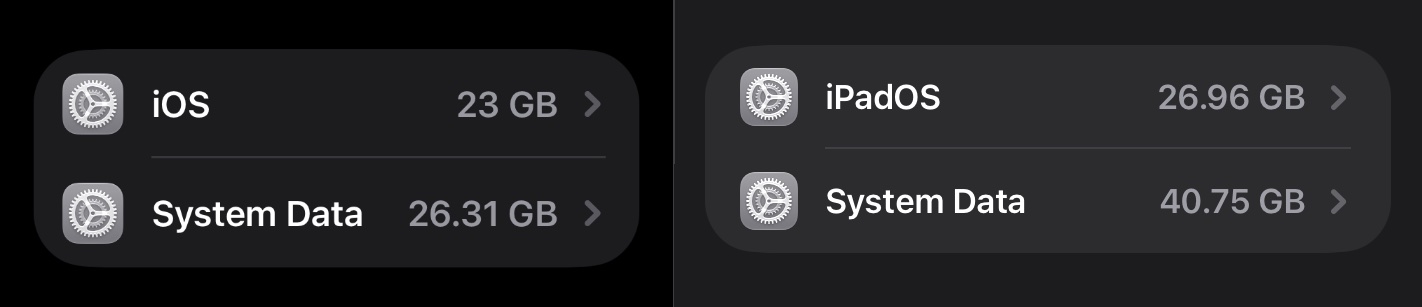
Image: Ed Hardy/Cult of Mac
To find out if your iPhone has a problem, begin by going to Settings > General > iPhone Storage. Scroll down until you see the listings for iOS and System Data.
As a rule of thumb, System Data of 5GB to 20GB is fairly typical on a modern iPhone. Once it climbs beyond about 30GB, though, it might be worth your time to shrink it down. And anything at 50GB or more is problematic.
Starting simple: Reboot your iPhone
One potential fix is easy enough that everyone should try it: restart your iPhone. A restart can clear some temporary files and force iOS to recalculate how much storage is actually being used.
I recommend doing a force restart. Quickly click the handset’s Volume Up button, then Volume Down, then hold the side button in until you see the Apple logo.
A force restart can clear or reset temporary system processes, stuck caches and other simple problems that a normal restart won’t.
After restarting, return to Settings > General > iPhone Storage and see whether the System Data number has changed. Just note that it may take a few minutes for the storage breakdown to update.
Update to the latest version of iOS
If your iPhone is running an older version of iOS, install the latest available update. One of the main reasons Apple puts out iOS patches is to fix bugs. Maybe it’s fixed the one that causes your iPhone to build up so much System Data.
Go to Settings > General > Software Update to get started with this process.
Clear Safari’s accumulated data
Screenshot: Ed Hardy/Cult of Mac
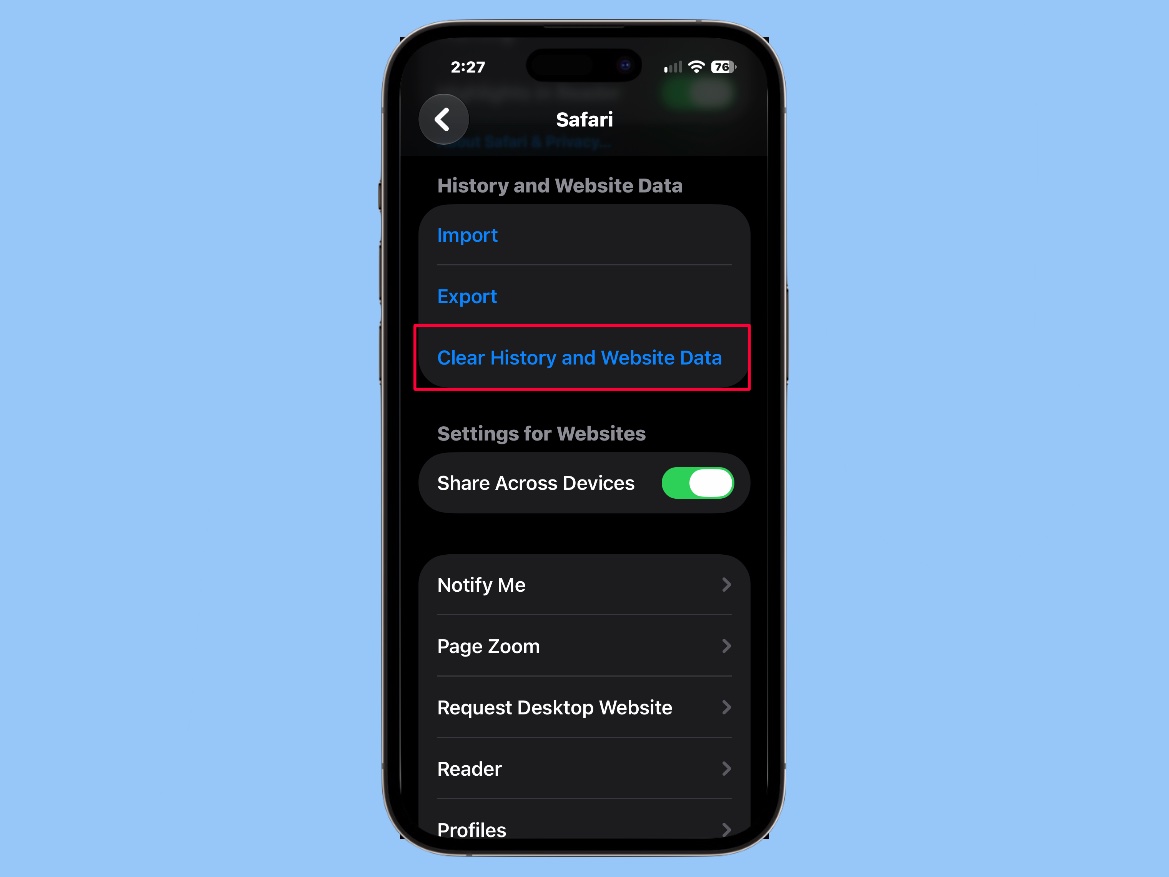
The Safari web browser can easily build up clutter… so easily that Apple built a way to clear it out into iOS.
Go to Settings > Apps > Safari, then tap on Clear History and Website Data.
This isn’t going to magically eliminate 100GB in every case, but Safari data might be the cause of smaller buildups of System Data.
The nuclear option: Erase the iPhone
If you’ve tried all these and System Data remains stubbornly near or above 50GB, it’s time for drastic measures. The most reliable solution is to back up the iPhone, erase it, then set it up again using the backup. This is obviously a hassle, but it should eliminate accumulated system data that iOS has otherwise failed to clean up.
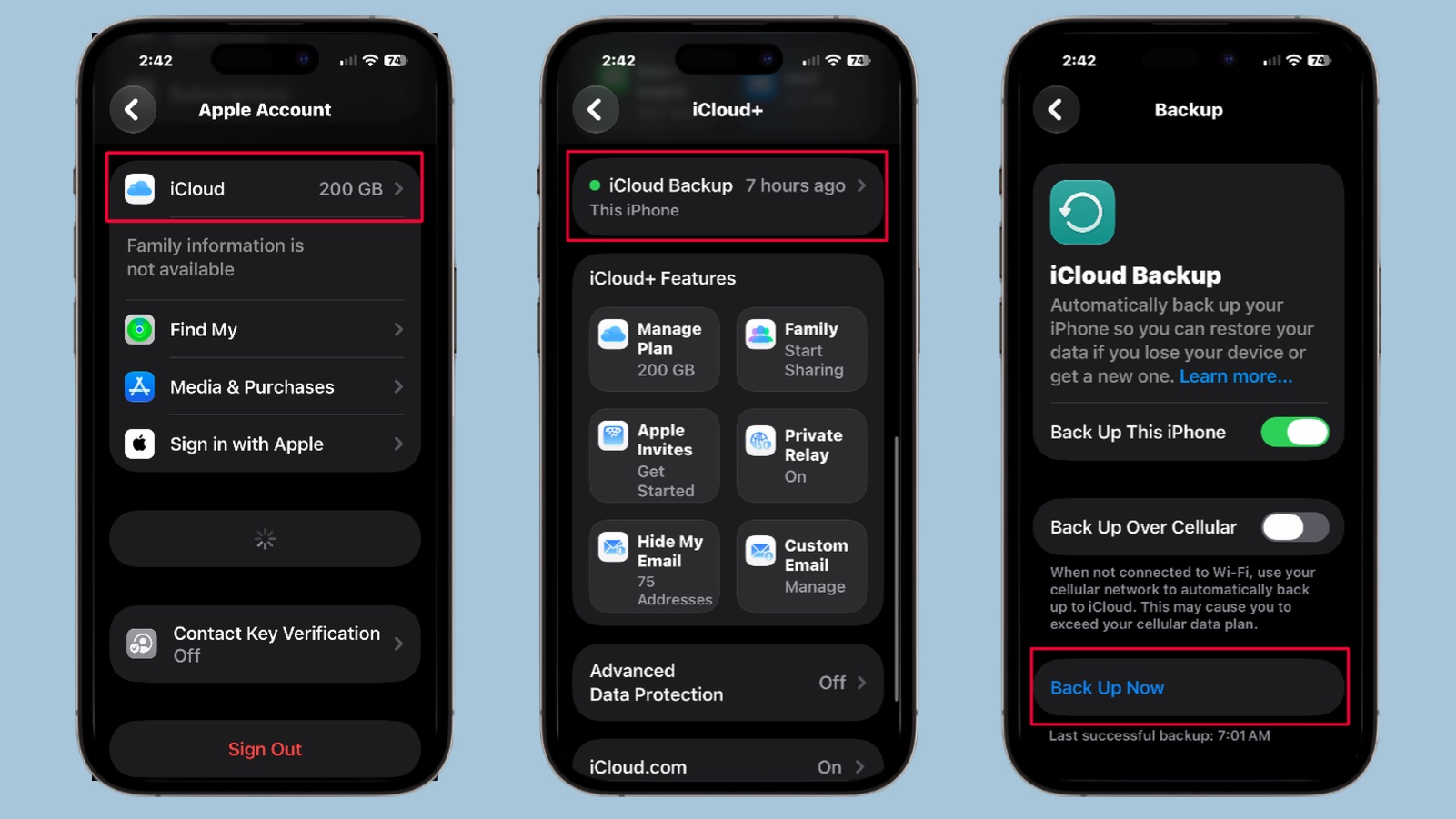
Start by making sure your important information is safely backed up. Open Settings on your iPhone. Tap your name at the top of the screen to open your Apple Account settings.
Screenshots: Ed Hardy/Cult of Mac
Next, Tap iCloud then iCloud Backup. Make sure Back Up This iPhone is turned on, then tap on Back Up Now. Those problematic System Data files won’t be copied over.
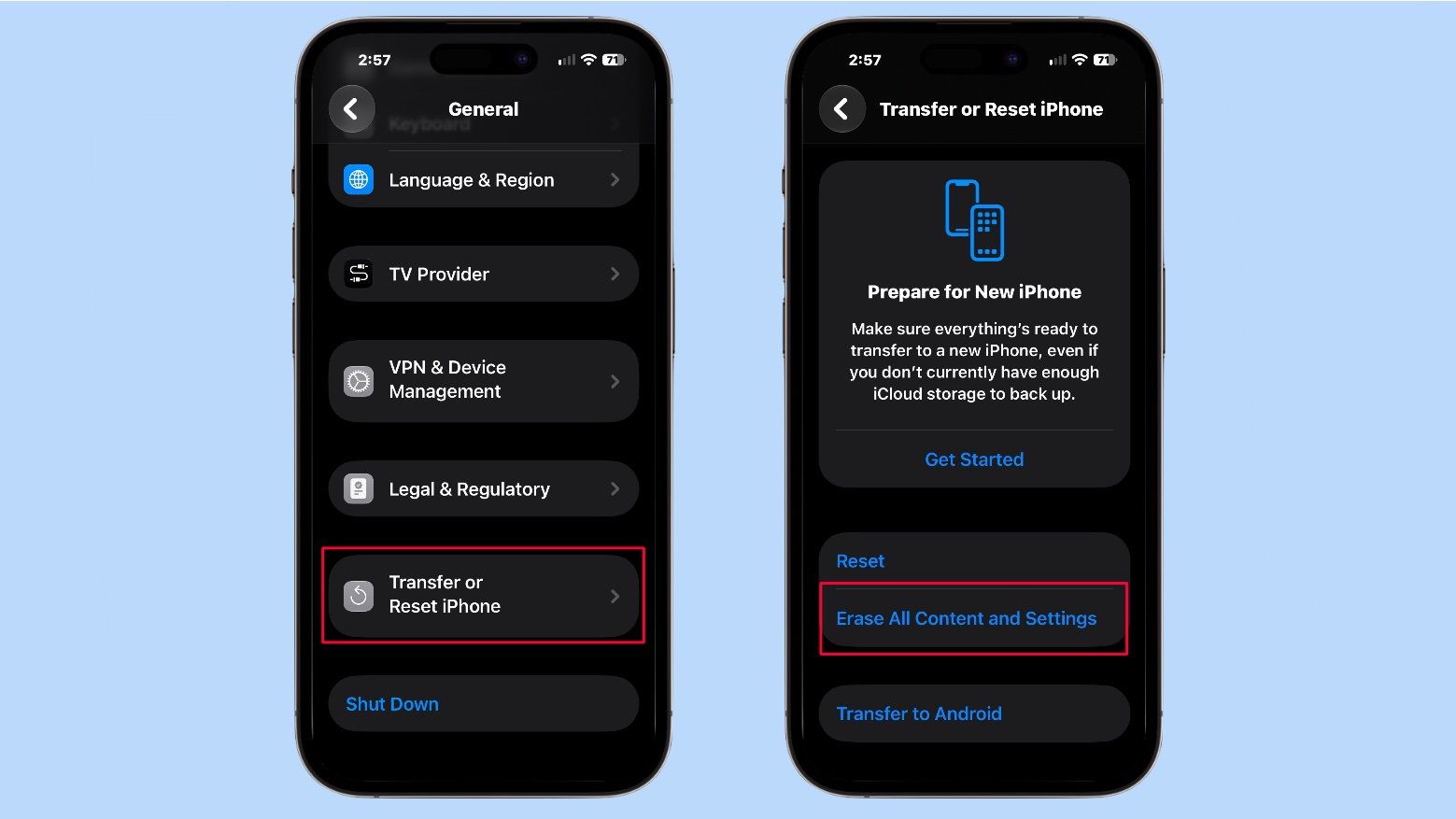
Wait while the backup takes place. Then erase the device.
Screenshots: Ed Hardy/Cult of Mac
To do this, go to Settings > General > Transfer or Reset iPhone and tap on Erase All Content and Settings.
Once the iPhone has self-erased, you can restore from your backup during the process of setting up the device again. The old System Data wasn’t part of this process, so those files are gone.
That should have put your iPhone’s iOS System Data back to a normal amount.

Ed Hardy has been writing full-time about tech for 26 years, and using it for much longer than that. His intro to Apple was a Macintosh SE/30 (which he still has), but now he uses a 13-inch iPad Pro as his primary computer.
That’s because he’s a “tablet first” type of guy. Rather than use a Macbook, he connects a keyboard case to the iPad. And instead of a desktop Mac, he connects his tablet to a 27-inch display and full-size keyboard. (So don’t try to tell him that everyone has to use a Mac to be productive.)
Before coming to Cult of Mac, Ed wrote for NotebookReview, TabletPCReview and Brighthand, as well as other sites.

