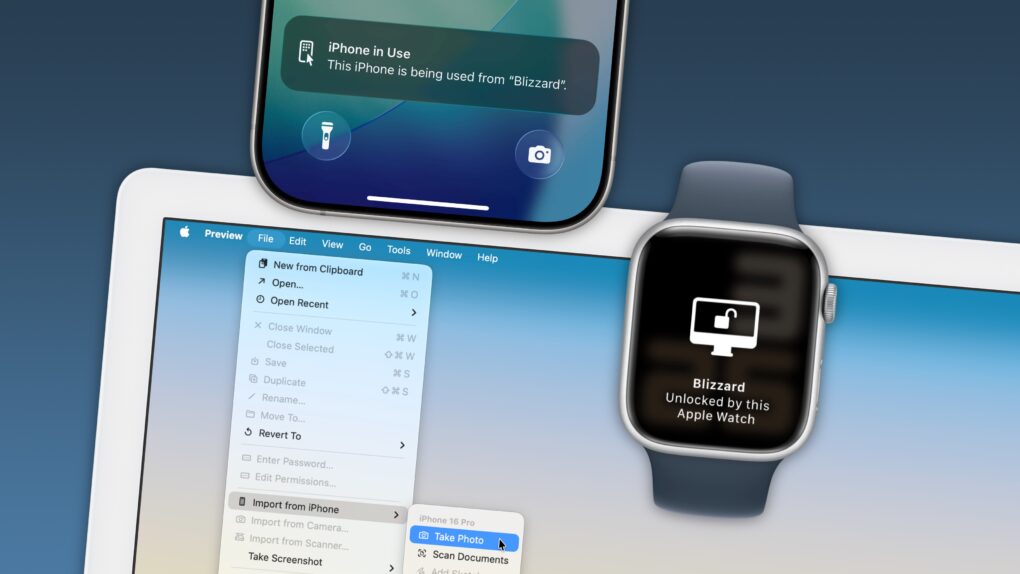
Nothing illustrates the power of Apple’s ecosystem like the Continuity features that help your Mac, iPhone, iPad and Apple Watch work seamlessly together.
Thanks to Continuity, your iPhone can serve as your Mac’s webcam — and you can remotely control your iPhone from your Mac. You can start an email on one device and instantly pick it up on another. You can use the same keyboard and mouse with a Mac and iPad, copy and paste across devices and more.
These features flex the power of Apple’s hardware and software — and they would never be possible on a PC.
In this post (and the accompanying video), I will show you some of the time-saving, annoyance-busting Continuity features you can enjoy when you go all-in on the Apple ecosystem.
This post contains affiliate links. Cult of Mac may earn a commission when you use our links to buy items.
How to use Apple’s 7 best Continuity features
Apple’s Continuity features aren’t tricks. They’re effective tools that ease the friction of context switching. What looks like a handful of convenience features — for instance, dragging a cursor from one screen to another or copying text on one device and pasting on another — is really about dissolving the boundaries between iOS, macOS, watchOS and iPadOS.
In a world where productivity often stutters at the seams between devices, Apple’s tightly coupled ecosystem lets you start a task on one device and finish it somewhere else. For anyone deep in the Apple universe, these Continuity tools are the glue that turns discrete gadgets into a single, fluent digital environment. And most users don’t even realize they’ve been working with all this magic under the hood.
If you own multiple Apple devices and don’t know about these Continuity features, you’re missing out on some truly useful functionality. You can see all of these in action in this video (or read more about them below):
Table of contents: How to use Apple’s 7 best Continuity features
- No. 1: Continuity Camera
- No. 2: Handoff
- No. 3: Universal Control
- No. 4: Universal Clipboard
- No. 5: iPhone Mirroring
- No. 6: Import from iPhone
- No. 7: Unlock Mac with Apple Watch
- Bonus: Even more Apple Continuity features
No. 1: Continuity Camera
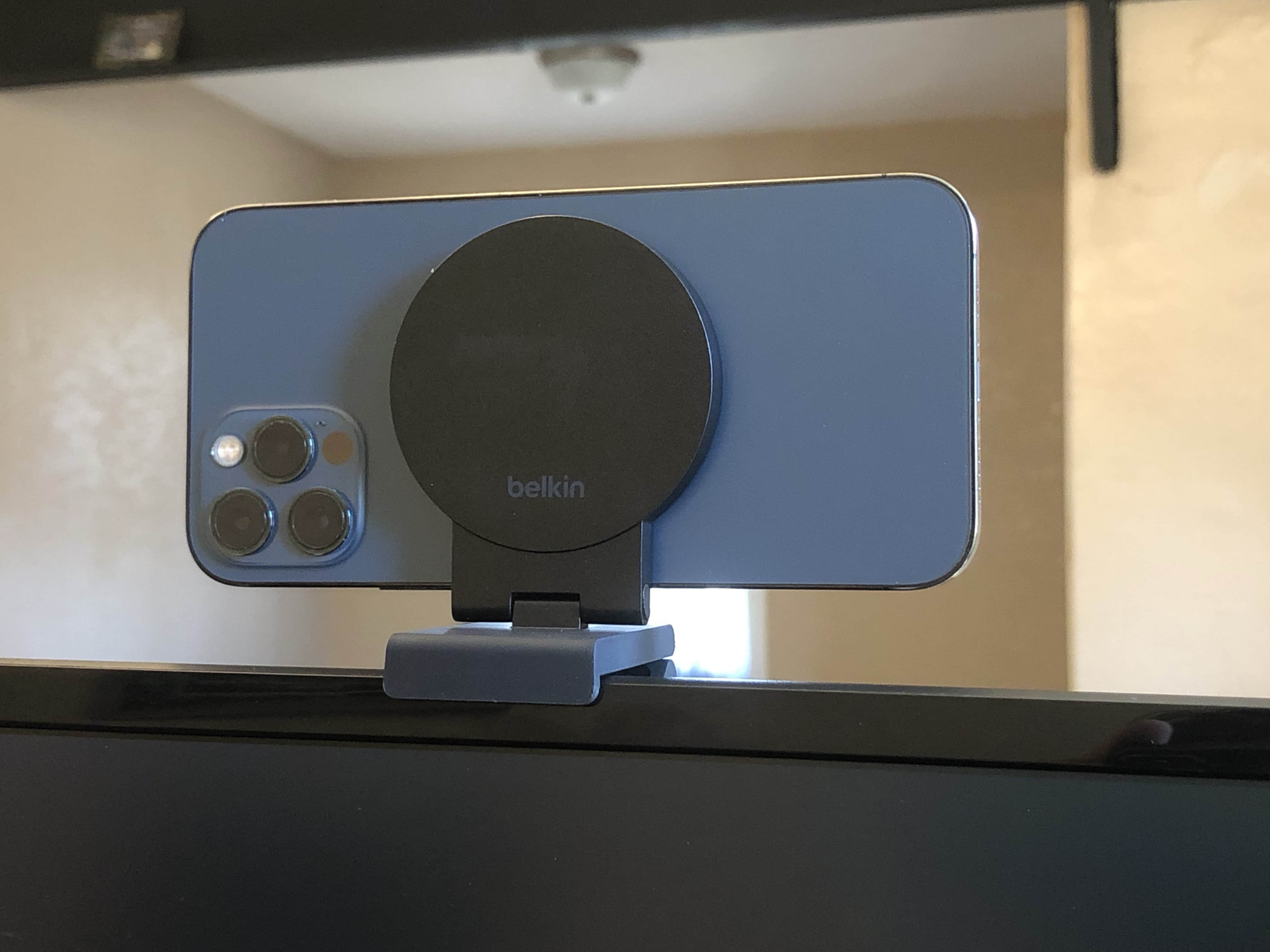
Photo: D. Griffin Jones/Cult of Mac
If you want to up your camera game on your Mac, look no further than the camera you already carry in your pocket. You’re not going to find a better one than that. With Continuity Camera, your iPhone can serve as your webcam for better FaceTime, Teams, Zoom and Webex calls — any video chat on your Mac.
To use Continuity Camera, you need an iPhone introduced in 2018 or later and a Mac running macOS 13 Ventura or later. Lock your iPhone and put it on a tripod or a mount next to your Mac, sitting horizontally. That’s pretty much it. I didn’t even buy a webcam for my desktop Mac when I upgraded earlier this year. I count on Continuity Camera, using my iPhone with this Belkin MagSafe display mount.
Attach your iPhone securely to your MacBook or Mac desktop display with this durable metal mount. It’s perfect for Continuity Camera, FaceTime calls, video conferencing, content capturing and more.
- Use your iPhone with Continuity Camera
- Works with most desktop displays
- Compact, premium design
- Requires an iPhone with MagSafe (iPhone 12 or later, not including iPhone 16e)

No. 2: Handoff
Screenshot: D. Griffin Jones/Cult of Mac
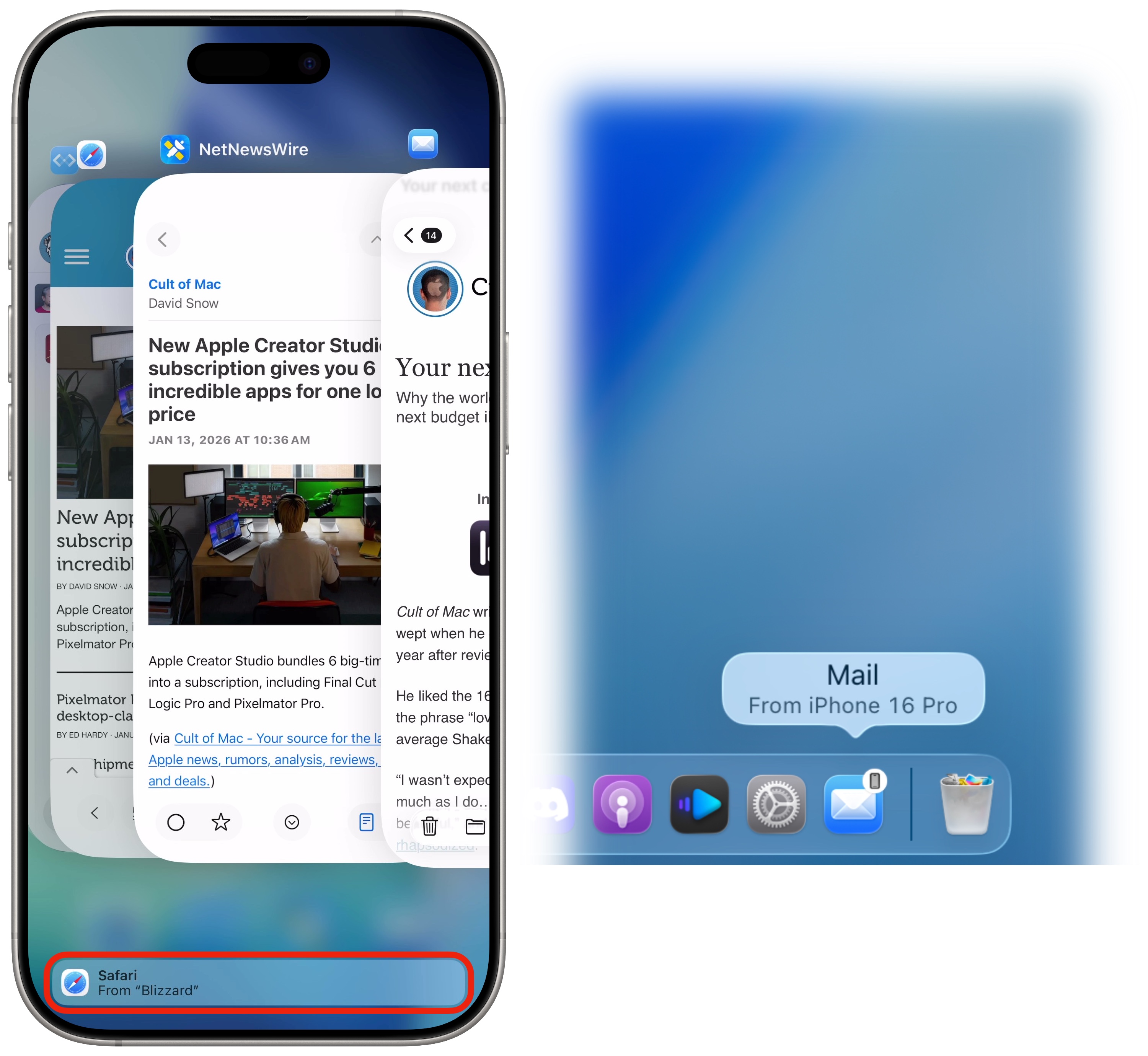
Handoff is the first Continuity feature that Apple introduced — and it’s probably the most overlooked. Whatever you’re doing on your Mac, you can switch to doing on your iPhone or iPad. Just open the App Switcher on your iPhone (the multitasking screen when you swipe up), go to the app you were using, and tap on the bubble at the bottom to pick up right where you were.
Handoff works the other way around, too. If your iPhone is open, you’ll see an icon in your Dock to move it to your Mac.
This hand Continuity feature works in Safari, Messages, Mail, Calendar, Reminders, Notes — just about all of Apple’s apps. (It even works with Apple Watch.)
You can use Handoff with some third-party apps, too. Check to see if any Mac and iPhone apps you use support this handy feature.
No. 3: Universal Control
Screenshot: Apple
Anytime I have two Macs sitting next to each other, I inevitably get the keyboards and trackpads confused. I catch myself wiggling the mouse or typing on the keyboard directly in front of me, wondering why nothing is happening, only to realize I’m looking at the wrong computer.
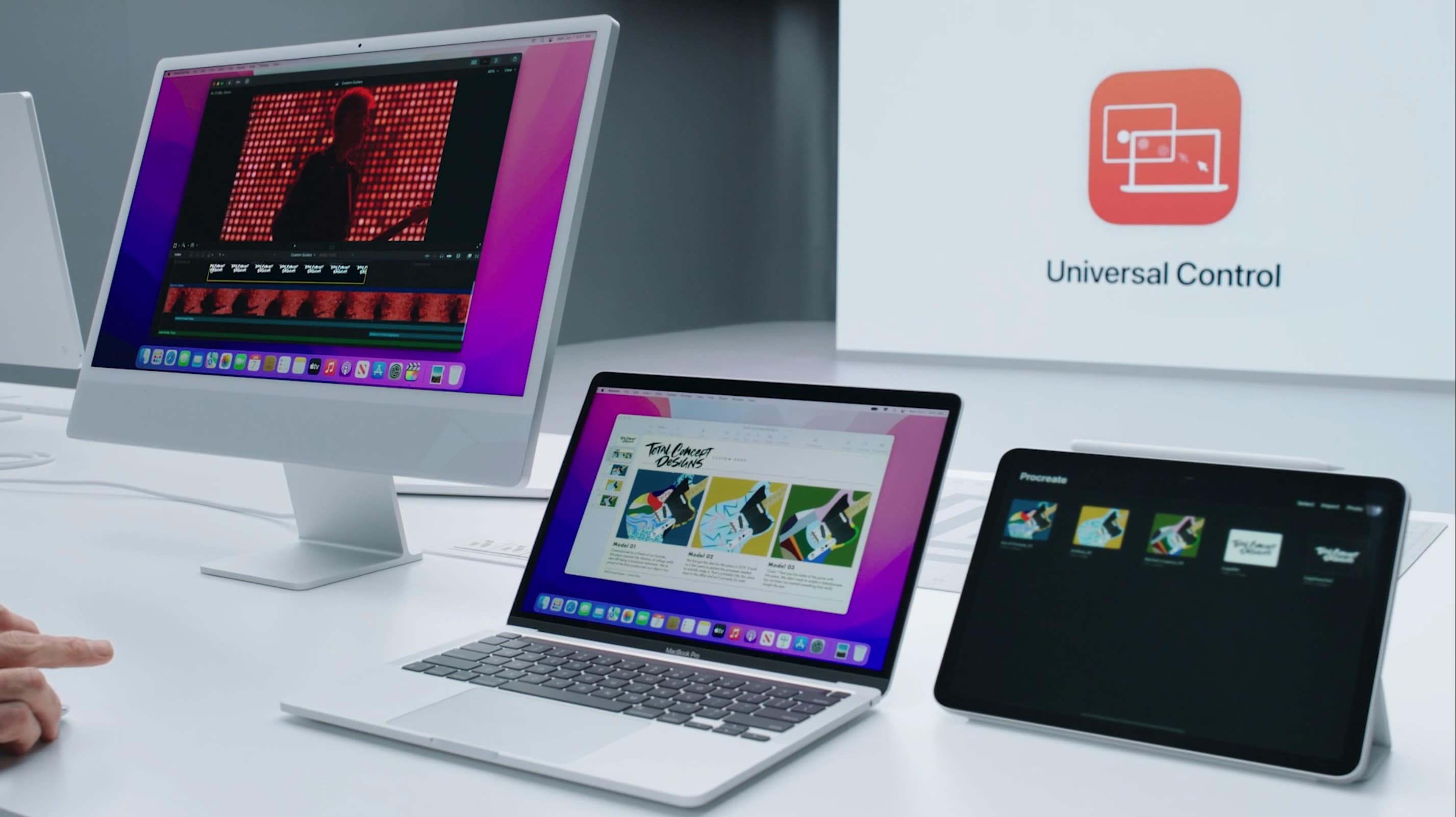
Apple cooked up an elegant solution to this problem: Universal Control. With two Macs, or a Mac and an iPad — up to three such devices sitting next to each other — you just drag your cursor all the way to the edge of the screen, then keep dragging until it pops over to the other device. Mouse and keyboard input will transfer seamlessly.
Obviously, you can’t use this on someone else’s device. Both computers need to be signed into the same Apple Account. An unfortunate downside to that security measure is that Universal Control won’t work if you use a personal Mac and a work Mac, as they likely have separate Apple Accounts. (If not, what the hell are you doing with your personal Apple Account on a work computer? Get that off of there!)
No. 4: Universal Clipboard
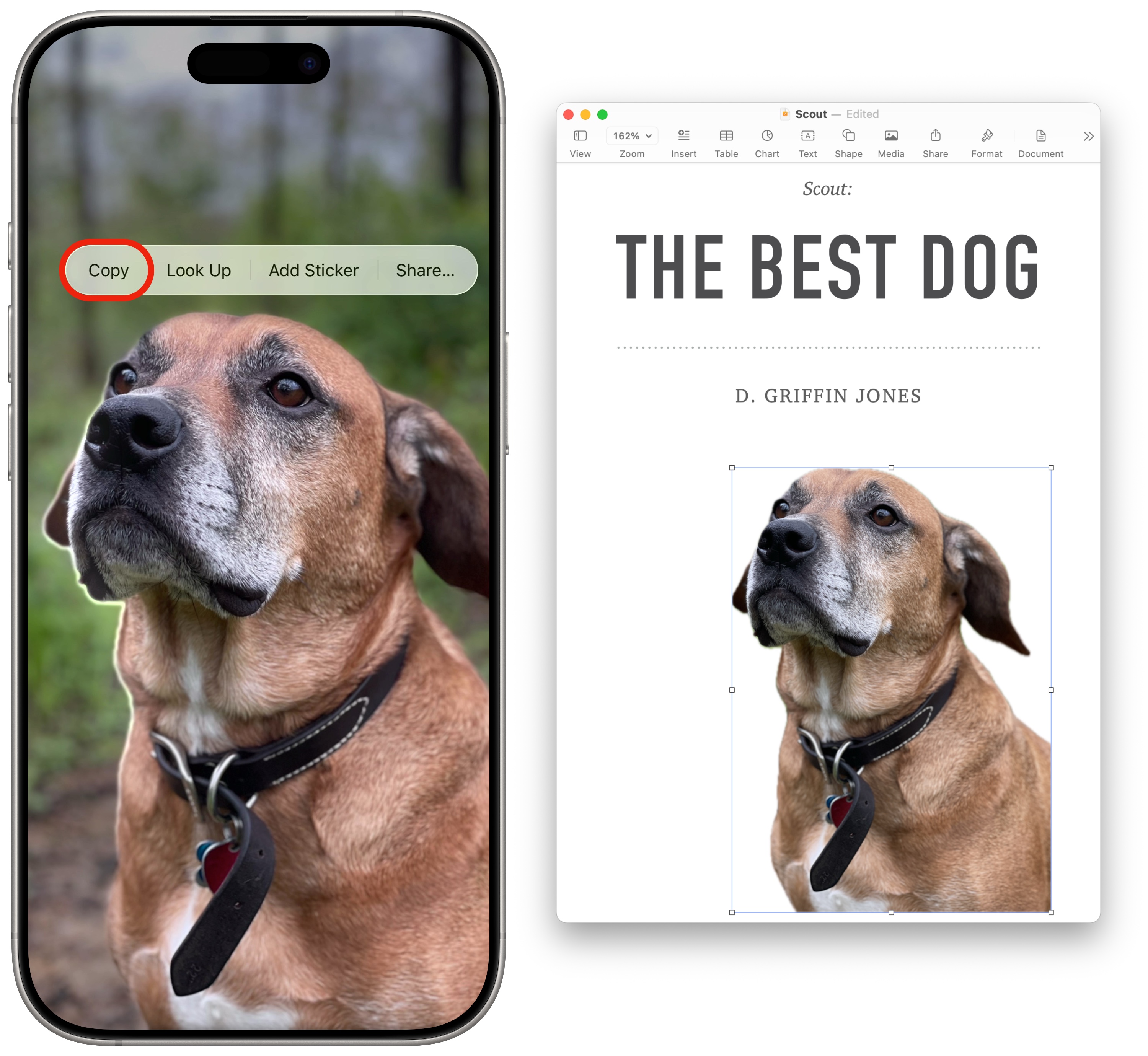
Screenshot: D. Griffin Jones/Cult of Mac
Sometimes you have a product serial number or a complicated password on one device, and you need to slowly retype it by hand on another. Unfortunately, this is the only way and no solution exists.
No, of course there’s a better way. It’s called Universal Clipboard, and it is one of the greatest features ever.
If you copy something on your iPhone, just try hitting paste (⌘V) on your Mac. It might take a split second, but it will magically appear on your Mac.
Need to send a picture to your computer? Have a file you want to look at on your Mac? Universal Clipboard is the first thing I try, simply because of the headache this amazing Continuity feature saves.
No. 5: iPhone Mirroring
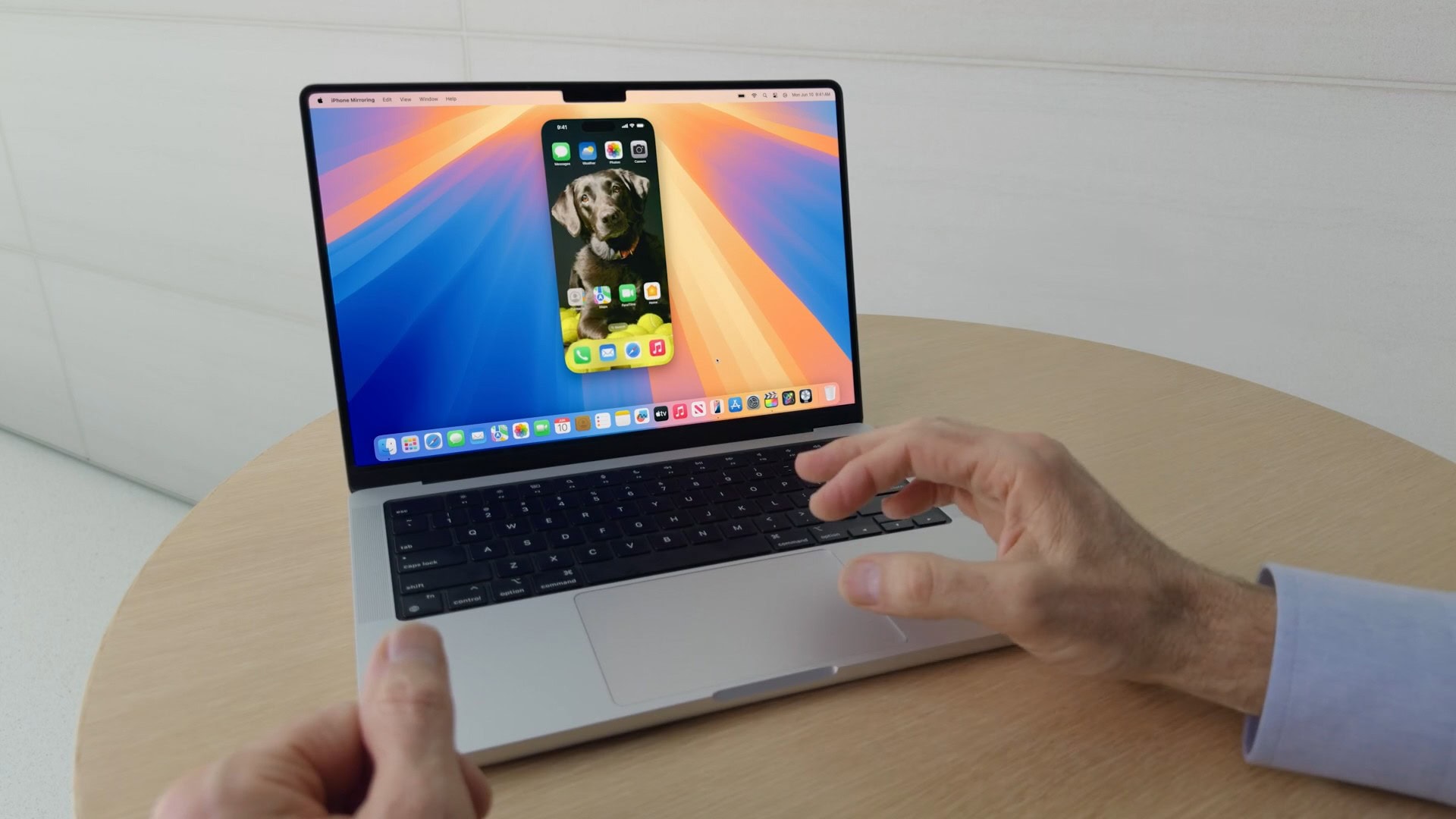
Photo: Apple
Introduced in macOS Sequoia, iPhone Mirroring lets you control your iPhone using your Mac — a handy convenience when your phone is in your pocket, purse or backpack. This feature works on macOS 15 Sequoia and iOS 18 or later. Just launch the iPhone Mirroring app to set it up.
Controlling your iPhone this way proves pretty intuitive. A click of the mouse simulates a tap on the screen. If you’re using a Mac with a trackpad or Magic Mouse, you can swipe across the surface to freely scroll in any direction. If you have a traditional mouse, you can use the scroll wheel to go up or down, or click and drag the mouse button to scroll left and right.
Audio from videos, music or podcasts playing on your iPhone will come out of your Mac speakers while mirroring. This means you can use apps like Nintendo Music on your phone, with audio playing through your Mac speakers or headphones.
All your iPhone notifications can be mirrored onto your Mac as well, letting you triage them and take care of business without touching your phone and interrupting your workflow.
Read more in our how-to on iPhone mirroring.
No. 6: Import from iPhone
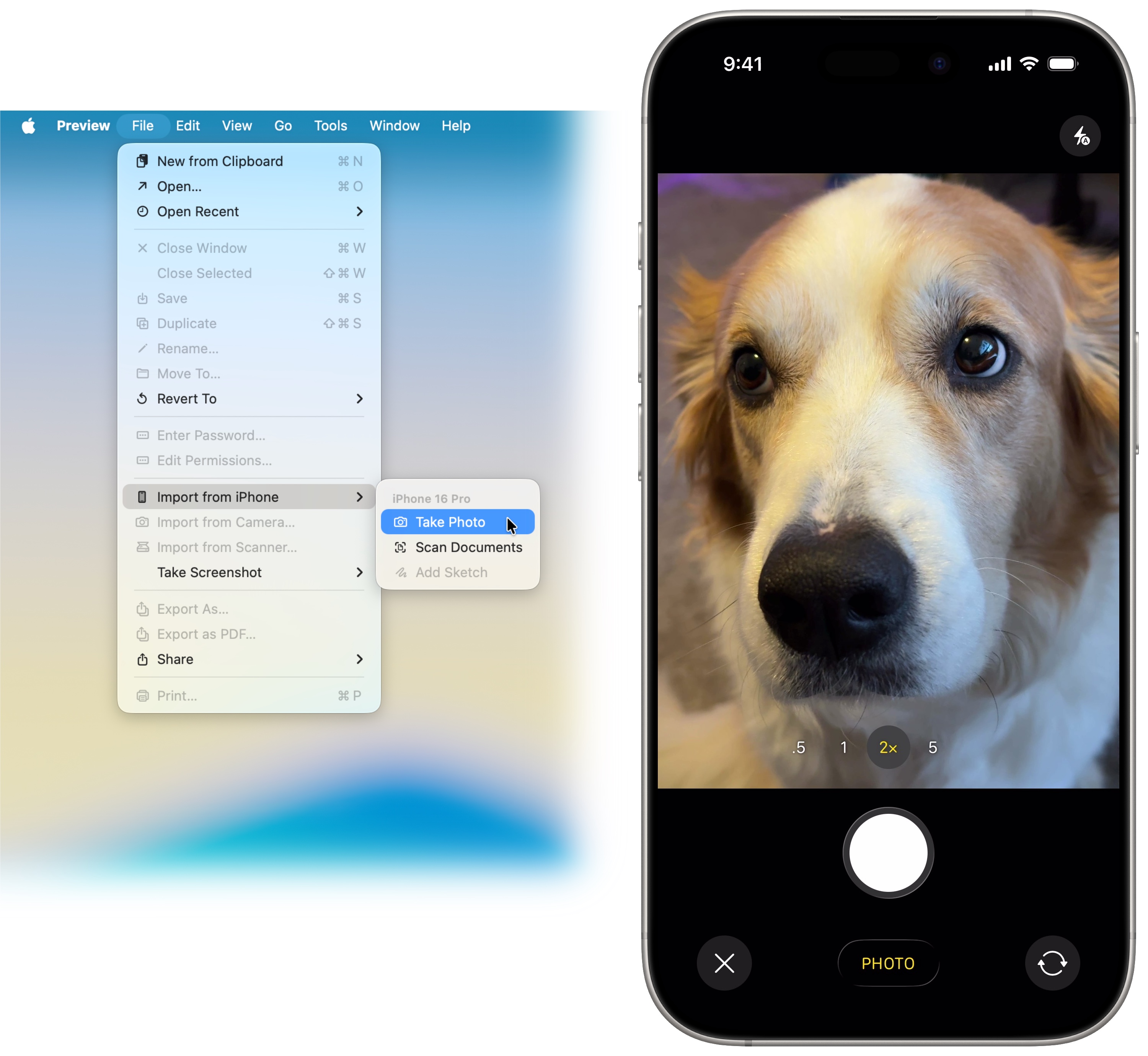
Screenshot: D. Griffin Jones/Cult of Mac
Picture this: You’re using your Mac to fill out a web form for insurance, banking, health care, a travel website (the four horsemen of the apocalypse bad web design), and suddenly the company wants you to upload a picture of an ID or some document. Suddenly, you wonder if you should have been using your iPhone all along.
Worry not — thanks to another great Continuity feature, you can use your iPhone to take a picture on your Mac, without any middle steps of AirDropping, emailing or iMessaging yourself.
On your Mac, open the Preview app and go to File > Import from iPhone > Take Photo. Then take out your iPhone and the Camera app should open. After you snap the shot, the photo will appear on your Mac. You can use Preview to export the image in whatever file type is required (and to conform to any size constraints).
No. 7: Unlock Mac with Apple Watch
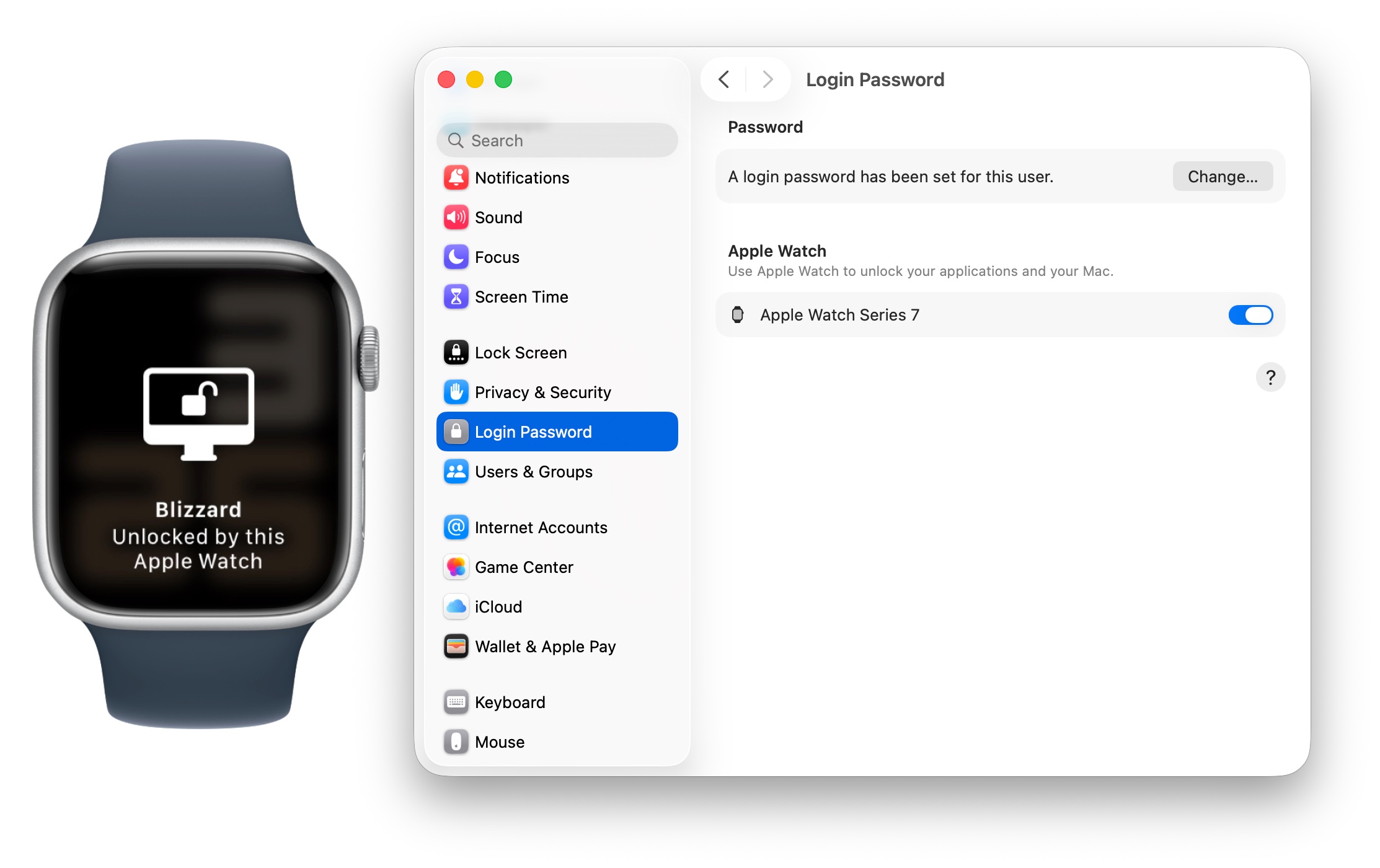
Screenshot: D. Griffin Jones/Cult of Mac
Touch ID is a wonderful addition to the Mac. With it, you don’t need to type in your password every single time, you just touch a special key. But maybe when you’re at your desk, your laptop is closed or you want to use a different keyboard — and you can’t use the feature. If you wear an Apple Watch, there’s an easier way to unlock your Mac.
Go to System Settings > Login Password and enable your Apple Watch to unlock your Mac. It’s honestly just as fast as using Touch ID. With this Continuity feature enabled, I typically sit down, hit a key or click the mouse, and I’m greeted by my Mac desktop before my display even wakes up.
Using this feature for a while encouraged me to switch to a longer, harder-to-type Mac password. It’ll be harder to guess if some creep ever steals my computer, and it doesn’t cost me any convenience since I rarely need to type it in.
Bonus: Even more Apple Continuity features
There are even more Continuity features available. You can forward text messages and phone calls to all your devices, create an instant hotspot when you lose your Wi-Fi signal, and even sign off on an Apple Pay transaction on your Mac using your Apple Watch.
We originally published this article about Apple’s best Continuity features on July 15, 2023. We updated it with the latest information on August 26, 2024, and January 23, 2026.

D. Griffin Jones is a writer, podcaster and video producer for Cult of Mac. Griffin has been a passionate computer enthusiast since 2002, when he got his first PC — but since getting a Mac in 2008, he hasn’t turned back. His skills in graphic and web design, along with video and podcast editing, are self-taught over 20+ years. Griffin has a bachelor’s degree in computer science and has written several (unpublished) apps for Mac and iOS. His collection of old computers is made up of 40+ desktops, laptops, PDAs and devices, dating back to the early ’80s. He brings all of these creative and technical skills, along with a deep knowledge of Apple history, into his work for Cult of Mac.

