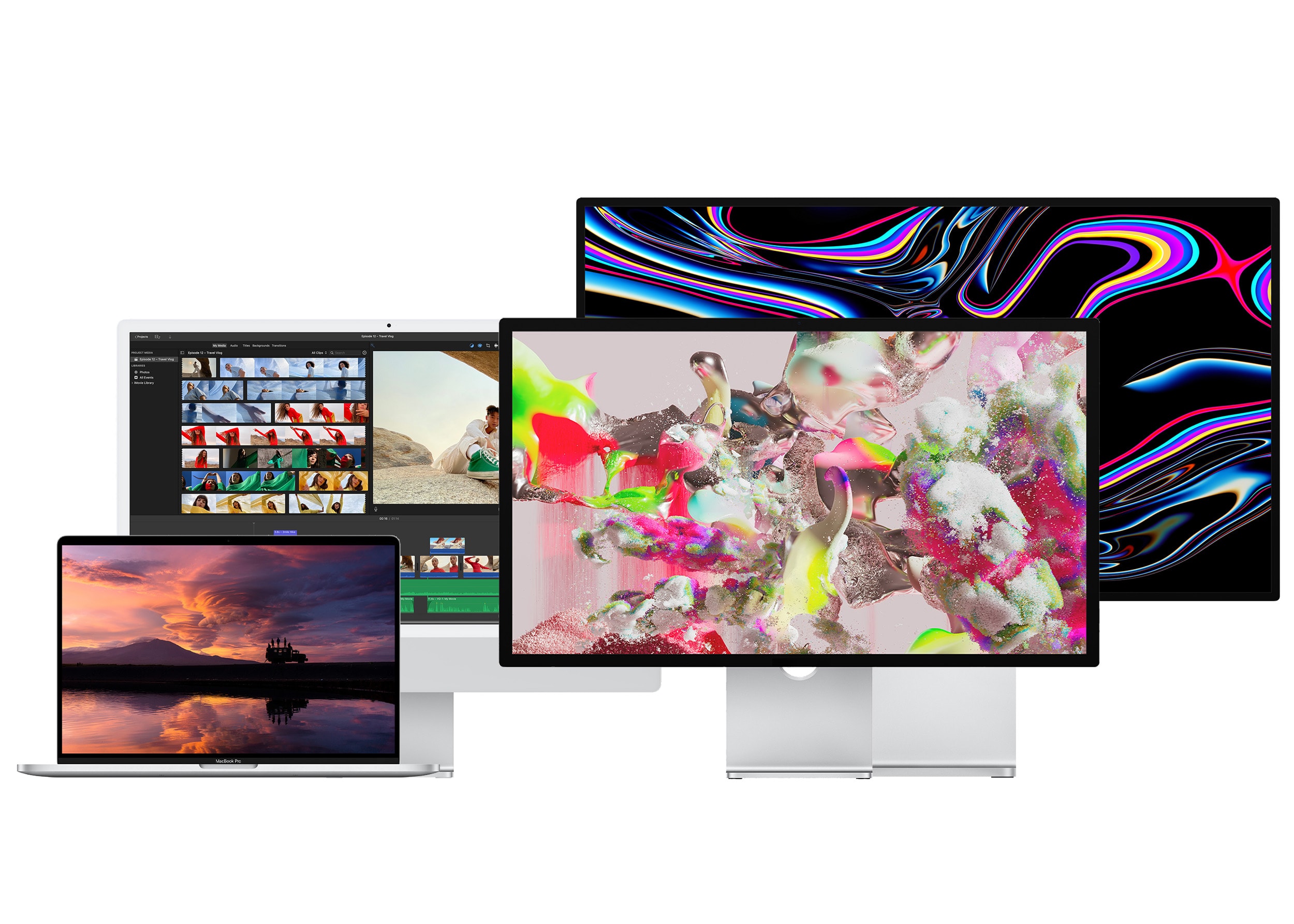
If you’ve shelled out hundreds or thousands of dollars on a new computer, you’ll want the best monitor for your Mac to go along with it. There are many different kinds to choose from.
Macs and MacBooks play nicely with Retina displays, which have twice the pixel density and four times the resolution. But they can also be quite pricey — while there are new third-party options that are half the price of Apple’s, the cheapest is still around $800. You can choose from standard 27-inch displays, ultrawide panels with acres of screen space, or even small monitors ideal for a crowded dorm room desk.
Here’s a display buying guide to help you find an appropriate monitor to go with your Mac.
This post contains affiliate links. Cult of Mac may earn a commission when you use our links to buy items.
Our guide to the best monitor for your Mac
Desktop displays aren’t just for desktop Macs anymore.
While a vast majority of people buy MacBooks, you probably want a nice setup when you’re at home. If you pick the right display with a built-in dock, you can use a single cable to charge your MacBook, drive the display and connect all your peripherals.
And if you do have a Mac mini or Mac Studio, your choice of display has a huge impact. It is your only window into your computer. Check out our top picks for each category below.
Table of contents: Best monitor for Mac
- Best Retina display for Mac
- Best standard display for Mac
- Best ultrawide display for Mac
- Best small display for Mac
- Mac monitor comparison table
- Additional buying advice: Retina display, nits and more
Best Retina display for Mac
1. ViewSonic VP2788-5K • Best monitor for a Mac mini
This display matches the 27-inch size and 5K resolution of the Apple Studio Display for much less. It also features bright P3 color that’s been tested for accuracy.
It also features a built-in Thunderbolt 4 dock, for adding a plethora of ports to your setup within easy reach, and better build quality than other displays we’ve tested.
- Big size and resolution
- Thunderbolt 4 hub
- Vivid, accurate colors
- No HDR

- Size: 27-inch screen
- Resolution: 5120 × 2880 (Retina)
- Price: $949.99
In my personal opinion, the best overall display for a Mac is the ViewSonic VP2788-5K. It has specs comparable to Apple’s own Studio Display, with a super-high-resolution 5K panel in a desktop-class 27-inch size with 99% P3 color. In fact, it even has a higher 75 Hz refresh rate. It’s the best monitor for a Mac mini, which doesn’t have a built-in display of its own.
Most displays have a few extra ports on the back, but sometimes you need to plug in an extra cable to use them. This ViewSonic model has full Thunderbolt 4 support, which means you can plug it in with a single cable and use all of its extra ports — two USB-A and three USB-C ports.
The display comes with a stand that raises, lowers tilts and rotates. The controls are really simple; it has a power button and a four-way directional button for navigating the settings menu.
The build quality is top tier, as far as plastic monitors go.
Buy from: Amazon
2. Asus ProArt 5K PA27JCV • Cheapest Retina monitor
- 5K Retina resolution
- Big 27-inch display
- Bright, vivid colors with P3 wide color
- Creaky plastic body
- No built-in camera or speakers
- 60 Hz refresh rate
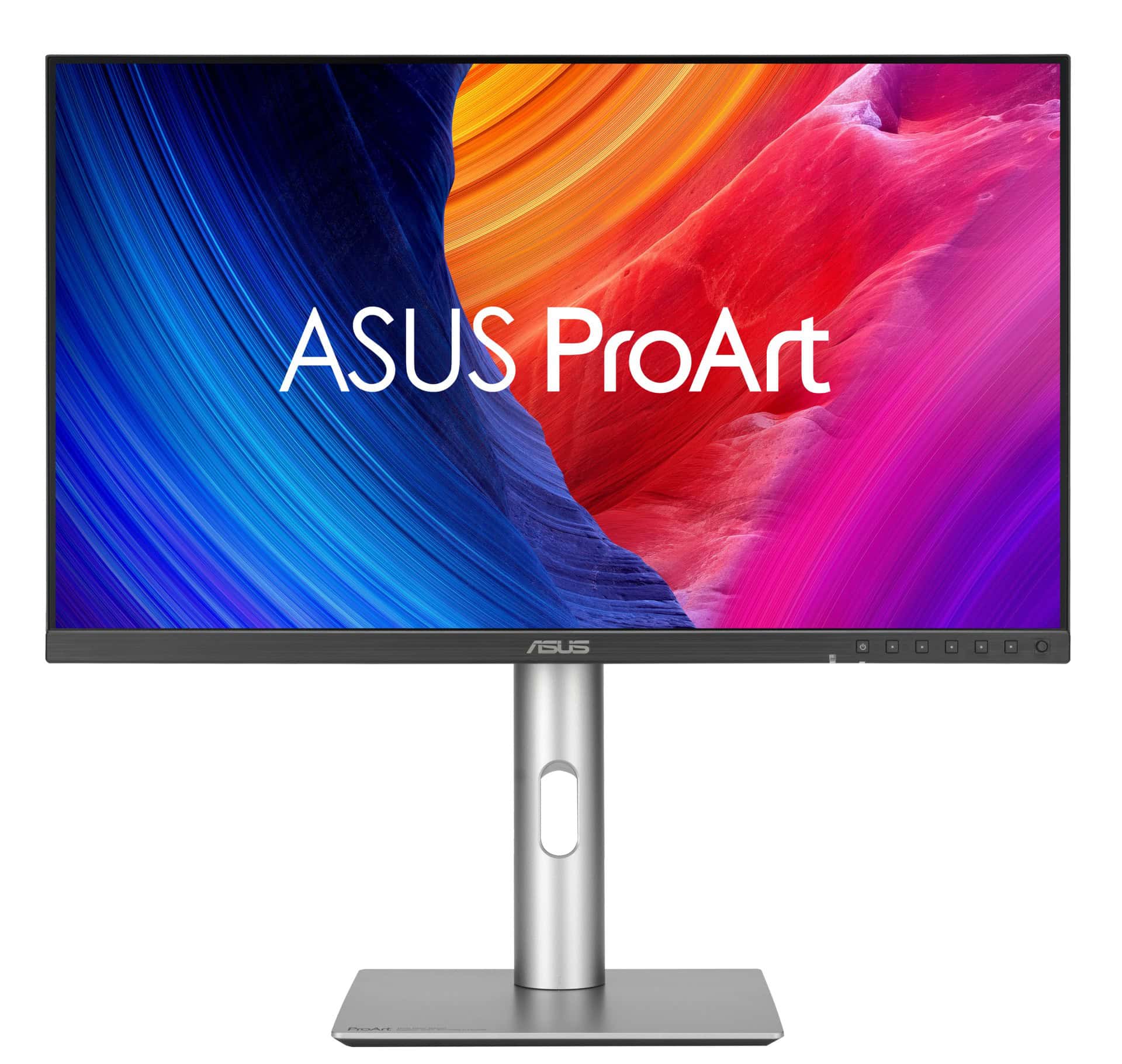
- Size: 27-inch screen
- Resolution: 5120 × 2880 (Retina)
- Price: $849
You can save nearly half the price with the Asus ProArt 5K display, one of the cheapest 27-inch 5K displays on the market. Like all the other Retina displays, it still has an IPS panel for a wide viewing angle without color distortion, and a wide 99% P3 color gamut.
It has a slim bezel around the top and sides with a black and silver plastic body. While it technically hits the minimum standard for HDR, it’s only 500 nits — a little less bright than the Apple Studio Display.
It skips the built-in camera and microphone, and its speakers aren’t much to write home about. I was also not impressed by the creaky build quality.
But what really matters is the display itself, there’s no better way to get 5K resolution at this low of a price. The list price is $849, but it’s easy to find on sale for $799 or less.
Buy from: Amazon
3. LG UltraFine evo 6K • Best big monitor for Mac
Get the same size and resolution of Apple’s massive Pro Display XDR for a third the price. This display is also a Thunderbolt 5 dock, making it a top choice for newer Macs. Despite its high price, though, it only has a standard refresh rate and brightness.
- Massive 6K resolution
- Thunderbolt 5 dock
- Slim attractive design
- Only 600 nits brightness
- Standard 60 Hz screen
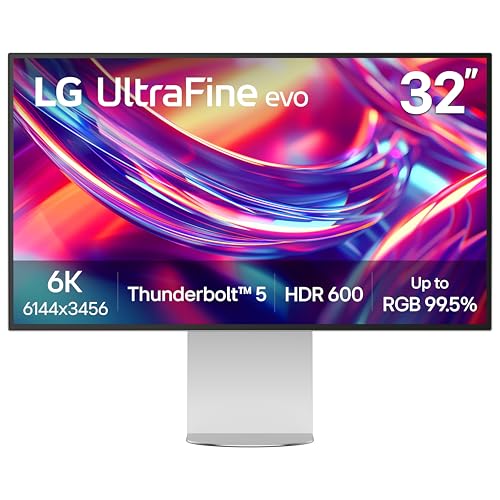
- Size: 32-inch screen
- Resolution: 6144 × 3456 (Retina)
- Price: $1,999.99
If you just want the size and resolution of the Pro Display XDR, the LG Ultrafine evo 6K an alternative with most of the same specs. It matches the display resolution and size at just a third the price.
It’s not just a Thunderbolt dock — it supports the latest generation Thunderbolt 5. With a single cable, you can get 96W charging, power a giant display, all your peripherals and another daisychained Thunderbolt device at twice the data bandwidth.
There is a compromise; it has a slightly lower brightness at 450 nits instead of 500 and a lower contrast ratio. It isn’t a mini-LED display like the Pro Display XDR, which can get up to 1,600 nits for peak HDR brightness.
If you want maximum size and resolution, this is the one to choose.
Buy from: Amazon
4. Apple Studio Display • Best Apple monitor
The 27-inch Apple Studio Display packs an impressive panel coupled with a six-speaker system and studio-quality microphones.
It’s not as beautiful as Apple's Pro Display XDR, but the Studio Display costs thousands less.
- Crystal clear 5K resolution
- Excellent color accuracy
- 12MP Center Stage camera
- Expensive
- Lacks HDR
- Height-adjustable stand costs extra
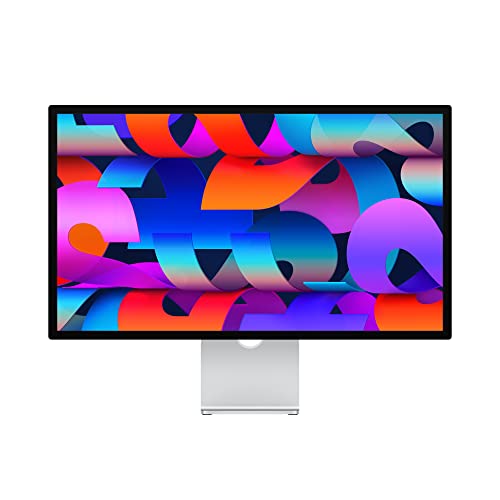
- Size: 27-inch screen
- Resolution: 5120 × 2880 (Retina)
- Price: $1,599
Apple’s own Studio Display is somewhat expensive compared to new competition, but it will play the nicest with a Mac. You never have to turn it on; it comes on automatically when you wake up your Mac or plug it in. You don’t have to fiddle with buttons or clunky controls — you adjust brightness, volume and more from your Mac.
It pairs a very high 5K resolution with a bright panel (600 nits). It doesn’t support high dynamic range (aka HDR) or ProMotion, Apple’s name for an adaptive, high refresh rate. Some reviewers found the Studio Display to be a little short, and upgrading to a height-adjustable stand costs an additional $400. (Apple can do this after purchase — for a price.) You also can put it on a monitor stand.
With rumors of a refreshed Studio Display coming soon, it’s hard to recommend the current model. Competitors offer virtually identical panels in a much cheaper package.
Buy from: Amazon
Buy from: B&H Photo
5. Apple Pro Display XDR • Apple’s top of the line
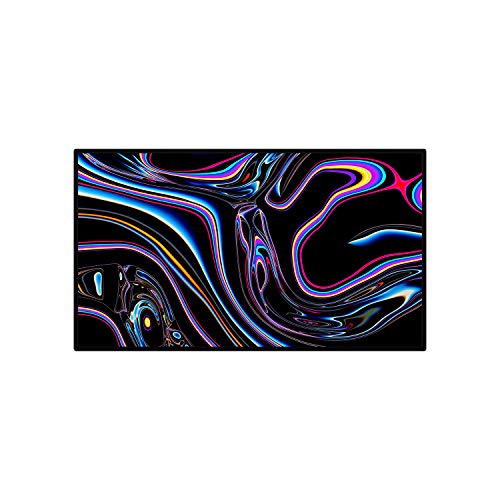
There's no better monitor for your Mac than Apple's 32-inch Pro Display XDR. Apple even sells a variant with a nano-texture glass that helps cut down on unwanted glare.
- Incredible 6K resolution
- Generous screen space
- Nano-texture glass option
- Expensive, and options add more cost
- Size: 32-inch screen
- Resolution: 6016 × 3384 (Retina)
- Price: $5,999 (with stand)
Apple’s best Mac monitor, the Pro Display XDR, comes at a price. A very steep price. The display can deliver up to 1,600 nits of brightness as it supports HDR with a billion colors.
Like the Studio Display, it also comes with one Thunderbolt 3 and three USB-C ports. It uses a standard power connector and lacks a webcam. Admittedly, it’s the only HDR display on the market with such a high resolution. But with rumors of a new Studio Display coming with support for HDR and ProMotion, it’s hard to recommend.
This display has such a narrow use case among professional graphic designers and video editors that if you actually need these features, you don’t need to look at anything else on this list. And if you aren’t absolutely sure that your work requires a display like this, don’t even consider it.
Buy from: Amazon
Buy from: B&H Photo
Best standard display for Mac
1. Samsung S60UA • Best standard Mac monitor
- High 75 Hz refresh rate
- Over a billion colors
- 1440p resolution
- Doesn’t connect via USB-C

- Size: 27-inch screen
- Resolution: 2560 × 1440
- Price: $450
If you take the Retina resolution out of the Studio Display, you get the Samsung S60UA: a 27-inch panel with a 1440p display size.
While the S60UA’s panel is less bright at just 300 nits, it has a slightly higher refresh rate and HDR-10 support. Plus, it comes with a stand that tilts, rotates between portrait and landscape, and swivels left and right.
You can plug it into the new MacBook Pro, Mac Studio and Mac mini directly over HDMI; to use it with a MacBook Air, base MacBook Pro or the new iMac, you will need a Thunderbolt to DisplayPort cable. To use the four USB ports on the back, you will need to connect the included USB-B to USB-A cable. The Samsung S60UA is a great option if you want the biggest high-quality HDR display at an affordable price. You also can buy a 24-inch version for $287.24.
Buy from: Amazon
2. Dell SE2425HM • Cheapest Mac monitor
- High 100 Hz refresh rate
- Standard 1080p resolution
- Doesn’t connect over USB-C

- Size: 24-inch screen
- Resolution: 1920 × 1080
- Price: $109.99
The Dell SE2425HM offers a standard 1080p resolution at 24 inches. Its slightly larger brother, the Dell SE2725HM (Amazon, Dell), offers a 27-inch panel at the same resolution and specs for a bit more.
Like the Samsung S60UA, these displays support a high refresh rate (100 Hz), offer a good contrast ratio (3,000:1) and add an antiglare coating. You can plug it in over HDMI or with an HDMI to USB-C cable.
I have personally used a similar display before — four of them at one PC, in fact — and I can say it offers a good, solid build quality for a plastic body. The downside is that colors are very distorted when you’re not looking directly at it.
Buy from: Amazon
3. Samsung M8 • Best Mac smart monitor
- HDR10+ with over a billion colors
- 4K resolution
- Smart display with built-in apps
- Smart display with built-in apps

- Size: 32-inch screen
- Resolution: 3840 × 2160
- Price: $699.99
The Samsung M8 Smart Monitor packs the same size as Apple’s Pro Display XDR, but with a little more screen space. It’ll look good sitting next to your iMac — and the display will look better in comparison. The M80F offers HDR10+ with a billion colors and a 60 Hz refresh rate, and a moderately bright panel at 400 nits. You can plug it in over USB-C.
This monitor, like the Studio Display, comes with a built-in chip — but unlike Apple’s, this monitor allows you to “browse the web, edit documents and work on projects” on its own. Why you would want to do this on a low-power, low-performance chip running Android instead of your Mac is beyond me, but I will not judge. Well, not a lot.
I would rather save a bit of money on size and “smart” monitor features, instead opting for the aforementioned Samsung S60UA.
Buy from: Amazon
Best ultrawide display for Mac
1. LG 40-inch Curved UltraWide • Best ultrawide Mac monitor
If you want the best ultra-wide Mac monitor, look no further. This single display has acres of resolution. The built-in Thunderbolt 4 dock means you can use a single cable to charge and power your laptop and connect its peripherals.
- 2160p ultrawide display
- Built-in Thunderbolt 4 dock
- 97W charging over USB-C
- Standard 60 Hz refresh rate

- Size: 40-inch screen
- Resolution: 5120 × 2160
- Price: $1,800
At the high end, there is the LG 40-inch Curved UltraWide. Like the Studio Display, it’s powered by Thunderbolt 4 and offers 96W charging for a MacBook Pro.
It’s a curved IPS display with a wide viewing angle, a must-have for a display this size. It supports HDR with a billion colors and the P3 wide color gamut like the Pro Display XDR, although only at 300 nits. Its slightly higher refresh rate of 72 Hz is impressive considering its big resolution. The included stand tilts, raises and lowers, but for obvious reasons, does not rotate to portrait. It comes with a Thunderbolt 4 port with Power Delivery, another Thunderbolt port for a daisy-chained display or storage device, and two USB 3 ports.
It’s expensive, but not when you consider that it’s comparable to buying two monitors, not one.
Buy from: Amazon
2. Samsung ViewFinity S50GC • Cheapest ultrawide Mac monitor
This large monitor from 2023 features 2560 x 1440p resolution, 100Hz refresh rate, 5ms response time, HDR10, AMD FreeSync, Eye Care, virtually borderless design, PIP and PBP (LS34C502GANXZA).
- Spacious screen
- Speedy refresh rate
- HDR 10 with 1 billion colors
- 1440p resolution is sub 4K

- Size: 34-inch screen
- Resolution: 3440 × 1440
- Price: $329.99
An ultra-wide display can be had for cheaper with the Samsung ViewFinity S50GC Monitor, a smaller display with a shorter 1440p vertical resolution.
The advantage of the smaller overall number of pixels is that this display supports a refresh rate of up to 100 Hz using a Thunderbolt to DisplayPort cable. This makes it an ideal match for gaming, with response times as low as 5 milliseconds. Maybe your Mac shares a desk with a gaming PC — or you’re one of several people playing titles like Cyberpunk 2077on your Mac.
It says is supports HDR10 with over a billion colors. But with only 300 nits of brightness, you probably won’t be blown away like the Apple Pro Display XDR.
The display has a super thin bezel that will look modern in any setup.
Buy from: Amazon
Best small display for Mac
There are plenty of reasons why you might want a small display with your Mac.
Perhaps you have a small desk in a dorm or apartment with limited space. Maybe you’re running a Mac mini remotely as a server-in-a-closet, but you want a small display on hand as a backup. Perhaps you occasionally need to take your whole setup on the go.
Whatever the case, here are some small display options.
1. Dell P2225H • Best small Mac monitor
This monitor is an excellent choice if you want a compact display, but not a cheap display.
- Standard 1080p resolution
- High 100 Hz refresh rate
- USB dock
- Doesn’t connect over USB-C

- Size: 21.5-inch screen
- Resolution: 1920 × 1080
- Price: $329.95
The Dell P2225H is for when you want a small monitor, but not a cheap monitor. It has three USB-A 3.2 ports and two USB-C ports, so this display is a full docking station for your MacBook. Its high 100 Hz refresh rate offers buttery smooth scrolling and gaming.
It has the same 250-nit brightness as other low-end displays. Unlike other small displays, this one sports a full 1080p HD panel.
Buy from: Amazon
2. Sceptre E225W-FW144 • Cheapest small Mac monitor
- Very high 144 Hz refresh rate
- Incredibly low price
- 1080p resolution
- No extra ports
- Cheap build quality

- Size: 20-inch screen
- Resolution: 1600 × 900
- Price: $72.97
The Sceptre E225W-FW144 runs at standard 1080p, but you get a super-high refresh rate of 144Hz. The bezel is slim and the display is lightweight. At only $72.97 on Amazon at the time of writing, it’s remarkably cheap.
From my experience with Sceptre monitors, they’re nothing to write home about in terms of quality. The price is this one’s best feature. It’s a computer monitor that costs less than a fancy dinner date.
Buy from: Amazon
Mac monitor comparison table
| Display | Price | Size | Resolution | Rate | Brightness | HDR | Stand |
|---|---|---|---|---|---|---|---|
| ViewSonic VP2788-5K | $950 | 27″ | 5120 × 2880 | 75 Hz | 500 nits | No | Tilt, Height, Rotate, Swivel |
| Asus ProArt 5K PA27JCV | $849 | 27″ | 5120 × 2880 | 60 Hz | 500 nits | No | Tilt, Height, Rotate, Swivel |
| LG UltraFine evo 6K | $1,999 | 32″ | 6144 × 3456 | 60 Hz | 450 nits | No | Tilt, Height, Rotate |
| Studio Display | $1,599 | 27″ | 5120 × 2880 | 60 Hz | 600 nits | No | Tilt |
| Pro Display XDR | $5,999 | 32″ | 6016 × 3384 | 60 Hz | 1,600 nits | Yes | Tilt, Height, Rotate |
| Samsung S60UA | $450 | 27″ | 2560 × 1440 | 75 Hz | 300 nits | Partial | Tilt, Height, Rotate, Swivel |
| Dell SE2425HM | $110 | 24″ | 1920 × 1080 | 100 Hz | 250 nits | No | Tilt, Height, Rotate, Swivel |
| Samsung M8 | $700 | 32″ | 3840 × 2160 | 60 Hz | 400 nits | Partial | Tilt |
| LG 40-inch Curved Ultrawide | $1,800 | 40″ | 5120 × 2160 | 72 Hz | 300 nits | Partial | Tilt, Height |
| Samsung ViewFinity S50GC | $330 | 34″ | 2560 × 1440 | 100 Hz | 300 nits | Partially | Tilt |
| Dell P2225H | $330 | 22″ | 1920 × 1080 | 100 Hz | 250 nits | No | Tilt, Height, Rotate, Swivel |
| Sceptre E225W-FW144 | $73 | 22″ | 1920 × 1080 | 144 Hz | 250 nits | No | Tilt |
Buying advice: Mac monitors
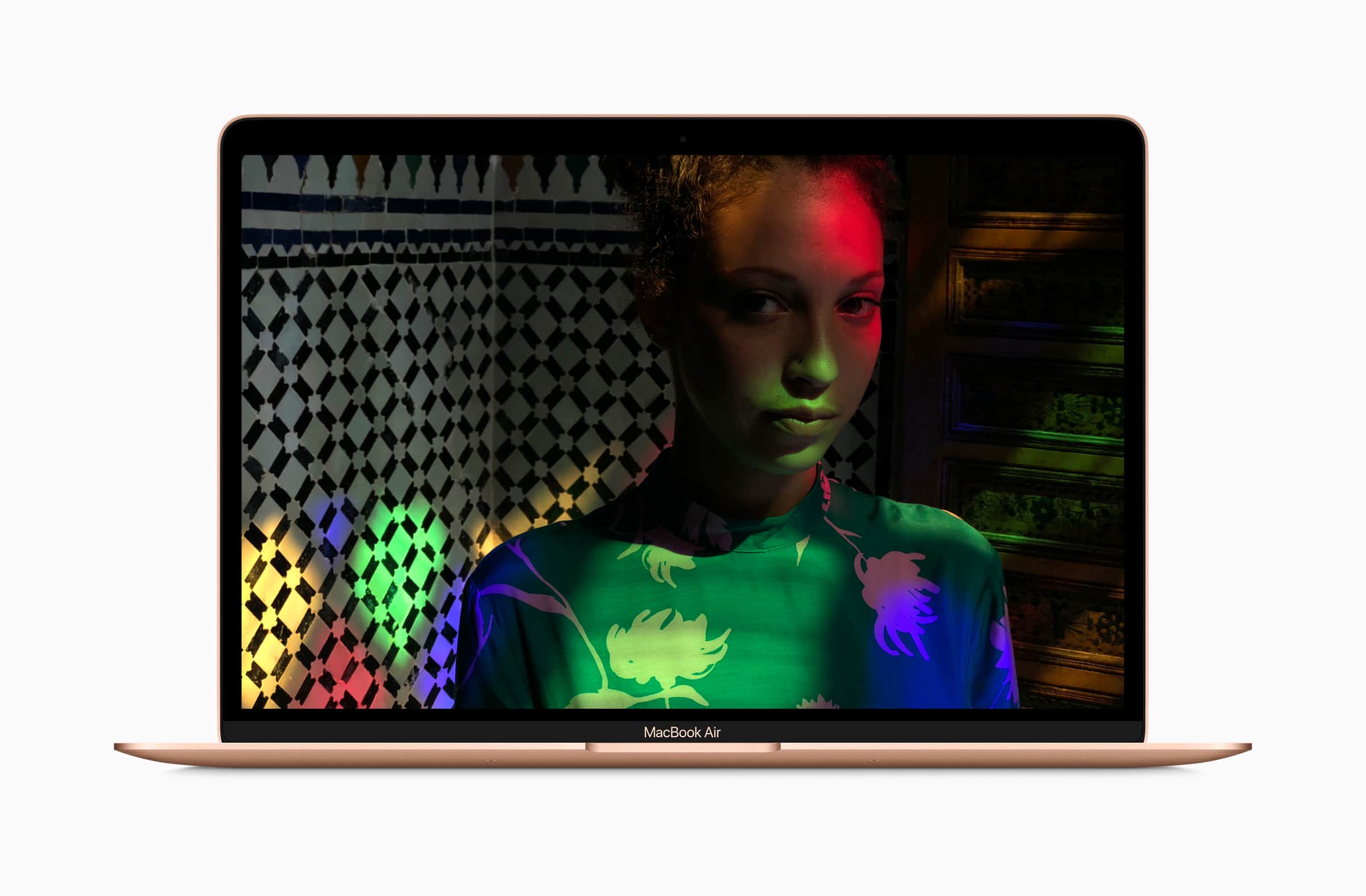
Photo: Apple
What’s a Retina display?
Retina displays offer twice the resolution of standard displays, making text and images look perfectly crisp. In order for a display to be a Retina display, the pixels must be small enough that you can’t see them at a normal distance — that equates to a 4K resolution on a 24-inch display or 5K on a 27-inch display.
Apple has been building Retina displays into all of its devices for years. Every iPhone, iPad, MacBook Pro, MacBook Air, iMac and Apple Watch made today comes with a Retina display.
While this buying guide lists the best Retina displays, it may as well be titled “only Retina displays.” Twelve years after the introduction of the Retina display on the iPhone, 10 years after Apple brought it to the MacBook Pro, and eight years after it made its way to the iMac, high-DPI displays remain hard to come by. You can count them on one hand, and Apple makes half of them.
Should I get a Retina display?
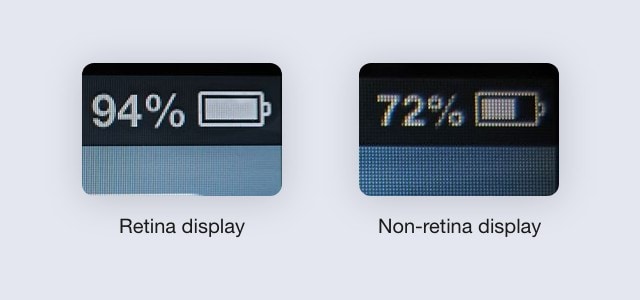
Image: uxplanet.org
If one of the Retina display options meets your price point or fits what you want, you should absolutely get a Retina display. Text is easier to read, images are sharper, videos look better.
Of course, there are some reasons you might not need a Retina display. If you require a very big display at or above 32 inches, your only Retina option is the very pricey Pro Display XDR. While Mac gaming isn’t a huge market, gamers typically do not opt for Retina displays because the frame rate is more important to them. Most desktop Retina displays, because of their very high resolution, cannot exceed 60 or 75 FPS.
If you don’t care about Retina resolution, there is a big wide world of options out there. You can get displays optimized for price, size, refresh rate and more.
How big are desktop displays?
While most laptops come in between 13 inches and 16 inches, desktop displays vary greatly in size. A small desktop display measures between 18 and 22 inches. A standard display is typically 24 or 27 inches. Big displays are typically 30 inches and above.
What is a good display brightness?
Display brightness is measured in nits, a unit of brightness. You might also see it written as cd/m², or candela per square meter.
Even the cheapest displays are around 200 or 250 nits. A good display typically comes in between 300 and 450 nits. The best displays hit 500 nits and above.
Nits are a hard unit to conceptualize, so the best way to understand what you need is to look up the brightness of the display you’re looking at and judge if you need something brighter than that or not. Here are the maximum brightness levels of some devices you might own:
- iPhone 15, 16, 17: 1,000 nits typical, 1,600 nits HDR
- MacBook Air (2019 – 2020): 400 nits
- MacBook Air (M2 – M4): 500 nits
- MacBook Pro (2021 – 2023): 500 nits typical, 1,000 nits HDR
- MacBook Pro (M3 – M5): 600 nits typical, 1,000 nits HDR
Should I get an ultrawide display?
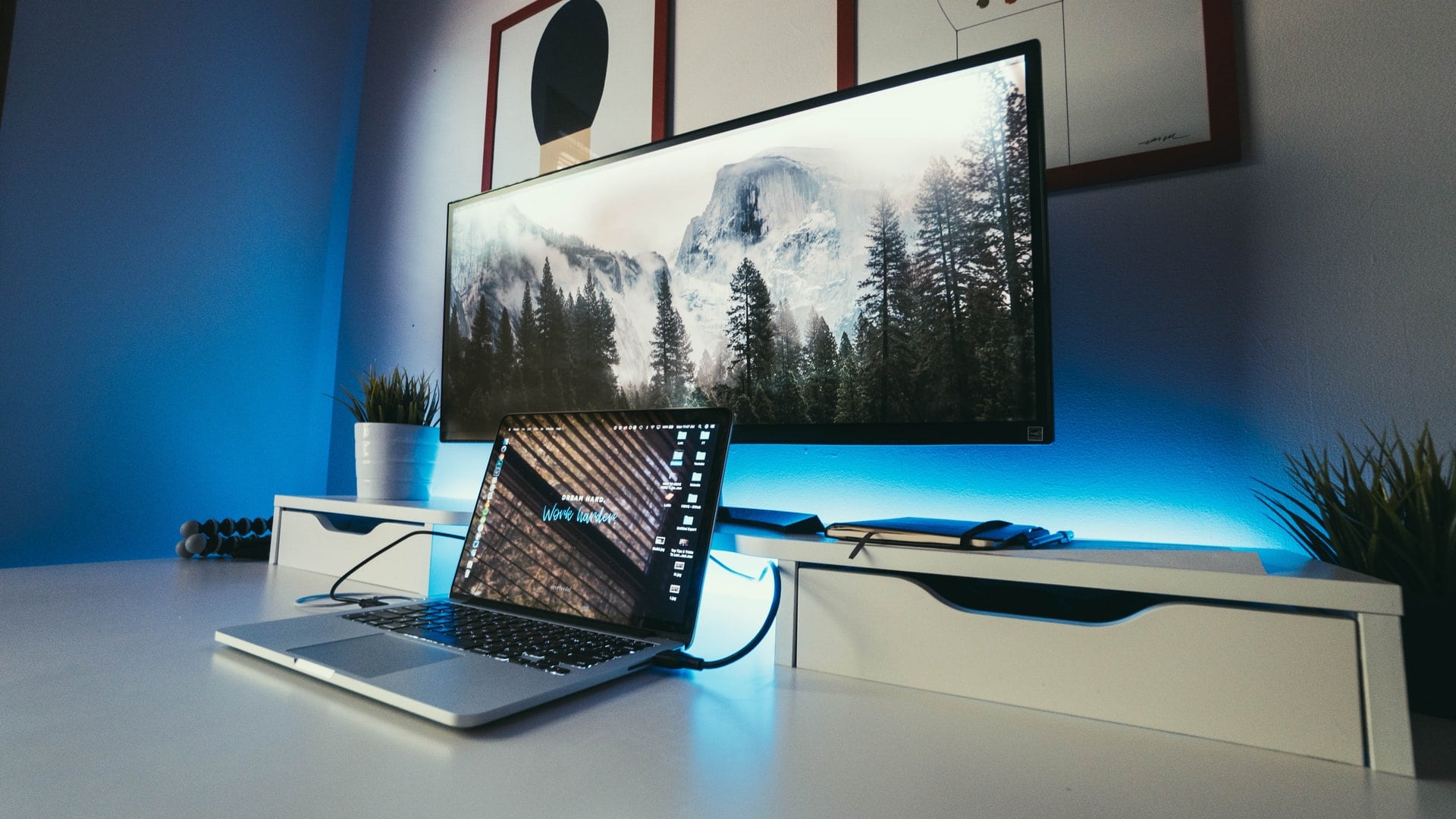
Photo: Nate Grant/Unsplash
Here is a quick rundown of common aspect ratios, or how wide the display is compared to how tall it is. “Widescreen” videos, TVs and PC monitors use a 16:9 aspect ratio; most Mac displays have a slightly taller 16:10 aspect ratio; old TVs and computers used an even squarer 4:3 (or 16:12) aspect ratio.
Ultra-wide displays usually come in either 21:9 or 32:9 aspect ratios. This means you can get the same amount of space as two separate displays uninterrupted, without a gap or a seam in the middle. Ultra-wide displays can offer a more immersive experience for watching movies, as cinematic film is often in a significantly wider 21:9 aspect ratio (roughly speaking).
Some ultra-wide displays are curved, so that no matter if you’re looking at the middle or the far edge, you’re always looking straight on at the display. This can be helpful, although curved displays are more expensive.
If you like a big workspace but you don’t like using two displays (and, like most people, the Pro Display XDR is outside your price range), you might consider an ultra-wide display like the LG 40-inch Curved UltraWide.
What is ProMotion? Should I get a high refresh rate display?
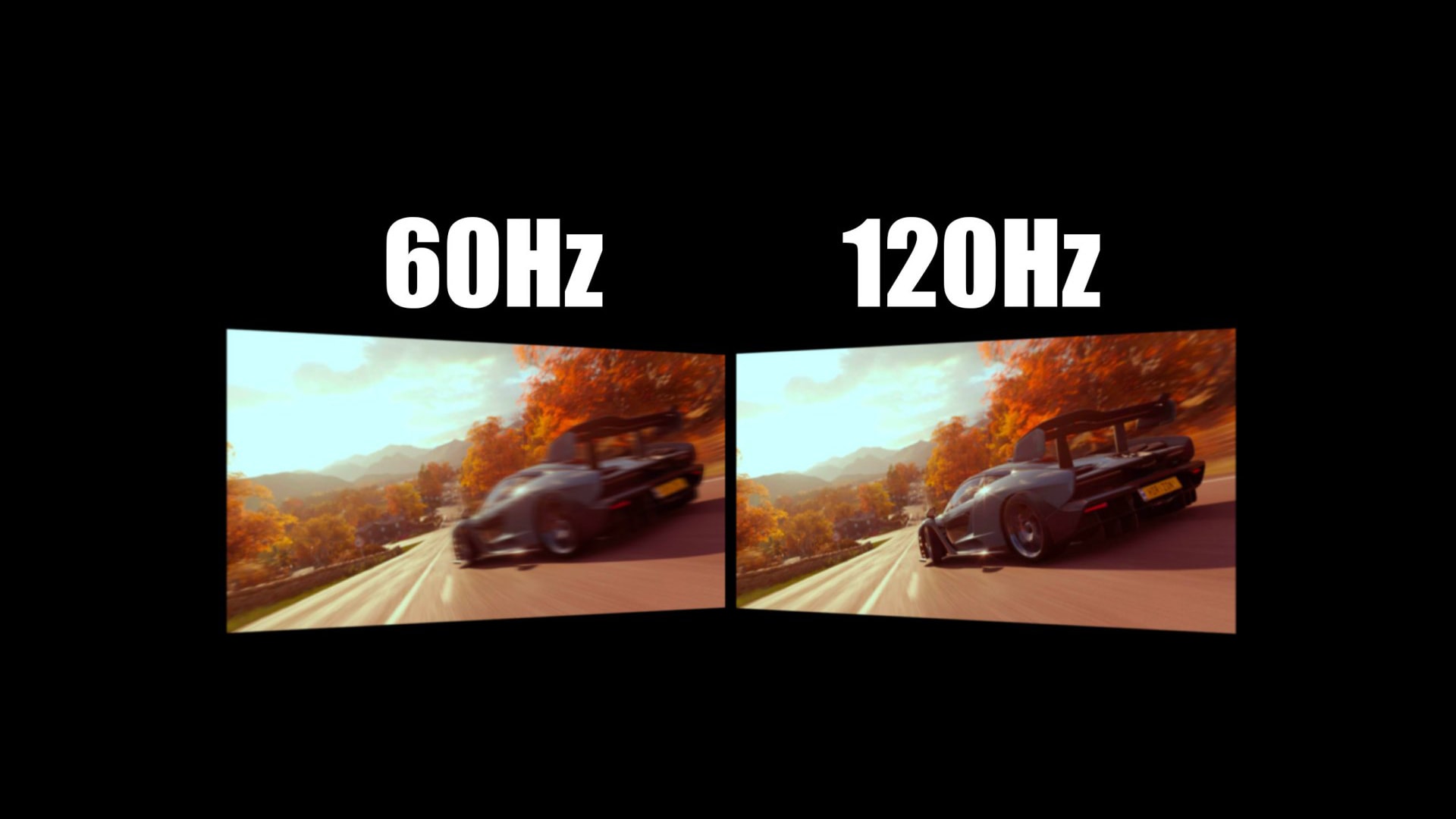
Photo: Pixeltv.it
Standard displays use a 60 Hz refresh rate. PC displays can come with 75 Hz, 90 Hz, 120 Hz, 144 Hz or even 240 Hz refresh rates. This means any movement on the screen — scrolling a page, dragging a window or playing a game — will appear smoother.
Of course, Apple handles high refresh rates in a more advanced way. PC monitors use a fixed refresh rate. Apple uses a technology called ProMotion, which updates the screen at 120 Hz when things on the screen are moving and slows down to 10 Hz when nothing is moving. If you’re watching a video, it’ll match the frame rate at 24, 30 or 50 Hz so it looks more natural.
Doubling or tripling the refresh rate of a display takes more graphics power and data bandwidth, which is why most PC monitors with high refresh rates only have a 1080p or 1440p resolution. High refresh rates at resolutions greater than that stretch the limits of most computers — and what an HDMI or Thunderbolt cable can even support. Apple prioritized resolution over frame rate, which is why only newer models support higher frame rates.
ProMotion is only currently available on the iPad Pro, iPhone 13 Pro (and later), iPhone 17 and MacBook Pro. If you want a high refresh rate with a desktop Mac, you will need to buy a third-party monitor.
What is an HDR display?
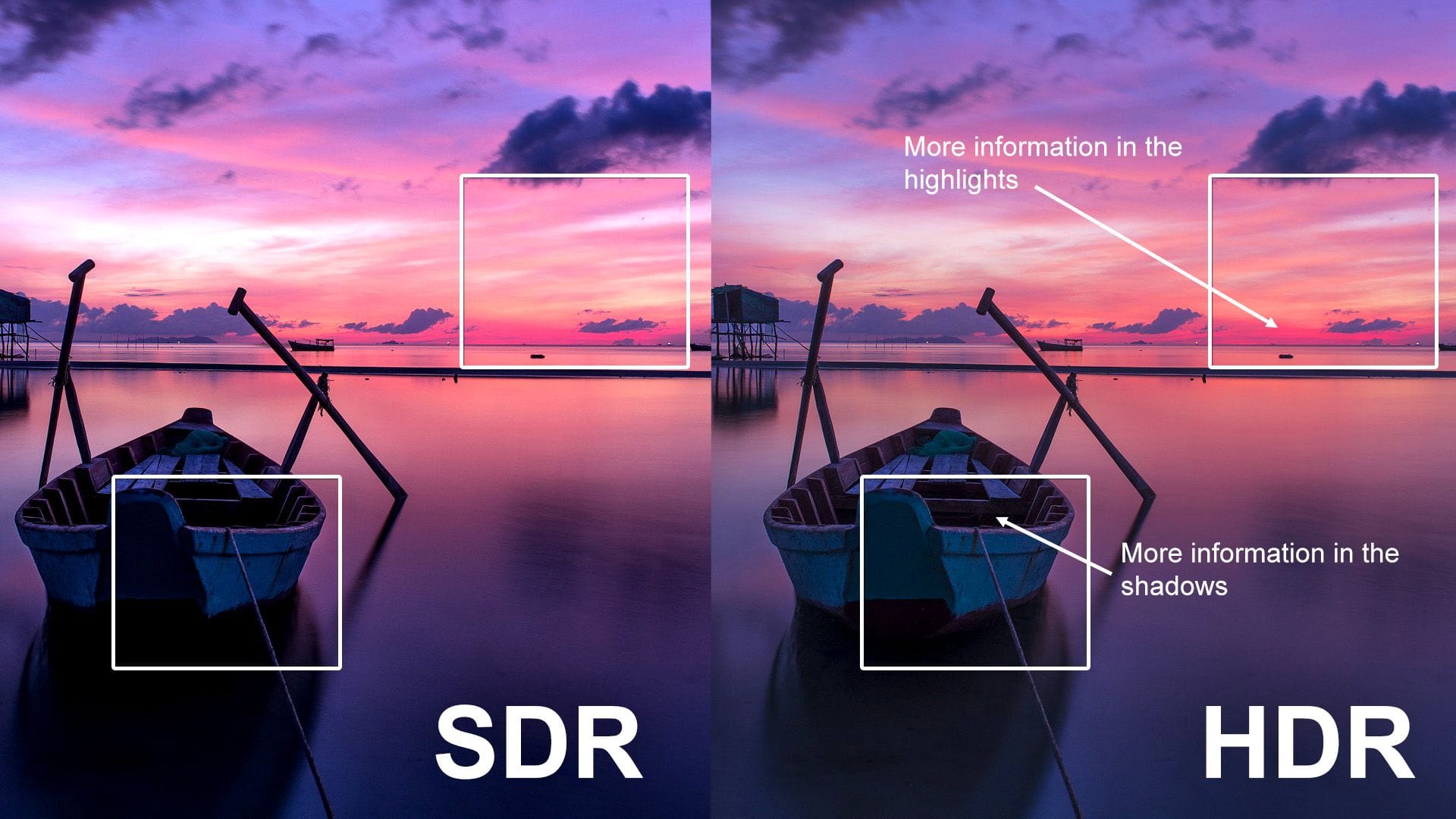
Photo: Samsung
An HDR display can show more colors at a higher brightness. All of Apple’s latest iPhones can shoot HDR videos and pictures. You can still see HDR videos and pictures on a standard display, but they won’t look as vibrant.
The minimum spec to be HDR compliant only requires 500 nits of brightness. Unless you’re in a pitch-black room, enabling it will only make your monitor look washed out. If a display claims to support HDR, you should first check what its peak brightness is. HDR that really pops has to be at least 800 nits.
Not a lot of displays offer truly bright HDR right now, so you’re not missing out if you can’t afford one. When it comes to the Mac, Apple only uses HDR displays on its high-end products: the MacBook Pro and Pro Display XDR.
You can test if the device you’re using right now has an HDR display by clicking this link — if you do, you’ll see the word “White” very brightly.
Further reading on Mac displays
If you would like to learn more about Mac displays, Marc Edwards has written an article that covers more details and qualities not discussed here:
- Retina displays can be set to a higher resolution than they support natively. For example, a 24-inch Retina display can be set to scale down a 27-inch image. You get more space, but this will slightly blur the pixels.
- Color space is much more nuanced than I let on. There are many different standards. sRGB and P3 add more colors to the standard RGB palette; HDR-10+ and Dolby Vision are competing standards for HDR content. Apple uses Dolby Vision in its cameras and displays; Samsung uses HDR-10+.
- Bit depth determines how many colors a computer and display are capable of processing.
- The quality of a mini-LED panel varies by how many dimming zones (or backlights) the display has. A display with a lot of dimming zones can precisely separate bright and dark areas of an image; a display with fewer dimming zones will glow when displaying an image with a lot of bright and dark together. A traditional LED panel has only one backlight. Micro-LED displays individually light every single pixel, but those remain incredibly expensive.
- True Tone and Night Shift are two features built into Apple’s displays that vary the color temperature (how orange or blue the image is) based on the environment and the time of day.
You can read Edwards’ article here.
We originally published this article on the best monitor for Mac on March 31, 2022. We updated it with additional information on July 7, 2023; August 26, 2023 and December 12, 2025.

D. Griffin Jones is a writer, podcaster and video producer for Cult of Mac. Griffin has been a passionate computer enthusiast since 2002, when he got his first PC — but since getting a Mac in 2008, he hasn’t turned back. His skills in graphic and web design, along with video and podcast editing, are self-taught over 20+ years. Griffin has a bachelor’s degree in computer science and has written several (unpublished) apps for Mac and iOS. His collection of old computers is made up of 40+ desktops, laptops, PDAs and devices, dating back to the early ’80s. He brings all of these creative and technical skills, along with a deep knowledge of Apple history, into his work for Cult of Mac.

